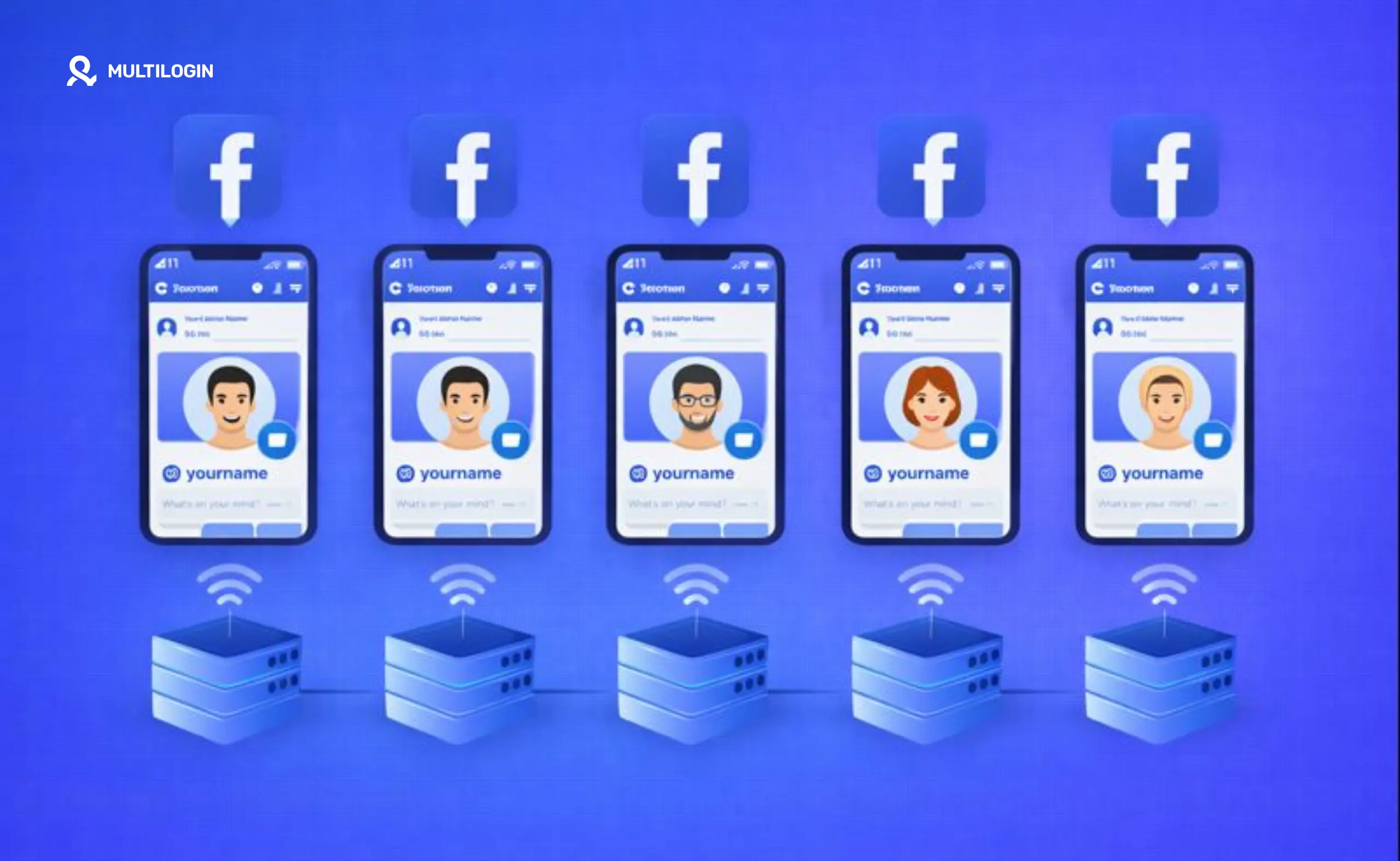



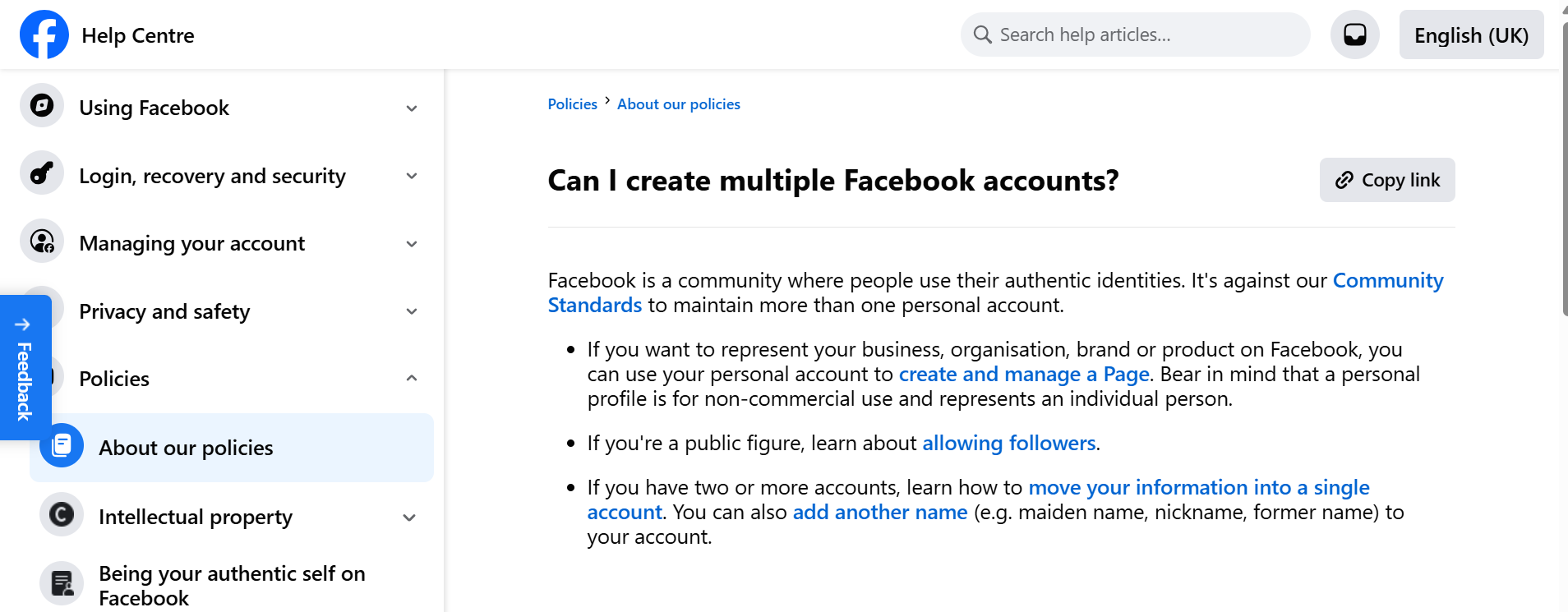
If you mean multiple personal Facebook accounts, the real answer is: Meta wants one personal account per person, and extra personal accounts can get restricted.
If you mean “I need to run multiple brands, clients, Pages, and ad accounts without everything turning into a messy login circus,” then yes — you can do that the Meta-approved way, and you can do it with a workflow that keeps sessions clean.
This guide covers:
- what Meta allows (personal accounts vs additional profiles vs Pages vs ad accounts),
- how to structure Facebook work for agencies and social media managers,
- and how Multilogin helps manage multiple social media accounts without mixing cookies, devices, or locations.
If you’re already managing more than one client, start by skimming Multilogin’s pricing so you know what setup you can build today.
Can I create multiple Facebook accounts?
Multiple personal accounts (usually a bad idea)
Facebook’s account rules are built around the idea that one person = one personal account. When you create extra personal accounts, Meta can treat that as policy risk, especially if the accounts share device signals, IP patterns, or get reported.
So if your plan is: “Let me create 5 personal accounts and switch between them”… you’re setting yourself up for reviews, checkpoints, and random restrictions later.
The platform uses browser fingerprinting to track consistency across sessions. When you log into multiple personal accounts from the same device environment, those fingerprints create patterns that Meta’s systems can flag as suspicious behavior.
For social media managers and agencies, this becomes a serious operational problem. You’re not trying to deceive anyone — you’re just trying to do your job. But the platform doesn’t know the difference between legitimate multi-client work and someone trying to game the system.
Additional profiles (the “Meta actually gave you an option” path)
Meta introduced additional profiles so you can run different presences under one account (for example: your main identity + a creator persona). Depending on availability and your region, Meta allows up to 4 additional profiles.
That means you get separation without pretending you’re five different humans.
Use additional profiles when: you need separate “faces” for content, communities, or creator work, not separate business ownership.
This feature rolled out specifically because Meta recognized that people operate in multiple contexts — professional, creative, community-focused — and forcing everyone into one identity didn’t match how modern digital work actually happens.
Additional profiles share some backend account infrastructure, but they present as distinct identities to other users. Think of them as “personas within one login,” which keeps you compliant while giving you flexibility.
Pages, Business Suite, and Business Portfolios (the real “multi-account” setup)
For actual work (brands, clients, agencies), Meta expects you to use:
- Facebook Pages (one person can create and manage Pages),
- Meta Business Suite (manage multiple Pages/assets in one place),
- Business Portfolios (group assets + permissions; each person can create up to 2).
This is what “multiple accounts on Facebook” looks like when you want stability.
Pages are designed as business entities. They’re not “fake accounts” — they’re the official Meta-sanctioned way to represent brands, organizations, and public figures. When you manage Pages through Business Suite, you’re working within Meta’s intended architecture.
Business Portfolios add another layer of organization. They let you group related assets (Pages, ad accounts, Instagram accounts) and control who has access to what. For agencies managing multiple clients, this structure becomes essential for keeping work separated and permissions clear.
The key insight: Meta built these tools specifically so you wouldn’t need multiple personal accounts. If you’re fighting against this structure, you’re making your work harder and riskier than it needs to be.
How can I create multiple Facebook accounts (without getting stuck later)?
Here’s the clean, scalable version:
- Keep one personal account as the owner identity (or use additional profiles if that fits your use case).
- Create a Page per brand/client.
- Manage everything through Meta Business Suite, where Pages and Instagram accounts are treated as business assets and you can manage more than one.
- Organize assets under a Business Portfolio (especially if you’re an agency).
- Give teammates access via roles/permissions instead of sharing logins.
That structure matters because Facebook doesn’t just look at what you log into — it looks at how your whole environment behaves over time.
Device consistency plays a huge role here. When you log into multiple client Pages from the same browser session, Facebook tracks patterns like canvas fingerprinting, WebGL rendering data, and other digital fingerprinting signals that create a unique “signature” for your setup.
For small operations (1-3 clients), you might not hit problems immediately. But as you scale, the risk compounds. One client’s issue can trigger reviews across all your connected assets.
Can I create multiple Facebook accounts with one phone number?
This is where people accidentally create chaos.
Facebook lets you add and manage contact info via Meta’s connected systems (like Accounts Center), and you may see options to add a phone number across connected experiences.
However, using one phone number across multiple logins can backfire during recovery, verification, and security checks (you don’t want your “client A” recovery tied to your “client B” world).
Practical rule: Use one email per account identity, and treat phone numbers as a security layer you don’t casually reuse unless you fully control the whole setup and recovery flow.
If your goal is “many accounts, one number,” that’s usually a sign you’re trying to build multiple personal accounts. If that’s the case, you’ll get better stability using Pages, Business Suite, and portfolios instead.
The recovery flow becomes particularly messy when verification prompts ask for the phone number “associated with this account” and you’ve used the same number across 5 different setups. Meta’s systems can see that pattern, and it often triggers additional security checks.
Can I create multiple Facebook Pages?
Yes. Facebook is very clear here: anyone with a Facebook account can create a Page or help manage one (with access).
That’s why agencies don’t need a bunch of personal accounts to run a bunch of brands. You need:
- one personal identity (owner/admin),
- many Pages,
- clean permissions.
Pages are unlimited in practice (though Meta may apply rate limits if you’re creating dozens rapidly). The limit isn’t “how many Pages can exist” — it’s “how cleanly can you organize and manage them.”
For agencies running 10, 20, or 50 client Pages, the organizational challenge becomes the real bottleneck. That’s where multi-account management tools become essential — not to bypass Meta’s rules, but to stay organized and avoid the “which client am I logged into?” chaos.
Can I create multiple pages on Facebook and manage them in one place?
Yes. Meta Business Suite treats Pages and Instagram accounts as business assets, and you can manage more than one asset.
If you’re starting fresh, you can even create a Page directly inside Business Suite.
The interface consolidates scheduling, insights, messages, and publishing across all your Pages. You don’t need to log out and back in to switch between clients. That’s the intended workflow.
For teams, Business Suite also supports role-based access, so your content creator doesn’t accidentally touch billing settings, and your account manager doesn’t post as the wrong brand.
This is where the line between “Facebook accounts” and “Facebook work environments” gets clearer. You’re not creating accounts — you’re creating organized workspaces within one account structure.
Can I create multiple Facebook business pages?
People usually mean “Pages for businesses,” and yes — Pages exist for businesses, brands, and organizations.
The best practice is not “more personal accounts.” It’s:
- one personal account (or admin identity),
- multiple business Pages,
- portfolio-based organization and role-based access.
This keeps your setup readable when it grows from 2 brands to 20.
The term “business page” is slightly informal (Meta just calls them “Pages”), but the concept is correct: these are meant for commercial, organizational, and public-figure use cases, not personal profiles.
Can I create multiple ad accounts on Facebook?
Yes, but Meta applies limits, especially early on.
The part people miss: you often start with a creation limit of one.
Meta states that businesses often begin with an ad account creation limit of one until they make a confirmed payment.
So if you’re trying to spin up 6 ad accounts on day one, you may hit a wall even if you’re doing everything “right.”
This is one of the most frustrating pain points for new advertisers and agencies. You’ve set up your Business Portfolio correctly, you’ve created Pages, you’re ready to run ads for multiple clients — and you hit an arbitrary-looking limit.
The limit exists for fraud prevention. Meta wants to see that you’re a legitimate business before giving you access to create multiple ad accounts. Once you run ads and establish payment history, those limits usually lift.
How ad accounts typically scale (the legit way)
- Create and organize assets in a Business Portfolio. (You can personally create up to 2 portfolios.)
- Add or create ad accounts inside that portfolio.
- After you have billing history (confirmed payments), Meta may increase what you can create.
Also, Meta documents other practical limits (like how many people can be assigned to an ad account).
For agencies, the workflow usually looks like: start with one ad account, run a test campaign, establish payment, then request or create additional accounts as needed.
If you’re hitting ad account creation limits and need to scale faster, contacting Meta Business Support directly often helps. They can review your account and adjust limits if you explain your legitimate use case.
Why Facebook flags multi-account setups (even when your content is fine)
Facebook doesn’t rely on “IP only.” It uses a mix of signals across:
- cookies and session storage,
- device and browser fingerprints,
- network and location consistency,
- login behavior patterns.
That’s why “I just used a VPN” often ends with a checkpoint. VPNs change one layer, while the rest of your environment still looks identical (or suddenly weird).
For agencies, the most common accident is this: You log into 10 different client assets from the same browser profile on the same machine, and Facebook sees one environment “touching” everything.
Even if you’re doing nothing wrong — you’re just working — the platform sees patterns that look suspicious. Multiple client logins from one device fingerprint, especially if those clients are in different regions or industries, triggers automated reviews.
This is where understanding how browser fingerprinting works becomes critical. Facebook collects data on:
- Your screen resolution and color depth
- Your installed fonts
- Your timezone and language settings
- Your WebGL and canvas rendering signatures
- Your audio context fingerprint
- Your browser plugins and extensions
When all those signals stay identical across “different people’s accounts,” it’s a red flag.
How Multilogin helps with multiple Facebook accounts (the practical version)
Multilogin is built for exactly this: separating environments so platforms see distinct sessions, not one browser pretending to be everyone. Multilogin’s mobile and browser profiles keep cookies/storage isolated per profile, with separate device identities.
Here’s what that changes for Facebook work: