





Apple’s official support documents make it sound like you can’t have multiple iCloud accounts. They’re wrong—you absolutely can. But there’s a catch that nobody explains clearly, and it’s costing people hours of frustration. The real issue isn’t whether you can have multiple accounts, but how you can use them on a single device.
This guide cuts through the confusion. We’ll explain the primary vs. secondary account model that Apple doesn’t make clear, show you how to set up multiple accounts on your iPhone or iPad, and reveal the hidden 3-account device limit that most people don’t know about. We’ll also cover the common mistakes that lead to data merging nightmares and how to manage multiple accounts like a pro.
Ready to finally understand how multiple iCloud accounts work? See our pricing plans for professional multi-account management.
Why people need multiple iCloud accounts in the first place
The need for multiple iCloud accounts usually comes down to one thing: separation. You want to keep your work life separate from your personal life. You want to keep your kids’ app purchases off your credit card. You want to use a different email address for online shopping to avoid spam. These are all valid reasons, but Apple’s one-account-to-rule-them-all approach makes it harder than it should be.
Here’s a scenario that comes up constantly: You’re a freelancer. You use your personal Apple ID for everything—your photos, your music, your contacts. But now you need to use iMessage and FaceTime for client communication. You don’t want your clients seeing your personal email address or having access to your personal data. This is where having a second, work-specific iCloud account becomes essential.
If you’ve dealt with similar challenges on other platforms—like running multiple Gmail accounts or managing multiple social media profiles—you know that platform restrictions around multiple accounts are increasingly common. Apple is no exception.
How Apple’s account system actually works (the part they don’t explain)
To understand how to use multiple iCloud accounts, you first need to understand Apple’s account model. It’s not as simple as just signing in and out of different accounts.
Primary vs. secondary accounts
On any Apple device, you have one primary iCloud account. This is the main account tied to core services like iCloud Photos, iCloud Drive, and device backups. You can only have one primary account signed in at a time.
However—and this is the part Apple buries in their documentation—you can add multiple secondary iCloud accounts for other services like Mail, Contacts, Calendars, and even the App Store.
This is the key to using multiple iCloud accounts on a single device. Your primary account handles the heavy lifting, while your secondary accounts handle specific tasks. For example, you could use your personal Apple ID as your primary account and a work-specific Apple ID as a secondary account for Mail and Contacts only.
The 3-account device limit (nobody mentions this)
Here’s something you won’t find in most guides: you can only create a maximum of three new iCloud accounts from a single Apple device [1]. This is a lifetime limit for the device, not a yearly one. If you try to create a fourth account from the same iPhone, you’ll get an error message.
This is a critical limitation to be aware of if you plan on creating multiple accounts for different purposes. The workaround? Create accounts from different devices, or create them via Apple’s website on a computer.
How Apple links your accounts behind the scenes
Even with separate accounts, Apple can still connect them. They use a variety of methods to do this, including your IP address, device fingerprint (a unique profile of your device based on hardware and software characteristics), and other data points.
This means that if one of your accounts gets flagged for a policy violation, your other accounts could be at risk. It’s the same linking problem that affects people who manage multiple Amazon accounts or run multiple seller profiles on other platforms.
This is why true data isolation matters. If you need your accounts to remain completely unlinked, you need each one operating in its own separate, isolated environment.
How to set up multiple iCloud accounts on iPhone
Yes, you can use multiple iCloud accounts on iPhone. Here are three different methods, each with different use cases.
Method 1: Separate accounts for media and purchases (most common)
This is the most common and recommended method. You use your primary Apple ID for iCloud services and a secondary Apple ID for App Store and iTunes purchases.
Step 1: Go to Settings > [Your Name] and make sure your primary Apple ID is signed in. This will be your main iCloud account.
Step 2: Go to Settings > [Your Name] > Media & Purchases. Sign out of your primary account here, then sign in with your secondary Apple ID.
Now your iCloud data stays with your primary account, but all app purchases, subscriptions, and iTunes content go through your secondary account. This is useful for separating work app purchases from personal ones, or for using a different payment method.
Method 2: Separate accounts for Messages and FaceTime
If you want to use a different email address for iMessage and FaceTime (common for freelancers and consultants who want a professional contact method), you can set a secondary Apple ID for these services specifically.
Step 1: Go to Settings > Messages > Send & Receive.
Step 2: Tap on your Apple ID and sign out, then sign in with your secondary Apple ID.
Repeat the same process in Settings > FaceTime if you want that service on the secondary account too.
Method 3: Complete account swap (least recommended)
This method involves completely signing out of your primary iCloud account and signing in with a different one. I’m including it for completeness, but I don’t recommend it for regular use.
Why? Because it can lead to data syncing issues, and you’ll constantly be asked to re-enter passwords. It’s a hassle, and there are better ways to achieve account separation.
How to set up multiple iCloud accounts on iPad
The process for using multiple iCloud accounts on iPad is essentially identical to iPhone. You have one primary account and can add secondary accounts for specific services.
The main difference is that iPad’s larger screen makes it easier to use multiple accounts for productivity—for example, having your personal iCloud email and a work iCloud email both accessible in the Mail app simultaneously. You can add the secondary account through Settings > Mail > Accounts > Add Account.
Can I have 2 iCloud accounts with the same phone number?
No, you cannot. Each iCloud account must have a unique email address and phone number associated with it. This is Apple’s security and verification requirement.
If you’re trying to create multiple accounts, you’ll need a separate phone number for each—or you can use email-only verification for secondary accounts in some cases.
When you need more than workarounds: professional multi-account management
Apple’s built-in methods work fine for casual use—maybe separating work from personal, or keeping your kids’ purchases separate. But they have real limitations:
- You’re still using the same physical device, which Apple can link
- The 3-account creation limit restricts how many new accounts you can make
- Switching between accounts is manual and error-prone
- There’s no true isolation between account environments
For people who need to manage multiple Apple IDs professionally—whether for business accounts, client work, or testing—you need actual environment separation.
The antidetect browser approach
Multilogin is an antidetect browser that lets you create completely separate browser profiles from a single computer. Each profile has its own unique browser fingerprint, cookies, and storage. To platforms like Apple’s web services, each profile appears to be a distinct, genuine device.
This means you can create and manage Apple IDs through iCloud.com without them being linked by device fingerprint or IP address. Each account lives in its own isolated environment.
For mobile-first Apple ID management: cloud phones
Here’s where things get interesting for anyone who needs to manage Apple IDs that interact with iOS apps—not just web services.
Traditional browser-based solutions work great for anything you can do on iCloud.com. But what about when you need to test app purchases, manage device-specific features, or work with iOS apps directly?
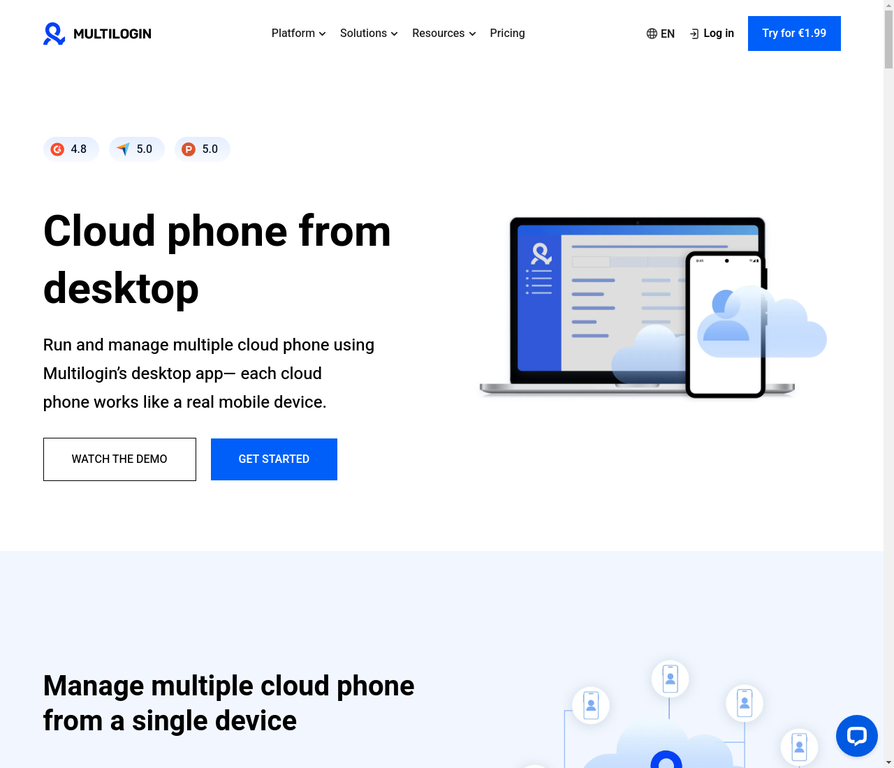
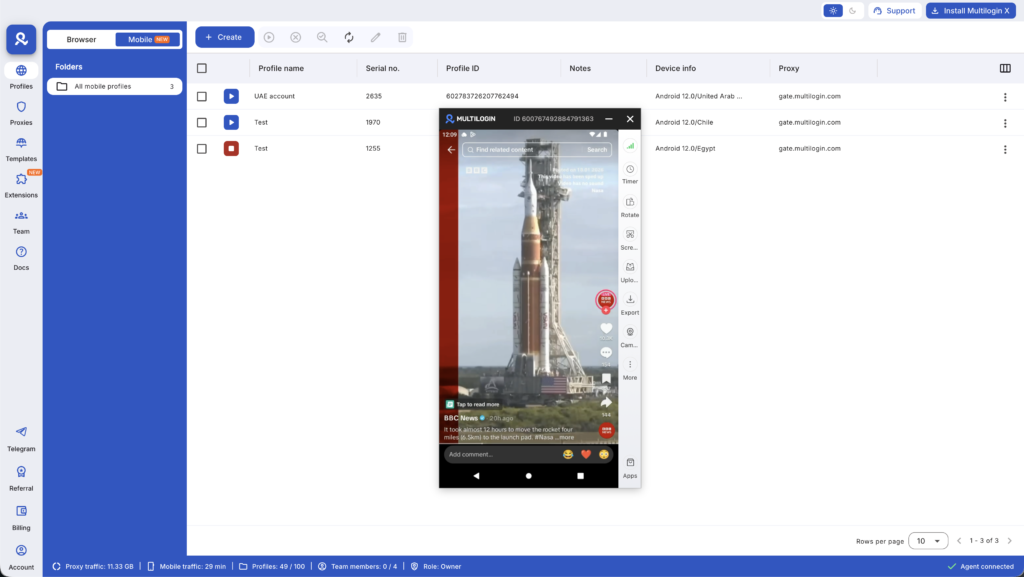
This is where cloud phones become essential. These are real Android devices hosted in the cloud—not emulators or simulators, but genuine hardware with authentic device identifiers like IMEI, Android ID, and MAC addresses.
Now, I know what you’re thinking: “Android devices for Apple ID management?” Here’s the thing—cloud phones solve the fundamental problem of device identity for any mobile-first operation. While you can’t run iOS on them, you can:
- Manage Apple services that have Android apps (Apple Music, Apple TV+, iCloud web)
- Test cross-platform apps that sync with iCloud
- Handle Apple-adjacent services (payment systems, authentication apps) that need genuine mobile environments
- Run multiple isolated mobile environments from one desktop dashboard
Each cloud phone comes with genuine hardware identifiers—not spoofed or emulated values. Combined with built-in mobile-grade proxies that match your location, this creates the kind of genuine device separation that platforms can’t link together.
The practical benefit: you manage everything from one desktop interface while each session appears to be running on a completely separate mobile device with its own unique identity.
Explore how Multilogin handles multi-account management and find the right plan for your needs.
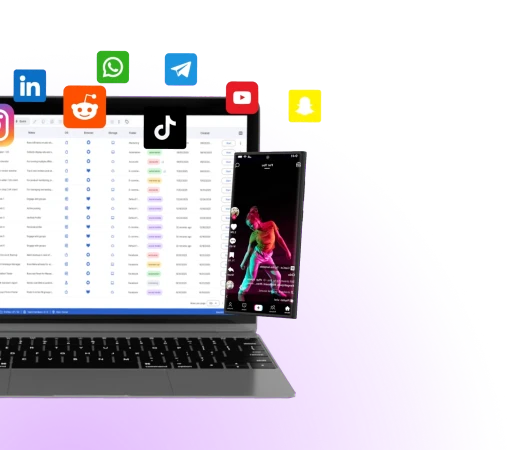
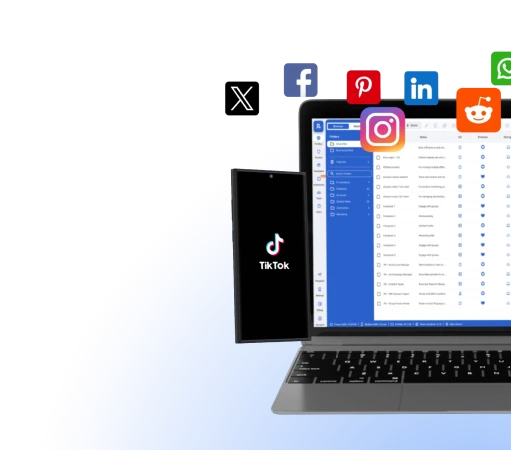
Manage multiple accounts with Android cloud phones
Build account trust, reach new locations, and grow faster from one dashboard
Frequently Asked Questions About Can I Create Multiple iCloud Accounts?
Yes, you can create a new iCloud account at any time. Having an existing account doesn’t prevent you from creating additional ones. Just remember the 3-account per device limit if you’re creating accounts directly from an iPhone or iPad.
There’s no overall limit to how many iCloud accounts you can create. However, you can only create a maximum of three new accounts from a single Apple device. Creating accounts through iCloud.com on a computer bypasses this device-specific limit.
Yes, one person can have multiple Apple IDs. Apple allows this and even provides the primary/secondary account model to support using multiple accounts on a single device.
You can create an Apple ID with an email address, but Apple will eventually require phone verification for security purposes. Some account features may be limited until phone verification is complete.
Yes, you can create a second @icloud.com email address by creating a new Apple ID. Each Apple ID can have one @icloud.com address associated with it.
You can add multiple email addresses to your Apple ID for iMessage and FaceTime reach-ability, but you can only have one primary email address for account login and recovery purposes.
It depends on your needs. Separate Apple IDs make sense if you want true separation between work and personal life, need different payment methods for app purchases, or want to keep family sharing arrangements separate from individual accounts. For casual use, one account is usually simpler.
The bottom line: multiple accounts are possible, but do it right
Creating and managing multiple iCloud accounts is definitely possible, but Apple doesn’t make it straightforward. Understanding the primary vs. secondary account model, being aware of the 3-account device limit, and knowing when you need true environment isolation will save you hours of frustration.
For casual separation—keeping work email separate from personal, or using a different Apple ID for app purchases—Apple’s built-in methods work fine. But if you need to manage multiple Apple IDs professionally, or if account linking is a genuine concern for your use case, you need tools designed for multi-account management.
Ready to take control of your digital identities? View pricing and plan options and start managing your accounts without the confusion.


