Creating more than one LinkedIn profile often turns into a problem faster than people expect. Most users search for how to create a second LinkedIn account after a profile gets reviewed, restricted, or linked to an existing one. LinkedIn doesn’t just check emails. It tracks how accounts behave and where they come from, which is why trying to manage multiple LinkedIn accounts from the same setup often backfires. When two profiles share the same browser or device data, they start to look connected, and that’s when access issues begin.
- LinkedIn links accounts through browser and device signals
- Reusing the same setup often leads to repeat restrictions
- Once accounts are connected, problems tend to spread
The fix isn’t another signup attempt. It’s separation. If an account gets flagged, you stop and change the environment instead of repeating the same mistake. With Multilogin, each LinkedIn account runs in its own isolated browser profile, keeping data and sessions separate. That separation is what helps the second account stay independent instead of inheriting the same issues as the first.
Why LinkedIn accounts get restricted or banned
Most LinkedIn restrictions don’t come from one clear mistake. They build up when the platform starts seeing repeated patterns that don’t line up with normal user behavior. When accounts look connected behind the scenes, LinkedIn responds by limiting access, requesting reviews, or quietly reducing reach long before a full ban happens.
LinkedIn tracks environments, not just accounts
LinkedIn doesn’t restrict accounts based on a single login or action. Problems begin when several profiles appear to come from the same digital environment. When the same browser is reused, LinkedIn keeps seeing identical fingerprint signals such as system details, screen size, and device behavior. Cookies and local storage add another layer, because session data from earlier logins often remains even after signing out. When a new profile loads inside that same setup, LinkedIn can quickly associate it with past activity, which is when reviews, verification checks, or quiet limits start to appear.
- Browser fingerprints stay consistent across different accounts
- Cookies and local storage carry over session history
- Repeated login patterns link profiles over time
Why does the second LinkedIn account fail after the first one is flagged
Once LinkedIn flags an account, the environment it came from loses trust. Creating another profile from that same setup doesn’t create a clean start, even if you change the email or phone number. This is why many users search for how to create a second LinkedIn account after seeing restrictions repeat. LinkedIn assumes the behavior is continuing, not starting over, so reviews and limits often spread from one account to the next. If you get banned and retry without changing the environment, the second account usually fails for the same reason.
- Flagged setups carry trust issues forward
- New login details don’t reset environment signals
- Restrictions tend to repeat across linked accounts
Regional signals that trigger LinkedIn reviews
Regional signals are one of the easiest ways for LinkedIn to spot accounts that don’t fully line up. Many restrictions start here, especially when accounts look fine on the surface but their location data tells a different story. These signals don’t cause instant bans, but they often trigger reviews that slowly limit reach, delay actions, or lock profiles until verification is completed.
Country, IP, and location consistency
LinkedIn expects consistency between where an account claims to be and where it actually appears to log in from. When that relationship breaks, trust drops fast. Sudden country changes, even if they seem harmless, stand out when they don’t match past behavior. Logging in from one country while the profile location shows another creates a mismatch that LinkedIn flags internally. When the same regional patterns repeat across multiple accounts, the platform starts grouping them instead of treating them as independent users.
- Sudden country changes without a clear usage pattern
- IP locations that don’t match the profile’s stated region
- Repeated regional signals shared across multiple accounts
If your account gets restricted after a location change, stop using it from the same setup. Continuing to log in from conflicting regions usually makes the review stricter, not faster.
Why “it worked before” stops working
Many users rely on setups that worked months or years ago and assume the same approach is still safe. LinkedIn doesn’t stay static. Its review systems tighten as abuse patterns change, and signals that once passed quietly now trigger checks. Past success doesn’t protect current accounts, especially when behavior stays the same while detection rules evolve.
- LinkedIn updates its review systems regularly
- Old setups get re-evaluated under new rules
If something suddenly stops working, it’s not bad luck. It’s a sign the platform has raised its standards. When that happens, repeating the same behavior usually leads to faster restrictions, not stability.
Why traditional fixes lead to repeat LinkedIn account restrictions
When LinkedIn restricts an account, the first reaction is usually to change something small and try again. A new email, a private window, or a quick browser reset feels like a fresh start. In reality, these fixes only change what you see on the surface. The signals LinkedIn cares about stay exactly the same, which is why restrictions often come back faster the second time.
Why using a new email doesn’t reset LinkedIn account signals
A new email address only changes the login credential, not the environment behind it. LinkedIn still sees the same browser behavior, the same device signals, and the same session patterns. When an account is reviewed or restricted, that background setup carries the history forward. If you get banned and sign up again with a new email from the same environment, LinkedIn reads it as a continuation, not a new user. That’s why the second account often hits verification or limits almost immediately.
Why Incognito mode, VPNs, and new browsers don’t fool LinkedIn
Private windows and VPNs give a false sense of separation. Incognito mode hides history from you, not from LinkedIn. Browser fingerprints remain stable, and device signals don’t disappear just because a window is private. VPNs change the IP, but they don’t change how the browser behaves or how the device identifies itself. Installing a different browser helps only briefly, because many system-level signals stay consistent across browsers, especially when usage patterns repeat.
Why does reinstalling the browser not fix LinkedIn account restrictions
Reinstalling a browser feels drastic, but it rarely solves the real issue. While some local data is removed, the device itself stays the same. Screen resolution, system fonts, time zone behavior, and interaction patterns don’t reset. When you recreate the same setup and log back into LinkedIn, the platform reconnects the dots quickly. If you keep retrying from that environment after a restriction, the trust level drops further each time.
The only reliable way to create a second LinkedIn account
When LinkedIn accounts keep getting reviewed or restricted, the pattern is almost always the same: the setup never truly changes. New emails, new browsers, or small tweaks don’t fix the underlying issue. What works is rebuilding the environment from the ground up and keeping each account isolated from the start. This is where Multilogin antidetect browser isn’t just helpful — it becomes the foundation that makes a second LinkedIn account possible without repeating the same mistakes.
Full environment separation with Multilogin
Multilogin creates a clear boundary between accounts by isolating every profile at the browser level. Each LinkedIn account runs inside its own environment, with no shared data leaking between sessions. That separation is what stops LinkedIn from connecting profiles behind the scenes and treating them as one user.
- Independent browser profiles for each LinkedIn account
- Separate storage, cookies, and session data
- No data crossover between accounts
When one account runs into trouble, the others stay unaffected because they don’t share history or signals.
Advanced fingerprint control (55+ parameters)
LinkedIn clusters accounts by comparing how devices behave, not just how they log in. Multilogin addresses this directly by giving every profile its own fingerprint. Each environment behaves like a different device, with its own technical and behavioral signals.
- Each profile appears as a separate device
- Prevents LinkedIn from clustering accounts together
This is what breaks the link between accounts that would otherwise look identical.
Built-In residential proxies
Location signals play a big role in LinkedIn reviews. Multilogin includes residential proxies inside the platform, so location consistency is handled without extra tools or guesswork. Each profile connects through its own IP that matches the intended region, which reduces conflicts between login behavior and profile location.
- Consistent location signals for each account
- No third-party proxy setup or switching tools
- Fewer regional mismatches that trigger reviews
Everything runs from one place, which lowers the chance of configuration errors.
Cookie robots for safer first logins
Brand-new browser profiles often look suspicious because they have no history at all. Cookie Robots help avoid that empty starting state by launching profiles with realistic browsing data already in place. This reduces early attention during the first LinkedIn sessions, when accounts are most sensitive.
- Avoids empty, brand-new browser environments
- Reduces early friction during account setup
It doesn’t replace good behavior, but it removes one of the most common early red flags.
Multilogin X desktop app for stable daily use
Once the account is set up, stability matters just as much as separation. The Multilogin X desktop app keeps daily LinkedIn sessions predictable by running the launcher in the background. Profiles start faster, connections stay steady, and repeated logins don’t require extra steps.
- Built-in launcher runs automatically
- Faster, predictable profile starts
- Better suited for repeated LinkedIn sessions
When LinkedIn access is part of your daily workflow, that stability is what keeps small issues from turning into bigger ones.
Learn more about what the best LinkedIn proxy is for your business use cases!
Step-by-Step — How to Create a second LinkedIn account With Multilogin
Creating a second LinkedIn account follows the same logic you’ll use if you plan to manage more than two profiles. The goal isn’t to stop at one extra account, but to build a setup where each LinkedIn profile stays independent over time. When the environment is isolated correctly, adding more accounts doesn’t increase risk — repeating the same setup does.
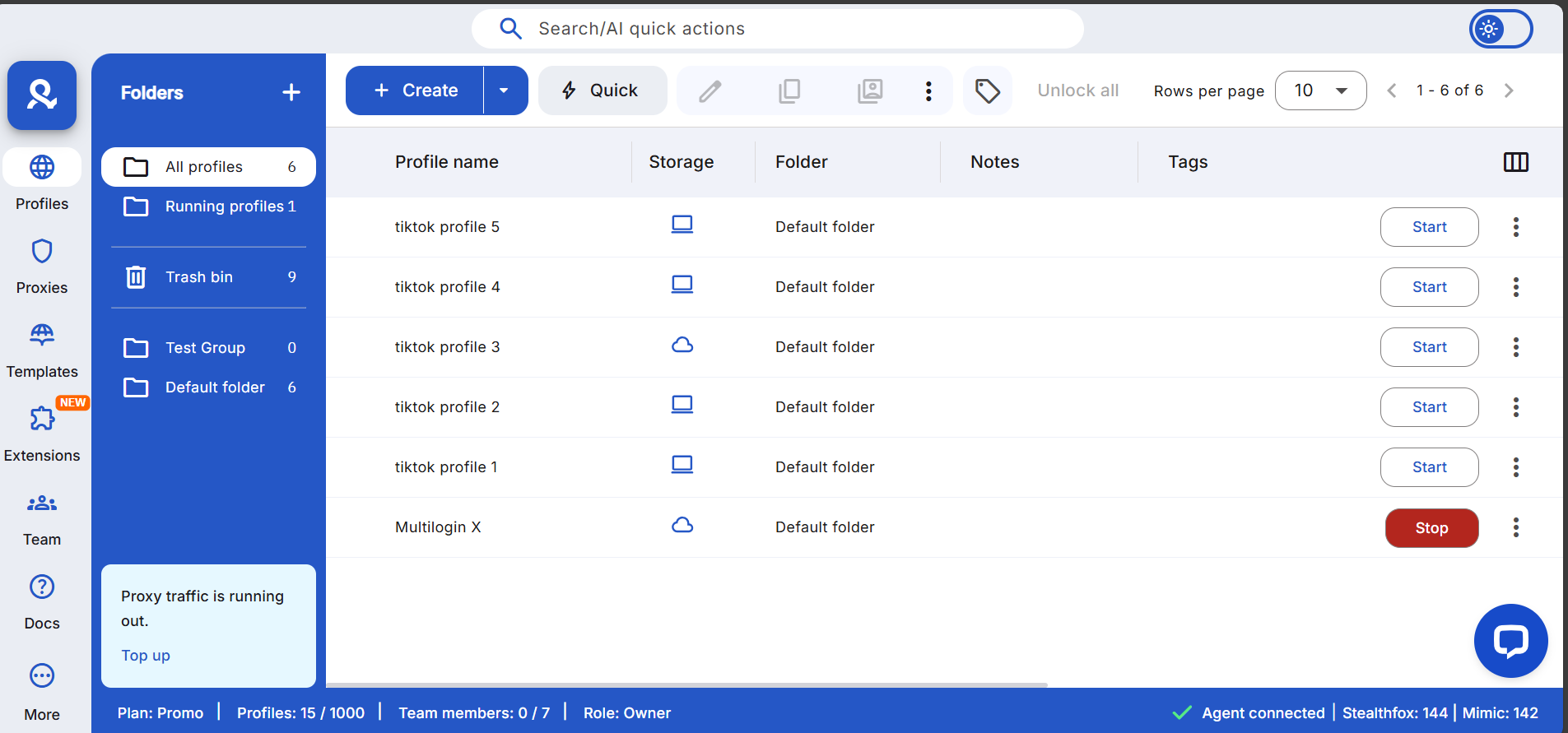
1. Create a new isolated browser profile
Start by creating a fresh browser profile in Multilogin. Each profile represents a separate device, with its own storage and fingerprint. One LinkedIn account should always run inside one profile, and never be reused for another.
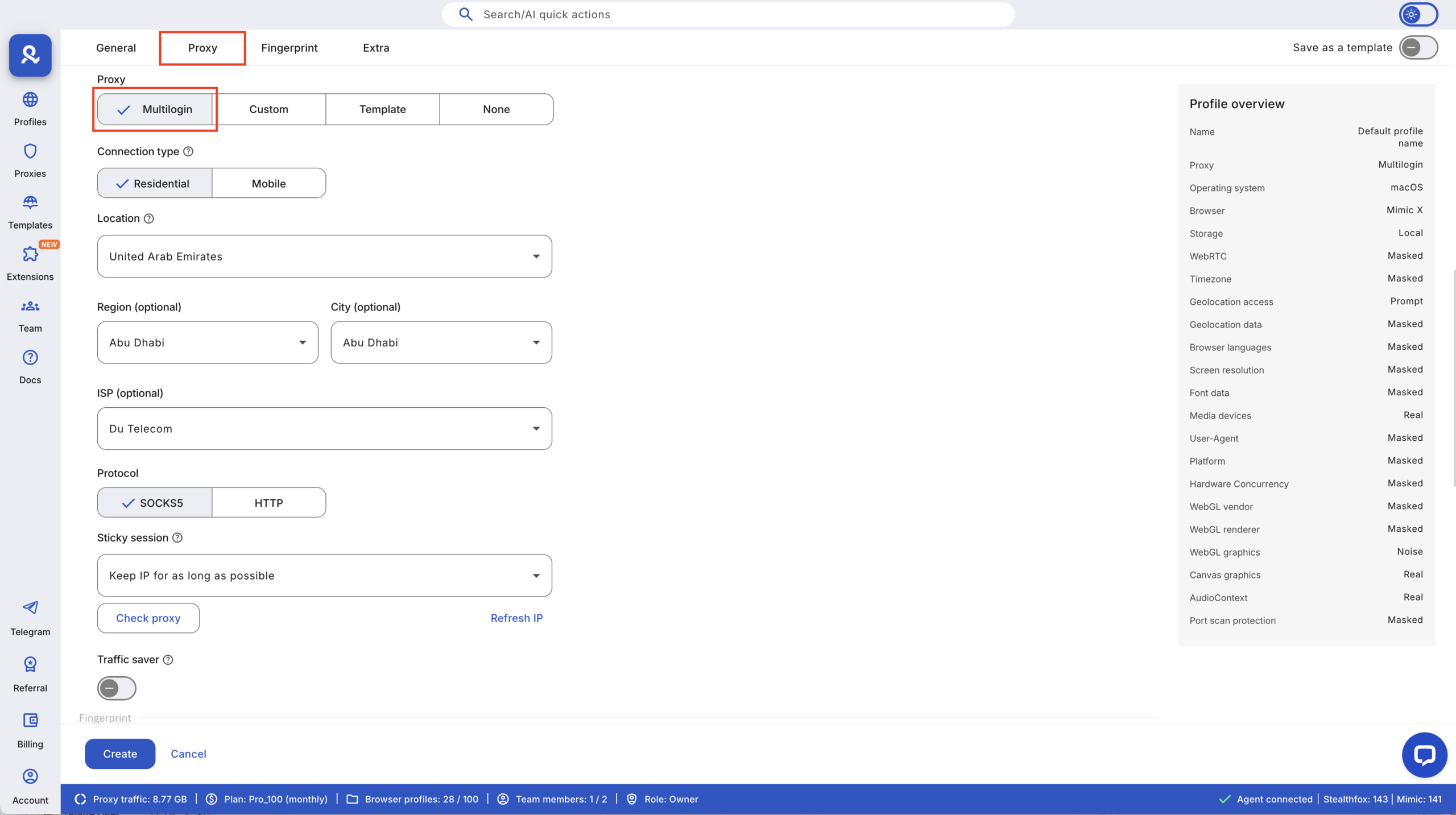
2. Assign a consistent residential proxy
Choose a residential proxy that matches the location you want the LinkedIn account to appear from. Keep this proxy consistent for that profile. Switching locations or sharing proxies across profiles is one of the fastest ways to trigger reviews.
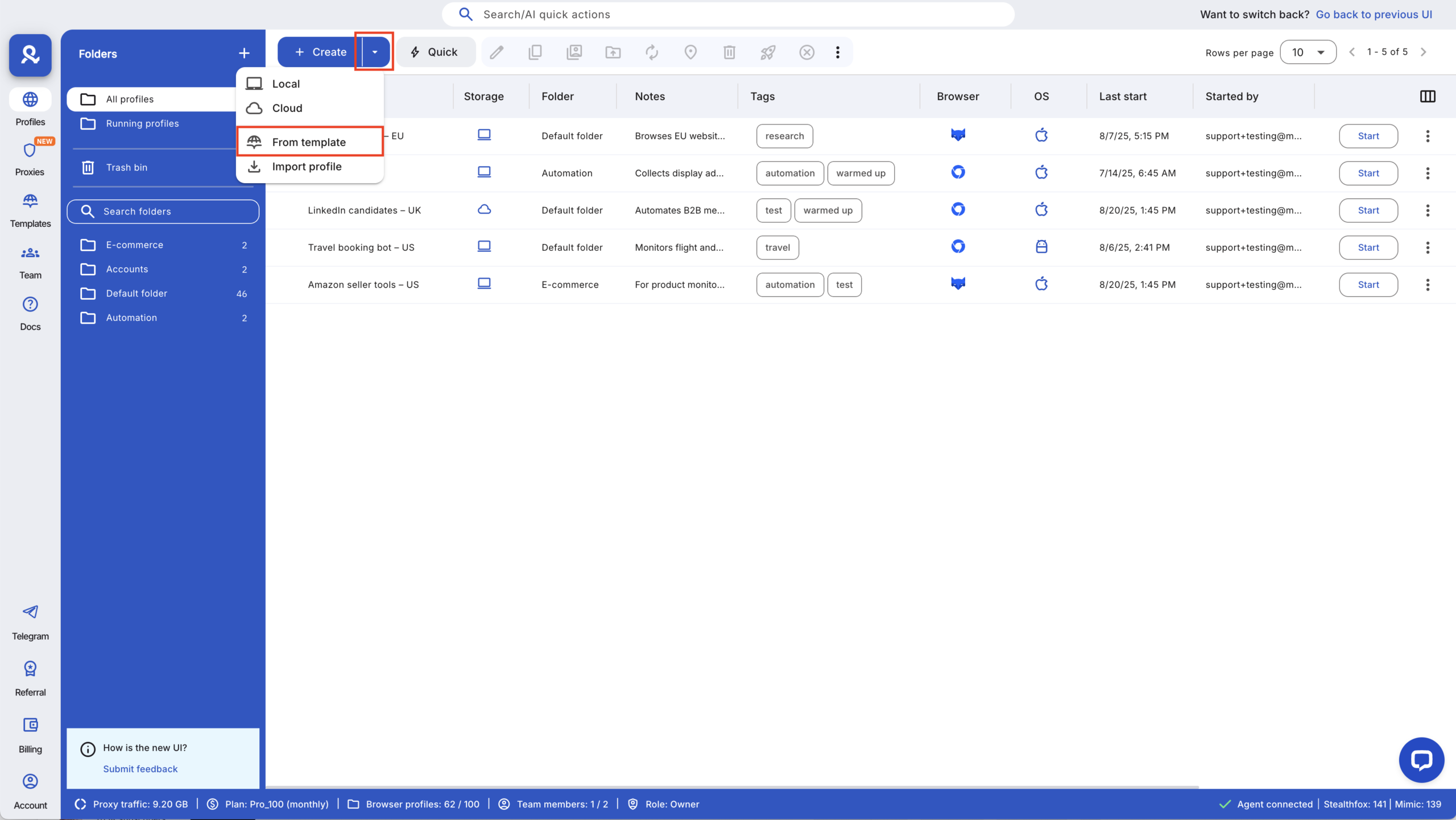
3. Apply cookie robots
Before logging in, apply Cookie Robots to avoid starting from a completely empty browser. This helps reduce early attention during first sessions, when new LinkedIn accounts are most sensitive.
4. Sign up or log in to LinkedIn
Use the isolated profile to create a new LinkedIn account or log in to an existing one. Avoid opening multiple LinkedIn accounts inside the same profile, even briefly.
5. Keep usage patterns separate
Treat each profile as a separate person. Log in at different times, avoid switching rapidly between accounts, and keep activity consistent within each environment. If one account gets flagged, stop using that profile and don’t reuse it for another account.
By repeating this process, you can create and manage multiple LinkedIn accounts — not just two; while keeping each one isolated and independent instead of tied together behind the scenes.
What to do if your LinkedIn account gets flagged
When a LinkedIn account gets flagged, the worst move is to rush into another login or signup from the same setup. Flags usually mean the environment has already lost trust, and continuing to use it often deepens the restriction. The priority is to stop, break the pattern, and avoid feeding LinkedIn more of the same signals that caused the issue in the first place.
- Stop using the same environment and log out of LinkedIn completely from that browser profile
- Don’t retry from the same profile, even with a new email or phone number
- Create a clean, isolated setup before trying again, using a fresh browser profile with separate storage, fingerprint, and location
- Pause activity on flagged accounts instead of repeatedly checking or refreshing access
- Treat each new attempt as a new environment, not a continuation of the old one
Taking these steps early can prevent a temporary review from turning into a permanent restriction and helps keep future LinkedIn accounts from inheriting the same issues.