


People ask the same question over and over: can you have multiple accounts on RedNote? The short answer is yes — but not if you try to do it on one device, one browser, or one IP. RedNote connects every signal you leave behind. If those signals overlap, your accounts start shadow-losing reach, or worse, the whole batch gets flagged.
Picture this. You’re testing a new niche, building a second page for a side project, or managing accounts for clients. You switch between profiles on the same device, thinking nobody will notice. Then one morning, posts stop getting traction. Notifications slow down. And a few days later, one account gets locked for “unusual activity.” That’s how most creators learn that RedNote doesn’t just look at content — it looks at the fingerprint of the device behind it.
This guide shows you how to create multiple RedNote accounts safely with Multilogin. If you get banned or flagged, it’s usually because your accounts are tied together through browser fingerprints, cookies, or IPs. Multilogin fixes that by giving each RedNote account its own clean, isolated browser environment that never overlaps with the others.
Why RedNote flags multiple accounts
RedNote doesn’t flag people for fun. It flags patterns. When several accounts act like they’re coming from the same person, RedNote connects the dots and limits reach or locks profiles. If you’ve ever watched an account suddenly drop in engagement right after switching between profiles, that’s not random. That’s RedNote spotting a link.
How RedNote detects connected accounts
RedNote tracks three things that most people never think about:
1. Device fingerprints
Every device has a signature — screen size, fonts, time zone, hardware details. When your accounts share the same fingerprint, RedNote treats them as one user with multiple profiles. If you get banned, it usually starts here.
2. Cookies
Cookies act like digital crumbs. Even if you log out, your browser still carries traces of the previous account. RedNote reads those traces and connects your “separate” accounts in seconds.
3. IP addresses
If all your accounts log in from the same IP address, even hours apart, RedNote assumes they belong to one person. It doesn’t care about your intentions. It cares about patterns.
Common triggers for bans or limits
The most common trigger is switching between accounts too fast on the same device. Another one is creating new accounts without clearing the fingerprints and cookies from the old ones. Using the same IP for sign-ups, logging in right after a suspension, opening two accounts in the same tab — all these leave a clear trail. When RedNote sees these overlaps, it limits your reach before it even warns you.
If you notice your posts going quiet or accounts taking longer to verify, it’s usually because RedNote already marked them as connected.
Why regular browsers and incognito don’t protect you
Incognito only hides your history from you, not from RedNote. Your device fingerprint stays the same. Your IP stays the same. Even your fonts and graphics drivers stay the same. RedNote sees everything.
A regular browser makes all your accounts look like they’re coming from one identity. That’s why creators who try to juggle multiple accounts on Chrome or Safari get hit with silent flags. If you get banned this way once, the next accounts you create might get flagged instantly because the browser fingerprint never changed.
Multilogin solves this by giving each account a separate fingerprint, separate cookies, and a separate IP — but we’ll get to that in the next section.
What Multilogin does for RedNote users
If you’ve ever created a second RedNote account and watched both accounts lose reach overnight, you already know the problem: your browser makes every profile look like it belongs to the same person. Multilogin breaks that pattern. It separates your accounts so RedNote can’t connect them.
Isolated browser profiles that never overlap
Every RedNote account needs its own space. Not a new tab. Not an incognito window. A completely separate environment with its own identity.
Multilogin gives you that. Each profile behaves like a different device. No shared signals. No shared history. If one account gets flagged, the rest stay clean because they never touched the same fingerprint or cookie trail.
Realistic browser fingerprints
RedNote looks at device fingerprints the way airports check passports. If two “people” show the same passport, security starts asking questions.
Multilogin generates a unique, human-like fingerprint for every profile, so your accounts never look cloned. It protects the 55+ parameters RedNote checks — fonts, hardware, screen size, WebGL — everything that usually gives multi-account users away.
Proxy assignment per profile
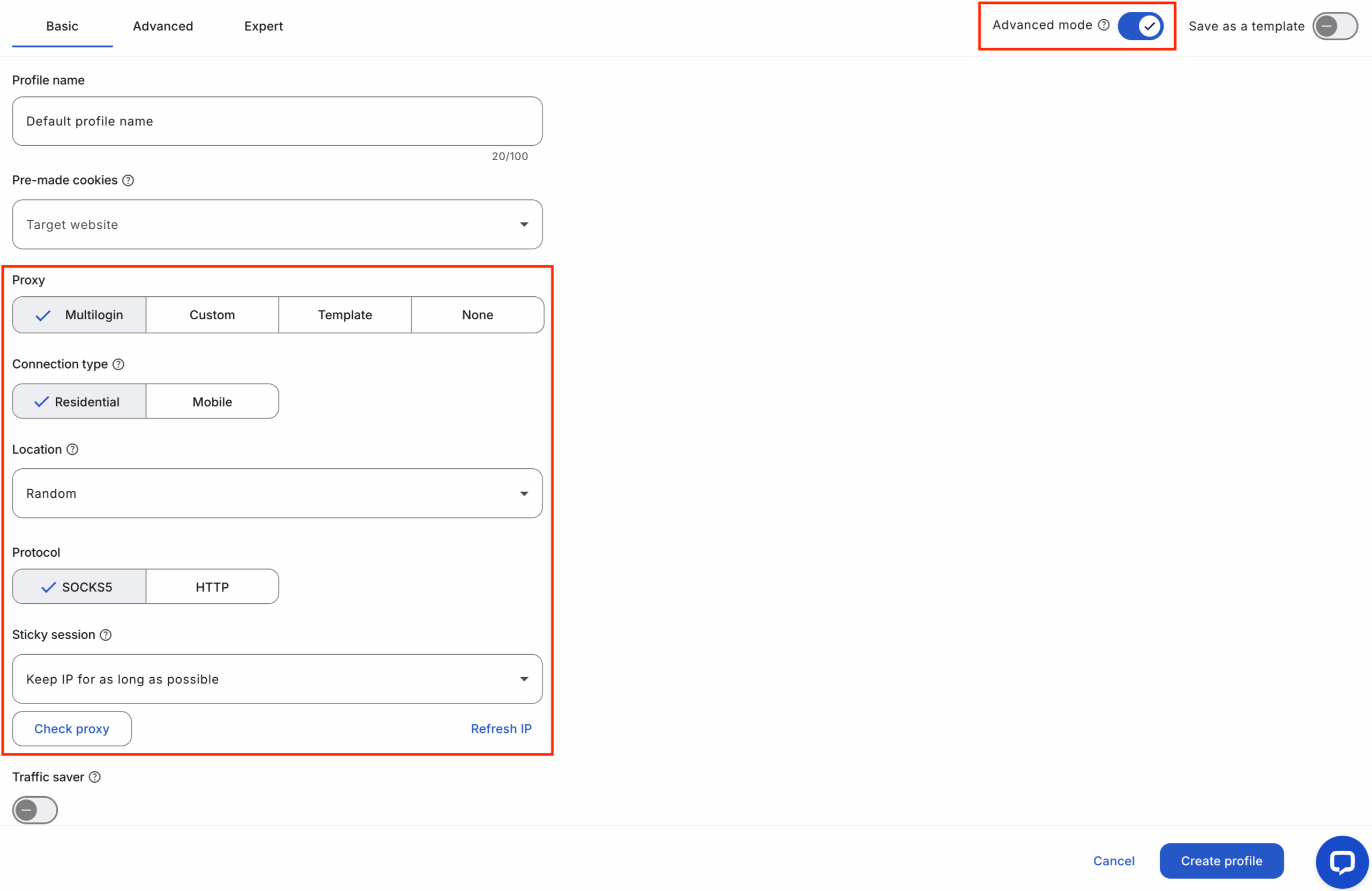
With Multilogin, you don’t have to hunt for a third-party proxy provider — every plan already includes built-in residential proxy traffic from a 30+ million IP pool. For each RedNote profile, you assign a separate residential route so every account logs in from its own location and looks like a real user. If you need extra control, you can still plug in your own mobile or external proxies, but most users can run safe RedNote setups using only Multilogin’s included residential IPs. This is what lets you scale from a few accounts to dozens without RedNote treating them as one person.
 https://multilogin.com/gateway/residential-proxies/
Clean cookies per profile
Cookies are one of the quickest ways RedNote links accounts.
Multilogin antidetect browser keeps cookies locked inside each profile, so nothing leaks between accounts. When you open a RedNote profile in Multilogin, it loads only the data tied to that one identity. No mixing. No accidental cross-contamination. If you get banned, it won’t chain-react to your other profiles.
Team and workflow advantages
If you work with a team, Multilogin removes the stress of password sharing and inconsistent devices.
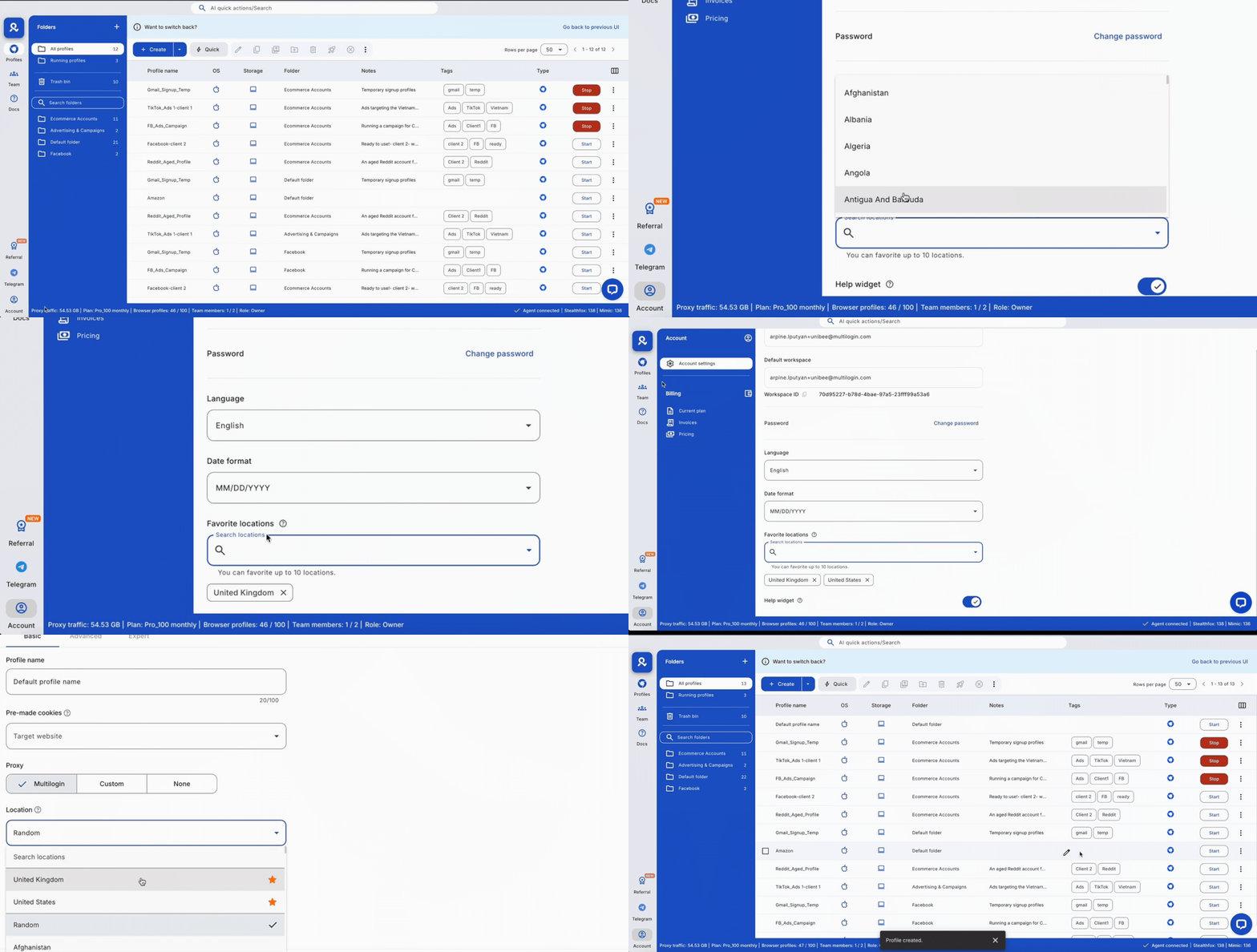
You can create profiles, hand them to teammates, and everyone keeps the same fingerprint, cookies, and login state — no matter whose laptop they use. Accounts stay stable because Multilogin syncs everything in the cloud. Your team doesn’t break your setup by mistake.
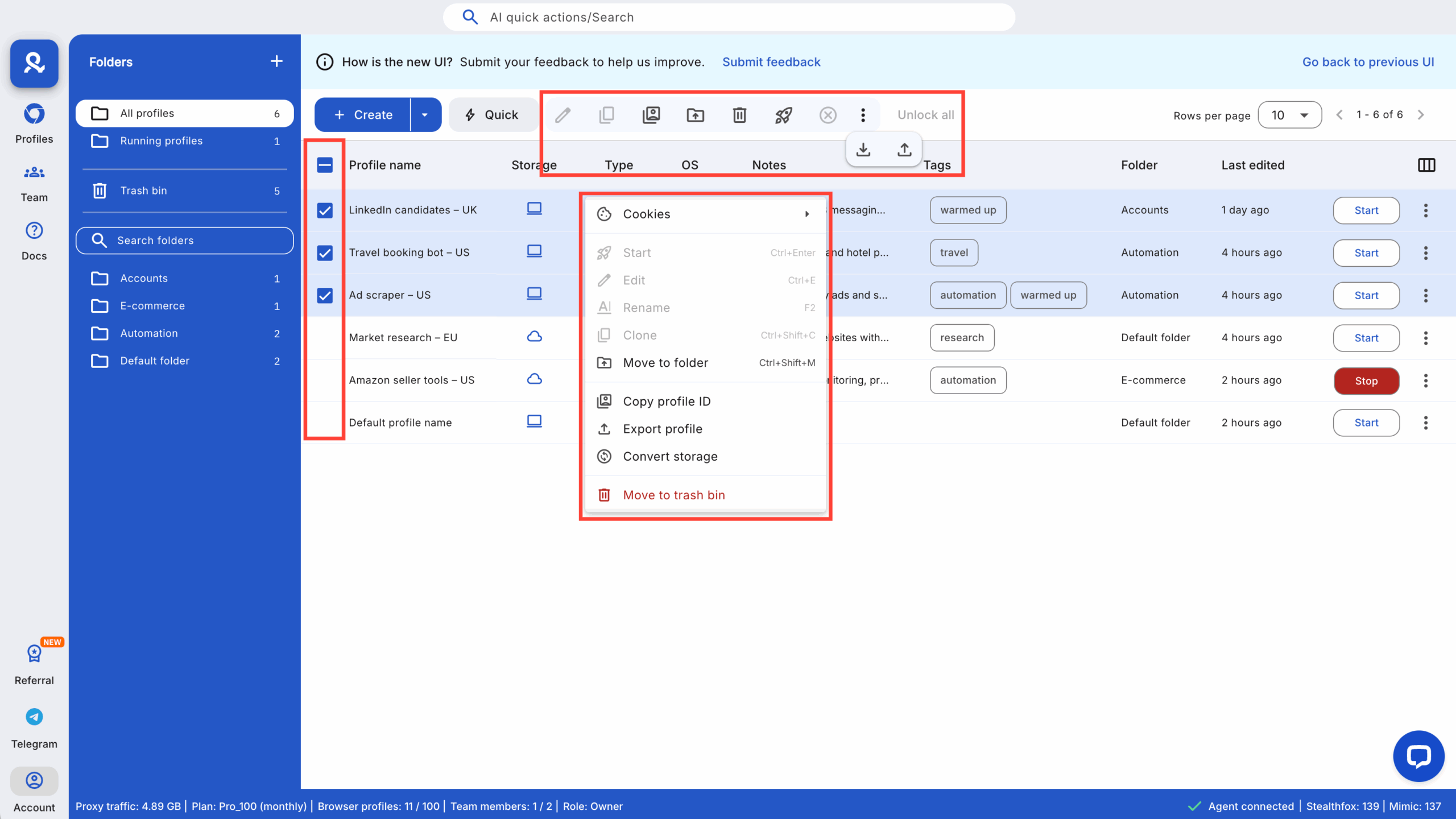
How to set up Multilogin for RedNote
Setting up Multilogin the right way decides whether your accounts stay safe or collapse the moment RedNote connects your signals. Follow these steps and you remove the biggest reasons accounts get flagged.
Create a new browser profile
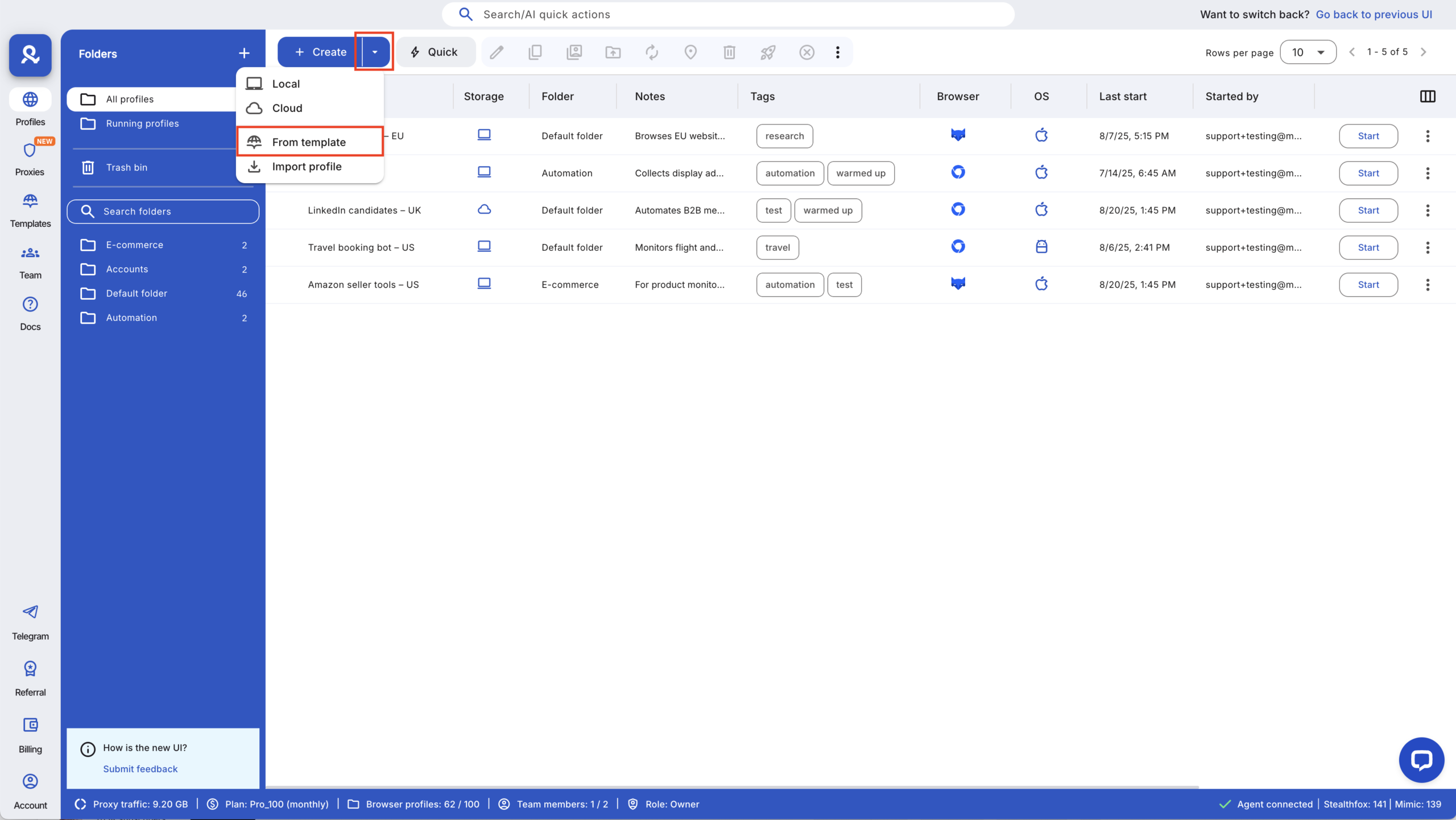
Start fresh. Click “Create Profile” and choose Stealthfox or Mimic. Both give you a realistic identity, but Stealthfox usually feels more forgiving for content-heavy platforms like RedNote.
Set the fingerprint mode to Recommended.
This protects all the tiny details RedNote checks — fonts, screen size, device specs — without forcing you to tweak anything manually.
Make sure cookie isolation is on.
f you ever reuse cookies across accounts, RedNote links them instantly. Isolated cookies are your safety net. If one account gets banned, the others don’t carry its trace.
Assign a residential or mobile proxy
RedNote doesn’t trust datacenter IPs. They look automated and trigger checks fast. You need residential or mobile IPs because they look like real people with real devices. Multilogin already includes built-in residential proxy traffic from a 30+ million IP pool, so you don’t need to buy anything extra.
Inside the profile settings, pick the built-in residential option or add your own external proxy if you prefer. Always test the connection.
If it fails, stop right there — a bad IP can cause verification loops or instant flags on new RedNote accounts.
Once the connection passes, lock it to that profile. That IP is now part of the identity. Don’t reuse it for other accounts.
Add extensions or tools if needed
Keep your setup simple, but add what you truly use:
- A password manager so you never type the same passwords across accounts.
- A note tool if you track content ideas.
- Any helper extension you rely on — but keep it minimal.
Noise inside the profile increases risk.
When this setup is done, you’ve built a stable identity RedNote can’t tie to your other accounts.
