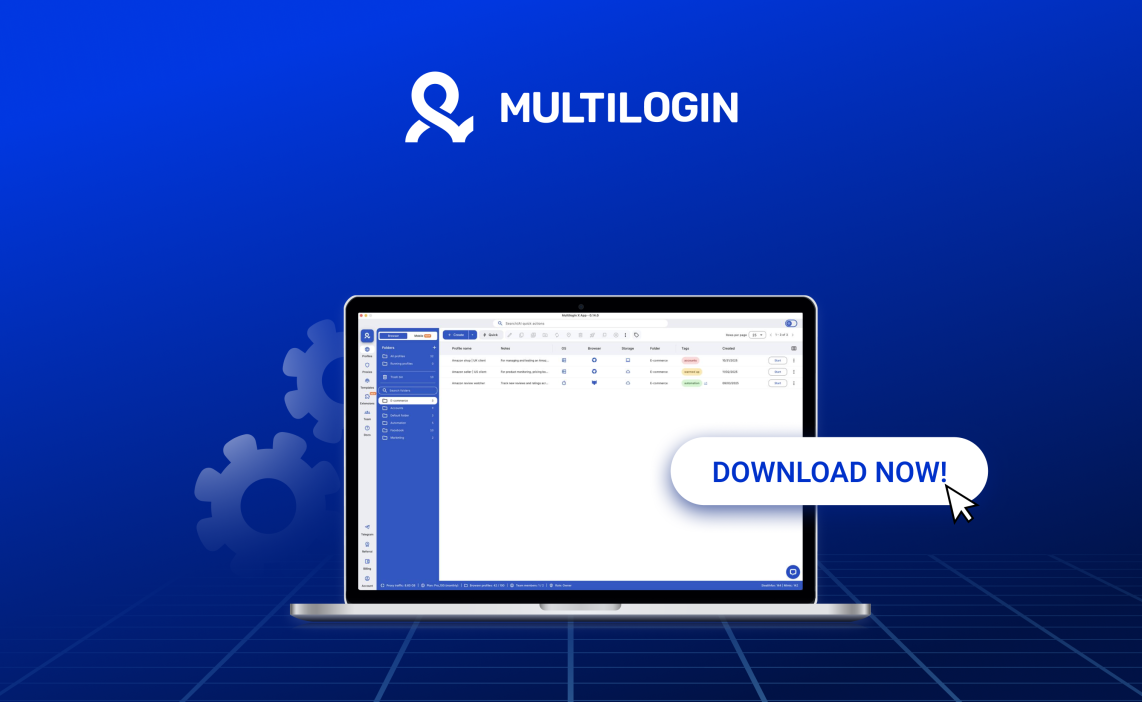

What the Multilogin X app (desktop) does
Users benefit from it because it removes steps from the daily routine. The launcher starts automatically, profiles open quickly, and you move between tasks without thinking about connection steps in the background. It keeps the workflow steady when you’re managing multiple accounts or switching between projects throughout the day.
You can choose how you want to work: the Multilogin X App (desktop) or the web version. Many people use the web interface for quick edits, sorting, and profile management, then switch to the desktop app when it’s time to launch profiles. Both versions stay synced in real time, but you don’t run them simultaneously — you switch depending on the task you’re handling. This gives you flexibility without repeating actions or setting anything up twice.
The Multilogin X App (desktop) saves time in the moments people usually don’t notice at first:
- When the launcher starts automatically instead of asking you to connect the agent
- When a profile starts in fewer clicks
- When switching between tasks doesn’t force you to re-run anything
- When your workflow stays steady even on a busy day
If you’re managing dozens of profiles or you jump between projects fast, the difference is obvious. The app keeps you focused instead of dragging your attention into technical steps.
Multilogin web version vs. Multilogin X App (desktop)
The web version and the Multilogin X App (desktop) give you two different ways to work, depending on what your day looks like. One runs inside your browser with the legacy agent, the other starts everything automatically through the built-in launcher. Both stay synced, both use the same account, and both follow your changes instantly — you just pick the version that matches the task in front of you.
How the web version works
The web version runs directly inside your browser. You log in, open your workspace, and manage everything from a regular tab. To start profiles from the web version, you connect the lightweight legacy agent — that small helper app that lets your browser control profile launches. It’s simple, and it’s great when you’re organizing profiles, making quick edits, or moving through tasks that don’t require constant launching.
How the Multilogin X app (desktop) works
The desktop app is different because the launcher is built in. You open the app and the launcher is already running, so starting profiles takes fewer steps. It keeps things steady when you’re working with many profiles, switching projects often, or running tasks for a team. Everything loads fast, and you don’t think about the agent in the background — it’s already there.
Can you use both together?
Yes — you can have both versions, but you don’t run them at the same time. Most people keep the web interface for quick edits and organization, then open the desktop app when they want to start profiles through the built-in launcher. Your account stays the same, your data stays the same, and any changes appear instantly once you switch versions. You simply choose which one to use depending on the task in front of you.
How to download the Multilogin X app (desktop)
- Visit the Multilogin pricing page
- Select the plan that fits your needs
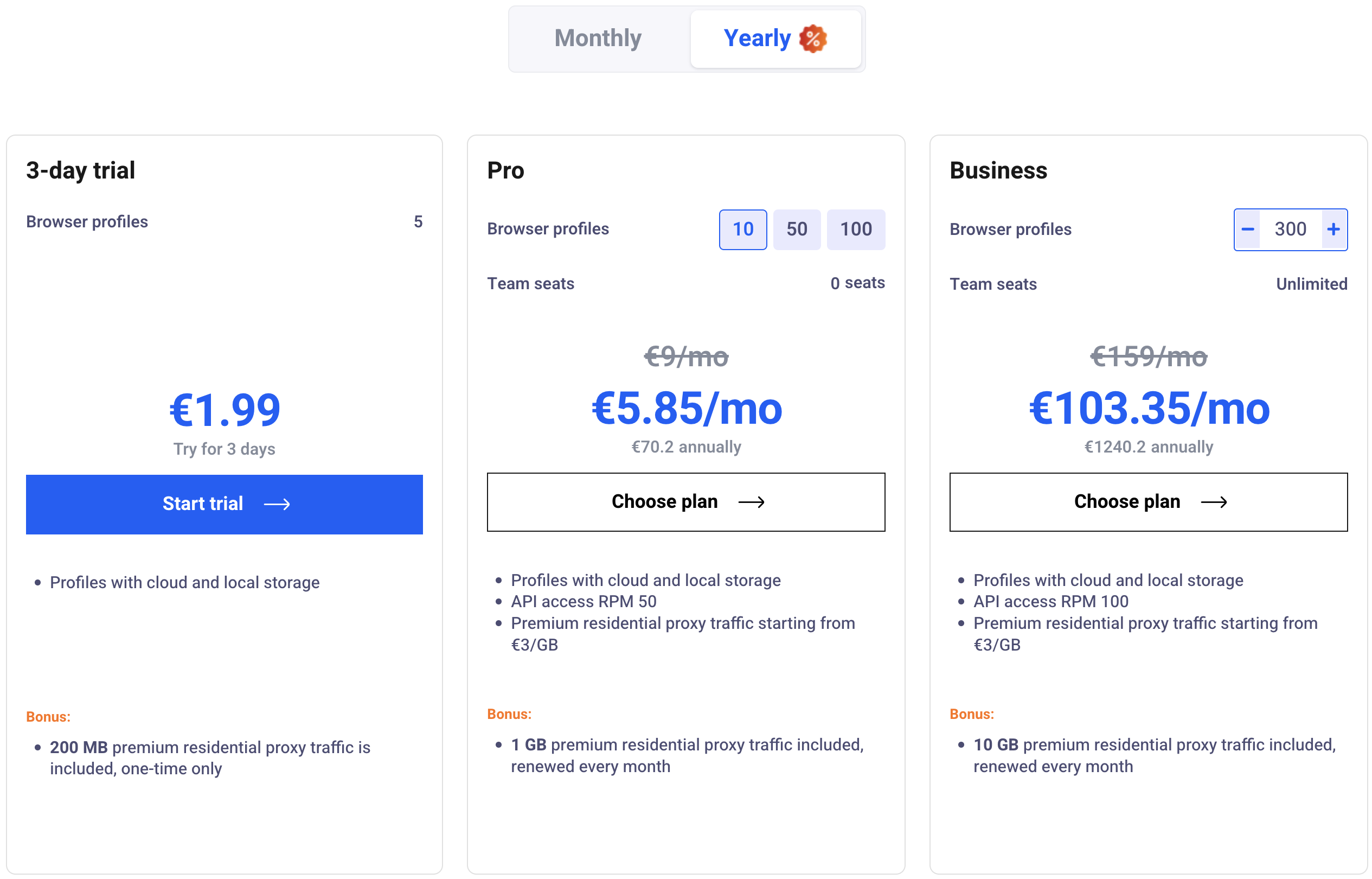
- Complete the purchase process
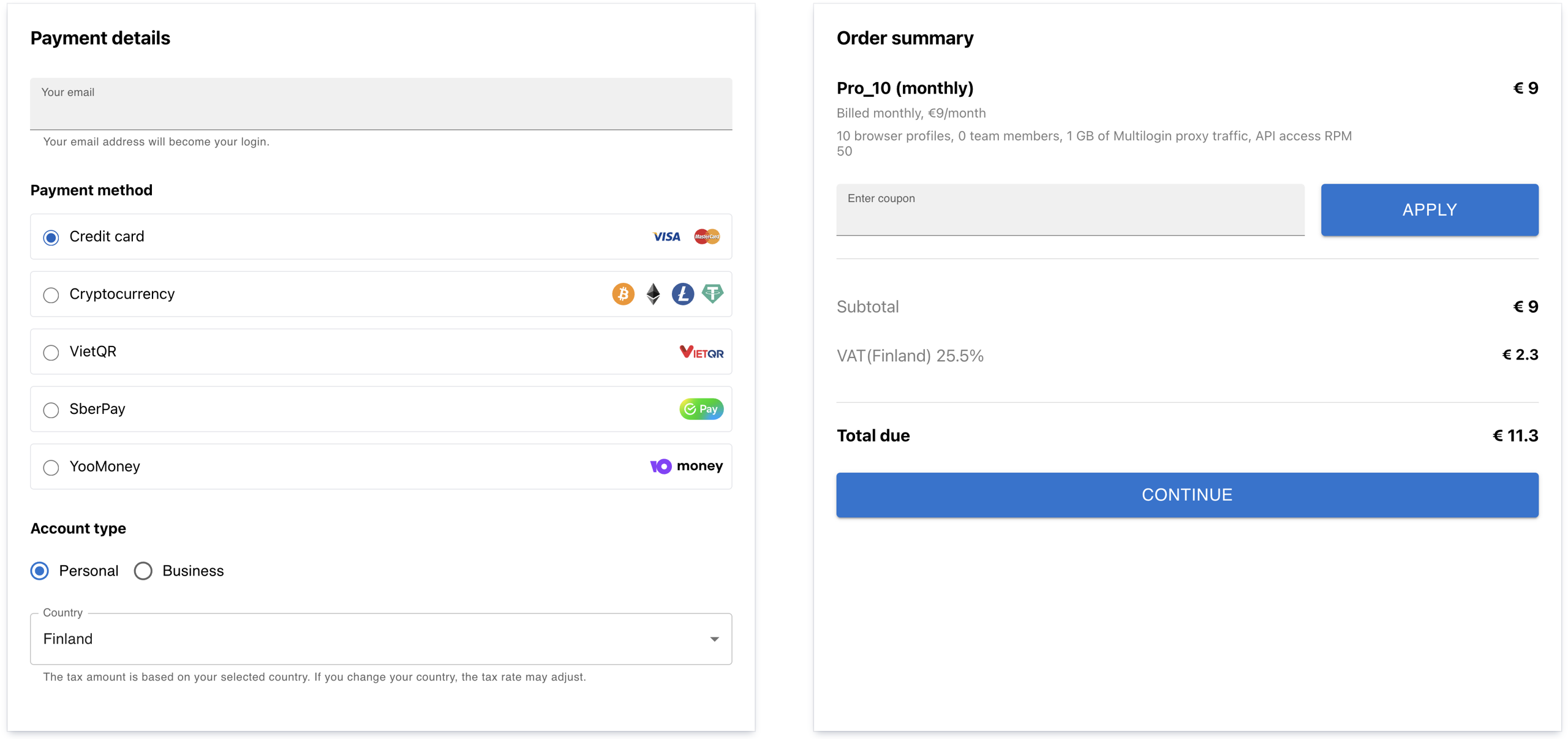
- After purchasing, create an account — or sign in if you already have one
- Choose your operating system and click “Download”
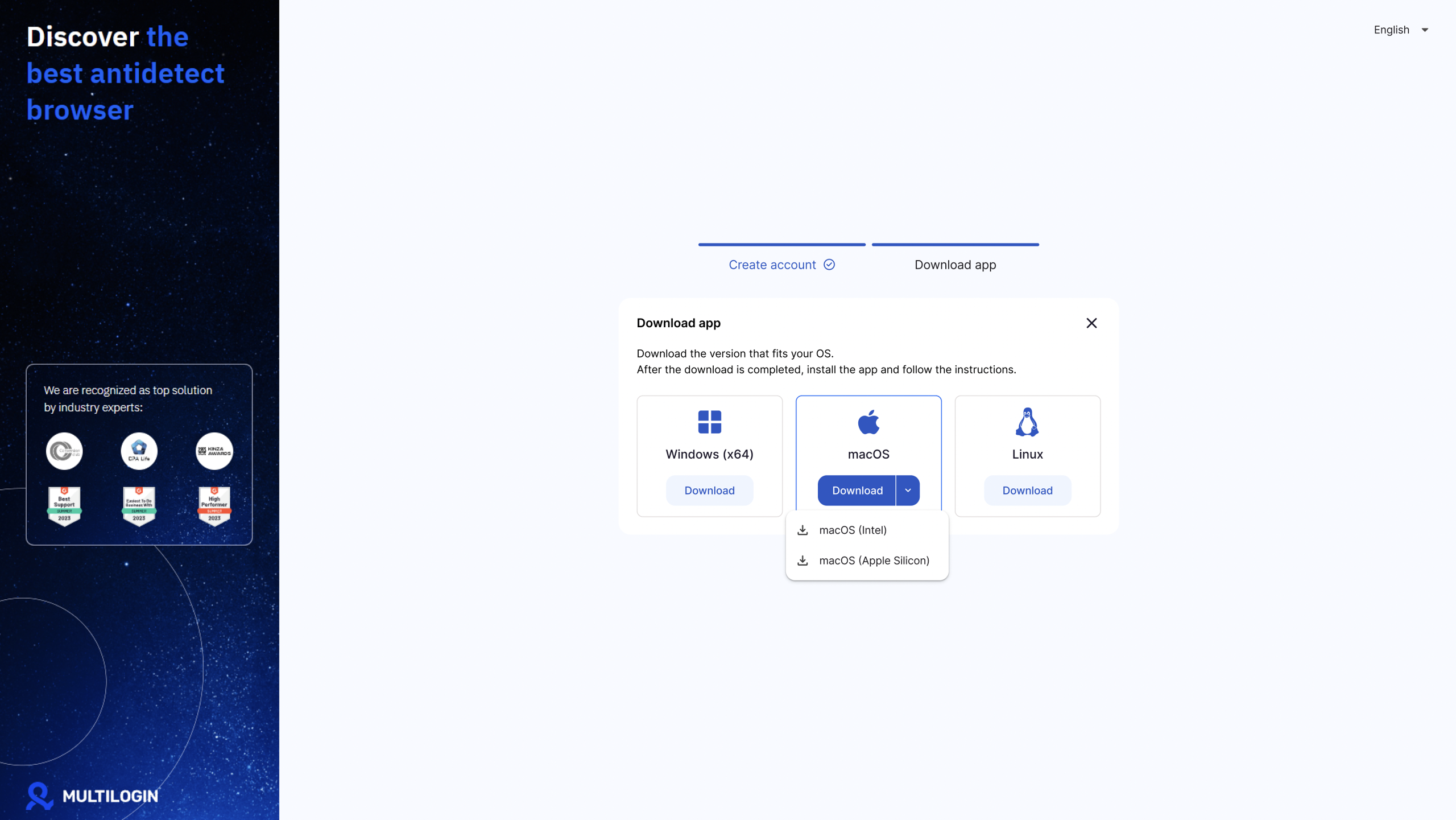
- Open your Downloads folder and run the installer file
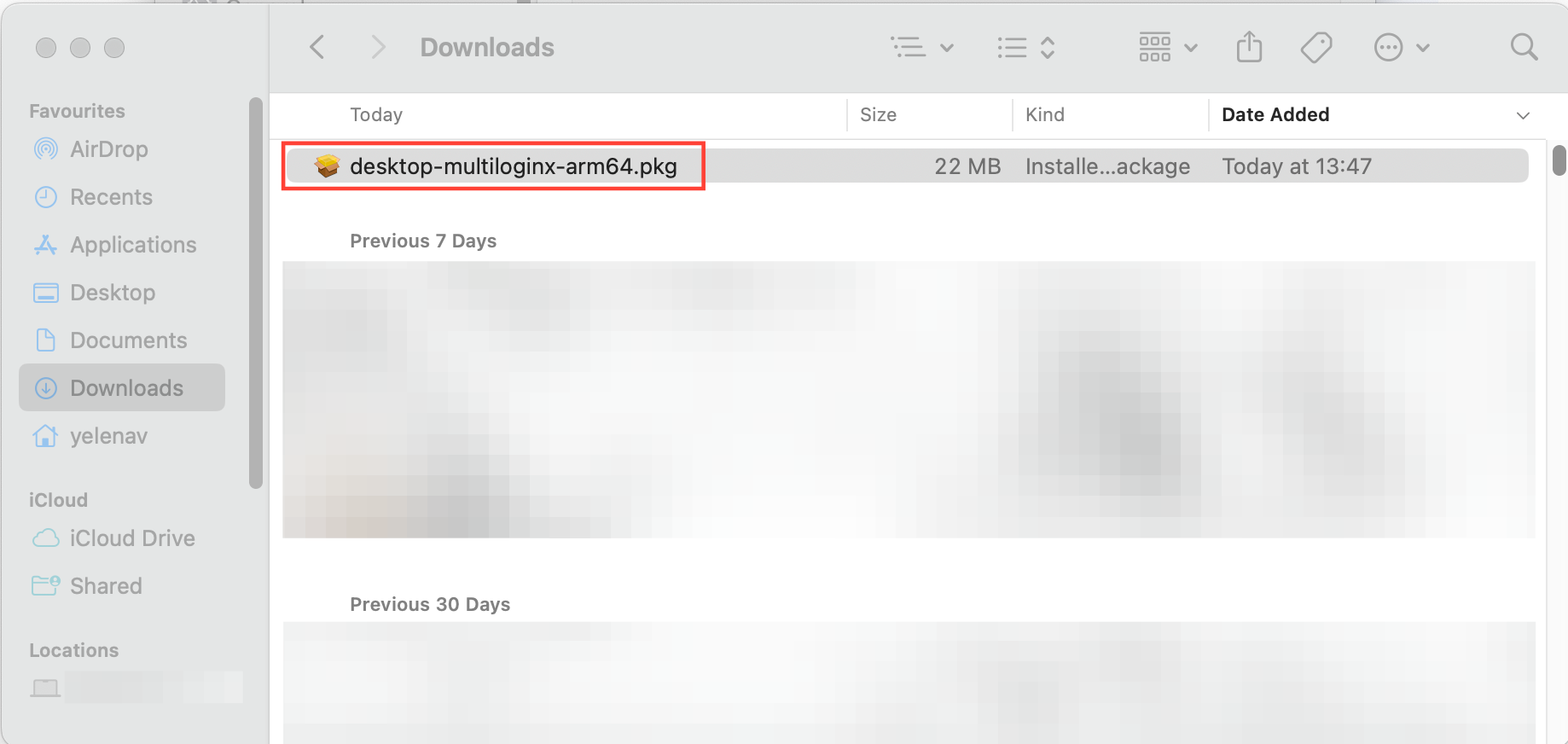
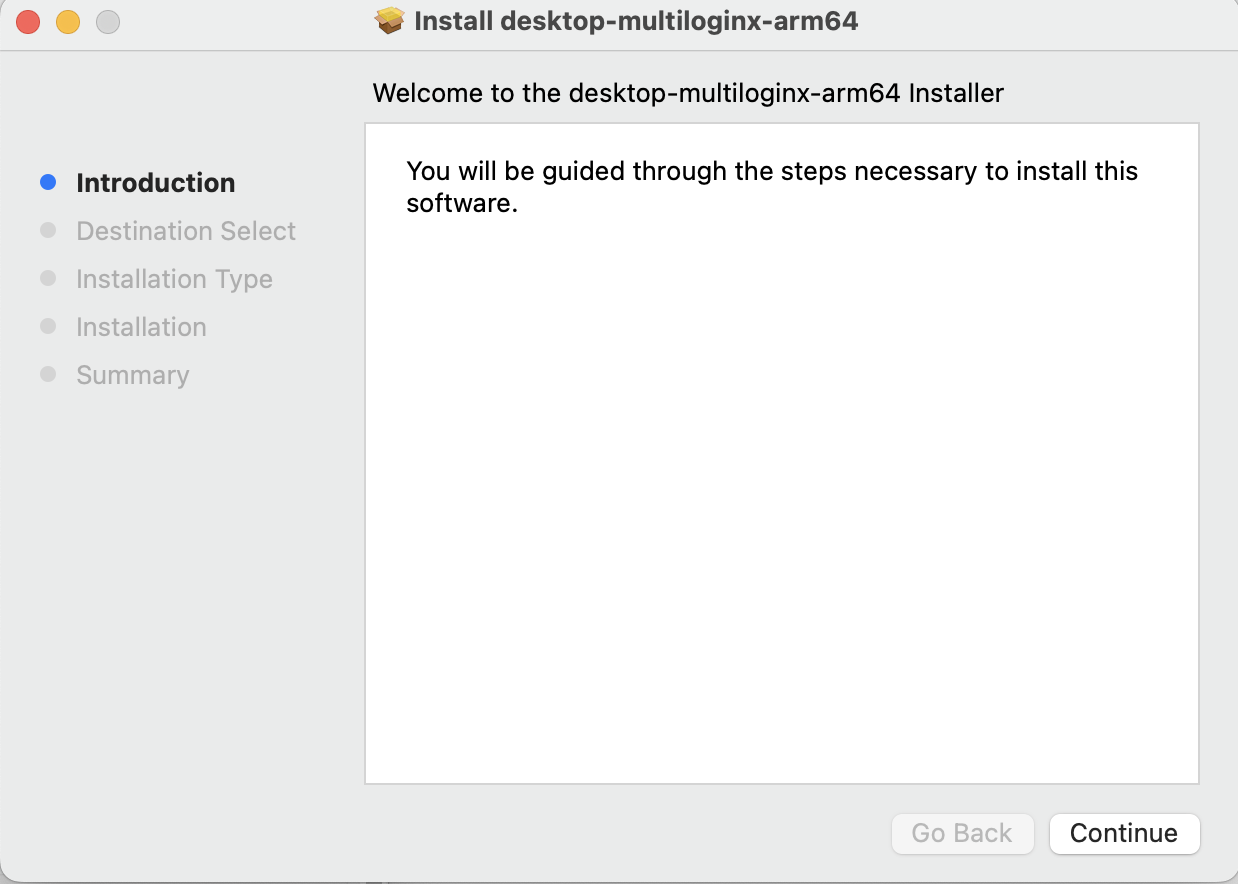
- Follow the on-screen instructions to finish the installation
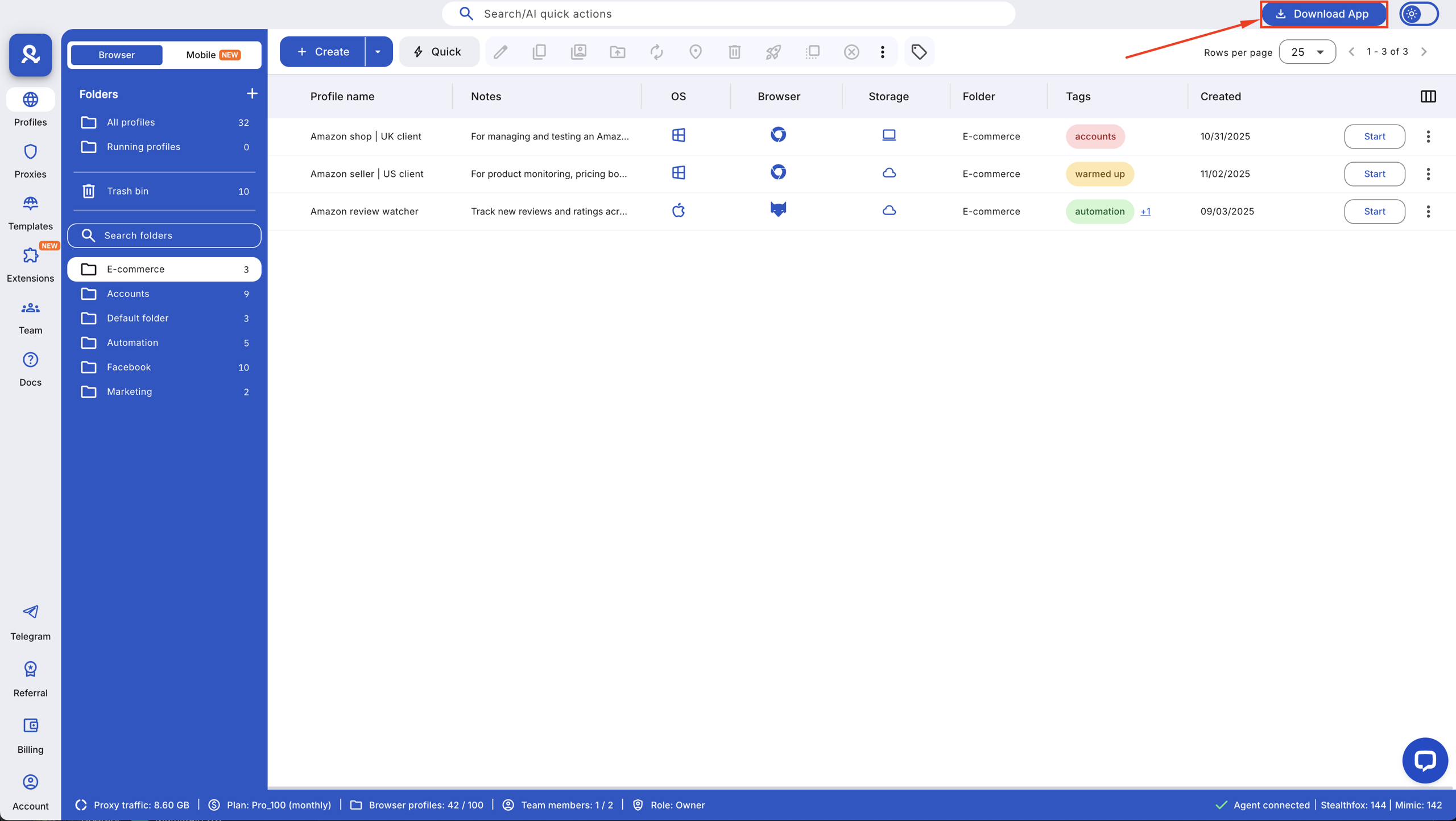
Already have a subscription? Log in to the Multilogin X web version and click “Download app” in the top right corner.
How to set up the Multilogin X app (desktop)
- After installation, find the Multilogin X icon:
Windows: on your desktop
macOS: in the Applications folder - Double-click the icon to open the app
- Pin the app for quick access:
Windows: right-click the app and select “Pin to taskbar”
macOS: right-click and choose Options → Keep in Dock
Log in with your Multilogin X account credentials
When you should use the Multilogin X app (desktop)
The Multilogin X app (desktop) fits the moments when your workflow gets heavier and you need everything to run without extra steps. The built-in launcher starts automatically, profile launches take fewer clicks, and switching between tasks stays steady. Whenever the workday demands more speed and structure, the desktop app keeps things moving.
Heavy daily workloads
The Multilogin X app (desktop) helps when your day is packed with profile launches, switching, or running automation and scraping tasks. The built-in launcher starts everything instantly, so moving from one task to the next doesn’t slow you down. If you’re running dozens of profiles or running flows that need steady launches, the desktop app keeps the pace consistent.
Large or distributed teams
Teams feel the difference fast. The desktop app keeps the connection stable because the launcher runs in the background without needing manual steps. Fewer repeated actions mean fewer chances for small errors during busy hours. Everyone works from the same setup, and profile starts stay predictable — even when multiple people are running tasks or automations.
Managing multiple projects at once
When you’re handling several projects, the desktop app gives you clean separation. You start profiles quickly, move between tasks without waiting, and stay focused on the work instead of background setup. It cuts down interruptions and keeps the workflow steady for projects that rely on consistent profile launches, scraping sequences, or automation steps.
