Managing one social media account is straightforward. Managing ten, fifty, or a hundred — across TikTok, Instagram, Facebook, and YouTube — while keeping each one safe from platform detection? That’s a different challenge entirely.
Social media automation is now central to how agencies, SMM professionals, affiliate marketers, and multi-account operators scale their work. But most automated social media tools were built for browser-based workflows. They struggle with mobile-first platforms that actively detect emulators, flag shared IPs, and ban accounts that don’t behave like real Android users.
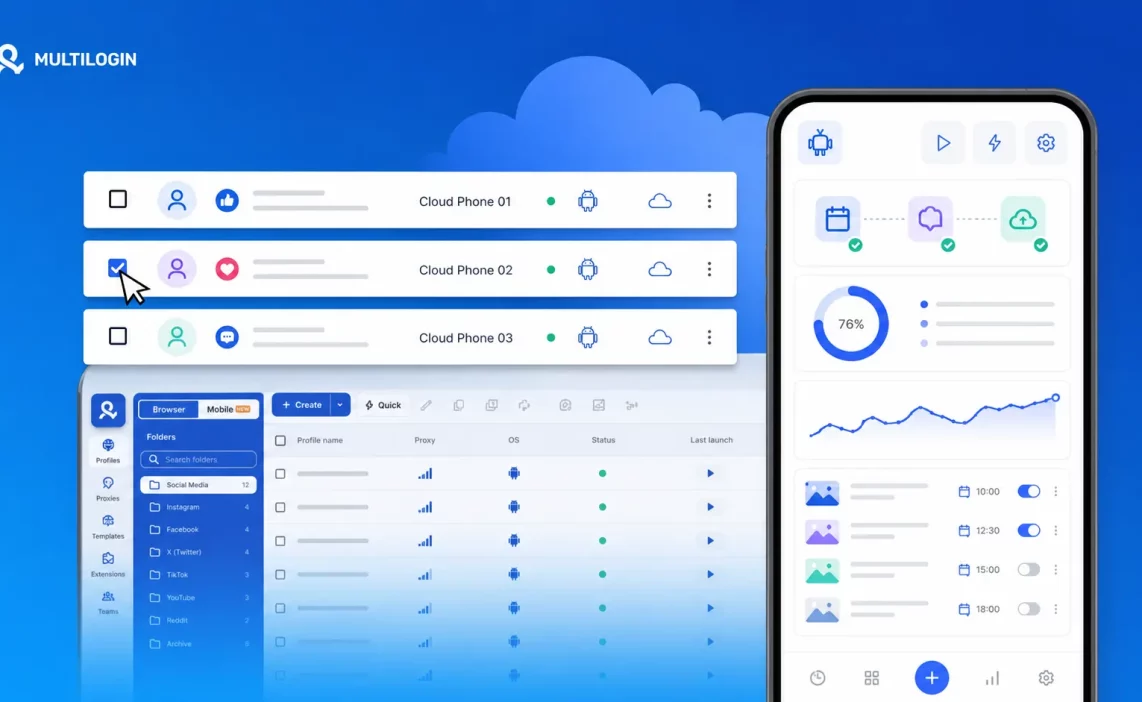
Multilogin Cloud Phones take a different approach. Instead of emulating a phone, they run real Android devices hosted in the cloud — each with its own hardware identifiers, Android fingerprint, and residential proxy. Every account you manage looks, to the platform, like a completely separate person on a completely separate device.
This guide covers what Multilogin Cloud Phones are, why they’re the right infrastructure for social media automation, and a step-by-step setup process to get your first automated accounts running.
What Is Social Media Automation and Why Does It Get Accounts Banned?
Social media automation means using tools or scripts to handle tasks that would otherwise require manual action — posting content, warming up accounts, engaging with audiences, managing DMs, running multiple profiles in parallel. For agencies and professional operators, automation isn’t optional. It’s the only way to manage volume without unsustainable headcount.
The problem is that every major social media platform has invested heavily in detecting automated behavior. Their fraud and antifraud systems check far more than just whether a bot is posting. They’re analyzing device fingerprints, checking whether the hardware ID seen today matches the one from last week, correlating IP addresses across accounts, looking at whether a “mobile” user’s behavior makes sense for a mobile device.
When you automate social media posts from a desktop browser pretending to be a phone, platforms notice. When ten accounts share the same residential proxy, platforms correlate them. When an emulator generates a generic Android fingerprint, detection systems flag it.
The result is bans, shadow bans, and account restrictions — not because automation itself is the problem, but because the infrastructure wasn’t built to pass device-level scrutiny.
What Are Multilogin Cloud Phones?
Multilogin Cloud Phones are virtual Android devices that run on real hardware hosted in Multilogin’s cloud infrastructure. This is the key distinction from traditional Android emulators or browser-based multi-account tools.
Each cloud phone is provisioned with its own unique device fingerprint — real IMEI, device brand and model (Samsung, Google Pixel, OnePlus, Oppo, vivo, Redmi), Android version (10 through 15), and hardware-level identifiers that pass platform checks. You’re not simulating a phone. You’re accessing a real one, remotely, from your dashboard.
Cloud phones connect through residential or mobile proxies, giving each account a distinct IP footprint. Multilogin’s built-in proxy network provides access to over 30 million residential and mobile IPs, with options for sticky session control and geographic targeting to match each account to its intended location.
For social media automation, this matters because:
- TikTok, Instagram, and Facebook run deep device verification on mobile app installs and account activity
- Platform antifraud systems cross-reference device IDs with historical account behavior
- Accounts that share hardware fingerprints or IP ranges are automatically correlated and flagged
- Mobile traffic patterns (carrier signals, cellular network behavior) are distinct from desktop and get scrutinized differently
Cloud phones give each account in your operation a genuinely isolated, authentic-looking mobile identity.
Who Uses Cloud Phones for Social Media Automation?
The range of professionals building social media automation workflows with Multilogin Cloud Phones is broad. Common use cases include:
- Social media agencies managing multiple client accounts across platforms — each client’s Instagram, TikTok, and Facebook accounts run on separate cloud phones with separate proxies, eliminating cross-account risk.
- SMM panels and resellers who need to operate large volumes of accounts for engagement services, content distribution, or audience growth work. Cloud phones let them scale operations across hundreds of isolated Android environments.
- Affiliate marketers and performance advertisers running parallel TikTok Ads Manager accounts or Facebook ad accounts across geos. Each account needs its own device identity and IP to avoid policy violations from account linkage.
- Content creators and personal brand managers running multiple YouTube channels, TikTok profiles, or Instagram pages that need to be kept completely separate from each other.
- E-commerce and dropshipping operators who need to manage multiple Amazon seller accounts, Shopify stores linked to social channels, or marketplace profiles that can’t appear connected.
In every case, the common requirement is the same: each account needs to look like it belongs to a different person, on a different device, in a different location.
Cloud Phones vs. Social Media Automation Tools: What’s the Difference?
Most social media automation tools — Buffer, Hootsuite, Sprout Social, Zapier workflows, n8n automations, and similar platforms — operate at the scheduling layer. They help you plan and publish content, manage queues, and report on performance. They’re genuinely useful for single-account or small-team social media management.
They don’t solve the multi-account identity problem. When you connect ten accounts to a scheduling tool, those accounts still share the same browser session environment or the same API access credentials. Platform detection doesn’t care that you’re using a polished scheduling dashboard. It’s checking what’s underneath.
Multilogin Cloud Phones operate at a lower level. They provide the isolated device infrastructure that makes multi-account social media automation viable. You can run scheduling tools and automation workflows inside cloud phones — the device isolation makes those tools safe to use at scale.
Think of it this way: social media automation tools are the workflow layer, and Multilogin Cloud Phones are the identity layer that keeps accounts separated and protected.
Getting Started: How to Set Up Multilogin Cloud Phones for Social Media Automation
Here’s a complete walkthrough of the setup process, from account creation to running your first automated cloud phone environment.
Step 1: Get a Multilogin Subscription
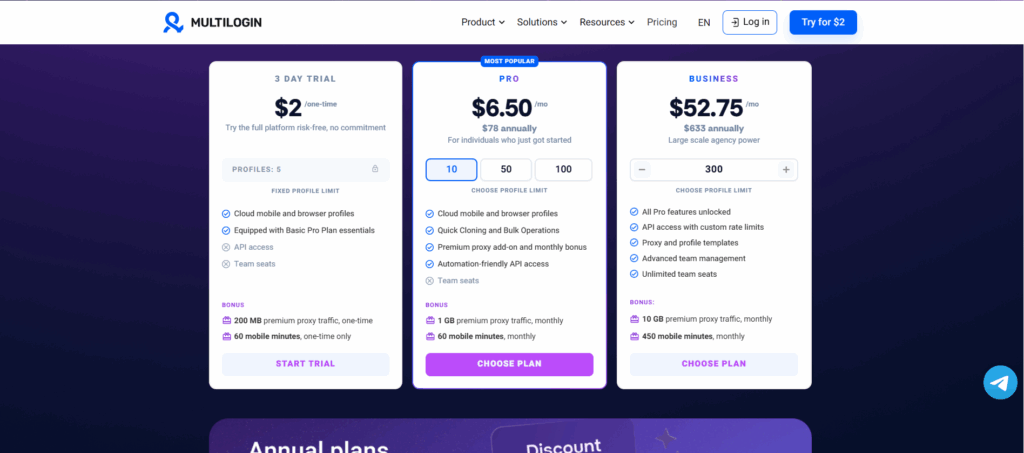
Go to multilogin.com/pricing and choose a plan based on how many profiles you need. Cloud phones are available on all paid plans. If you want to test the setup before committing, Multilogin offers a trial entry point so you can explore the dashboard and create your first profile.
Before subscribing, check the system requirements to confirm your device is compatible with the Multilogin desktop app or web interface.
Step 2: Access the Dashboard
Multilogin gives you two ways to access your workspace:
Web interface only — log in at app.multilogin.com from any browser. This is the most flexible option if you’re managing cloud phones remotely or from multiple devices.
Desktop app — download and install the Multilogin desktop app, then log in. The desktop app offers the same functionality and works well if you prefer a dedicated application environment.
Web and desktop together — you can use both simultaneously for different workflows, as long as the legacy agent is disconnected.
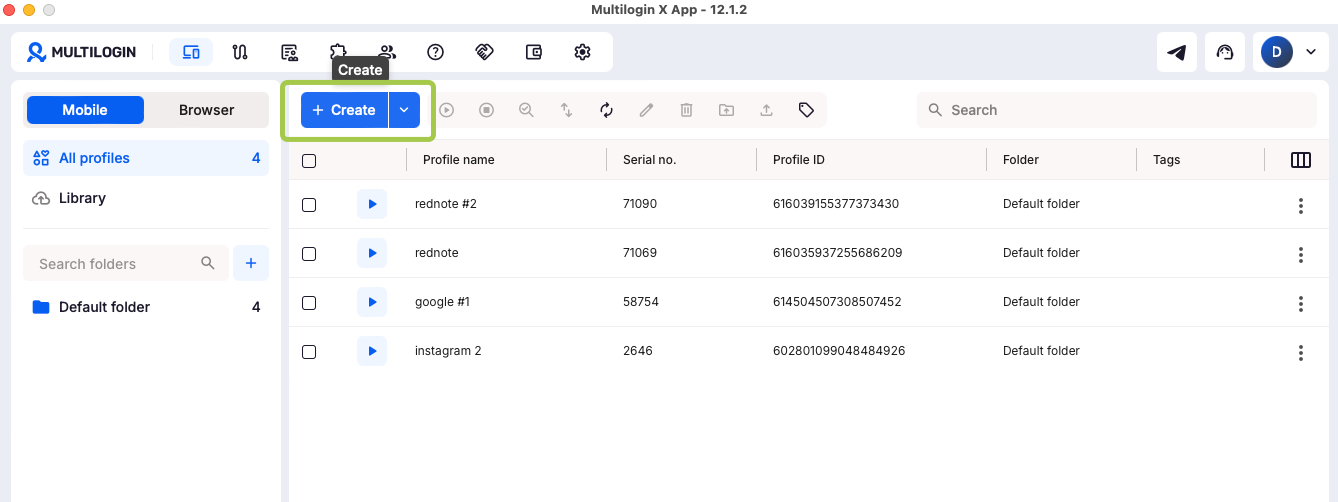
Once logged in, you’ll see the main dashboard. In the top-left corner, there’s a selector to switch between “Browser” (browser profiles) and “Mobile” (cloud phones). Switch to Mobile for the setup steps below.
Step 3: Create Your First Cloud Phone
Click “Create” to open the cloud phone creation panel. Most settings come pre-filled with sensible defaults, so this is faster than it looks.
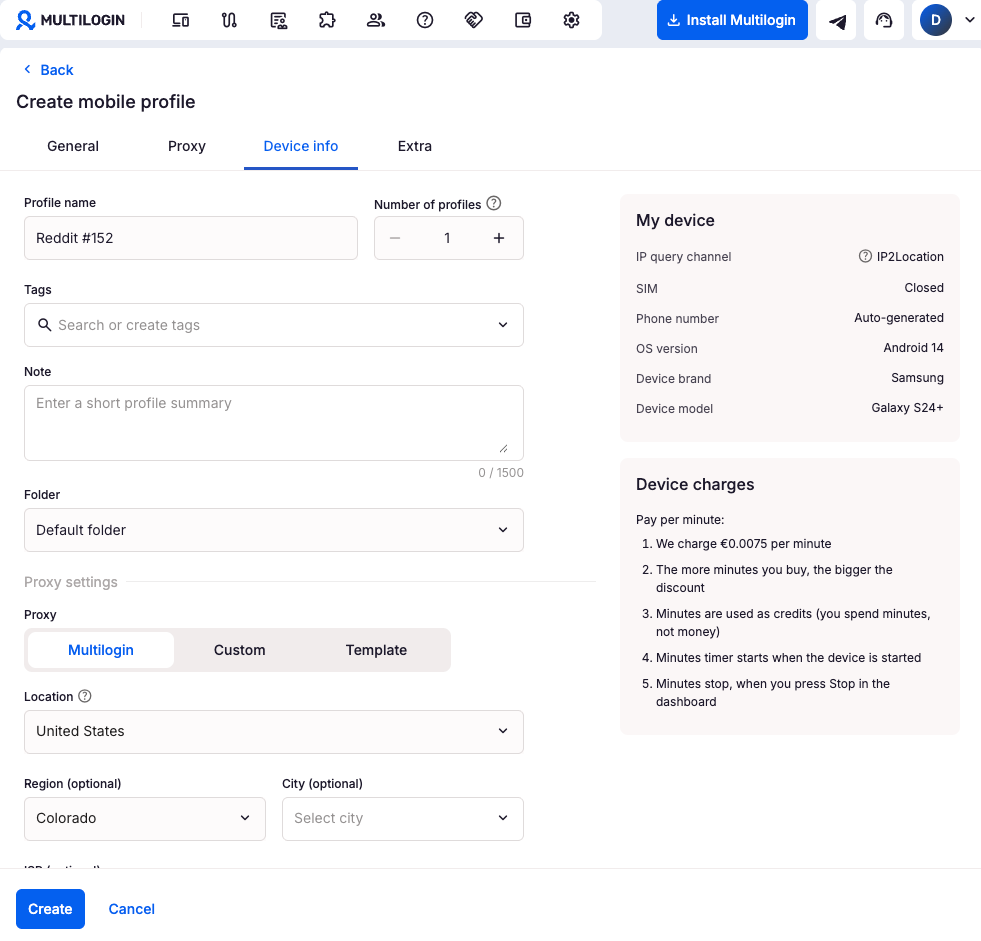
Name your phone. Choose a name that helps you stay organized — something like “IG_Client_A_US” or “TikTok_Agency_UK_01”. Platform detection can’t see these names, so optimize them for your own workflow rather than worrying about how they appear externally.
Set the number of profiles. If you’re spinning up multiple accounts at once, you can create up to 100 cloud phones in a single batch. All phones in the batch will share the same base configuration, and you can edit them individually afterward.
Configure your proxy. This is the most important setting for social media automation. You have three options:
- Multilogin proxy (recommended for most use cases) — gives you instant access to 30M+ residential and mobile IPs, with ISP targeting, sticky sessions, and mobile/residential switching. No external provider needed.
- Custom proxy — paste in credentials from your preferred proxy provider (HTTP, HTTPS, or SOCKS5 supported). Useful if you have existing proxy contracts or need specific geo coverage.
- Proxy template — if you’ve saved proxy configurations as templates, apply them here for fast bulk setup.
One important note: cloud phones can’t use local proxies (127.0.0.1 or 192.168.x.x). Since cloud phones run on remote servers, they need a publicly accessible proxy.
Choose your device settings. Select an Android version (12–15 for modern app compatibility), a device brand, and a model. You can use Multilogin’s random selection — which picks from a curated pool of realistic device combinations — or specify manually if your workflow requires a particular device type.
For social media automation, Android 12–15 with a Samsung or Google Pixel model is a solid baseline. These are the most common devices on major platforms, so they blend naturally into user bases.
Set the network type. Choose between Wi-Fi and Cellular. Use Cellular (available on Android 12 and higher) when operating accounts on mobile-first platforms like TikTok or Instagram, or when using mobile proxies. Cellular mode makes the phone show a SIM and mobile signal — exactly what platform detection expects from a real mobile user. Use Wi-Fi mode for account setup, warming, or when using residential proxies on a stable connection.
Add tags and organize into folders. Tags let you group phones by client, platform, or status. Folders keep your dashboard clean as your operation scales. Both are optional at setup but save significant time once you’re managing dozens or hundreds of profiles.
Click “Create” and your cloud phone is ready.
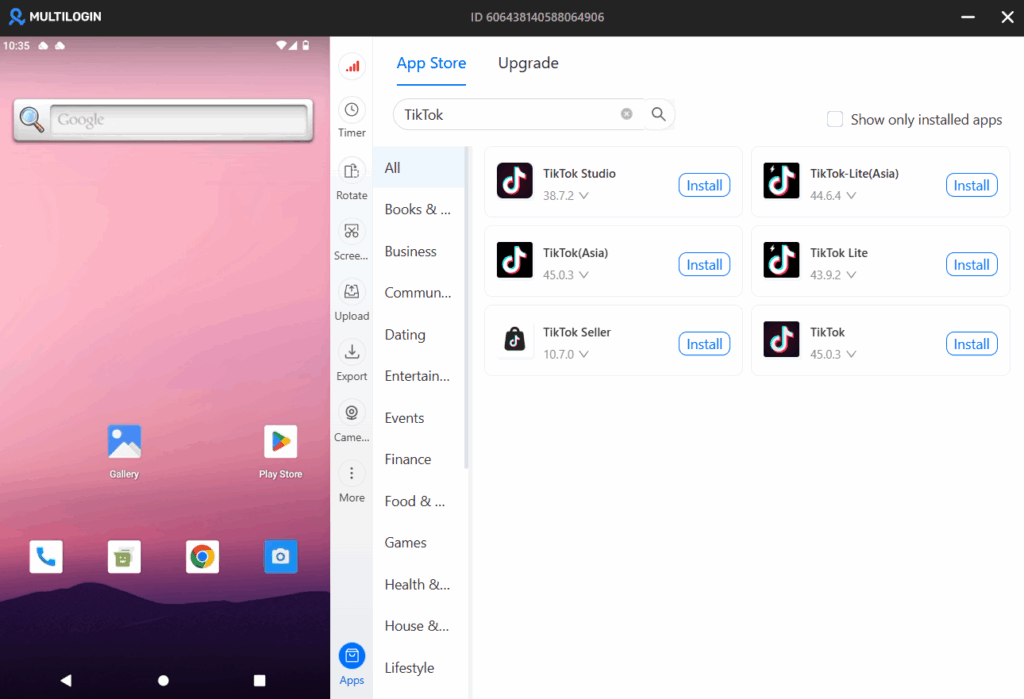
Step 4: Start the Cloud Phone and Install Apps
From your dashboard, find the cloud phone you just created and click “Start”. The phone will launch in a browser-based window — a real Android environment you can interact with directly.
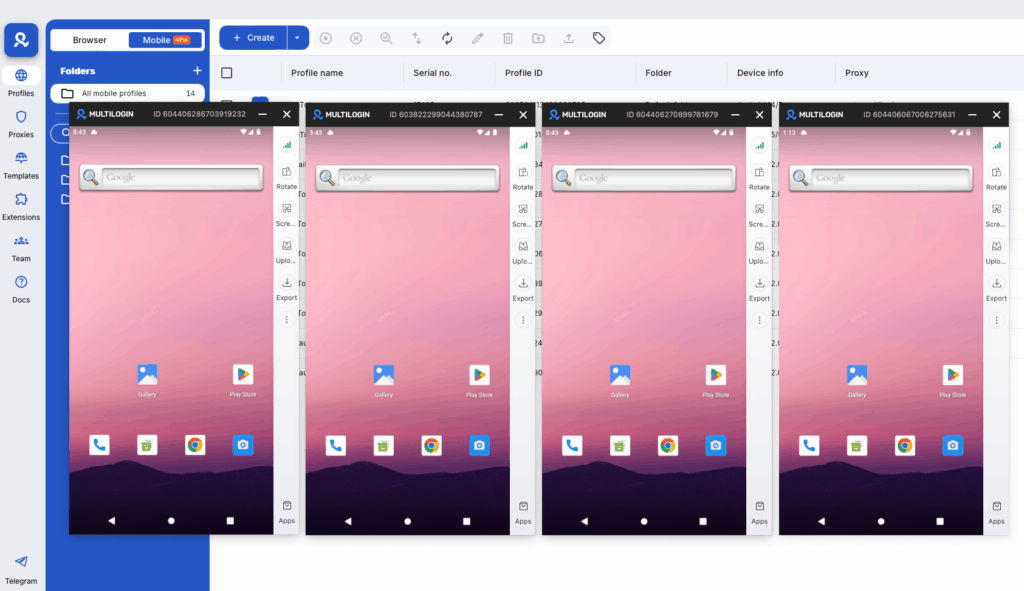
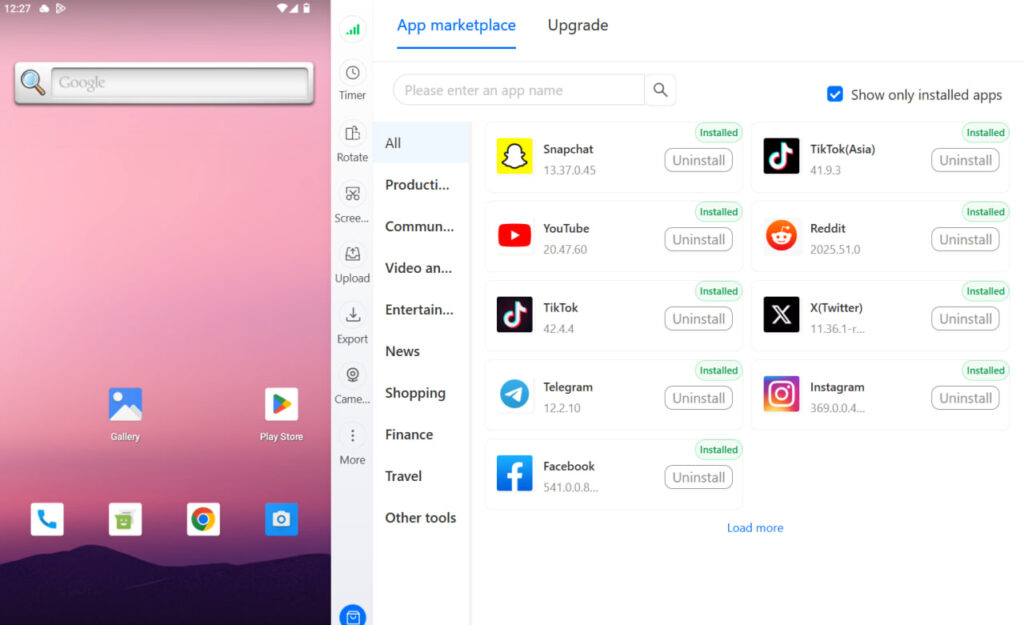
From here, install the social media apps you need. Multilogin cloud phones have access to an app library, and you can also sideload APKs for apps not available through standard channels. For most social media automation workflows, you’ll be installing apps like TikTok, Instagram, Facebook, Twitter/X, YouTube, or Reddit.
Full guide: How to install apps on Android cloud phones
Step 5: Set Up and Warm Up Your Accounts
Once your apps are installed, create or log into your social media accounts inside the cloud phone environment. Each account should be set up inside its own dedicated cloud phone — never log into multiple accounts within the same phone.
Account warming is important for new accounts on most platforms. Warm-up means building a behavioral history that looks organic before you start running automation at volume. In practice, this means:
- Spending a few days using the account normally — browsing, watching content, making organic posts
- Starting engagement actions gradually rather than at full volume immediately
- Keeping session times realistic for a mobile user (not 12-hour continuous sessions)
- Letting the account age before pushing automated posting or engagement tasks
For aged accounts you’re importing rather than creating fresh, the warming period can be shorter. The core principle is giving the platform enough behavioral history to treat the account as legitimate before automation tasks ramp up.
Detailed guide: Stay undetected with 4 key steps to safe multiaccounting
Step 6: Run Your Automation Workflow
With accounts set up and warmed, you can build the automation layer that handles your actual social media tasks.
Multilogin supports several automation approaches, depending on your technical setup:
- API automation — Multilogin’s API lets you programmatically start, stop, and manage cloud phones and browser profiles. This is the right approach for teams building custom automation pipelines or integrating Multilogin into existing software.
- Selenium, Puppeteer, and Playwright — if you’re scripting automated interactions (posting, liking, commenting, following), these automation frameworks connect directly to Multilogin profiles. Your scripts control the browser or app environment while Multilogin handles the identity isolation.
- Script runner and predefined scripts — Multilogin’s built-in script runner lets you run automation scripts without setting up a full development environment. Predefined scripts cover common tasks and can be customized for your workflow.
- External automation tools — third-party tools like n8n, Make (formerly Integromat), Zapier, or dedicated social media automation software can connect to Multilogin’s API endpoints to trigger actions across your cloud phone fleet.
- AI Quick Actions — Multilogin’s AI Quick Action Automation feature lets you automate tasks using natural language instructions, useful for teams that need automation without deep scripting knowledge.
Full API documentation
Getting started with Multilogin automation
Step 7: Manage Teams and Share Access
If you’re running a team — an agency with account managers, a reseller operation with operators, or a distributed team across time zones — Multilogin’s workspace and team management tools let you control who has access to which cloud phones.
Four user roles are available: account owner, admin, user, and viewer. You can share specific phones or folders with team members without giving them access to the full account. This is useful for agencies where different people manage different clients, or for operations where you want to limit access to sensitive account configurations.
Full guide: Workspace and team management
Step 8: Monitor, Maintain, and Scale
Running a successful social media automation operation with cloud phones is an ongoing practice, not a one-time setup. A few things to build into your routine:
- Proxy health checks. Test proxies before applying them to high-value accounts. Multilogin’s proxy template manager includes a one-click test function. A poor-quality or flagged IP is one of the most common reasons for unexpected account issues.
- Session management. Use the auto-stop feature to end cloud phone sessions automatically after a set time. This prevents unnecessary mobile minutes consumption and keeps resource use efficient. Guide: How to set auto-stop for cloud phones
- Mobile minutes tracking. Cloud phones bill by active session time. Monitor your usage through the dashboard and top up when needed. Guide: How to top up mobile minutes
- Cookie and session management. For accounts that need to stay logged in across sessions, Multilogin’s cookie import/export features let you preserve session state. Cookie import guide | Cookie export guide
- Scaling up. When you’re ready to expand — more accounts, more platforms, more automation volume — you can bulk-create cloud phones in batches of up to 100, apply proxy templates across groups, and use folder structures to keep your growing library organized. The export and import feature also lets you replicate working configurations quickly.
Platform-Specific Notes for Social Media Automation
Different platforms have different detection sensitivities and best practices for multi-account operation.
- TikTok is one of the most aggressive platforms for device fingerprint checking. TikTok’s antifraud system correlates device IDs, checks carrier signals, and flags accounts that appear to run on emulators. Cloud phones with cellular network mode and mobile proxies are the right setup for TikTok. The device should look like a real phone on a real mobile carrier. Cloud phones for TikTok
- Instagram performs device verification at account creation and monitors behavioral patterns over time. Each Instagram account needs its own cloud phone and proxy. Instagram is also sensitive to the velocity of automated actions — posting, following, and engagement should stay within realistic human ranges. Cloud phones for Instagram
- Facebook combines device fingerprinting with social graph analysis. Accounts that are connected through the same phone or IP history get linked, which can cascade into multi-account bans. Clean phone isolation from the start is essential. Cloud phones for Facebook
- YouTube is less aggressive on device fingerprinting than the above, but channel accounts that share hardware or IP history can be associated under YouTube’s multi-account policies. Separate cloud phones for separate channels keep that risk contained. Cloud phones for YouTube
- Reddit uses a combination of account age, behavioral patterns, and IP reputation for moderation and anti-spam. New Reddit accounts need genuine warm-up periods before automation makes sense, and mobile proxy quality matters significantly on Reddit. Cloud phones for Reddit
SMS Verification for New Account Setup
Many social media platforms require phone number verification when creating new accounts. Multilogin cloud phones support SMS verification through virtual number services.
When creating your cloud phone, you can set a custom phone number linked to a virtual number provider — you’ll receive verification codes in your provider’s dashboard and enter them inside the cloud phone. Auto-generated numbers are available for workflows where verification isn’t required (for example, logging into existing accounts).
Full guide: SMS verification with cloud phones
The Difference Between Scheduling and Automation in Social Media
A common question from teams getting started: what’s the difference between scheduling tools and social media automation?
Scheduling tools (Buffer, Hootsuite, Later, Recurpost, and others) let you queue content and publish at set times. They’re built around the content calendar — plan your posts, schedule them, and the tool handles publishing. This is automation in a limited sense, but it’s still operating from a single account identity per connected profile.
Full social media automation goes further: it includes the device and identity layer (which is where Multilogin operates), the content creation and scheduling layer (which is where tools like Buffer or n8n workflows come in), and the engagement layer (liking, commenting, DM management, following/unfollowing). A complete multi-account automation stack uses all three layers together.
Multilogin Cloud Phones are the foundation. Without isolated, authentic-looking device identities, everything else — the scheduling, the engagement automation, the content pipelines — is operating on shaky ground.