
If you manage more than one Meta ad account, you already know how fast things can go wrong. Log into two accounts from the same device and Meta can detect the connection between them. That can trigger restrictions, reviews, or bans across all your accounts at once — sometimes within hours.
The fix isn’t just using a different browser tab or a VPN. Meta looks at device fingerprints, not just IP addresses. Two accounts sharing the same hardware identifiers are still linked, even if they’re behind different proxies.
Multilogin cloud phones solve this properly. Each cloud phone is a real Android device hosted in the cloud, with a unique device fingerprint, its own IP address, and a completely isolated session. Meta sees each one as a different phone, in a different location, used by a different person. That’s the level of separation you need when you’re running accounts at scale.
This guide walks you through the full setup: creating cloud phone profiles, installing Meta Ads, and logging in safely. Start your Multilogin plan and follow along.
Before you start
You’ll need a Multilogin account with a plan that includes cloud phone minutes. Cloud phones are billed at €0.009 per minute, and minutes are purchased as credits. You’ll also need at least one existing Meta account to log in with.
Meta doesn’t allow account creation from new devices without additional verification, so have your login credentials ready before you begin. If you’re also managing browser-based Meta tasks, Multilogin’s multi-account management setup covers both desktop and mobile workflows in one dashboard.
Step 1: Switch to mobile mode in Multilogin
Open the Multilogin X desktop app. In the left sidebar, click Profiles. At the top of the profiles list, you’ll see a toggle to switch between browser profiles and mobile profiles. Switch to Mobile mode.
This is where you create and manage your cloud phone profiles. Everything runs from your desktop, no physical phones required.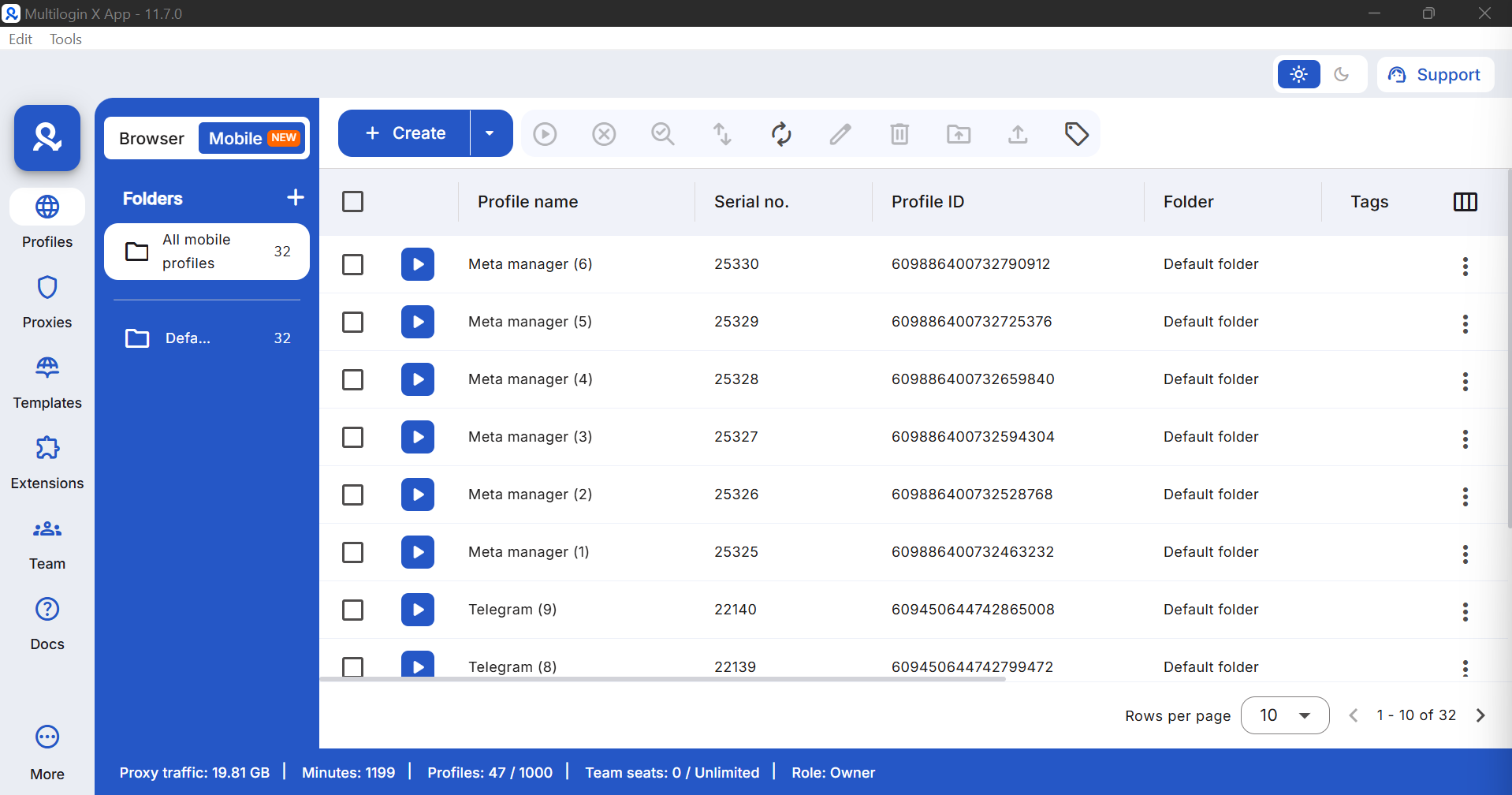
Step 2: Create a new cloud phone profile
Click Create profile. The profile creation screen will open.
Fill in the following fields:
Profile name: Give it a clear name so you can identify which account it belongs to, for example “Meta Ads – Account 1.”
Number of profiles: If you want to create multiple profiles at once, increase this number. You can create up to 100 at a time.
Folder: Organise profiles into folders if you’re managing accounts for different clients or campaigns.
On the right side of the screen, you’ll see the Device info panel. This is where Multilogin automatically assigns a unique Android device fingerprint to each profile, including the device model, OS version, and hardware identifiers like IMEI, Android ID, and MAC address. You can leave this on automatic or customise it if needed.
This matters because device fingerprinting is one of the main ways platforms link accounts together. Each cloud phone gets its own set of real hardware parameters, not spoofed ones.
When you’re ready, click Create.
Step 3: Launch your cloud phone
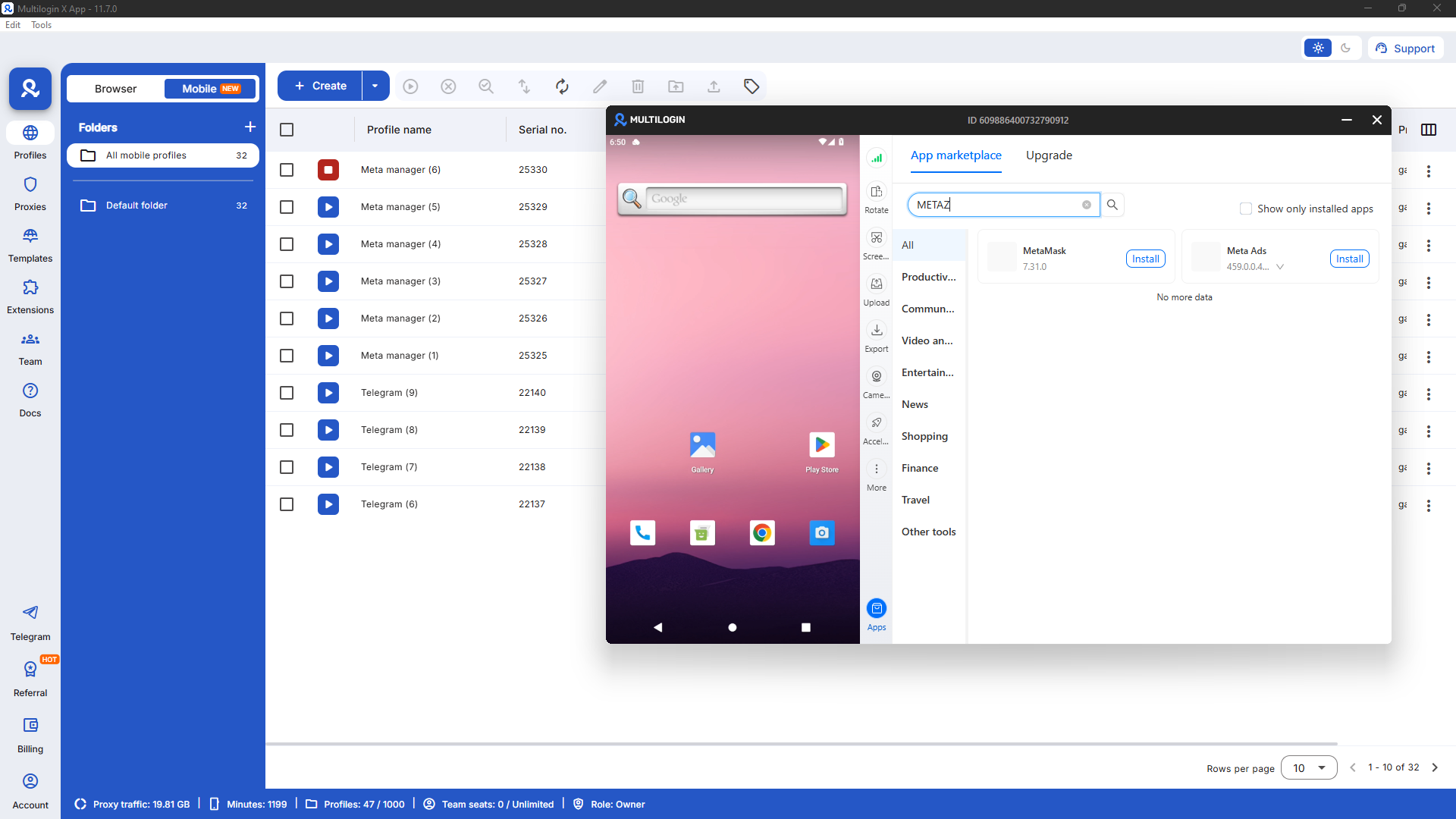
Once your profile is created, it will appear in your profiles list. Click Launch to start the cloud phone.
After a few seconds, the cloud phone will open in a new window. You’ll see a real Android home screen running in the cloud.
The toolbar on the right gives you quick access to controls: rotating the screen, taking screenshots, and accessing the app marketplace. The cloud phone is fully isolated from every other profile you’ve created. Nothing crosses over unless you configure it to.
Step 4: Open the app marketplace
To install Meta Ads, you don’t use the Play Store. Multilogin has its own App Marketplace built into the cloud phone interface.
Click the Apps icon at the bottom of the right toolbar. The App Marketplace will open as a panel alongside your cloud phone.
Step 5: Search for Meta Ads
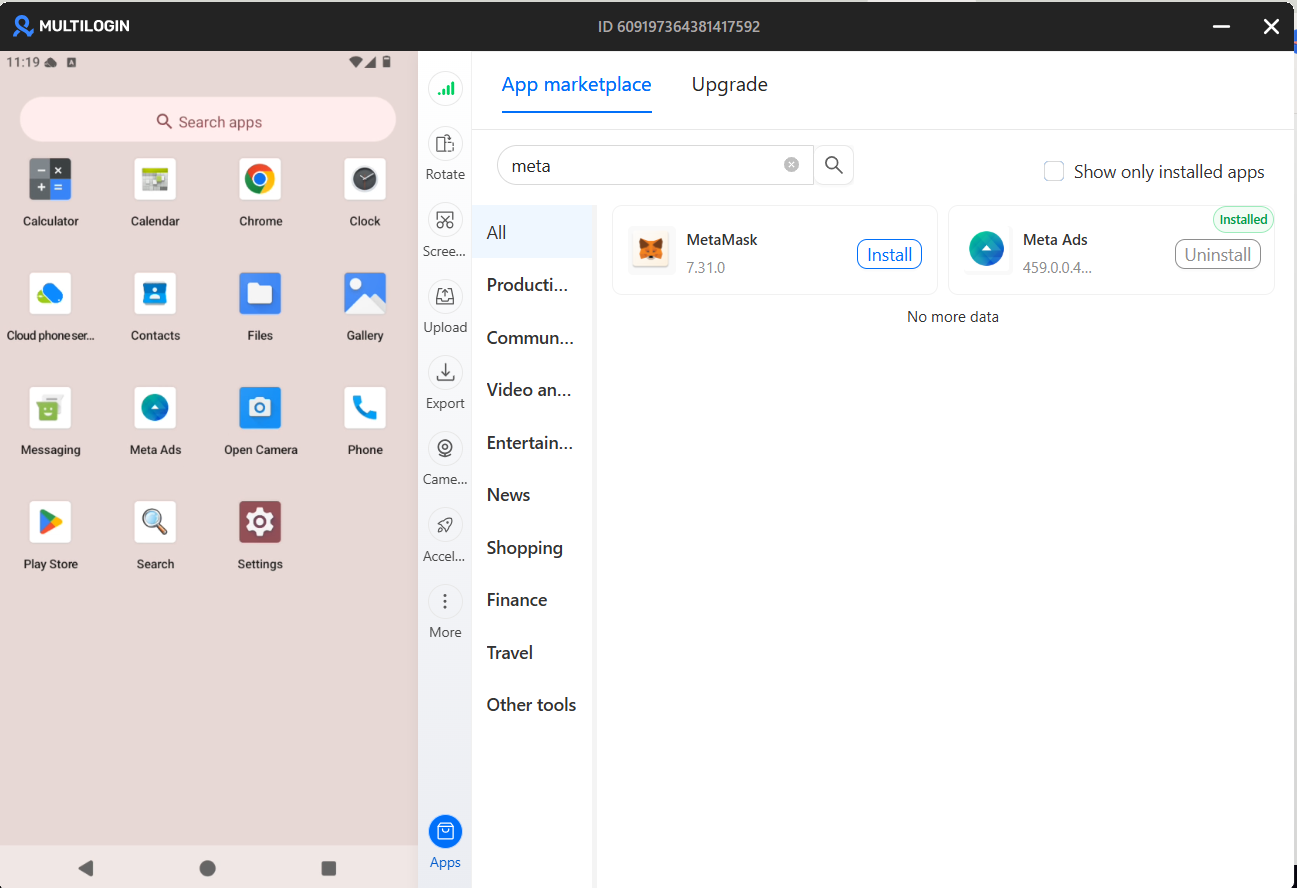
In the search bar at the top of the App Marketplace, type “meta” and press Enter. Select Meta Ads and click Install.
Installation takes a few seconds. Once it’s done, the button will change to Uninstall and a green Installed badge will appear.
One thing worth noting: Meta Business Manager isn’t available as a standalone app in the marketplace. The Meta Ads app is the mobile version of Meta Ads Manager, which gives you full access to your ad accounts, campaigns, and performance data. For Business Manager settings and asset management, you can reach those through the Meta Ads app or through the mobile browser inside the cloud phone.
Step 6: Find Meta Ads on your cloud phone
After installation, go back to your cloud phone home screen. Swipe up or tap the app drawer to see all installed apps. You’ll see Meta Ads listed alongside the other apps on the device. Tap it to open.
Step 7: Log in to your Meta account
The Meta Ads login screen will appear inside your cloud phone.
Enter the email or phone number and password for your Meta account, then tap Login.
If you have two-factor authentication enabled, you’ll be prompted for your verification code. Complete that step and you’ll land directly in your Meta Ads Manager dashboard.
One important thing: you must have an existing Meta account before this step. Meta doesn’t allow new account registrations from cloud phone environments without additional identity verification. If you need to create a new Meta account, do that from a regular browser first. Warm it up with normal activity for a few days, then log in from your cloud phone. Account age and natural behaviour history make a real difference in how Meta treats a new device login.
If you want to understand the broader picture of how to avoid getting banned on Facebook, that guide covers warmup strategies and common mistakes that trip up even experienced media buyers.
Step 8: Manage your campaigns
Once you’re logged in, you have full access to Meta Ads Manager. You can view active campaigns, check performance metrics, create new ad sets, adjust budgets, and manage your ad account settings.
Each cloud phone profile you created is completely isolated from all others. You can log into a different Meta account on each one without any risk of the accounts being linked. That’s true whether you’re running two accounts or twenty.
Running multiple accounts at the same time
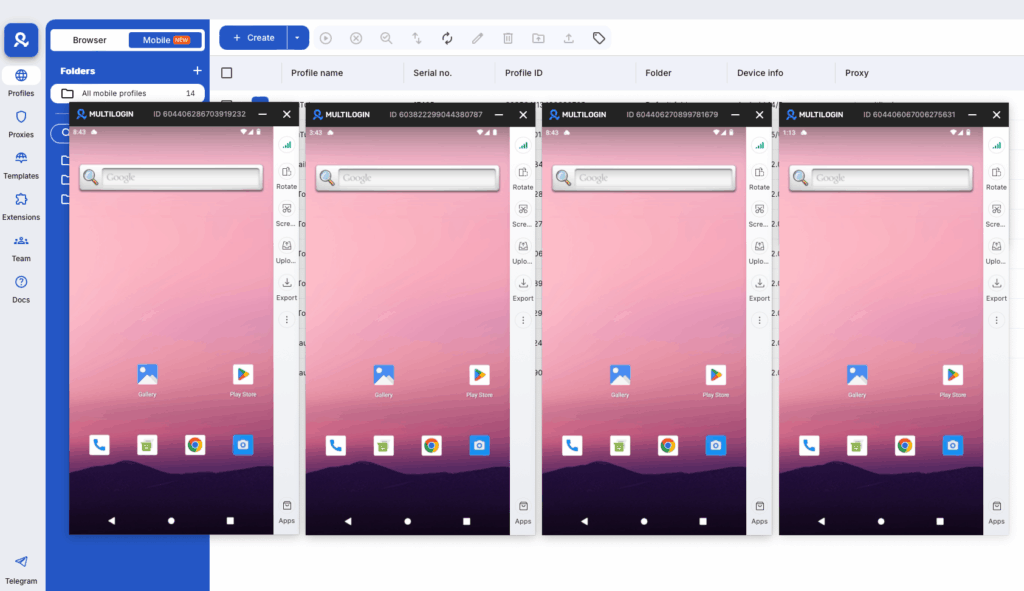
One of the most useful things about Multilogin cloud phones is the ability to run multiple profiles simultaneously. Instead of launching one profile at a time, you can select multiple profiles from your list and click Launch all.
Each cloud phone opens in its own window. You can have five, ten, or more Meta ad accounts running at the same time, each in its own isolated environment, each with a different device fingerprint and residential proxy assigned to it.
This is what agencies and media buyers actually need when managing accounts at scale. The risk of account linking drops to nearly zero when every profile has its own identity from the hardware level up. You can read more about phone farming with Multilogin if you’re building a larger operation and want to understand how cloud phones compare to running physical devices.
Tips for keeping your accounts safe
- Use a dedicated proxy for each profile. When creating your cloud phone profile, go to the Proxy tab and assign a residential or mobile proxy that matches the location of the account you’re managing. A US-based Meta account should use a US-based proxy. Mismatched geolocation signals are one of the most common reasons accounts get flagged. Check Multilogin’s proxy management guide if you’re new to setting this up.
- Keep sessions consistent. Log in and out of the same account from the same cloud phone profile every time. Switching accounts between profiles defeats the purpose of isolation.
- Don’t rush new accounts. If you’re logging into a freshly created Meta account, spend a few days warming it up before running ads. Browse the feed, interact with posts, let the account build a natural activity history. Platforms look at behaviour patterns, not just device signals.
- Name your profiles clearly. Use a naming convention that makes it easy to identify which account belongs to which profile, especially when managing accounts for multiple clients. Something like “ClientName – Meta Ads – US” works well.
- Keep the cloud phone running only when needed. Since billing is per minute, close profiles when you’re not actively using them. The session data saves automatically, so you’ll still be logged in when you relaunch.
If you’re also managing social media accounts beyond Meta, Multilogin’s social media marketing setup covers how to run browser profiles and cloud phones together in one workflow.

