If your LinkedIn access was limited or blocked, this usually happens for a clear reason. Restrictions are triggered when LinkedIn detects repeated signals that connect accounts to the same browser or device. Creating a new account or logging back in from the same setup often leads to the same result.
When this happens, the solution is not another signup. The real fix is changing the environment those accounts run in. Multilogin antidetect browser keeps each LinkedIn account inside its own isolated browser profile, with separate fingerprints, cookies, and sessions. This separation prevents accounts from being linked again and helps stop repeat restrictions.
What “LinkedIn account restricted” actually means
When your account gets restricted, it’s not the same as being permanently banned. A restriction is LinkedIn’s way of slowing you down before things escalate. It’s a warning stage, not the end.
A temporary lock usually happens first. You might be asked to verify your identity, confirm an email, or reset a password. Access is limited, but the account is still there.
A restriction goes further. Core actions stop working. Messaging may be blocked. Profile views can be limited. Connection requests fail. Ads or sales tools may be paused. You can log in, but you can’t really operate.
A suspension is the final step. The account is disabled, and recovery becomes difficult or impossible.
When a restriction hits, the limits are very specific:
- Messages stop sending or inbox access is blocked
- Profile visibility drops or disappears
- Connection requests fail or get throttled
- Ad accounts or campaign access is paused
This stage exists for a reason. LinkedIn uses restrictions to interrupt behavior it doesn’t trust yet. It gives the system time to observe patterns and gives you a chance to stop repeating the same setup. If the same browser, device, or environment keeps showing up across accounts, restrictions usually come back stronger. That’s how short-term limits turn into permanent bans.
Why LinkedIn restricts accounts
LinkedIn doesn’t restrict accounts because of one wrong click. It looks for patterns. The platform watches how an account behaves and, more importantly, where that behavior comes from. When actions repeat from the same environment, trust drops fast.
If you get restricted, it usually means LinkedIn saw consistency where there shouldn’t be any. Same setup. Same signals. Same source. One action rarely causes a restriction on its own. Repeated patterns do.
LinkedIn pays close attention to how accounts line up over time. When multiple profiles behave like they belong to the same person or device, the system steps in.
The most common signals LinkedIn tracks include:
- Logging into multiple accounts from the same browser: If accounts share the same browser data, they start to look connected very quickly.
- Reusing the same device and fingerprint across profiles: Even with different emails, the underlying device identity stays visible.
- IP reuse and location inconsistencies: Switching locations too often or sharing IPs across accounts raises flags.
- Fast switching between accounts: Jumping from one profile to another in seconds doesn’t look natural.
- Automation without environment separation: Running actions at scale from one setup makes patterns obvious.
If you get banned or restricted and keep using the same environment, those signals don’t disappear. They stack. That’s why restrictions often come back faster the second time. The system isn’t reacting to a mistake; it’s reacting to repetition.
Why LinkedIn restrictions keep coming back
Most people try to fix the account. LinkedIn is looking at the setup. When a restriction hits, the usual reaction is to start over. New email. New profile. Same browser. Same laptop. Same routine. From LinkedIn’s side, nothing really changed. The signals are still there, so the restriction returns—often faster than the first time.
If you create a new account in the same browser, you repeat the same patterns that caused the restriction. Cookies might be new, but the environment is not. Once multiple accounts get linked, the damage spreads. One restricted profile can quietly pull others down with it.
Here’s what doesn’t work, even though many people try it:
- Clearing cookies or cache: This removes surface data, not the identity behind the browser.
- Using incognito mode: Incognito hides history from you, not from the platform.
- Switching VPNs without changing the browser environment: A new IP on the same setup still looks familiar.
- Creating a new email and retrying: Email changes don’t reset device or browser signals.
If you get banned or restricted and keep retrying like this, you aren’t fixing the issue. You’re training the system to recognize you faster.
How LinkedIn links accounts together
LinkedIn doesn’t rely on one signal. It connects many small ones over time. Browser fingerprinting, in simple terms, is how your browser identifies itself. Screen size, fonts, system details, extensions, and other settings combine into a pattern. That pattern tends to stay stable, even if you clear cookies.
On top of that, LinkedIn uses device-level identifiers. Your operating system, hardware behavior, and browser configuration form a consistent signature. Different accounts logging in from the same signature start to look related.
This is why IP changes alone are not enough. An IP only shows location. The browser and device show identity. If those stay the same, accounts stay linked.
Once LinkedIn connects profiles, the connection doesn’t disappear overnight. Even after weeks or months, logging back in from the same environment can reactivate old links. That’s how restrictions travel from one account to another—and why fixing the setup matters more than fixing the profile.
How Multilogin prevents repeat LinkedIn restrictions
Repeat restrictions happen when LinkedIn keeps seeing the same patterns. Multilogin breaks that cycle by changing how each account appears from the start. Instead of several profiles sharing one setup, every LinkedIn account runs as its own user, with its own history and behavior.
When accounts don’t overlap, problems stop spreading. One account getting reviewed no longer puts the others at risk. Sessions stay stable, and you don’t get logged out or forced to re-verify because the environment keeps changing. That stability is what helps accounts age normally instead of triggering alerts.
Here are the features that make the difference for LinkedIn:
- Unique browser fingerprints per profile: Each profile has its own browser identity. LinkedIn sees separate users, not variations of the same device.
- Built-in residential proxies included in all plans: Every profile can run on its own IP without extra setup. Locations stay consistent, and logins look natural.
- Pre-farmed cookies for safer account warm-up: New accounts don’t start from zero. Existing browser history helps early activity look less suspicious.
- Cloud or local profile storage for consistency: Profiles keep their data between sessions. Nothing resets unexpectedly, and behavior stays predictable.
If you’ve already been restricted, this is how you move forward without repeating the same mistakes. You stop reacting to LinkedIn warnings and start running accounts in a way that doesn’t trigger them again.
How to use Multilogin for LinkedIn accounts without getting restricted
This isn’t about tricks. It’s about fixing the reason restrictions happen in the first place. LinkedIn flags accounts when it sees environment reuse. Multilogin works because it removes that reuse completely, if you set it up the right way.
Step 1: Stop using the same browser for multiple accounts
LinkedIn starts linking accounts the moment more than one profile is accessed from the same browser. Emails don’t matter here. What LinkedIn sees is the environment behind the login. When that environment stays the same, accounts stop looking independent very quickly.
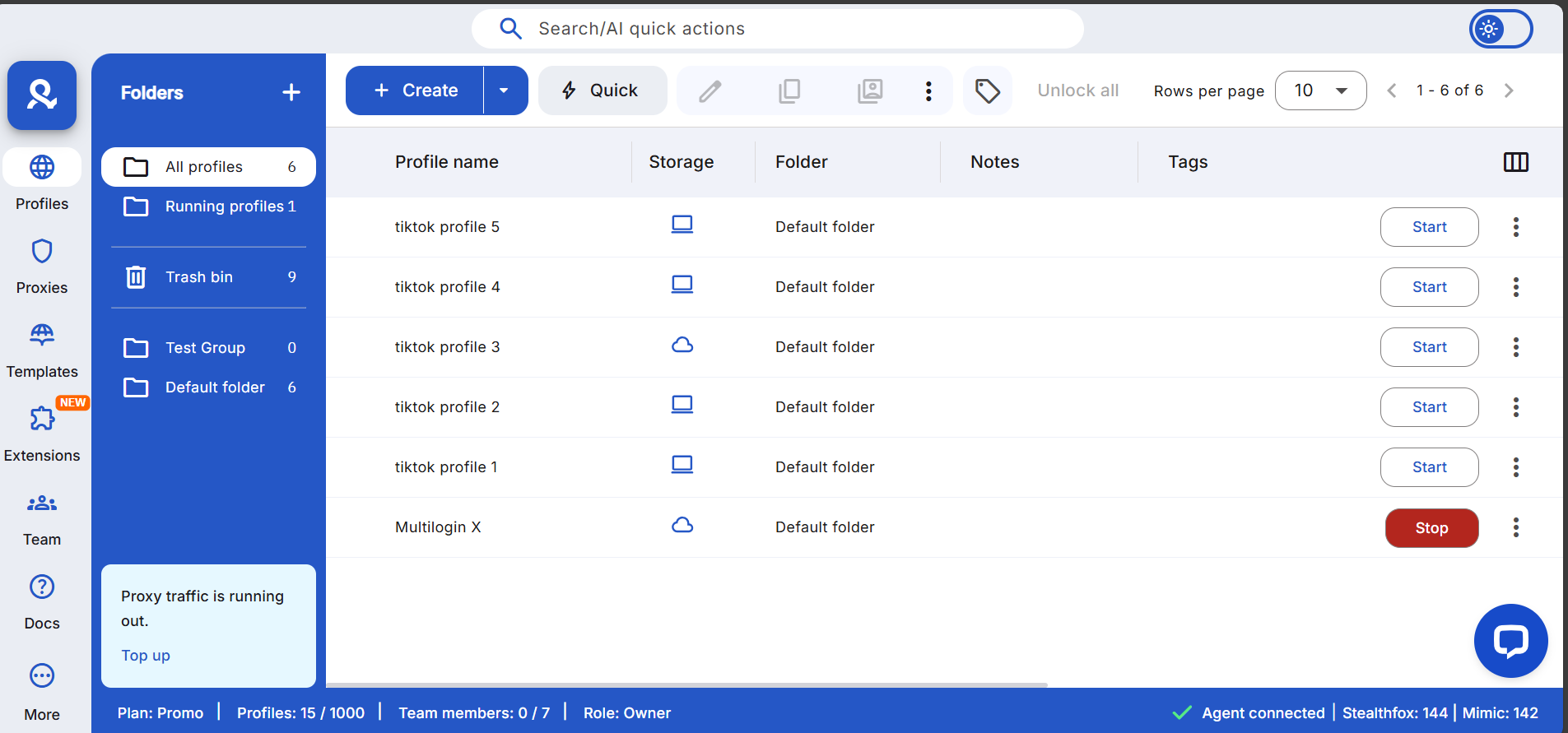
With Multilogin, each LinkedIn account runs inside its own browser profile. You create one profile, log in to one LinkedIn account, and never reuse that profile for anything else. Each profile behaves like a different person, and that separation alone removes the most common trigger behind repeat restrictions.
Step 2: Keep each profile’s environment fully isolated
Clearing cookies or switching to incognito doesn’t reset how a browser identifies itself. LinkedIn still recognizes the same setup underneath. That’s why restrictions return even after users think they “cleaned” the browser.
Multilogin profiles don’t share fingerprints, cookies, or local data. When you open a profile, it carries its own identity every time. You don’t clone profiles for new accounts and you don’t recycle old ones. One account stays tied to one environment from the first login to the last.
Step 3: Use a stable IP for every LinkedIn profile
LinkedIn pays close attention to location patterns. Accounts that jump between IPs or share the same IP across multiple profiles look unstable and raise flags fast.
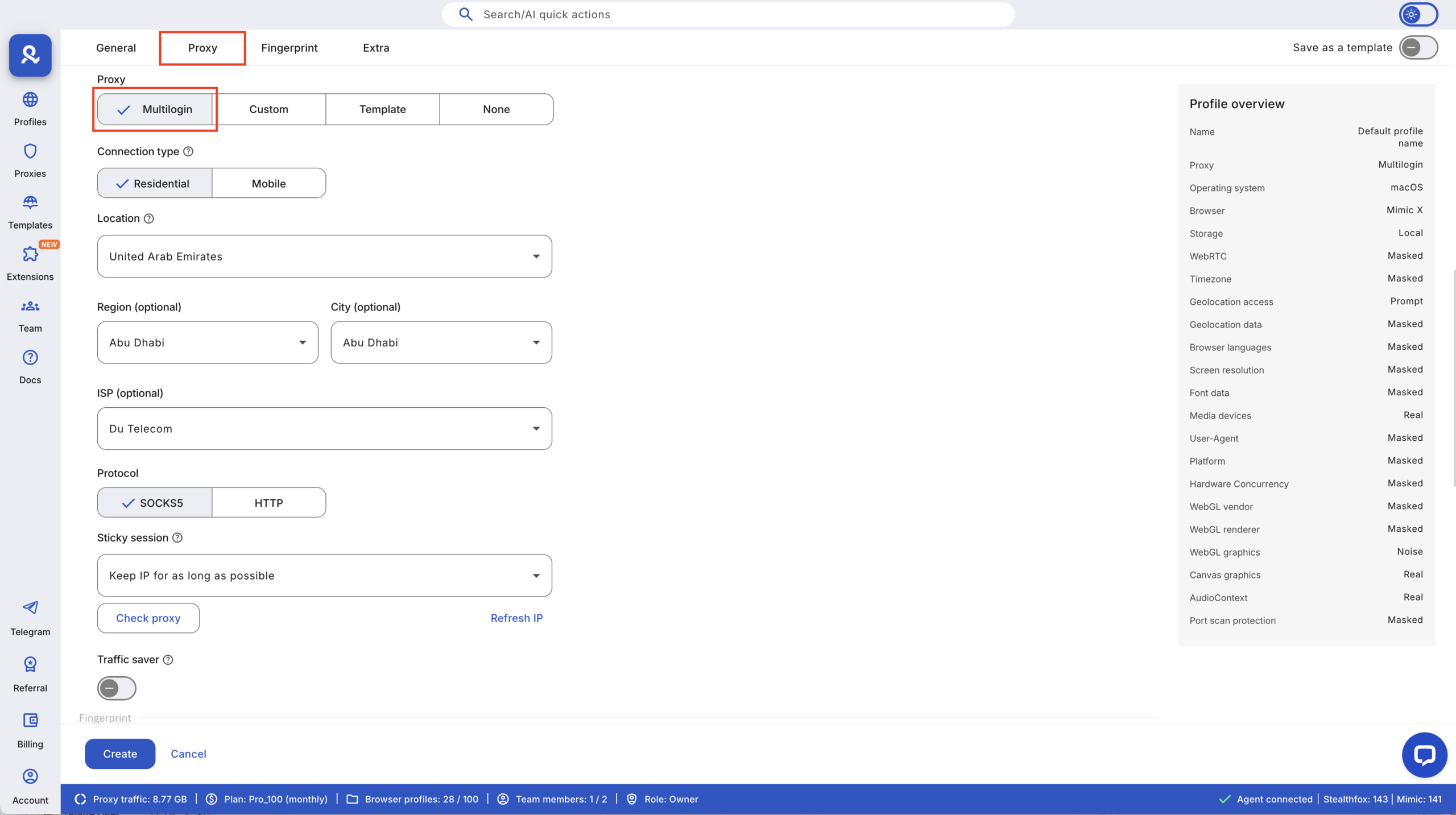
Inside Multilogin, you assign a residential proxy to each profile and keep it consistent. The goal isn’t to rotate IPs. It’s to look predictable. One profile, one location, one IP pattern over time. This stability helps accounts age normally instead of triggering reviews.
Step 4: Avoid fast switching between accounts
Opening several LinkedIn accounts back to back from the same session creates timing patterns that don’t look human, even if everything is done manually.
Running accounts in separate Multilogin profiles changes this. You close one profile before opening another, giving each account its own session window. That spacing alone reduces detection risk and keeps behavior from looking automated.
Step 5: Let accounts warm up naturally
New or recovered LinkedIn accounts that move too fast attract attention. Mass connections, heavy messaging, or automation early on usually leads to restrictions.
Multilogin supports safer warm-up by keeping each account’s history intact. Profiles don’t reset between sessions, and pre-farmed cookies help avoid the “brand new browser” signal. Activity grows gradually, and accounts build trust instead of pressure.
Step 6: Always return to the same profile
Frequent environment changes are a quiet red flag. Logging in from different browsers, devices, or reset setups makes an account look unstable.
With Multilogin, you always come back to the same profile for the same LinkedIn account. The environment stays familiar, sessions stay consistent, and nothing suddenly changes between logins. That consistency is what keeps restrictions from coming back.
Step 7: If a restriction happens, don’t retry from the old setup
Most repeat restrictions happen because users rush to create a new account using the same environment that caused the first issue.
When a restriction hits, stop using that setup. Create a new isolated profile and only move forward once the environment is clean. Fixing the setup first is what prevents the same restriction from repeating again.
What to do after your LinkedIn account gets restricted
The worst thing you can do after a restriction is keep logging in. Every login from the same setup reinforces the signals that caused the restriction in the first place. Stop accessing the affected account right away and avoid checking it “just to see if it works.” That alone can make the situation harder to recover from.
Do not create a new LinkedIn account in the same browser or on the same device. Even with a new email, the environment stays the same, and LinkedIn connects the accounts quickly. Before doing anything else, take a moment to review how many LinkedIn accounts were using that browser or device. In most cases, restrictions spread because several accounts shared one setup without clear separation.
This is where Multilogin becomes necessary. Move each LinkedIn account into its own isolated browser profile so no data, fingerprints, or sessions overlap. One account per profile, no exceptions. Once the environment is separated, you can continue without repeating the same signals that caused the restriction.
Learn more about how to create a second LinkedIn account!