

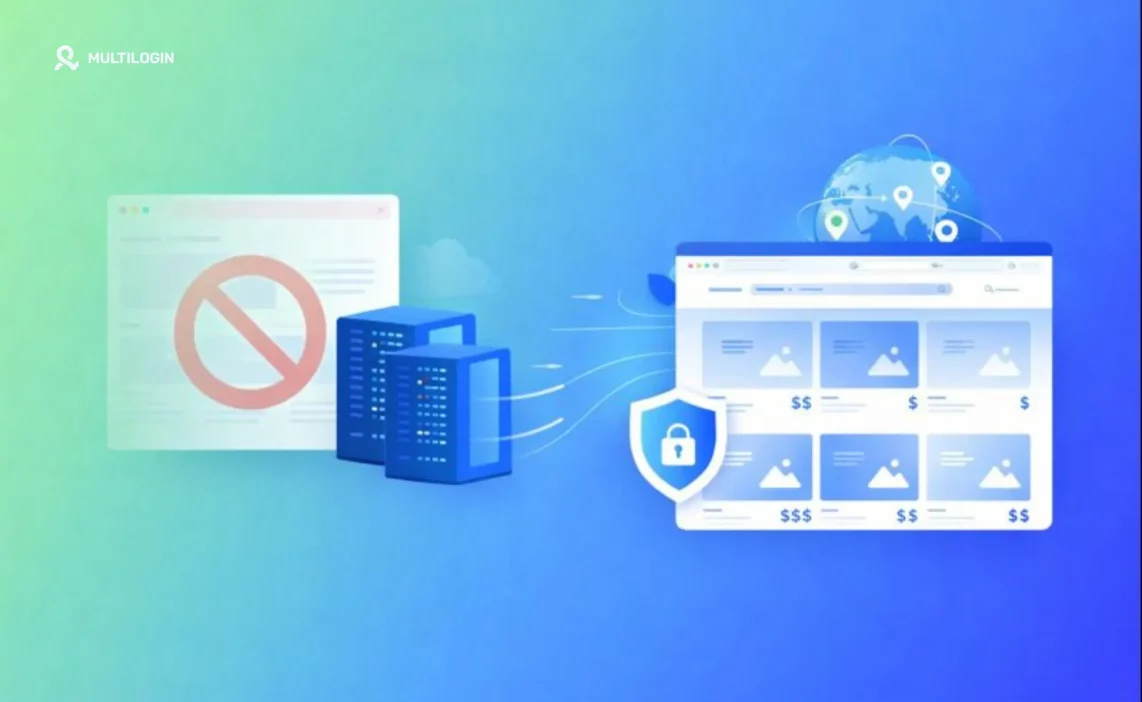

When a website blocks you, it’s usually due to one of three reasons: browser settings, network rules, or location/IP checks. If you’re getting blocked while doing legit work (multiple logins, account separation, research), start with Multilogin. It runs each session in an isolated browser profile, so cookies and browser identity don’t get mixed.
Additionally, if you encounter geo-restrictions, Multilogin helps by allowing each profile to use a region-specific proxy, which ensures that the site recognizes a consistent and appropriate location. This lets users access region-locked content more reliably.
If a website is blocked by an administrator on a managed network/device, follow the policy and request access.
Why Websites Get Blocked (So You Pick the Right Fix)
Understanding why a website is blocked is the first step to regaining access. The reasons can range from simple browser glitches to sophisticated network-level filtering.
Here’s a breakdown of the most common culprits.
The Usual Causes
- Browser Issues: Sometimes, corrupted cookies, a cluttered cache, or a faulty extension prevent a website from loading. These can cause your browser’s identity to be misinterpreted, leading to a block.
- DNS Problems: The Domain Name System (DNS) is the internet’s phonebook, translating human-readable domain names (like google.com) into machine-readable IP addresses. If your device, router, or Internet Service Provider (ISP) has a problem with its DNS resolver, it won’t be able to find the website you’re looking for, resulting in a “site can’t be reached” error.
- Firewall or Secure Web Gateway Filtering: Many corporate and public networks use firewalls and secure web gateways to block access to certain websites for security or policy reasons. These systems can filter traffic based on a website’s category (e.g., social media, gaming) or its reputation.
- Geo-Restrictions: Have you ever tried to watch a video and been told it’s “not available in your country”? That’s geo-blocking in action. Content providers often use geo-restrictions to comply with licensing agreements or to tailor content to specific regions. They do this by checking your IP address to determine your location.
- IP Reputation Blocks: Your IP address is your digital passport, and just like a real passport, it can get a bad reputation. If your IP address has been associated with spam, malware, or other malicious activity, websites may block it to protect themselves. This is a common problem on shared networks, where the actions of one user can affect everyone else.
- Account-Level Blocks: Sometimes, the block isn’t at the network or browser level, but at the account level. This can happen if you’ve made too many login attempts, triggered a rate limit, or if your account has been flagged for suspicious activity. Websites use these blocks to prevent brute-force attacks and other forms of abuse.
Start Here (The 60-Second Checklist)
Before you dive into more complex troubleshooting, run through this quick checklist. These simple steps can often resolve the most common website blocking issues in under a minute.
Fast Checks
- Open in a Private Window: Private or incognito mode opens a new browser session without any of your existing cookies, cache, or extensions. This is a great way to quickly check if a browser issue is the cause of the block.
- Try Another Browser: If a private window doesn’t work, try a different browser. This will help you determine if the problem is specific to your primary browser or a more general issue.
- Disable Extensions: Browser extensions can interfere with how websites load. Try disabling all of your extensions and then re-enabling them one by one to see if you can identify the culprit.
- Clear Site Data for That Domain: Instead of clearing your entire browser cache, you can clear the data for a specific website. This will remove any corrupted cookies or cached files that might be causing the problem.
- Restart Browser and Device: It’s a classic for a reason. Restarting your browser and your device can often clear up temporary glitches and get you back online.
What to Avoid
- Random “Unblocker” Extensions: Be wary of browser extensions that promise to unblock any website. Many of these are ad-supported or, worse, can be a source of malware or a threat to your privacy.
- Mirror Sites Asking for Credentials: If you find a “mirror” or “proxy” of a blocked website, be extremely cautious. These sites are often set up to steal your login credentials or other personal information.
Identify What Kind of Block It Is (By the Error)
The error message you see when a website is blocked can provide valuable clues about the cause of the problem. Here’s how to interpret some of the most common error messages.
Error → Likely Cause → Where to Jump
- “This site can’t be reached” → DNS/Network: This is a classic DNS error. It means your browser can’t find the IP address associated with the domain you’re trying to reach. Jump to the “Fix Network Basics” section.
- “403 Forbidden” → IP/Account/Permission: A 403 error means the server understood your request but is refusing to fulfill it. This is often due to an IP block, an account issue, or a lack of permissions. Jump to the “If You Keep Getting Blocked” section.
- “Blocked by administrator” → Policy Block: This error is a clear sign that the website is being blocked by a network administrator. Jump to the “How to Unblock a Website Blocked by Administrator” section.
- Endless CAPTCHA / “Unusual Traffic” → Rate Limit / Reputation Signals: If you’re stuck in a loop of CAPTCHAs or seeing “unusual traffic” warnings, it’s likely that your IP address has been flagged for suspicious activity. Jump to the “If You Keep Getting Blocked” section.
- “Not available in your region” → Geo-Restriction: This error is a tell-tale sign of geo-blocking. Jump to the “Multilogin as the Ultimate Solution” section to learn how to bypass it.
Fixes That Work on Any Device (Mac/Windows/iPhone/Android)
These fundamental fixes address common browser and network issues and can be applied to any device.
Clean Browser State
- Clear Cookies/Cache for the Domain: As mentioned in the 60-second checklist, clearing the data for a specific website is a great first step. This can be done in your browser’s settings.
- Reset Site Permissions: Websites can request permissions to access your location, microphone, and other features. If you’ve accidentally denied a necessary permission, it could be causing the block. You can reset site permissions in your browser’s settings.
- Check System Date/Time: An incorrect system date or time can cause issues with SSL certificates, leading to security warnings and blocked websites. Make sure your device’s date and time are set correctly.
Fix Network Basics
- Restart Router (Home): If you’re on a home network, restarting your router can often resolve temporary network issues.
- Switch DNS (Only if You Control the Network): If you suspect a DNS issue, you can try switching to a public DNS provider like Google Public DNS (8.8.8.8 and 8.8.4.4) or Cloudflare DNS (1.1.1.1 and 1.0.0.1).
- Flush DNS (Desktop): Flushing your DNS cache can clear out any outdated or incorrect DNS entries. Here’s how to do it on different operating systems:
- Windows: Open Command Prompt as an administrator and run ipconfig /flushdns.
- Mac: Open Terminal and run sudo dscacheutil -flushcache; sudo killall -HUP mDNSResponder.
- Linux: Open a terminal and run sudo systemd-resolve –flush-caches.
How to Unblock Websites on Chrome (Google Chrome)
As the world’s most popular browser, Chrome has its own set of quirks and settings that can affect website access.
Check Chrome Site Settings
Chrome allows you to manage settings for individual websites, including JavaScript, pop-ups, and notifications. If a website isn’t loading correctly, make sure you haven’t accidentally blocked a necessary feature.
Remove Extension Conflicts
As mentioned earlier, browser extensions can cause conflicts. The best way to troubleshoot this is to disable all of your extensions and then re-enable them one by one until you find the culprit.
Reset Chrome (Last Resort)
If all else fails, you can reset Chrome to its default settings. This will disable all of your extensions, clear your temporary data, and reset all of your settings. Your bookmarks, history, and saved passwords will not be cleared.
How to Unblock Websites on Safari
Safari’s focus on privacy can sometimes lead to website compatibility issues.
Safari Settings That Often Break Access
- Content Blockers: Safari’s content blockers are great for blocking ads and trackers, but they can also interfere with how websites load. If you’re having trouble with a specific site, try disabling your content blockers for that site.
- Privacy/Tracking Settings: Safari has a number of privacy and tracking settings that can prevent websites from working correctly. If you’re having trouble with a site that requires you to log in, try disabling these settings temporarily.
How to Unblock Websites on iPhone and iPad
Mobile devices have their own unique set of settings that can affect website access.
Check Device Restrictions
- Screen Time Content Restrictions: iOS and iPadOS have a feature called Screen Time that allows you to set content and privacy restrictions. If you’re having trouble accessing a website, make sure it’s not being blocked by Screen Time.
- Allowed/Blocked Site Lists: Screen Time also allows you to create lists of allowed and blocked websites. If you’re using this feature, make sure the website you’re trying to access is on the allowed list.
Check Network Settings
- DNS Overrides on Wi-Fi: You can manually configure DNS settings for individual Wi-Fi networks on your iPhone or iPad. If you’re having trouble with a specific network, check to see if you have a custom DNS configuration.
- VPN/Proxy Toggles (Accidentally Enabled): If you have a VPN or proxy app on your device, make sure it’s not accidentally enabled. A misconfigured VPN or proxy can prevent you from accessing certain websites.
How to Unblock Websites on Android
Android’s open nature means there are a number of different settings that can affect website access.
Common Android Blockers
- Private DNS Misconfig: Android has a feature called Private DNS that allows you to use a custom DNS provider. If you’re having trouble with a specific site, try disabling Private DNS or switching to a different provider.
- Browser Site Settings + Storage: Just like on a desktop, you can manage site settings and clear data for individual websites in your mobile browser.
- Data Saver Modes That Break Scripts: Some Android browsers have a data saver mode that can interfere with how websites load. If you’re having trouble with a specific site, try disabling data saver mode.
How to Unblock Websites on Mac and Windows PC
Desktop operating systems have their own set of tools and settings that can affect website access.
Device-Level Blocks
- Hosts File Entries: The hosts file is a system file that can be used to manually map domain names to IP addresses. If you’re having trouble with a specific site, check your hosts file to make sure there are no incorrect entries.
- Security Software Web Shields: Many antivirus and security software suites include a web shield that can block access to malicious or unwanted websites. If you’re having trouble with a specific site, try disabling your web shield temporarily.
Router-Level Blocks (Home)
- DNS Filtering / Parental Controls: Many home routers have built-in DNS filtering or parental control features that can be used to block access to certain websites. If you’re having trouble with a specific site, check your router’s settings to make sure it’s not being blocked.
- Allowlist vs. Blocklist: When configuring router-level blocks, you can use either an allowlist (only allowing access to specific websites) or a blocklist (blocking access to specific websites). Make sure you’re using the correct method for your needs.
How to Unblock a Website Blocked by Administrator
If you’re on a corporate or public network, you may find that certain websites are blocked by a network administrator.
If You’re Not the Admin
If you need to access a blocked website for work or school, you’ll need to contact your IT department. Be prepared to provide the following information:
- The domain of the website you’re trying to access
- The date and time you tried to access it
- A screenshot of the error message
- A business reason for why you need to access the site
If You Are the Admin
If you’re the administrator of a network, you can unblock a website by adding it to the allowlist in your firewall or web gateway.
How to Unblock Website from Firewall (Admin-Focused)
Firewalls are a critical component of network security, but they can also be a source of frustration when they block legitimate websites.
Where Blocks Usually Happen
- DNS Filtering: As mentioned earlier, DNS filtering can be used to block access to certain websites at the DNS level.
- Secure Web Gateway/Proxy: A secure web gateway or proxy can be used to filter traffic based on a website’s category or reputation.
- Firewall URL Filtering: Many firewalls have a URL filtering feature that can be used to block access to specific websites or categories of websites.
- Endpoint Web Filtering: Some security software includes an endpoint web filtering feature that can be used to block access to certain websites on individual devices.
Safe Workflow
If you need to unblock a website, follow this safe workflow:
- Confirm the Block: First, confirm that the website is actually being blocked by the firewall.
- Identify the Rule: Next, identify the firewall rule that is blocking the website.
- Allowlist the Site: Once you’ve identified the rule, you can add the website to the allowlist.
- Verify Access: Finally, verify that you can now access the website.
How to Unblock Filtered Websites (and “Without VPN”)
While a VPN is a popular way to bypass website blocks, it’s not always the best solution. Here are some other options.
Legit “Without VPN” Options
- Fix DNS: As mentioned earlier, switching to a public DNS provider can often resolve DNS-related blocking issues.
- Remove Restrictions You Control: If you’re on a home network, you can disable any router-level blocks or parental controls.
- Clean Browser Environment (Fresh Profile): Creating a new browser profile can give you a clean slate, free of any corrupted cookies or cache.
When the Issue Is Identity Linking
Sometimes, the issue isn’t a simple block, but a more complex problem of identity linking. Websites can use a variety of techniques, including cookies, browser fingerprinting, and network signals, to track you across the web.
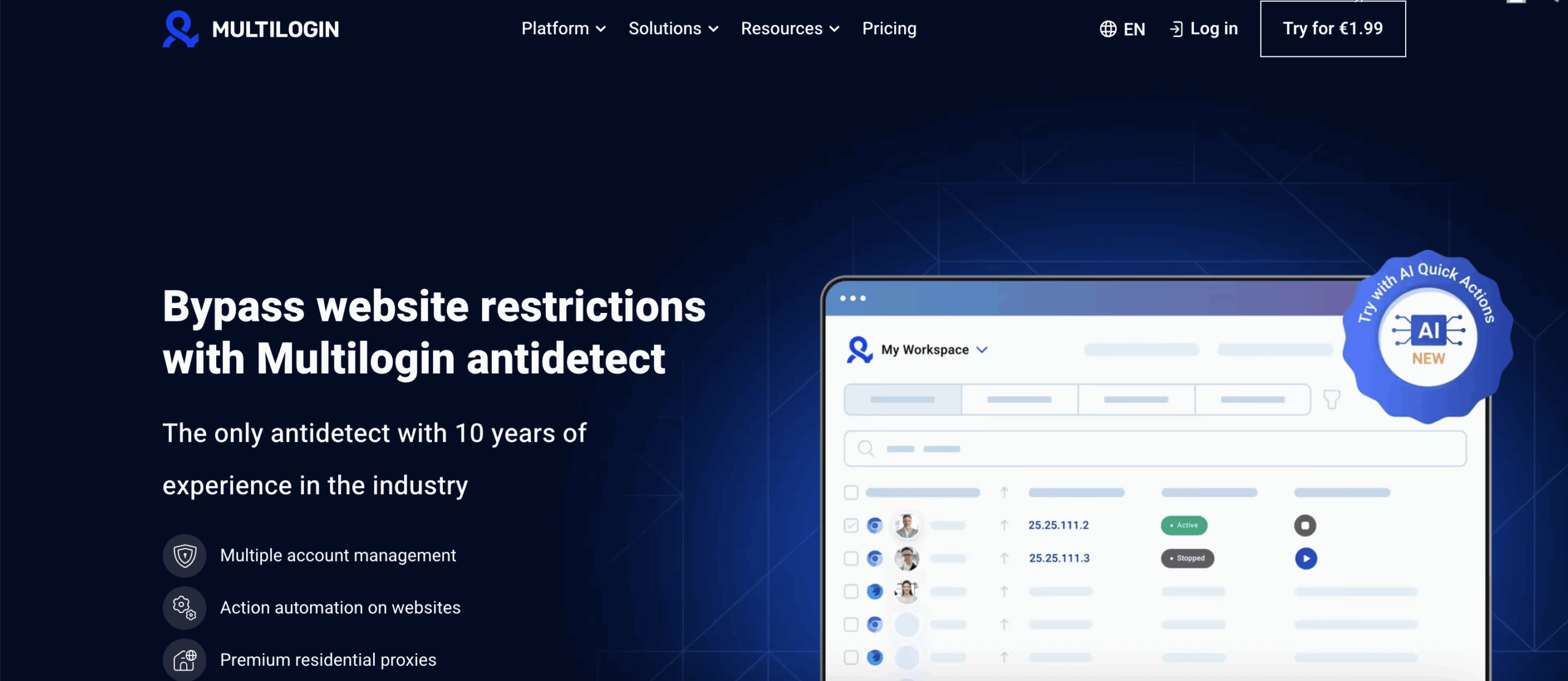
If a website detects that you’re trying to access it from multiple accounts or devices, it may block you to prevent fraud or abuse. This is where Multilogin comes in.
By creating a separate, isolated browser profile for each of your accounts, Multilogin prevents websites from linking your identities and helps you avoid false positives.
If You Keep Getting Blocked (CAPTCHAs, 403, Unusual Traffic)
If you’re constantly running into CAPTCHAs, 403 errors, and “unusual traffic” warnings, it’s a sign that your IP address or browser fingerprint has been flagged for suspicious activity.
Why It Happens
- Shared IP Reputation: If you’re on a shared network, the actions of other users can affect your IP reputation.
- Too Many Retries: Making too many login attempts or other requests in a short period of time can trigger rate limits.
- “Dirty” Browser State from Past Sessions: A cluttered browser cache or corrupted cookies can make your browser look suspicious to websites.
What Actually Helps
- Slow Down Retries: If you’re being rate-limited, the best thing you can do is slow down and try again later.
- Fresh Profile + Clean Cookies: Creating a new browser profile can give you a clean slate and a fresh browser fingerprint.
- Stable Network Setup for Work: If you’re doing a lot of work online, it’s important to have a stable and reliable network connection.
Multilogin as the Ultimate Solution (When Blocks Keep Coming Back)
If you’re tired of fighting with website blocks, it’s time to try Multilogin. Multilogin is an antidetect browser that allows you to create multiple, isolated browser profiles, each with its own unique browser fingerprint. This makes it the ultimate solution for bypassing even the most sophisticated website blocks.
Why Multilogin Fixes the Root Problem (Not Just the Symptom)
- Profile Isolation: Each Multilogin profile is completely isolated, so you can manage multiple accounts without worrying about them being linked.
- Cleaner Workflows: With Multilogin, you can say goodbye to the days of one login breaking another. Each of your accounts will have its own dedicated browser profile, so you can work more efficiently.
- Geo-Restrictions Support: Multilogin allows you to attach a proxy to each of your profiles, so you can easily bypass geo-restrictions and access content from anywhere in the world. Learn more about geolocation spoofing.
- Less Random Friction: By giving you a clean and consistent browser fingerprint, Multilogin helps you avoid the random friction that can lead to CAPTCHAs, 403 errors, and other blocks.
Steps to Use Multilogin to Access a Blocked Website (Legit Scenarios)
- Create a New Browser Profile in Multilogin: This will give you a fresh browser fingerprint.
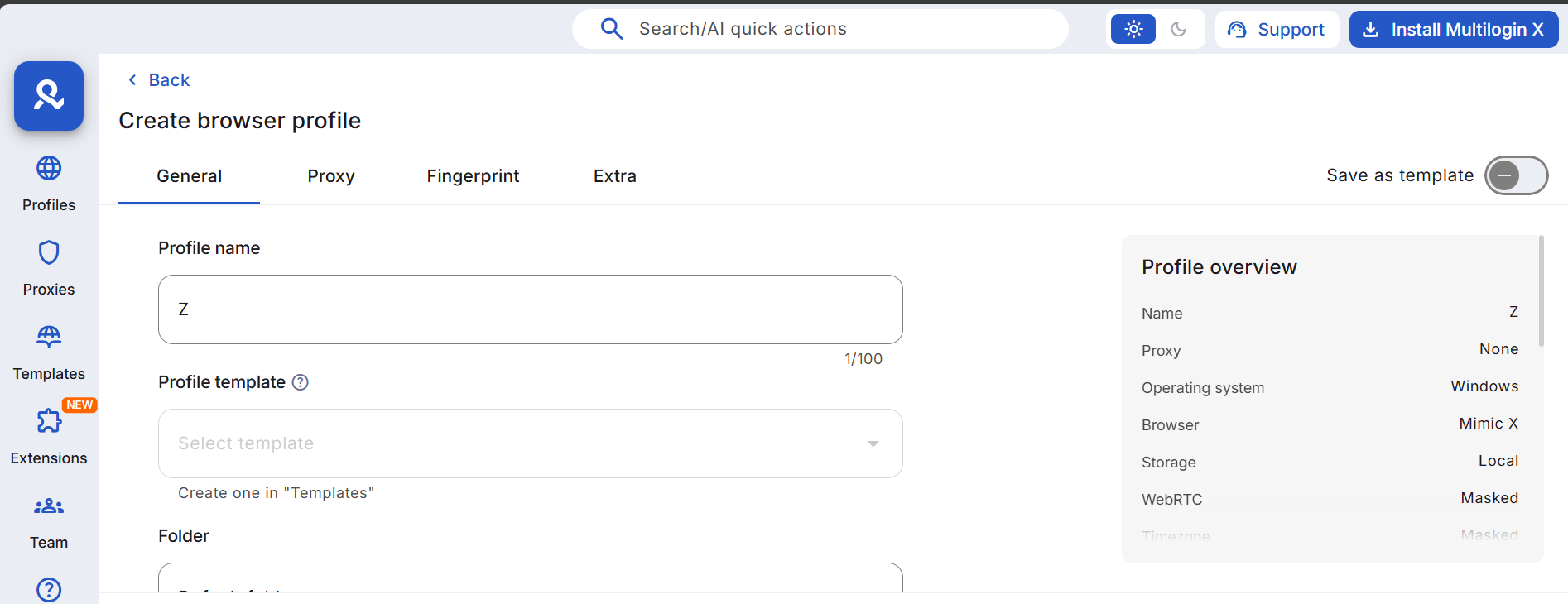
- Pick the OS/Browser Type You Want That Profile to Look Like: Multilogin allows you to customize the browser fingerprint for each of your profiles.
- Attach a Proxy to the Profile: If you’re trying to bypass a geo-restriction, you can attach a residential proxy from the desired region.
- Launch the Profile and Open the Website: You should now be able to access the website without any issues.
- Log In and Keep That Account Inside That Profile: To avoid any future issues, it’s important to keep each of your accounts in its own dedicated Multilogin profile.

