
TikTok decides what you see based on where it thinks you are.
That’s not a bug. That’s the algorithm at work. Your country setting, your IP address, and your device’s location data all feed into which videos TikTok serves you, which trending sounds appear in your feed, and whether your content reaches the audience you actually want.
The problem: TikTok’s location isn’t always easy to change, the methods that actually work are rarely explained clearly, and the approach differs depending on whether you’re trying to change your content feed, your account’s regional settings, your creator profile location, or how your videos are distributed.
This guide covers all of it.
Why You’d Want to Change Your Location on TikTok
Understanding the reason matters because different goals require different solutions.
- See content from a different country: TikTok’s For You Page is heavily localized. Changing your perceived location shows you trending content from that region.
- Access sounds and trends from a different market: Some trending audio is region-locked. Canadian TikTok, UK TikTok, and US TikTok each have distinct trending sounds and formats.
- Reach an audience in a different country: If you’re targeting Canadian or UK audiences, your account needs to appear as a local creator to get algorithmic distribution in that market.
- Manage multiple TikTok accounts for different markets: Agencies managing accounts for clients in different countries need each account to appear genuinely local to its target market.
- Access TikTok where it’s restricted: In some regions, TikTok is blocked or restricted entirely.
- Run TikTok ads targeting specific regions: Ad accounts tied to specific countries get better performance for local targeting campaigns.
Each of these goals has its own solution, and some of them are more achievable than others.
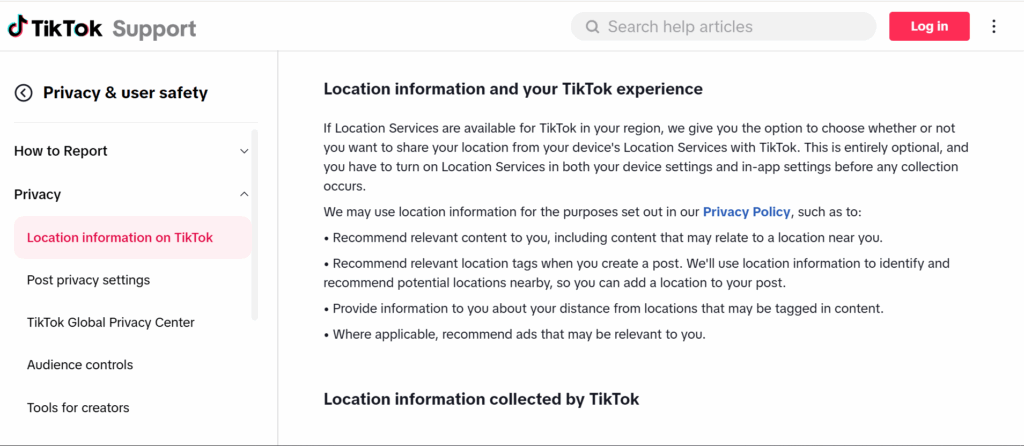
How to Change Your Location on TikTok: What Actually Works
Let’s be direct about what works and what doesn’t.
Change Your TikTok Account Region (Built-In Method)
TikTok allows you to change your account’s country setting directly in the app.
On iPhone and Android:
- Open TikTok and tap your profile icon (bottom right)
- Tap the three-line menu icon (top right)
- Select “Settings and privacy”
- Tap “Account”
- Select “Switch Region” (sometimes labeled “Country/Region”)
- Choose your target country
Does this actually change your content feed? Partially. TikTok uses this setting as one signal, but your IP address and device location are stronger signals. Changing only the region setting while staying on the same IP often results in mixed content from both locations.
What it does reliably: Changes your account’s listed location, which affects your creator profile display and some content distribution signals.
Change Location on TikTok Using a VPN
A VPN (Virtual Private Network) routes your internet traffic through servers in your chosen country, making your IP address appear to be from that country.
How to change your location on TikTok with a VPN:
- Download a reputable VPN app (NordVPN, ExpressVPN, Surfshark, Mullvad)
- Choose a server in your target country (Canada, UK, US, etc.)
- Connect to the VPN
- Open TikTok (or reinstall if the old location is cached)
- The app should now receive your new location’s signal
To change location on TikTok to Canada specifically:
- Connect VPN to a Canadian server (Toronto or Vancouver are common choices)
- Clear TikTok’s cache before reopening (Settings > Apps > TikTok > Clear Cache)
- Reopen TikTok with the VPN active
Limitations of VPNs for TikTok location change:
TikTok has gotten better at detecting VPN usage. Some VPN server IP ranges are known and blocked or flagged. A VPN changes your IP but doesn’t change your device’s GPS data, system language, time zone, or SIM card region, all of which TikTok also reads.
For casual feed browsing, a VPN works reasonably well. For serious account management where you need consistent location signals, VPNs alone aren’t enough.
How to Change Location on TikTok on iPhone
iOS-specific steps:
Method 1: Change Region in App (as described above)
Method 2: Change iOS Region
Changing your iPhone’s region settings sends additional location signals to apps:
- Open iPhone Settings
- Tap “General”
- Tap “Language & Region”
- Tap “Region” and select your target country
- Confirm the change when prompted
Note: This affects the entire phone’s regional settings, including the App Store region, format settings, and other apps.
Method 3: VPN plus Region Change
Combining a VPN connection with an iOS region change gives TikTok more consistent signals. Set your iPhone region to Canada, connect VPN to a Canadian server, then open TikTok.
How to Change Location on TikTok Android
Android-specific steps:
Method 1: Change Region in App (same as iOS, described above)
Method 2: Change Android Region/Language
- Open Settings
- Tap “General management” (Samsung) or “System” (stock Android)
- Tap “Language and input” or “Language & Region”
- Add your target language/region if needed
- Set as primary
Method 3: Change TikTok Location via GPS Spoofing (Android)
Android allows GPS spoofing through developer mode:
- Enable developer options (tap Build Number 7 times in About Phone)
- In developer options, enable “Allow mock locations”
- Install a GPS spoofing app (Fake GPS Location, GPS JoyStick)
- Set your fake location to a point in Canada, UK, or wherever you’re targeting
- Open TikTok with the spoofed GPS active
This method works for GPS signals but requires combining with a matching IP address for full effect.
How to Change TikTok Location for Account Management
For social media managers, agencies, and creators managing TikTok accounts for different markets, individual VPN + region changes aren’t a sustainable workflow.
The Problem at Scale
If you’re managing 10 TikTok accounts for clients in different countries:
- Client A in Toronto
- Client B in London
- Client C in Sydney
- Client D in New York
Manually connecting to a different VPN server for each client, adjusting GPS spoofing, changing device region settings, and switching accounts is an enormous operational burden. And it still doesn’t provide genuine device-level isolation between accounts.
More critically, TikTok’s systems will detect that all these accounts are being accessed from the same device. Even with different VPN IPs, your device fingerprint stays the same, and TikTok uses device fingerprints as one of its account linking signals.
Cloud Phones: Genuine Location Per Account
The professional solution is cloud phones.
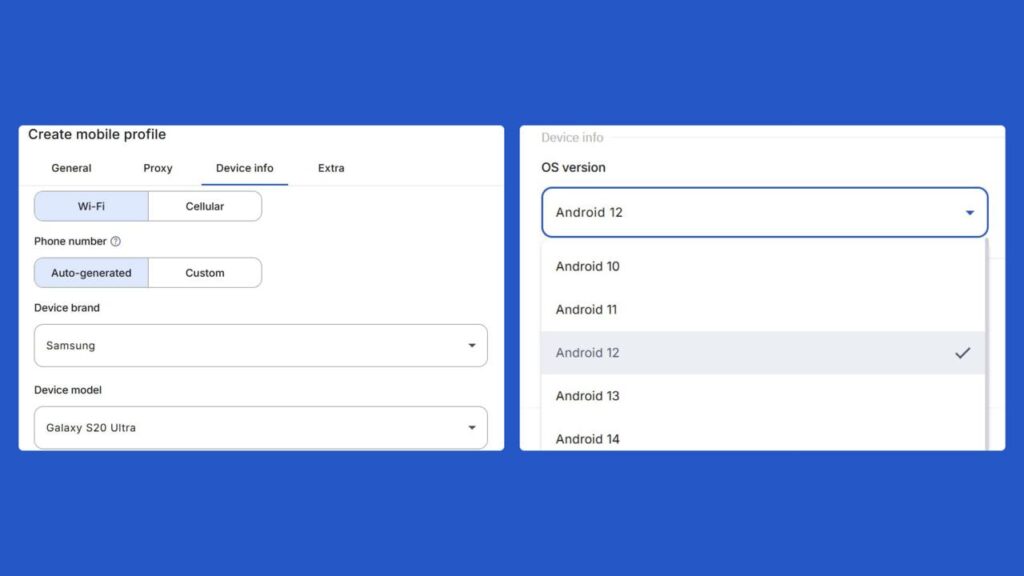
Each TikTok account gets its own cloud phone with:
- Real location matching: When you choose Canada for a cloud phone, it connects from a real Canadian mobile IP address with Canadian mobile network data including SIM signals and GPS coordinates. Not a VPN that TikTok might detect. A genuine mobile connection from Canada.
- Unique device identity: Each cloud phone has its own IMEI, Android ID, MAC address, and device fingerprint. TikTok sees a Samsung Galaxy in Toronto, then an Oppo device in London, then a Google Pixel in Sydney. Completely separate devices.
- Persistent sessions: Each account stays logged in to TikTok between sessions. No daily VPN-switching ritual. Open the cloud phone, the account is already active.
- Native app access: The real TikTok app runs on each cloud phone, not a web version. Native app features, full algorithm signals, and authentic behavior patterns.
For an in-depth look at running TikTok accounts safely across multiple profiles, see our guide on how to run multiple TikTok accounts without bans and how to create a second TikTok account.
How to Change Location on TikTok Video
Changing the displayed location on TikTok videos is separate from changing your account’s region.
When you upload a video, you can add a location tag:
- Create or upload your video
- On the posting screen, tap “Add location” (below the description box)
- Search for or select the location you want to display on the video
- The location tag appears on the published video
This is purely a display feature. It shows viewers where the video was supposedly filmed. It doesn’t affect the algorithm’s understanding of your account’s location.
How to Change Location Settings on TikTok for Ads
For TikTok advertisers using TikTok Ads Manager, location targeting is set at the ad group level:
- Open TikTok Ads Manager
- Create or edit an ad group
- Under “Audience” > “Location”
- Select your target countries, regions, or cities
The ad account itself is registered to a specific country at creation. To change your ad account’s registered country, you typically need to contact TikTok Business support, as this isn’t a self-service option.
For running ads for clients in different countries, separate ad accounts per country (each with proper account isolation) is best practice.
How to Change Account Location on TikTok: Content Distribution
TikTok’s content distribution is influenced by location signals, and creators targeting specific markets need to understand which levers actually move the needle.
Signals TikTok uses for content distribution:
- Account region setting (moderate influence)
- Device IP address (strong influence)
- Device GPS/location services (strong influence)
- SIM card region (strong influence for mobile)
- System language and region settings (moderate influence)
- Historical engagement patterns (strong influence)
- Content language and audio (strong influence)
Changing your account region setting alone (method 1) affects signal #1 only. For genuine distribution shift into a new market, you need multiple signals aligned, which is why the VPN approach combined with region changes works better than either method alone.
For professional creators or agencies where consistent market targeting is critical, cloud phones with genuine location matching remain the most reliable solution.
TikTok Location Troubleshooting
TikTok Still Showing Old Content After Location Change
Clear TikTok’s cache after making location changes. TikTok caches content aggressively.
- iOS: Settings > General > iPhone Storage > TikTok > “Offload App” then reinstall
- Android: Settings > Apps > TikTok > Storage > Clear Cache (not Clear Data, which logs you out)
After clearing cache, open TikTok with your new location active. The initial content load will reflect the new location signals.
VPN Not Working with TikTok
Some VPN servers are blocked or heavily throttled for TikTok due to known fraud patterns from those IP ranges.
Try:
- Different server in the same country
- Different VPN provider
- Residential proxies instead of VPN (residential IPs are harder to block)
- Clear cache after connecting VPN before opening TikTok
How to Change Location on TikTok 2026
TikTok’s interface updates regularly. If menu locations differ from this guide, look for:
- Profile > Three lines > Settings and Privacy > Account > Region/Country
- Or use TikTok’s built-in search in settings for “region” or “country”
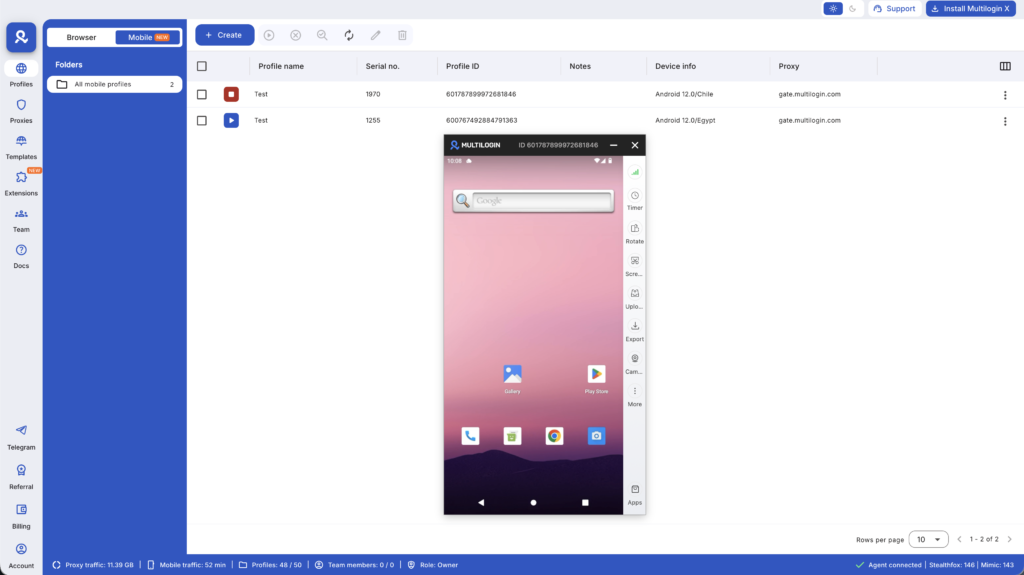
Need a better way to manage Tiktok? Try Multilogin Cloud Phones.
Changing Your TikTok Location: The Right Approach for Your Goal
For agencies managing TikTok accounts across multiple markets: Multilogin Cloud Phones provide genuine location-matched Android environments per account, eliminating the VPN-switching workflow entirely.
Each cloud phone connects from a real mobile IP in the configured country, with matching SIM signals, GPS data, and device parameters. No VPN detection risk. No account linking. Consistent location identity across every session.
👉 Try Multilogin Cloud Phones for professional TikTok account management across multiple markets.
Frequently Asked Questions About Changing TikTok Location
Yes, partially. Change your TikTok account region to Canada through Settings > Account > Switch Region, and change your device’s system region to Canada. This affects some location signals without a VPN. However, your IP address still signals your actual location. A VPN connected to Canada gives you the IP signal needed for a more complete location change.
Some countries restrict location changes to prevent minors from bypassing regional content restrictions. If the option doesn’t appear, your account may be flagged as a minor’s account, your region may be locked, or you may need to update the app first.
Go to Profile > Three lines (top right) > Settings and privacy > Account > Switch Region. Select your target country. For stronger effect, also change your iPhone’s system region in iPhone Settings > General > Language & Region > Region.
Yes, but the effect takes time and depends on multiple signals. Your For You Page is built from your engagement history, current location signals, and content language. A location change starts shifting new content recommendations but won’t immediately replace your entire feed.
TikTok’s region setting only goes to country level, not city. To signal a specific city, you’d need GPS spoofing (Android developer mode + mock location app) set to coordinates in that city, combined with a VPN server in the same region.

