
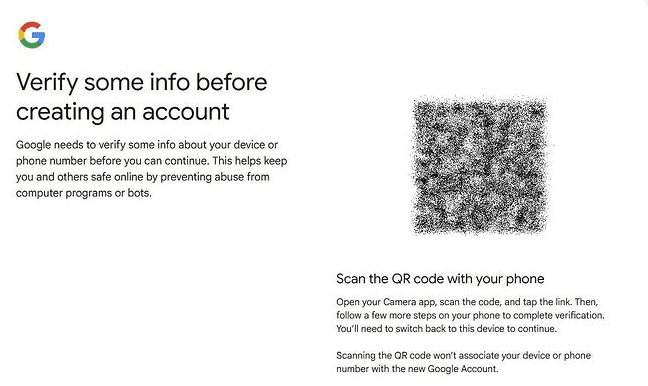
You’re trying to create a new Google account, and suddenly you hit a wall. Instead of the usual signup flow, Google throws you a curveball: “Verify some info before creating an account” with a QR code staring back at you.
If you’re stuck in this verification loop, you’re not alone. Google has been rolling out increasingly strict verification measures throughout 2025 and into 2026, and they’re catching a lot of people off guard. We’ve covered how to create a Google account without a phone number before, but this new QR code barrier is a whole different beast.
Let me walk you through what’s actually happening here and, more importantly, how to get past it.
What Does “Verify Some Info Before Creating an Account” Actually Mean?
This message appears when Google’s security systems flag your account creation attempt as potentially suspicious. It’s their way of saying: “We need proof you’re a real person with a real device before we let you in.”
The QR code verification is Google’s newer security layer. When you see the screen with “Scan the QR code with your phone,” they want you to:
- Scan the QR code with a smartphone
- Open a Google page on that phone
- Confirm you’re creating this account
Sounds simple enough, right? Except when you don’t have a “trusted device” already signed into Google, or when you’re trying to create multiple accounts, or when you simply don’t want to jump through these hoops.
Why Is Google Doing This?
Let’s be real Google isn’t making this harder just to annoy you. They’re fighting an uphill battle against:
- Bot armies creating thousands of fake accounts daily
- Spam operations using automated systems to flood Gmail
- AI-powered account farms that can bypass traditional CAPTCHAs
- Fraudsters exploiting free Google services at scale
The QR code + SMS verification combo makes automation much harder. A bot can’t easily scan a QR code, open a browser on a physical device, and send an SMS from a real phone.
But here’s the problem: this new security measure also catches legitimate users in the crossfire.
The Most Common Verification Scenarios (And What They Mean)
Scenario 1: The Infinite “Verifying Your Phone Number” Loop
You enter your phone number, click Next, and see:
- “Verifying your phone number”
- “This may take a few moments”
- Spinning wheel of doom
No field to enter a verification code. No way to proceed. Just… waiting.
What’s happening: Google wants to verify your number but their system is stuck in a processing loop. This often happens when you’ve already used this number for other accounts or when you’re on a flagged IP address.
Scenario 2: The QR Code Wall
You get to account creation and see a QR code with text like:
- “Scan this code with your phone”
- “Use a trusted device to verify”
What’s happening: Google wants confirmation from a device they already recognize as yours. If you don’t have one, you’re stuck.
Scenario 3: The “This Number Has Been Used Too Many Times” Block
After all your verification attempts, you get hit with: “This phone number has already been used too many times.”
What’s happening: Google limits how many accounts can be created with a single phone number. If your carrier recycled an old number, you might inherit someone else’s account creation history.
Proven Methods to Bypass “Verify Some Info Before Creating an Account”
Method 1: Create Your Account Through YouTube (Not Gmail)
This is the most reliable workaround in 2026. Here’s why it works: the YouTube app often uses a less aggressive verification flow than Gmail or Play Store.
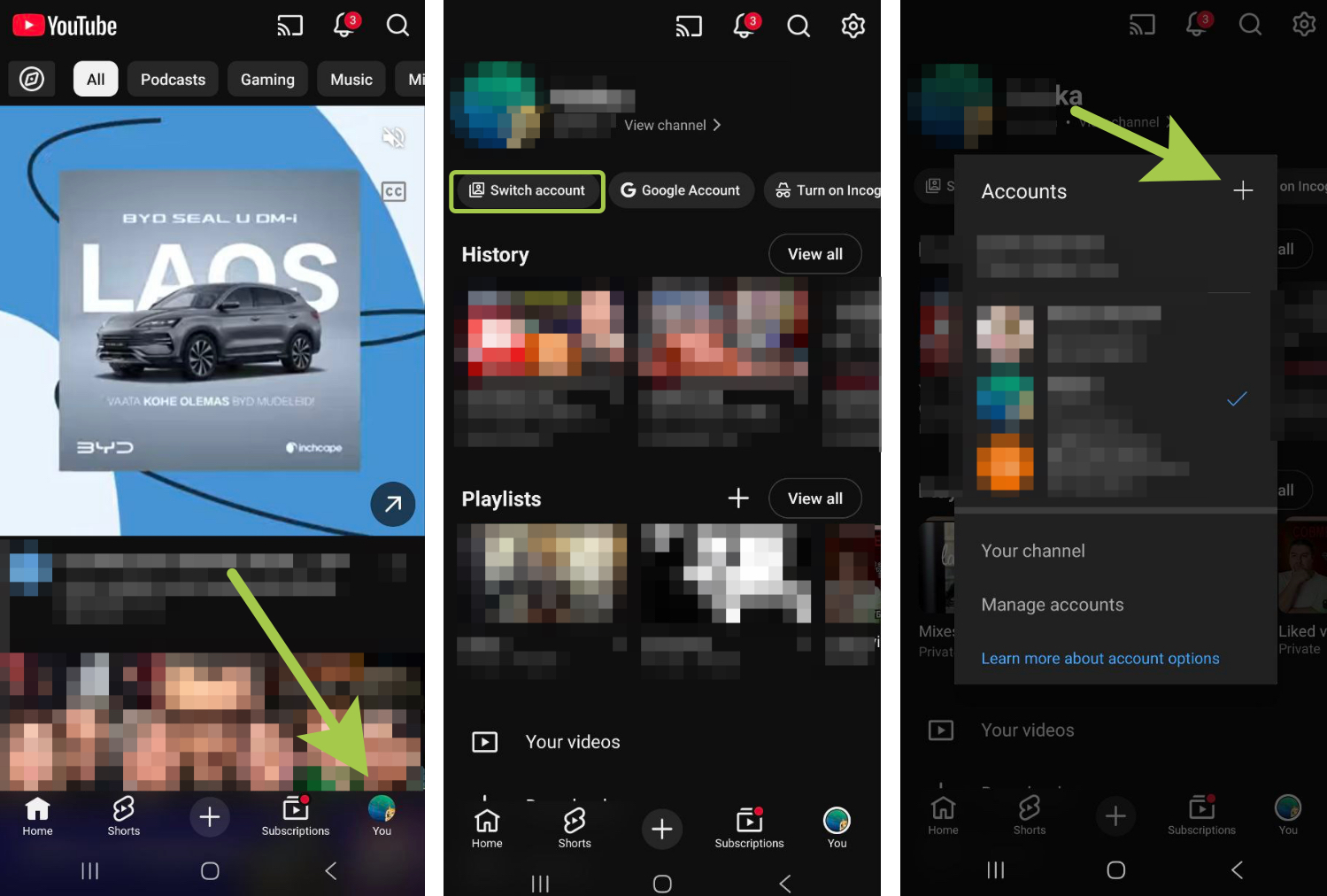
Step-by-step:
- Open the YouTube app on your phone
- Tap your profile icon (top right)
- Select “Switch account”
- Tap the “+” icon to add a new account
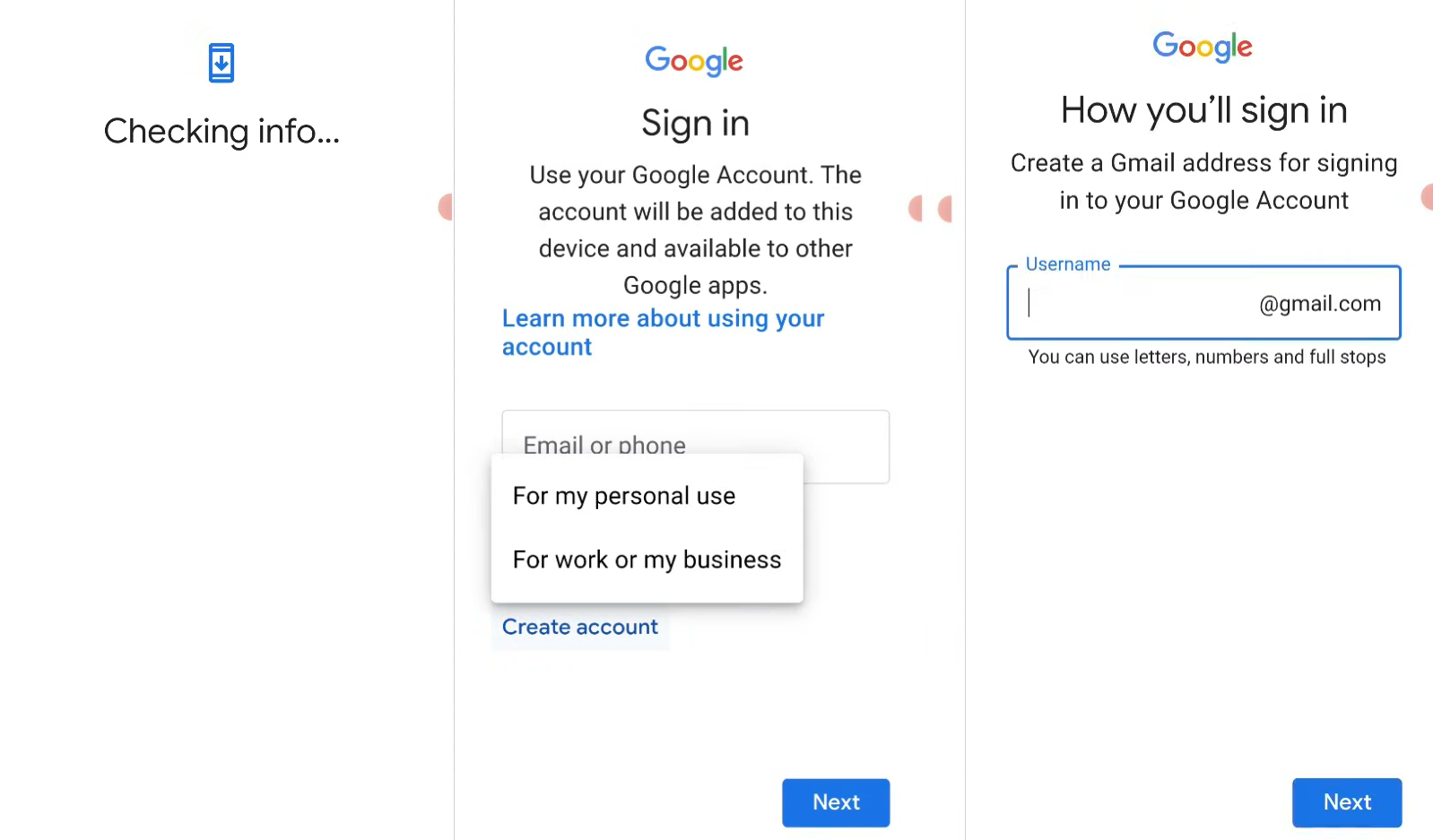
- Choose “Create account”
- Fill in your details: name, birthdate, gender
- Create your Gmail address and password
The key difference? When you go through YouTube, Google often skips the immediate phone verification step.
You’ll still need to add a phone number eventually for account recovery, but you can do it later in your account settings not during the signup bottleneck.
Method 2: Use Android System Settings (Not Apps)
If Method 1 doesn’t work, try creating your account through your phone’s system settings instead of through Gmail or Play Store apps.
Here’s how:
- Go to Settings on your Android device
- Find “Accounts” or “Accounts and backup”
- Tap “Manage accounts”
- Scroll down and select “Add account”
- Choose “Google”
- On the sign-in screen, tap “Create account”
- Complete the signup process
This route sometimes bypasses the aggressive phone verification because you’re accessing the account creation flow through Android’s OS level rather than through Google’s consumer apps.
Method 3: The New QR Code + SMS Flow (If You Must)
If Google forces you into the QR code verification, here’s how to complete it safely:
- On your computer: Stay on the screen showing the QR code
- On your phone: Open your camera app
- Scan the QR code displayed on your computer screen
- Open the link that appears (usually opens in browser)
- You’ll see an SMS draft with a code and a strange number (might be international)
- Don’t change anything in the SMS, just send it as-is
- Wait on your computer for Google to verify (can take 1-2 minutes)
Important warning: That SMS goes to a Google verification number (often shows as numbers like 24444 or international codes). It’s legit, but it looks suspicious because:
- The number changes each time
- It might be from another country
- Some spam checkers flag it
If you’re uncomfortable sending SMS to unknown numbers, stick with Methods 1 or 2.
What If You Still Can’t Create an Account?
The Phone Number Limit Problem
If you keep getting “this number has been used too many times,” your options are:
- Wait it out: Sometimes the limit resets after a few weeks
- Use a different number: Borrow a phone from family/friend
- Contact your carrier: Ask if they recently reassigned this number to you
- Buy a new SIM: Yes, it’s annoying, but it works
The “No Smartphone” Problem
Google’s 2026 verification flow essentially requires a smartphone. If you only have:
- A basic phone (no camera/browser)
- A landline
- No phone at all
You’re in a tough spot. Your realistic options:
- Borrow a smartphone from someone you trust
- Use an existing Google account if you have one
- Consider alternative email providers (Outlook, ProtonMail, etc.)
- Purchase pre-verified accounts (more on this below)
How Multilogin Cloud Phones Can Help (And When They Can’t)
Here’s where things get interesting for people who need to manage multiple Google accounts like marketers, agencies, or e-commerce sellers.
What Multilogin Cloud Phones Actually Do
Multilogin Cloud Phones give you access to real Android devices hosted in the cloud. Each cloud phone:
- Runs as a genuine Android device (versions 10-15)
- Has unique hardware identifiers (IMEI, Android ID, MAC address)
- Connects through residential proxies with matched geolocation
- Maintains persistent app sessions between uses
Think of it as renting actual smartphones that live in data centers instead of your pocket.
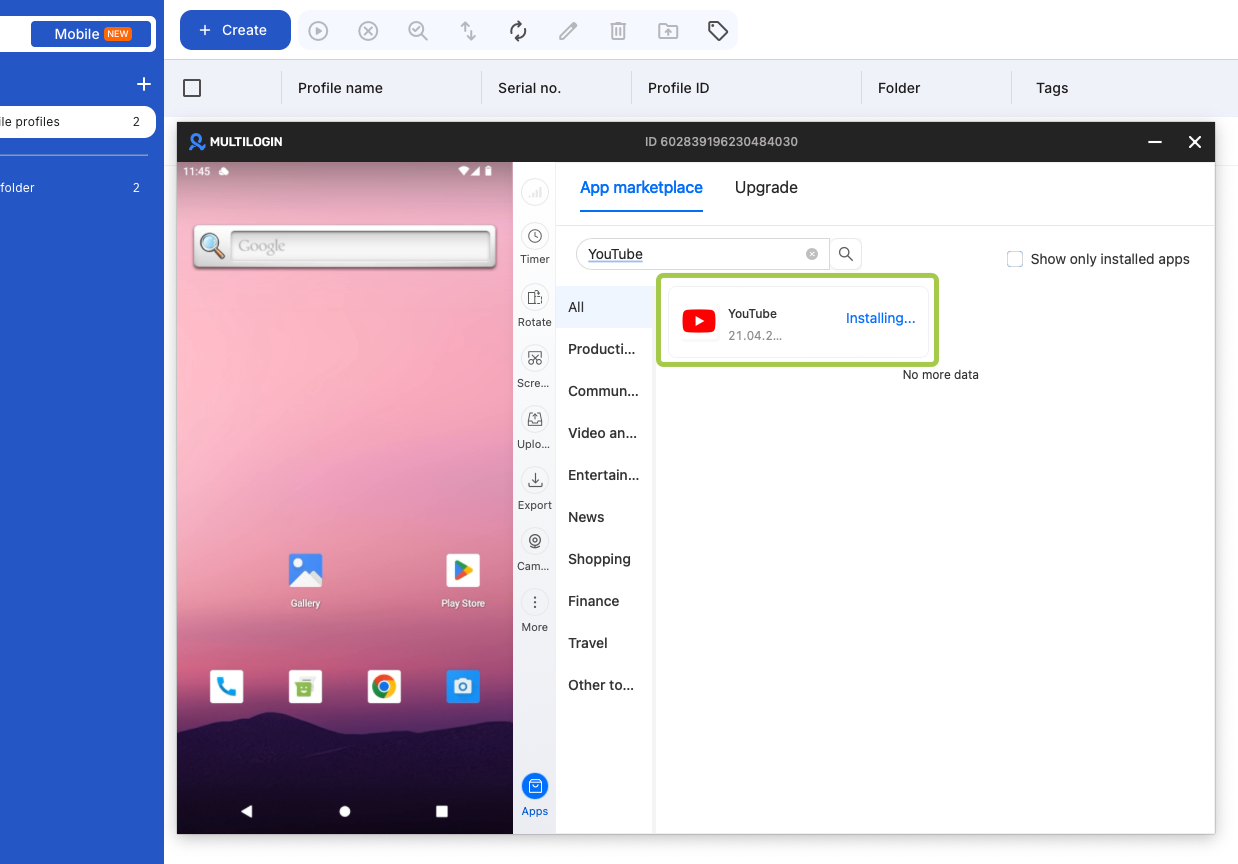
Let’s say you want to create a Google account through the YouTube app (using Method 1 from above) but need to do it across multiple accounts without triggering Google’s “too many devices” flag.
Here’s how it works with Multilogin Cloud Phones
Can Cloud Phones Bypass “Verify Some Info Before Creating an Account”?
Short answer: They help with device diversity, but you still need real phone numbers.
Long answer: Here’s what cloud phones solve:
- Device fingerprinting: Each cloud phone appears as a completely different device to Google
- IP diversity: Built-in residential proxies prevent the “too many accounts from one IP” flag
- Session persistence: Your accounts stay logged in between sessions, looking more natural
- Scale: You can run dozens or hundreds of accounts from one dashboard
What they DON’T solve:
- Phone number verification: You still need unique phone numbers for each account
- Initial account creation: You’ll still hit the same “verify some info” walls
The Practical Approach for Multiple Accounts
If you’re managing multiple Google accounts professionally, here’s the reality check:
For 2-5 accounts: Use Methods 1 or 2 above with different phone numbers. Manual creation is still feasible.
For 10+ accounts: Consider using Multilogin Cloud Phones PLUS:
- Purchase pre-verified Google accounts from reputable sellers
- Use SMS verification services for initial setup (be careful with quality)
- Maintain accounts properly to avoid re-verification
Why buy accounts instead of creating them?
- Google’s verification has become so strict that mass account creation is nearly impossible
- Pre-verified accounts from trusted sellers often have aged history
- Time saved vs. fighting verification loops is significant
If you do create accounts on Cloud Phones:
- Create them slowly (not 10 accounts in one hour)
- Use unique phone numbers for each
- Age the accounts naturally (don’t immediately start using them)
- Add recovery emails and enable 2FA
- Use the accounts for legitimate purposes
Multilogin also offers advanced antidetect browser profiles for managing web-based Google accounts. Each profile gets its own unique browser fingerprint, making it appear as a completely separate user to Google’s tracking systems.
Best Practices to Avoid Future Verification Issues
Once you get past the initial “verify some info” hurdle, here’s how to keep your accounts healthy:
1. Add Recovery Options Immediately
As soon as your account is created:
- Add a recovery email
- Add a phone number (if you didn’t during signup)
- Enable 2-factor authentication
This makes future logins smoother and reduces re-verification requests.
2. Use Accounts Naturally
Don’t create an account and immediately:
- Send 100 emails
- Upload suspicious files
- Join 50 groups
Behave like a real person. Google’s AI watches for bot-like patterns.
3. Separate Accounts by Use Case
If you’re managing multiple accounts:
- Use different browsers or browser profiles
- Use different IP addresses (VPN or proxies)
- Don’t switch between accounts rapidly from the same device
4. Keep Your Recovery Info Updated
If you change phone numbers or email addresses, update your Google account recovery settings immediately. Nothing triggers verification faster than trying to recover an account with outdated info.
The Bigger Picture: Google Account Security in 2026
Let’s zoom out for a second. Why has Google made account creation so difficult?
The answer is simple: the old system was too easy to abuse. In 2025 alone, Google blocked billions of spam emails and thousands of coordinated attacks on their services. Traditional CAPTCHAs became useless against modern AI.
The QR code + SMS verification combo is Google’s current answer. It’s not perfect it frustrates legitimate users and still doesn’t stop determined bad actors but it raises the difficulty level significantly.
For individual users, this means more hoops to jump through. For businesses managing multiple accounts, it means either investing in proper infrastructure (like Multilogin) or purchasing pre-verified accounts.
When to Just Give Up and Buy Accounts
I know this sounds defeatist, but hear me out. If you’ve tried everything above and you’re still stuck, sometimes buying pre-verified Google accounts is the pragmatic choice.
When buying makes sense:
- You need 10+ accounts for legitimate business purposes
- You’ve already wasted hours fighting verification
- You have proper account management infrastructure (like Multilogin)
- You’re using accounts for compliant activities (marketing, customer service, etc.)
Where to buy safely:
- Look for sellers with established reputations
- Check for account age (older is better)
- Verify accounts have recovery options set up
- Avoid bulk sellers offering “unlimited accounts”
- Never buy accounts for illegal activities
Red flags:
- Prices too good to be true (€1 per account)
- No guarantee or replacement policy
- Seller won’t verify account creation method
- Accounts all created on the same day