

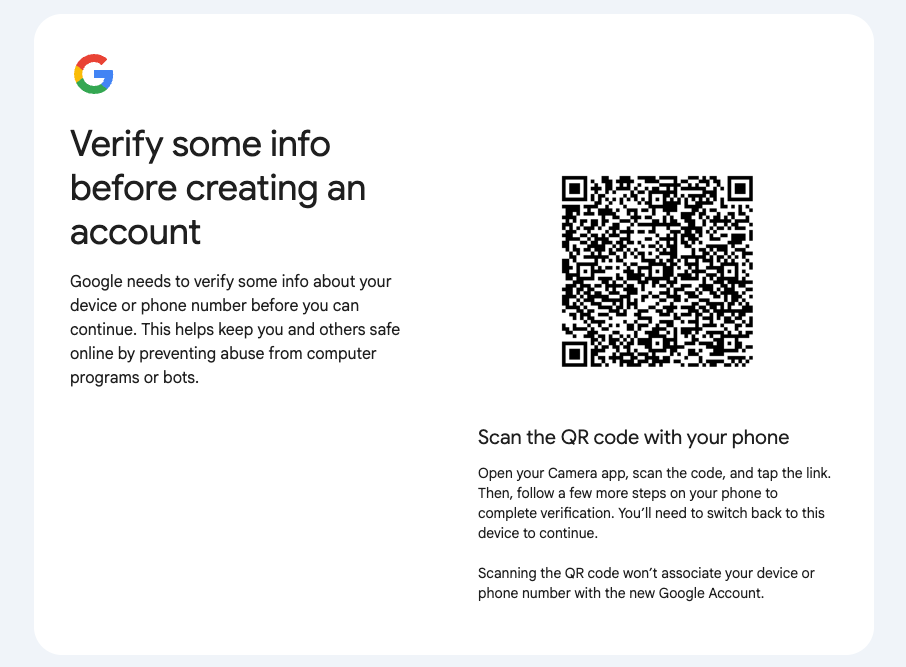
Google’s account creation flow has changed. In 2025-2026, many users now encounter a QR code verification step during signup, which requires scanning the code from an existing trusted Google device.
Creating a new account has become harder for anyone without a verified device on hand, and the share of signups hitting this barrier keeps growing.
That’s pushed a lot of people toward the best Gmail alternatives instead, especially ones that skip phone and device verification altogether.
Can you actually create a Google account without giving up your phone number?
Jump to the working method – the most reliable method as of April 2026 involves SMS verification with a virtual phone number.
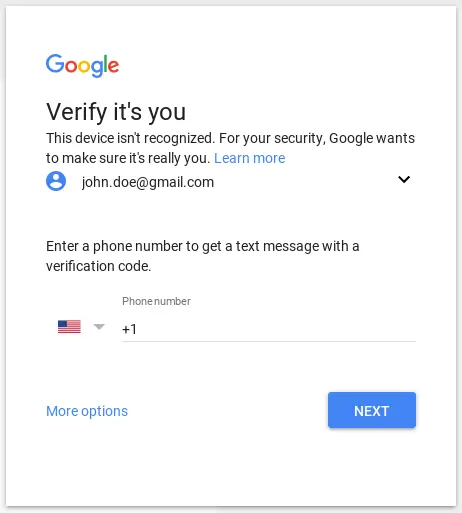
However, phone number verification is still offered in many cases. It depends on your device, IP address, and session signals. This is actually a workable path. Virtual phone numbers handle this verification reliably.
This guide covers everything you need to create a Gmail account without a phone number in 2026. It explains when phone verification is still available as an alternative to QR codes, how virtual numbers work in practice, and what tools give the most consistent results. It also reviews all the older methods that previously worked, so you understand what has changed and why some approaches no longer hold up.
Whether you need to create multiple Gmail accounts or just want one without the phone hassle, we’ve got you covered.
What’s really going on when Google asks for your number
 Google’s verification system is designed to detect automated account creation. Phone verification is one of the main signals it uses to confirm a real person is signing up. This is why many users find they can’t create a Gmail account without a phone number on the second or third attempt.
Several factors trigger the verification prompt. Multiple signups from the same device or IP address are flagged quickly. Browser fingerprints also play a role: screen resolution, installed fonts, timezone, and WebGL data all leave a traceable signature that persists even after clearing cookies. Mismatches between IP location and browser timezone are another common trigger.
The phone number requirement is not random. It is Google’s response to sessions that do not resemble normal user behavior. The solution is making the session look legitimate from the start.
Rapid-fire account creation, unusual form-filling patterns, or signing up from IPs associated with VPNs and datacenters can all raise flags.
Geographic inconsistencies between your IP location and browser timezone are also a common trigger. The phone number requirement is Google’s direct response to sessions that its bot detection system flags as suspicious. Making the session look like a real user is the only reliable approach.
Methods that people try and their limitations
Several approaches circulate online for bypassing phone verification. Here is an overview of what each one offers and where it falls short.
Skipping the phone field. In some sessions, the phone number field is optional and can be left blank. This works on fresh IPs with no prior signup history. Once Google associates the setup with multiple accounts, the skip option is removed without notice. This is also a key keyword: how to skip Google phone number verification stops being relevant once the option disappears entirely.
Incognito mode. Private browsing removes cookies but does not change your IP address or browser fingerprint. Google can still identify the session through screen resolution, fonts, timezone, and WebGL data.
Signing up through phone settings. On Android, go to Settings, then Accounts, then Add Account. On iOS the path is similar. Native device settings carry stronger trust signals than a browser session. This works reasonably well for one or two accounts.
Browser with residential proxy. Creating a fresh Multilogin profile with a US residential proxy and default fingerprint settings was sufficient in most cases. The phone field was frequently skippable. Success rates were significantly higher than in 2026.
YouTube and Google Play signup paths. Alternative entry points through youtube.com or the Play Store produced lighter verification flows. Many users completed signup with no verification step at all.
Android TV. Creating a Google account through an Android TV device is a less commonly known option. The account creation flow on Android TV historically asks for less verification. Access Settings, then Accounts, then Add Account on any Android TV device.
None of these methods produce consistent results at scale. They are useful for occasional use but not for workflows involving multiple accounts.
Why traditional workarounds keep getting worse
Here’s the uncomfortable truth: Google is getting better at this faster than most workarounds can keep up.A few years ago, you could create dozens of accounts with basic incognito sessions and proxy switches. Today, Google’s detection looks at:
- Canvas fingerprinting (how your browser renders graphics)
- WebGL data (your graphics card leaves a signature)
- Audio context fingerprinting
- Font enumeration
- Screen and window dimensions
- Timezone vs. IP location matching
- Mouse movement and typing patterns
Clearing cookies doesn’t touch any of this. Switching browsers helps a little. But if you’re creating multiple accounts—whether you want to create multiple Google accounts without phone verification or just need to create bulk Gmail accounts without phone number for a project—you need each one to look like it’s coming from a completely different person on a completely different device.That’s where the game changes.
The method that works in 2026: step by step
Google’s verification flow now includes two possible checkpoints: phone number verification or QR code scanning. This guide focuses on the phone verification path, which remains accessible in many sessions. SMSPool provides virtual numbers that work reliably for this step.
Step 1: Set up your Multilogin browser profile
Go to multilogin.com and create a Free account. Multilogin offers a Free plan with no time limit and no credit card required. The platform combines Android cloud phones and browser profiles in one dashboard.
After the Free Plan, the full plan starts at $7.08 per month. The platform combines Cloud mobile and browser profiles in one dashboard.
For this web-based Google account workflow, create a browser profile. Use an Android cloud phone when your task requires the native Google or Gmail app.
Step 2: Set up your Multilogin profile
Open Multilogin and select Create profile.
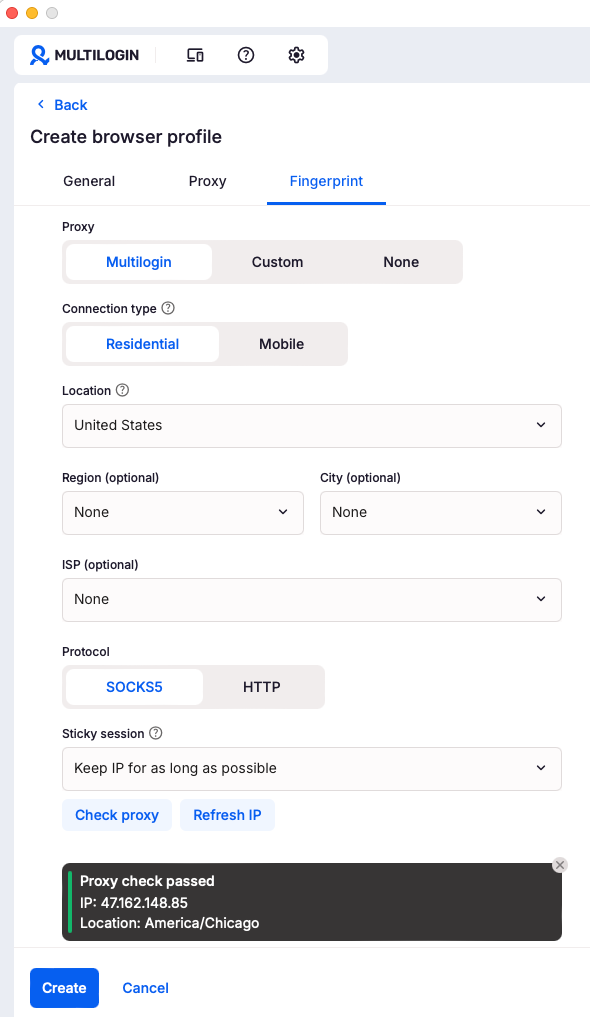
Use the following setup:
- Profile type: Browser profile
- Browser: Mimic
- Profile settings: Keep the default settings unless your workflow requires a specific change
- Proxy: Assign a residential or ISP proxy in a location you can use consistently
Match the profile timezone and geolocation to the proxy location. Multilogin includes built-in proxy traffic and also supports third-party proxies.
A particular country, proxy type, or profile configuration does not guarantee that Google will skip phone or QR verification.
Step 3: Build a consistent session history
Before starting the signup process, use the profile for a short, normal browsing session.
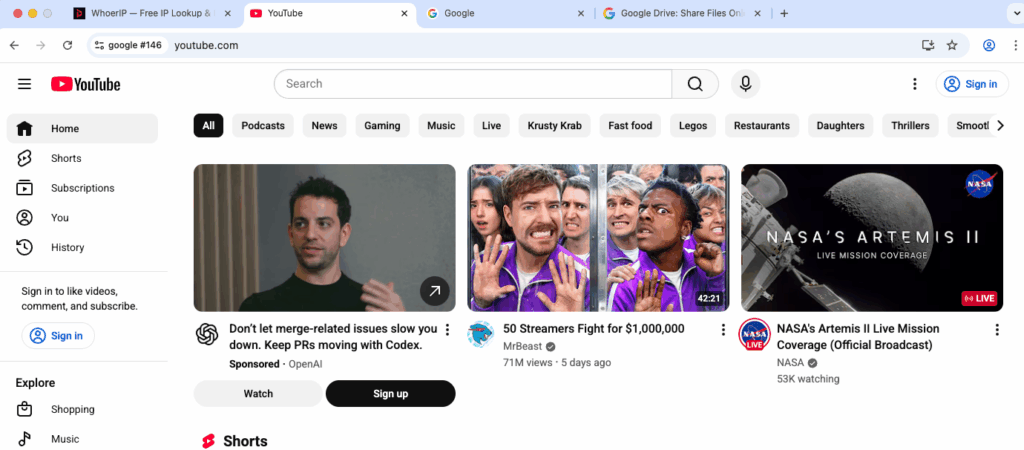
Open Google or YouTube and complete a few ordinary actions. Avoid rapid, repeated account-creation attempts from the same session.
This gives the browser profile a consistent session history instead of starting from an empty session. It does not guarantee that Google will skip phone or QR verification.
Step 4: Begin account creation
Go to google.com and click Create account and select For my personal use.
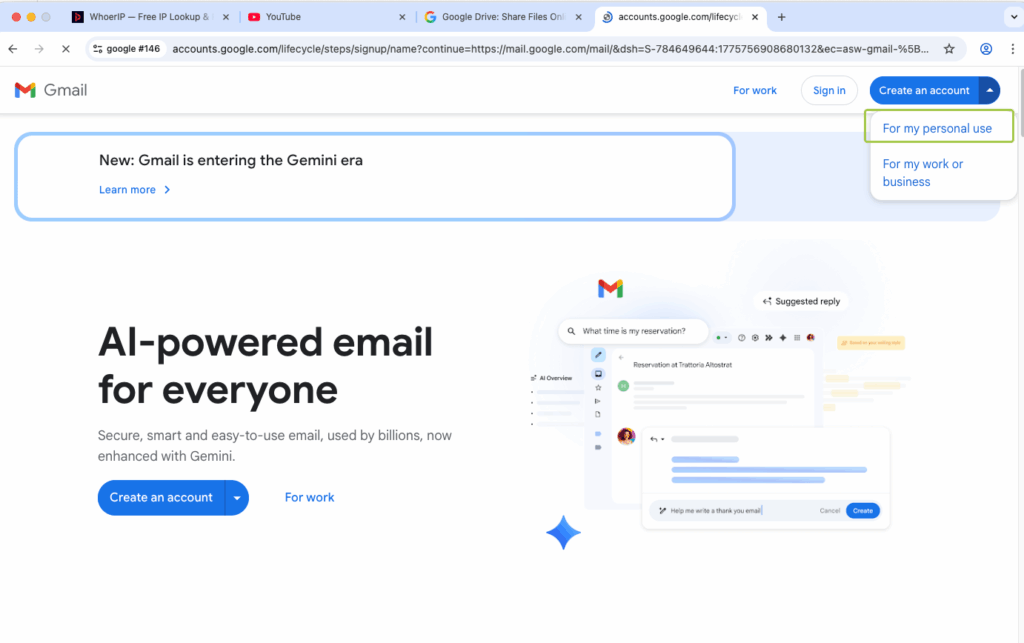
Fill in your name, date of birth, and choose a password. Use a strong password. Avoid simple or repeated passwords.
Google may require phone or QR verification to confirm that a real person is creating the account and to limit spam and abuse.
The exact verification challenge is selected by Google and can vary between signup sessions. Google does not publicly disclose every signal used in this decision.
Keeping the device environment, location, and session settings consistent can prevent unnecessary changes during the workflow. However, no browser profile, proxy, or cloud phone can disable Google’s verification checks.
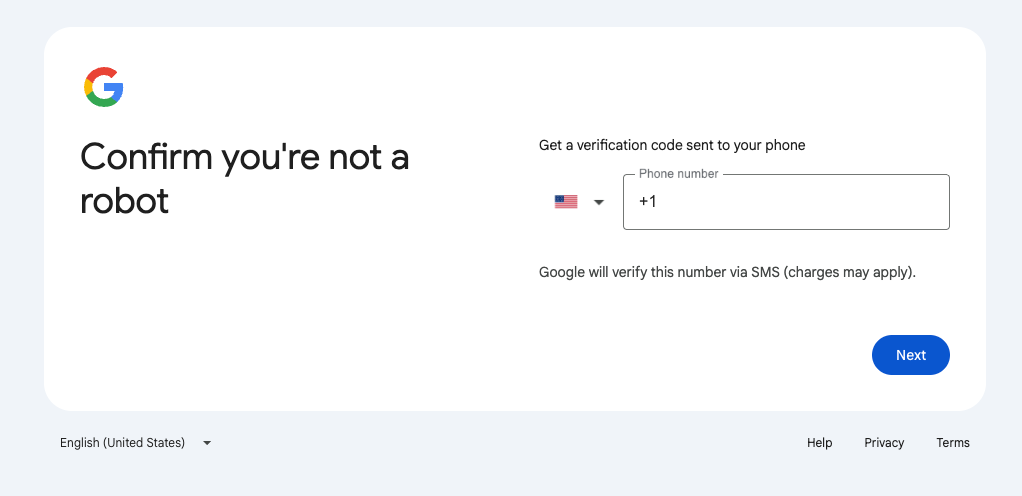
Step 5: Handle phone verification with SMSPool
Go to smspool.net and create an account. One notable feature of this service is that registration requires no email address and no phone number. This makes it a convenient option for anonymous use.
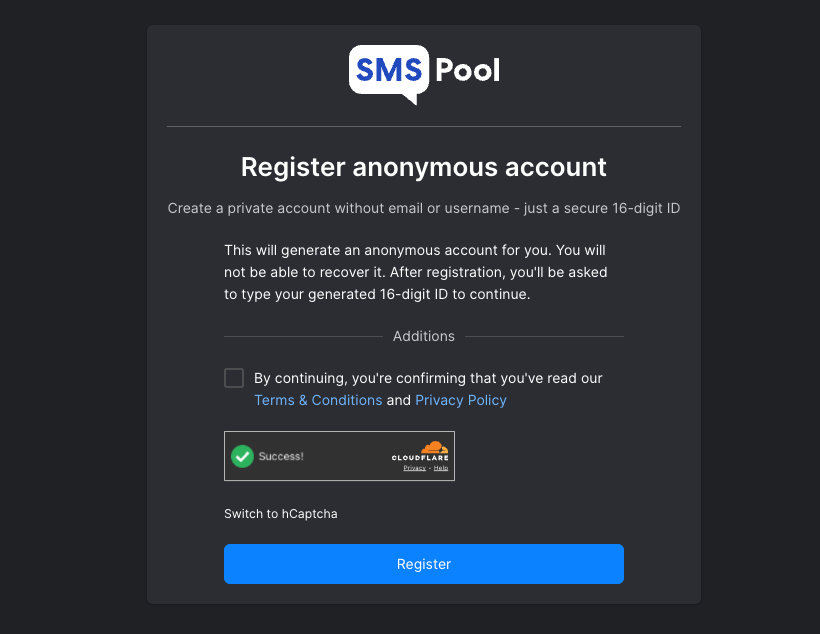
When Google asks for a phone number, go to your SMSPool account. Select Google as the service and choose United States as the country. Purchase a number.
Once registered, add funds to your balance. SMSPool accepts cryptocurrency, which keeps the transaction private.
When Google asks for a phone number during signup, open your SMSPool account. Select Google as the service and choose United States as the country. Purchase a number.
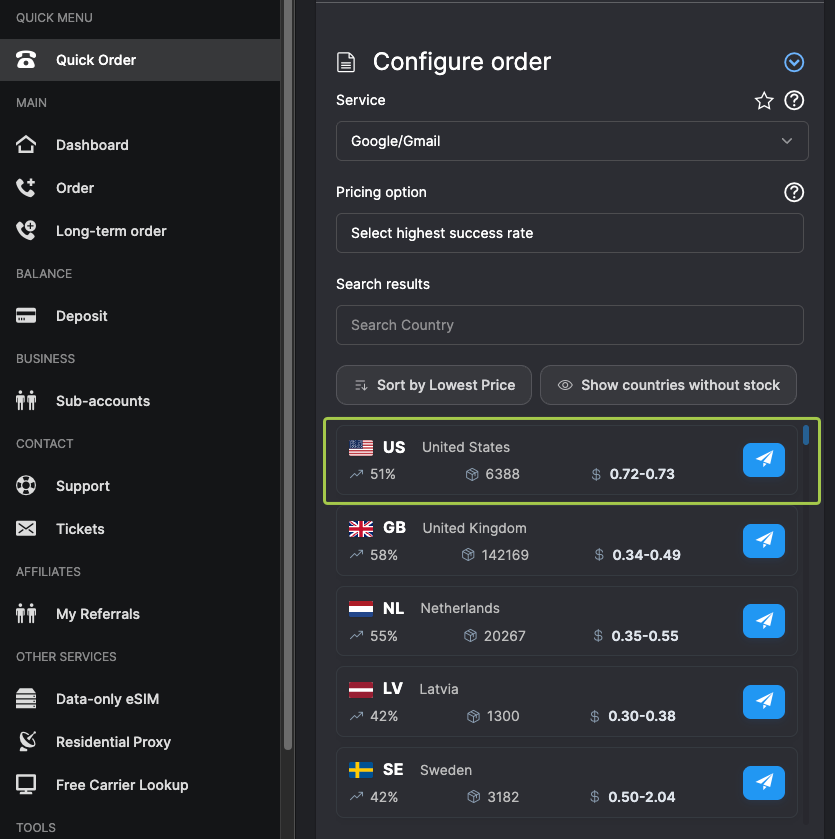
Enter the number you received from SMSPool into the phone number field on the Google registration page. Click continue to proceed.
Return to your SMSPool account. The verification code from Google will appear within a few seconds.
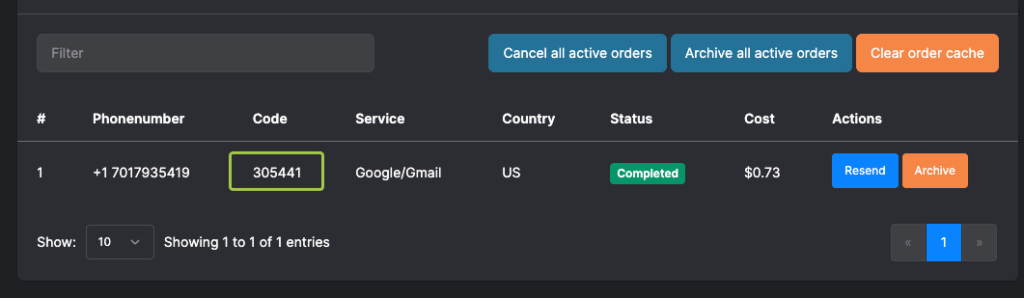
Enter this code into the Google registration form. Your account will be created and you will have immediate access to it.
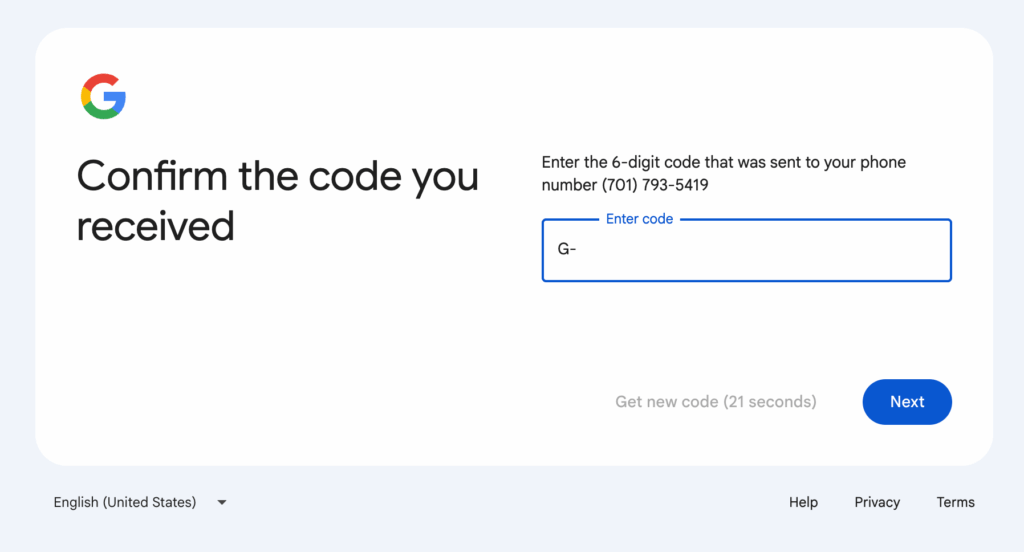
Step 6: Handle QR code verification if it appears
In some sessions, Google will show a QR code instead of a phone number field. This requires a physical phone to resolve.
Open the camera app on your phone and scan the QR code. When prompted, tap Send SMS. The phone must have a SIM card from the same country as the profile’s IP address. The IP addresses of the phone and the profile do not need to match exactly, but they must be in the same country.
If your phone is registered in a different country from the profile’s IP, this step will not work. SMS delivery will fail. In that case, restart the process and attempt to reach the phone verification path instead.
Step 7: Complete registration and add a recovery email
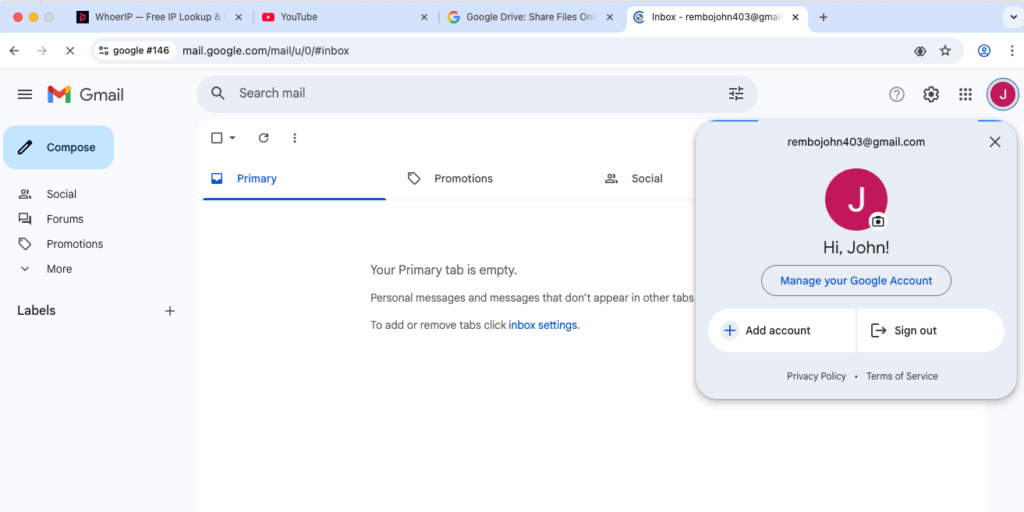
Finish the remaining signup steps. Once the account is created, go to myaccount.google.com. Navigate to Personal info, then Contact info, then Recovery email. Add a recovery email address you control.
This is the only way to recover access to the account if you lose your password, since no phone number is permanently linked.
Step 8: For each additional account, use a fresh profile
Create a new Multilogin profile with a new proxy assignment for every account. Never reuse a profile across multiple Google accounts. Shared fingerprints or IP addresses are the primary reason Google links accounts and triggers additional verification.
Other options for phone verification
Virtual phone numbers are a practical solution for Gmail verification. Several services provide numbers that work with Google’s verification system. One phone number can typically be used for up to 15 accounts before it stops being accepted.
Reliable services to consider alongside SMSPool:
- SMSPool (smspool.net) — anonymous registration, crypto payments, US numbers recommended
- 5sim (5sim.net) — wide country selection, straightforward interface
- SMS-Activate (sms-activate.org) — large inventory of numbers across many countries
- Onlinesim (onlinesim.io) — supports multiple services including Google
Avoid free public SMS receiving sites. These numbers are shared with thousands of users simultaneously. They get flagged by Google almost immediately and are not a reliable option.
Making it sustainable
Creating accounts is one thing. Keeping them in good standing is another.
Log into each account periodically and perform basic activity such as browsing or sending a test email. Accounts that show no activity after creation are more likely to be flagged.
Use Multilogin’s notes and tags to keep track of each profile. Record which proxy is assigned, what the account is used for, and when it was last accessed.
Monitor existing accounts for new verification prompts. If Google requests verification on an account that was previously stable, review recent activity on that profile for anything unusual.
Do not skip account recovery setup
After creating any account, go to myaccount.google.com. Navigate to Personal info, then Contact info, then Recovery email. Add an email address you have reliable access to. This is the primary way to recover access if you lose your password and have no phone number linked to the account.
Which method actually works for Google account creation in 2026
Methods without Multilogin produce QR code verification in nearly all sessions as of 2026.
Multilogin shifts the balance toward phone verification, which virtual number services then handle reliably. A physical phone from the same country as the profile IP remains the most complete solution, as it resolves both verification types when they appear.
| Method | Verification type encountered | Probability of success |
|---|---|---|
| Multilogin + physical phone (same country) | Resolves both phone and QR verification | Up to 80% |
| Multilogin + virtual number (SMSPool etc.) | Phone verification handled when it appears | 40% |
| Multilogin + residential proxy | Phone verification in ~40% of cases, QR in ~60% | 40% |
| Android TV | QR code in ~90% of cases | Less than 10% |
| Phone settings (Android/iOS) | QR code in ~95% of cases | Less than 5% |
| Skip the phone field | QR code in ~99% of cases | Less than 1% |
| Incognito mode | QR code in ~99% of cases | Less than 1% |
| YouTube signup path | QR code in ~99% of cases | Less than 1% |
The real solution: Making each account look like a different person
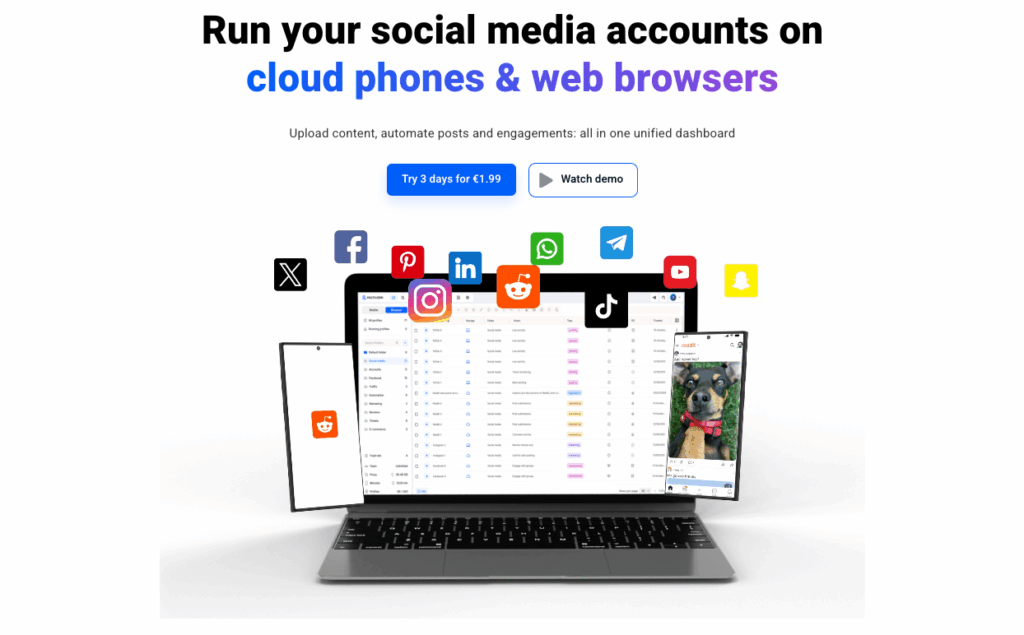
Managing multiple Google accounts requires more than a single workaround. Each account needs its own isolated environment: a separate fingerprint, a separate IP address, and persistent session data that carries over between uses.
Browser profiles for web-based account management
An browser profile creates separate browser profiles, each with its own digital fingerprint. We’re talking different screen resolutions, fonts, timezones, WebGL signatures, canvas renders—the whole package.Pair each profile with a different residential proxy, and suddenly you don’t have “one person creating 50 accounts.” You have what looks like 50 different people, each creating one account from their home connection.
This is the infrastructure behind any reliable method to create unlimited Gmail accounts without phone number verification at scale.This is what Multilogin’s browser profiles do. Each profile maintains its own cookies, storage, and session data. Unlike incognito (which wipes everything when you close it), these profiles persist. You can log into an account, close the profile, come back a week later, and pick up exactly where you left off.
Cloud phones for mobile-first workflows
Here’s where things get interesting.Google treats mobile app signups differently than web signups. The Gmail app on a real Android device carries trust signals that browsers can’t replicate—hardware IDs, carrier information, device attestation.Traditional Android emulators (BlueStacks, NoxPlayer, etc.) try to mimic this, but they use spoofed device fingerprints. Google has gotten very good at detecting emulator signatures. If you’ve tried creating accounts through an emulator recently, you’ve probably noticed they almost always require phone verification now.
The Android emulator detection problem is why so many emulator-based methods that worked in 2024 no longer work in 2026. Cloud phones take a different approach. Instead of emulating a device, you’re using an actual Android device hosted in a data center. Real hardware. Real IMEI. Real Android ID. Real MAC address.To Google, it looks exactly like what it is: a legitimate Android phone.
The difference is you’re controlling it remotely through your desktop instead of holding it in your hand.Multilogin’s cloud phones run actual Android OS (versions 10-15) on real hardware, with about 30 different device models available—Samsung, Google Pixel, OPPO, Xiaomi, OnePlus. Each cloud phone maintains persistent storage, so your app data, cache, and login sessions carry over between uses.This matters for account creation because Google’s mobile verification triggers are calibrated for spoofed environments. When they see a real device with consistent, authentic fingerprints, there’s no reason to demand phone verification.
How Multilogin solves the phone verification problem
Multilogin is built for multi-account management. Here’s how it helps you bypass phone verification:
- Unique fingerprints: Each profile mimics a different device, preventing Google from linking your accounts based on browser characteristics. This includes canvas fingerprinting, WebGL, and 55+ other parameters.
- Built-in proxy integration: Assign a different IP address to each profile using Multilogin’s built-in residential proxies (30M+ IPs across 195+ countries). This stops Google from linking accounts via IP.
- Cloud phones with real device identity: For mobile-first workflows, each cloud phone uses genuine Android hardware parameters for non-spoofed mobile identities that pass all detection checks. This is what makes it possible to create Google accounts on Android without phone number prompts.
- Persistent sessions: Unlike Incognito, Multilogin saves cookies and session data within each isolated profile. This helps build trust with Google over time and reduces verification prompts.
- Avoids linking: By keeping everything separate (fingerprint, IP, cookies, device identity), Multilogin drastically reduces the chances that Google will associate your accounts or demand phone verification.
- 2-in-1 solution: When you get Multilogin cloud phones, you also get full access to browser profiles in the same dashboard—complete web and mobile multi-accounting control.