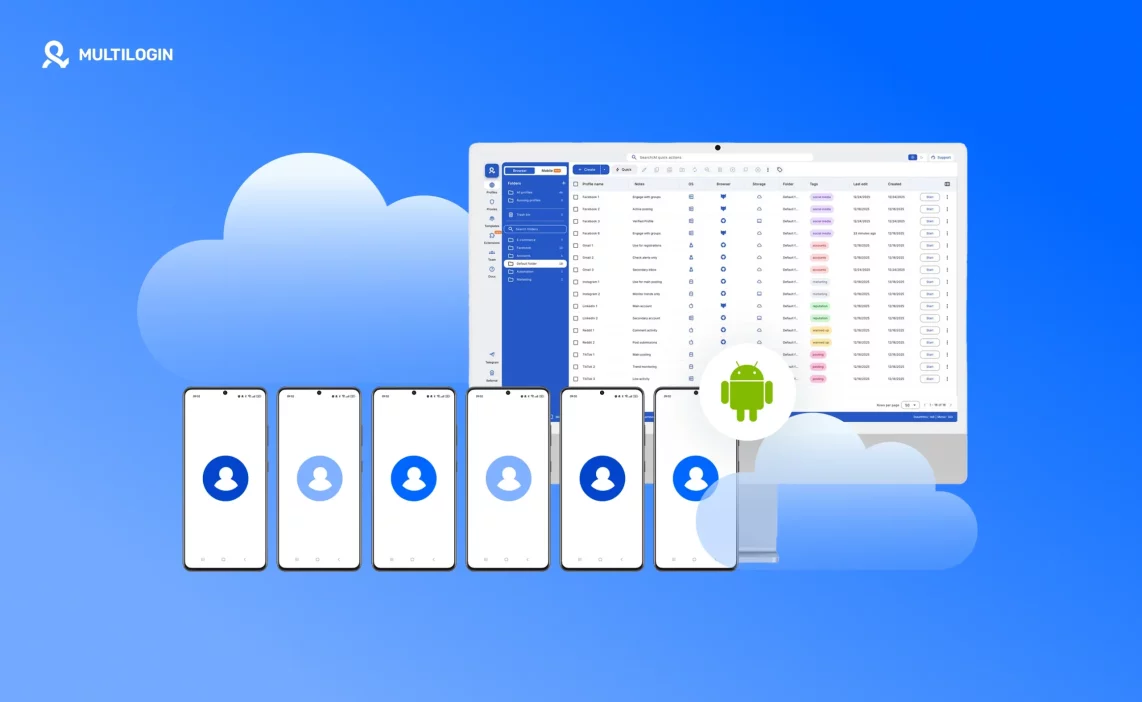

The idea of using a phone on a PC means different things to different people. Some want to transfer files, others to view photos or mirror a phone screen. Some even search for ways to install Android on a PC as if a phone could work like a regular program.
Let’s be clear from the start: this is not about file transfers or basic phone connections.
This guide is for those who need a full-featured phone on a computer — an Android environment with mobile apps that works just like a real smartphone, but directly on a PC. This is usually needed for tasks like account management, marketing, app testing, or other professional use cases.
Next, we’ll look at what a phone on a PC really means in practice and why cloud phones are increasingly chosen for work.
What does “phone on a PC” actually mean?
In practical terms, using a phone on a PC means working with a mobile device directly from a computer, without constantly relying on a physical smartphone. Actions like launching apps, entering data, or managing accounts are done with a mouse and keyboard.
This setup is especially convenient when speed and control matter. There’s no need to switch between devices, keep a phone nearby, or worry about connections — everything stays in one workspace, right on your computer screen.
At the same time, the smartphone on a computer keeps its native mobile behavior. Apps function the same way they do on a real phone, and platforms recognize the environment as mobile. That’s what makes a phone on a computer useful in cases where a regular browser is no longer enough.
Who actually needs a smartphone on a computer?
A phone on a computer is mainly useful for people who work with mobile apps on a regular basis, not just those who open them occasionally.
This includes specialists who manage and grow accounts on TikTok, Instagram, Facebook, Twitter (X), and other social platforms. When multiple accounts are involved, using a single physical smartphone quickly becomes inconvenient due to constant switching, platform limits, and higher risk of restrictions.
The phone-on-PC format is also practical for mobile marketing and advertising. Many features in apps like TikTok or Instagram are designed specifically for mobile use and behave differently than their browser versions.
Another key group is teams and agencies where access to mobile apps is needed by several people at the same time. In these cases, phones must remain available, independent of a single person, and usable in parallel.
When mobile apps are a core part of daily workflows, a smartphone on a PC stops being an unusual setup and becomes a standard work tool.
Ways to get a smartphone on a PC
When it comes to professional use, there are only two main approaches that allow you to use a phone on a computer. They solve the same problem but work very differently and fit different scenarios.
- Software-based emulation
- Using cloud phones
Let’s take a closer look at both.
Emulators
An emulator is a program that simulates an Android device directly on a PC. Visually, it looks like a regular smartphone: you can install apps, log into accounts, and interact with the Android interface. This is often what people mean when they search for how to install Android on a PC.
Emulators are commonly used for simple tasks or testing, but they come with limitations. They rely heavily on computer resources, can become unstable under high load, and are not always handled well by mobile platforms. Many apps can easily detect emulation, which is especially problematic when working with social media or advertising tools.
Scaling is another challenge. Running multiple “phones” on a single PC quickly consumes resources and requires constant monitoring.
Cloud Phones
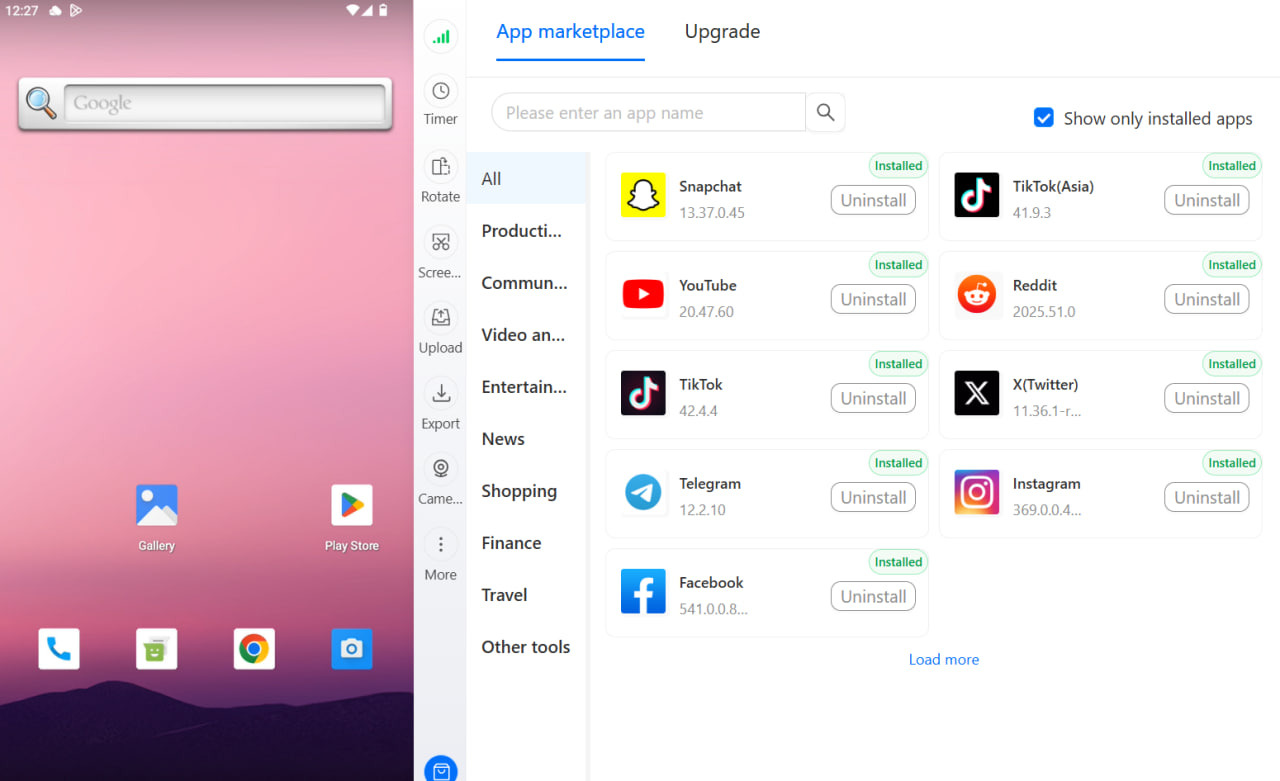
A cloud phone is a near-real mobile device that runs remotely and is accessed from a computer via a browser or a dedicated app. In practice, you get a full smartphone experience without having a physical device on your desk.
Cloud phones don’t put pressure on your PC, work independently from it, and appear to apps as standard mobile devices. This makes it possible to use TikTok, Instagram, Facebook, Twitter (X) and other services in their native mobile app format.
Cloud phones are easy to scale, suitable for team use, and remain available at all times. That’s why for professional workflows, where stability, control, and predictability matter, they often prove to be a more practical choice than emulators.
How cloud phones work
The way cloud phones work is fairly straightforward. The device is already running remotely, and you simply connect to it from your computer and use it like a regular smartphone.
All actions happen on the phone itself, not on your PC. The computer is used only for control. It sends input and displays the screen. Because of this, hardware power doesn’t really matter: a cloud phone works just as smoothly on a laptop as it does on a desktop PC.
Each cloud phone is a separate device with its own system, apps, and settings. They don’t overlap with each other, which makes it easy to use multiple virtual smartphones at the same time without worrying about data conflicts.
This approach allows cloud phones to stay active around the clock, connect instantly when needed, and function as a reliable work tool rather than a temporary solution.
Why choose Multilogin for cloud phones
Multilogin is chosen because it allows teams to handle mobile-related tasks within a single environment. The platform combines two tools in one interface:
- Anti-detect browser
- Cloud phones
There’s no need to switch between different services or workflows.
With Multilogin cloud phones, you can work with specific smartphone models such as Samsung, Google Pixel, Xiaomi, and others, running Android versions from 10 to 15. All device identifiers are taken into account, which makes it easier to match app and platform requirements instead of adjusting to technical limitations.
Another advantage is the use of mobile network connections that appear to apps as standard mobile traffic. This helps accounts behave consistently, even during active or long-term use.
If you’re still deciding which approach fits your needs, Multilogin provides a detailed comparison of cloud phones, making it easier to choose the right setup before getting started.
How to launch a cloud phone in Multilogin: step by step
Getting started with cloud phones in Multilogin doesn’t require complex setup or technical expertise. The entire process takes just a few minutes and looks like this:
- Sign up for Multilogin
Create an account using a valid email address, because it will be needed for access to the platform and future management.
- Choose a suitable plan
Multilogin plans cover different scenarios, from working with a few devices to managing cloud phones at scale within a team. You can select a plan that fits your needs or start with a trial for €1.99.
- Download Multilogin or use the web version
Multilogin is available for Windows, macOS, and Linux, and there’s also a web-based version, so you can work from the platform that’s most convenient for you.
- Open the Multilogin dashboard
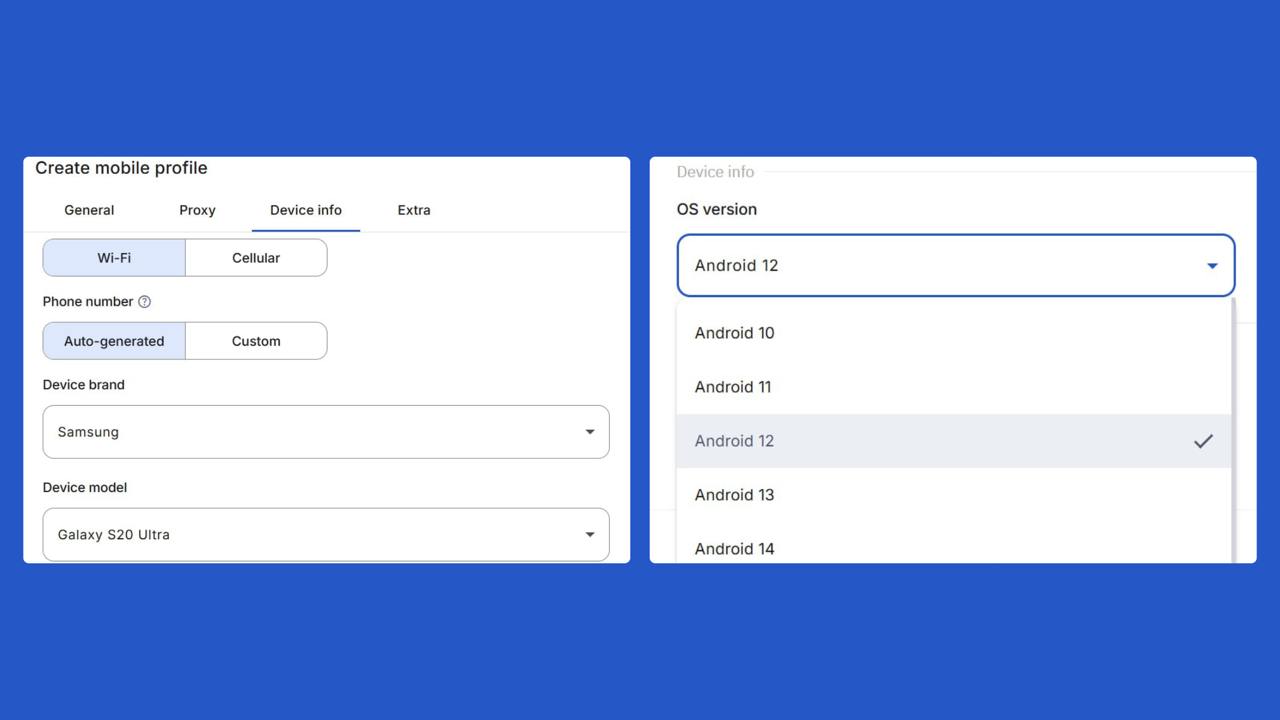
From the dashboard, you can launch cloud phones, select device models, choose Android versions, and configure the environment based on your specific tasks.
- Manage multiple cloud phones
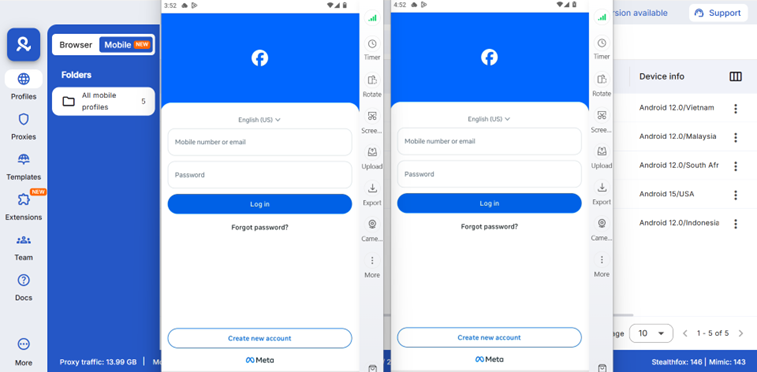
All devices are displayed in a single interface. You can group them, run several phones at the same time, and use each one as an independent work smartphone with its own settings and data.
This setup makes it easy to deploy the required number of cloud phones and start working right away. Without manual configuration or unnecessary steps.