Create multiple LINE accounts

Manage multiple LINE accounts on a unified multi-account platform. Connect cloud phones and browser profiles to communicate with customers and run marketing campaigns.

Connect cloud phones for multiple LINE accounts

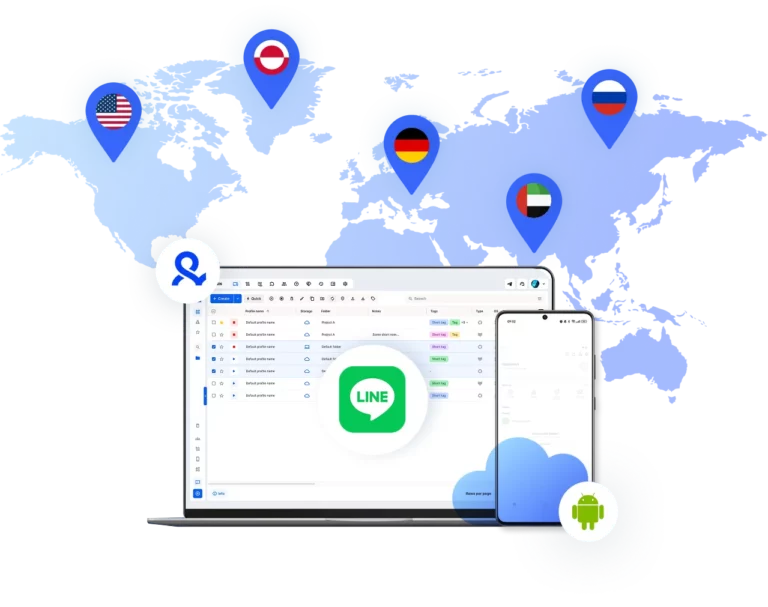
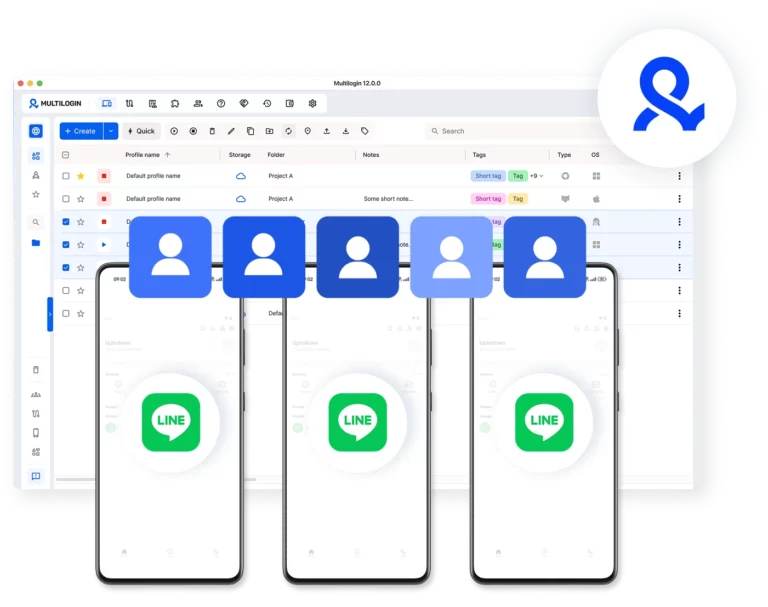
Create and use multiple LINE accounts on separate cloud phones. Run them in parallel without device limits or account mixing.

Set up global communication channels on LINE

Run different LINE accounts for client chats, lead generation, and community building. Work across regions and audiences with separate setups.

Automate LINE messaging workflows

Keep messages and activity running across accounts with simple automation. Stay consistent without manual switching between devices.

Collaborate across LINE accounts

Give your team access, set roles, and manage all LINE accounts from one dashboard.

Manage Unlimited Mobile and & Web Accounts

Multilogin comes with built-in residential proxies to make multi-accounting, web scraping and web automation easier than ever. No extra setup, no third-party services—just undetectable browsing at no additional cost.
  • 3-day access to Multilogin

  • 5 cloud or local profiles

  • 200 MB proxy traffic included

  • 3-day access to Multilogin

  • 5 cloud or local profiles

  • 200 MB proxy traffic included

What are cloud phones for LINE accounts?

Cloud phones are real Android devices that run online instead of physical hardware. They let you create and manage LINE accounts through the mobile app without using real phones or emulators.

Multiple cloud phone devices running in parallel for mobile account management

Why use Multilogin for LINE accounts?

Multilogin gives every LINE account the tools it needs: cloud phones, browser profiles, and built-in proxies, all in one platform with no extra setup.

Cloud phone management platform with multiple cloud phone devices controlled from one interface

Award winning multiple account management platform

High Performer
Momentum leader
Best support
Momentum leader

Watch the Multilogin Demo

Learn how Multilogin can boost your business. Check the video below to see its full capabilities in a short demo video.

How to start using Multilogin 

Get started with multiple LINE accounts

Step 1 of how to use Multilogin

Sign up

Register using a verified email address to create your Multilogin account.

Step 2 of how to use Multilogin

Choose your plan

Select from various subscription plans tailored to your business needs.

Step 3 of how to use Multilogin

Download Multilogin

Install Multilogin on Windows, macOS, or Linux to access browser profiles and cloud phone management from one place.

Step 4 of how to use Multilogin

Access the Multilogin dashboard

Create browser profiles or launch cloud phones to manage LINE accounts in isolated environments.

Step 5 of how to use Multilogin

Run multiple Line accounts

Set up and manage multiple LINE using separate browser profiles, all from one secure platform.

Managing multiple accounts LINE with cloud phones

Using LINE for outreach, customer support, or lead generation is a powerful way to connect with audiences in specific regions. For agencies and marketers, the challenge is often handling several accounts at once without the hassle of switching devices or risking account restrictions. While the app is designed for personal use, scaling your messaging operations requires a more organized approach.

By using isolated digital environments, you can run many accounts from one place while keeping each identity separate and stable.

Simple steps to create LINE account networks for outreach

Setting up several accounts for messaging or support is easier when you have the right system. Instead of juggling physical phones or logging in and out of the same app, you can use dedicated environments that act like separate devices. This allows you to build a network of accounts that stay active and ready for work.

A reliable setup for your messaging accounts includes:

  • Dedicated mobile environments: Each account runs on its own virtual device, ensuring no data is shared between them.
  • Persistent sessions: You stay logged in even after closing the app, so you can pick up your conversations exactly where you left off.
  • Clean connection signals: Using unique IPs for each account helps maintain a natural presence on the platform.

This approach lets you focus on your communication strategy instead of technical hurdles.

Streamlining your work to create LINE app account profiles for teams

When you manage accounts for clients or different regions, collaboration is key. A unified dashboard makes it simple to assign specific accounts to team members without sharing passwords or physical hardware. This keeps your workflow organized and your data secure.

Using a centralized platform for your accounts allows you to:

  • Share access easily: Give team members access to specific messaging profiles with just a few clicks.
  • Manage everything in one place: See all your active accounts and their status from a single dashboard.
  • Scale quickly: Add new accounts as your business grows without needing to buy more phones.

This setup is perfect for agencies that need to handle high volumes of customer chats or marketing campaigns across different languages.

Benefits of the option to create account in LINE app for PC users

While LINE is primarily a mobile app, many professionals prefer working from a computer for faster typing and better multitasking. However, creating a new account directly on a PC is not always possible. The best solution is to use a cloud-based mobile environment to set up the account and then manage it from your desktop.

This hybrid approach gives you the best of both worlds:

  • Mobile-grade registration: Use a real Android environment to set up your account, which is the most reliable method.
  • Desktop efficiency: Once the account is ready, you can use it on your PC for outreach and support tasks.
  • Stable history: Your chat history and settings are saved in the cloud, so you never lose important information.

This makes it much easier to integrate LINE into your existing office workflow.

Using cloud phones to LINE app create new account identities

Cloud phones are real Android devices that run in the cloud, providing a genuine mobile environment for every account you manage. They are much more reliable than emulators because they use real hardware signals like IMEI and MAC addresses.

With cloud phones, you can:

  • Run the native app: Use the real LINE app on Android versions 10 to 15 for the best performance.
  • Maintain unique identities: Each cloud phone has its own device fingerprint, so your accounts stay completely separate.
  • Choose your location: Match your account’s location with built-in residential proxies from a pool of 30 million IPs.

This ensures that every account you create has a stable, independent identity that looks natural to the platform.

Practical ways for how to create LINE app account systems that scale

Building a large-scale messaging operation is about consistency and organization. Whether you are doing lead generation or community management, having a system that grows with you is essential.

Common ways to use multiple accounts include:

  • Customer support: Managing chat services for e-commerce or local brands.
  • Lead generation: Distributing traffic into different sales funnels for affiliate offers.
  • Community building: Running private groups or paid communities for exclusive content.

By using separate environments and stable connections, you can run these operations smoothly and avoid the common pitfalls of managing many accounts on a single device.

Finding the answer to how do I create multiple LINE app accounts with ease

The simplest way to manage a large number of accounts is to move away from physical hardware and use a platform like Multilogin. It brings all your mobile and desktop accounts into one dashboard, making your work lighter and more organized.

Multilogin provides the tools you need to keep your sessions stable and your accounts separate. For anyone handling a portfolio of messaging profiles, it is the foundation that allows you to scale with confidence and focus on growing your business.

Multiple Line Creator accounts FAQ

Creating a single LINE account is straightforward. Creating many of them for outreach, customer support, or lead generation without getting flagged is a different challenge entirely.

LINE is designed for personal use, so running multiple accounts from the same device triggers the platform’s detection systems. The reliable way to do it is through Multilogin, where each account runs on its own dedicated Android cloud phone with genuine hardware identifiers including IMEI and MAC address. Every account has its own independent identity from day one, which keeps your outreach operations stable and uninterrupted.

The biggest risk with LINE accounts used for business is losing them after putting time into building contacts and chat history. This usually happens because multiple accounts share the same device signals, which the platform eventually detects and acts on.

Multilogin’s Android cloud phones prevent this by giving each account its own persistent environment. App data, chat history, and login states are all saved between sessions, so every account builds a natural usage history over time. Each cloud phone also connects through a built-in residential proxy matched to the account’s location, keeping the identity signals consistent and credible to LINE’s systems.

LINE is primarily a mobile app, and creating a new account directly on a PC is not straightforward. The most reliable method is to use a real Android environment for the registration process and then manage the account from your desktop.

Multilogin’s Android cloud phones handle this perfectly. You register the account on a genuine cloud-hosted Android device, which LINE treats exactly like a physical phone. Once the account is set up, you can manage conversations and outreach from your desktop while the cloud phone maintains the account’s mobile identity and session data in the background.

LINE is particularly popular in specific Asian markets like Japan, Thailand, and Taiwan. If you are managing accounts for clients or campaigns in these regions, each account needs to look like it is genuinely located there, not just in terms of language but in terms of its technical connection as well.

Multilogin’s cloud phones handle this automatically. Each cloud phone is assigned a built-in mobile-grade proxy with GPS settings and network signals matched to the target region. Whether you are managing accounts across multiple countries or just one, each one connects to LINE as a real local device with a consistent regional identity.

Managing LINE accounts across a team without proper infrastructure creates two problems: security risks from shared passwords and detection risks from shared devices. Both can cost you your entire account portfolio at once.

With Multilogin, each LINE account runs on its own dedicated Android cloud phone that can be assigned to specific team members with controlled permissions. No passwords are shared, and no devices are shared. Chat history and session data are stored in the cloud, so any team member can pick up a conversation exactly where it was left off without disrupting the account’s history or triggering any platform flags.

The most common reason multiple LINE accounts get blocked is simple: they share the same device. LINE’s systems look at hardware identifiers, IP addresses, and usage patterns. When these overlap across accounts, they get linked and flagged together.

The solution is one cloud phone per account. Multilogin gives each LINE account its own real Android device running in the cloud with unique hardware identifiers, a matched residential IP from a pool of 30 million addresses across 150 locations, and persistent session data that builds natural usage history over time. Each account is completely isolated, so a problem with one never affects the others.

Thank you! We’ve received your request.
Please check your email for the results.
We’re checking this platform.
Please fill your email to see the result.

Multilogin works with amazon.com