



How to request recommendations on LinkedIn starts with choosing the right person, asking at the right time, and sending a message that is easy to answer. In this guide, you will learn how to get recommendations on LinkedIn, what to say in your request, which mistakes to avoid, and how to add recommendations to strengthen your profile.
A strong recommendation rarely appears without a clear prompt. Keep your message short, remind the person what you worked on together, and suggest the skills or results they could mention.
For teams managing multiple LinkedIn workflows, Multilogin cloud phones can help separate mobile environments and keep account activity organized from one dashboard.
👉 Use the templates below to request better recommendations and improve your LinkedIn credibility today.
Where Are LinkedIn Recommendations Located?
LinkedIn recommendations live on your profile, right below your Skills section and just above (or sometimes mixed in with) your Education section, depending on how your profile is arranged.
If you’re looking for them from the viewer’s side, just open any profile and scroll down past the experience and skills blocks. There’s a dedicated “Recommendations” heading with two tabs sitting above it, “Received” and “Given.”
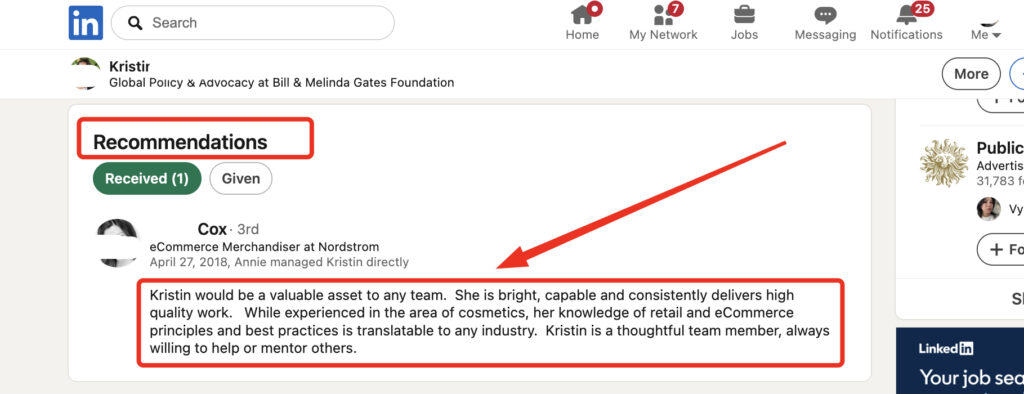
- Received shows what other people wrote about that person.
- Given shows what that person has written for others, which is honestly a pretty underrated detail.
A profile full of thoughtful recommendations given to other people says something about how generous and observant that person is, not just what they’ve received.
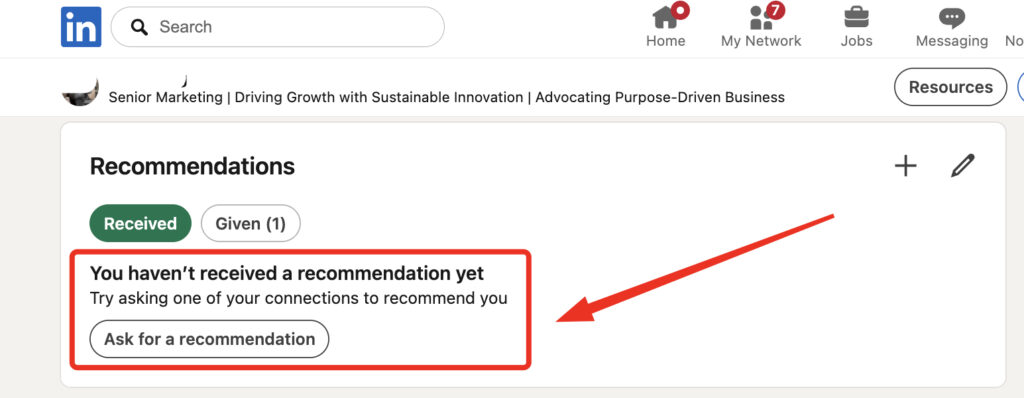
From your own profile, in edit mode, you’ll find the same section with an “Ask for a recommendation” button sitting right there. That’s the one you’ll use for everything covered in the rest of this guide.
👉 If you don’t see a Recommendations section on your profile at all, don’t worry, it simply hasn’t been activated yet. It appears automatically the first time you request or receive one.
What Does It Actually Mean to Request Recommendations on LinkedIn?
A LinkedIn recommendation is a short written endorsement that appears on your profile, written by someone who worked with you, managed you, or hired you at some point. Requesting one simply means sending that person a message through LinkedIn’s built-in feature, asking them to write a few honest lines about your work.
It sounds simple. And technically, it is. But here’s the thing most people get wrong: they treat the request like a formality, click the button, type “please recommend me,” and hope for the best. That rarely gets a strong result. The people who get genuinely useful, specific recommendations tend to treat the ask almost like a mini conversation rather than a form submission.
👉 LinkedIn recommendations show up directly under your experience section, so they carry real weight with recruiters who skim profiles in seconds. A vague one does almost nothing. A specific one, mentioning a project, a skill, or a result, can be the detail that gets you shortlisted.
How To Request Recommendations On LinkedIn via Connections: Step by Step Guide
Since recommendations only work between people who are already connected on LinkedIn, the whole process runs through your connections list, both for asking and for giving. Here’s the full walkthrough, split into both directions, since one usually leads to the other.
Requesting a recommendation from a connection:
- Open the profile of the connection you want to ask (they need to already be a first-degree connection, this won’t work otherwise).
- Go to your own profile and scroll to Recommendations, then click “Ask for a recommendation.”
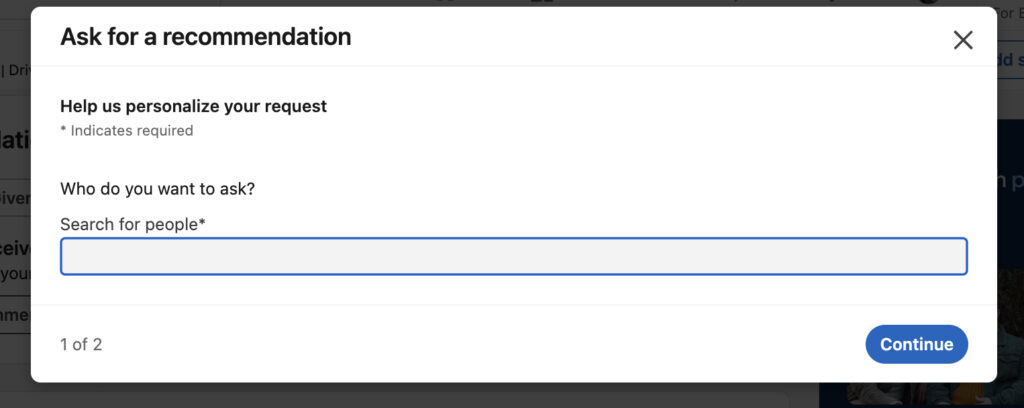
- Type their name into the search field. Only your existing connections will show up here.
- Select how you know them: colleague, business partner, client, and so on, plus the specific role or project if relevant.
- Replace LinkedIn’s default message with a short, personal note (see the templates above for ideas).
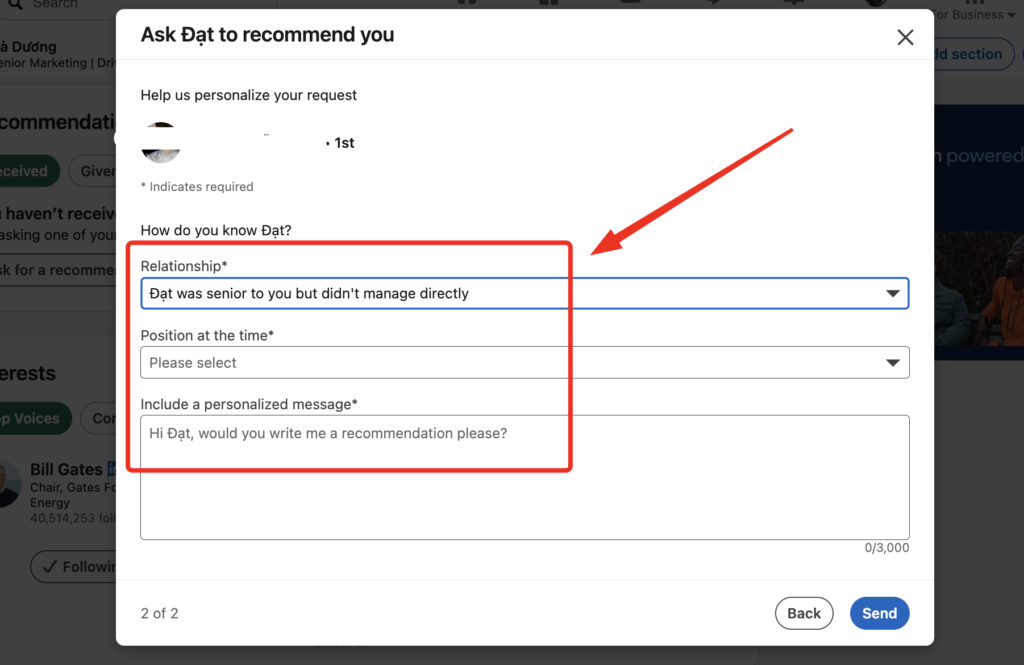
- Send the request, and it’ll land in their notifications and inbox.
Giving a recommendation to a connection:
- Visit the profile of the person you want to recommend.
- Click the “More” button below their profile photo, then select “Recommend.”
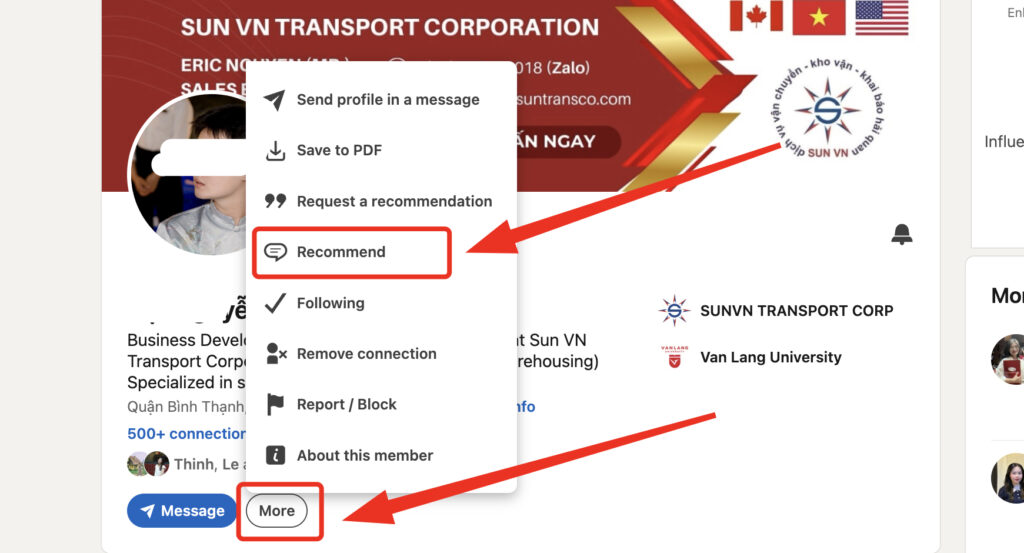
- Choose your relationship and the role that applies.
- Write your recommendation. Keep it specific, mention a real project or trait, and keep it to a short paragraph.
- Submit it. It’ll sit as pending on their side until they approve it for their profile.
Why Bother Asking for Recommendations on LinkedIn?
Recommendations matter because they’re one of the few things on your profile that someone else vouches for, not you. Anyone can list “strong leadership skills” in their about section. Far fewer people have three former managers backing that claim in their own words.
Think about it from a hiring manager’s side for a second. They’ve got fifteen tabs open, a stack of resumes, and maybe ninety seconds per profile. A skimmed job title tells them what you did. A recommendation tells them how well you did it, and from someone with nothing to gain by lying. That’s a different kind of trust signal entirely.
There’s also a quieter benefit. Asking for a recommendation is, in a small way, a reason to reconnect with someone you haven’t spoken to in a while. Former colleagues, old managers, clients you delivered great work for: these are relationships worth keeping warm, and a recommendation request is a perfectly natural excuse to reach out.
How To Request Recommendations On LinkedIn (Step by Step)
The most direct way to request recommendations on LinkedIn is through the “Ask for a recommendation” feature, found on your own profile under the Recommendations section. Click it, choose the person, add a short personal note, and send.
Here’s the fuller walkthrough, since the button alone doesn’t tell you much:
- Go to your own profile and scroll to the Recommendations section (if you don’t have one yet, it appears once you request your first recommendation).
- Click “Ask for a recommendation.”
- Search for and select the person you want to ask. LinkedIn lets you pick from your connections.
- Choose how you’re connected (colleague, client, business partner, and so on) and the relevant role or project.
- Write a short, personal note instead of using the default text LinkedIn suggests.
- Hit send, and give it time. People are busy, and a nudge after a week or two is completely normal.
That last point matters more than people realize. Nobody’s ignoring you on purpose. Recommendation requests just sit low on most people’s priority list, somewhere between “reply to that group chat” and “clean out my inbox eventually.”
👉 Pro tip: Ask three to five people at once instead of one. Not everyone will follow through, and having several recommendations that touch on different strengths (leadership, technical skill, client communication) looks far more convincing than a single glowing paragraph.
How To Get Recommendations On LinkedIn When You’re Not Sure What to Ask For
You get better recommendations on LinkedIn by giving people something concrete to react to, rather than asking them to write from a blank page. Most people freeze up when asked to “say something nice.” Give them a starting point and the writing gets easier for both of you.
Instead of a generic request, try naming the actual project, the actual outcome, or the specific skill you want highlighted. Did you lead a product launch together? Mention it. Did you save a client relationship that was falling apart? Bring that up. Specificity does two things at once: it jogs the other person’s memory, and it steers the recommendation toward the strengths you actually want recruiters to notice.
There’s a small trick worth mentioning here too. If you genuinely don’t know what angle to request, ask the person a simple question first: “What do you remember most about working together?” Their answer usually contains the exact recommendation you were hoping for, just unwritten yet.
How To Add Recommendations On LinkedIn Once You Receive Them
Recommendations don’t appear on your profile automatically. You have to add recommendations on LinkedIn by reviewing and accepting them once the writer submits their text.
Here’s what happens behind the scenes: when someone writes you a recommendation, it lands in a pending state and doesn’t show publicly until you approve it. Go to your Recommendations section, and you’ll see a “Pending” tab alongside “Received.” Open the pending one, read it over (you can politely ask for small edits before accepting, this is completely normal and most people won’t mind), then click show on profile.
A few notes worth keeping in mind:
- You can choose to hide a recommendation without deleting it, useful if it’s a bit thin or outdated.
- Recommendations stay tied to the writer’s profile, so if their account gets deleted, the recommendation usually disappears too.
- You can reorder which recommendations show first, so lead with the strongest, most specific one.
👉 Recommendations and skill endorsements are not the same feature. Endorsements are one-click, no writing required, and honestly carry much less weight. Recommendations require real effort from the writer, which is exactly why they mean more.
What To Say When Requesting a LinkedIn Recommendation (Templates)
Wording trips people up more than anything else in this whole process. Nobody wants to sound needy, and nobody wants to sound like a corporate form letter either. Here are a few templates, adjust freely:
For a former manager: “Hi [Name], hope things are going well at [Company]. I’m updating my LinkedIn profile and would really value a short recommendation from you, especially anything touching on the [project name] launch we worked on together. No worries if you’re swamped, just whenever you get a chance.”
For a colleague or peer: “Hey [Name], quick favor if you have five minutes: would you be open to writing me a short LinkedIn recommendation? Feel free to mention the [specific skill or project] we teamed up on. Happy to return the favor whenever you need one.”
For a client: “Hi [Name], it was genuinely great working with you on [project]. If you’re open to it, a short LinkedIn recommendation about our work together would mean a lot, and of course I’d be glad to write one for you too.”
Notice the pattern: short, specific, low pressure, and it always leaves an easy door open for them to say no without awkwardness.
Common Mistakes People Make When Asking
Even well-meaning requests go wrong in a few predictable ways. Worth checking yourself against this list before you hit send.
- Asking too many people at once with the exact same copy-pasted message. People notice, and it feels impersonal.
- Waiting until you desperately need the recommendation, like right before a job application deadline. Ask when things are calm, not urgent.
- Not giving the writer any direction at all. A blank request usually gets a blank, generic reply.
- Only asking managers. Peers, clients, and even people you managed can offer valuable, differently angled recommendations.
- Never reciprocating. If someone writes you one, offer to write theirs. It’s basic courtesy, and it tends to come back around.
Comparison at a glance:
| Approach | Result | Best for |
|---|---|---|
| Generic mass request | Often ignored or vague replies | Rarely worth it |
| Specific, personal request | Detailed, useful recommendation | Most situations |
| Asking right before a deadline | Rushed or skipped entirely | Avoid this timing |
| Asking with plenty of notice | Thoughtful, well-written result | Job hunts, promotions |