





You’d think changing your location on Instagram would be simple. Tap a button, type a city, done.
Except Instagram uses location in several different ways. Your professional profile can show a business address. Posts and Stories can carry location tags. Ads can target people by geography. Behind the scenes, Instagram can also use connection information and account activity to estimate where an account is primarily located.
Those are not the same thing.
So if you’re wondering how to change location on Instagram, the right method depends on what you’re trying to change. Your public address? A location tag? Your ad audience? Or the location signals associated with the account itself?
This guide covers all of them, including how to change your Instagram address, how account location works, and what matters when you manage regional or client accounts from somewhere else.
If you’re separating personal, creator, or brand profiles, you may also want to see how to make a second account on Instagram.
Let’s start with the part that causes most of the confusion.
What Instagram Actually Knows About Your Location
Instagram does not rely on one single “account location” setting.
Several types of location information can come into play:
- Your connection information. Your IP address gives Instagram information about the general location of the network you’re connecting from.
- Your device location. If Location Services are enabled, Meta may receive more precise location information from the device, including GPS-related data.
- The locations you tag. Locations added to posts, Reels, Stories, and other activity provide more context about places connected with your activity.
- The content and accounts you interact with. Instagram says activity on the platform can contribute to how it determines your primary location.
- Your public business information. A professional account can display contact information or directions. This is information you choose to show visitors and is separate from Instagram’s inferred primary location.
- Your login device and location. Instagram can show recent devices and locations in its security tools when reviewing login activity.
That last distinction matters.
Changing the address displayed on your Instagram profile does not automatically change the primary location Instagram associates with the account.
The same applies to location tags. You can tag an existing place on a post, but that tag does not act as a master country switch for the account.
You may also see a country under About This Account for some profiles. Instagram describes this country as being based on the account’s activity. Again, it is different from typing an address into your profile.
How to Change Your Instagram Profile Location
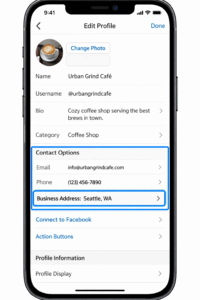
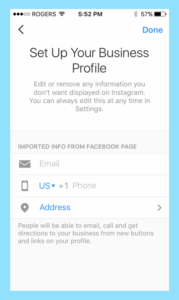
If by “location” you mean the address people can see when they visit your Instagram profile, you’re looking for your professional account’s contact information.
Instagram professional accounts can be either Business or Creator accounts. Personal profiles do not offer the same professional contact options.
The exact labels can vary slightly by account type and app version.
On iPhone:
- Open Instagram and go to your profile.
- Tap Edit Profile.
- Find your professional or public business information.
- Open Contact Options.
- Select your business address or directions.
- Update the address, city, or other location details.
- Save your changes.
On Android:
The process is similar:
- Go to Profile → Edit Profile.
- Open your professional or public business information.
- Tap Contact Options or the available address field.
- Change your Instagram address.
- Save.
If you don’t see any business address or contact fields, check your account type first.
There is also an important difference between changing your Instagram address and changing the country Instagram associates with your account.
If you’re searching for “how to change country in Instagram professional account,” there is no simple country selector that rewrites Instagram’s primary account location. Your visible business address can be edited, while primary location is determined separately from connection information and activity.
How to Change Location on Instagram Posts
When you publish a photo or video, Instagram lets you attach one of its existing locations to the post.
When you’re creating a new post:
- Choose your photo or video.
- Continue to the sharing screen.
- Tap Add location.
- Search for a city, venue, landmark, restaurant, or another available location.
- Select the location.
- Publish your post.
Instagram only lets you tag existing locations offered by the platform. You cannot create a completely new Instagram location directly from the post composer.
And the location you tag does not have to function as the primary location of your account. A post location is content metadata. It is not an account-level country setting.
What if you already posted and want to change the location?
You can edit it.
This is one of the places where Instagram is more flexible than Stories.
For an existing feed post:
- Open the post.
- Tap the options menu.
- Choose Edit.
- Add a location if there isn’t one already, or select the current location to change or remove it.
- Save the changes.
So you do not need to delete and re-upload a regular Instagram post just because the location is wrong.
How to Change Location on Instagram Stories
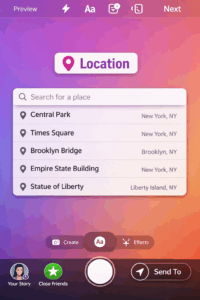
Stories use a location sticker rather than the location field you see on a feed post.
Adding a location to your Story:
- Create your Story.
- Tap the sticker icon.
- Choose the Location sticker.
- Search for the place you want.
- Select it.
- Position the sticker on your Story.
- Publish.
Instagram currently includes Location among the stickers available for Stories, although not every sticker or feature is available to every account or region.
Once the Story is already live, you cannot go back into the published Story and edit its location sticker in the same way you can edit a feed post.
If the location is wrong, remove the Story and publish a corrected version.
How to Change Location on Instagram Bio
Your bio is simpler.
There’s no dedicated “bio location” control for ordinary text. If you just want visitors to know where you’re based, type the location directly into your bio.
For example:
- Tap Edit Profile.
- Open the Bio field.
- Add something like “📍 Brooklyn” or “Based in London”.
- Save.
That text is different from the professional account address discussed earlier. It is simply part of your bio.
If location is part of your wider Instagram growth strategy, it helps to think beyond the city name itself. Your profile, content, local references, and publishing strategy should make sense together. Our guide to increasing Instagram reach with Multilogin cloud phones covers that wider workflow.
How to Change Location on Instagram Ads
If you’re running Instagram ads, changing the location of the people you want to reach happens through Meta’s advertising tools.
Meta Ads Manager lets advertisers define audiences using general geographic locations.
Here’s how:
- Open Meta Ads Manager.
- Create a new campaign or edit an existing campaign.
- Go to the ad set and audience settings.
- Find Locations or the relevant location control.
- Add the geographic areas you want to target.
- Review the audience settings before publishing.
Depending on the campaign and available settings, Meta can support locations such as countries, states, provinces, cities, and postcodes.
Your advertising audience is separate from your own physical location.
A business in Texas can run Instagram ads aimed at customers in Germany without changing the location of the Instagram account itself.
If you’re working with organic regional profiles rather than paid targeting, see our step-by-step guide on how to target Instagram users by location with Multilogin.
How to Change Location for Instagram Promotions
Promoting an existing Instagram post is another way to choose who you want to reach geographically.
When the promotion setup gives you audience controls:
- Tap Promote on the post.
- Open the audience settings.
- Choose an available suggested or custom audience option.
- Set the locations available for that audience.
- Review the rest of the promotion settings.
- Start the promotion.
The important bit is the same as with Ads Manager.
Changing the audience location for a promotion does not change the location of your Instagram account.
You’re telling Meta where you want the promotion delivered.
How to Change Location on Instagram Filters
This one gets confusing because people use “Instagram location filter” to describe a few different features.
If you mean the Location sticker that displays a place on a Story, use the process in the Story section above.
If you mean Instagram camera filters or effects, those do not provide a general setting for changing your Instagram account location.
Some Instagram experiences and feature availability can vary by region, account, and device. Your device permissions may also affect features that need access to location information.
But switching a camera effect does not change the account’s primary location.
So if your real goal is “How do I change my Instagram account location?”, filters are not the control you’re looking for.
Can You Actually Fake Your Location on Instagram?
It depends what you mean by “location.”
For a post or Story, you can search Instagram’s available locations and attach one to the content. That changes the location shown with that content.
It does not rewrite the account’s primary location.
Instagram says its primary-location systems can use connection information such as your IP address as well as activity on the platform. If Location Services are enabled, device location data can also be available to Meta.
That means changing the deeper location context of an account is different from adding “Paris” to a post.
This matters most for legitimate multi-region workflows. Maybe an agency manages an Instagram profile for a client in another country. Maybe a brand has separate regional profiles. Maybe a social team works remotely while the accounts they manage belong to different markets.
In those cases, consistency matters more than a cosmetic location tag.
The network location, mobile environment, account history, and the region the profile represents should not constantly contradict one another.
Why Your Instagram Location Won’t Change (And How to Fix It)
Location problems usually come from mixing up Instagram’s different location features.
“The location I want doesn’t show up when I search.”
Instagram only lets you tag existing locations available in its location database. You cannot create a brand-new location directly from the Instagram post screen.
If nearby places are missing too, check whether Instagram has permission to use your device location and make sure the app is up to date.
“Instagram keeps showing the wrong location.”
First work out which location is wrong.
If it is a post tag, edit the post.
If it is your business address, edit your professional contact information.
If Instagram is estimating your primary location incorrectly, remember that this can be based on connection information and Instagram activity rather than one editable profile field.
“My business profile location won’t save.”
Make sure you’re editing the relevant professional-account contact information. Instagram’s interface can differ between Business and Creator profiles and some features are not available to every account.
If the app itself appears to be malfunctioning, update Instagram, restart the device, and try again before changing unrelated settings.
Managing Multiple Instagram Accounts Across Different Locations
Alright, this is where changing an Instagram location stops being a profile-editing problem and becomes an account-management problem.
Say an agency manages client accounts in Sydney, New York, and London. Or a brand has separate social profiles for several regional markets.
Logging every profile into one shared mobile environment while constantly changing networks creates a messy operating history. It also makes it harder for the team to keep each client’s apps, sessions, account data, and location setup separate.
A cleaner approach is one persistent environment per social profile.
That can include:
- A consistent IP and network location for the profile
- Its own app data and login state
- A dedicated mobile environment for native Instagram work
- A separate browser profile when web access is needed
- Consistent account operation over time
This is what Multilogin is built to organize.
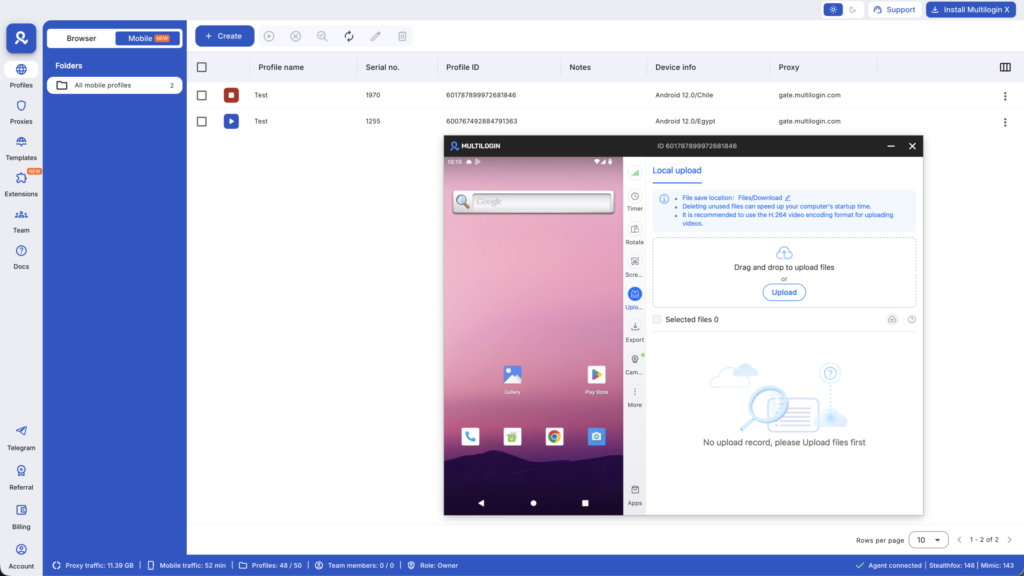
Multilogin is a cloud phone platform for social media marketers. It lets individuals, agencies, teams, and AI-driven workflows manage multiple social profiles from one dashboard using Android cloud phones for mobile work and isolated browser profiles for web workflows.
How it works for Instagram desktop:
Multilogin browser profiles keep each web profile’s cookies, session, browser data, and IP separate.
This is useful when you need to access Instagram on the web without mixing the stored session data of several client or regional profiles.
How it works for Instagram mobile:
Instagram is built heavily around its mobile app. Reels, Stories, DMs, app-based publishing, and many account workflows naturally happen on Android or iOS.
Multilogin Cloud Phones give each mobile social profile its own cloud-hosted Android environment.
Each profile can have:
- Its own Android device environment
- Separate app data and saved login state
- Its own device identity
- A location-matched network setup using built-in residential proxies
- The Instagram Android app running natively
So instead of passing several accounts through one physical phone, each Instagram social profile can keep its own persistent mobile environment.
That becomes especially useful for agencies and teams that manage multiple Instagram accounts or broader multi-account management workflows.
Multilogin now has a Free plan with no time limit and no credit card required. It includes five cloud mobile and browser profiles, plus a one-time 200 MB premium proxy traffic bonus and 30 mobile minutes. Paid plans start from $7.08/month.
Use regional profiles only for accounts and business workflows you are authorized to manage, and keep the account information accurate where Instagram or local regulations require it.
Manage multiple accounts with Android cloud phones
Build account trust, reach new locations, and grow faster from one dashboard
The Bottom Line
| Instagram Feature | How to Change | Needs Tech Setup? |
|---|---|---|
| Profile location/address | Edit professional contact information | No |
| Post location | Add when publishing or edit the existing post | No |
| Story location | Add a Location sticker before publishing | No |
| Bio location | Type it in the bio field | No |
| Ads targeting | Set audience locations in Meta Ads Manager | No |
| Promotions | Choose available audience location settings | No |
| Filters/effects | Not an account-location control | No |
| Primary account location | Based on signals such as connection information and activity | No single setting |
| Network location | Change the network or proxy used by the profile | Yes |
| Mobile profile environment | Use a dedicated Android environment when needed | Yes |
So, how do you change your location on Instagram?
For the location your audience sees, edit your professional address, post location, Story sticker, bio, or advertising audience.
For Instagram’s primary account location, there is no single “change country” button. Instagram can infer location from connection information and activity, and device Location Services may provide additional location data.
For teams managing legitimate client or regional social profiles, Multilogin provides the infrastructure around that workflow: Android cloud phones for native Instagram activity, browser profiles for web access, built-in residential proxies, and persistent sessions from one dashboard.
You can start with the Free plan, with no time limit and no credit card required. Paid plans start from $7.08/month.
Frequently asked questions About How to Change Your Location on Instagram
It depends on which location you mean.
To change the address displayed on a professional Instagram profile, go to Edit Profile and update the available professional contact or business address information.
To change a post location, edit the post and add, replace, or remove its location.
To change a Story location, choose a different Location sticker before publishing.
Instagram’s primary account location is different. It can be determined using connection information such as your IP address and activity on Instagram, so there is no single profile setting that changes it.
Yes, for regular feed posts.
Open the existing post, choose Edit, and add, change, or remove the location. You do not need to delete the post.
Published Stories are different. If a Story contains the wrong location sticker, you generally need to remove it and publish a corrected Story.
If you only want a different location displayed on a post or Story, choose another existing location when adding the location tag or sticker.
That does not change Instagram’s primary location for the account.
Instagram says primary location can use connection information and activity, so changing an account’s underlying location context is different from adding a visible content tag.
There is no setting that makes a location change invisible to Instagram.
Instagram receives connection information such as IP addresses and can also use account activity when determining primary location. When device Location Services are enabled, Meta may receive more precise location information as well.
If you legitimately manage regional or client accounts, focus on maintaining separate, consistent account environments rather than trying to hide location changes.
Go to your professional profile, tap Edit Profile, open the available contact or public business information, and update your address or directions.
The exact labels can vary by app version and professional account type.
This changes the business location people can see. It does not automatically change Instagram’s inferred primary location.
For a professional account, open Edit Profile and look for your contact or public business information. From there, update the business address or directions and save the changes.
If you only want a city displayed in your bio, you can also type it directly into the Bio field.
Instagram does not provide one universal country switch for a professional account.
You can change the public business address shown on the profile, but Instagram determines primary location separately using information such as connection data and account activity.
If you are managing a legitimate regional profile from another country, keep its account information, normal network location, and working environment consistent with the way the profile is operated.
The answer depends on what you’re changing.
If a location tag does not appear, Instagram may not offer that place in its existing location database.
If you cannot find a business address field, check that you are using a professional account and review its contact settings.
If you mean your account’s primary country or location, there is no single setting for changing it because Instagram determines that location using multiple signals rather than just your profile address.
Manage multiple accounts with Android cloud phones
Build account trust, reach new locations, and grow faster from one dashboard


