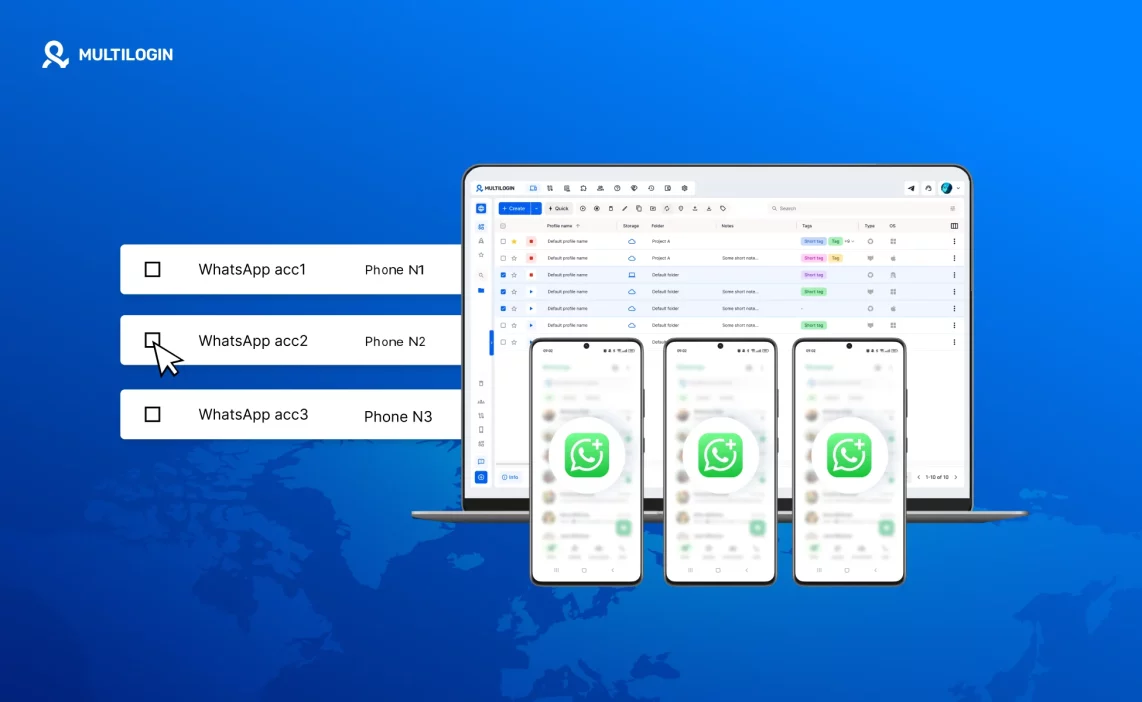

There are plenty of legitimate reasons to run more than one WhatsApp Business account. You manage outreach for several clients and each one needs its own number, also run separate brands or regional storefronts that shouldn’t share a contact list. You’re scaling a sales team and each rep needs an isolated line, not a shared inbox. You’re testing a new campaign and don’t want it touching your main business number.
Most advice on running multiple WhatsApp Business accounts stops at “just use a second SIM card.” That’s not separation. It’s the same phone, the same operating system, and the same background signals, WhatsApp reads all of it, and a second number changes almost none of it.
This guide explains what actually links WhatsApp Business accounts together, why the common workarounds don’t hold up, and how to set up genuinely isolated accounts using Multilogin Cloud Phones.
Why WhatsApp Business Links Accounts on the Same Device
Before the fix, it’s worth understanding what you’re up against.
WhatsApp Business doesn’t identify an account by phone number alone. When the app runs, it also reads the device it’s installed on: hardware and OS identifiers, installation history, contact list overlap, and how the account behaves over time. That combination of signals is the device’s fingerprint, and it stays constant no matter which account is logged in on top of it.
This is account linking in practice, not a manual flag WhatsApp applies, but the natural result of tTwo accounts sharing the same environment. Two WhatsApp Business accounts installed on the same phone are two identities layered on one fingerprint. WhatsApp doesn’t need to guess they’re related. The device tells it.
That’s why a restriction on one account so often drags the others down with it. If the accounts share a device, they share a risk profile.
Why the usual workarounds don’t solve it
A new SIM card changes the phone number. It does nothing to the device underneath it, the same phone, the same WhatsApp installation footprint, the same contact overlap if you’ve ever synced your address book. WhatsApp still sees one device carrying multiple identities.
A VPN changes the IP address the connection appears to come from. It has no effect on device-level signals at all. Two WhatsApp Business accounts behind two different VPN locations, opened from the same phone, are still the same device as far as WhatsApp is concerned.
Uninstalling and reinstalling the app clears some local data. It doesn’t touch the hardware fingerprint, and reinstalling repeatedly on the same phone is itself a pattern WhatsApp’s systems can pick up on.
Genuine separation means each WhatsApp Business account has never shared a device fingerprint, a session, or a contact list with any other account you run. A new number solves none of that on its own.
What Real Account Separation Requires
To run multiple WhatsApp Business accounts without one incident affecting the rest, each account needs:
- Its own device identity, not just its own phone number
- A phone number matched to a location that makes sense for that account!
- No contact list overlaps with your other WhatsApp accounts!
- A session history that stays consistent every time you log in
- No shared physical or virtual device with any other account
Buying a separate physical phone per account technically works, but it doesn’t scale, and it still leaves you managing a pile of hardware. A Cloud Phone solves the same problem without the hardware. It’s a real Android device running in the cloud, with its own device parameters, its own proxy, and its own storage. Nothing from your main phone or your other accounts touches it.
Multilogin Cloud Phones are built for this kind of isolated setup. Each one is a distinct Android device isolation environment, which is why WhatsApp reads it as a genuinely separate device, not a second identity on a familiar one.
Before You Start
You’ll need a Multilogin account with a plan that includes cloud phone minutes. Cloud phones are billed at $0.011 per minute, purchased as credits. A 3-day trial at $2 gives you access to 5 profiles, which is enough to test the setup with a couple of accounts before committing further.
You’ll also need a virtual phone number from a separate SMS provider for each WhatsApp Business account you register. This matters: Cloud Phones don’t support eSIM, and they can’t send or receive SMS codes or calls on their own. The auto-generated number shown in a cloud phone’s settings is a placeholder for display purposes only, it can’t receive a verification code, so don’t rely on it for registration. Verification codes for a WhatsApp Business account arrive through your SMS provider’s own app or dashboard, and you enter them manually into WhatsApp. The full walkthrough is in our SMS verification guide.
If you’re moving an existing WhatsApp Business account into an isolated environment rather than registering a new one, have that account’s credentials ready.
Step 1: Create Your Cloud Phone Profile
Go to the Mobile Profiles tab and click Create. Name the profile something you’ll recognize later, for example, “WhatsApp_Business_ClientA” Only you and your team can see this name; WhatsApp can’t read it.
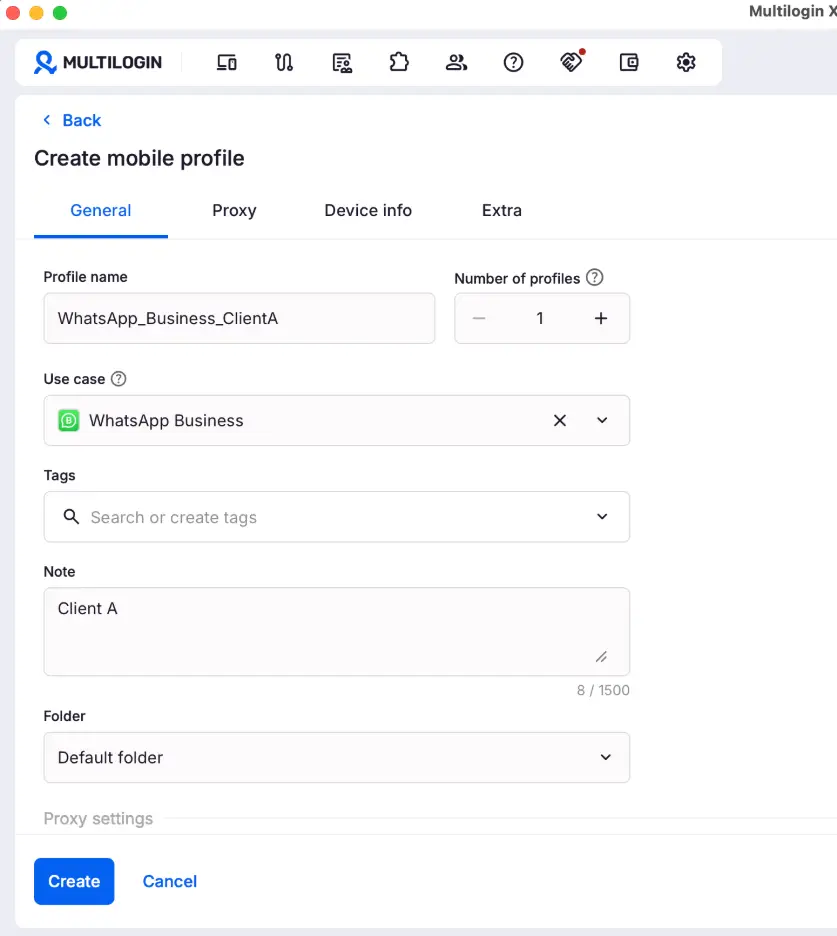
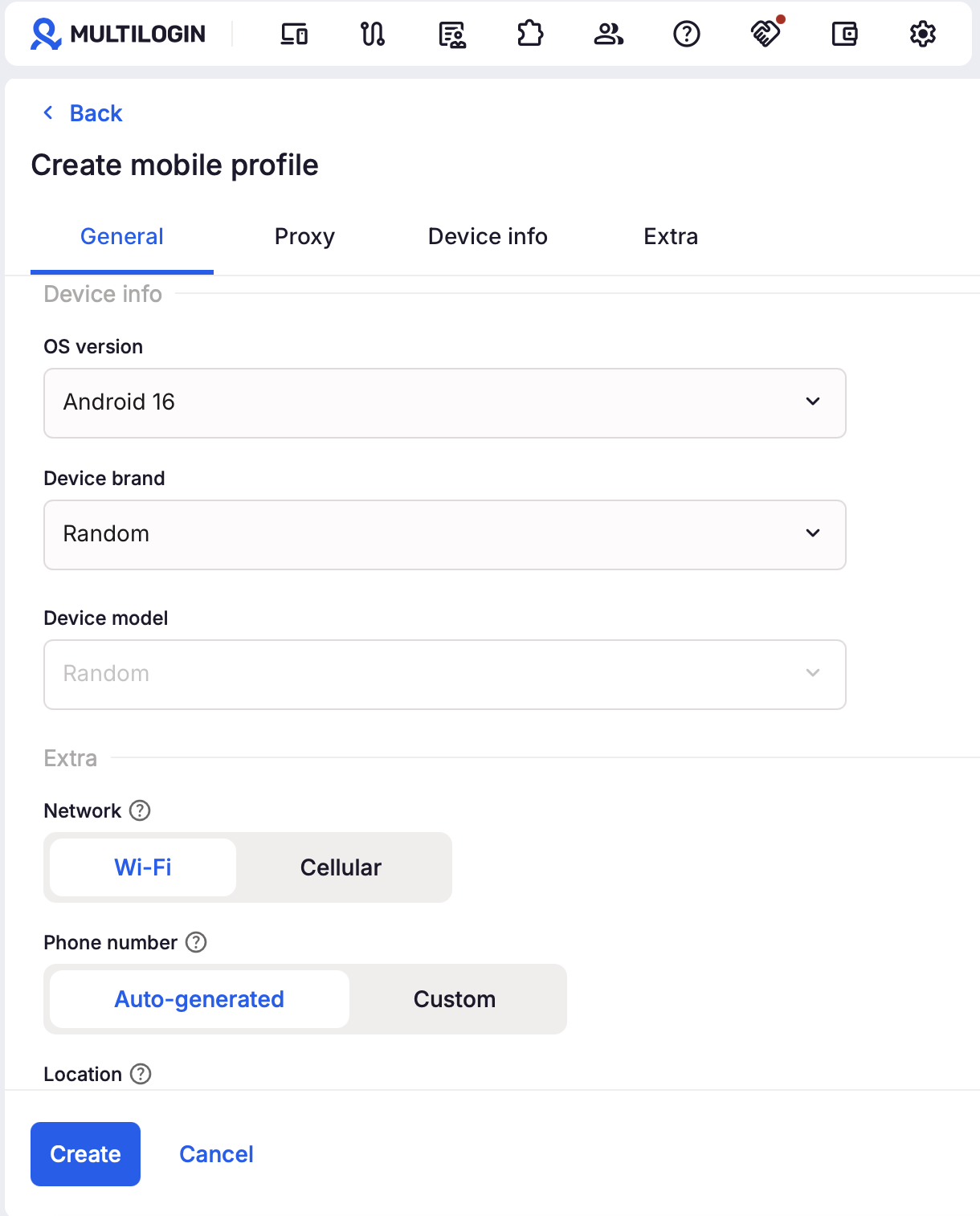
Set the OS version to a recent Android release (14–16 work well for WhatsApp) and either leave the device brand and model on Random, or pick a specific model if you’re matching a particular setup. Full settings are covered in our guide on how to create Android cloud phones.
Step 2: Assign a Proxy
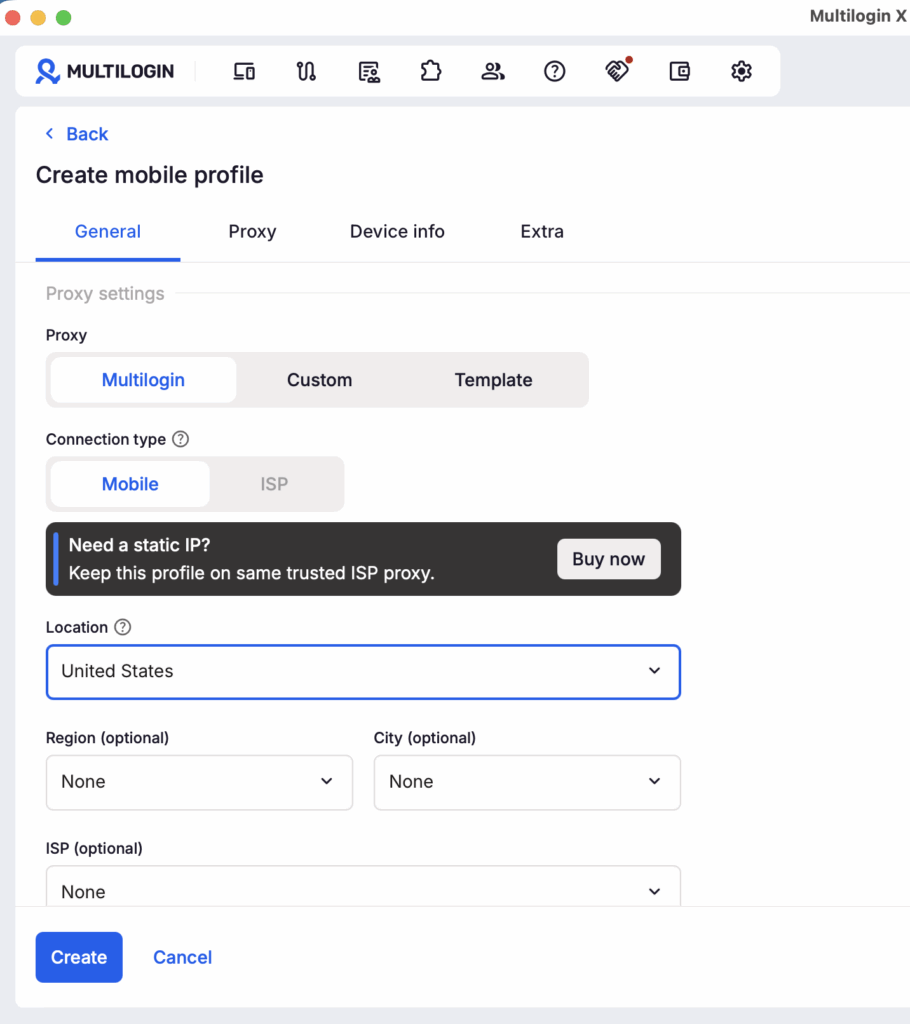
In the proxy settings, assign a residential or mobile proxy for the location this account should represent. Use Multilogin’s built-in premium proxies, or connect your own. Match the proxy country to the account’s intended market, a mismatch between proxy location and phone number country is one of the more common triggers for extra verification prompts.
Step 3: Set Up SMS Verification
Rent a virtual phone number from your SMS provider for the country you need. In the cloud phone’s Extra settings, set the phone number field to custom and enter that number.
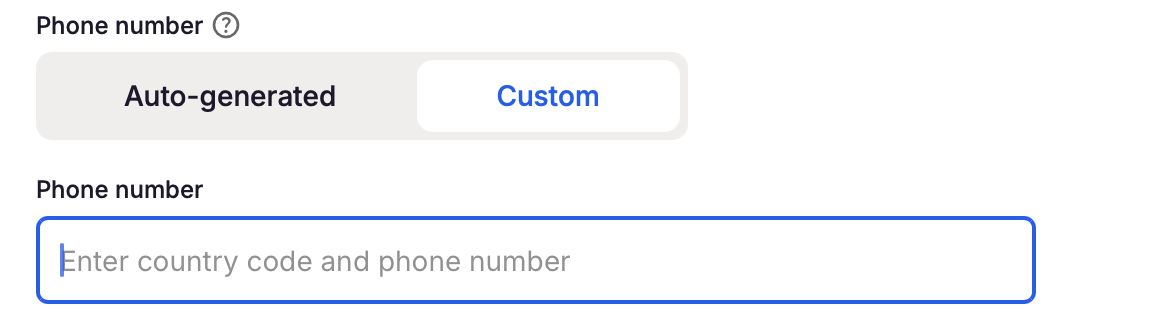
Don’t leave this on the auto-generated default, it can’t receive the code WhatsApp sends, and it isn’t a working number for verification purposes. Once your cloud phone is running and you reach the registration screen in WhatsApp Business, request the code, then retrieve it from your SMS provider’s dashboard or app and type it in manually.
Step 4: Install and Register WhatsApp Business
Launch the cloud phone. You’ll see a real Android home screen running in the cloud. Install WhatsApp Business through Multilogin’s built-in App Marketplace, click the Apps icon in the toolbar to open it.
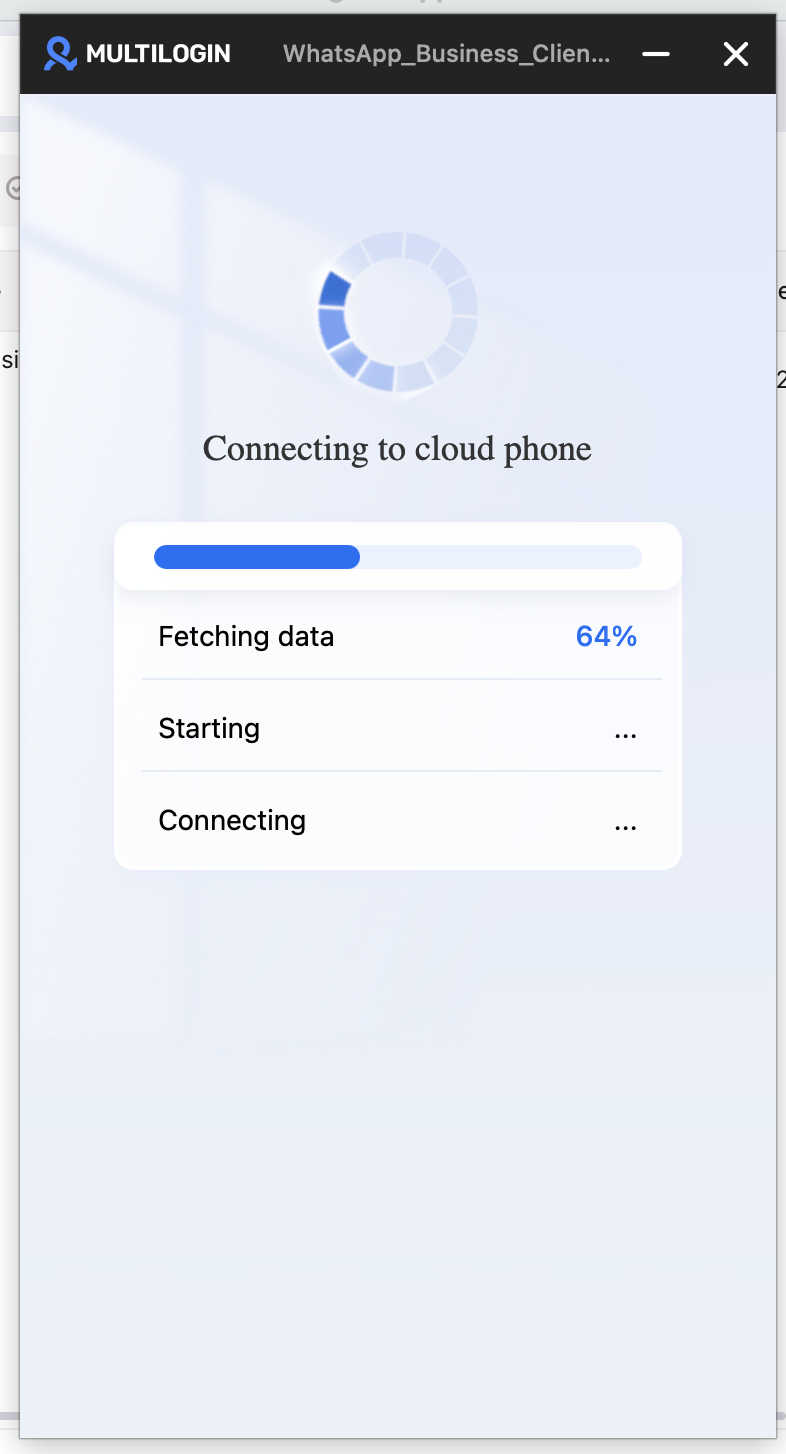
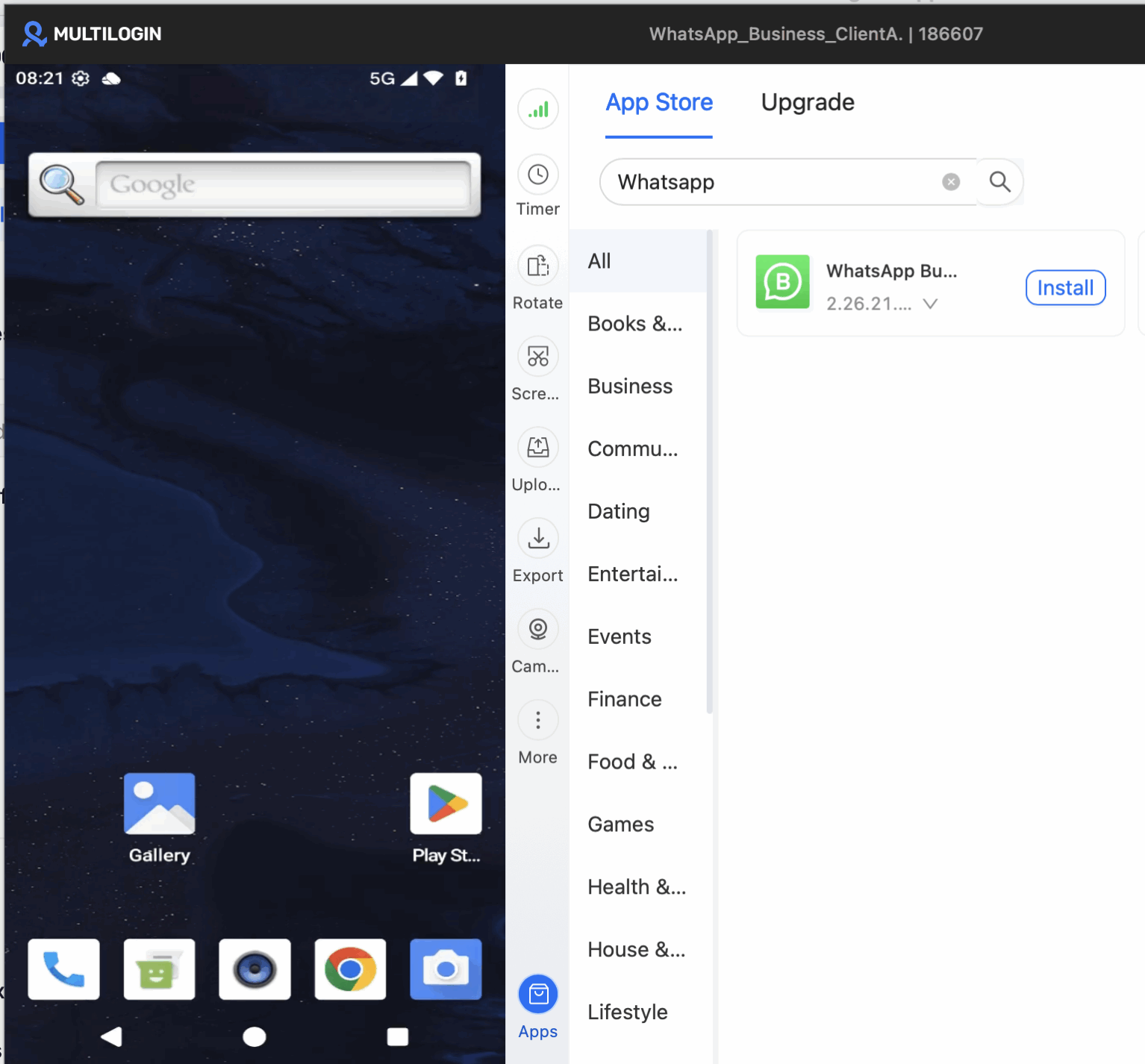
Register the account using the virtual number from Step 3. Fill out the business profile: name, category, description, and photo. Don’t log into any other WhatsApp account from this same cloud phone, and don’t sync a contact list that overlaps with accounts you run elsewhere. Each of those actions creates a link back to another identity.
Step 5: Keep the Session Consistent
Once the account is registered, always access it from the same cloud phone profile. WhatsApp reads consistency as a signal of a real, stable account. Switching environments or logging the account in from a different device even once, adds inconsistency that platforms weigh against you.
Persistent sessions makes this workflow possible. The cloud phone automatically saves its state, so when you close it and return later, you pick up exactly where you left off with the same device identity, active session, and account state intact.
Step 6: Run Multiple Accounts at Once
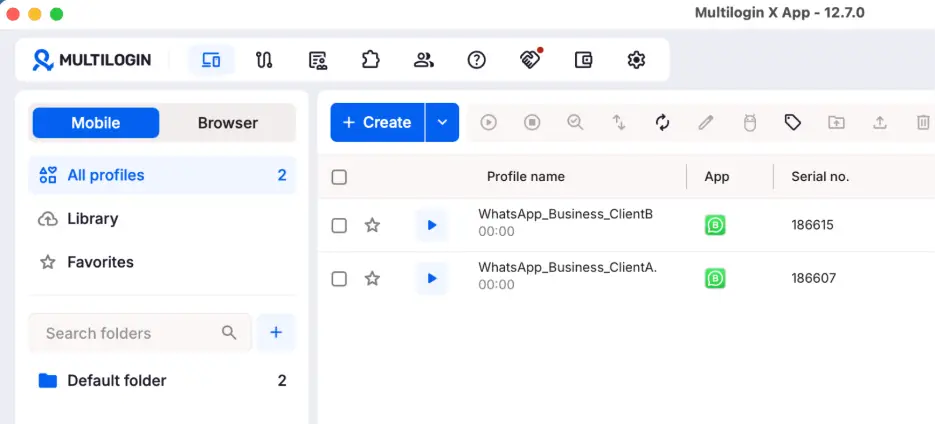
If you’re managing several client or brand accounts, Multilogin lets you launch multiple cloud phone profiles at the same time. Select the profiles you need from the dashboard and click Launch All.
Each one opens in its own window with its own device fingerprint, its own proxy, and its own isolated WhatsApp Business session. A restriction on one account stays contained to that profile, it creates no signal that reaches the others. This is the same setup agencies and sales teams use to run WhatsApp Business at scale without a single ban cascading through every client account.
If you also manage personal WhatsApp accounts alongside business ones, the same isolation principle applies, see our guide on creating multiple WhatsApp accounts for the broader setup.
What This Setup Actually Gives You
WhatsApp Business links accounts through the device, not the phone number. That’s why a new SIM, a VPN, or a fresh install never actually separates two accounts. The fingerprint underneath stays the same, and the accounts stay connected.
Cloud Phones remove that shared fingerprint. Each account runs on its own Android environment, with its own proxy, its own session history, and no contact list overlap with anything else you run. That covers every requirement laid out earlier, without the cost of a separate physical phone per account.
Pair each Cloud Phone with a matching Multilogin browser profile, and the same isolation covers desktop work too, like WhatsApp Web running alongside a CRM or team tools.
Set up this way, a restriction on one account stays contained to that account. Nothing shared, nothing to drag the others down with it.