


How we ranked these cloud phones for WhatsApp
We checked each provider’s own website and pricing page. The ranking reflects published features, prices, and documented limits, not paid load tests.
Each service was scored on five questions:
- Does it run the official app? WhatsApp and WhatsApp Business should run natively on a cloud Android device.
- What does one plan cover? Device runtime, proxies, and browser profiles for web tasks.
- Can each device match its number’s country? Proxy and location control per device.
- Can a team work in it? Shared access, permissions, and automation such as an API or ADB.
- Are prices and limits clear? Published pricing and an honest answer on SMS verification.
The 10 best cloud phones for WhatsApp at a glance
| # | Provider | Best for | Entry price | Proxies in plan |
|---|---|---|---|---|
| 1 | Multilogin | WhatsApp teams across markets, mobile and web | Free plan; paid from $7.08/mo | Yes |
| 2 | GeeLark | Automation and AI content | Free plan; $6.75/mo + $0.007/min | No |
| 3 | MoreLogin | Browser-first teams adding mobile | Free plan; $5.40/mo + $0.006/min | No |
| 4 | DuoPlus | Mobile-only work with a built-in SMS number service | Free trial; $11.79/mo for 10 devices + time | No |
| 5 | GoLogin | Occasional cloud phone use | Free plan; €4.50/mo | From the Professional 25 tier |
| 6 | MoiMobi | Support teams sharing one WhatsApp queue | Free plan; paid from $5/mo | Not stated |
| 7 | VMOS Cloud | Low daily device rental | From $0.11/day per device | No |
| 8 | BitCloudPhone | Cheap always-on profiles with RPA | $0.03 per 24 hours per profile | No |
| 9 | XCloudPhone | Rooted phone hardware in Southeast Asia | $9.50 per 30 days per device | No |
| 10 | cloudf.one | Accounts that must be in Singapore | Free 24-hour trial; $50/mo per phone | Singapore mobile IP only |
Prices come from each provider’s pricing page and change often, so confirm them before you buy.
1. Multilogin Cloud Phone
Multilogin is a cloud Android phone platform for multi-account management. Each WhatsApp account runs on its own Multilogin cloud phone, a real Android device in the cloud with its own app data, location, and IP.
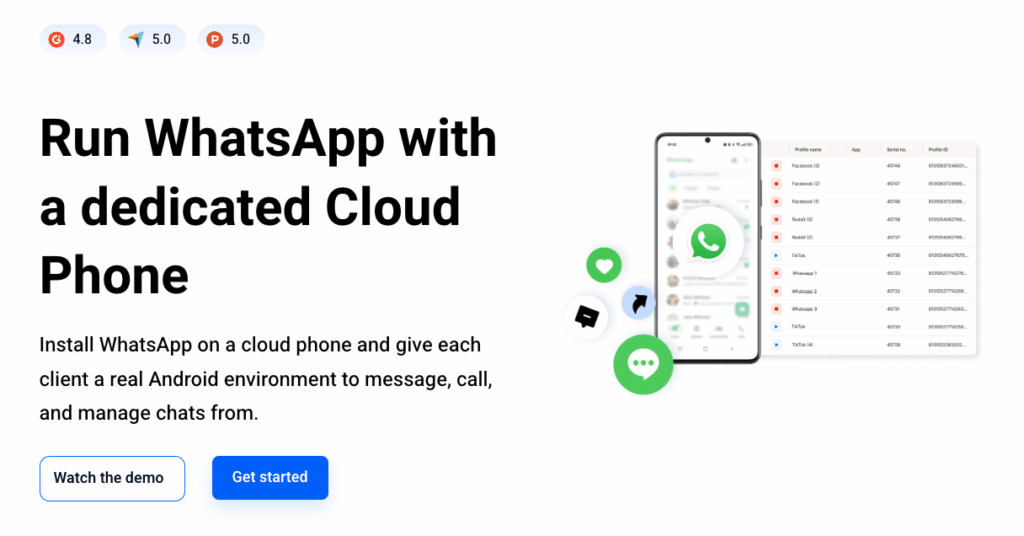
Browser profiles for web-based accounts sit in the same dashboard, so one plan covers both.
- WhatsApp: install the official WhatsApp or WhatsApp Business app from the built-in store, or upload an APK. One cloud phone per account.
- Price: Free plan with 5 profiles, 200 MB of proxy traffic, and 30 mobile minutes (one-time). Pro 10 costs $7.08/mo billed annually or $11 monthly, with 1 GB of traffic and 60 minutes a month.
- Proxies: built-in residential proxies in every plan. You can also bring HTTP, HTTPS, ISP, or SOCKS5 proxies.
- Phone numbers: enter your number in the profile settings. The code arrives on your own phone or in your SMS provider’s dashboard.
- Automation: API from Pro 10, full ADB access, Selenium, Puppeteer, Playwright, Postman, and AI agents through the OpenClaw skill.
| Pros | Cons |
|---|---|
| Cloud phones, browser profiles, residential proxies, and mobile minutes in every plan | Needs a reliable internet connection |
| No limit on concurrent cloud phones | Cloud phones cannot receive SMS or calls |
| Team seats and permissions to share and assign profiles | |
| Unused proxy traffic and minutes roll over with an active subscription | |
| Free plan with no time limit and no credit card needed |
Best for: Multilogin fits teams that run WhatsApp every day across several markets, such as agencies with a number per client or support teams with a number per country. Each account gets its own Multilogin cloud phone with a proxy in its number’s country, and teammates open the profiles they are assigned from one dashboard.
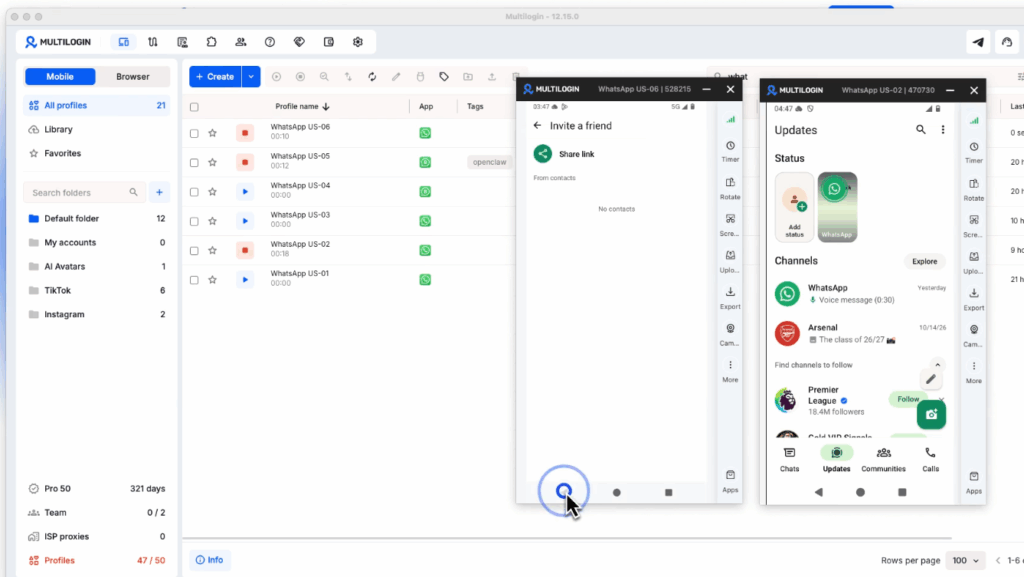
The video shows the full process registering a number. From a new cloud phone to the verification code screen, it took about 2 minutes.
These services sell numbers that receive SMS codes in their own dashboard. In each one, choose WhatsApp (or WhatsApp Business) as the app you need a code for, then pick the country that matches your cloud phone’s proxy.
| Service | What it offers | Good to know |
|---|---|---|
| 5SIM | One-time activation numbers in 150+ countries; shows live delivery rates | Automatic refund if no SMS arrives |
| SMSPVA | One-time activations and rentals for days, weeks, or months in 60+ countries; REST API | Rent the number if you plan to keep the account |
| SMSKody | US virtual numbers for 1,400+ apps; reuse the same number later at a discount | US VoIP numbers only; WhatsApp can reject some VoIP numbers |
2. GeeLark
GeeLark positions itself around social media automation and AI content, with cloud phones and browser profiles underneath. Its WhatsApp guide installs the app from a built-in app section and uses a different number for each profile.
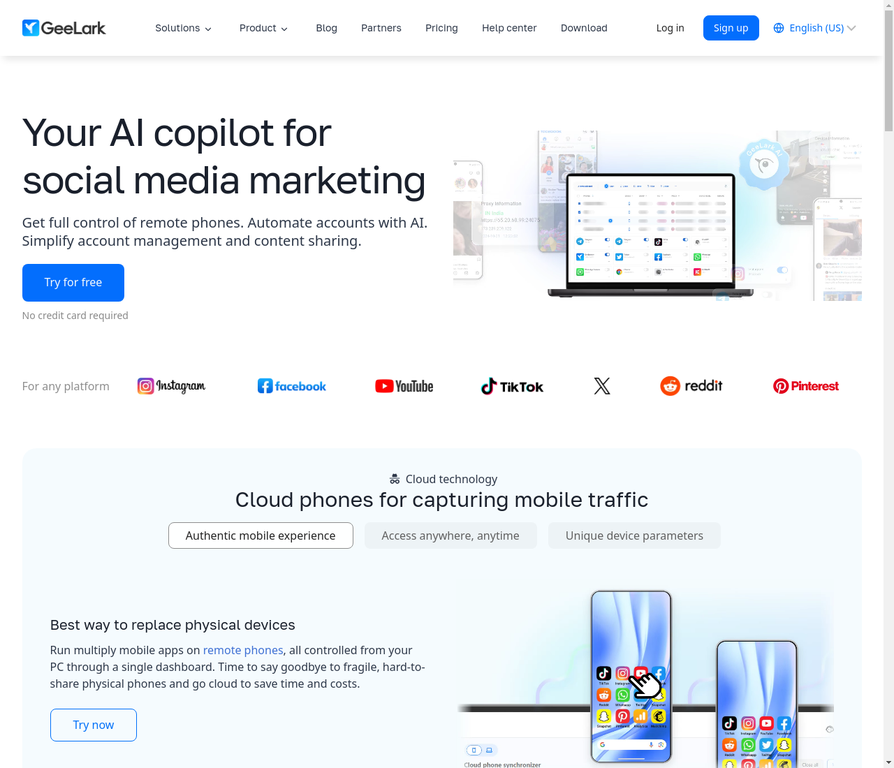
- Price: Free plan with 2 profiles and 30 minutes. Base at $6.75/mo for 10 profiles billed annually, plus $0.007 per device minute, capped at $1.20 per device per day.
- Proxies: not included. You buy them from a separate vendor.
- Phone numbers: the WhatsApp guide asks for your own numbers and does not describe an SMS service.
- Automation: automation templates, a synchronizer on the Pro plan, and Parallels slots for running devices without per-minute billing.
| Pros | Cons |
|---|---|
| Strong automation and content tooling | Proxies sit outside the subscription |
| Browser profiles included | Device time billed per minute on top of the plan |
| Daily spending cap per device | Automation sessions are billed per minute |
| Monthly total varies with usage |
Best for: automation-heavy teams that already have a proxy supplier. See Multilogin vs. GeeLark for the full comparison.
3. MoreLogin
MoreLogin is a browser profile product with a cloud phone module added alongside it. Its cloud phones run Android 12 to 15.
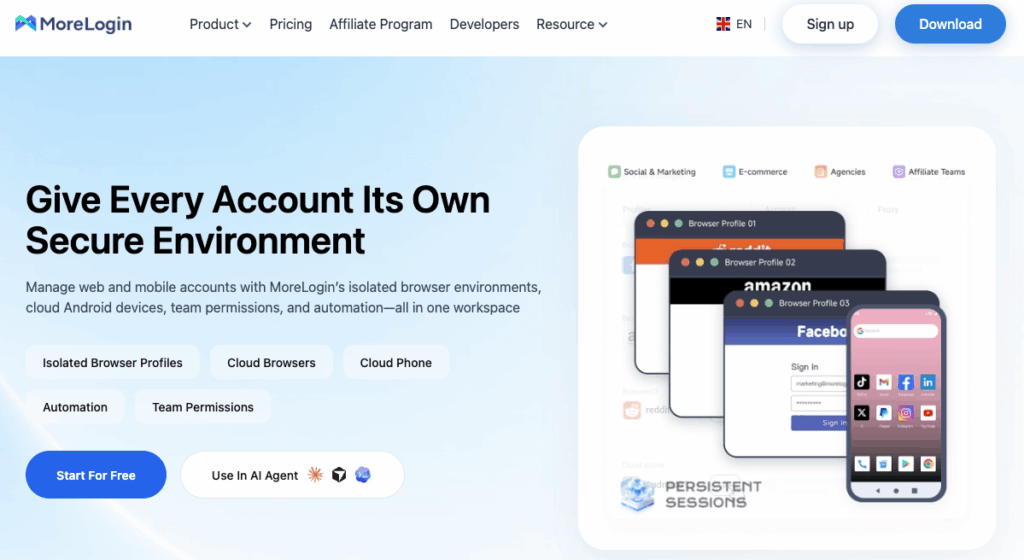
- Price: Free plan with 2 profiles and 100 cloud phone minutes at sign-up. Pro at $5.40/mo (discounted from $9) for 10 profiles. Cloud phones cost $0.006/min, capped at $1.50 a day, or $23 to $25 per 30 days.
- Proxies: sold separately.
- Phone numbers: no SMS service mentioned.
- Automation: synchronizer, no-code RPA, API, CLI, and MCP.
| Pros | Cons |
|---|---|
| Daily spending cap of $1.50 per device | Cloud phones billed outside the plan |
| Low entry price for browser profiles | Proxies are a separate purchase |
| Broad automation options, including MCP | Browser-first, with mobile added later |
| No WhatsApp-specific guidance on the site |
Best for: teams whose accounts are mostly web-based, with occasional WhatsApp work on mobile. See Multilogin vs. MoreLogin.
4. DuoPlus
DuoPlus is a mobile-only platform built on cloud-hosted ARM devices. Its cloud phones have no real SIM, so it sells a Cloud Number service for SMS codes.
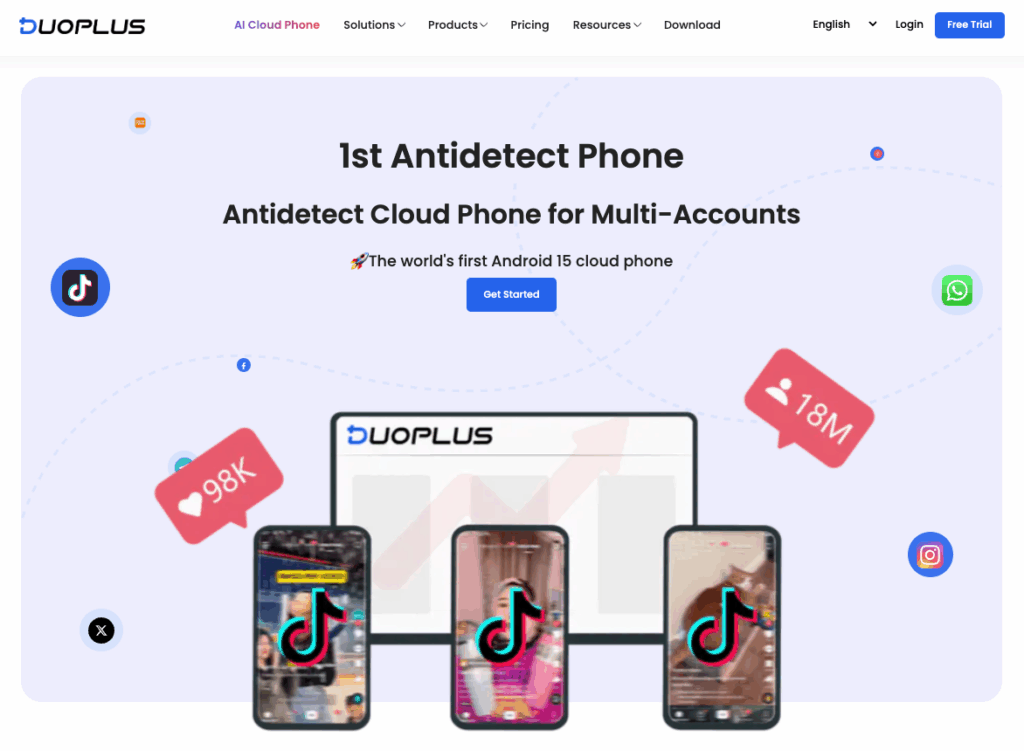
- Price: devices from $1.70 each per month at one device and $1.179 at ten, plus startup time at $0.0042/min. Free trial with one phone for 30 days and 30 minutes.
- Proxies: not included; SOCKS5 only.
- Phone numbers: Cloud Number service for verification codes inside the platform.
- Location: GPS and SIM data for 150+ countries, according to its own site. Older third-party reviews cite 60+.
| Pros | Cons |
|---|---|
| Low per-device price with volume discounts | No browser profiles |
| Cloud Number service for verification codes | Proxies not included; SOCKS5 only |
| Free trial: one phone for 30 days | Device rent applies even when a phone is off |
| Its pages quote different startup rates: $0.0042/min on pricing, $0.0045/min in the product FAQ |
Best for: mobile-only work in short bursts, with proxies bought elsewhere. See Multilogin vs. DuoPlus.
5. GoLogin
GoLogin is an established browser profile tool that added a cloud Android layer and markets it for WhatsApp Business.
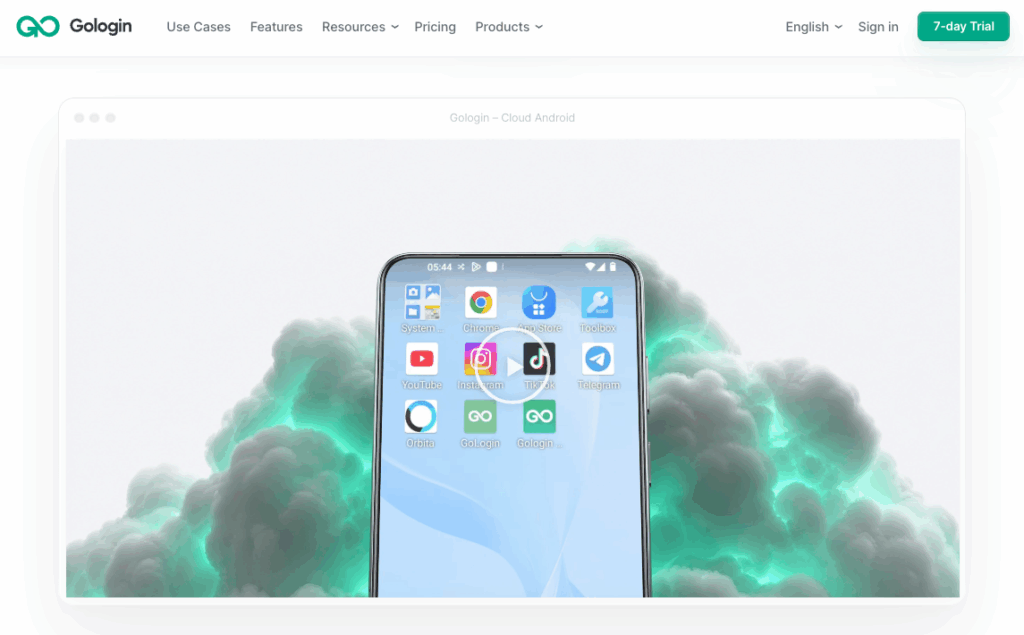
- Price: Free plan with 3 profiles. Professional 10 at €4.50/mo billed annually.
- Runtime: 30 cloud Android minutes a month on paid tiers.
- Proxies: residential traffic from the Professional 25 tier.
- Automation: API and documentation for browser profiles.
| Pros | Cons |
|---|---|
| Low entry price for browser profiles | Only 30 cloud Android minutes a month |
| Mature browser product | No proxy traffic at the 10-profile tier |
| Dedicated WhatsApp Business page | Mobile layer is secondary to the browser |
| Priced in euros, which complicates comparison |
Best for: browser-led teams that open a cloud phone only occasionally. See Multilogin vs. GoLogin.
6. MoiMobi
MoiMobi combines AI browsers and Android 13 cloud phones for social media work. Its WhatsApp page focuses on team workflows: account pools, a shared conversation queue, and handoff states tied to each operator.
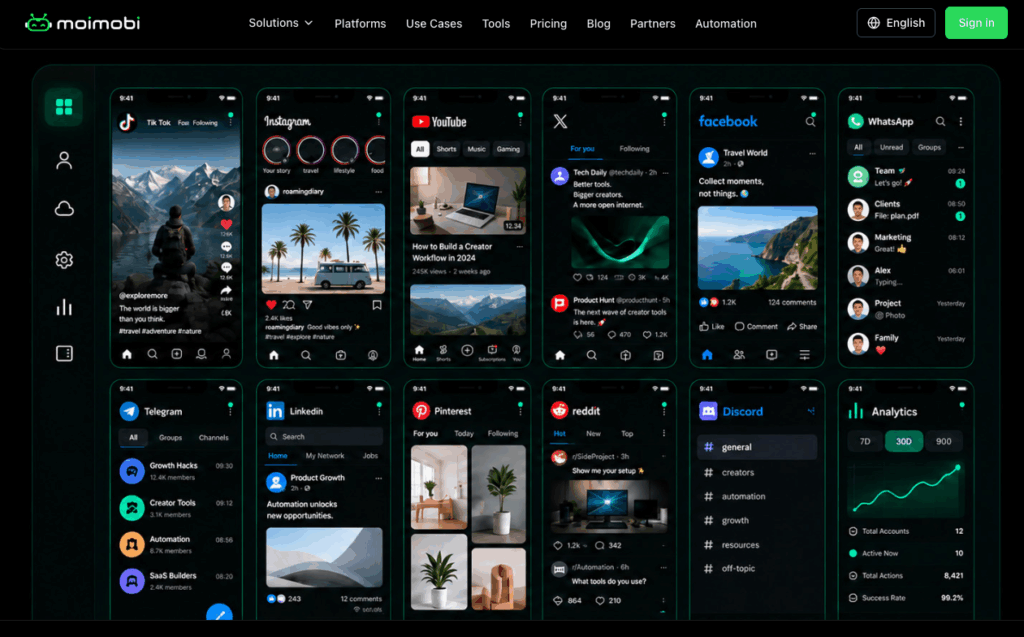
- Price: Free, Starter $5, Basic $15, and Professional $49 per month. The page does not break out cloud phone pricing.
- Proxies: proxy and location control from Starter. The page does not say whether traffic is included.
- Phone numbers: not mentioned.
- Automation: AI-driven workflows and scheduling. No API or ADB is documented.
| Pros | Cons |
|---|---|
| WhatsApp team workflow with queue and handoff | Company details and hardware type not published |
| Browser environments included in every plan | Cloud phone pricing not shown separately |
| Free plan to start | Proxy traffic inclusion not stated |
| No documented API or ADB access |
Best for: support teams that want a shared WhatsApp queue and can confirm cloud phone costs with sales.
7. VMOS Cloud
VMOS Cloud rents cloud Android devices by the day or by the minute, with a broad feature set and its own proxy brand.
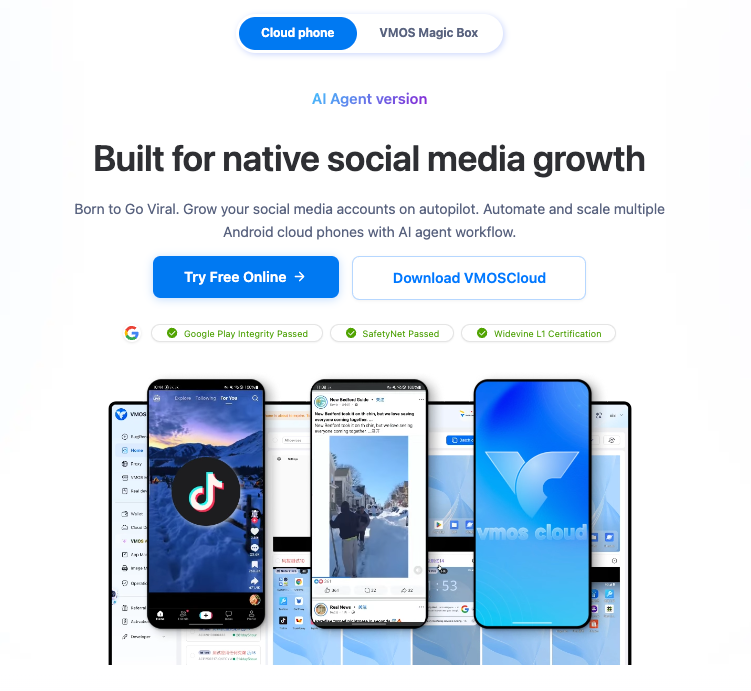
- Price: standard devices from $0.11 per day. A per-minute device costs $0.005/min, capped at $1 per day.
- Proxies: separate purchase from OwlProxy, from $1/GB for dynamic IPs.
- Devices: several device tiers and Android versions.
| Pros | Cons |
|---|---|
| Lowest per-minute rate in this list | Proxies are a separate purchase |
| Daily rental from $0.11 per device | No browser profiles |
| Several device tiers | A rented device costs money whether you use it or not |
Best for: users who want low device rental and already manage proxies. See Multilogin vs. VMOS Cloud.
8. BitCloudPhone
BitCloudPhone is the cloud phone product from BitBrowser. Its own page calls it an Android emulator while also mentioning real mobile chipsets, so check the device type for your workload.
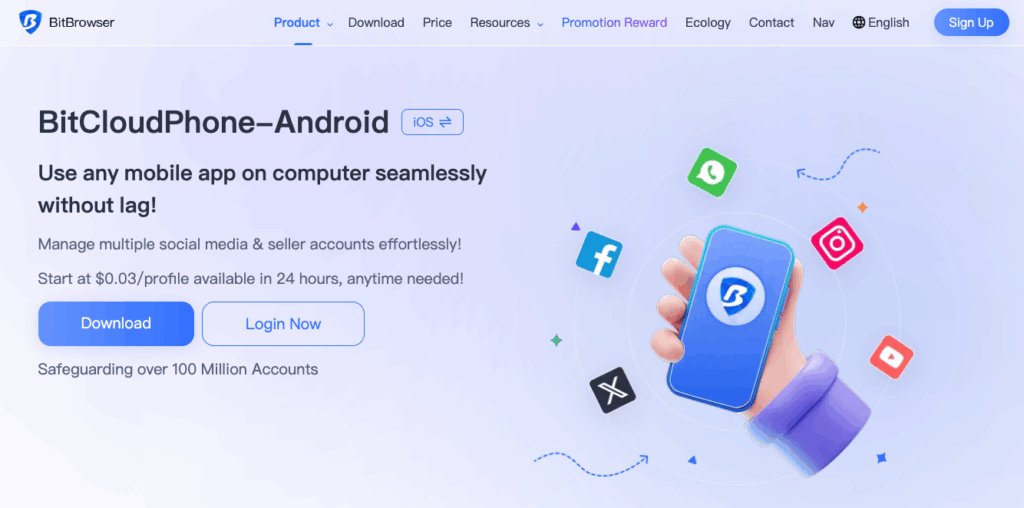
- Price: $0.03 per 24 hours per profile, or $0.07 per 15 minutes capped at $1.60 a day.
- Proxies: not included; you add your own.
- WhatsApp: listed only in page keywords, with no WhatsApp guide.
- Automation: RPA, an open API, ADB and root access, and a script market.
| Pros | Cons |
|---|---|
| Very low daily price per profile | Described as an emulator on its own page |
| RPA, API, ADB, and root access | Proxies not included |
| Works alongside BitBrowser profiles | No WhatsApp-specific documentation |
| No free trial mentioned |
Best for: budget setups with in-house scripting skills. See Multilogin vs. BitCloudPhone.
9. XCloudPhone
XCloudPhone rents phone boards with the screen and battery removed, hosted in a Vietnam data centre and streamed to your browser. Devices run Android 16 on an 8-core ARM chip with 6 GB of RAM.
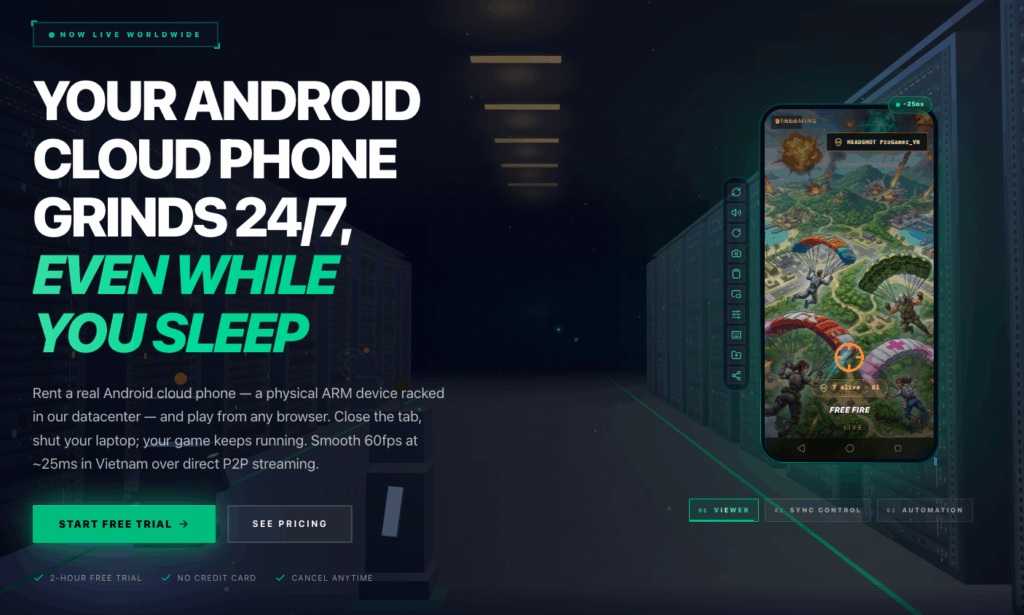
- Price: $0.20 per hour or $9.50 per 30 days per device, with a 2-hour free trial and no card needed. A footnote on the site lists $9 per 30 days.
- Proxies: bring your own; assign and rotate them per device.
- WhatsApp and SMS: not mentioned, and Google Play is not mentioned either.
- Automation: sync control across devices; a no-code builder is listed as coming soon.
| Pros | Cons |
|---|---|
| Real phone hardware, not emulation | One data centre in Vietnam, best for Southeast Asia |
| Root access from the browser | No proxies included |
| Flexible billing from one hour to 30 days | WhatsApp, Google Play, and SMS not documented |
| Monthly price differs between pages |
Best for: technical users in Southeast Asia who want rooted hardware and already have proxies.
10. cloudf.one
cloudf.one rents real Android phones in Singapore, each on a mobile carrier connection with a Singapore IP. WhatsApp comes pre-installed, and you bring your own account.
- Price: free 24-hour trial, a $5 paid 24-hour test credited to a longer plan, and $50/mo for a dedicated phone.
- Phone numbers: SMS codes and calls are banned, and the phone’s own number cannot be used.
- Automation: bots and automation scripts are banned.
| Pros | Cons |
|---|---|
| Real phone on a Singapore mobile connection | Singapore only |
| WhatsApp pre-installed | SMS and calls banned, so you verify elsewhere |
| Free 24-hour trial | Automation not allowed |
| $50/mo per phone; fleets need 3 months upfront |
Best for: one or two WhatsApp accounts that must look local in Singapore.
Limits to know: the phone number and SMS verification
Every WhatsApp account starts with a phone number. WhatsApp sends a six-digit code by SMS or voice call, and you must be able to receive calls and SMS on that number (WhatsApp Help Center).
A cloud phone cannot receive SMS or calls. The code arrives wherever the number lives: your own SIM, a landline, or an SMS provider’s dashboard. You then type it into WhatsApp on the cloud phone.
Why this matters: a new cloud phone has no working number of its own. Plan where each account’s number comes from before you create a single device.
Where to get a number for a new cloud phone
| Number source | How the code reaches you | Pros | Cons |
|---|---|---|---|
| Your own SIM or eSIM | SMS or call on your handset | You own it; easy to re-verify later | One number per SIM; you must keep it active |
| Company landline (Business app only) | Voice call after you tap Call me | Uses a number customers already know | You need someone at the line when the call comes |
| Long-term rented number from an SMS or telecom provider | SMS in the provider’s dashboard | Choose the country; no SIM handling | Monthly fee; WhatsApp may reject some number types |
| One-time temporary number | One code, then the number expires | Cheap and instant | You may lose access at the next verification |
Landline registration works in the WhatsApp Business app, not in Messenger (GREEN-API).
Several number providers also warn that WhatsApp can reject VoIP, toll-free, and temporary numbers, so check WhatsApp support before you pay.
Temporary numbers: when they work and when they fail
A temporary number can pass the first registration. The trouble comes later. WhatsApp asks for a new code when you re-register the account, for example after a reinstall or a device change.
If the rented number has expired or moved to someone else, that code never reaches you. WhatsApp treats a number as recycled when an account sits unused for 45 days and then activates on a different device (WhatsApp FAQ).
Use this rule of thumb:
- Testing a workflow: a temporary number is fine.
- An account you plan to keep: use your own SIM or rent the number long term. See our guide to non-VoIP phone numbers for SMS verification.
- Any account: turn on two-step verification and add an email. WhatsApp can then send a re-registration code by email.
Match the country: number, proxy, and market
WhatsApp usually sends codes from a number with the country code you register from. Roaming or a bad connection can break registration.
Keep three things consistent for each account:
- The country of the phone number.
- The proxy location of the cloud phone.
- The market the account serves.
Pro tip: new accounts start slowly. WhatsApp applies temporary limits to newly created accounts to keep the platform free of spam. Build activity gradually, whatever device you use.
What a cloud phone for WhatsApp is, and how it differs
A cloud phone for WhatsApp is an Android phone that runs in a data centre instead of in your pocket. You open it from a desktop app, see its screen, and use WhatsApp as you would on a handset.
The key word is native. The cloud phone runs the official app from the store, with its own app data. You do not rely on a web wrapper or a modified client.
This matters because WhatsApp asks people to use only the official app and to avoid imitations or fake versions. A cloud phone keeps you on the official app and simply gives it a separate device.
Three things set a cloud phone apart:
- A separate device per account. Each account keeps its own app data, location, and IP.
- Persistent state. Chats, media, and the login stay on the device between sessions.
- Remote access. You manage every device from one dashboard, with no shelf of handsets.
Cloud phone vs. emulator vs. WhatsApp Web
| Option | What it is | Runs the official Android app | Adds a new account |
|---|---|---|---|
| Cloud phone | Android device hosted in a data centre | Yes | Yes, one per device |
| Desktop emulator | Android simulated as software on your PC | Yes, on simulated hardware | Yes, limited by your PC |
| WhatsApp Web or Desktop | A linked companion of a phone you already use | No, it mirrors the phone | No |
WhatsApp Messenger or WhatsApp Business: which app to run
Pick the app by who you talk to. Messenger suits personal and team chats. WhatsApp Business suits customer conversations and adds tools for that job.
| Feature | WhatsApp Messenger | WhatsApp Business app |
|---|---|---|
| Best for | Personal and internal chats | Sales, support, and customer updates |
| Business profile and catalog | No | Yes |
| Quick replies, greeting and away messages, labels | No | Yes |
| Register with a landline | No | Yes, with a voice call |
| Second account in the same app | Yes, up to two | Rolling out on Android, up to two |
| App price | Free | Free |
Each app needs its own phone number. You cannot use one number in both apps at the same time.
For high message volumes, Meta also offers the WhatsApp Business Platform (Cloud API). It works without a phone app, so it is a different tool. It is covered in the next section.
8 ways to run multiple WhatsApp accounts
The right way to run multiple WhatsApp accounts depends on how many you need and who needs access. Two accounts fit on one phone. Ten accounts across three countries do not.
| Method | Accounts | Own device per account | Best for |
|---|---|---|---|
| Built-in second account | 2 per app | No | Work and personal on one phone |
| Messenger plus Business app | 1 per app | No | One personal and one business line |
| Linked devices | 1 account on up to 5 screens | No | Several people answering one account |
| Dual apps and on-device virtualization | Depends on the phone | No | Personal use on one handset |
| Physical phones with SIM cards | 1 per phone | Yes | Small, office-based teams |
| Desktop Android emulators | Limited by your PC | Simulated | Tests on one computer |
| WhatsApp Business Platform (Cloud API) | 1 per registered number | No app needed | High-volume, automated messaging |
| Cloud phones | 1 per cloud phone | Yes | Teams running many accounts or markets |
1. The built-in second account
WhatsApp lets you keep two accounts logged in at once and switch between them. You need a second number and SIM, or a phone with multi-SIM or eSIM.
The Business app is getting the same feature on Android, also capped at two.
| Pros | Cons |
|---|---|
| Official and free | Hard limit of two accounts per app |
| Separate privacy and notification settings per account | Both accounts share one device, location, and connection |
| Quick switching, no logging out | Needs a second SIM or eSIM |
| Business app support was still rolling out at the time of writing |
2. WhatsApp Messenger plus WhatsApp Business on one phone
Install both apps and register each with its own number. Many people use this to split a personal line from a business line.
| Pros | Cons |
|---|---|
| Two official apps, available on Android and iPhone | Each app needs a different number |
| Business tools on the business account | Still one device, one IP, one location |
| No extra hardware | Does not scale past a few accounts |
3. Linked devices (WhatsApp Web, Desktop, companion phones)
Linked devices let you open one account on up to four extra devices. The primary phone still registers the account and links new devices.
WhatsApp logs you out of companions if the primary device stays inactive for a long period.
| Pros | Cons |
|---|---|
| Several agents can reply from their own screens | Shares one account; adds no new accounts |
| Official, free, end-to-end encrypted | Primary phone must stay active |
| Works with browsers, desktops, and companion phones | Some features, such as live location, are missing on companion phones |
4. Dual apps and on-device virtualization apps
Some Android phones can clone an app, and virtualization apps run a second Android system inside your handset. These suit a second personal account.
They do not scale to account operations, because everything still runs on one device, in one location, on one connection.
| Pros | Cons |
|---|---|
| Free or cheap | Availability depends on the phone brand |
| Uses a phone you already own | One device, one location, one connection |
| Fast to set up | Drains the battery and storage of your handset |
| Hard to share with a team |
5. Physical phones with SIM cards
One handset per account is the classic approach. The SIM receives verification codes directly, which is its biggest advantage.
| Pros | Cons |
|---|---|
| Real hardware and a real SIM for codes | You buy, charge, and maintain every handset |
| Easy to understand | Hard to share with a remote team |
| Number stays under your control | Each country needs its own SIMs |
| Coordination cost grows with every phone |
6. Desktop Android emulators
An emulator runs Android as software on your computer. It is a common first test, but it is not real Android hardware.
| Pros | Cons |
|---|---|
| Free or cheap | Simulated device, not real Android hardware |
| Runs on your own PC | Uses your computer’s CPU and memory |
| Good for quick tests | Tied to one machine and one connection unless you add proxies |
7. WhatsApp Business Platform (Cloud API)
The Cloud API lets software send and receive WhatsApp messages at scale through Meta or a solution provider.
With coexistence, a number already on the WhatsApp Business app can connect to the API and keep the app.
| Pros | Cons |
|---|---|
| Shared inbox for many agents and automation | Template messages are billed per conversation or message |
| Official channel for high volumes | Needs a Meta business setup and usually a provider |
| Integrates with CRMs and chatbots | Coexistence requires opening the app at least every 13 days |
| Group chats do not sync between the app and the API |
8. Cloud phones
A cloud phone gives each account its own Android device in the cloud, with its own app data, IP, and location. You run the official app natively and reach every device from one dashboard.
| Pros | Cons |
|---|---|
| Official app on a separate device per account | Cannot receive SMS or calls, so verification needs an outside number |
| IP and location set per account | Runtime is metered on most platforms |
| Team access from one dashboard | Needs a reliable internet connection |
| Scales without buying handsets | First-time setup takes some learning |
How to set up WhatsApp Business on a Multilogin cloud phone
The setup takes about as long as setting up a new handset. The only extra step is entering the number you prepared in the cloud phone settings.
- Prepare the number. Use your own SIM, a company landline, or a long-term rented number from the country the account serves.
- Create the cloud phone. Go to Profiles, then Mobile, then Create. Give it a clear name, such as “WhatsApp Business: Germany store”, and add a tag or folder.
- Set the proxy. Choose Multilogin’s built-in residential proxies, select the same country as the number, and set the protocol to SOCKS5.
- Pick the device. Choose a device model and Android version. A stronger device helps if you run media-heavy chats.
- Enter the number. Open Extra, set Phone number to Custom, and type the active number. The auto-generated number is a placeholder and cannot receive codes.
- Install WhatsApp Business. Start the cloud phone and install the app from the built-in store, or upload an APK.
- Register. Enter the number, request the code by SMS or tap Call me, read the code on your phone or in the provider’s dashboard, and type it in.
- Secure the account. Turn on two-step verification with a PIN and an email, then fill in the business profile.
- Bring in the team. Share the profile with team seats and permissions, or link agents’ screens through linked devices.
Note: apps on the cloud phone can read the custom number you enter, so always use the real number of the account.
Two habits keep the account healthy. Open the cloud phone regularly, because linked devices log out when the primary device stays inactive for a long time. Mobile minutes count only while the cloud phone runs, and stop when you press Stop.
A separate device does not fix message problems. Sending the same text to people who never asked for it can get a number limited on any device, so follow WhatsApp’s business messaging rules.
How to choose a cloud phone for WhatsApp: a 7-question checklist
Answer these questions in order. Each one removes options that do not fit.
- How many accounts do you run? Two or fewer fit the built-in features. More need separate devices.
- Do you have a number for every account? If not, choose a number source first.
- Which country does each account serve? Match the number, the proxy, and the market.
- Who needs access? Check team seats, permissions, and linked devices.
- How many hours a day will each device run? Multiply accounts by hours to estimate metered minutes.
- What does the plan include? Count proxies, minutes, and browser profiles, not only the profile price.
- Do you need automation at volume? If yes, look at the Cloud API alongside the app.