


To create a YouTube Brand Account, sign in to YouTube, open your channel list, click Create a channel and give it a name other than your own. YouTube creates the Brand Account and the channel together. You then add teammates from YouTube Studio under Settings, then Permissions, where each person gets a role that matches their job.
If you are still working out whether you need one, start with our explainer on what a YouTube Brand Account is. This guide picks up from there. It walks through setup, inviting managers, changing the primary owner, and the point where a brand account for YouTube stops being enough for a team running several channels.
TL;DR
- Create it from your channel list with Create a channel. Since August 4, 2021, a new Brand Account can only be used with YouTube.
- Add people in YouTube Studio under Settings, then Permissions, then Invite. There are seven roles, from Owner to Viewer (limited).
- Keep ownership tight. Only the primary owner can move the channel to channel permissions, and changing the primary owner needs 7 days as owner on both sides.
- Know the ceiling. One Google Account can manage up to 100 channels, but all of them sit behind the same logins and, usually, the same devices.
- Separate environments when channels belong to different clients or markets. Brand Accounts control who can access a channel; they don’t separate where the work happens.
Before you start: four decisions that save trouble later
Most Brand Account problems come from choices made in the first five minutes. Settle these before you click anything.
| Decision | What to do | Why it matters |
| Who is the primary owner | A Google Account the business controls, not a freelancer or a single employee | Only the primary owner can make the biggest changes, and handing it over takes at least 7 days |
| Who else is an owner | At least one more owner from inside the business | Google recommends a second owner so the channel isn’t locked to one person |
| How people get access | YouTube Studio channel permissions, not shared passwords | Each person keeps their own login, and access can be removed in one step |
| Security on the owner accounts | 2-Step Verification on every owner account | Every channel the account controls is only as safe as that login |
How to create a brand account on YouTube
Google’s steps for creating a channel are written for a computer or the mobile site. The flow below creates a new channel with its own Brand Account.
1. Sign in to YouTube with the Google Account that should be the primary owner.
2. Open your channel list. Click your profile picture, then Settings, then Add or manage your channel(s).
3. Click Create a channel. If you already manage a Brand Account without a channel, it appears here and you can pick it instead.
4. Name the Brand Account. Use the brand or channel name. This becomes the channel name viewers see, separate from your personal name.
5. Confirm and verify. Accept the statement, click Create, and complete any verification YouTube asks for.
6. Set up the basics. Add a profile picture, banner, description and handle before inviting anyone, so the team starts from a finished channel.
Two details catch people out. A Brand Account created this way is limited to YouTube, so it won’t give you access to other Google services. And YouTube sometimes creates one for you: if you change a personal channel’s name so it no longer matches your Google Account name, the channel can move to a Brand Account automatically.
Moving an existing personal channel
If your channel already runs on your personal Google Account, you can move it to a Brand Account from the channel’s advanced settings. Your Google Account has to be the primary owner of the destination Brand Account, and the channel can’t be using channel permissions at the time. Check both before you start, because the option doesn’t appear otherwise.
How to add managers to a YouTube Brand Account channel
YouTube now recommends channel permissions in YouTube Studio for giving people access. They are more specific than the old Brand Account roles, and nobody has to share a password. Google lists what each role can and can’t do in its channel permissions article.
- Go to studio.youtube.com and sign in as the channel owner or a manager. Lower roles can’t invite people.
- Click Settings in the left menu, then Permissions.
- Click Invite and enter the email of the person’s Google Account.
- Choose a role in the Access menu. Pick the narrowest one that still lets them do their job.
- Click Done, then Save. The person gets an email invitation and has to accept it from the same Google Account you invited.
Picking the role is the part worth slowing down for. The table matches each one to the kind of person who usually needs it.
| Role | What they can do | What they can’t do | Typical person |
| Owner | Everything, including deleting the channel, managing permissions and linking Google Ads | Transfer ownership through Studio | Business owner |
| Manager | Almost everything, including inviting people and managing live streams | Delete the channel | Head of social, trusted agency lead |
| Editor | Upload, edit and publish content, manage comments, see analytics | Manage permissions or delete streams | Video editor, channel manager |
| Editor (limited) | Same as Editor | See revenue data | Freelancer or agency without a revenue share |
| Subtitle Editor | Add, edit, publish and delete subtitles | See or edit anything else | Translator, captioning vendor |
| Viewer | See channel data and analytics | Change anything | Stakeholder, reporting analyst |
| Viewer (limited) | Same as Viewer | See revenue data | External consultant |
A simple rule works for most teams: editors get Editor (limited) unless they need revenue figures, translators get Subtitle Editor, and Manager goes only to someone you would trust with the whole channel.
Switching from Brand Account roles to channel permissions
Older channels may still manage people through Brand Account roles (primary owner, owner, manager and communications manager). Moving them to channel permissions takes a few minutes, but only the primary owner can do it, as Google explains in its migration guide.
- Sign in to studio.youtube.com as the primary owner of the Brand Account.
- Open Settings, then Permissions, and click Move permissions.
- Review the copied users. Existing Brand Account users are carried over, but you have to set each person’s role.
- Click Invite so everyone receives a new invitation, and remind them to accept it.
After the move, access lives in YouTube Studio only. The Subtitle Editor role, for example, isn’t available until you switch, which is a common reason it seems to be missing.
Changing the primary owner
Ownership changes still run through the Brand Account, not through Studio. Google’s rules for changing the primary owner are strict on timing: the person making the change must have been an owner for 7 days or more, and the person becoming primary owner must have been a manager or owner for 7 days or more. If the channel uses channel permissions, opt out first, because the option won’t appear otherwise.
Plan for that week. If a client is taking over their channel at the end of a contract, add them as owner at least 7 days before the handover date.
When an invitation doesn’t work
- Wrong account: the person accepted the email while signed in to a different Google Account. Ask them to switch accounts and open the link again.
- Missing email: check spam, and confirm you invited the address tied to their Google Account, not a work alias.
- Expired link: invitations don’t stay open forever. Remove the pending invite and send a new one.
- No Invite button: you are signed in with a role below Manager, or the channel still uses Brand Account roles.
Where native multi-channel management stops
A brand account for YouTube is very good at one job: deciding who owns a channel and who can work on it. It wasn’t built to keep channels apart from each other, and that is where teams running several channels start to feel the edges.
| Limit | What it means in practice |
| Up to 100 channels per Google Account | Plenty for most teams, but every one of them is reachable from that single login |
| One channel at a time | You switch channels from the account switcher, on the same browser and the same phone |
| Shared devices and sessions | All channels managed from one laptop share its browser, cookies and network connection |
| Roles cover YouTube only | Invited users can’t reach some services, such as YouTube Music and the YouTube Kids app, through channel permissions |
| Enforcement follows the person | YouTube’s termination policy applies to every channel someone owns or uses, including ones that broke no rules |
The last point deserves a closer look. Google’s channel termination policy says a terminated user can’t use, own or create other channels, and that this covers existing channels and new ones. Running clean channels for different clients from one account doesn’t break anything, but it does mean their fates are tied to the same logins.
The device side is the other gap. Google switches the account in the app or browser, not the phone or laptop underneath. Five clients managed from one phone all share that phone’s app data, device details and IP address, and a teammate on the wrong account is one tap away from posting a Short to the wrong channel.
Brand Accounts vs browser profiles vs cloud phones
These three tools answer different questions, which is why comparing them on the same criteria is useful. Brand Accounts decide who can access a channel. Browser profiles and cloud phones decide where that access happens. The table uses the same eight criteria for all three.
| Criteria | YouTube Brand Account | Browser profiles | Android cloud phones |
| Main job | Channel ownership and team roles | Separate desktop environment per channel | Separate Android environment per channel |
| Controls who can access a channel | Yes, natively | No, uses YouTube’s own roles | No, uses YouTube’s own roles |
| Separates cookies and sessions between channels | No | Yes, per profile | Yes, per phone |
| Separates device details | No | Browser-level only | Yes, each phone is its own Android device |
| Location per channel | No | Yes, proxy per profile | Yes, proxy per phone |
| Runs the YouTube and YouTube Studio apps | On your own phone, shared by all channels | No, web only | Yes |
| Good for | Ownership, handovers, team access | YouTube Studio on the web, Google Ads, analytics | Shorts, app-only features, mobile replies and posting |
| Cost | Free | Included in Multilogin plans | Included in Multilogin plans, from $7.08/month |
Read the table as layers, not alternatives. The Brand Account stays the source of truth for ownership. Browser profiles and cloud phones sit on top, so each channel is managed from its own environment instead of everyone’s shared laptop and phone. None of this changes what YouTube allows: separate environments organize legitimate work and do nothing for channels that break YouTube’s rules.
A setup for agencies managing client YouTube channels
Here is how the pieces fit for an agency running channels for several clients. The client keeps ownership, the agency gets exactly the access it needs, and every channel has its own workspace.
- The client creates the Brand Account and stays primary owner, with a second owner from their own team.
- The client invites the agency through YouTube Studio: Manager for the account lead, Editor (limited) for editors, Subtitle Editor for translators.
- The agency creates one browser profile per client for YouTube Studio on the web, Google Ads and reporting, each with a proxy in the client’s market.
- The agency adds one Android cloud phone per client channel for the YouTube and YouTube Studio apps, Shorts and mobile comment replies.
- Team access follows the client. Folders in the workspace mirror the clients, so each person only opens the environments they work on.
- At handover, the client removes the agency in Studio and the agency deletes or transfers the matching profiles and phones.
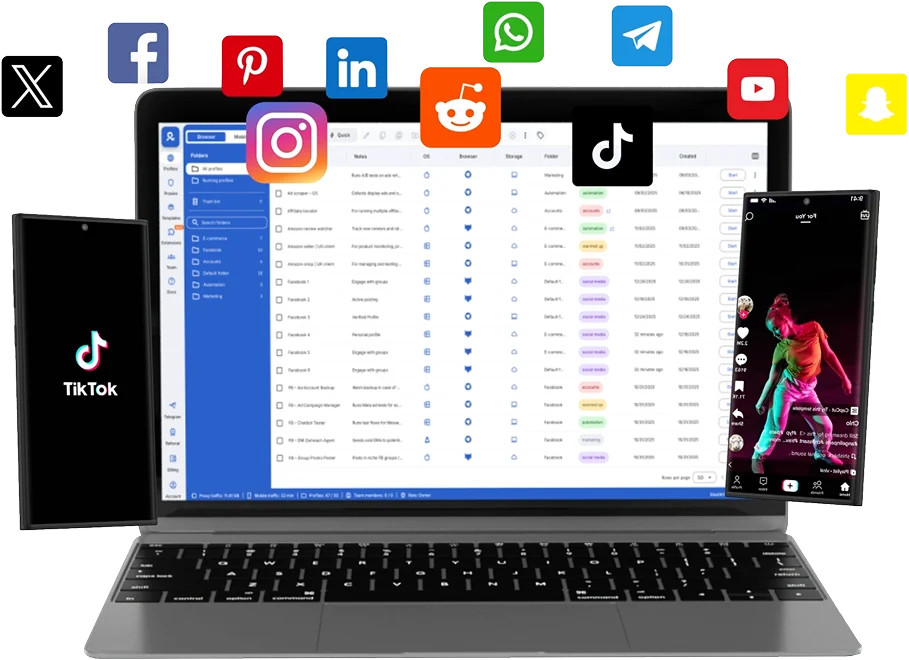
Multilogin keeps both layers in one dashboard. Each Multilogin cloud phone runs Android 10 to 16, above the YouTube app’s Android 9 minimum, and every plan includes proxy traffic, so each channel can sit in its own market. The free plan has no time limit and needs no credit card, which is enough to test one client setup.
For a deeper walkthrough of the desktop side, see our guide to creating multiple YouTube accounts.
Run Unlimited Accounts Without Bans
Run your social media accounts on cloud phones & web browsers
Frequently asked questions
How do I create a brand account on YouTube?
Sign in to YouTube, go to Settings, then Add or manage your channel(s), and click Create a channel. Name the Brand Account, confirm, and complete any verification. YouTube creates the Brand Account and its channel at the same time, with your Google Account as primary owner.
Can a manager delete my YouTube channel?
No. With YouTube Studio channel permissions, the Manager role can do almost everything except delete the channel, which only the owner can do. Under the older Brand Account roles, a manager also can’t delete the channel or invite other users.
Why can't I see the Subtitle Editor role?
Your channel is probably still using Brand Account roles. The Subtitle Editor role only appears after the primary owner moves the channel to channel permissions in YouTube Studio under Settings, then Permissions.
Why can't I change the primary owner?
Either the 7-day rule isn’t met or the channel still uses channel permissions. Both the person making the change and the new primary owner need 7 days in their current owner or manager role, and the channel has to be opted out of channel permissions.
Is a YouTube branding account the same as a Brand Account?
Yes. “YouTube branding account” is a common way people search for it, but Google’s name for the feature is Brand Account: a Google Account for a brand or business that owns a YouTube channel.
How many channels can one person manage?
One Google Account can manage up to 100 channels, according to Google’s help page on switching channels. Agencies that reach that number usually split clients across several Google Accounts and environments anyway, so one compromised login doesn’t expose every client.
Final thoughts
A YouTube Brand Account is the right foundation for any channel that belongs to a business, and channel permissions make team access far safer than shared passwords. Create it under an account the business controls, add a second owner, and give each person the narrowest role that fits.
What a Brand Account won’t do is keep channels apart once one team runs several of them. If those channels belong to different clients or markets, give each one its own browser profile and cloud phone alongside its Brand Account. Once channels are set up, our guide on promoting a YouTube channel covers the next step.
 Join 4,200+ subscribers