


How to make a company page on LinkedIn starts with a personal profile, a company email, complete business details, and the right admins. The setup takes only a few minutes, but careful preparation helps prevent ownership, verification, and access issues. This guide covers the key steps, admin requirements, naming rules, and essential checks before publishing.
The process is similar for startups, agencies, and large companies. The main difference is how you assign roles and manage access.
For teams handling multiple accounts, Multilogin cloud phones provide a more controlled way to separate workflows and reduce access conflicts across devices and locations.
👉 Follow the steps below to create your LinkedIn company page correctly and build a safer, more scalable management process.
What You Need Before You Start: How to Create a LinkedIn Company Page
LinkedIn won’t let you create a business page from a blank account. You need to be logged into a personal profile first, and honestly, that makes sense. LinkedIn wants a real human behind every page, not an anonymous shell. If you don’t have a personal profile yet, set one up first (it takes five minutes) and come back.
Beyond that, gather these before you start clicking through the setup:
- A company or organization email address, ideally one that matches your website domain. Gmail and other free providers work too, but a domain-matched email unlocks page verification later.
- Your official company name, spelled exactly how it appears on your website and legal documents.
- A square logo (300 x 300 pixels minimum) and a banner image if you have one ready.
- A one or two sentence tagline and a longer “About” description.
- Your website URL, industry, company size, and headquarters location.
None of this is mandatory to get the page live. You could, technically, launch with just a name and skip everything else. Would that look half-finished to anyone who visits? Absolutely. Fill in what you can before you hit publish.
👉 Pro tip: Save your logo as a transparent PNG if your brand colors are dark or unusual. LinkedIn’s default background can wash out logos that were designed for white backgrounds only.
Personal Profile vs. Company Page on LinkedIn: What’s Actually Different
A personal profile represents you. A company page represents your business, and nobody “friends” a company page, they follow it.
That distinction trips people up more than you’d think, especially small business owners who’ve been using their personal profile as a stand-in for their brand. It works, kind of, until it doesn’t. A company page unlocks features your personal profile simply can’t touch: job postings, follower analytics, sponsored content campaigns, and multiple admins managing the same identity without sharing a single password.
| Feature | Personal Profile | Company Page |
|---|---|---|
| Represents | An individual | A business or organization |
| Multiple admins | No | Yes |
| Job postings | Limited | Full access |
| Follower analytics | Basic | Detailed, exportable |
| Ad campaigns | Personal boosting only | Full Campaign Manager access |
If you’re only ever posting as “you,” a personal profile is fine. The moment you need a team behind the account, or you want the business to outlive any one employee’s tenure at the company, a page is the right move.
How to Create a LinkedIn Company Page: Step by Step
Here’s the direct path, no detours.
- Log into your personal LinkedIn profile. There’s no way around this step, so do it first.
- Click the “Work” icon in the top navigation (it looks like a small grid), then scroll down and select “Create a Company Page.”
- Choose your page type. LinkedIn splits these into Company, Showcase Page, and Educational Institution. Most businesses want “Company.”
- Enter your page identity. This means your company name, LinkedIn public URL (choose carefully, changing it later is possible but annoying), website, industry, company size, and company type.
- Add your logo and tagline. The tagline shows up in search results and previews, so make it count. Keep it under 120 characters if you can.
- Confirm you’re authorized to act on the organization’s behalf. LinkedIn asks you to check a box here. Don’t skip it, the page won’t publish without it.
- Click “Create Page.” And that’s it. Your page exists.
From there, LinkedIn drops you straight into the admin view, which is where the real work of how to set up a company profile on LinkedIn actually begins.
👉 Want to strengthen your LinkedIn profile with authentic social proof? Learn how to request recommendations on LinkedIn and add them easily with this step-by-step guide.
How to Set Up a Company Profile on LinkedIn Completely
The direct answer: fill in the About section, tagline, cover image, specialties, and location details right after creating the page, because a half-empty profile ranks poorly and converts worse.
Think about the last time you clicked on a company page that had no logo and one line of text. Did you stick around? Probably not. LinkedIn’s own data (and honestly, plain common sense) shows that pages with complete profiles get dramatically more engagement than bare-bones ones.
Here’s what to prioritize, in order:
- About section. Write for humans first, keywords second. Two or three paragraphs covering what you do, who you serve, and why it matters.
- Specialties. A short comma-separated list. This helps LinkedIn’s search surface your page for relevant terms.
- Cover image. The banner behind your logo. Use it to show your product, your team, or your workspace, not a generic stock photo.
- Locations. Add every office if you have more than one. It helps with local search visibility.
- Hashtags. LinkedIn lets pages follow up to three hashtags that appear on the page itself, giving visitors a taste of your content focus.
This is also the stage where a lot of people ask how to build a LinkedIn company page that doesn’t look like every other page in their industry. Honestly? Specificity does most of the work. Vague mission statements blend together. A clear, slightly opinionated About section stands out.
Adding Admins and Managing Access to Your LinkedIn Company Page
Company pages support multiple admin roles: Super Admin, Content Admin, Curator, and Analyst, each with different permissions.
Super Admins can do everything, including adding or removing other admins. Content Admins can post and respond to messages but can’t touch page settings. Curators can recommend content for the page to share. Analysts see the numbers but can’t post at all. For most small teams, one or two Super Admins covers it. Larger organizations tend to layer these roles by department (marketing gets Content Admin, leadership gets Super Admin, and so on).
To add someone: go to your page’s admin view, click “Admin tools,” then “Manage admins.” Search for the person by name (they need an existing LinkedIn profile) and assign their role.
👉 Pro tip: Assign at least two Super Admins from the start, not just one. If the sole Super Admin leaves the company and forgets to hand off access, recovering the page becomes a genuine headache involving LinkedIn support tickets and proof of business ownership.
Verifying Your LinkedIn Company Page
Yes, LinkedIn offers page verification, and it’s worth doing if your email matches your company’s domain.
Verification adds a small checkmark to your page and, more usefully, tells visitors the page is genuinely tied to a real, registered business rather than an unofficial fan account or a copycat. To verify, LinkedIn typically checks your work email domain against your company website, and in some cases asks for additional documentation depending on your industry and country.
Not every business qualifies immediately, and that’s fine. An unverified page still functions completely. Verification is a trust signal, not a requirement for posting, following, or running ads.
Growing Your LinkedIn Company Page After Launch
The direct answer here: post consistently, invite your existing network to follow, and engage as the page rather than just broadcasting from it.
A freshly published page with zero followers looks exactly like what it is, brand new. Get past that awkward stage by inviting your first-degree connections (LinkedIn gives you a batch of free invites per month) and asking employees to update their personal profiles to list the company as their current employer, which automatically links back to the page.
From there, a few habits matter more than any growth hack:
- Post two to three times a week, minimum. Sporadic pages lose momentum fast.
- Reply to comments on your own posts. It signals an active, human-run account, not a content bot.
- Use LinkedIn’s native document and carousel post formats, which tend to get more reach than plain text or external links.
- Track your follower demographics under Analytics so you know whether the right audience is actually finding you.
None of this happens overnight, and anyone promising instant growth is selling something. Steady posting beats a single viral moment nearly every time on LinkedIn specifically, since the platform rewards consistency more than virality.
Managing Multiple LinkedIn Company Pages with Multilogin Cloud Phones
Here’s a problem that shows up the moment you’re past one page: agencies and multi-brand companies rarely manage just one LinkedIn company page. They manage five, ten, sometimes fifty, often for clients spread across different countries and markets. Logging into all of them from the same laptop, the same browser, the same office IP, is exactly the kind of pattern that platforms are built to notice.
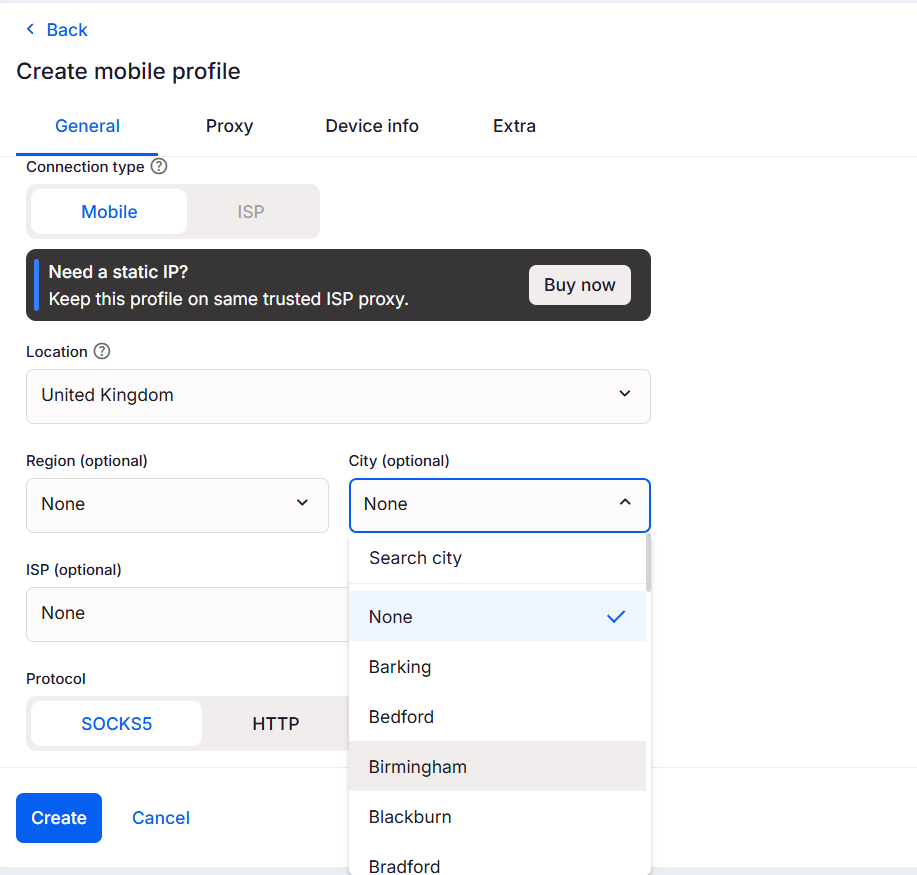
Multilogin’s positioning has shifted from a browser-only tool into something broader: a combined dashboard for browser profiles, real Android cloud phones, and built-in residential proxies. Each LinkedIn page (or the admin account behind it) gets its own isolated environment, its own fingerprint, and a proxy matched to the market that page actually serves. For a team building a LinkedIn company page for a US client and another for a client in Vietnam, that means each profile can look like it’s genuinely logging in from its own market, on its own device, instead of everything routing through one shared setup.
A few practical benefits worth knowing:
- Separate environments per page. Each company page’s admin login runs in its own cloud phone or browser profile, so managing several pages doesn’t create the kind of overlap that looks suspicious to LinkedIn’s own systems.
- Market-matched proxies. Geolocated residential proxies let each page’s admin activity align with the market that business page is actually targeting.
- Real Android devices, not emulation. Multilogin’s cloud phones run on genuine Android hardware rather than simulated environments, which matters more every year as detection gets more sophisticated.
- One dashboard for the whole team. Instead of juggling separate logins, devices, and spreadsheets to track who has access to what, everything sits in one place.
- A free plan to start with. Multilogin offers a free plan with no time limit, so a team can test the setup on a couple of pages before deciding whether to scale it across the rest of their client list.
None of this is required to create or run a single LinkedIn company page. If you’re managing one page for one business, the standard setup covers you fine. It becomes genuinely useful once “one page” turns into “several pages, several markets, several people logging in.”
Common Mistakes to Avoid When You Build a LinkedIn Company Page
A few things trip up nearly everyone at least once.
Choosing a public URL without thinking it through, then wanting to change it a month later. LinkedIn allows edits, but only through a request process, and it’s not instant. Get it close to right the first time.
Leaving the About section blank because “we’ll get to it later.” Later rarely comes, and a blank page reads as abandoned even if it isn’t.
Assigning only one Super Admin, usually the founder or a single marketing hire. People change jobs. Plan for that before it happens, not after.
Posting once, then vanishing for three months. LinkedIn’s algorithm, like most social platforms, rewards accounts that show up regularly. It’s not punishing you for taking a break, it just quietly stops surfacing your content to new people.
👉 Manage multiple LinkedIn accounts more efficiently with Multilogin – keep workflows separate, reduce access conflicts, and scale your account management with greater control.