


You can give someone access to your Instagram account without sharing your password through Instagram Shared Access, Meta Business Suite, or an authorized social media management tool. These options let teammates perform supported tasks using their own logins. For agencies managing multiple client accounts, Android cloud phones offer another approach: teammates can work in an existing Instagram app session without receiving the account password directly. However, sharing a cloud phone is different from granting Instagram permissions, and the right choice depends on how your team works.
Key takeaways
Instagram Shared Access is useful for small teams that need to post content, manage comments, or handle messages directly in Instagram. Availability and invitation limits vary by account.
Meta Business Suite is a practical choice for businesses and agencies that need separate permissions for content, messages, advertising, and analytics.
Third-party tools such as Buffer, Later, and Hootsuite support content collaboration without distributing Instagram passwords, although some features still require the Instagram app.
Multilogin cloud phones let agencies organize Instagram accounts in separate Android environments and share access to those environments through workspace roles and folders.
Password-free access does not always mean limited access. Official Meta permissions control what people can do, while sharing a logged-in cloud phone provides access to the available Instagram session.
Why sharing your Instagram password with a team is risky
Sharing an Instagram password makes access harder to control, particularly when several employees or agencies work on the same account.
Imagine managing five Instagram accounts for different clients. Every account has its own password, recovery details, and verification requirements.
Now imagine a new employee joins your team.
You send them all five passwords, explain how to receive verification codes, and hope they keep everything organized. When that employee leaves, you have to review every account they could still access.
There are several problems with this approach.
Access is difficult to restrict. Someone with the account’s credentials may be able to sign in outside your usual workflow, rather than only performing their assigned tasks.
Accountability becomes unclear. When several employees use the same credentials, identifying who performed a particular action can become difficult.
Employee offboarding requires more work. Removing one person’s access may require changing passwords, reviewing active sessions, and checking recovery details.
Verification becomes inconvenient. Repeated requests for login codes can interrupt work and encourage employees to handle sensitive information through informal channels.
Meta advises users not to provide their Instagram passwords to untrusted websites or services. Its account security guidance also warns about services that request credentials for unauthorized account access.
A better approach is to give each teammate the access required for their work, without unnecessarily distributing the original account credentials.
Four ways to share Instagram access without a password
There are four practical approaches, each designed for a different workflow.
| Method | Best for | Main limitation |
|---|---|---|
| Instagram Shared Access | Creators, assistants, and small teams | Feature availability, invitation limits, and permission scope |
| Meta Business Suite | Businesses and marketing agencies | Does not offer the full native Instagram app experience |
| Third-party management tools | Scheduling, approvals, and reporting | Some Instagram features require manual publishing in the app |
| Multilogin cloud phones | Agencies managing multiple client accounts through Android apps | Workspace permissions do not restrict individual Instagram actions |
The key distinction is between delegated account access and access to an existing logged-in environment.
The first three options can give people access to specific workflows without revealing the Instagram password. Cloud phones allow authorized teammates to use an existing mobile session, but do not provide Instagram’s own task-based permission controls.
1. Instagram Shared Access: For small teams
Instagram Shared Access allows eligible account owners to invite other Instagram users to help manage their accounts without sharing login credentials.
Invited teammates use their own Instagram accounts and can switch into the account they have been authorized to manage.
Depending on the available features, shared users can publish posts, interact with content, and help manage account activity. Owners can also control Inbox and Story access separately.
How to enable Instagram Shared Access
You can invite teammates directly through the Instagram mobile app if Shared Access is available on your account.
Open Instagram and go to your profile.
Tap the three-line menu in the upper-right corner.
Find Shared access in your account settings.
Select Invite people.
Search for the teammate’s Instagram account.
Send the invitation and ask them to accept it.
Review the available Inbox and Story permissions.
For example, if you hire a community manager to respond to customer messages, you can enable Inbox access without giving them your password.
You can review the feature in Instagram’s Shared Access documentation.
Limitations of Instagram Shared Access
Shared Access is convenient, but it is not available to every Instagram account.
Instagram determines account eligibility, and invitation limits may depend on the account or relevant Meta subscription.
Permission controls are also more limited than the broader business asset permissions offered through Meta Business Suite.
For an individual creator or a small team, this may be enough. Agencies handling numerous client accounts may need more structured administration.
2. Meta Business Suite: For businesses and agencies
Meta Business Suite lets businesses assign access to Instagram assets through individual team member accounts, without sharing the Instagram password.
This is particularly useful when different employees have different responsibilities.
For example, one employee might need permission to respond to messages, another to manage content, and another to work with advertising.
Rather than providing unrestricted account access to everyone, a business can assign the appropriate permissions.
How to give Instagram access through Meta Business Suite
Start by adding your Instagram professional account to the appropriate Meta business portfolio.
Open Meta Business Suite.
Select the correct business portfolio.
Open Settings and select People.
Choose Invite people.
Enter the teammate’s email address.
Select the appropriate business portfolio access.
Assign the Instagram account as a business asset.
Choose the relevant permissions and send the invitation.
The teammate accepts the invitation and uses their own Meta or Facebook credentials.
A person with the required full control of the business portfolio must perform the appropriate administrative steps.
Meta provides further instructions in its business portfolio access documentation.
If you manage accounts for external clients, consider using Meta’s partner access rather than adding all your employees directly to every client’s business portfolio.
Limitations of Meta Business Suite
Meta Business Suite supports many business workflows, but it does not replace every feature of the Instagram mobile app.
For example, teams may still need the native app for certain creative tools, interactive Story features, or editing functions.
Setting up business portfolios and assigning permissions also takes some initial work. Permissions can exist at both portfolio and asset levels, so administrators need to check that each employee receives the correct access.
For businesses focused on content management, advertising, and customer communication, these trade-offs are often reasonable.
But a team that regularly needs to operate the Instagram Android app may require an additional working environment.
3. Third-party Instagram management tools: For content collaboration
Third-party social media management tools let teams prepare, schedule, review, and publish supported Instagram content without giving every employee the account password.
Platforms such as Buffer, Later, Hootsuite, and Sprout Social provide different combinations of publishing, scheduling, approvals, and reporting.
Instead of distributing Instagram credentials, the account owner authorizes a supported connection to the management platform.
Teammates then sign in to that platform using their own accounts.
How third-party Instagram access works
The usual workflow is straightforward.
The account owner connects Instagram through the tool’s supported authorization process.
The owner invites colleagues to the management platform.
Each teammate receives access according to the tool’s available roles and permissions.
Team members prepare, review, or schedule content.
The platform publishes supported content or asks someone to complete publishing in Instagram.
This approach is especially useful when your team works mainly with content calendars and approvals.
Limitations of third-party Instagram tools
Not every Instagram feature is available through external publishing tools.
For example, Buffer’s Instagram publishing documentation explains the difference between automatic publishing and notification-based publishing.
Some features, including certain Story stickers, links, and music options, require a person to finish the post inside Instagram.
Later’s Instagram Stories guide describes a similar distinction. Its automatic Story publishing does not support adding interactive stickers, polls, or music through the scheduling dashboard.
The exact restrictions depend on the tool, account type, and publishing method.
Other considerations include paid collaboration features, available team seats, and the need to reconnect an account if its authorization becomes invalid.
For teams that mostly schedule and review content, these tools may be sufficient. For agencies that need frequent access to native Instagram features across multiple accounts, another setup may be more practical.
4. Multilogin cloud phones: For teams managing multiple Instagram accounts
Multilogin cloud phones let authorized teammates work with Instagram accounts in separate Android environments, without routinely sharing each account’s password.
This approach is different from granting access through Instagram Shared Access or Meta Business Suite.
Multilogin is a cloud Android phone platform for multi-account management. Each cloud phone runs on a cloud-hosted Android device and keeps its app data and login session separate from other cloud phones.
The platform also includes isolated browser profiles for web-based account management, such as working in browser-based dashboards.
For agencies, the benefit is straightforward: you can organize several Instagram accounts in one workspace while giving each account its own mobile environment.
My experience managing four Instagram accounts with cloud phones
I started using Android cloud phones because I wanted a simpler way to manage Instagram accounts separately and share them with the right teammates.
What I liked most was having one mobile environment for each account instead of keeping every account on the same phone.
In my Multilogin workspace, I organized four Instagram cloud phones inside one folder:
Instagram Client 1
Instagram Client 2
Instagram Client 3
Instagram
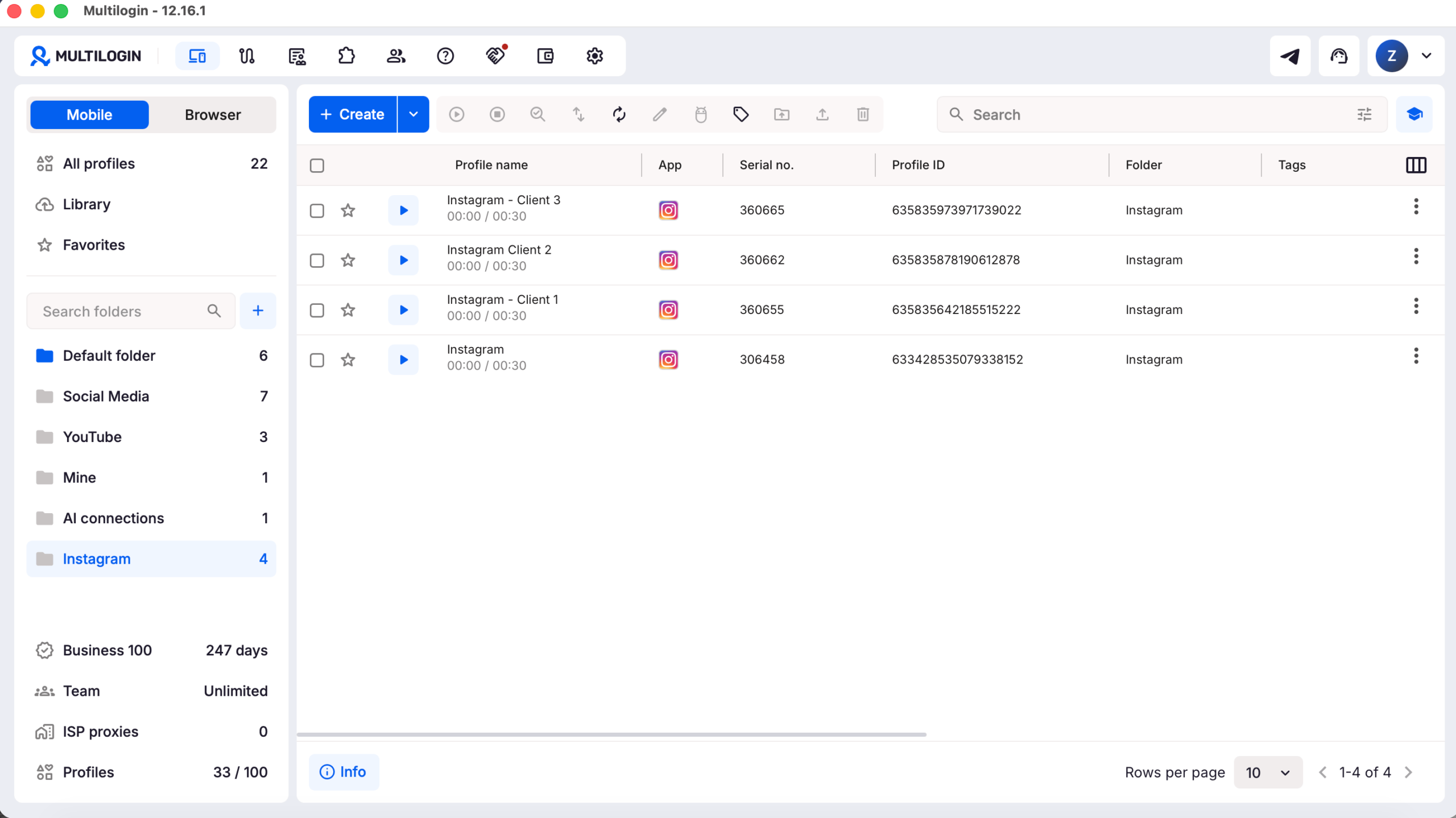
I could launch each cloud phone separately, configure a proxy for each one, and use Multilogin’s team features to share the relevant environments with colleagues.
That made it easier to organize client accounts and decide which teammates should have access to each working environment.
Figure 1. Four Instagram cloud phones organized in a Multilogin workspace. The screenshot shows the separate account profiles and their folder organization.
One important distinction: the dashboard screenshot demonstrates how the cloud phones are organized. The proxy settings and team permissions are configured elsewhere in Multilogin.
How to give teammates access to Instagram cloud phones
You can set up this workflow by creating a cloud phone for each Instagram account and assigning the relevant folders to your team.
Step 1: Create an Android cloud phone for each account
Open Multilogin, go to Profiles, select Mobile, and click Create.
Give each profile a clear name, ideally using the client or campaign name.
For example:
Instagram Client A
Instagram Client B
Instagram Client C
You can also add notes and tags to make profiles easier to find.
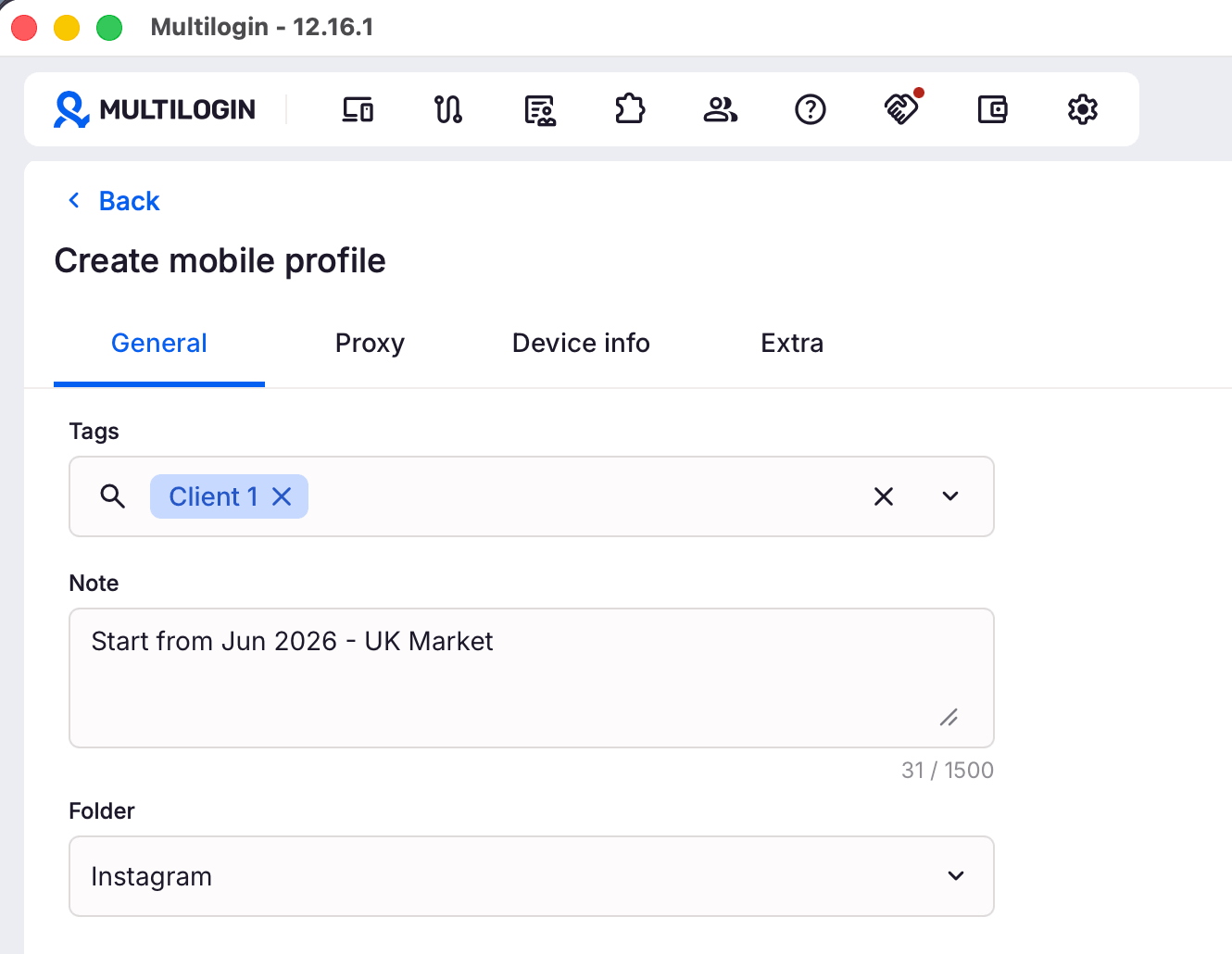
Multilogin explains the available device and network settings in its cloud phone creation guide.
Step 2: Configure a proxy
Every Multilogin cloud phone requires a working public proxy connection.
You can configure a supported built-in proxy or a compatible third-party proxy.
Choose the appropriate network and proxy configuration for the account’s legitimate operational needs. Check the connection before creating the cloud phone.
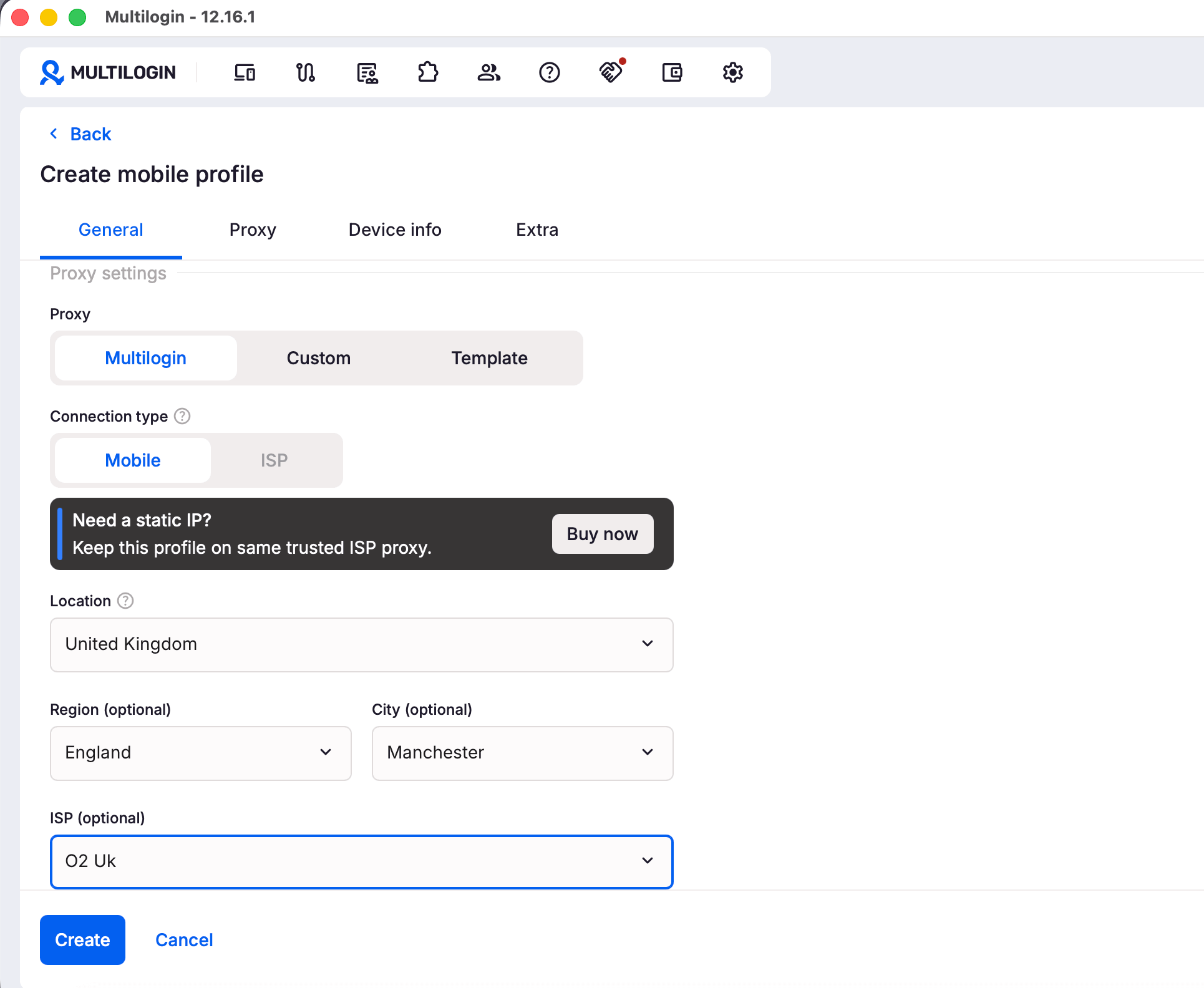
Using a separate proxy for each cloud phone helps maintain distinct network configurations. However, a proxy does not replace Instagram’s authentication requirements or platform policies.
Step 3: Install Instagram and sign in
Start the cloud phone, open its app installation options, and install Instagram.
The authorized account owner or administrator then signs in.
Once the app session is established, Multilogin retains the cloud phone’s app data and login history between sessions.
That means an authorized teammate may be able to return to the existing Instagram session without needing the original password every time.
However, Instagram can still require verification or a new login.
Multilogin’s app installation guide explains how to install apps through its built-in library, Google Play, or a compatible APK file.
Step 4: Organize your Instagram cloud phones into folders
Create separate folders when different teammates are responsible for different clients.
For example:
| Folder | Instagram account | Responsible team |
|---|---|---|
| Client A | Instagram Client A | Content team |
| Client B | Instagram Client B | Account manager |
| Client C | Instagram Client C | Community manager |
A folder structure makes it easier to assign access without giving everyone permission to every client environment.
Step 5: Invite your team
Go to the Team section in Multilogin and select Invite.
Enter the teammate’s email address and send the invitation.
Once they accept, open Manage access to assign the appropriate role and folders.
Multilogin supports four workspace roles:
Owner: Full control over the workspace, subscription, and team.
Manager: Manages profiles, folders, and permitted team members across the workspace.
Operator: Can create, edit, and manage profiles in assigned folders.
Starter: Can launch assigned profiles without changing their configuration.
For example, you might give a content specialist Starter access to the folder containing their assigned client accounts.
A more experienced team member who needs to manage profile settings could receive Operator access.
The Multilogin workspace roles guide explains these permissions in more detail.
Step 6: Let teammates work in their assigned cloud phones
After receiving access, teammates can open the cloud phones available to their roles.
If an Instagram session is still valid, the authorized teammate can work inside the app without receiving the original account password directly.
Different teammates can work on different assigned cloud phones within the same workspace.
When several employees need the same cloud phone, coordinate who is using it and when. A shared mobile environment is not the same as giving every employee an independent Instagram session.
Step 7: Remove access when a teammate leaves
When someone leaves the team, remove their workspace membership or assigned folder permissions.
Also review their permissions in Instagram, Meta Business Suite, and any connected third-party applications.
Removing access to a cloud phone does not automatically revoke other Instagram sessions or recovery methods that person may have.
Limitations of using Multilogin cloud phones for Instagram access
Cloud phones can make multi-account operations easier to organize, but they are not a direct replacement for Instagram’s permission system.
Workspace permissions are not Instagram permissions. A Starter can launch an assigned cloud phone, but the role does not limit the actions available inside the logged-in Instagram account. If you need someone to access messages but not other account functions, Meta’s native permissions are more appropriate.
A valid Instagram session is required. Cloud phones retain app data between sessions, but they do not remove login challenges, verification requirements, or the possibility of session expiry.
Team access requires a suitable subscription. Multilogin provides a free plan for exploring its cloud-phone functionality, but collaborative workspace access is a paid-plan feature. The number of team seats depends on the plan.
Cloud phones use mobile minutes. Usage is measured while a cloud phone is running, so teams should account for session time.
Cloud phones cannot receive SMS or calls. If Instagram requests phone verification, the account owner needs an accepted external method of receiving the code.
A reliable internet connection is necessary. Connection quality can affect the experience of operating a cloud phone remotely.
You can explore the workflow on the Multilogin cloud phone for Instagram page and review Multilogin’s available plans before selecting a team setup.
Instagram Shared Access vs. Meta Business Suite vs. cloud phones
The main difference is what each solution controls: Instagram permissions, publishing workflows, or the working environment.
| Capability | Instagram Shared Access | Meta Business Suite | Third-party tools | Multilogin cloud phones |
|---|---|---|---|---|
| No need to send the Instagram password to teammates | Yes | Yes | Yes, with supported authorization | Yes, when sharing an authorized existing session |
| Native Instagram app workflow | Yes | Not fully | Sometimes requires the app | Yes, Android app |
| Instagram-level task permissions | Limited supported controls | Yes | Depends on the tool | No |
| Multiple client account organization | Limited | Yes | Yes | Yes |
| Dedicated Android environment per account | No | No | No | Yes |
| Separate proxy per environment | No | No | No | Yes |
| Content scheduling | Native features and eligible workflows | Yes | Core function | Requires a separate workflow or supported tools |
| Main cost consideration | Eligibility and optional paid tiers | Generally free | Depends on subscription | Plan and mobile-minute usage |
These products are not identical, so the comparison should not be reduced to a single winner.
For example, an agency may use Meta Business Suite to manage client permissions and advertising, Buffer for content approvals, and Multilogin cloud phones when a teammate needs to perform authorized tasks through the native Android app.
Best practices for giving Instagram team access
A secure team workflow should provide only the access people need and make that access easy to review or revoke.
Before adding a teammate, consider the following:
Keep account ownership clear. The client or business should retain control of its Instagram credentials and recovery details.
Enable two-factor authentication. Protect the Instagram account and any software used to manage access.
Use individual employee logins. Avoid sharing credentials for Meta Business Suite or third-party workspaces.
Assign limited permissions when possible. Prefer task-based access when an employee only needs to manage content, messages, or advertising.
Review active access regularly. Check employees, agency partners, connected tools, and logged-in devices.
Document responsibility. Make it clear which employee manages each account and who approves publishing.
Protect customer data. Restrict access to direct messages and other sensitive information to people who need it.
Plan for offboarding. Remove permissions from each system used by the employee, not just one dashboard.
If your agency manages many client accounts, you may also find our guide to managing multiple Instagram accounts useful for planning your account organization.
Final verdict: Give your team access without giving away control
For most businesses, Instagram Shared Access and Meta Business Suite are the first options to consider. They provide supported ways to delegate account responsibilities without sharing the Instagram password.
A third-party management tool may be enough if your team focuses on content scheduling, approvals, and reporting.
For agencies working with multiple accounts that require frequent activity in the Instagram Android app, Multilogin cloud phones add another useful option.
In my experience, having a separate cloud phone for each Instagram account made it easier to organize client environments, configure their proxies, and provide the relevant teammates with workspace access.
But the distinction matters: Meta controls what users are authorized to do within Instagram. Multilogin controls which cloud phone environments teammates can access.
For teams that need both detailed permissions and native Android workflows, these approaches can complement each other.
You can start with Multilogin’s free plan to explore an Android cloud phone and upgrade to a suitable team-enabled plan when you’re ready to collaborate.