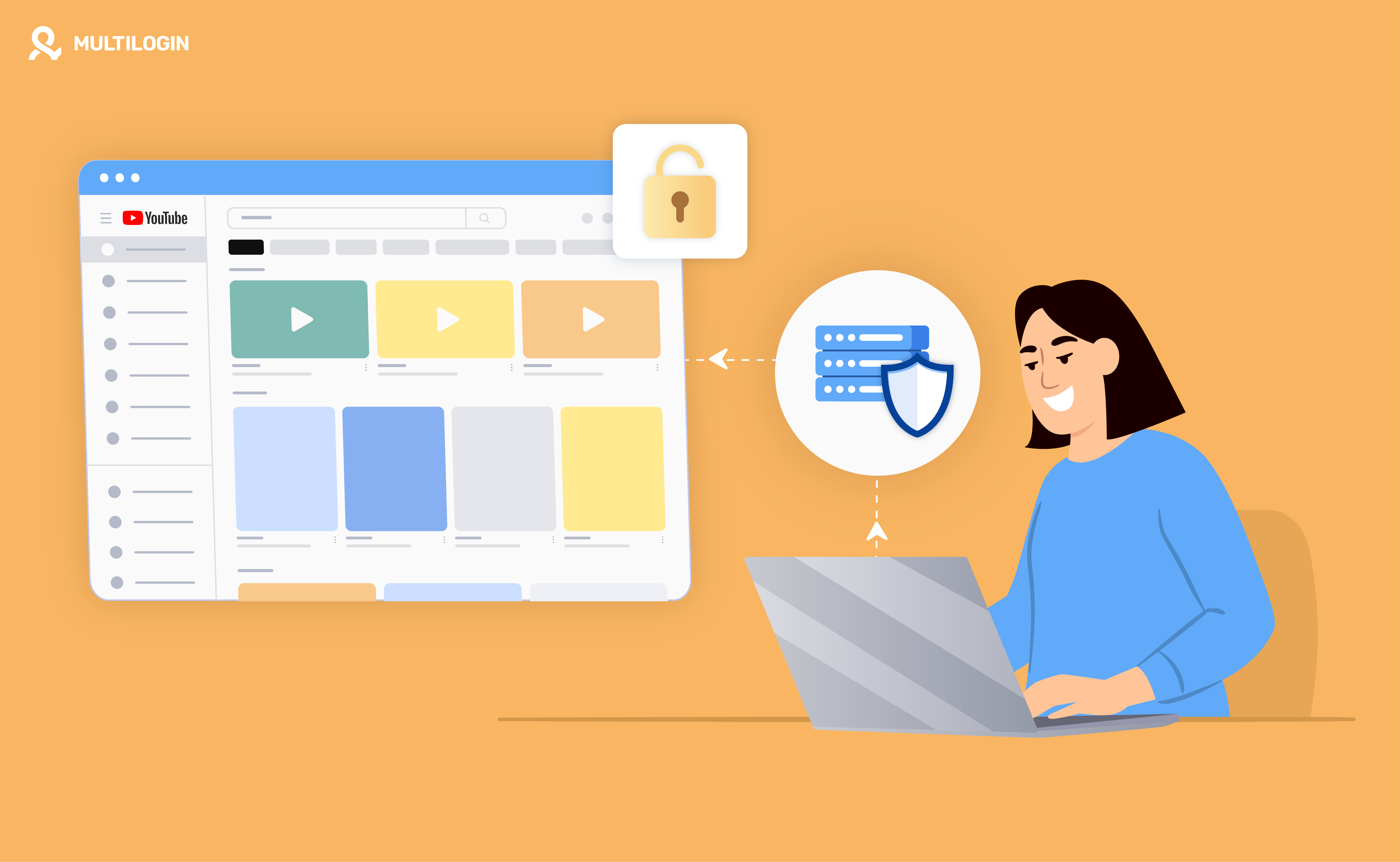



To use a proxy for YouTube, add the proxy to the environment that opens YouTube: your browser, your phone’s Wi-Fi settings, a proxy extension, a browser profile, or an Android cloud phone. YouTube has no proxy setting inside its website or app.
A proxy changes the IP address YouTube sees. It does not change every location signal, because YouTube also estimates location from saved home or work addresses in your Google Account and from your device location, as explained in YouTube Help.
Which setup fits your YouTube task
YouTube task | Where to set the proxy | Why it fits |
|---|---|---|
Watch public videos now and then | Browser settings or a proxy extension | Fast to set up, no account involved |
Run YouTube Studio, analytics and uploads for a channel | A browser profile with its own proxy | Cookies, session and IP stay together for that channel |
Use the YouTube Android app, Shorts tools or app notifications | An Android cloud phone with its own proxy | Native app and persistent login without another physical phone |
Check a region on your own iPhone or Android | The phone’s Wi-Fi proxy setting | Applies only to that Wi-Fi network |
What is a YouTube proxy and how does it work?
A YouTube proxy is an intermediary server that forwards traffic between your device and YouTube, so YouTube sees the proxy server’s IP address instead of your own.
- Your browser, phone or cloud phone sends a request to the proxy server.
- The proxy forwards the request to YouTube.
- YouTube returns the page or video data to the proxy.
- The proxy passes the response back to your device.
What a YouTube proxy changes and what it does not
A proxy changes | A proxy does not change |
|---|---|
The IP address YouTube sees for routed traffic | Country limits a video owner sets for licensing reasons |
The country or city implied by that IP | Your phone’s device location, if location access is on |
Which network route your traffic takes | Home or work addresses saved in your Google Account |
Your YouTube Premium signup country or payment country | |
YouTube’s Terms of Service or how a channel is enforced |
Why use a proxy for YouTube?
Teams use a proxy for YouTube to check how public videos, search results, ads and recommendations appear in another available location. Agencies and creators also assign one stable connection to each client, channel or regional project, so every session starts from the same documented setup.
A consistent proxy also makes testing repeatable. Recording the proxy type, location and environment used for each check means a colleague can reproduce the same view later instead of rebuilding it.
A proxy has limits. It does not guarantee access to a video that is restricted for licensing or legal reasons, and it can make playback slower because traffic passes through an extra server. A proxy is also not a complete security product: it may not encrypt all traffic, and the proxy operator can see connection metadata.
How to set up a proxy for YouTube on desktop
On desktop, set the proxy in Firefox directly, or in your operating system for Chrome and Safari, then test the connection before you open YouTube.
Step 1: choose a proxy that fits the task
Choose the proxy by the YouTube task, not by the first free server you find. Check these points before connecting:
- Ownership: the provider publishes clear company and privacy information.
- Locations: the country or city you need is available now.
- Bandwidth and limits: video playback uses far more traffic than browsing pages.
- Session length: YouTube Studio work needs an IP that stays the same for the whole session.
- Protocol: your environment accepts HTTP, HTTPS or SOCKS5.
- Authentication: username and password, or IP-based authorization.
Avoid entering Google Account credentials through an unknown public proxy. For provider comparisons, see our list of the best proxy sites for YouTube.
Google Chrome
Google Chrome uses the proxy configured in Windows, macOS or ChromeOS, so the proxy also affects other apps on that computer.
On Windows:
- Open Chrome and go to Settings > System.
- Click Open your computer’s proxy settings.
- Under manual proxy setup, enter the proxy address and port.
- Save, return to Chrome and open YouTube.
On macOS:
- Open System Settings > Network.
- Select the active Wi-Fi or Ethernet connection, then Details > Proxies.
- Turn on the protocol your proxy uses and enter the server, port and login details.
- Click OK, then open YouTube in Chrome.
Mozilla Firefox
Mozilla Firefox has its own proxy menu, so the proxy applies to Firefox only.
- Open the menu and go to Settings.
- In the General panel, scroll to Network Settings and click Settings.
- Select Manual proxy configuration.
- Enter the hostname and port, and add SOCKS details if your proxy uses SOCKS5.
- Click OK and open YouTube.
Safari
Safari uses the macOS network proxy. Follow the macOS steps above (System Settings > Network > Details > Proxies), then reopen Safari. The old path through Safari Preferences no longer appears on current macOS versions.
Proxy extension
A proxy extension routes traffic only inside the browser where it is installed, so you do not need to change device settings. Install it from the official browser store, review the publisher, permissions and privacy policy, then test the exit IP before opening YouTube. An extension with broad access can read data on the sites you visit, so avoid unknown extensions on a Google Account that matters.
Online proxy website
An online proxy website loads youtube.com inside its own page: you pick a server, type the URL and browse. It suits occasional public browsing, but many web proxies load the homepage and then fail on the video player, cookies or sign-in. Do not enter a Google password on a public proxy website.
Test the connection
Before opening YouTube, open an IP checker in the same browser and confirm the IP and country match the proxy you set. If the IP is still your own, the browser is not using the proxy; check which settings menu controls that browser.
How to use a proxy for YouTube on mobile
On a phone, a proxy is set per Wi-Fi network, through a proxy app, or by running the YouTube Android app in a cloud phone that has its own proxy.
Android
Android lets you set a manual proxy for each Wi-Fi network. Menu names vary by Android version and manufacturer.
- Open Settings > Network and internet (or Connections) > Wi-Fi.
- Tap the connected network, then Edit or the settings icon.
- Open Advanced options and change Proxy from None to Manual.
- Enter the hostname and port, then save.
- Open the YouTube app or YouTube in a browser.
The proxy applies only on that Wi-Fi network, not on mobile data. Many Android menus have no fields for a proxy username and password, so authenticated proxies need IP authorization, a proxy app or a cloud phone.
iPhone or iPad
iOS and iPadOS let you set an HTTP proxy for a Wi-Fi network.
- Open Settings > Wi-Fi and tap the info icon next to the connected network.
- Scroll to Configure Proxy and select Manual.
- Enter the server and port, turn on Authentication if needed, and add the login.
- Tap Save and open YouTube.
As on Android, the proxy stops applying when you switch to mobile data or another network.
Mobile proxy app
A mobile proxy app can route the whole device or selected apps, depending on the operating system. Check its permissions and privacy policy first: a free app that routes all phone traffic can see a lot of connection data, and it may drain battery or clash with other network tools.
Android cloud phone
An Android cloud phone runs the native YouTube Android app in a persistent Android environment hosted in the cloud, which you open and control from a computer. Each cloud phone keeps its installed apps, app data, login state and proxy between sessions.
This fits creators, agencies and content teams that need the app, the login and the connection kept together per channel, without buying and maintaining extra physical phones. See how an Android cloud phone for YouTube works.
Which proxy type is best for YouTube?
No single proxy type is best for every YouTube task: match it to the environment and to how long the same IP must stay active.
Proxy type | Best YouTube use | Main consideration |
|---|---|---|
Residential | Browser sessions, YouTube Studio, regional checks | ISP-assigned IP; can rotate or stay sticky |
ISP | Long browser sessions that need one IP | More IP continuity than rotating residential |
Mobile | YouTube Android app and mobile testing | Matches mobile environments; costs more, may rotate |
Datacenter | Basic public browsing, high bandwidth | Fast and cheap, but the IP belongs to hosting infrastructure |
Free web proxy | Occasional public pages, no sign-in | Shared, slow, unclear ownership, weak video support |
The environment matters as much as the proxy label. A mobile proxy in a desktop browser does not turn that browser into an Android phone.
Sticky or rotating proxy for YouTube?
Use a sticky proxy when one YouTube session must keep the same IP, such as a logged-in YouTube Studio session. Use rotation only for authorized research that needs different addresses. Rotating IPs inside one Google Account session creates inconsistent location signals and makes problems harder to trace. A sticky session is not a permanent static IP: it can change when the session expires or the provider replaces the endpoint.
How to use a proxy for YouTube with Multilogin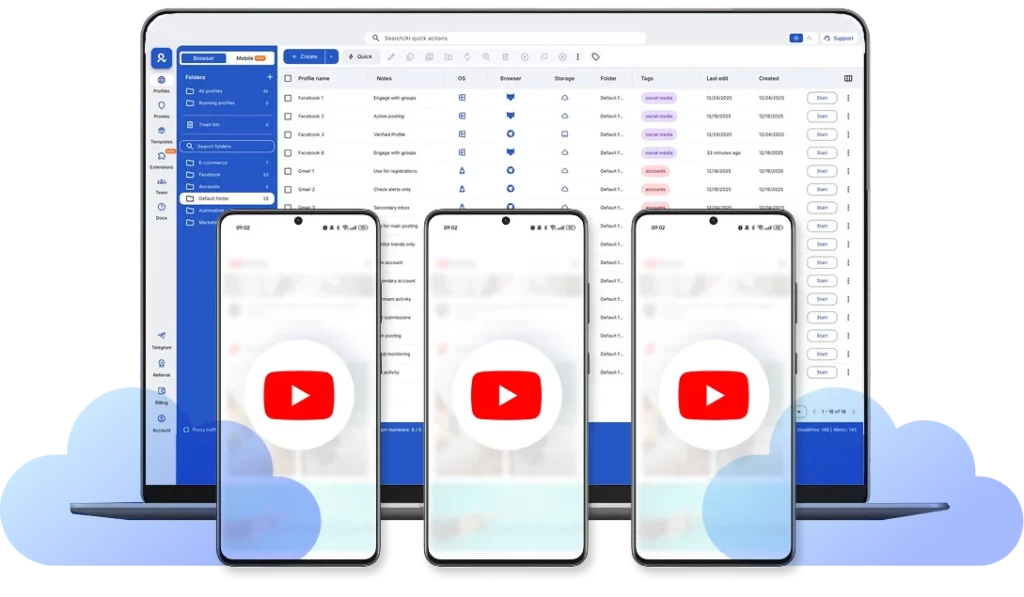
Multilogin is a cloud phone platform for multi-account management. It runs Android cloud phones and browser profiles from one dashboard, and each environment keeps its own proxy, cookies, app data and login, so every YouTube channel or client has a separate, repeatable setup.
1. Pick the environment
Use a browser profile for | Use an Android cloud phone for |
|---|---|
YouTube Studio and channel analytics | The YouTube Android app |
Long-form uploads | Shorts tools available in the app |
Web comments and channel administration | App notifications and app-based comments |
Public content and ad checks on the web | Android-specific quality checks |
Teams that need both keep the web and mobile sides in two clearly named environments for the same channel.
2. Create one environment per channel
Create a browser profile or Android cloud phone for one defined project: a creator, client, brand, YouTube channel, region or campaign. Name it and use folders, tags and notes so everyone on the team knows who owns it. For account organization at team level, read our guide to managing multiple YouTube accounts.
3. Add the proxy and test it
Open the environment’s proxy settings and choose Multilogin’s built-in residential, ISP or mobile proxies, available in 150+ locations, or add your own HTTP, HTTPS or SOCKS5 proxy. Set the location and session type; built-in sticky sessions can last up to 24 hours. Click Check proxy before saving.
4. Save and launch
The browser profile keeps its cookies, session and proxy. The Android cloud phone keeps its installed apps, app data and login between sessions, on Android versions 10 to 16. You return to the same environment instead of rebuilding a browser or phone each time.
5. Stay within YouTube’s rules
Multilogin provides environments and connections; it does not change YouTube’s Terms of Service or prevent enforcement. Publish original content, keep account details accurate and avoid artificial engagement. Teams working toward monetization can review our YouTube monetization workflow guide.
The Multilogin free plan includes five mobile and web profiles, 200 MB of one-time built-in proxy traffic and 30 one-time cloud-phone minutes, with no credit card required. Paid plans start at $7.08 per month.
For the full YouTube setup, see the YouTube proxy and cloud phone bundle.
Proxy vs VPN for YouTube
A proxy and a VPN both route traffic through another server; the difference is scope and encryption.
Feature | Proxy | VPN |
|---|---|---|
Scope | One browser, profile, app or device | Usually most device traffic |
Encryption | Depends on protocol and app | Usually encrypts traffic to the VPN server |
Per-channel separation | Can be attached to individual browser profiles or cloud phones | Applies to the whole device |
Typical YouTube use | Profile-specific sessions, regional checks | General device-level routing |
Using a VPN and a proxy together adds distance, slows video and can create conflicting location signals, so combine them only with a clear technical reason. When the problem is not the IP, a DNS change or cache reset may help more; see how to unblock YouTube without a VPN or proxy.
Why is YouTube not working with a proxy?
YouTube usually fails through a proxy because the settings are wrong, the server is overloaded, or the restriction has nothing to do with the IP.
What you see | Likely cause | What to do |
|---|---|---|
No connection at all | Wrong host, port, protocol or login; no traffic left | Recheck details and balance; test the proxy outside YouTube |
Page loads, video does not play | Web proxy cannot process the player or media requests | Lower quality, switch server, or use a browser-level proxy |
“Video unavailable in your country” | Owner licensing or local law | A new IP does not guarantee access |
Google asks for another sign-in check | New IP, device or location | Use accurate recovery info; do not use a proxy to avoid checks |
“We couldn’t verify your country” on Premium | VPN or proxy active during signup | Turn it off, as YouTube Help advises |
YouTube app ignores the Android proxy | Proxy set on another Wi-Fi, or login fields unsupported | Check the network; use IP authorization, a proxy app or a cloud phone |
For enforcement questions, see our YouTube IP ban guide.
Proxy stuck on “Proxy is launching YouTube”
“Proxy is launching YouTube” is a loading message from online proxy websites while they fetch and rebuild the YouTube page. If it stays on screen, the server is overloaded, offline or blocked. Refresh once, then try another server or a browser-level proxy.
Can you increase YouTube views using a proxy?
No. A proxy should not be used to generate artificial YouTube views, and changing IPs does not make automated or purchased views legitimate. YouTube’s fake engagement policy prohibits artificially increasing views, likes, comments or subscribers, and violations can affect monetization or the channel itself.
For real growth, focus on relevant topics, strong titles and thumbnails, retention and legitimate distribution. Our guide to promoting a YouTube channel covers practical methods.
To estimate revenue ranges from view and RPM assumptions, try the YouTube money calculator. It estimates; it does not predict earnings.