


To manage multiple WhatsApp accounts on desktop, give every account its own phone and control those phones from your computer. For two or three accounts, WhatsApp Desktop and WhatsApp Web are enough.
For 10, 20 or 100 accounts, run each account on its own cloud phone for WhatsApp and manage them all from one dashboard. The same setup lets you create multiple WhatsApp accounts, each with its own number, app data and location.
TL;DR:
The official desktop options only mirror accounts that already live on a phone, so they stop at the number of phones you own.
Cloud phones remove that limit: each account runs on a real Android device in the cloud that you can control remotely, script through ADB or hand to an AI agent. Each account still needs a phone number.
Which way to manage multiple WhatsApp accounts on desktop fits you
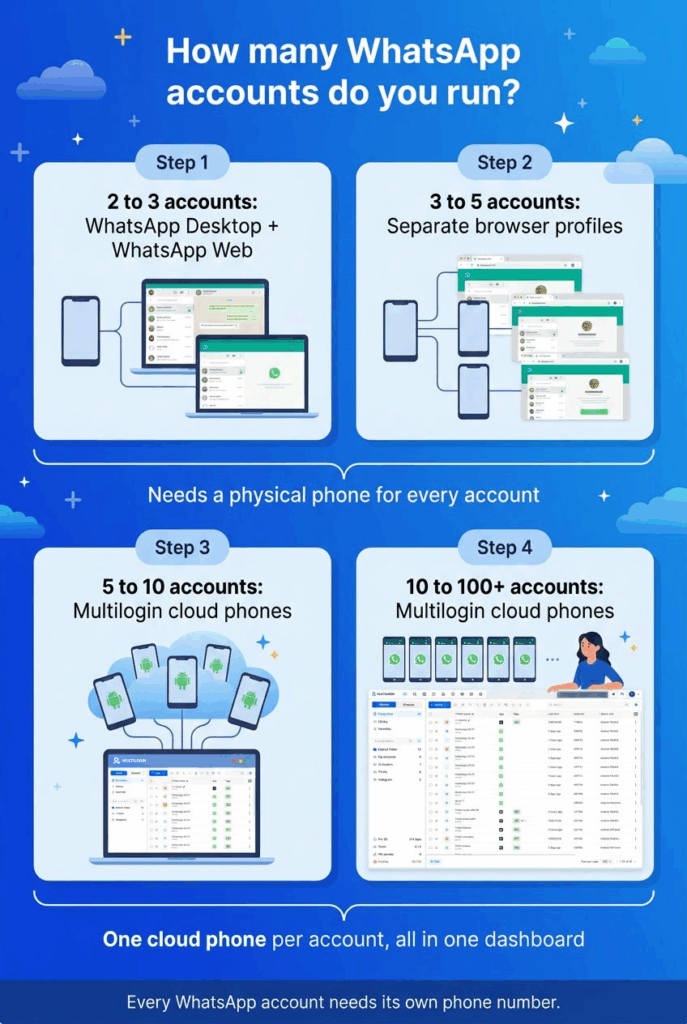
| Method | Accounts | What it needs | Main limit |
|---|---|---|---|
| WhatsApp Desktop plus WhatsApp Web | 2 to 3 | A phone with each account | One account per app or browser window |
| Separate browser profiles | 3 to 5 | A phone with each account | Each profile still mirrors a phone |
| Multi-account desktop clients | 5 to 10 | A phone with each account | Same: no phone, no account |
| Cloud phones | 10 to 100+ | A phone number per account | Numbers come from your SIMs or an SMS service |
Official ways to use multiple WhatsApp accounts on desktop
WhatsApp’s own tools handle a few accounts well:
- WhatsApp Desktop plus WhatsApp Web: link one account in the desktop app for Windows or Mac and a second one in a browser.
- Browser profiles: open WhatsApp Web in a separate Chrome, Edge or Firefox profile for each extra account, so sessions do not log each other out.
- Multi-account clients: apps that wrap several WhatsApp Web sessions in one window, often up to about 10.
We compared these options in more detail in can you have multiple WhatsApp accounts.
All three share one catch. WhatsApp Desktop and WhatsApp Web are linked devices: WhatsApp lets you link up to four additional devices to an account on a phone. If the primary phone stays inactive for a long period, WhatsApp logs out all linked devices.
So every account on your desktop still needs a phone behind it. Ten accounts means ten phones, and 100 accounts means 100.
Why real multi-accounting starts with one phone per account
Once you pass a handful of accounts, the question is no longer which window to use. It is where the phones live.
A drawer of physical phones works, but each one needs charging, updates and someone to unlock it.
Desktop emulators are cheap but run Android as software on your computer, not on real hardware, and they stop when your computer does. The difference is covered in our guide to cloud phones vs mobile emulators.
A cloud phone is a real Android device in a data center that you control from your computer. You get the result of a phone farm without buying, wiring or maintaining physical devices.
How to manage multiple WhatsApp accounts on cloud phones from your desktop
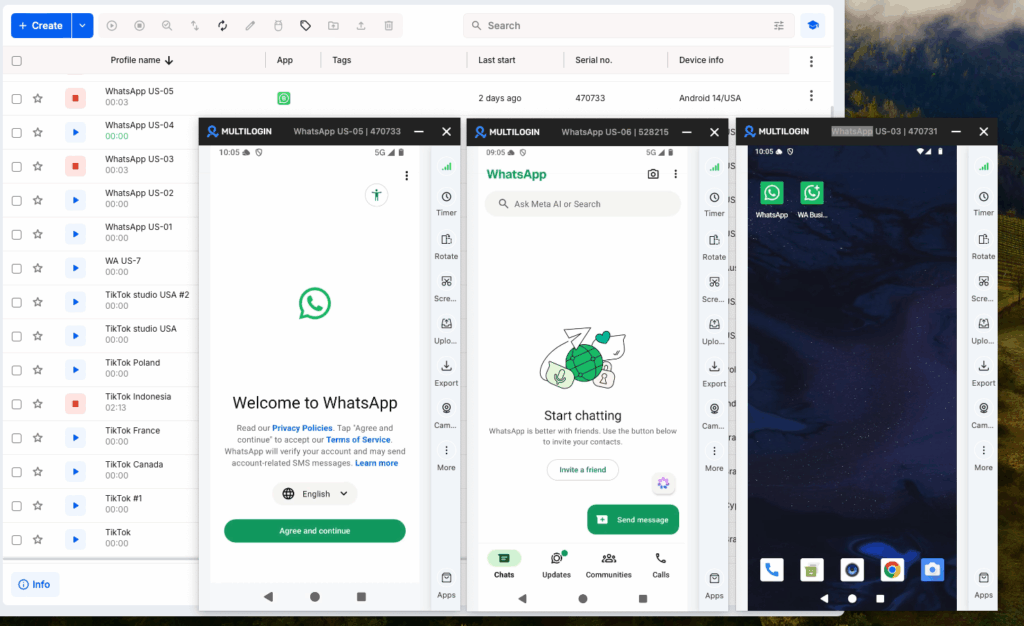
With a Multilogin cloud phone, each WhatsApp account runs in its own isolated Android environment with its own app data, IP and location. You open, use and switch between phones in the desktop app for Windows, macOS or Linux.
Before you start, you need:
- A Multilogin account (the free plan includes 5 profiles and 30 one-time mobile minutes)
- One phone number per WhatsApp account
- A plan for which country each account belongs to
Steps:
- Create a cloud phone. Pick a device type and Android version. Multilogin offers 30+ real Android device types across 12 brands.
- Set the location. Choose a residential proxy in the same country as the account’s phone number. Proxies are built into every plan; you can also add your own HTTP, HTTPS, ISP or SOCKS5 proxy.
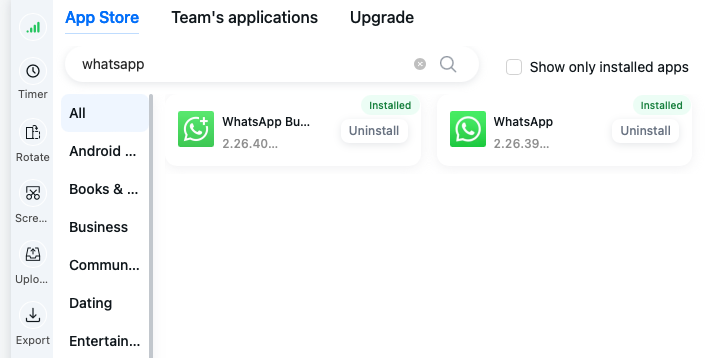
- Install WhatsApp. Get WhatsApp or WhatsApp Business from the built-in app store, or upload an APK.
- Register the number. Enter the number in WhatsApp, receive the code on your SIM or in your SMS service, and type it in on the cloud phone.
- Secure the account. Turn on two-step verification and add an email address, so WhatsApp can send a re-registration code by email later.
- Organize. Add custom columns, colour tags and notes for the client, market or team member that owns each phone.
The phone keeps WhatsApp’s app data and login history between sessions. When you open it tomorrow, you continue where you left off. For a full walkthrough, see how to create multiple WhatsApp accounts.
Try it with your first WhatsApp accounts. Multilogin offers a free plan with no time limit and no credit card needed. Paid plans start from $7.08 per month, with cloud phones, built-in proxies and mobile minutes included. See plans
Regular WhatsApp or WhatsApp Business?
You can install either app on a cloud phone, one account per phone.
- WhatsApp: fits personal or one-to-one conversations, such as a recruiter or community manager in each market.
- WhatsApp Business: fits customer-facing numbers. It adds a business profile and tools such as quick replies and labels, and it can register a landline number by voice call.
Many teams mix both: Business accounts for support and sales lines, regular accounts for internal or community work. For a deeper comparison of tools, see the best cloud phones for WhatsApp Business.
Phone numbers: where the verification code comes from
WhatsApp sends a six-digit code by SMS or voice call during registration. Multilogin cloud phones cannot receive SMS or calls, so each account needs a number that receives the code somewhere else.
Your options:
- Your own SIM or eSIM: easiest to re-verify later, but one number per SIM.
- A company landline: works with WhatsApp Business through a voice call.
- A rented number from an SMS service: choose the country and read the code in the service’s dashboard.
- A one-time temporary number: cheap for testing, risky for accounts you plan to keep.
SMS services you can use
There are many SMS verification services. These four sell numbers that receive WhatsApp codes in their own dashboard:
| Service | Number types | Starting price | Good to know |
|---|---|---|---|
| 5SIM | One-time numbers in 150+ countries | WhatsApp from $0.06 | Automatic refund if no SMS arrives |
| SMSPVA | One-time numbers and rentals for days to months, 60+ countries | From $0.05 per number | REST API; rent numbers for accounts you keep |
| SMS-Man | One-time numbers in 200+ countries; rentals up to 90 days in 16 countries | From $0.05 per activation | API for bulk verification |
| Grizzly SMS | Temporary numbers in 100+ countries | From $0.04 per number | API and an MCP project on GitHub |
Prices are from each service’s homepage on October 23, 2026. WhatsApp can reject some VoIP and temporary numbers, so test one number before you buy in bulk.
Temporary or rented: which to choose
A temporary number can pass the first registration. The problem comes later: WhatsApp asks for a new code when you reinstall the app or move the account to another device.
If the number has expired or moved to someone else, the code never reaches you. WhatsApp treats a number as recycled when an account stays unused for 45 days and then activates on a new device (WhatsApp FAQ).
- Testing a workflow: a temporary number is fine.
- Accounts you plan to keep: use your own SIM or rent the number long term.
- Every account: turn on two-step verification with an email address (WhatsApp Help Center).
How to manage 10 to 100+ WhatsApp accounts on one desktop
The workflow stays the same at every size. What changes is how you create, launch and share the phones.
10 to 20 accounts: manage by hand
At this size, the desktop app is enough. Create each phone once, tag it by client or market, and open the ones you need each day. One person can handle it.
20 to 50 accounts: add bulk actions and a team
Use bulk actions to create, launch and work across many cloud phones at once. Add team members and set permissions per profile and per feature, so each agent sees only their numbers.
100+ accounts: automate the routine
At 100 accounts, clicking through each phone takes too long. Use the Multilogin API or the command line to create profiles, install apps and launch phones in batches, and switch to ADB for in-app tasks.
| Accounts | Plan | Included per month |
|---|---|---|
| Up to 10 | Pro 10, $11/mo | 10 profiles, 1 GB proxy traffic, 60 mobile minutes, 1 team seat |
| Up to 20 | Pro 20, $19/mo | 20 profiles, 2 GB, 75 minutes, 2 team seats |
| Up to 50 | Pro 50, $29/mo | 50 profiles, 3 GB, 85 minutes, 2 team seats |
| Up to 100 | Business 100, $40/mo | 100 profiles, 5 GB, 150 minutes, unlimited team seats |
Prices are for monthly billing; paid plans start from $7.08 per month billed annually. Mobile minutes count while a cloud phone runs and stop when you press Stop. Extra minutes start from $0.0067 per minute, and there is no limit on concurrent cloud phones.
Control cloud phones remotely with ADB
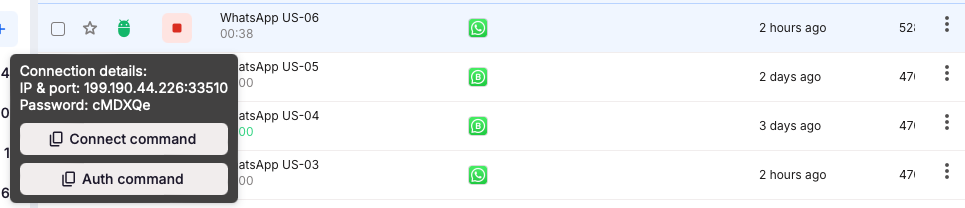
ADB (Android Debug Bridge) is Google’s standard command-line tool for controlling Android devices. It turns each cloud phone into a remote phone you can script.
With ADB, you can run commands and scripts on a cloud phone from your own terminal, without clicking through the screen.
Requirements: a paid plan, an owner or manager role, a cloud phone on Android 11 or later, and the Multilogin desktop app running. The command-line tool, xcli, sits in the mlx/deps/cli folder in your user directory.
When you see “glogin success”, the phone accepts ADB commands. With many phones connected, add -s IP:port to each command to target the right one. ADB disconnects when a phone stops, so request new connection details after each launch. Full steps are in the ADB guide in the help center.
Let an AI agent operate the phones
Multilogin is built for this kind of work: it is a cloud phone platform for people and AI agents. Agents can launch and operate Multilogin cloud phones directly through the API and full ADB access.
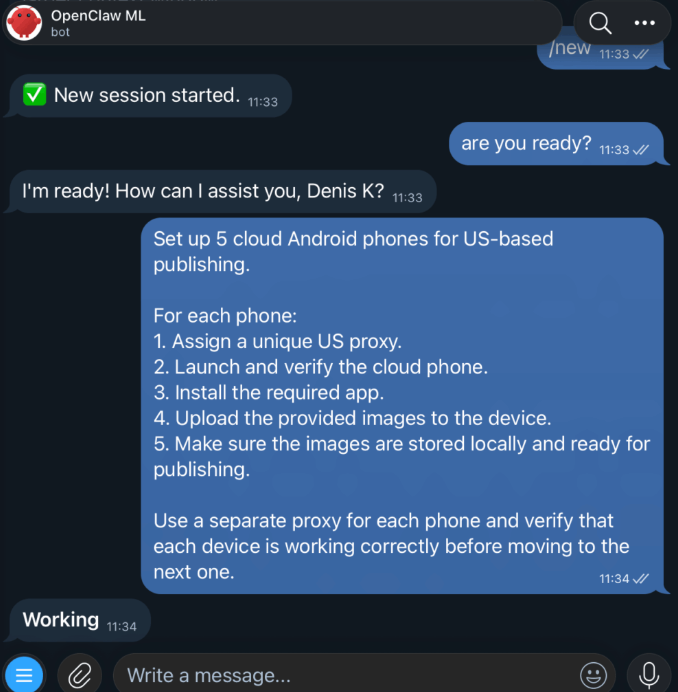
That turns routine work across dozens of WhatsApp accounts into a task you describe in plain language. Two step-by-step cases show how it works:
- OpenClaw agent via Telegram: you send chat messages, and the agent creates cloud phones with US proxies, starts and stops them, installs WhatsApp and uploads photos through ADB.
- AI agent running an X account: Claude Code or Codex reads news, likes and reposts, and publishes a daily post on a cloud phone, using ADB for screenshots, taps and typing.
Use automation responsibly. Follow WhatsApp’s Terms of Service and message only people who expect to hear from you.
Separate phones do not change how WhatsApp treats bulk unsolicited messages. For high-volume automated customer messaging, WhatsApp’s official Business Platform is the right route.