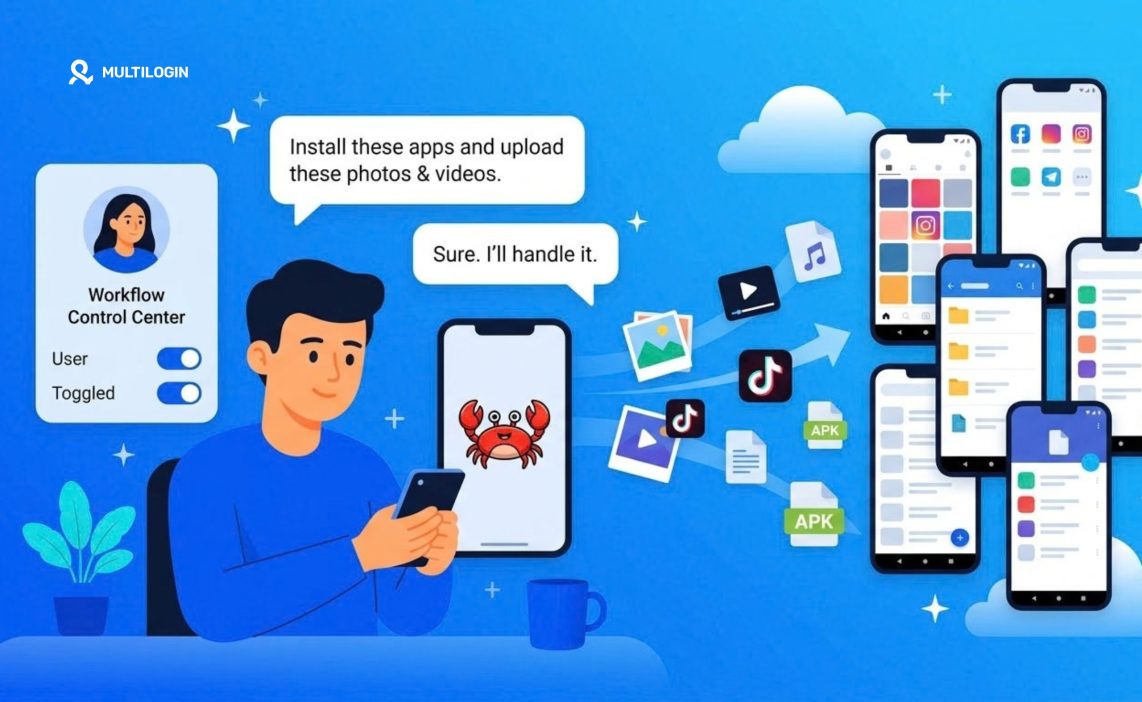

This guide shows how to manage Multilogin cloud phones with an OpenClaw AI agent, using nothing but messages in a Telegram chat.
In this guide we will:
- Install and configure OpenClaw on a Windows PC
- Create a Telegram bot and link it to the agent
- Connect an AI model
- Install Multilogin and log in to its command-line tool
- Create a skill that teaches the agent to work with Multilogin
- Create Android cloud phones with US proxies
- Install an app on the phones
- Upload photos to the phone galleries
Treat it as one working example of what is possible. Once the setup is in place, you can adapt it to your own tasks.
What is OpenClaw and how does it work
OpenClaw is an open-source AI agent that runs on your own computer. You talk to it through a messenger such as Telegram, and it carries out real actions on that computer: runs commands, works with files, opens programs.
It has three parts:
- The Gateway is the engine that runs in the background on your machine.
- A language model is the brain. OpenClaw sends it your message and the model decides what to do.
- Skills are short instruction files that teach the agent how to use a specific tool, in our case the Multilogin command line.
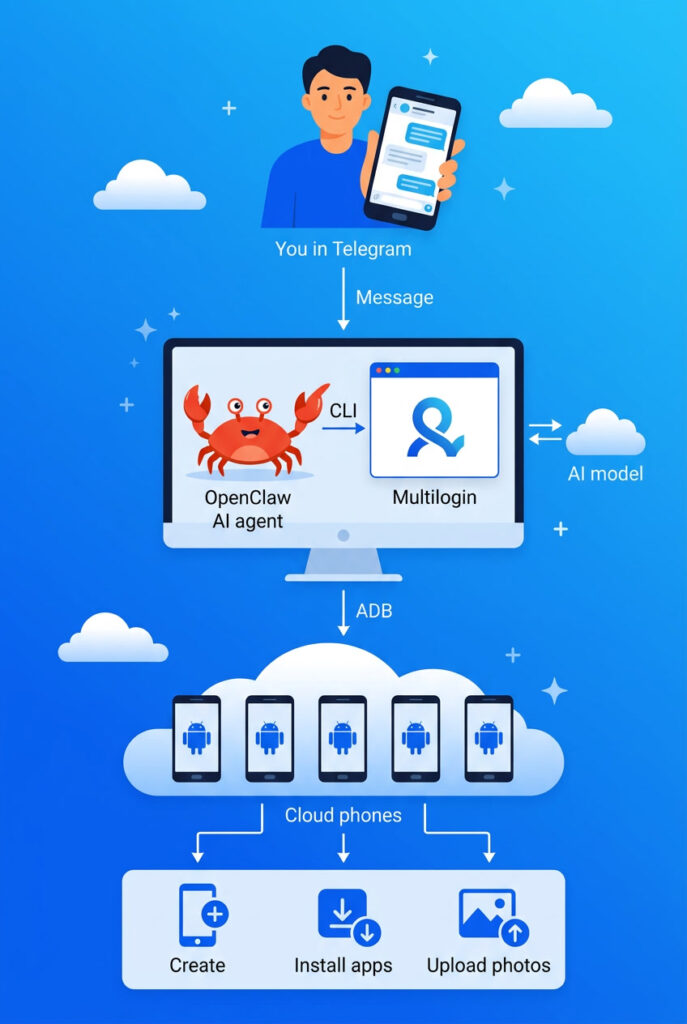
So the chain looks like this: your Telegram message → OpenClaw → Multilogin CLI and ADB on your computer → cloud phones → a report back in Telegram.
Where you can install OpenClaw
We use Windows in this guide, but OpenClaw runs almost anywhere: Windows, macOS, Linux, Docker, or a cloud server. The OpenClaw install guide covers every option, and there is also a desktop app for Windows if you prefer a regular installer.
The quickest way is the official installer script. On macOS or Linux:
curl -fsSL https://openclaw.ai/install.sh | bash
On Windows, in PowerShell:
iwr -useb https://openclaw.ai/install.ps1 | iex
One thing to keep in mind for this scenario: install OpenClaw on the same computer where the Multilogin desktop app runs, because the agent uses the Multilogin CLI that ships with the app.
Step 1. Install and configure OpenClaw
On Windows there are two ways to do it. Pick the one you are more comfortable with.
Option A. The desktop app
The easiest start is the OpenClaw desktop app for Windows. Download the installer from the OpenClaw Windows page and run it like any other program.
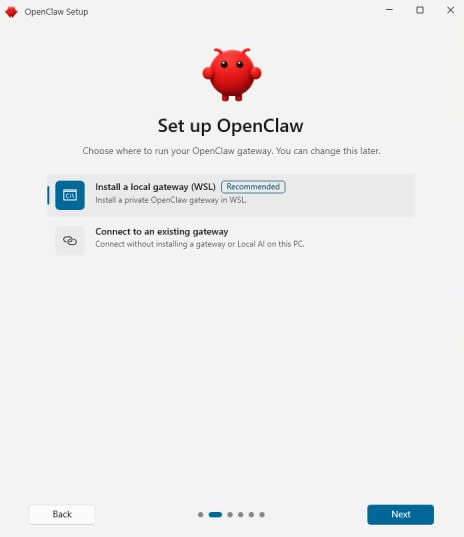
On first launch a setup wizard walks you through creating the Gateway and connecting a model, and afterwards you get a chat window and a status icon in the system tray.
When the wizard asks where the Gateway should run, choose a local Gateway on this PC that runs directly in Windows.
The agent needs to start the Multilogin CLI, which is a Windows program.
Option B. The command line
If you prefer the terminal, you need Node.js 22 or newer. Open PowerShell as administrator and install OpenClaw:
npm install -g openclaw@latest --allow-scripts=@google/genai,esbuild,koffi,protobufjs,openclaw
openclaw --version
Then run the setup wizard. It installs the background service and opens the dashboard in your browser:
openclaw onboard --install-daemon
Check the Gateway
Whichever option you chose, the openclaw command is used in the next steps. Make sure the Gateway is running:
openclaw gateway status
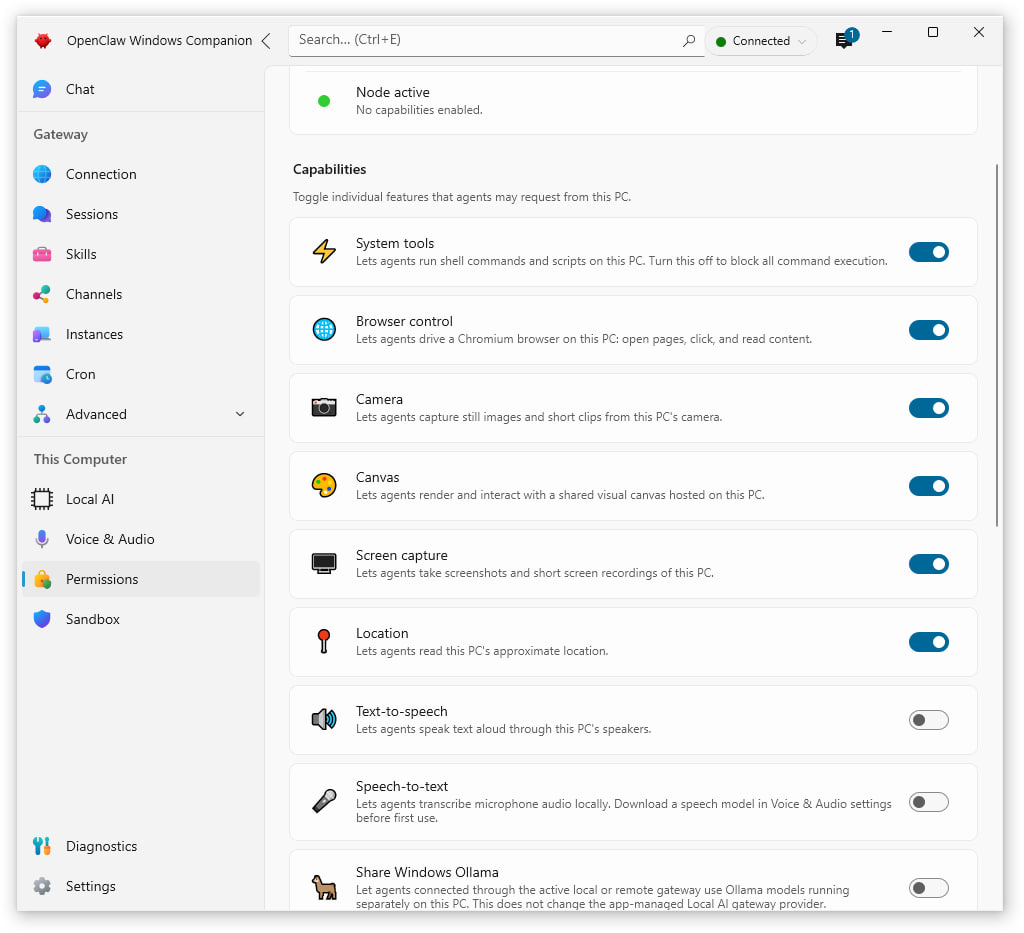
Everything in this guide can be done from the console, but that is not the only way. OpenClaw also offers a desktop client with a visual interface, where you can see each step as it happens.
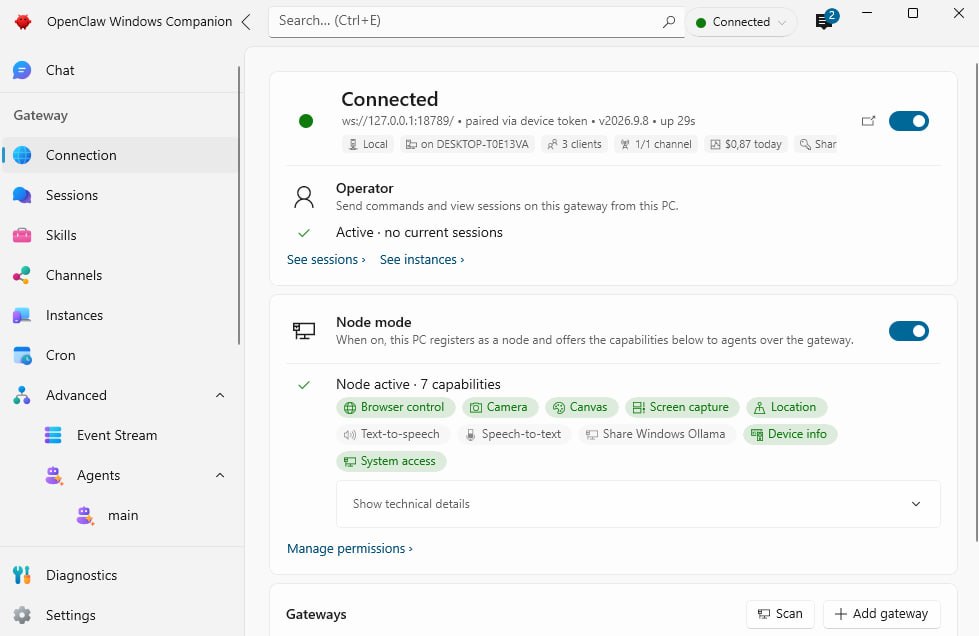
Many users find it clearer and more pleasant to work with, so feel free to use whichever you prefer.
Step 2. Create a Telegram bot and link it to OpenClaw
In Telegram, open a chat with @BotFather, send /newbot, choose a name and copy the bot token.
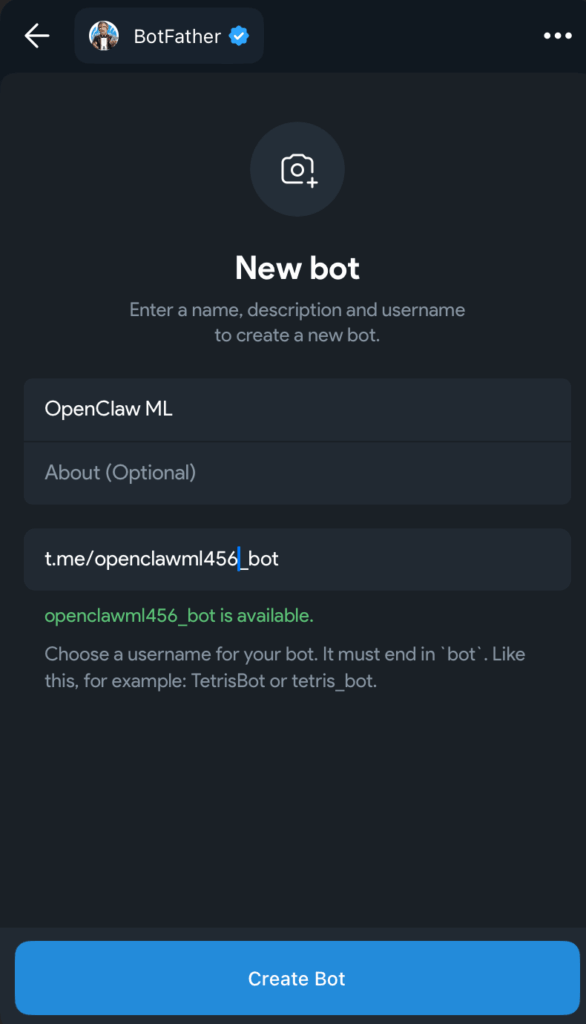
Give the token to OpenClaw:
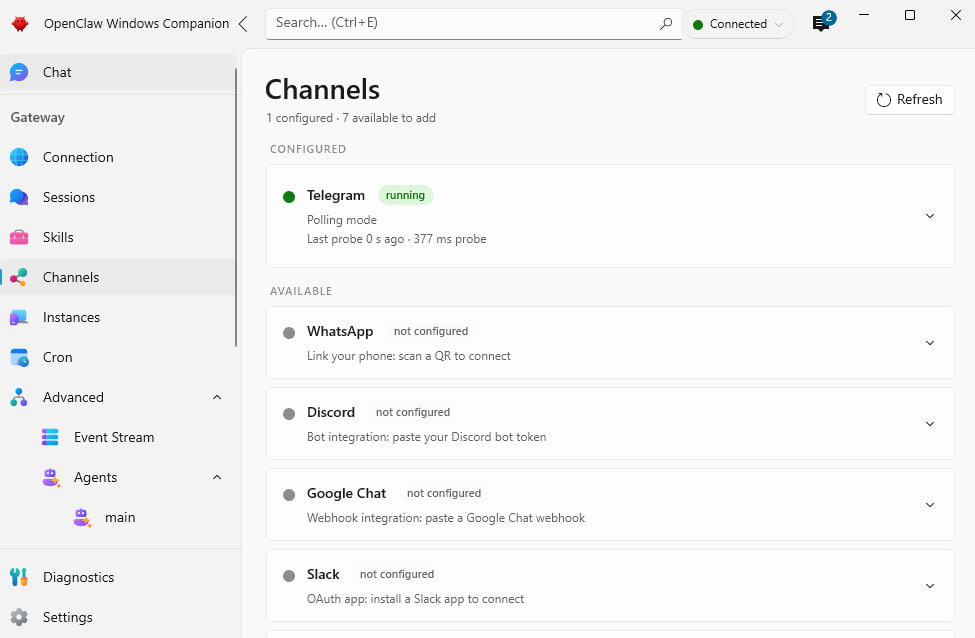
openclaw channels add --channel telegram --token <bot-token>
openclaw channels status --probe
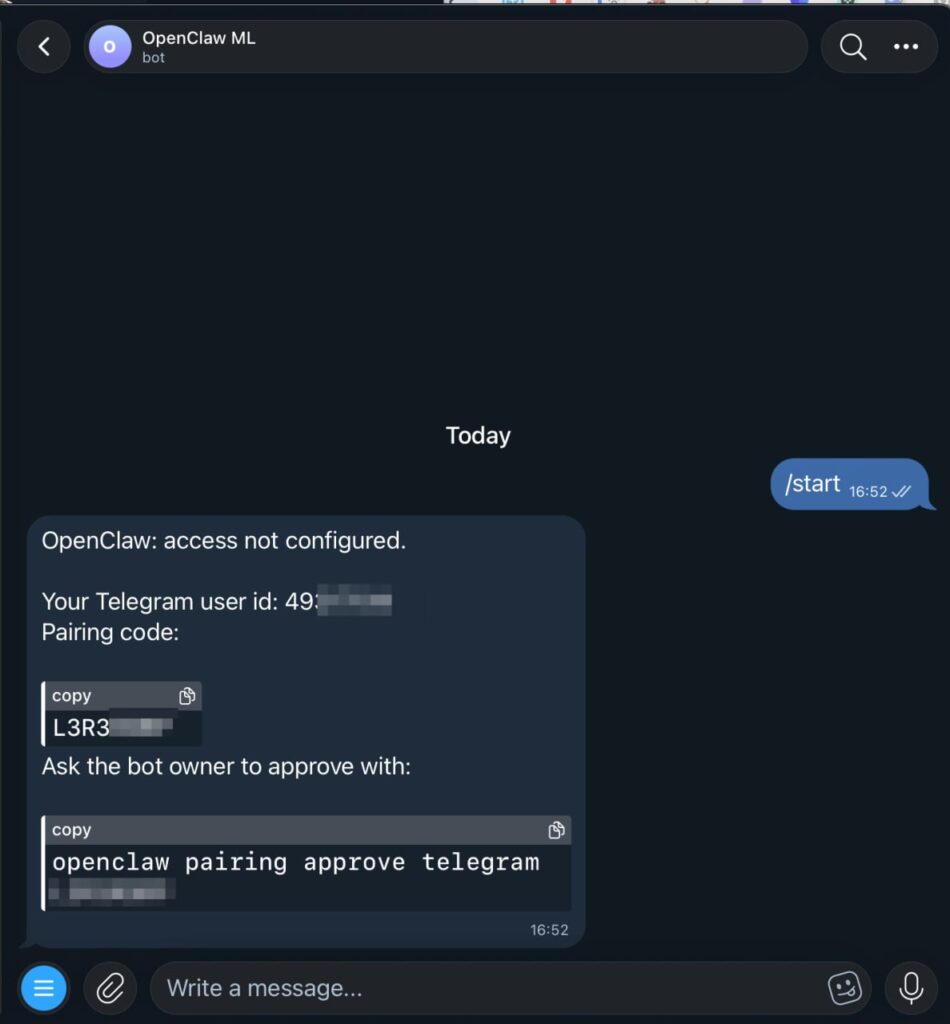
Send any message to your new bot. This creates a pairing request.
Approve it on your computer:
openclaw pairing list telegram
openclaw pairing approve telegram <CODE>
From now on the bot answers only you. More details are in the OpenClaw Telegram guide.
Step 3. Connect a language model
OpenClaw needs a model to think with. In this guide we use OpenRouter: one API key gives access to many models, and you pay only for what you use.
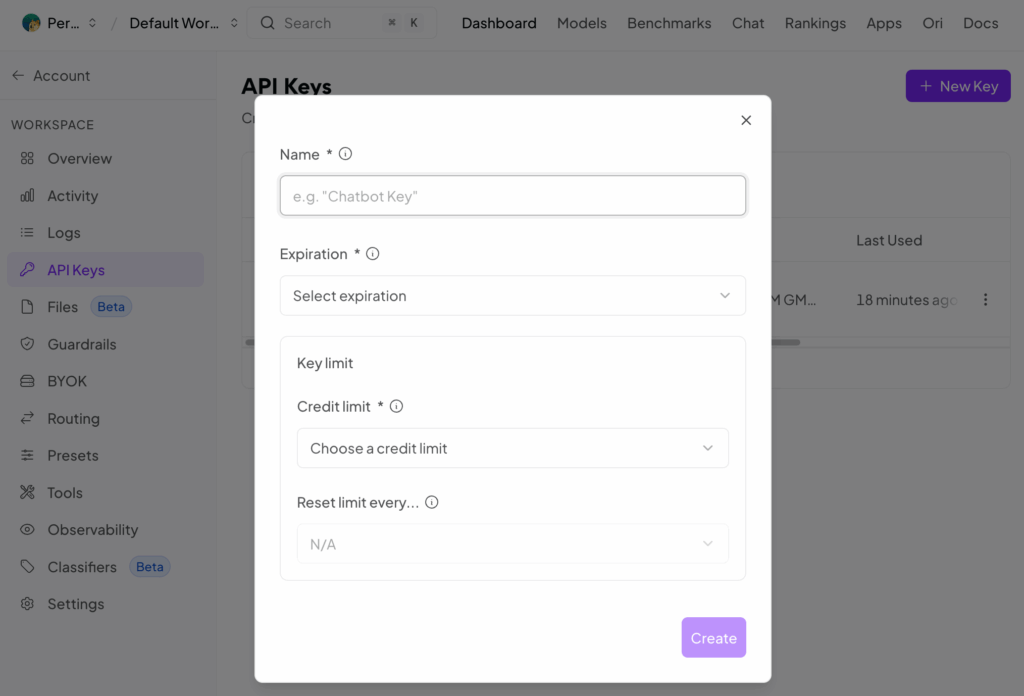
Create an account on OpenRouter, add a few dollars of credits and create an API key on the Keys page.
Run the configuration wizard, choose OpenRouter as the provider and paste the key:
openclaw configure
Set the model and check the result:
openclaw models set openrouter/auto
openclaw models status
OpenRouter is only one option. OpenClaw also works with OpenAI and Google Gemini API keys, with sign-in through your existing ChatGPT or Claude subscription, and with local models running on your own machine. See the full list in the OpenClaw provider directory.
Step 4. Check that the bot answers
Write something simple to your bot in Telegram, for example:
Hello! Which model are you running on?
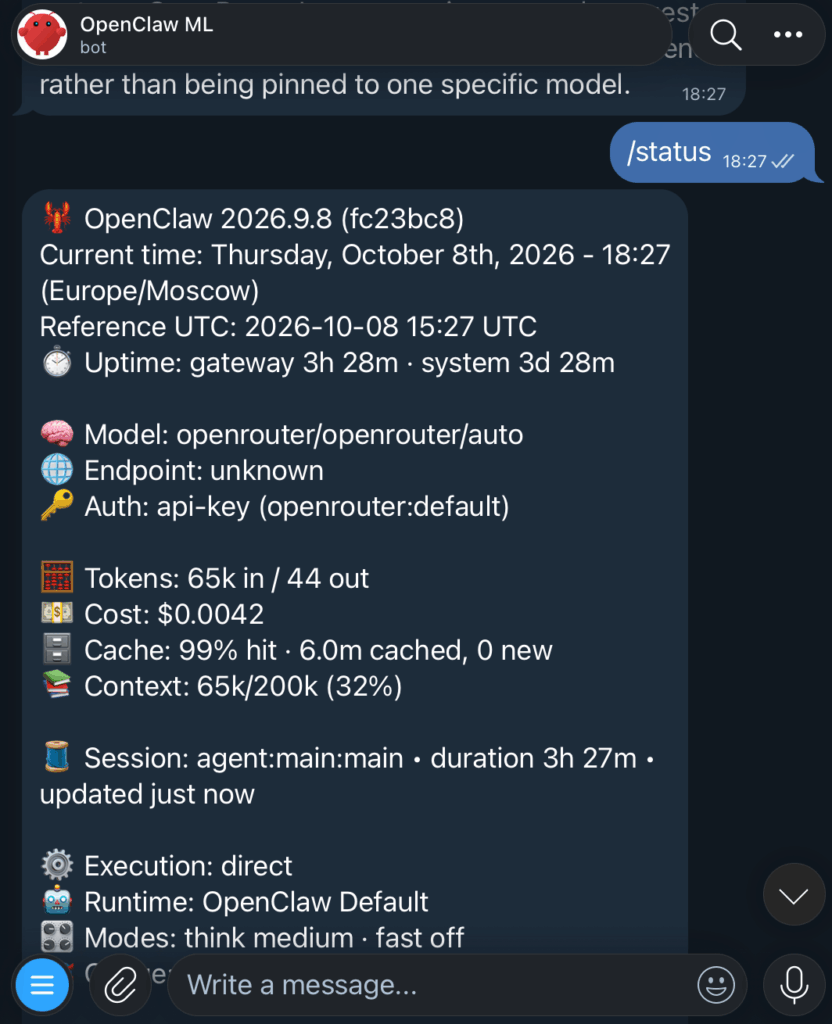
If you get a reply, the chain Telegram → OpenClaw → model works. Two chat commands are useful from here on: /new starts a fresh conversation, and /status shows the current model and usage.
Step 5. Install Multilogin and log in to the CLI
Create a Multilogin account, then download the desktop app, install it and sign in.
The app comes with a command-line tool called xcli. Open PowerShell, go to its folder and log in with your Multilogin email and password:
cd C:\Users\User\mlx\deps\cli
.\xcli.exe login --username "your email" --password "your password"
Make sure it works. This command shows how many cloud phone minutes you have left:
.\xcli.exe mobile-profiles-limit
Actions inside a phone, such as installing an app or copying files, go through ADB, the standard tool for controlling Android devices. You do not need to install it yourself: the agent will check for it and set it up in the next step.
Replace User in the paths with your own Windows user name. If you are new to the CLI, start with How to start working with CLI, and keep the Multilogin CLI command reference at hand: it lists every command for browser profiles, cloud phones and proxies. Cloud phone commands are explained in How to use CLI commands for cloud phones, and ADB access in How to use ADB with cloud phones using CLI.
Step 6. Skills: use the official ones or write your own
A skill is a text file that tells the agent which commands exist and how to use them. Multilogin offers ready-made tools you can start from:
- The official Multilogin skill on ClawHub connects OpenClaw to the Multilogin CLI. It covers browser profiles, cloud phones, proxies, apps, files and ADB access. Setup is described in the help article How to use OpenClaw skill for Multilogin.
- The Multilogin cloud phone agent toolkit on GitHub is an open example for any AI agent. It starts a cloud phone, connects over ADB, lets the agent look at the screen, tap and type, and always stops the phone at the end.
Install the official skill with one command:
openclaw skills install @multilogincom/multilogin
We also encourage you to experiment and write a skill for your own workflow.
You do not have to write it by hand: a modern model can read the CLI help on your computer and produce a working skill from a short description of what you need.
Our example
In our case we wanted three things: create cloud phones with US proxies, install an app from a file, and upload images to the phone gallery. We made a work folder with two subfolders:
C:\Users\User\mlx-work\apk         (the WhatsApp install file)
C:\Users\User\mlx-work\creatives   (the photos to upload)
Then we asked the agent to write the skill itself. Send this to your bot:
Create a skill named multilogin-cloud-phones for managing Multilogin cloud phones on this PC. The Multilogin app is running and I am already logged in to xcli. Do not ask for passwords.

1. Find xcli.exe in C:\Users\User\mlx\deps\cli and read --help for all mobile-profiles-, mobile-phone- and proxy- commands. Check that adb works.
2. Write the skill with the exact commands you found. It must cover: check remaining minutes, get a proxy, create phones, start and stop phones, install packages from C:\Users\User\mlx-work\apk over adb, upload files from C:\Users\User\mlx-work\creatives to the phone gallery over adb.
3. Rules for the skill:
- Keep a list of the phones you create and work only with them. Never touch other phones in the workspace.
- One proxy per phone: call proxy-get for each phone and never print proxy details in chat.
- Install apps only over adb. Never use mobile-profiles-app-install, it installs on every phone in the workspace.
- Before every adb action run "shell glogin" with the password from mobile-profiles-adb-info.
- Create /sdcard/DCIM/Camera before uploading, then run a media scan and verify the files.
- Phones are billed per minute: always stop every phone you started.
- Report after each stage.
4. Save the skill, then show me where it is and a short summary.
When the agent reports that the skill is saved, restart the Gateway and start a new chat with /new:
openclaw gateway restart
Step 7. Run it from Telegram, one step at a time
Now the fun part. We recommend giving the agent one task per message: it is easier to check each result, and a mistake in one step does not affect the others.
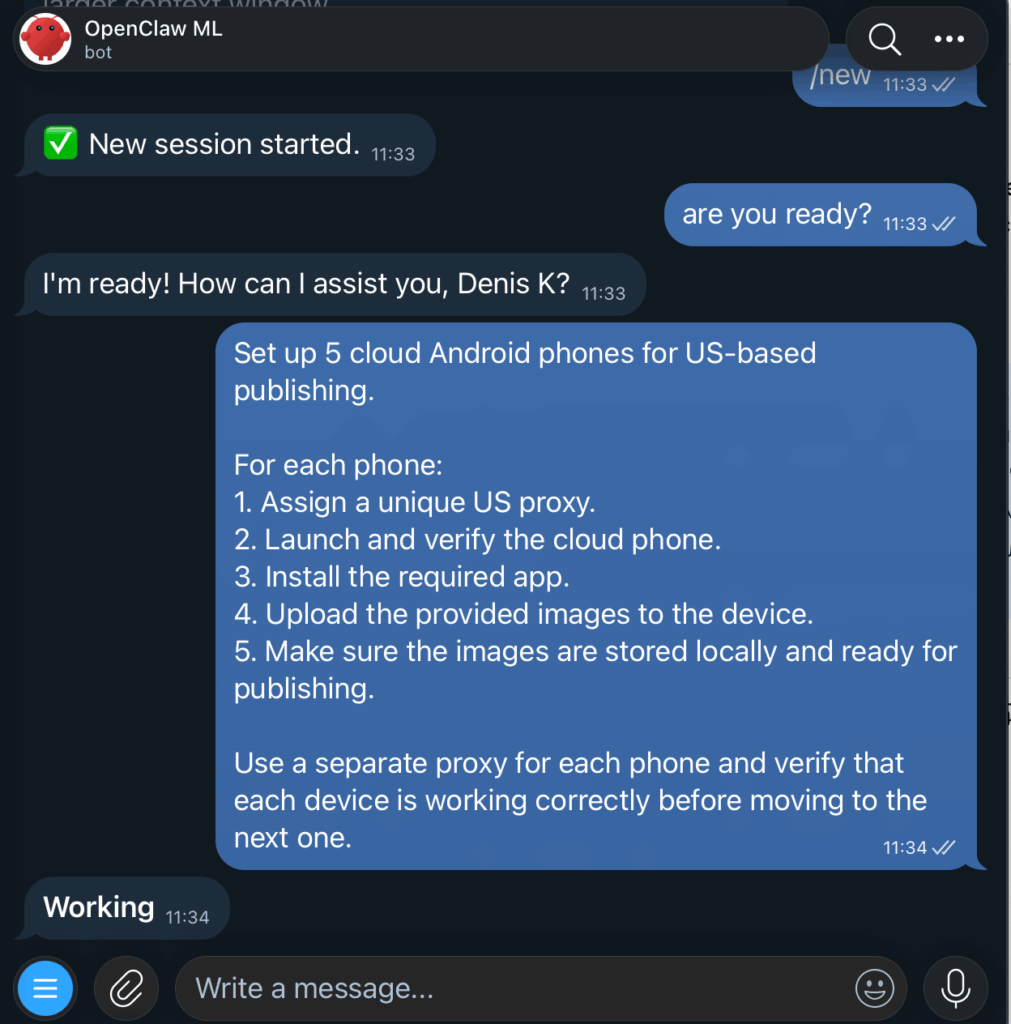
1. Create the phones
Use the multilogin-cloud-phones skill. Create 5 cloud phones on Android 14, each with its own Multilogin sticky proxy from the United States. Name them US-01 to US-05. Do not start them. Send me a table with their names and IDs.
Result: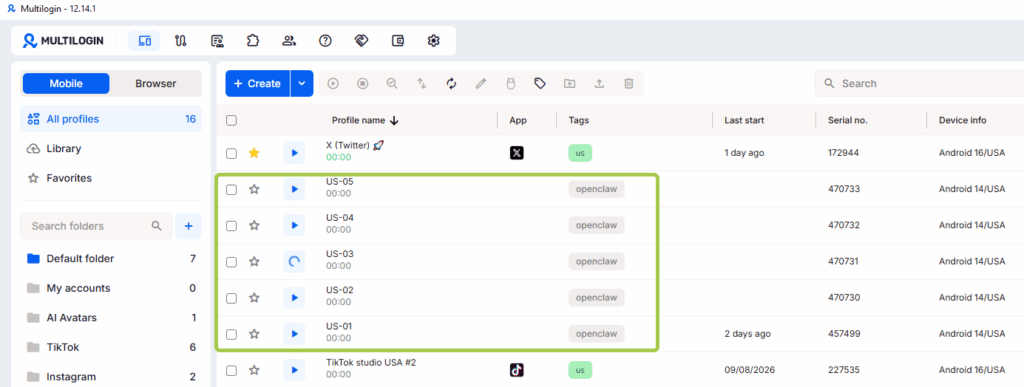
2. Install the app
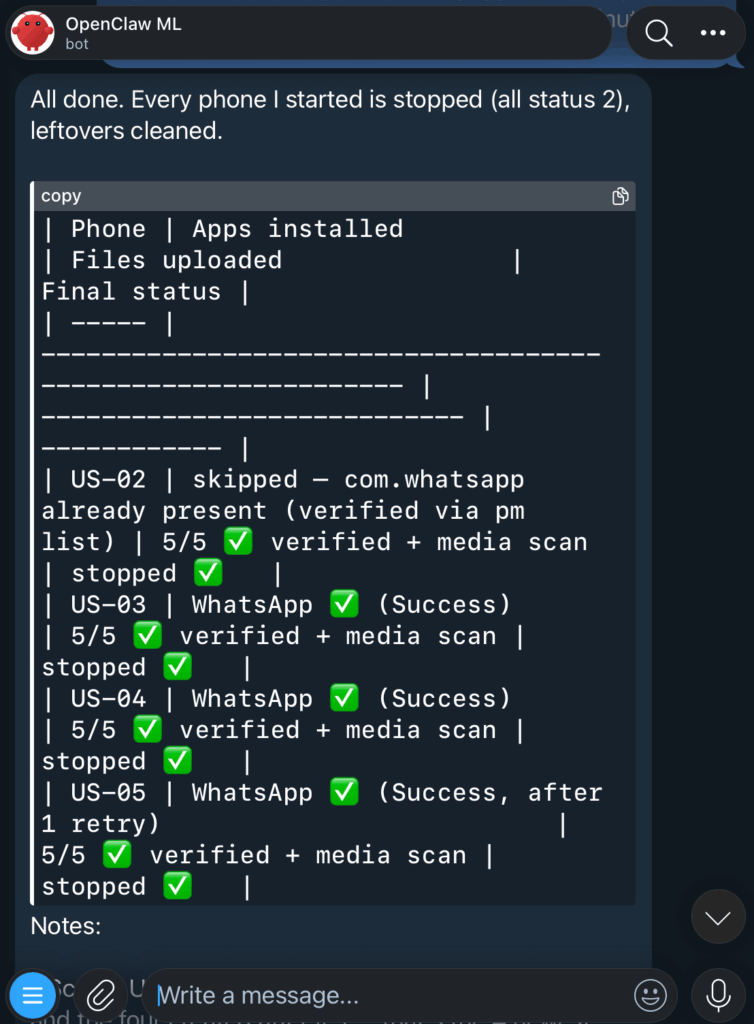
Use the multilogin-cloud-phones skill. Install the package from the apk folder on phones US-01 to US-05, one phone at a time. Verify that it is installed, then stop each phone.
Result: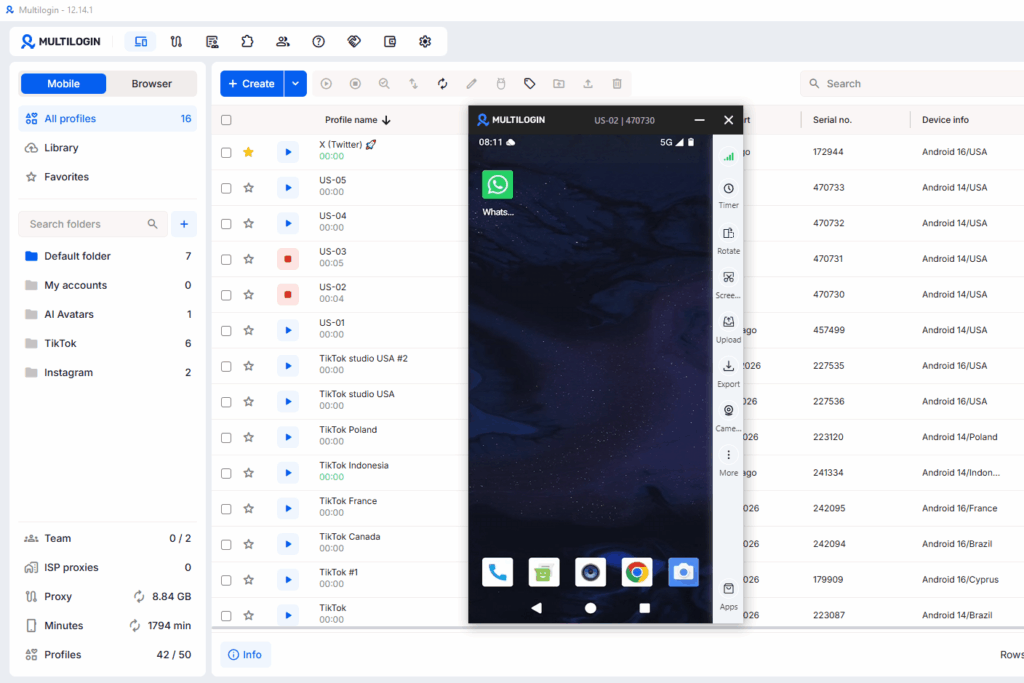
3. Upload the photos
Use the multilogin-cloud-phones skill. Upload all files from the creatives folder to the gallery of phones US-01 to US-05, one phone at a time. Verify the file count, then stop each phone.
Result: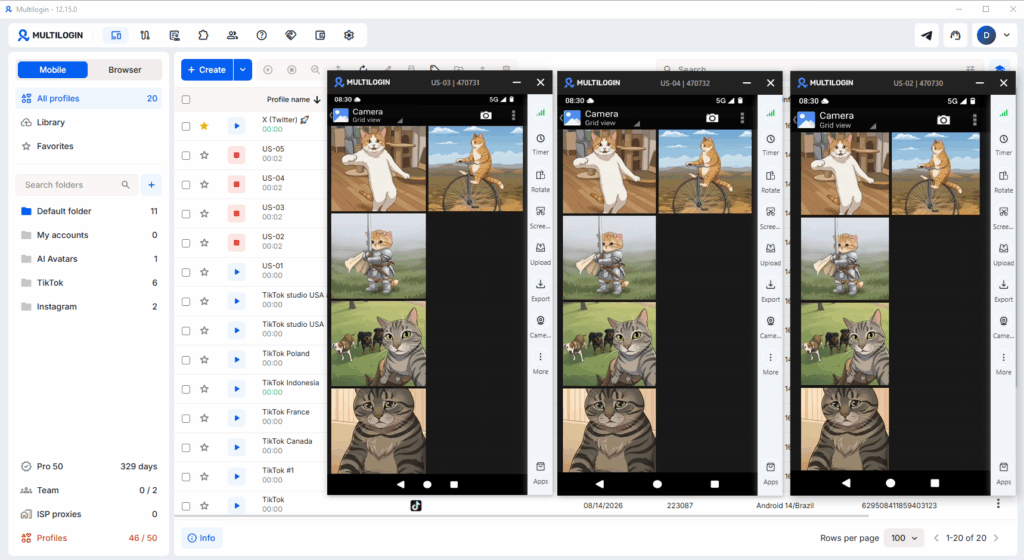
A few things that are good to know:
- Minutes. Cloud phones are billed per minute while they run, so make sure every task ends with stopping the phones.
- Phone limit. Your plan has a limit on the number of cloud phones. If creation fails, free up a slot by deleting a phone you no longer need.
- Passwords. Type your Multilogin password only in PowerShell, never in the chat with the bot.
- Approvals. OpenClaw asks before running commands. Read what it wants to run, then approve.
The result
That is all. I started the phones in the Multilogin app and saw exactly what I asked for: the correct US proxies, the photos in the gallery, and WhatsApp installed and ready to open.