
Step 1: Create a cloud phone for the YouTube channel
- Open the Multilogin dashboard, go to Mobile and click Create.
- Choose the country or region where the channel’s audience is. Cloud phones always run through a proxy, and the built-in one is matched to the location you pick.
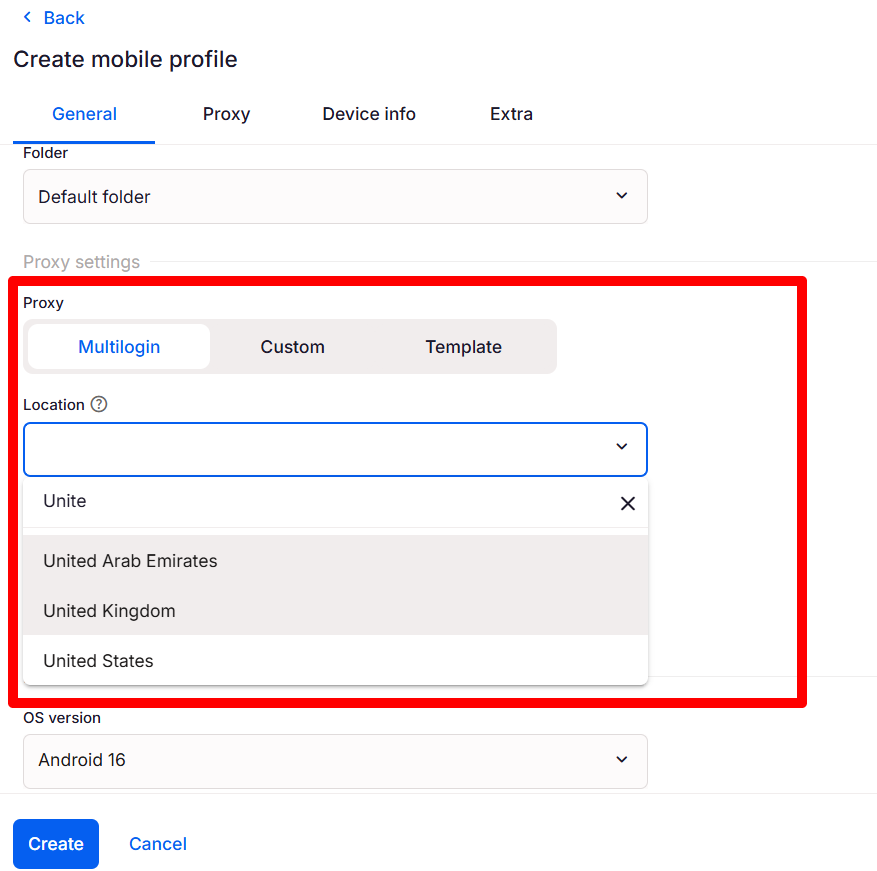
- Select an Android version and a device model.
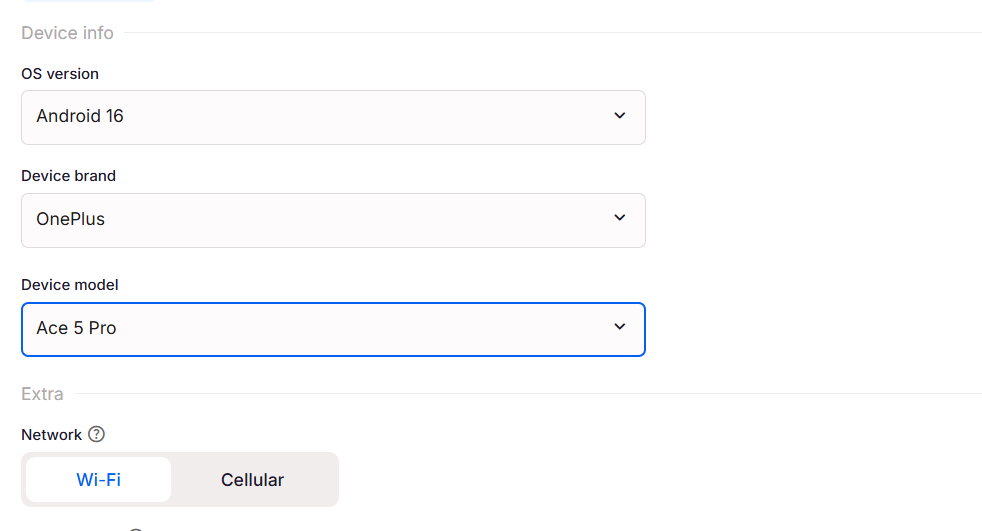
- Name the cloud phone after the channel and the owner, for example YT Mobile | Recipes BR | Client A. Skip names like “Phone 3”; they stop meaning anything once you pass five channels.
- Click Create. The cloud phone is ready in a few seconds.
Tip: Put each client’s cloud phones in their own folder and add a tag for the market. When someone on the team needs the Brazilian recipe channel, they find it by filter instead of opening phones one by one.
Step 2: Install YouTube and YouTube Studio 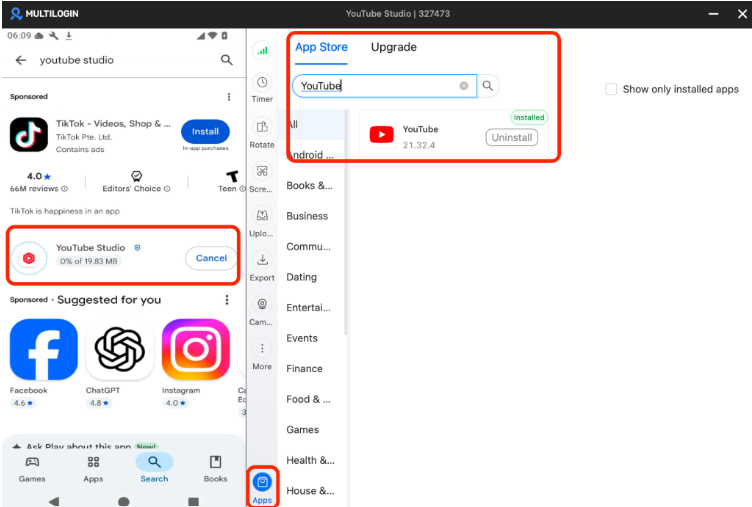
Start the cloud phone. You can install apps two main ways: tap Apps in the bottom-right corner, search for the app and tap Install, or sign in to Google and download from Google Play.
The Apps list doesn’t use proxy traffic, which helps if you’re on the free plan’s 200 MB. Install both YouTube and YouTube Studio. The YouTube app handles recording, uploading and replying from the viewer side; the Studio app covers titles, descriptions, visibility, comments and analytics.
Step 3: Sign in with the Google Account for this channel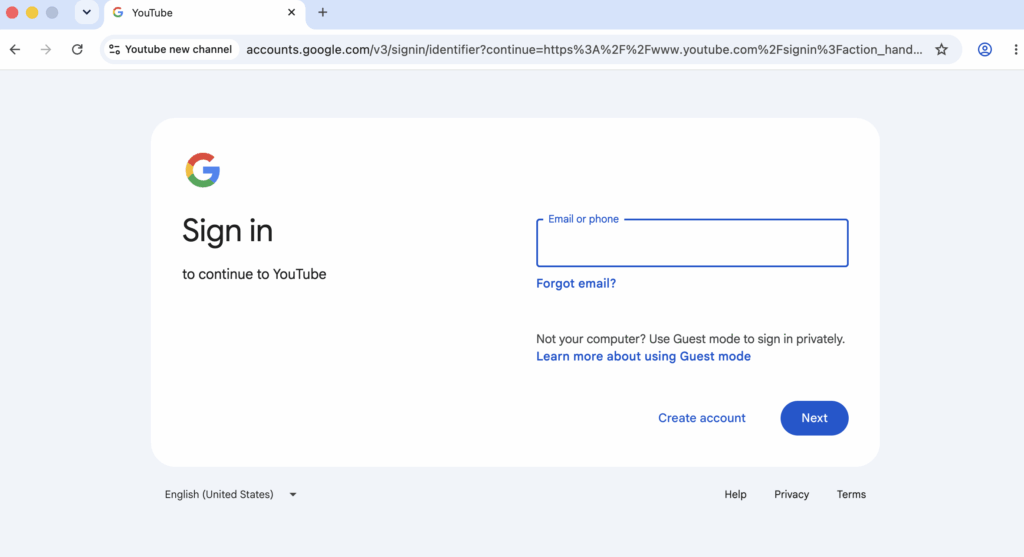
- Open the YouTube app inside the cloud phone.
- Sign in with the Google Account assigned to this cloud phone. If the account is new, create it here, so its first sessions happen in the environment it will keep using.
- Complete any verification Google asks for.
- Open the home feed and check that the right account name appears in the profile menu.
Keep to one Google Account per cloud phone. Adding a second account to the Android settings “just to check something quickly” is how separated setups slowly turn back into shared ones.
Step 4: Create the YouTube channel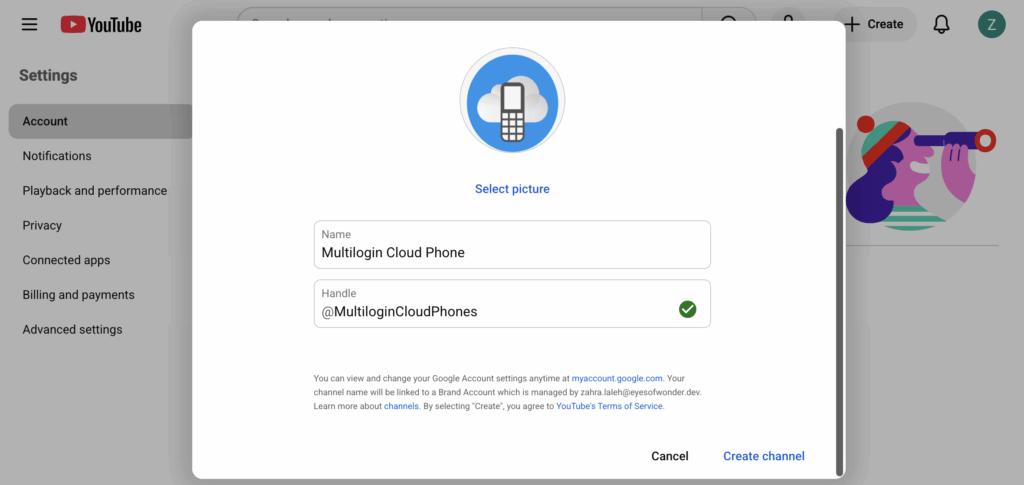
Google documents channel creation on the YouTube website and mobile site: open your channel list, choose Create a new channel, enter a name and click Create channel. That creates a new Brand Account under the signed-in Google Account.
- In the cloud phone, open the YouTube mobile site in the browser, or tap Create in the YouTube app if it prompts you to set up a channel.
- Go to your channel list and choose Create a new channel.
- Add the channel name and handle, then confirm.
- Upload the profile picture and banner, and write the channel description and links.
If you also plan to use desktop YouTube Studio, you can do this step in the matching browser profile instead (see the desktop section below). Either way, the channel ends up tied to the same Google Account and the same region.
Step 5: Move your files in and publish the first upload
Use Upload in the right-side menu of the running cloud phone to transfer videos, thumbnails and caption files from your computer. For assets you reuse, such as an intro clip or a watermark, Multilogin’s Library keeps them in shared cloud storage so you can pull them into any cloud phone.
Be careful with reuse across channels, though. YouTube’s spam, deceptive practices and scams policies cover coordinated networks of channels as well as repetitive content, so a shared intro is fine, while posting the same video to five channels is not.
Before the first upload, give the channel a normal session or two: watch videos in its niche, subscribe to a few relevant creators and finish the About section. Then tap Create in the YouTube app, pick the video and fill in the title, description, audience and visibility.
Step 6: Repeat for every new YouTube channel
For each new channel, create a new Google Account and a new cloud phone, then repeat steps 1 to 5. Leave existing cloud phones alone. Growing the setup means adding environments, never stacking more logins into one.
As the list gets longer, keep an account map. It can live in a simple spreadsheet:
Cloud phone | Google Account | Channel(s) | Region | Who works on it | Browser profile |
YT Mobile | Recipes BR | Client A | Client A account 1 | Receitas da Casa | Brazil | Uploader, community manager | YT Studio | Recipes BR |
YT Mobile | Tech US | Client B | Client B account 1 | Bench Notes, Bench Notes Shorts | United States | Editor | YT Studio | Tech US |
YT Mobile | Agency brand | Agency account | Agency channel | United States | Social media lead | YT Studio | Agency |
The second row shows the Brand Account exception: two closely related channels for the same client, under one Google Account, in one cloud phone. Use it only when the channels are meant to stay connected.
Add a browser profile for desktop YouTube Studio
Some YouTube work is easier on a big screen: detailed analytics, monetization settings, channel permissions, bulk edits to titles and descriptions, and long video descriptions with timestamps. For that, pair each cloud phone with a Multilogin browser profile signed in to the same Google Account.
- In Multilogin, click Create to add a browser profile.
- Name it to match the cloud phone, for example YT Studio | Recipes BR.
- Choose the same proxy location as the cloud phone, so the Google Account always appears from one region.
- Optionally, right-click the profile and choose Run Cookie Robot to build some browsing history first. Add sites related to the channel’s niche and market, plus youtube.com.
- Launch the profile, go to studio.youtube.com and sign in with the same Google Account.
From then on, desktop work for that channel happens only in this profile, and mobile work only in its cloud phone.
Read more on our step-by-step guide to YouTube Studio desktop login.
Managing YouTube channels with a team
Team access works on two layers. Multilogin decides who can open which cloud phone or browser profile. YouTube decides what each person can do inside the channel, through Brand Account and YouTube Studio permissions.
In practice, an agency might share a client’s cloud phone with the uploader, share the browser profile with the analyst and give both of them a manager role in YouTube, while ownership stays with the client. Nobody needs the owner’s password, and when someone leaves the team, you remove their access in both places without touching the channel itself.
Habits that keep multiple YouTube channels stable
Give each channel its own content. Separate niches, separate uploads, separate scripts. Channels you control shouldn’t comment on, like or promote each other to manufacture engagement.
Keep sessions persistent. You don’t need to reset the cloud phone, clear app data or reinstall YouTube between sessions. Do that only when you’re troubleshooting.
Stay in one region per account. If a channel targets Brazil, its cloud phone and browser profile both connect from Brazil, every time.
Stop the cloud phone when you’re done. Mobile minutes are counted while a cloud phone is running. Stopping it keeps the apps, files and login in place for the next session.
Ramp up gradually. A new channel that posts ten Shorts on day one looks different from one that builds a posting rhythm over a few weeks.
What to do if one YouTube channel gets a warning
Because every channel has its own Google Account and environment, a verification prompt or a policy warning on one channel stays contained. Check that channel first, before changing anything else:
- Which cloud phone and browser profile is this Google Account assigned to?
- Was the account ever opened from a different environment or region?
- Was the cloud phone reset, or YouTube reinstalled, recently?
- Did posting frequency or content type change suddenly?
- Is the recovery email or phone number on the Google Account still valid?
Fix the issue inside that channel’s own environment and leave the others untouched. If YouTube removes a channel, use the official appeal process. Opening new channels to get around a termination breaks YouTube’s rules, and a separate environment doesn’t change that.
One YouTube channel, one clear home
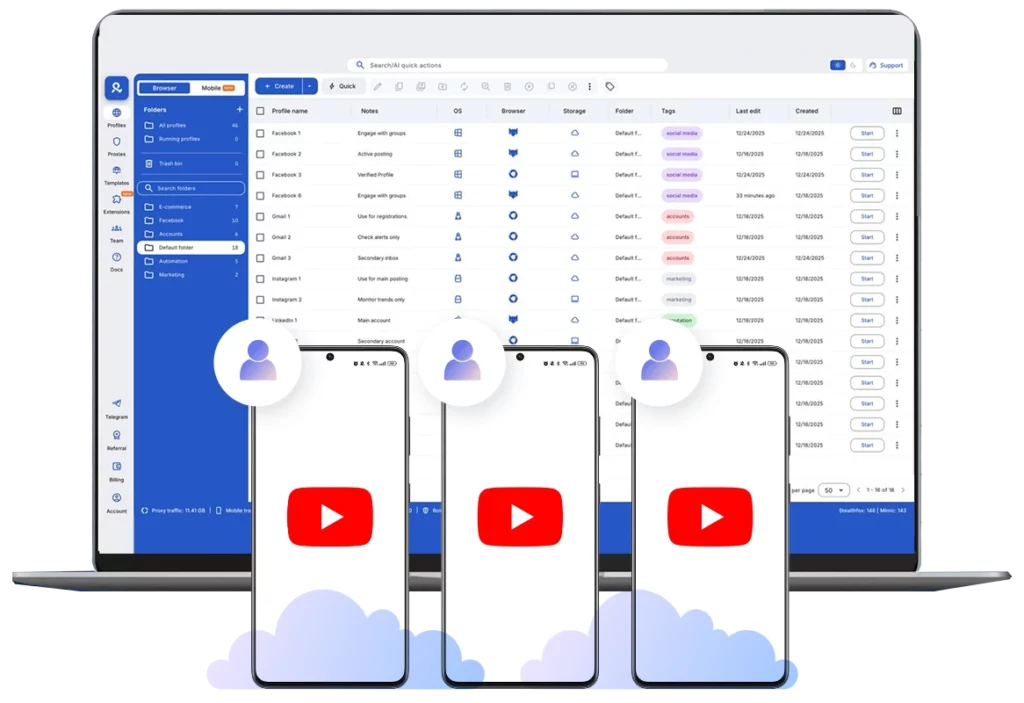
YouTube makes it easy to create multiple YouTube channels. Keeping them organized as clients, markets and team members pile up is the part that takes structure. Give each channel its own Google Account, and Multilogin gives each one its own Android cloud phone for mobile work and its own browser profile for desktop YouTube Studio.
Start with the free plan to set up your first channel environment, then see what else a cloud phone for YouTube can handle, from uploads to team access.
Once the channels are running, the next job is growing them. Our guide on how to promote your YouTube channel covers free, paid and cross-platform methods.