



How to manage Twitter accounts with Multilogin Cloud Phones Mobile Setup
Browser profiles are great for desktop workflows, but Twitter is still a mobile-first platform. With Mobile Multilogin cloud phones, every account has its own real Android environment in the cloud.
A lot of account stuff seems more natural on mobile:
- using the Twitter/X app
- receiving app notifications and checking direct messages
- posting from mobile
- editing profiles in the app
- managing accounts while away from a desktop workflow
You can add multiple Twitter accounts to one app on a regular phone, but that doesn’t create separate environments.
To understand cloud phones and how they work, check out our guide on Multilogin cloud phones as real Android devices in the cloud.
Step 1: Add a Cloud Phone
1. Go to Mobile dashboard and click Create.
2. Choose the country or region where you registered from using the browser profile.
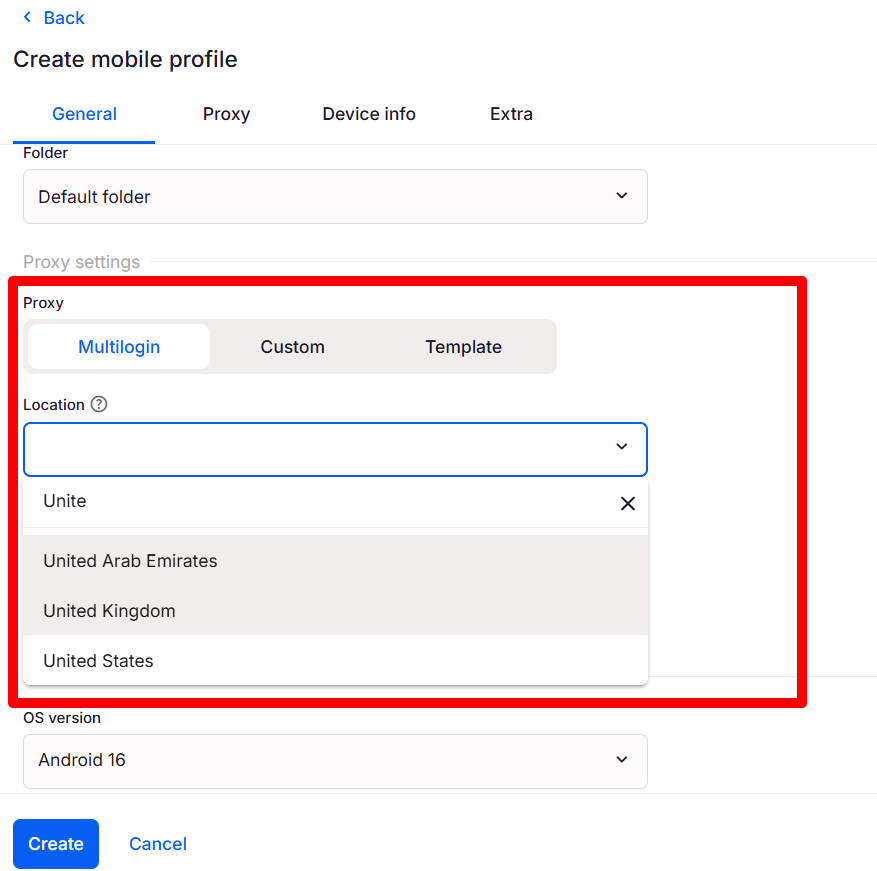
3. Select an Android device model from the given options
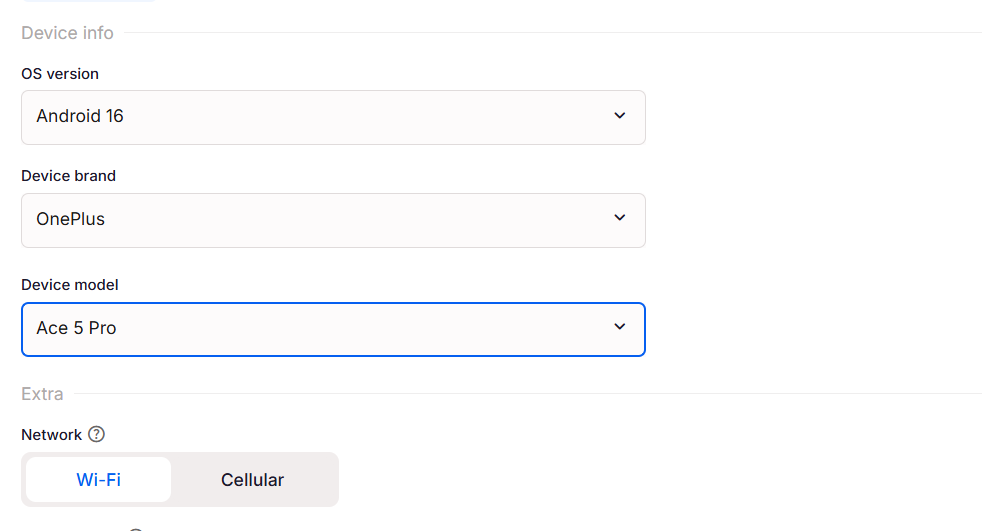
4. Clearly name the profile clearly, e.g.:
- Twitter Mobile – Brand US
- Twitter Mobile – Client A
5. Click Create. The cloud phone will be ready in a few seconds.
Tip: When managing the same Twitter account, please use the same regional setting for the browser profile and cloud phone. Where environments are consistent there is less need to check for verification prompts.
Step 2: Install the X app
1. Launch the cloud phone from your Multilogin dashboard.
2. Open the built-in app store inside the cloud phone.
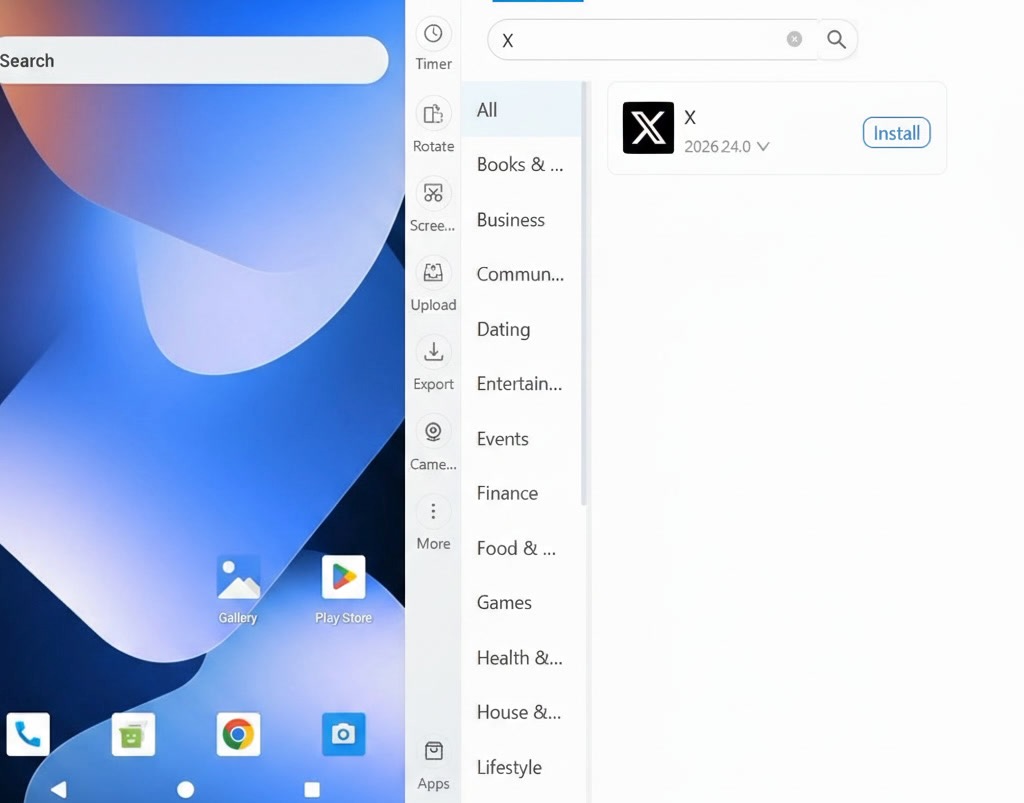
3. Search for X and install the app.
4. Wait for the installation to finish and continue.
Why does the native X app matter? Because mobile accounts create app-level history. The account’s mobile behavior, app storage, notifications and session data are kept in the Multilogin cloud phone — not to be mixed with other accounts on a physical device.
Step 3: Launch and sign in
- Open the X app inside the cloud phone.
- Tap Log in and enter the credentials for the account assigned to this profile.
- If asked, complete any verification steps.
- Verify account is fully active
Stick to the rule: one Twitter account per cloud phone. Do not log into another account from the same environment, not even for a second.
Tip: Avoid heavy account activity immediately after logging in. Only do basic usage: Open the home feed, browse a few posts, check account settings, and follow relevant topics/accounts if appropriate. This gives the account the appearance of a real mobile session history within the cloud phone.
Step 4: Repeat This For Each New Account
If you want another Twitter account on mobile, set up a new cloud phone and follow the above steps. Existing accounts should be left untouched in their own environments. Scale your setup by creating new environments rather than re-using existing ones for multiple accounts.
Tip: Make a simple account map that shows what cloud phone maps to what Twitter account. This will reduce confusion as your list of accounts grows and also make troubleshooting more effective.
Practical Tips for Stable Twitter Account Management
- Warm up new accounts before heavy activity. Don’t jump straight in with frequent posting, replying or other high-volume activity. Follow relevant accounts and interact naturally for a while before ramping up your activity.
- Keep behavior consistent inside each profile. Try to log in to the account from the same environment each time. Try to keep session lengths fairly consistent. Try to avoid sudden changes in activity. Each browser profile or cloud phone accumulates its own usage history over time.
- Keep accounts separate. Avoid using accounts under your control to interact with each other in ways that create artificial engagement. Each account should have its own audience, content, and activity patterns.
- Make sessions persistent. In general, you don’t need to clear app data, reset the environment, or reinstall the X app unless you are troubleshooting. Maintaining the same environment over time helps keep the account continuous.
What To Do If One Account Has an Issue
If one Twitter account is prompted, asked to verify or restricted, don’t immediately change the whole setup. This allows you to isolate the problem, because each account has its own environment.
Check out:
- To which account is this browser profile connected?
- What cloud phone is associated with the account?
- Did they create the account from a different environment?
- Has the region changed suddenly?
- Was the app reset or reinstalled?
- Any recent change in account activity?
- Is the verification method still there?
Fix the issue inside that account’s own environment. Don’t move all accounts around, or rebuild every profile at once. That usually makes things more unstable.
The advantage of separating the environment is containment. And one account can be audited without disturbing the rest of the system.
How to Use Multilogin Browser Profiles to Configure Twitter Accounts for Desktop
Before you configure cloud phones, it helps to understand the desktop workflow.
A Multilogin browser profile is an isolated browser environment. Each profile has its own storage, fingerprint, browsing history, cookies and network configuration. This is useful for creating and managing Twitter accounts from a desktop.
Desktop profiles are particularly useful for:
- Set up an account & profile
- Content & analytics research review
- Publish from the web
- Manage your account Team access
- Switch between client or brand accounts
Step 1: Create a New Browser Profile
1. Launch Multilogin and click Create.
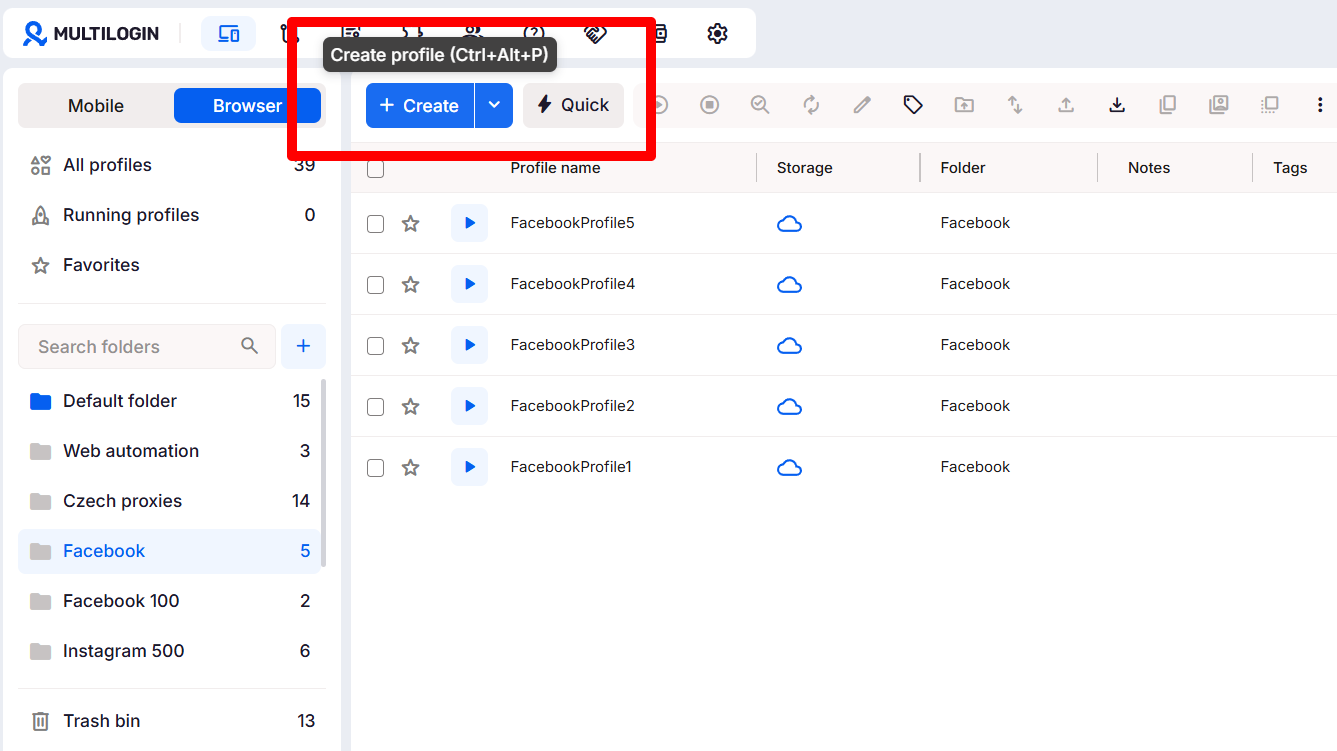
2. Give the profile a clear name. The profile name should tell you exactly which Twitter account belongs there.
Examples:
- Twitter – Brand US – Main
- Twitter – Client A – Support
Don’t use generic names like “Twitter 1,” “Profile 2,” or “New Account.” If you have more than a handful of accounts the names can get confusing.
3. Choose a proxy location that matches the region expected for the account.
If the account is for the United States, then use a US-based setup. If the account is for Germany, then the profile location, language and context of content should be consistent with Germany.
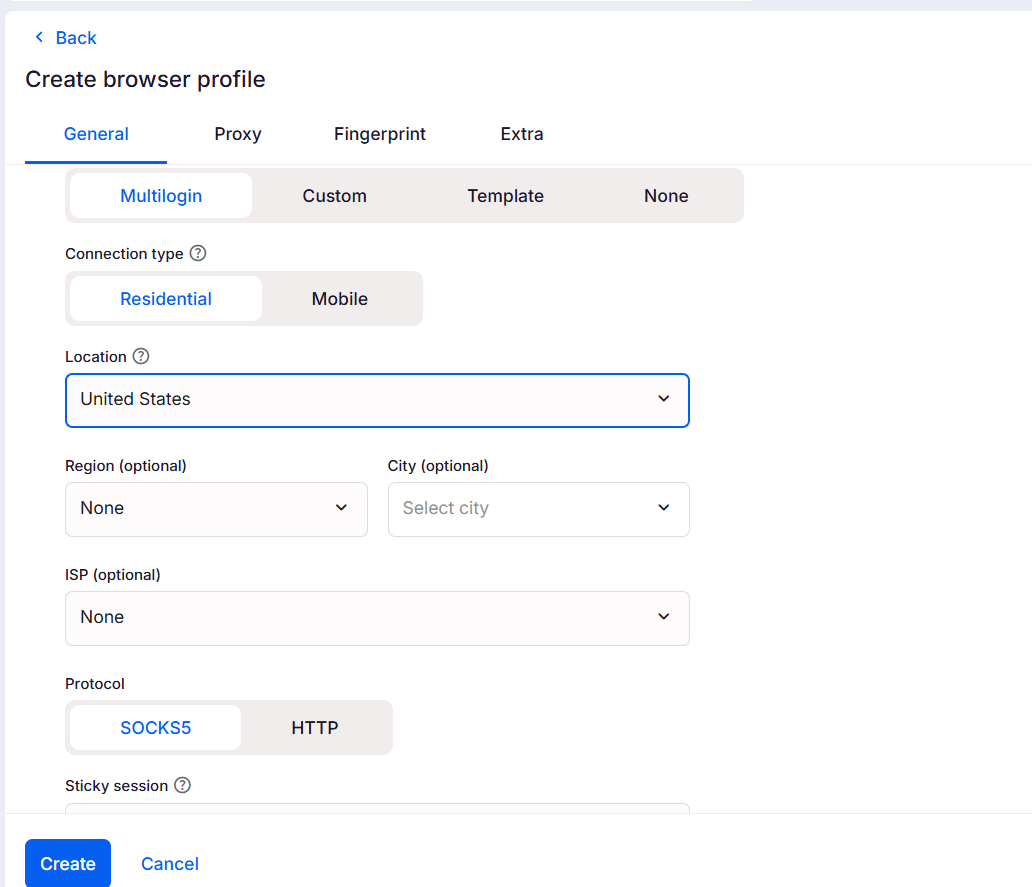
4. Save the profile.
One profile per account. Once you have the same profile for two accounts, X starts to link them.
Tip: Select the proxy location based on the target language, market, and content strategy of the account. Keeping the location, language and usage patterns consistent helps to maintain a consistent account environment and may reduce unnecessary verification checks.
Step 2: Warm up Profile with Cookie Robot
A brand-new profile with no browsing history can feel blank and artificial.
Create the Twitter account, but first spend some time creating some basic browsing history within the profile. You can do it manually or use Multilogin’s Cookie Robot to automate warming-up process.
How to use Cookie Robot:
1. Right-click the browser profile.
2. Click Run Cookie Robot.
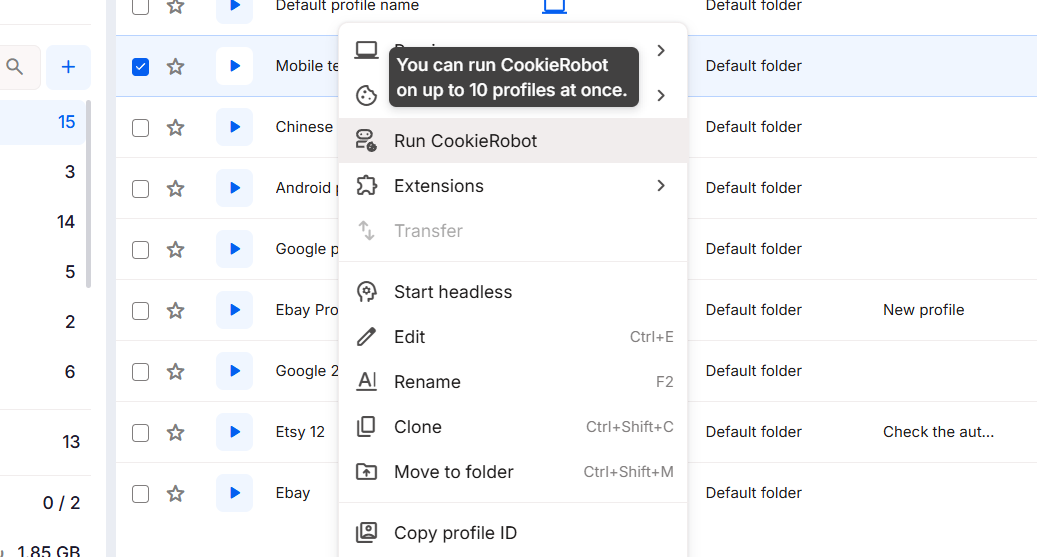
Add sites that are relevant to the account’s topic or location. Add x.com to the browsing list.
3. Let the process run.
4. If you can, do the warmup over more than one session.
For example, if the account is for a tech brand, then include technology websites, SaaS blogs, developer communities, and relevant news sites. If the account is for a regional market, include local websites from that country or language environment.
Tip: Run Cookie Robot at least twice across separate sessions before creating the X account. The goal is to not randomly browse, but to make the profile history consistent with future account.
Step 3: Launch the profile and create the Twitter accounts
1. Launch the browser profile from your Multilogin dashboard
2. Go to x.com inside the profile
3. Click Sign up and register with a new email address.
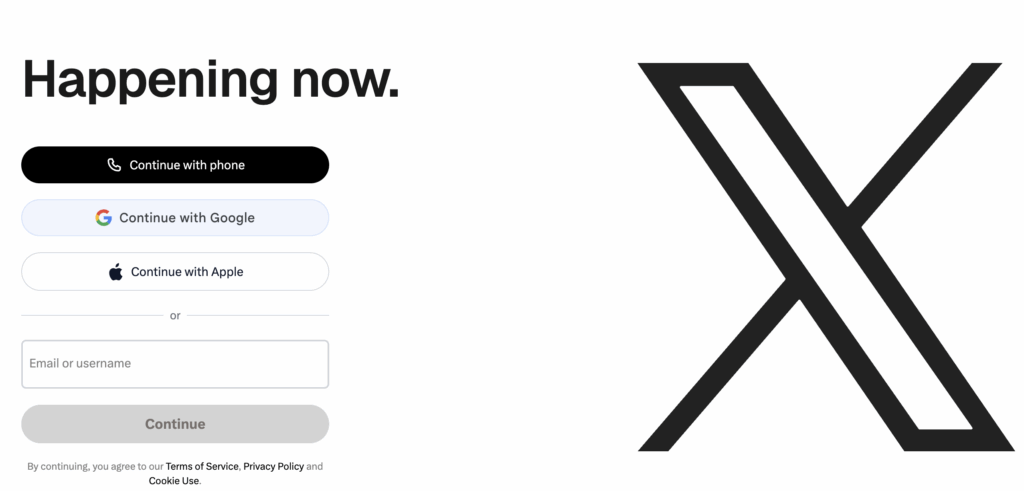
4. Fill out profile: username, interests, basic preferences.
5. Be sure the account is active before you use it.
Don’t sign into another Twitter account from this profile. From now on, always open this account on the same profile. Every time you log in from a different environment you are adding inconsistency and it adds up fast.
Tip: This profile is now the account’s desktop environment. Whenever you need to access this Twitter account from a browser, open this same Multilogin profile.