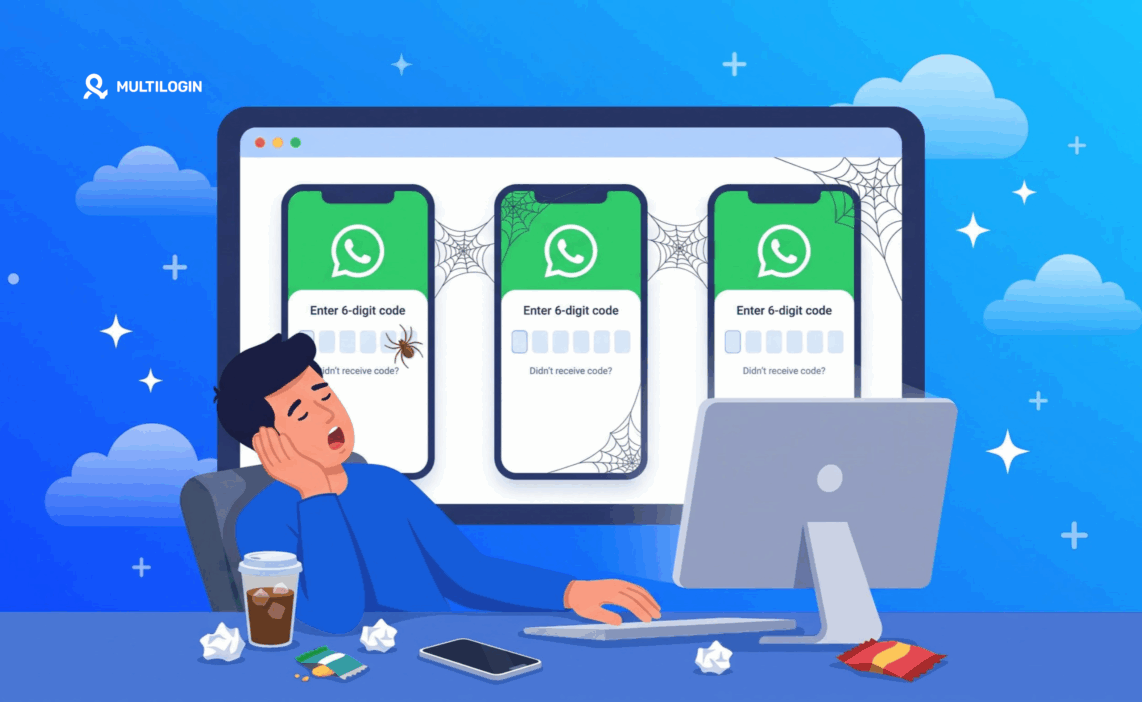



TL;DR: A missing WhatsApp verification code usually comes down to a wrong number format, a SIM that can’t receive SMS, a blocked text or call, a weak network, or too many requests.
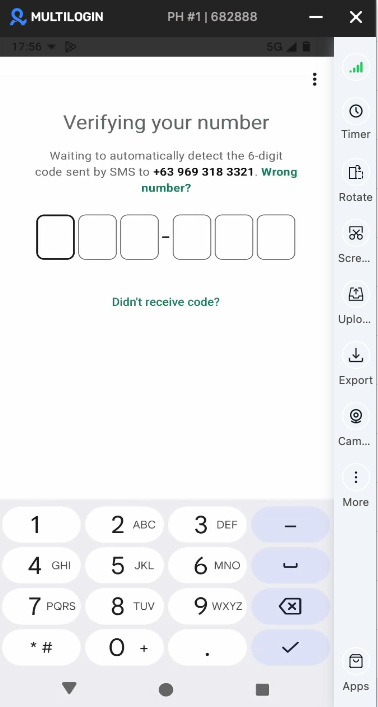
Check the number and the SIM first. Then wait for the timer to end and tap “Call me.” If you’re re-registering and added an email to your account, you can also get the code by email.
Key takeaways
- WhatsApp sends the registration code by SMS or phone call. Email codes only work when you re-register a number that already has an email linked.
- Unsupported numbers, such as VoIP, toll-free, and premium numbers, can’t be registered on WhatsApp.
- Requesting codes again and again can lock you out for a while. One request, one full timer.
- WhatsApp says a code can take up to 24 hours to arrive. After that, call your mobile provider.
How the WhatsApp verification code works
The WhatsApp verification code (also called the registration code) is a 6-digit code that proves you own the number. WhatsApp sends a new one each time you register a number or move to a new device.
You get it in one of three ways:
- SMS: the default option.
- Phone call: an automated voice reads the code after you tap “Call me.”
- Email: only when you re-register a number and an email address is already linked to the account.
Don’t confuse this code with your two-step verification PIN. You choose the PIN yourself, and WhatsApp asks for it after the SMS code when two-step verification is on. WhatsApp never sends the PIN to you.
Why your WhatsApp code is not coming: causes at a glance
| Cause | Typical sign | Fix |
|---|---|---|
| Wrong number format | No SMS, no call, ever | Fix 1 |
| SIM inactive or out of balance | Other texts don’t arrive either | Fix 2 |
| Too many requests | “Guessed too many times” or a long wait | Fix 3 |
| SMS or call blocked | The friend test works, WhatsApp doesn’t | Fix 5 |
| Weak network or roaming | Timer runs, nothing arrives | Fix 6 |
| Unsupported number type | WhatsApp rejects or ignores the number | Fix 8 |
10 fixes for a WhatsApp verification code not received
Work through these in order. The first four solve most cases.
1. Check the country code and number format
WhatsApp needs your number in full international format. Pick your country from the list, then type the number without the leading zero or an exit code like 00 or 011.
For example, a UK number 07700 900123 goes in as +44 7700 900123. One wrong digit sends the code to someone else, or nowhere.
2. Make sure your SIM can receive texts and calls
The SIM for that number must be active and able to receive SMS or calls. Ask a friend to text you. If their message doesn’t arrive, the problem is your line, not WhatsApp.
Common line issues:
- New SIM: some carriers need a first top-up or activation call before SMS works.
- Prepaid balance: WhatsApp notes that prepaid lines need enough credit to receive SMS or calls.
- Dual SIM: check that you entered the number of the SIM that’s actually in the phone.
3. Wait for the timer and stop re-requesting
Request one code and let the countdown run out before you ask again. Tapping “Resend” early doesn’t speed things up.
Repeated requests or wrong entries can trigger a temporary lockout, often with a “You’ve guessed too many times” message. If you see it, wait for the time shown in the app. Retrying during the wait won’t shorten it.
4. Use “Call me” when the SMS doesn’t arrive
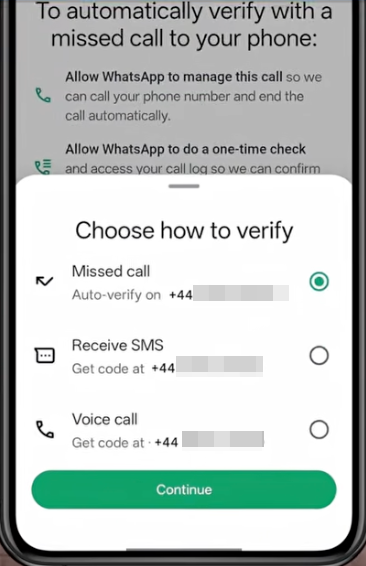
When the timer ends, tap Need help getting a code?, then Call me. An automated voice reads your code.
Keep voicemail on. In most regions, WhatsApp leaves the code in your voicemail if you miss the call. On some Android phones, WhatsApp may also offer to verify automatically with a missed call, which needs access to your call log.
Blocking tools are a frequent cause when the friend test works but WhatsApp’s code doesn’t. WhatsApp names task killers and SMS blockers as apps that can stop the code.
Check these settings:
- iPhone: Settings > Messages > Unknown & Spam (Filter Unknown Senders), and Settings > Phone > Silence Unknown Callers.
- Android: the Messages app’s Spam & blocked folder, plus any caller ID or call-blocking app.
- Both: Do Not Disturb, Focus modes, battery savers, and carrier-level spam filtering.
6. Fix your network connection
Registration needs a working internet connection, and the SMS needs mobile signal. Switch between Wi-Fi and mobile data, or turn Airplane mode on for 10 seconds and off again.
Move somewhere with better coverage if the signal is weak. If you’re abroad, make sure your plan can receive international SMS and calls, and that roaming is on. Roaming may cost extra.
7. Update WhatsApp and restart your phone
An outdated app can fail at registration. Update WhatsApp from the App Store or Google Play, then restart your phone to refresh the SIM and network connection.
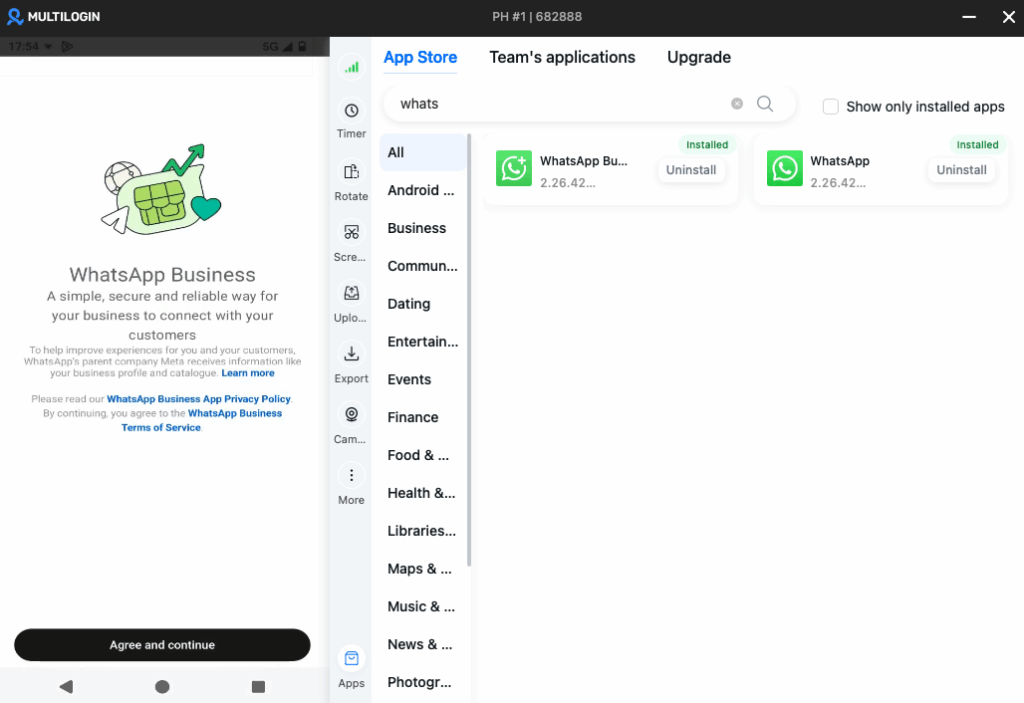
WhatsApp and WhatsApp Business are available in the cloud phone’s built-in app store, so you install them in a few taps, as on a regular Android phone. If you need a specific app version, you can upload its APK instead.
On Android, you can also clear the app cache in Settings > Apps > WhatsApp > Storage. Reinstall only as a last resort, and back up your chats before you do.
8. Check that WhatsApp supports your number type
WhatsApp doesn’t support VoIP, toll-free, paid premium, universal access (UAN), shared-cost, or personal numbers. Many free virtual numbers fall into the VoIP group, so the code never arrives.
Landlines are an exception for business use. You can register a landline in the WhatsApp Business app, which delivers the code by phone call.
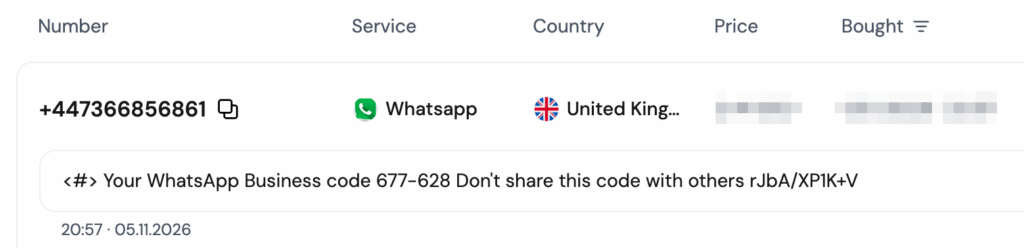
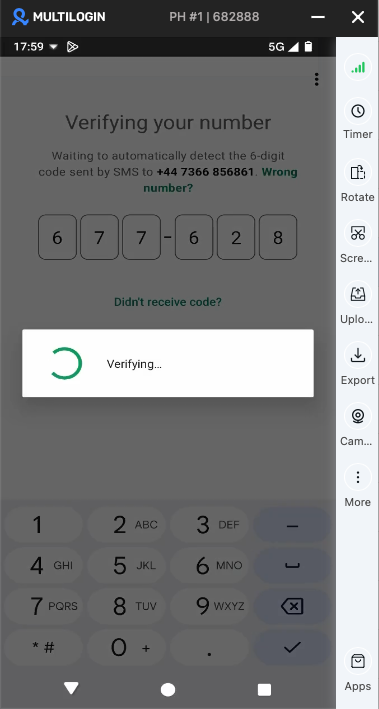
In Multilogin, you verify WhatsApp with a number from an external SMS provider. The code goes to the provider, and you enter it in WhatsApp on the cloud phone.
If you need numbers that pass SMS checks, see our guide to non-VoIP phone numbers for SMS verification.
9. Get the code by email or use a passkey
Email code: if you’re re-registering, WhatsApp can send the code by email. This works only if you added an email address earlier in Settings > Account > Email address, during registration, or when you set up two-step verification.
Passkey: if you created a passkey in Settings > Account > Passkeys, WhatsApp can confirm it’s you with your fingerprint, face, or screen lock in supported sign-in cases. It doesn’t replace verification for a brand-new account.
10. Contact your carrier or WhatsApp support
WhatsApp says codes can take up to 24 hours to arrive. If nothing comes after that, ask your mobile provider whether short-code SMS or international messages are blocked on your line.
If the carrier finds no problem, contact WhatsApp support from the help option on the registration screen. Describe what you tried and any error message you saw.
How to avoid verification problems next time
- Add an email address in Settings > Account so you have a fallback for re-registration.
- Create a passkey on each device you use.
- Turn on two-step verification and store the PIN somewhere safe.
- Keep the SIM active. A prepaid number that lapses can be reassigned to someone else.
- Request codes calmly. One request per timer avoids lockouts.
Managing several WhatsApp accounts? Plan where codes arrive
Teams that run WhatsApp Business desks for different clients or markets hit verification more often, because every account needs its own working number.
Before you add accounts, decide which phone or SIM receives each code. Our guide on running multiple WhatsApp accounts covers the options.
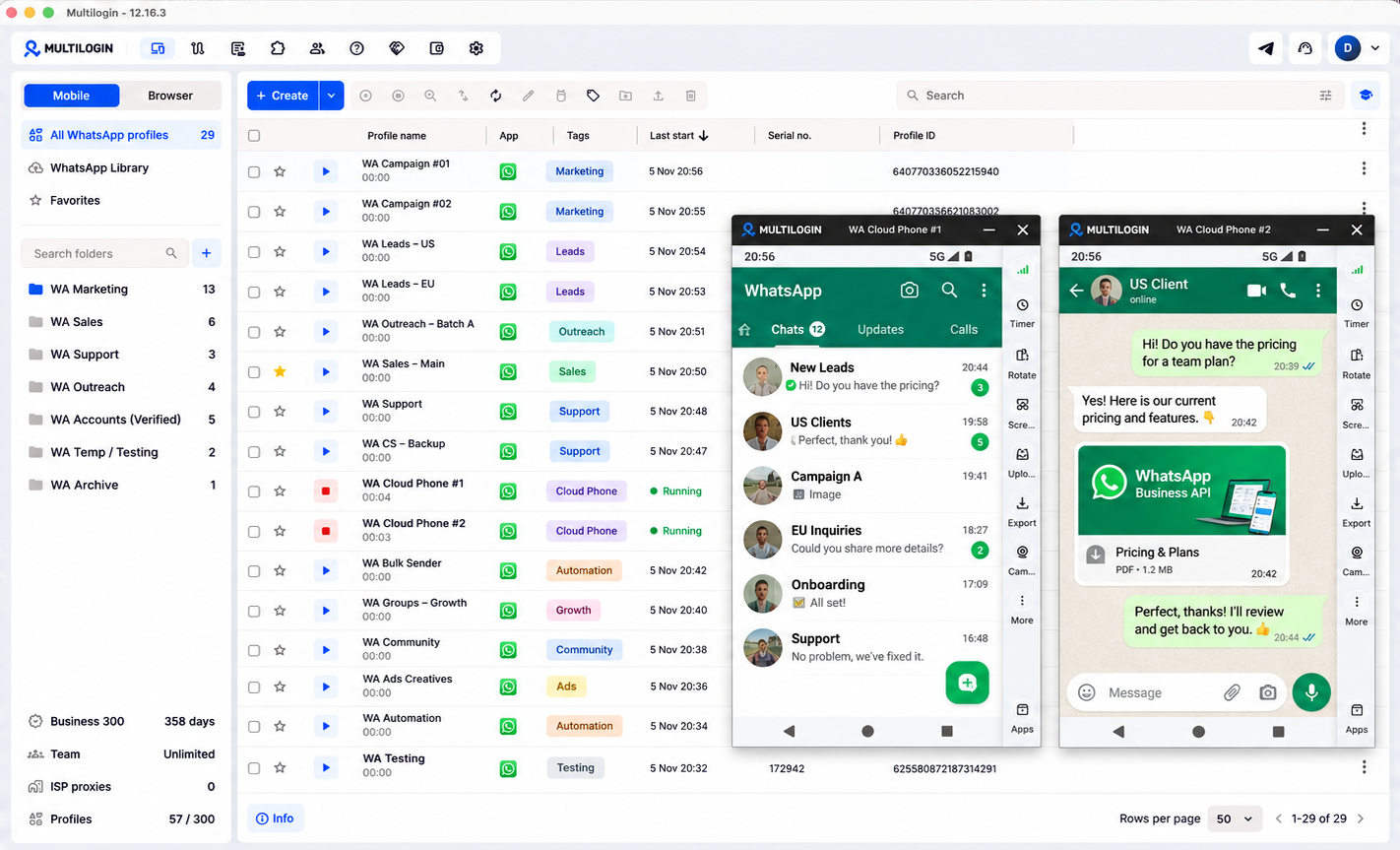
Multilogin is a cloud Android phone platform for multi-account management. Each account can run on its own Multilogin cloud phone: a real Android device in the cloud with separate app data, location, and IP, all managed from one dashboard.
One limit to know: Multilogin cloud phones can’t receive SMS or calls. You still need a phone number that WhatsApp accepts, on your own phone or through an external SMS provider. You receive the code there and enter it in WhatsApp on the cloud phone.
After that, the cloud phone keeps its app data and login history between sessions, so the account stays set up on its own device. Residential proxies and mobile minutes are included in every plan.
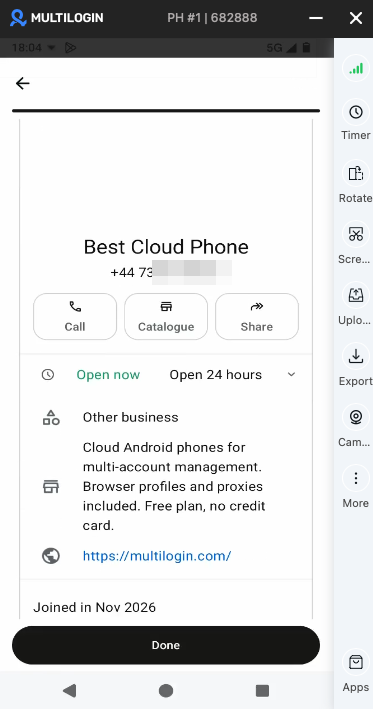
Want to see how it fits your setup? Read about cloud phones for WhatsApp Business or how to create multiple WhatsApp accounts.