


Making a YouTube channel takes a few minutes.
Keeping the correct login, channel owner, team access, content plan, audience setting, and region organized six months later? That is where things usually become interesting. And by “interesting,” we mean someone uploads a client video to the wrong channel at 2 a.m.
This guide explains how to make a YouTube channel step by step in 2026, from choosing the right Google account to setting up YouTube Studio.
You will also learn how to treat each channel as a separate social profile with its own purpose, audience, content style, access rules, and saved working environment.
How do you make a YouTube channel?
To make a YouTube channel:
- Sign in to YouTube with a Google Account.
- Click your profile picture and open Settings.
- Select Add or manage channel(s).
- Click Create a channel.
- Choose a profile picture, channel name, and handle.
- Click Create channel.
- Open YouTube Studio to add your description, banner, links, audience settings, and channel layout.
These are the current official YouTube steps for creating a personal channel. YouTube also provides a separate setup option for channels that use a business or other name and may need multiple managers or owners.
But do not rush to the Create button yet. Five minutes of planning now can prevent months of account confusion later.
Before creating the channel, define its job
A YouTube channel should not begin as “a place where we might post some videos.” Give it a job!
For a creator, the job might be teaching home cooking to busy parents. For an agency, it might be publishing localized product tutorials for a client in Germany. An e-commerce brand may use one channel for product education and another for Shorts aimed at a different market.
Think of the channel as a social profile.
A social profile is an account built around a specific goal, audience, region, content style, and operating process. It may be run by one creator, a team, or an AI-assisted workflow, but its identity and activity should remain consistent.
Complete this short channel profile before setup:
| Channel detail | What to decide |
|---|---|
| Primary goal | Awareness, education, traffic, community, product discovery, or customer support |
| Target viewer | Who should watch and why |
| Main topic | One clear subject area |
| Content formats | Long-form videos, Shorts, live streams, tutorials, reviews, or interviews |
| Region and language | The primary market and publishing language |
| Channel owner | The person or company that should retain long-term ownership |
| Operators | Editors, upload managers, analysts, moderators, or agencies |
| Publishing rhythm | A realistic schedule the team can maintain |
| Success measure | Views, watch time, subscribers, qualified traffic, leads, or sales |
A clear profile gives the channel boundaries. Those boundaries make titles easier to write, playlists easier to build, and performance easier to understand.
Personal channel or business channel: choose before you build
YouTube supports two basic approaches:
1. Personal channel
A personal channel uses the identity connected to your Google Account and is designed to be managed by you.
This can work well when:
- You are an individual creator.
- The channel will use your personal name.
- Nobody else needs ongoing administrative access.
- Ownership is unlikely to move to a company later.
2. Channel with a business or other name
YouTube also lets you create a channel with a different name through a Brand Account. This type of setup can support more than one manager or owner.
It is usually the better starting point when:
- The channel belongs to a company or client.
- Several people will work on it.
- An agency is managing the channel.
- The channel may be transferred to another owner later.
- You do not want its public name tied to your personal Google identity.
One practical rule: ownership should belong to the business that owns the content, not to the temporary employee, freelancer, or agency operating the channel.
People change jobs. Agencies change. Password spreadsheets somehow survive forever.
Set ownership correctly from day one.
How to create a YouTube channel step by step in 2026
Step 0: Set up a dedicated browser profile or cloud phone
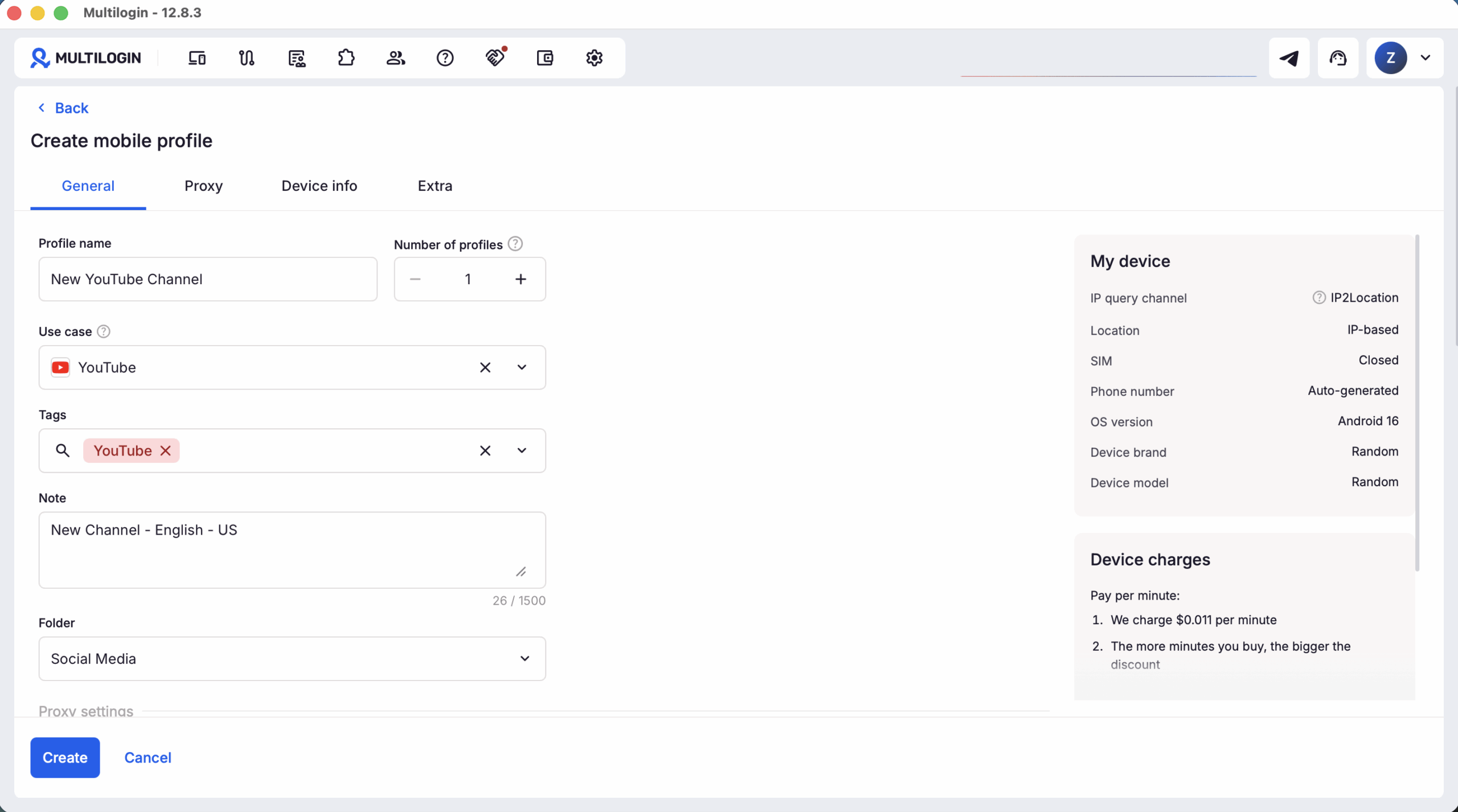
Before creating the channel, prepare a dedicated browser profile or cloud phone for the Google Account you plan to use.
This keeps your YouTube identity separate from your personal accounts, reduces the chance of creating the channel under the wrong Google Account, and makes long-term account management much easierو especially if you manage multiple channels or work with a team.
Step 1: Choose or create the Google Account
You need a Google Account to sign in to YouTube and create a channel. If you already use Gmail or another Google service, you already have one.
For a business channel, avoid automatically using an employee’s personal Gmail account.
Instead, choose an account that:
- The business can retain long term.
- Has current recovery information.
- Uses two-step verification.
- Is documented in the company’s access system.
- Is not shared casually between team members.
The Google Account is the ownership layer. The YouTube channel is the public social profile connected to it.
Those are related, but they are not the same thing.
Step 2: Sign in to YouTube
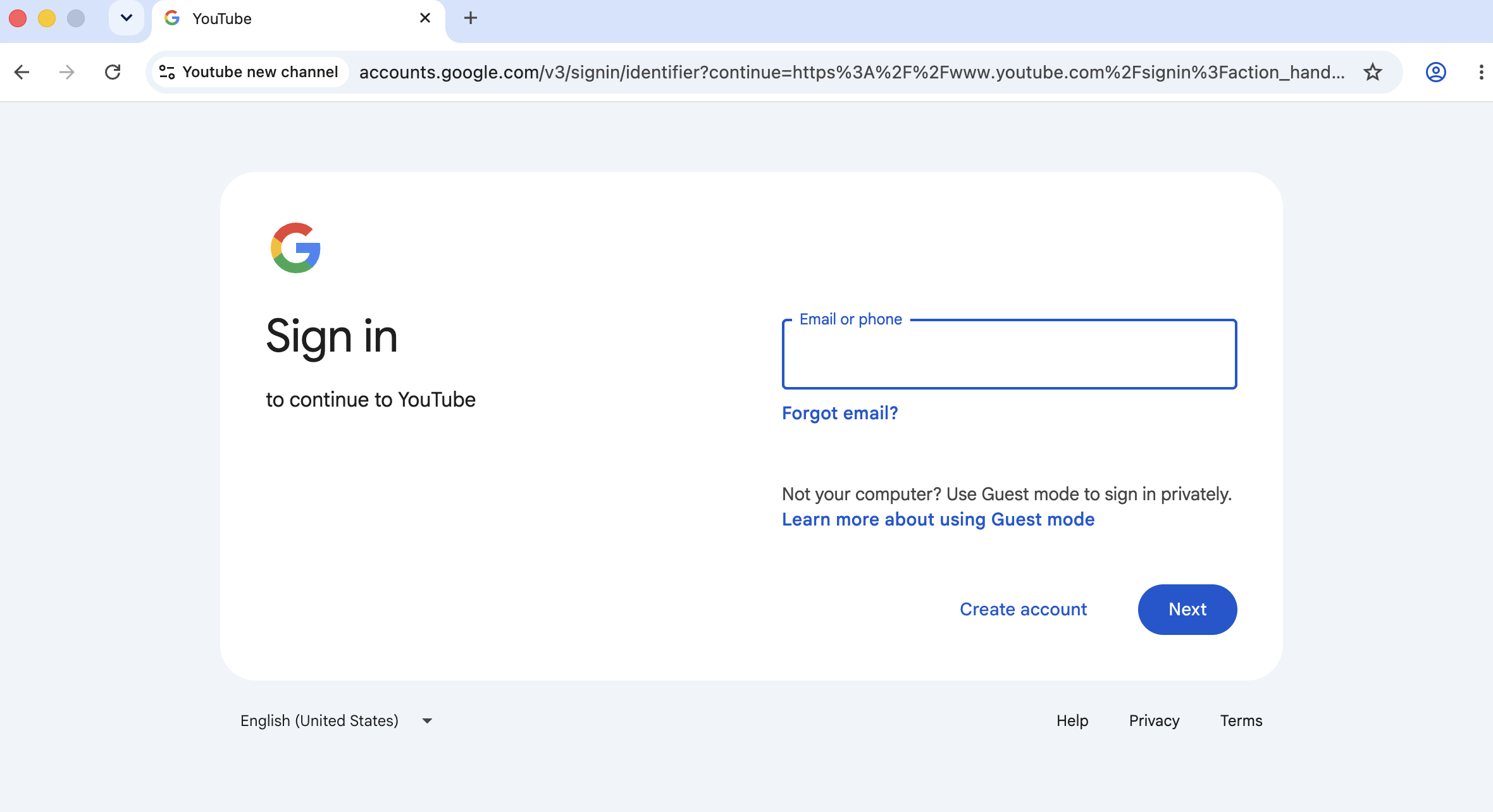
Open YouTube on a computer or through the mobile website and sign in using the chosen Google Account.
Check the profile icon before continuing. This tiny check matters when several Google accounts are already open in the same browser.
You do not want to spend an afternoon designing a channel only to discover that it was created under the wrong Google account.
Step 3: Open the channel management page
Click your profile picture and select Settings.
Under the Account section, choose Add or manage channel(s).
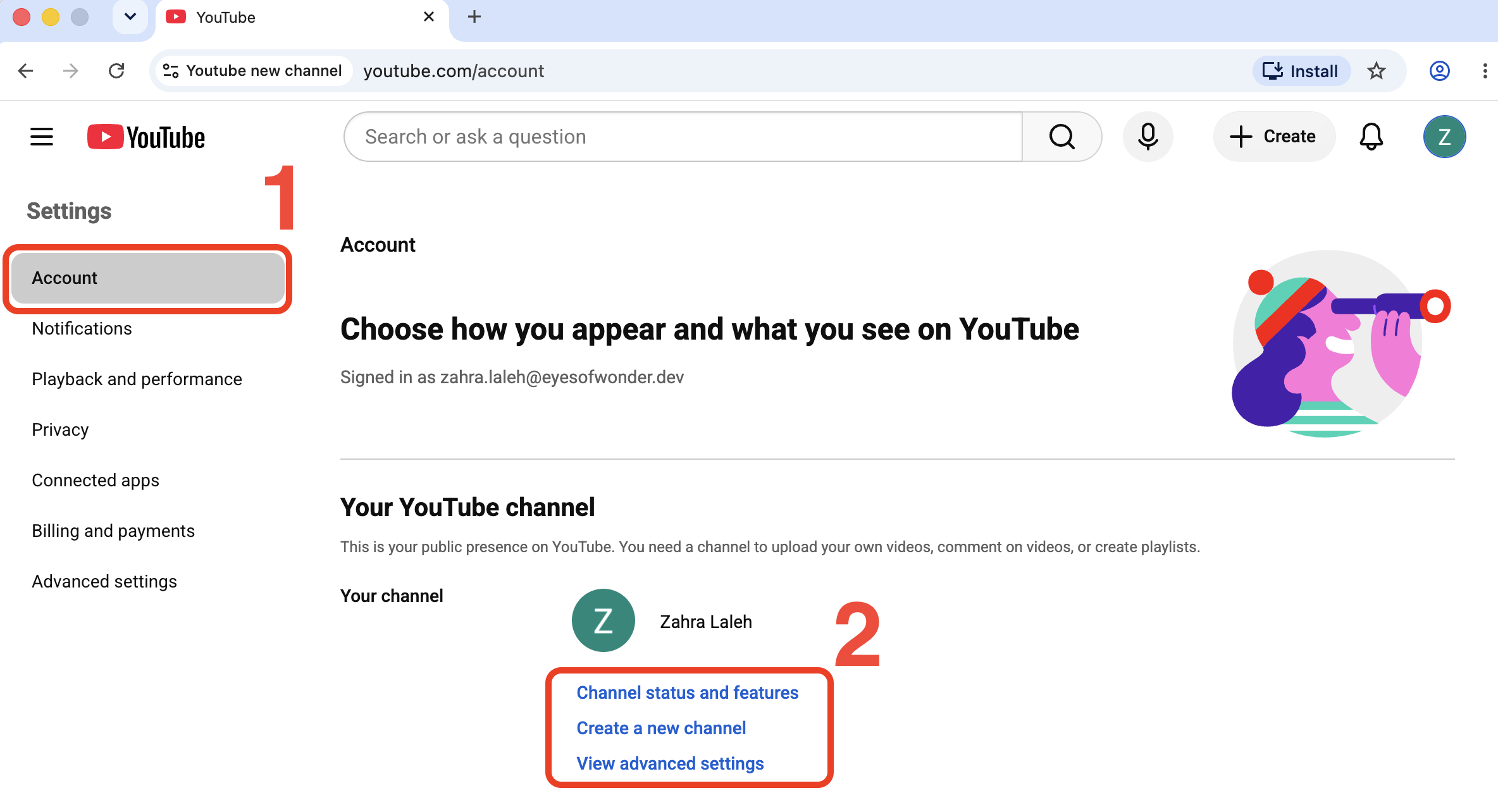
You will see existing channels connected to the Google Account, if there are any.
Step 4: Create the channel
Click Create a channel.
Choose:
- A channel profile picture
- The channel name
- A unique YouTube handle
Then click Create channel.
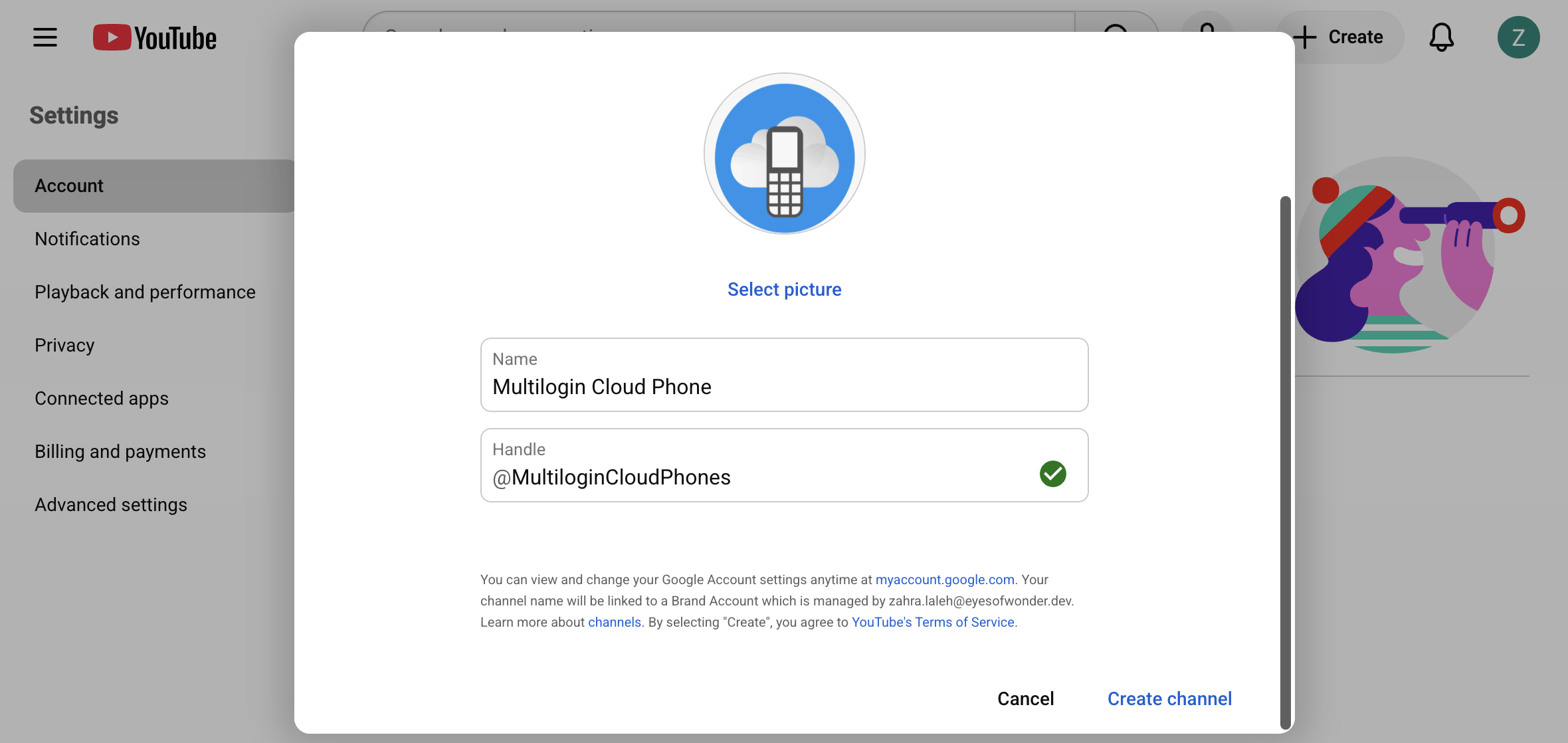
Your handle is the @name viewers may see in comments, mentions, Shorts, and the channel URL. Keep it clear, recognizable, and as close to the brand or creator name as possible.
Avoid adding random numbers unless they are genuinely part of the brand.
Step 5: Open YouTube Studio
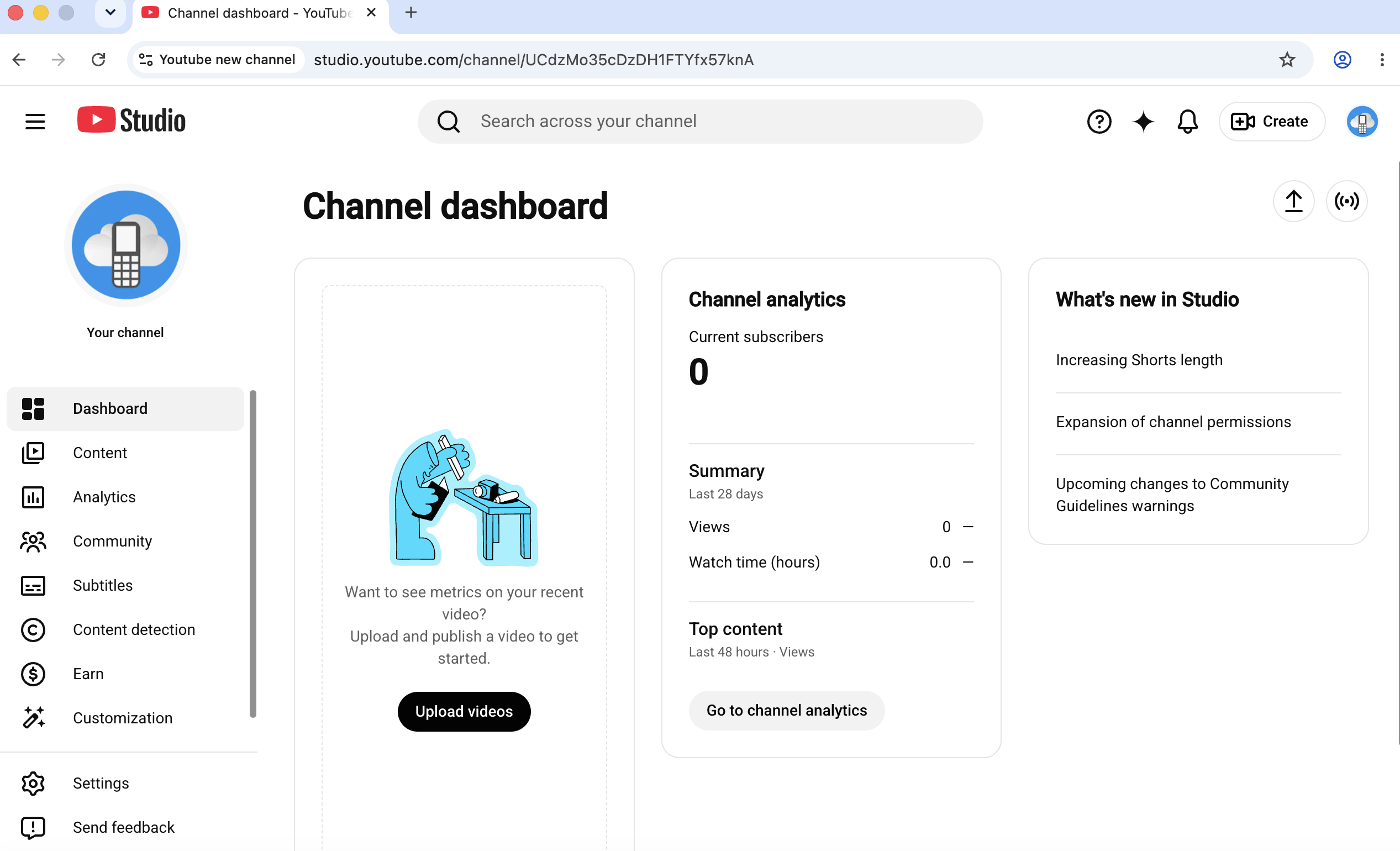
YouTube Studio is the operating dashboard for the channel.
It is where you manage:
- Videos and Shorts
- Playlists
- Channel analytics
- Comments
- Subtitles
- Copyright-related tools
- Monetization settings when eligible
- Channel layout and profile information
You can open it from your profile menu by selecting YouTube Studio.
Step 6: Complete the channel profile
Inside YouTube Studio, select Customization.
The current customization area contains two main sections:
- Home: Organize the channel trailer, featured video, and channel sections.
- Profile: Update the channel name, handle, profile image, banner, watermark, description, and site links.
Complete the profile before promoting the channel.
Channel name
Use a name viewers can remember and search for.
A strong name usually follows one of these patterns:
- Creator name: Zahra Laleh
- Brand name: Multilogin
- Brand + product: Multilogin Cloud Phone
- Topic + audience: Cloud Phones for Agencies
- Format-led identity: Weekly Mobile Automation Tips
The name should leave room for growth without becoming so broad that it means nothing.
Channel description
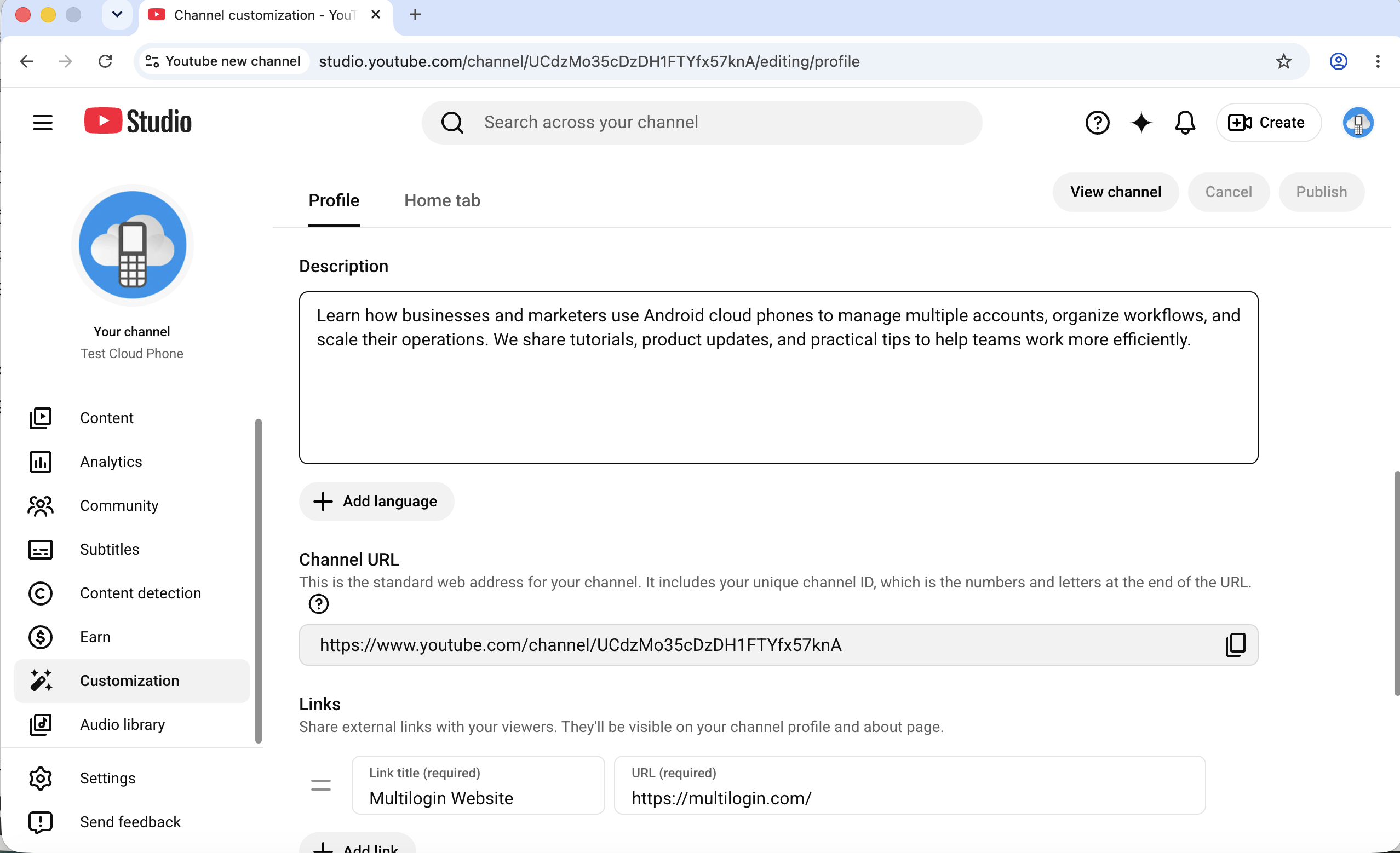
The opening lines should explain:
- What the channel covers
- Who it is for
- What viewers will gain
- What types of videos you publish
For example:
Learn how businesses and marketers use Android cloud phones to manage multiple accounts, organize workflows, and scale their operations. We share tutorials, product updates, and practical tips to help teams work more efficiently.
Do not fill the description with a wall of disconnected keywords. Write for humans first. Search systems are getting rather good at noticing when nobody talks like that.
Profile picture
Choose an image that remains recognizable at a small size.
Creators can use a clear headshot. Companies usually use a simplified logo or brand mark rather than a full logo with tiny text.
Channel banner
Use the banner to communicate the channel’s promise.
It may include:
- The main topic
- A short value statement
- A publishing schedule
- Recognizable brand elements
Keep important text and visual elements near the centre because YouTube crops banners differently across desktop, mobile, and television screens.
Site links
Add the most useful destination first.
That might be:
- Your website
- Online store
- Newsletter
- Product page
- Booking page
- Main social media profile
Do not turn the channel header into a small collection of every link your company has created since 2014.
Step 7: Build a useful channel homepage
The Home tab controls how videos are arranged for people visiting your channel.
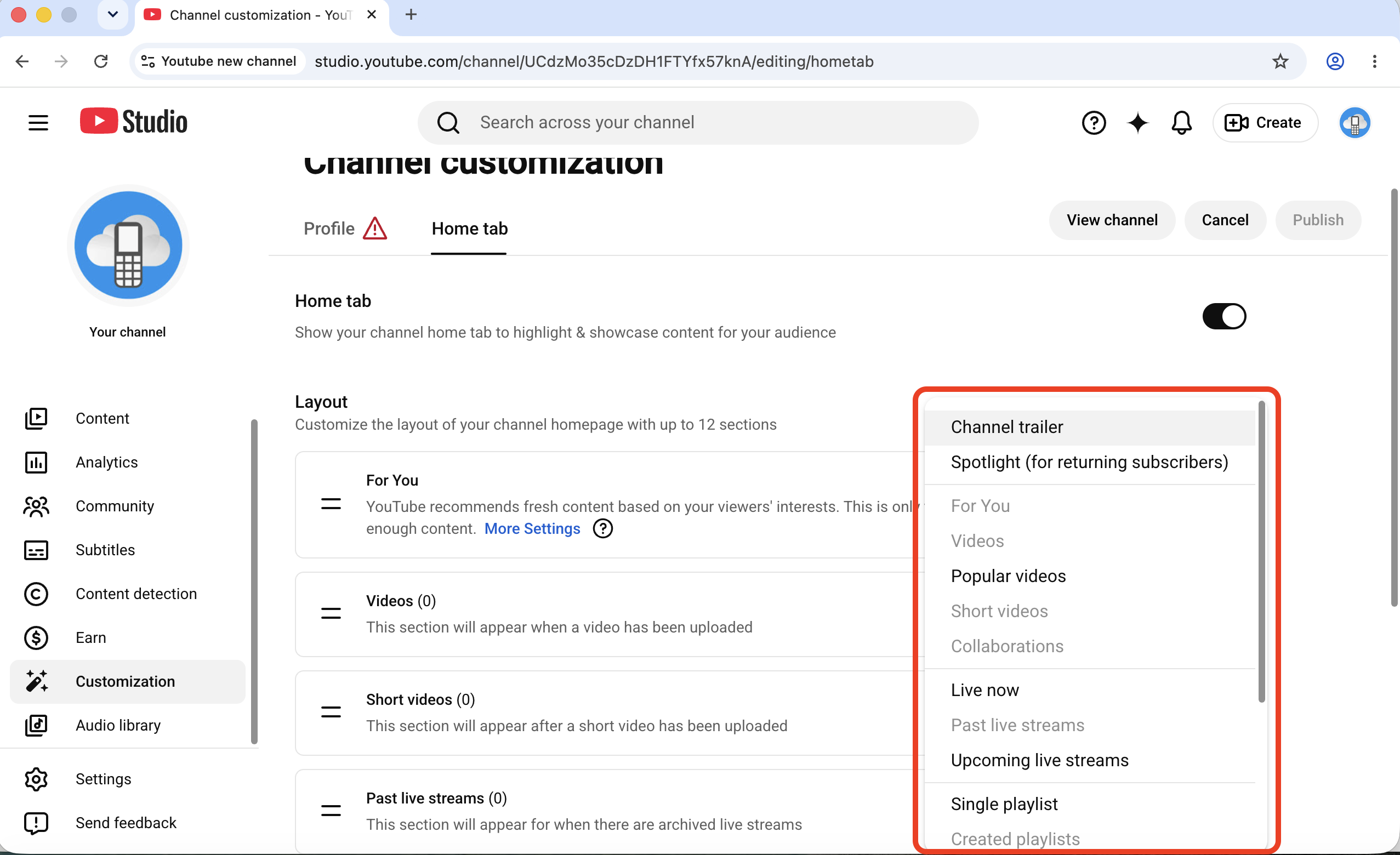
You can add:
- A trailer for new visitors
- A featured video for returning subscribers
- Recent uploads
- Popular uploads
- Shorts
- Live streams
- Individual playlists
- Multiple video sections
Organize the page around viewer intent rather than upload date alone.
For example, a software channel might use:
- Start here
- Beginner tutorials
- Advanced workflows
- Customer examples
- Product updates
- Shorts and quick tips
This helps both viewers and answer engines understand the subjects your channel covers.
Step 8: Set the channel audience correctly
Every creator must identify whether content is made for kids.
You can set the audience at channel level when the entire channel follows the same classification, or set it separately for each video when the content varies.
Do not select “not made for kids” simply because you want comments enabled. The setting is a compliance decision, not a growth preference.
YouTube considers factors such as:
- The intended audience
- Subject matter
- Child actors or models
- Characters, toys, games, or activities that appeal to children
- Language designed for children
- Children’s songs, stories, or early education
- How the content is advertised
Family-friendly content is not automatically made for kids. Content is considered made for kids when children are the primary audience or the material is directed toward them.
Step 9: Review feature access and verification
Some YouTube features require additional verification or sufficient channel history.
Phone verification may be used to unlock intermediate features. YouTube sends the code by text message or voice call. Advanced feature access may also depend on channel history or identity verification through a valid ID or video.
Check feature eligibility early if your plans include functions such as longer uploads, live streaming, custom thumbnails, or external links.
Verification is controlled by YouTube. A channel management platform cannot remove or override YouTube’s verification requirements.
Step 10: Upload a first test video
Your first upload does not need to be a cinematic event involving three cameras, a drone, and a smoke machine.
A test video can help you verify:
- Upload permissions
- Default visibility
- Thumbnail workflow
- Description formatting
- Subtitle process
- Audience setting
- Team review steps
- Playlist organization
Upload it as Private or Unlisted while testing.
Once the workflow works from beginning to end, publish the first public video.
How to set up a YouTube channel for a team
A team channel should not be managed by giving everyone the same Google password.
YouTube channel permissions let owners invite people and assign access based on their responsibilities. Invited users can work in YouTube and YouTube Studio without needing the owner’s login credentials.
A simple role structure might look like this:
| Team member | Typical responsibility |
| Owner | Ownership, security, major access decisions |
| Channel manager | Publishing operations and team coordination |
| Editor | Uploads, metadata, playlists, and video changes |
| Analyst | Performance review and reporting |
| Community manager | Comments and audience interaction |
| Agency partner | Defined client work without ownership of the primary login |
Use the lowest permission level that lets each person complete their work.
This reduces accidental changes and makes offboarding much easier.
How to start a YouTube channel for kids
There are two different ideas people often mix together:
- A channel created or operated by a child
- A channel that publishes content made for children
They require different decisions.
Can a child create a YouTube channel?
YouTube notes that people using a supervised YouTube experience may not be able to create a channel.
For young creators, a parent or legal guardian should remain responsible for:
- Account ownership
- Privacy
- Upload approval
- Comment and community settings
- Business inquiries
- Sponsorship decisions
- Financial arrangements
- Compliance with applicable child-safety and advertising laws
Do not publish a child’s school, regular location, home address, private schedule, contact details, or other identifying information.
Set the Made for Kids audience correctly
A channel aimed at children should be marked accurately as Made for Kids.
When content is marked as made for kids, YouTube limits certain features. Depending on the content and surface, restrictions can include comments, personalized advertising, notification functions, cards, end screens, live chat, and other engagement or monetization tools.
This is not a minor checkbox to revisit after the channel grows. Decide how the channel will operate before uploading.
Plan production around the child, not the algorithm
For a kids channel:
- Keep recording sessions age-appropriate.
- Build in breaks.
- Avoid public pressure around views or subscriber numbers.
- Review every upload before publication.
- Separate the child’s private life from the channel storyline.
- Keep contracts, sponsorships, and earnings under responsible adult oversight.
A successful channel is not worth turning childhood into an always-on content calendar.
Can one Google Account have multiple YouTube channels?
Yes. YouTube says one Google Account can manage up to 100 channels. However, you can act as only one channel at a time and must switch between them.
Technically, this gives creators and businesses room to run multiple channels.
Operationally, it creates several risks:
- Publishing from the wrong channel
- Commenting as the wrong brand
- Mixing personal and client activity
- Giving someone access to more channels than necessary
- Losing track of which channel serves which audience
- Managing different regions from an inconsistent setup
Being allowed to connect many channels to one Google Account does not mean putting everything under one login is automatically the best business structure.
Organize YouTube channels as separate social profiles
When you manage more than one YouTube channel, each should have its own operational record.
Create a profile sheet containing:
| Profile field | Example |
| Internal profile name | MultiLogin_Cloud_Phone |
| Public channel name | MultiLogin Cloud Phone EN |
| Channel goal | Product education and search traffic |
| Primary audience | English Social Media Marketers |
| Region | United States |
| Language | English |
| Content style | Practical, calm, beginner-friendly |
| Main formats | Tutorials, reviews, Shorts |
| Google Account owner | Company-controlled account |
| Team members | Video editor, SMM manager, analyst |
| Publishing status | Active |
| Recovery status | Confirmed |
| Last access review | July 2026 |
| Notes | Avoid duplicating videos from the UK channel |
The public channel name tells viewers what they are watching.
The internal profile name tells your team what they are operating.
That distinction becomes extremely useful once you have channels for different clients, languages, products, or markets.
Give each channel its own saved profile workspace
YouTube’s native channel switcher is enough for many individual creators.
The workflow becomes more complicated when an agency, social media team, e-commerce operator, or AI workflow manages several channels across mobile and desktop.
Each channel may have its own:
- Google login
- YouTube Studio session
- Android app session
- Region
- Team assignment
- Content calendar
- Recovery information
- Client notes
- Publishing status
A saved profile workspace keeps those elements connected to the correct channel.
Instead of opening a shared browser and asking, “Which account are we in?”, the team launches the workspace carrying the channel’s name, session, location, tags, and notes.
A small improvement. A surprisingly large reduction in chaos.
How Multilogin organizes YouTube social profiles
Multilogin is a cloud phone platform for (YouTuber) social media marketers. It lets individuals, teams, and AI agents manage social profiles from one dashboard using Android cloud phones for mobile-app workflows and isolated browser profiles for web workflows.
For YouTube, the two environments can support different parts of the workflow.
Browser profiles for YouTube Studio and web management
A saved browser profile can be used for:
- YouTube Studio
- Video metadata
- Playlists
- Analytics
- Comments
- Channel settings
- Desktop uploads
- Business and monetization administration
The profile keeps its own cookies and saved session, so the team can return to the same channel workspace instead of signing in again through a general-purpose browser.
Android cloud phones for mobile YouTube workflows
A cloud phone is a dedicated Android device hosted in the cloud.
It can run the official YouTube and YouTube Studio apps for tasks such as:
- Mobile uploads
- Shorts workflows
- Comment moderation
- Mobile analytics checks
- App-based channel activity
Each cloud phone maintains its own app data and login state and can be launched from the Multilogin dashboard without keeping a stack of physical phones in the office.
One channel, one clearly named workspace
A practical structure is:
- One saved profile workspace per channel
- One consistent internal naming system
- One assigned region where relevant
- Tags for client, language, platform, and status
- Notes documenting ownership and responsibilities
- Permission-based access for team members
For example:
YT | Client | Canada | English | Tutorials | Active
This is not particularly glamorous.
Neither is a filing cabinet. You still notice when it is missing.
Human and AI-assisted workflows
Multilogin environments can also connect with ADB, API workflows, Selenium, Puppeteer, and Playwright for repetitive or AI-assisted processes.
The basic channel setup remains point-and-click. Teams can add more structured workflows later without rebuilding the channel organization from scratch.
Multilogin is not a way around YouTube’s rules. The safest approach combines clear account separation with original content, responsible access controls, real audience engagement, and activity that follows YouTube’s policies.
How to set up a YouTube profile workspace in Multilogin
1. Create your Multilogin workspace
Create an account and open the Multilogin dashboard.
The Free plan has no time limit and does not require a credit card. It includes five cloud mobile and browser profiles, a one-time allowance of premium proxy traffic, and one mobile profile with a one-time mobile-minute allowance. Paid plans start from $7.08 per month.
2. Choose the environment
Select the environment that matches the work:
- Use a browser profile for YouTube Studio and desktop channel operations.
- Use an Android cloud phone for native YouTube app workflows.
- Use both when the team regularly works across desktop and mobile.
You do not need to force every channel into the same setup.
3. Name the profile
Use a repeatable naming structure.
For example:
YT | Brand | Region | Language | Purpose
This is easier to search and less mysterious than names such as newprofile2-final-real.
4. Configure the location when needed
For a regional channel, select a location that matches the market the team is operating.
Keep the location consistent rather than changing it unnecessarily between sessions.
Location does not guarantee reach in a particular country. YouTube recommendations depend on many factors, including the content itself, language, viewer response, and audience behaviour.
The location setting simply keeps the operating environment organized around the intended market.
5. Sign in to the correct Google Account
Open the profile and sign in to the Google Account that owns or has permission to manage the channel.
Create the YouTube channel using the official steps described earlier, or open an existing channel.
6. Save operational notes
Record:
- Channel owner
- Channel URL
- Main audience
- Region and language
- Assigned operators
- Recovery status
- Content format
- Publishing schedule
- Any restrictions or client instructions
Do not store sensitive passwords in unprotected notes.
7. Assign team access
Give team members access to the workspace they need.
Inside YouTube, use official channel permissions rather than sharing the primary Google Account password.
These two access layers serve different purposes:
- Multilogin controls access to the saved working environment.
- YouTube controls what each invited person can do inside the channel.
8. Keep the profile attached to the channel
Do not casually rotate unrelated YouTube channels through the same workspace.
The value comes from consistency: the same channel, saved session, notes, region, and operating context remain together.
When do you need a channel workspace?
You probably do not need an additional channel-management environment when:
- You operate one personal channel.
- Only one person works on it.
- You use one regular device.
- The channel does not serve different clients or regions.
You may benefit from saved profile workspaces when:
- An agency manages several client channels.
- A brand runs separate regional or language channels.
- Multiple team members handle uploading, analytics, and moderation.
- You use both the YouTube app and YouTube Studio.
- You need channel-specific notes and access controls.
- AI agents or automation tools assist with repetitive processes.
- Physical phone management has become inconvenient.
The goal is not to add software to a simple workflow.
It is to stop a complex workflow from pretending it is still simple.
YouTube channel setup checklist
Before publishing your first public video, confirm the following:
Ownership and security
- The correct Google Account owns the channel.
- Recovery email and phone details are current.
- Two-step verification is active.
- Team members use permissions rather than a shared password.
- Ownership is documented internally.
Channel identity
- The name matches the channel’s purpose.
- The handle is clear and recognizable.
- The profile picture remains legible at small sizes.
- The banner fits desktop and mobile displays.
- The description explains the audience and value.
- Important website links have been added.
Content structure
- The primary topic is clear.
- The first three to five video ideas are planned.
- Playlists reflect useful content categories.
- A channel trailer or featured video is prepared.
- The intended publishing rhythm is realistic.
Compliance
- The audience setting is accurate.
- Kids content has been reviewed carefully.
- Music, footage, images, and graphics are properly licensed.
- Sponsorship and advertising disclosures are planned.
- Feature verification has been completed where necessary.
Operations
- The channel has an internal profile name.
- Client, region, language, and status are documented.
- The correct browser profile or cloud phone is assigned.
- Team responsibilities are clear.
- The complete upload and review process has been tested.
Common YouTube channel setup mistakes
Creating the channel under the wrong Google Account
This often happens when several accounts are signed in at once.
Confirm the account before clicking Create. Fixing ownership later is more complicated than checking a profile icon now.
Using an employee’s personal email for a company channel
The employee may leave, lose access, or become unavailable.
Company assets should remain under company-controlled ownership.
Sharing one Google password with the whole team
This weakens security and makes it difficult to know who changed what.
Use YouTube permissions and controlled workspace access.
Giving every channel the same vague purpose
A cooking channel, product-review channel, and corporate news channel probably should not share one mixed content strategy simply because they belong to the same company.
Separate audiences deserve separate channel logic.
Selecting the wrong kids-content setting
“Family friendly” and “made for kids” are not interchangeable.
Review YouTube’s official factors and seek legal guidance when the classification is uncertain.
Spending three months choosing equipment
Your phone, clear audio, useful information, and decent lighting are enough to test a format.
The first goal is not to build a studio. It is to learn whether people care about the videos.
Ignoring operational naming
Channel 1, Channel 2, and John New Account will eventually betray you.
Use a naming system that shows the platform, brand, region, language, purpose, and status.
Final verdict: create the channel, then build the system around it
Learning how to make a YouTube channel is straightforward.
You need a Google Account, a channel name, a handle, and a few minutes inside YouTube Studio. The more important decisions are who owns the channel, who can access it, what audience it serves, and how its working environment will remain organized.
For one personal channel, YouTube’s own tools may be all you need.
For agencies, social media marketers, e-commerce teams, regional brands, and AI-assisted workflows, treating every channel as a separate social profile creates a cleaner operation.
Each profile gets its own purpose. Its own audience. Its own history. Its own team access. And, when needed, its own saved browser profile or Android cloud phone.
No device-switching circus. No mystery logins. No “Which client did we just post that to?
