
How to Switch From the Web Version to the Multilogin X Desktop App

How to Switch From the Web Version to the Multilogin X Desktop App
Image of the author Gayane Gh.
24 Nov 2025
7 mins read
Share with
Run Multiple Accounts Without Bans or Blocks

Get a secure, undetectable browsing environment for just €1.99.

  • 3-day trial 
  • 5 cloud or local profiles 
  • 200 MB proxy traffic 

Table of Contents

Managing multiple accounts can be exhausting. Every extra click, every interruption, adds up over time. The Multilogin X desktop app is designed to make your workflow easier. It’s the same environment you’re familiar with, but with fewer distractions. You’ll no longer have to worry about pressing an agent button, dealing with update pop-ups, or facing unexpected issues.

Once you launch the desktop app, it connects automatically. Your profiles and settings sync in real time, so everything you need is just a sign-in away. There’s no need to rebuild your setup—your entire workspace will be exactly as you left it.

Many users make the switch to the desktop version for a more consistent experience. By removing unnecessary steps, the desktop app allows you to focus on what really matters: running accounts, managing profiles, and staying productive.

Many users make the switch to the desktop version for a more consistent experience. By removing unnecessary steps, the desktop app allows you to focus on what really matters: running accounts, managing profiles, and staying productive.

In short, the Multilogin X desktop app keeps you working with minimal friction. If you get banned or face disruptions, the app helps you get back on track quickly, with everything running exactly as it should.

What changes when you use the Multilogin X desktop app

The Multilogin X desktop app is essentially the same as the web version, with the same profiles, settings, and team features—but it simplifies your workflow by reducing unnecessary steps. The core difference lies in how the app operates: it streamlines the process, reduces interruptions, and ensures everything stays synced the moment you open it.

  • No agent connection required:
    The desktop app has a built-in launcher that automatically connects when the app opens. If the app ever stops, it restarts itself, ensuring a smooth experience.

  • No need for new accounts:
    Simply log in with your existing Multilogin X credentials, and all your profiles and settings will sync instantly.

  • Supports all operating systems:
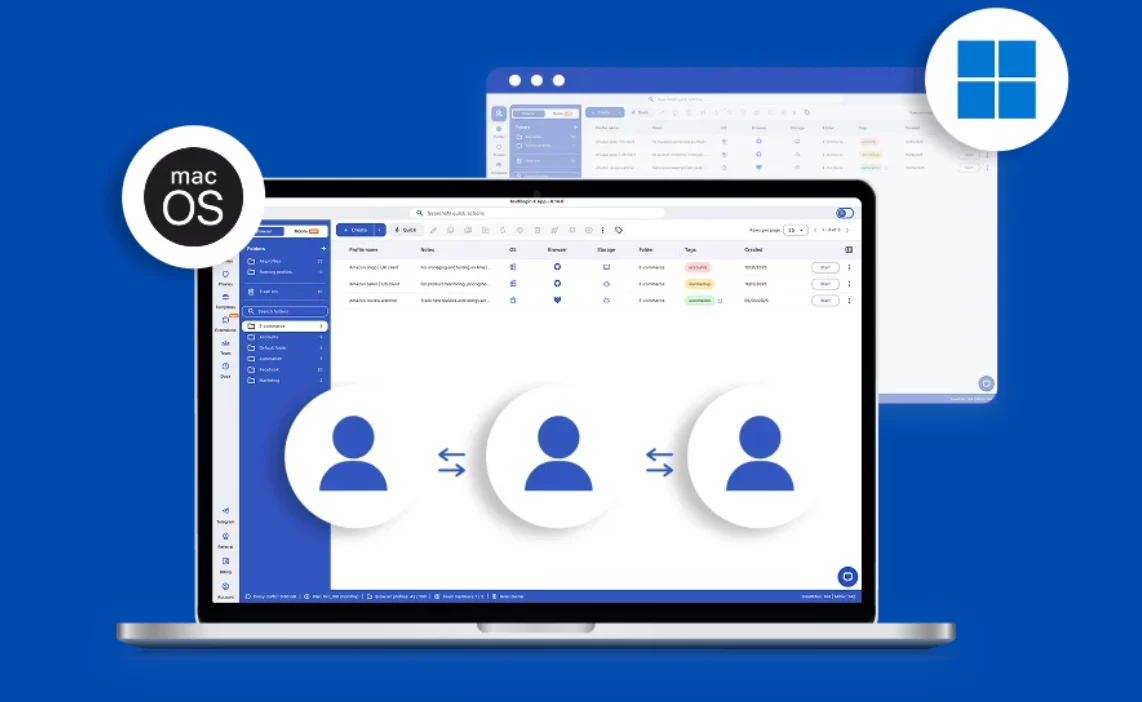
    Available for Windows, macOS, and Linux, providing a consistent experience across different platforms.

  • Identical functionality to the web version:
    Create, edit, start, and stop profiles. Manage teams, permissions, and settings—all with the same powerful functionality as the web version.

  • Real-Time Syncing:
    Profiles and settings update instantly, ensuring everything stays in sync whether you’re using the web or desktop version. You can switch between the two at any time without losing your progress.

Learn more about how to use a proxy in Multilogin for managing multiple accounts!

Start using Multilogin X today! Plans from just €1.99

Step-by-step: How to move from web to desktop

Switching to the desktop app takes only a couple of minutes. You download it, install it, log in with your current account, and everything syncs instantly. No migrations, no imports, no rebuilding profiles — your setup appears exactly as you left it.

Step 1 — Download and install the app

For new customers:


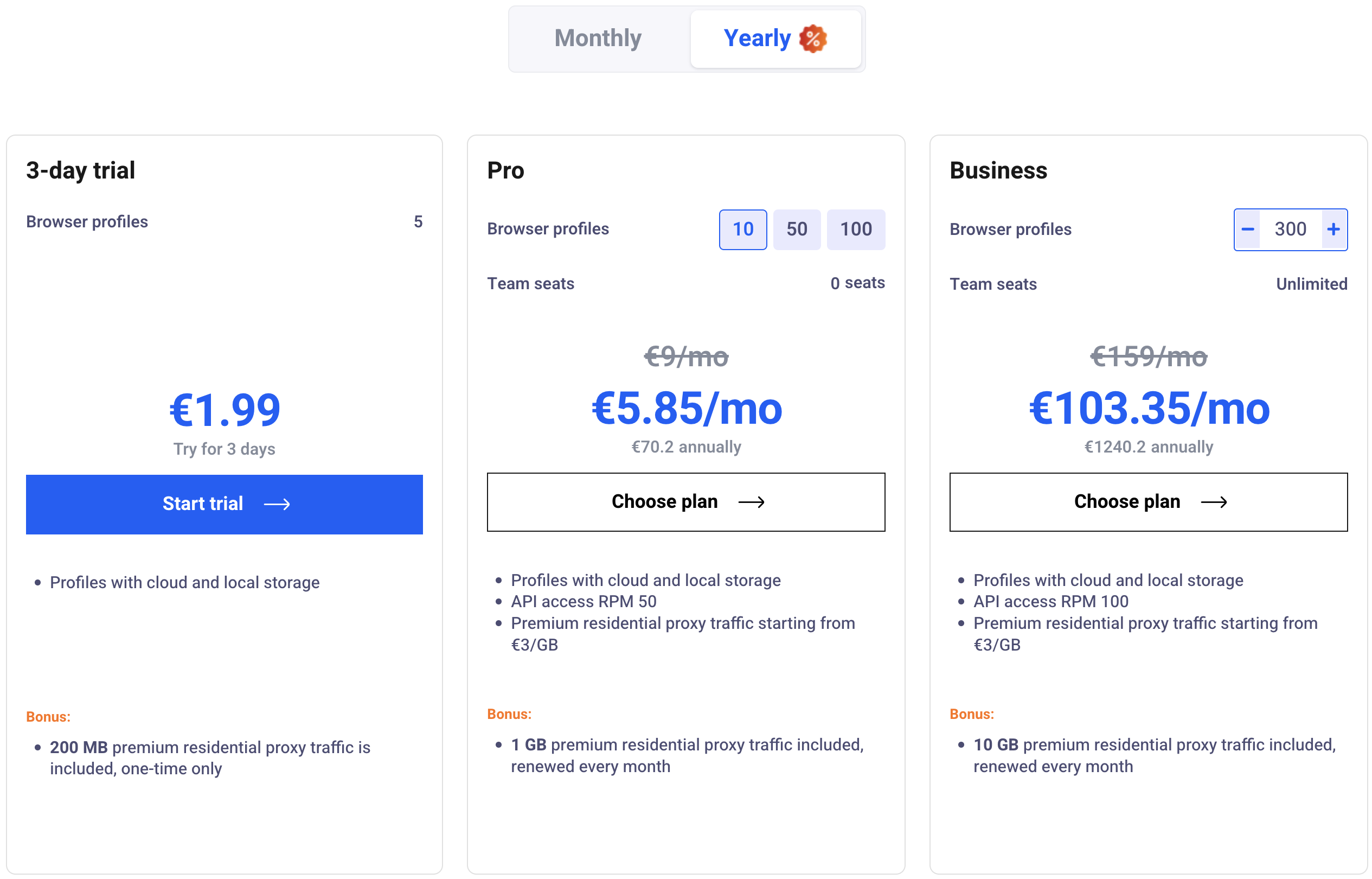
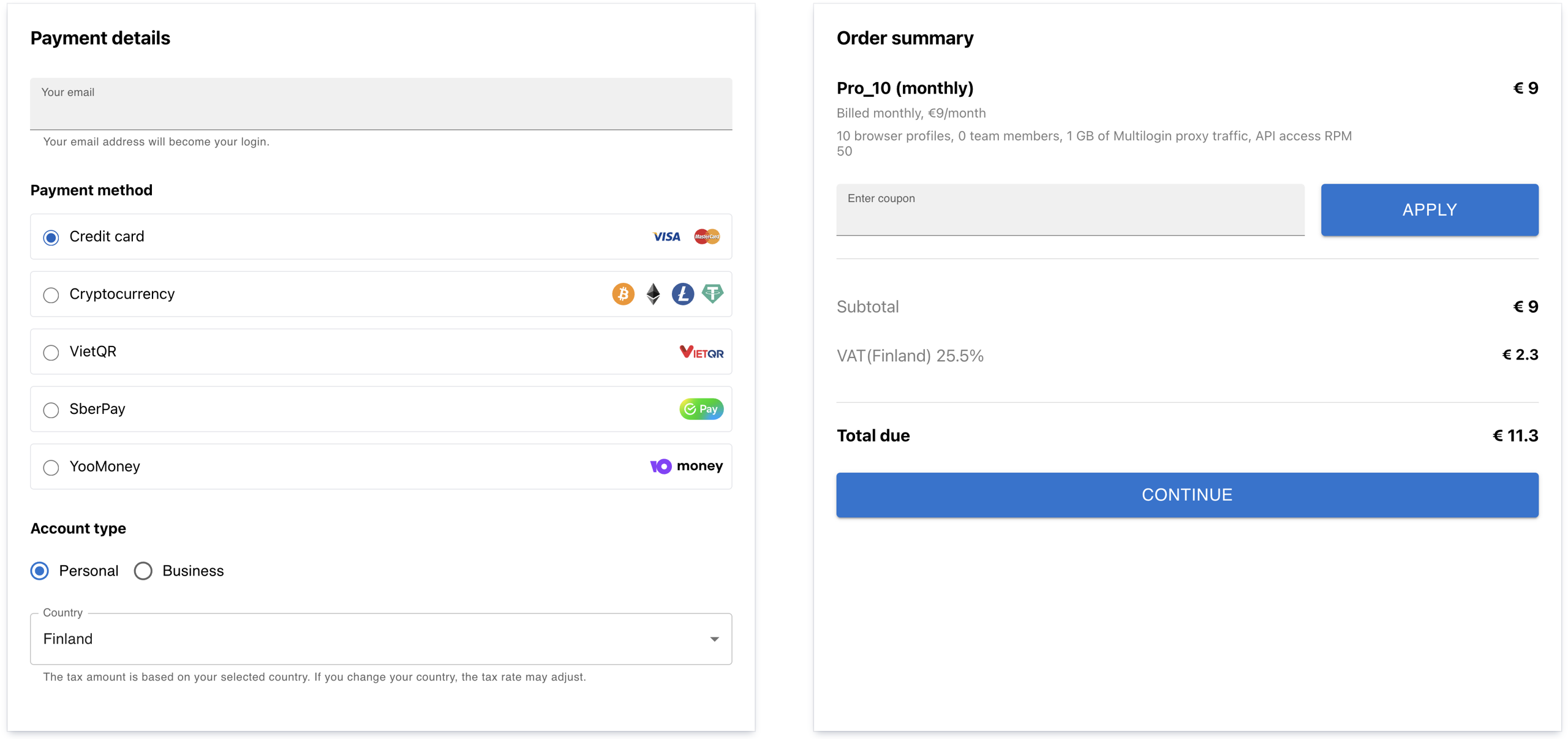
  • Complete the purchase

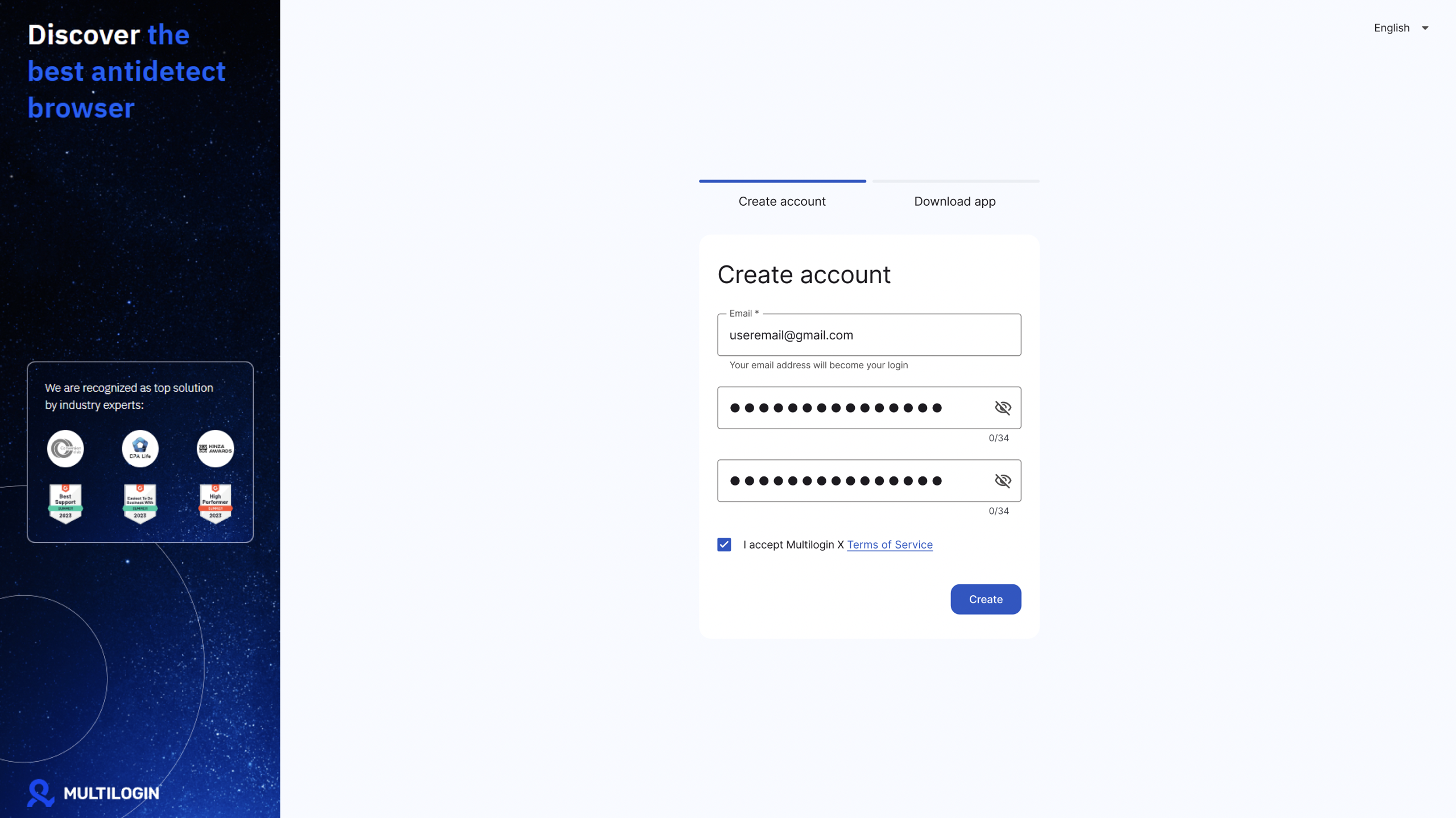
  • After purchasing, create an account

After purchasing, create an account

  • Download the app (Windows/macOS/Linux)
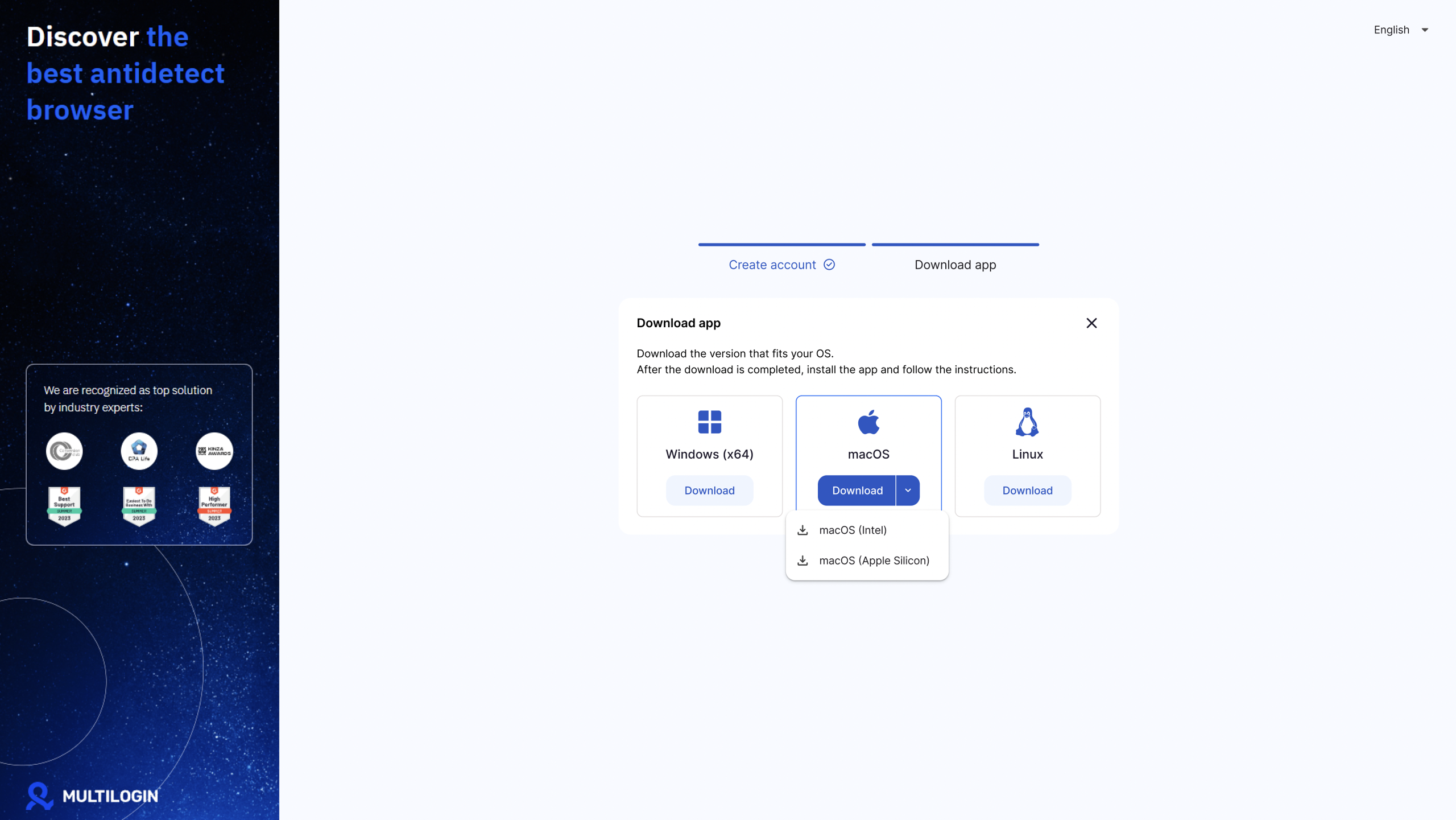
Download the app (Windows/macOS/Linux)

  • Open your “Downloads” folder and run the installer file
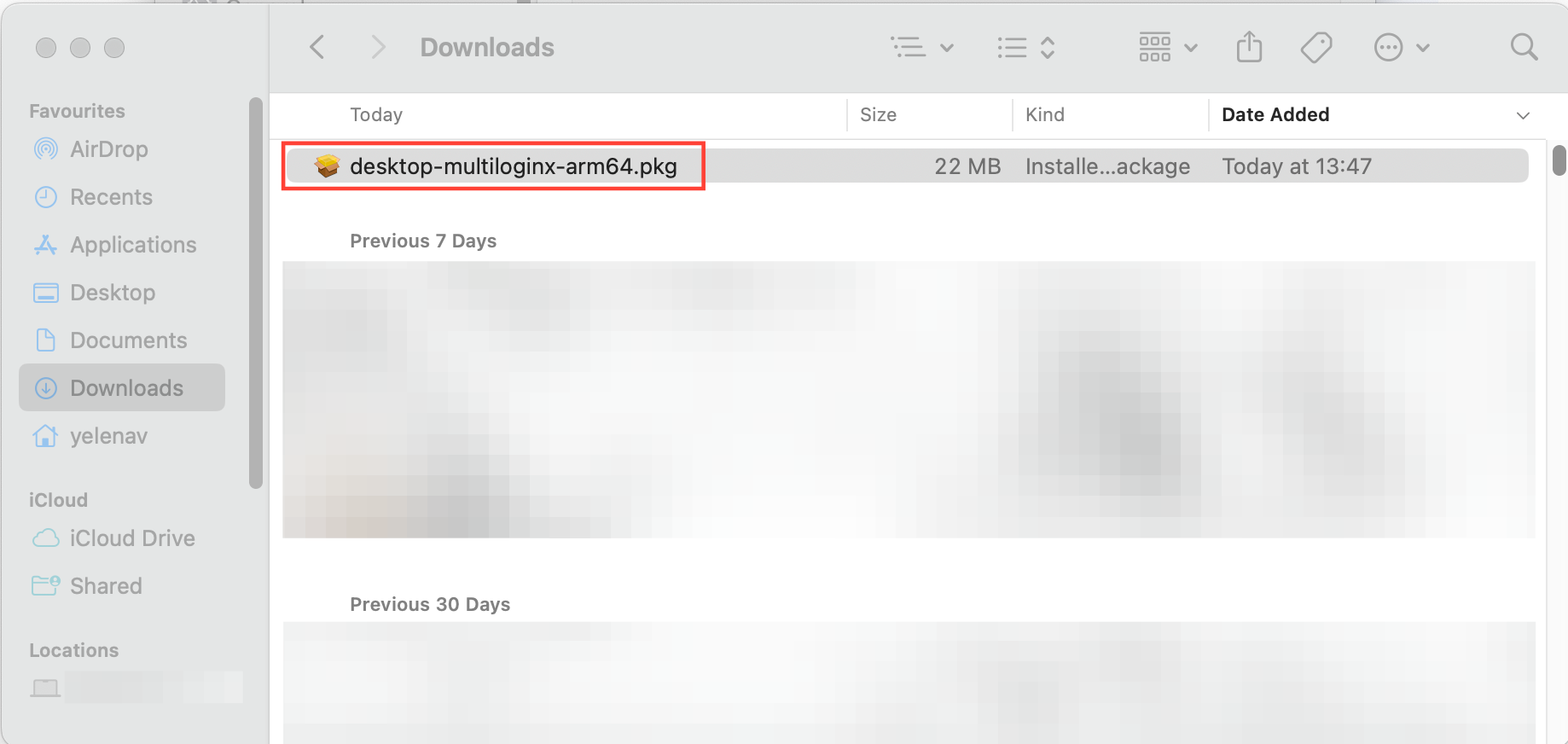
Open your “Downloads” folder and run the installer file

  • Follow the on-screen instructions to complete the installation.
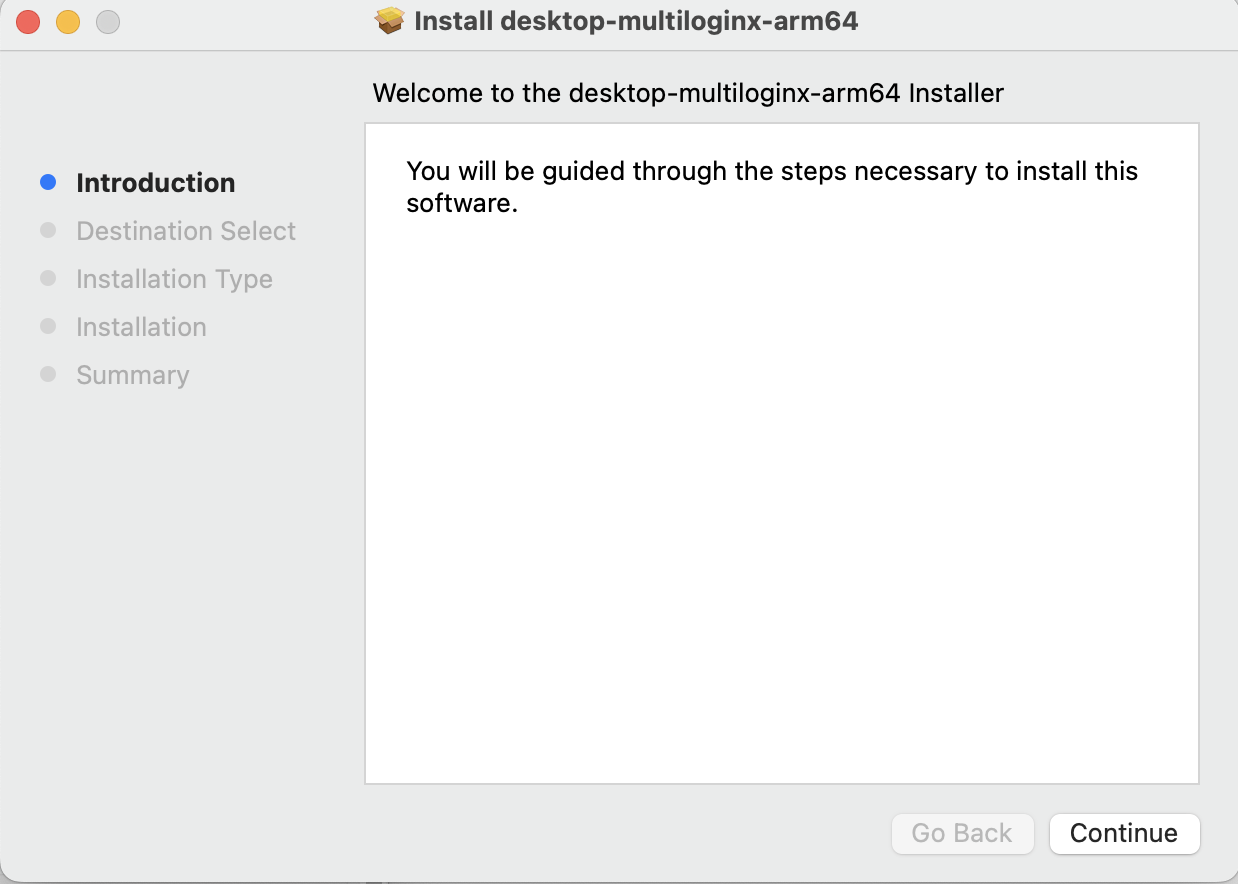
Follow the on-screen instructions to complete the installation.

Already have a subscription? Log in to the Multilogin X web version and click “Download app” in the top right corner.
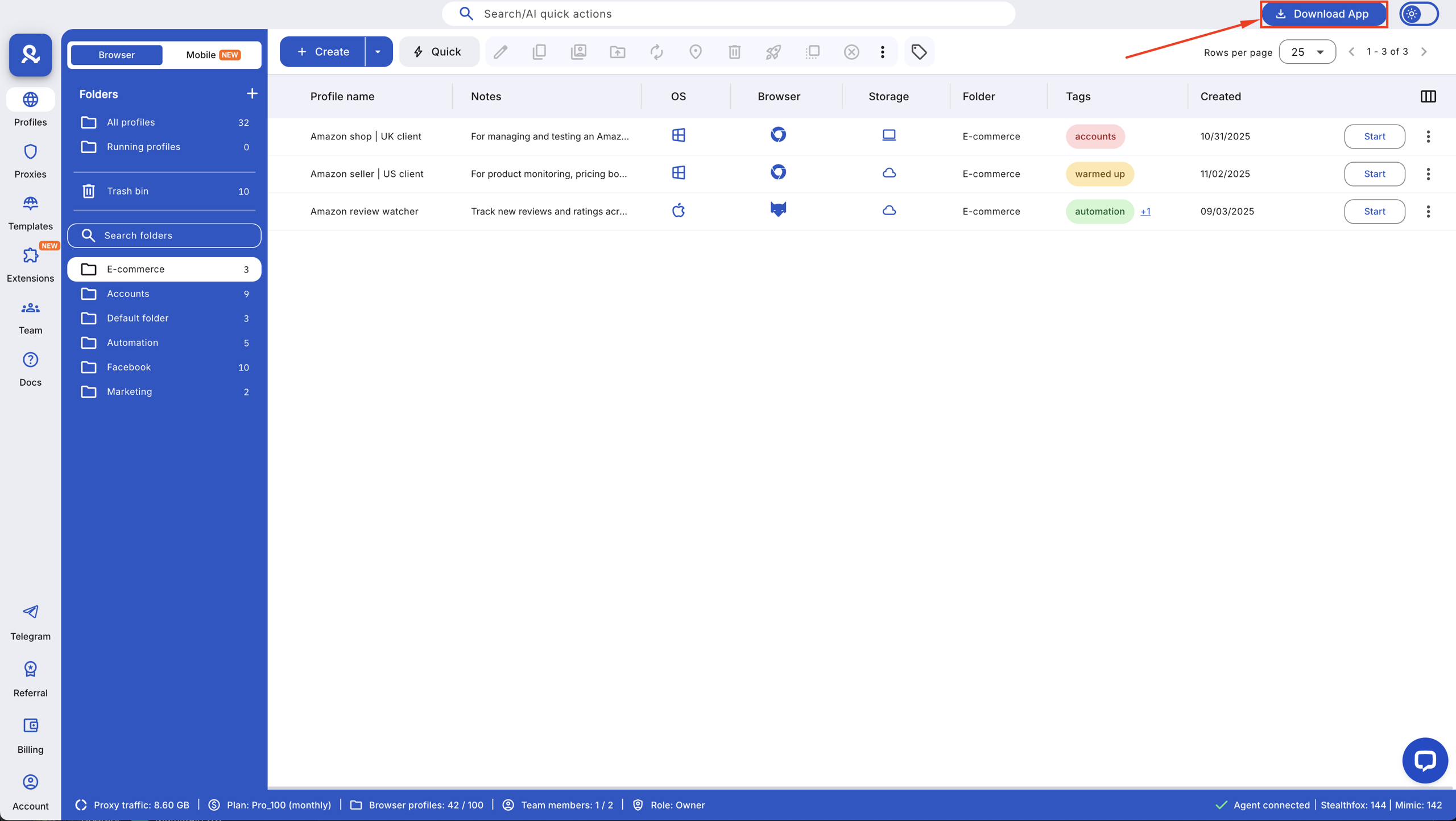
Already have a subscription? Log in to the Multilogin X web version and click “Download app” in the top left corner.

Step 2 — Launch the app & log in

  • Windows: find on the desktop
  • macOS: find in Applications
  • Optional: pin for quick access
  • Windows: right-click → Pin to taskbar
  • macOS: Options → Keep in Dock
  • Log in with existing Multilogin X credentials
  • If logged into web already → auto sync

How the Built-in launcher works

The desktop app handles the agent entirely on its own. There’s no button to press, no extension to connect, and no step to repeat. If the launcher stops for any reason, it restarts itself quietly so your workflow stays stable.

  • Auto-connects when app opens
  • Runs silently in background
  • Self-restarts if it stops
  • No browser extension or manual agent

How automatic updates work

The update system stays in the background and handles everything on its own. You never deal with installers or notifications — you just open the app and it always runs the latest version with new features and fixes.

  • App checks for updates in the background
  • Downloads and installs automatically
  • Includes new features, bug fixes, performance improvements
  • Users only need to keep the app open

Using the web & desktop versions together

You don’t have to choose one version forever. Both stay synced in real time, so you can open a profile on the desktop app and review settings on the web version without losing changes. Everything updates instantly.

  • Both versions have the same features
  • Real-time syncing
  • Can switch anytime without losing work

Why most users run profiles on the Multilogin X desktop app

Most long-time users end up running their daily work on the desktop app because it cuts out the friction that slows teams down. No agent button. No reconnecting. No waiting for updates. You open the app and your profiles are ready. For people managing 10 profiles or teams running thousands, that reliability matters. It removes unnecessary clicks, and when you’re juggling accounts, proxy setups, tasks, and team operations, the fewer moving parts, the better. The desktop app keeps everything stable so users can focus on the work that brings revenue, not the steps that interrupt it.

Core features users rely on:

  • Automatic updates in the background
  • Built-in premium residential proxy traffic, which is included in all plans
  • 10 profiles fully functional on entry plans
  • 55+ fingerprint parameters for undetectable profiles
  • Cloud or local storage for profile data
  • Pre-farmed cookies for account warm-up
  • Android mobile profile emulation
  • Supports up to 10,000+ profiles for large teams

When the desktop app saves you time

Time loss usually shows up in moments you don’t expect. The agent disconnects during a login. A profile fails to start because the web launcher didn’t connect. An update pops up in the middle of a workflow. The desktop app removes these breaks. It connects the agent the moment you open it and restarts itself if needed. Updates install quietly. Your proxies, fingerprints, and cookies load without friction.

Real situations where users save time:

  • Agent dropped → desktop launcher reconnects automatically
  • Update appeared → desktop app updates silently
  • Profile stalled → fingerprinter + proxy load instantly
  • Automation broke → desktop keeps a stable environment
  • Team workflows → shared profiles sync in real time

The biggest problems the desktop app removes

Problem

Feature That Fixes It

Manual agent connection

Self-restarting built-in launcher

Session drops

Automatic launcher reconnection

Update interruptions

Background updates (no installers)

Browser failing to start

Stable runtime + launcher auto-connect

Setup confusion for beginners

Simple onboarding + aged cookies for stability

What you won’t deal with anymore after switching

Switching removes the micro-problems that break momentum. No reconnecting the agent. No installers. No update pop-ups. No failed profile starts. No guessing whether the environment is ready.

You won’t deal with:

  • Manual agent connection
  • Update downloads
  • Launcher errors
  • Browser failing to launch
  • Session drops
  • Broken fingerprint loads

You keep:

  • Built-in proxies
  • Aged cookies
  • Android mobile profiles
  • API + CLI automation
  • Unlimited team seats (Business plans)

Why stable agent connection matters when running accounts

The agent is the backbone of your browser identity. If it disconnects during login or verification, many platforms treat the session as unstable. If it drops while warming up cookies or running automation, the entire flow becomes risky.

Why a stable launcher protects your accounts:

  • Fingerprints load fully every time
  • Proxy identity stays consistent
  • Cookie warm-up behaves like a real user
  • Automation runs without breaking
  • Android mobile profiles emulate a stable device

Get stable, ready-to-run profiles with Multilogin from €1.99

Final verdict

The Multilogin X Desktop App takes the same profiles, proxies, fingerprints, cookies, and team settings you already use and removes the steps that slow you down. You open it, the launcher connects on its own, updates run in the background, and your entire setup stays synced across devices. If your work depends on stable profiles, warm-up cookies, or large account operations, switching to the Multilogin X Desktop App gives you a more reliable environment with fewer interruptions and a workflow that stays focused on real results.

FAQs

No. You sign in with the same Multilogin X credentials you already use. Your profiles, cookies, extensions, and settings load instantly.

The main difference is in how the app runs. The web version requires a legacy agent and a browser extension, while the desktop app has the agent built-in and runs automatically. This reduces the steps needed to start your profiles, ensuring a smoother workflow with fewer interruptions.

No, the Multilogin X Desktop App does not require a browser extension. The app connects the agent automatically when opened, so you can get started right away without needing to install a separate extension.

The Multilogin X Desktop App has a built-in agent that automatically connects when the app is launched. There’s no need for manual agent connection, and the app will restart itself if needed, keeping your workflow uninterrupted.

Yes, Multilogin X keeps your profiles and settings synced in real-time between the web version and the desktop app. This allows you to easily switch between the two without losing your progress.

Run Multiple Accounts Without Bans or Blocks

Get a secure, undetectable browsing environment for just €1.99.

  • 3-day trial 
  • 5 cloud or local profiles 
  • 200 MB proxy traffic 

Table of Contents

Join our community!

Subscribe to our newsletter for the latest updates, exclusive content, and more. Don’t miss out—sign up today!

Recent Posts
Share with
Hi, I’m Gayane G., a passionate content creator at Multilogin. With a degree in Marketing and over 9 years of experience, I focus on creating engaging digital content that resonates with audiences. When I’m not writing, you can find me traveling, trying new recipes, or curled up with a good book.
https://multilogin.com/academy/how-to-switch-from-the-web-version-to-the-multilogin-x-desktop-app/
Recent Posts
Join our community!

Subscribe to our newsletter for the latest updates, exclusive content, and more. Don’t miss out—sign up today!

Multilogin works with amazon.com