
How to Switch From the Web Version to the Multilogin Desktop App

How to Switch From the Web Version to the Multilogin X Desktop App
Image of the author Gayane Gh.
Last updated:
October 09, 2026
8 mins read
Share with
Manage Unlimited Mobile & Web Accounts

Manage your accounts
without restrictions or interruptions

  • Log in with mobile/browser profiles
  • Access accounts anywhere
  • Use apps like Instagram, TikTok, Reddit

Table of Contents

Managing multiple accounts across mobile apps and websites takes time, especially when you’re working with different clients, stores, or regions. The Multilogin desktop app helps you keep everything organized in one place, with fewer steps between opening the app and getting to work.

Multilogin is a cloud Android phone platform for multi-account management. Each mobile-app account can run on its own real Android device in the cloud, with separate app data, location, and IP. For web-based accounts, Multilogin also provides isolated browser profiles. Both are managed from one dashboard, with built-in residential proxies and mobile minutes included in every plan.

The desktop app makes it easier to access and manage your workspace. There’s no need to connect a separate agent manually or rebuild your existing setup. Just sign in with your Multilogin account and access your profiles, devices, and settings.

Whether you’re managing TikTok and Instagram accounts, running multiple e-commerce stores, or handling web-based tasks for clients, the desktop app gives you a central place to organize your daily work.

What changes when you use the Multilogin desktop app?

The Multilogin desktop app provides access to the same account-management workspace as the web version, but with a more direct desktop experience. You can manage cloud Android phones, browser profiles, proxies, and team workflows without switching between separate management tools.

Here’s what you can expect:

  • Automatic launcher connection: The desktop app includes a built-in launcher that connects when you open it. There’s no need to start or connect a separate agent manually.

  • Your existing account and settings: Sign in with your current Multilogin credentials to access your existing profiles, configurations, and workspace. No new account or setup from scratch is required.

  • Cloud Android phones for mobile accounts: Manage mobile-app accounts using real Android devices in the cloud. Each cloud phone has its own app data, location, and IP, with login history and app data preserved between sessions.

  • Browser profiles for web-based workflows: Create and manage separate browser profiles for marketplace back offices, social media dashboards, and other web-based tasks. Each profile maintains its own cookies, session, and IP.

  • Built-in residential proxies: Residential proxies are included in every plan, so you can manage connections from the same platform without subscribing to a separate proxy service. You can also configure supported third-party proxies.

  • Team management in one dashboard: Organize your workspace with custom columns, color tags, and notes. Share and assign profiles, manage team permissions, and track running profiles from one place.

  • Available for Windows, macOS, and Linux: Use the desktop app on your preferred operating system and access your Multilogin workspace with your existing credentials.

  • Keep your workspace in sync: Access your existing profiles and settings when switching between the web interface and desktop app, without recreating your configurations.

Manage mobile and web accounts from one desktop workspace

The main advantage of Multilogin is having cloud Android phones and browser profiles in one platform.

For mobile-app workflows, you can use a separate Multilogin cloud phone for each account. Run native Android apps such as TikTok, Instagram, WhatsApp Business, or eBay, while keeping each account’s environment and app data separate.

For web-based workflows, use isolated browser profiles to manage seller dashboards, client accounts, and other browser-based tasks.

The desktop app brings these workflows into one workspace, alongside built-in proxies, mobile minutes, and team management features. You can organize accounts, work across different regions, and coordinate tasks without maintaining multiple physical devices or separate management platforms.

Ready to simplify your multi-account workflow? Download the Multilogin desktop app and sign in with your existing account. New to Multilogin? Start with a free plan, with no time limit or credit card required.

Learn more about how to set up a proxy in Multilogin for managing multiple accounts.

Start using Multilogin today!

Step-by-step: How to move from web to desktop

Switching to the desktop app takes only a couple of minutes. You download it, install it, log in with your current account, and everything syncs instantly. No migrations, no imports, no rebuilding profiles — your setup appears exactly as you left it.

Step 1 — Download and install the app

For new customers:


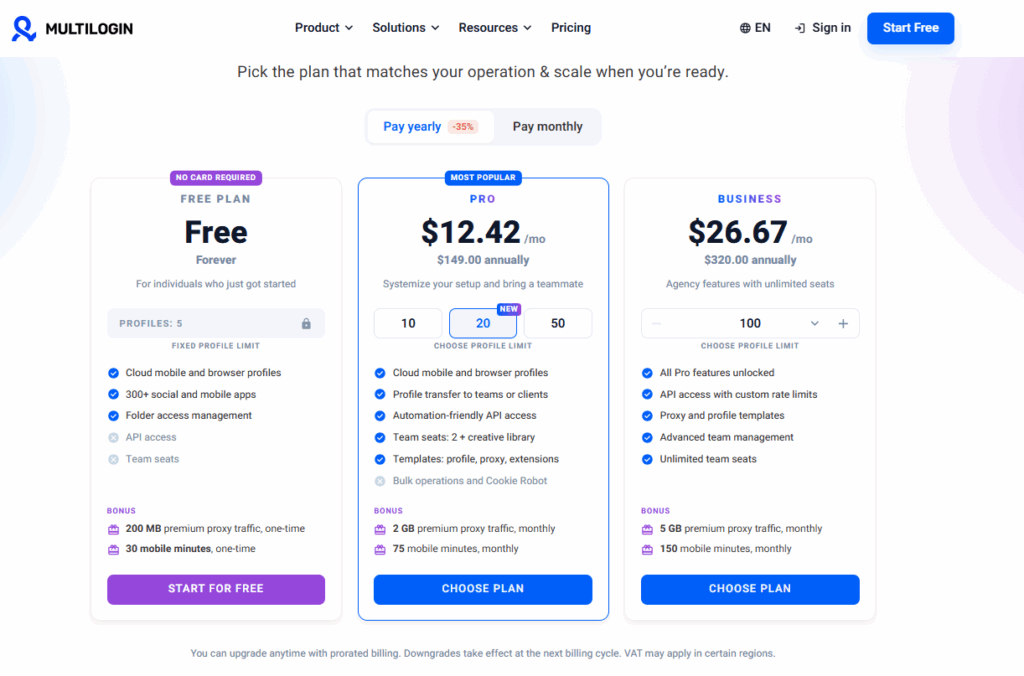
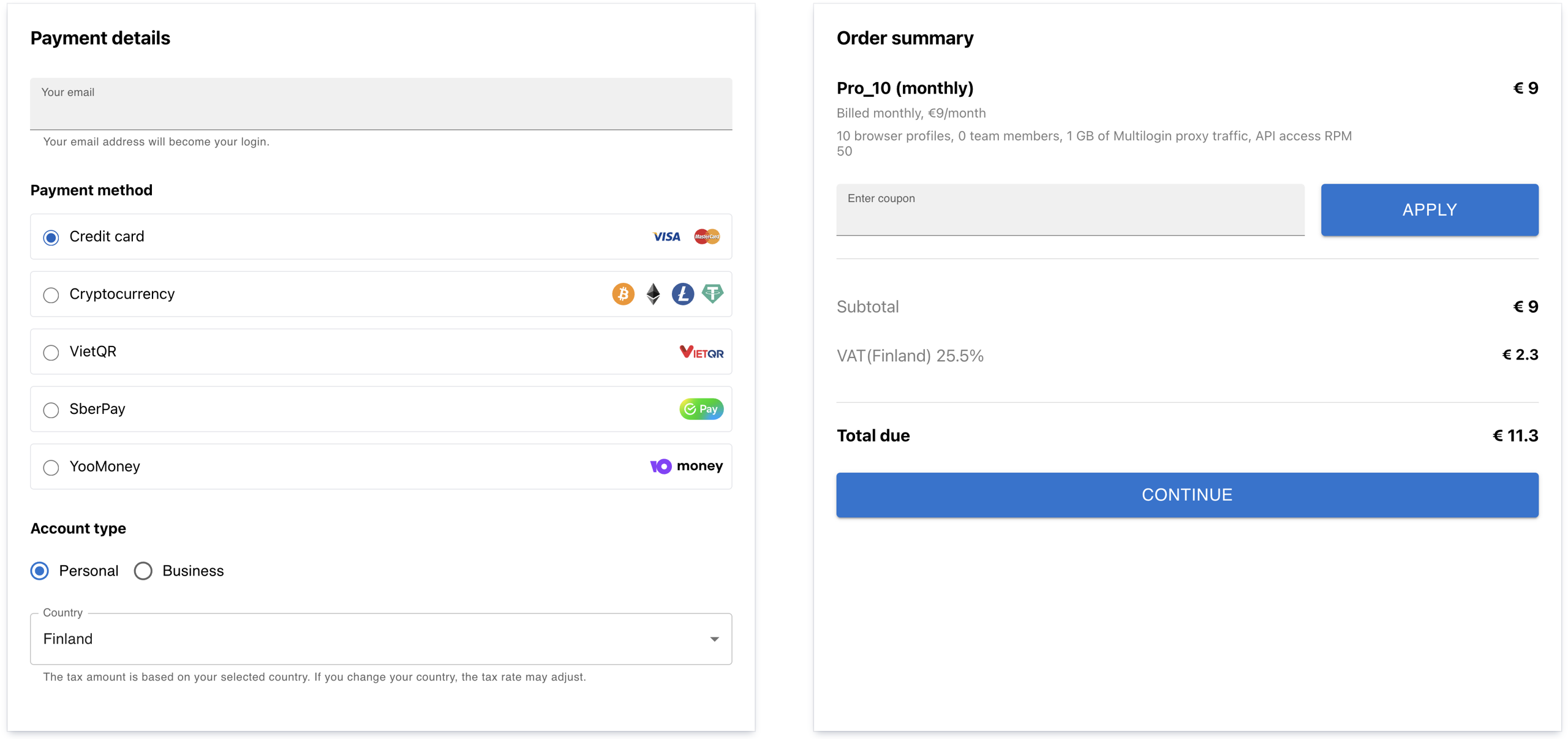
  • Complete the purchase

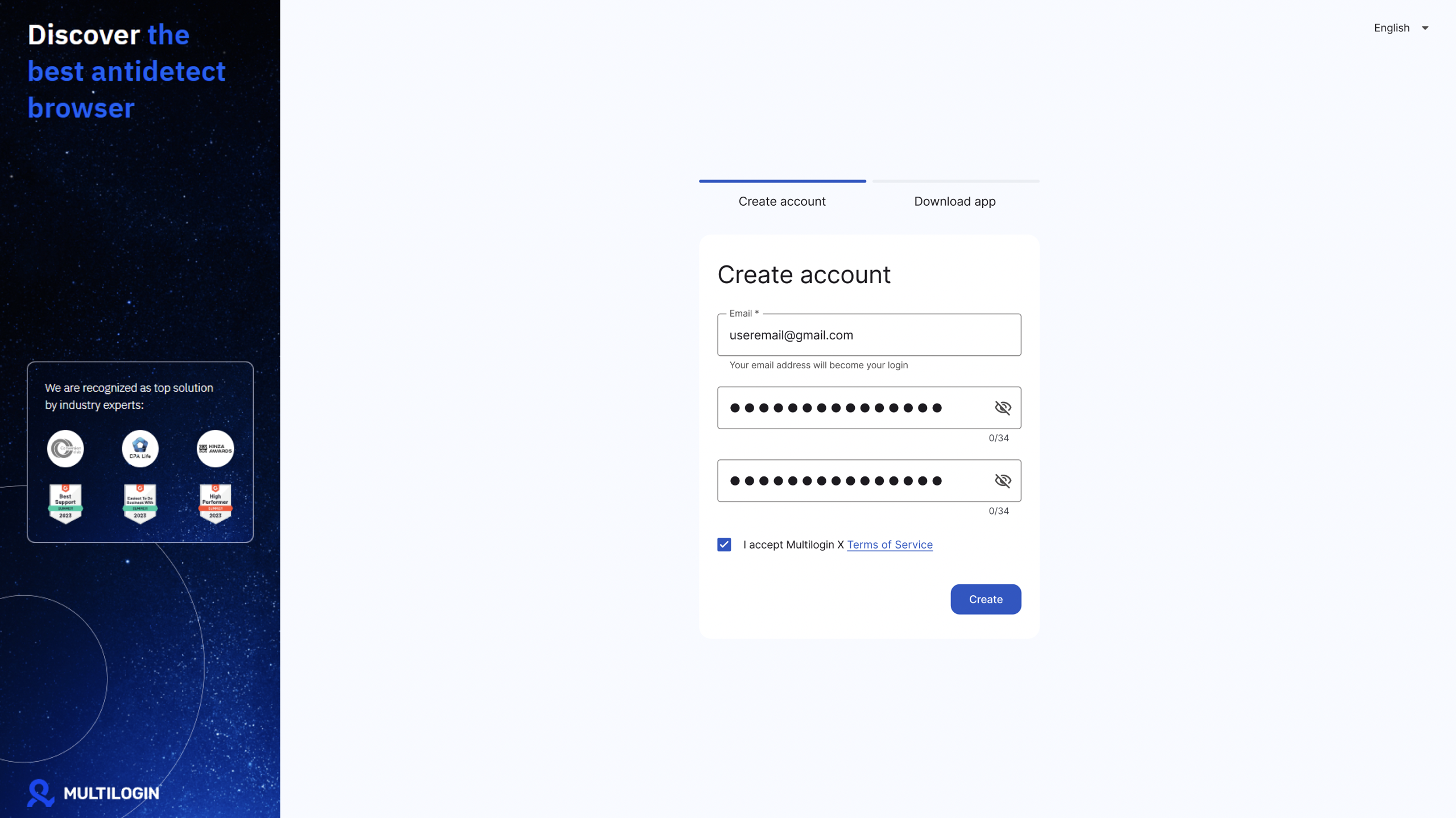
  • After purchasing, create an account

After purchasing, create an account

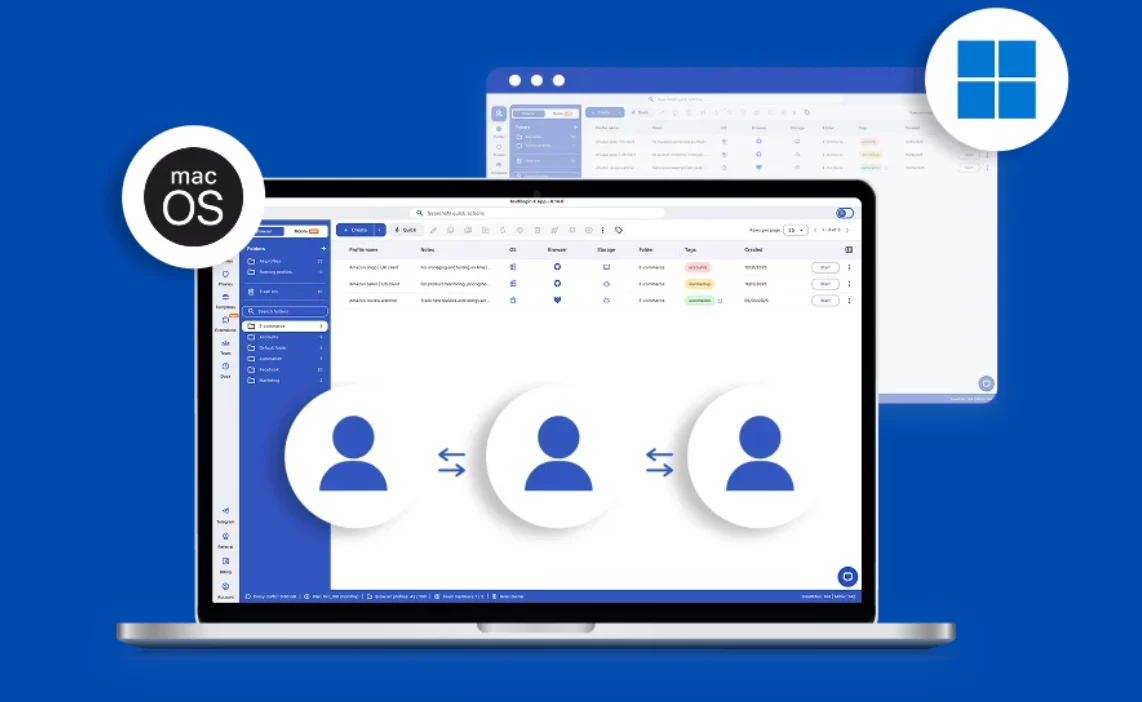
  • Download the app (Windows/macOS/Linux)
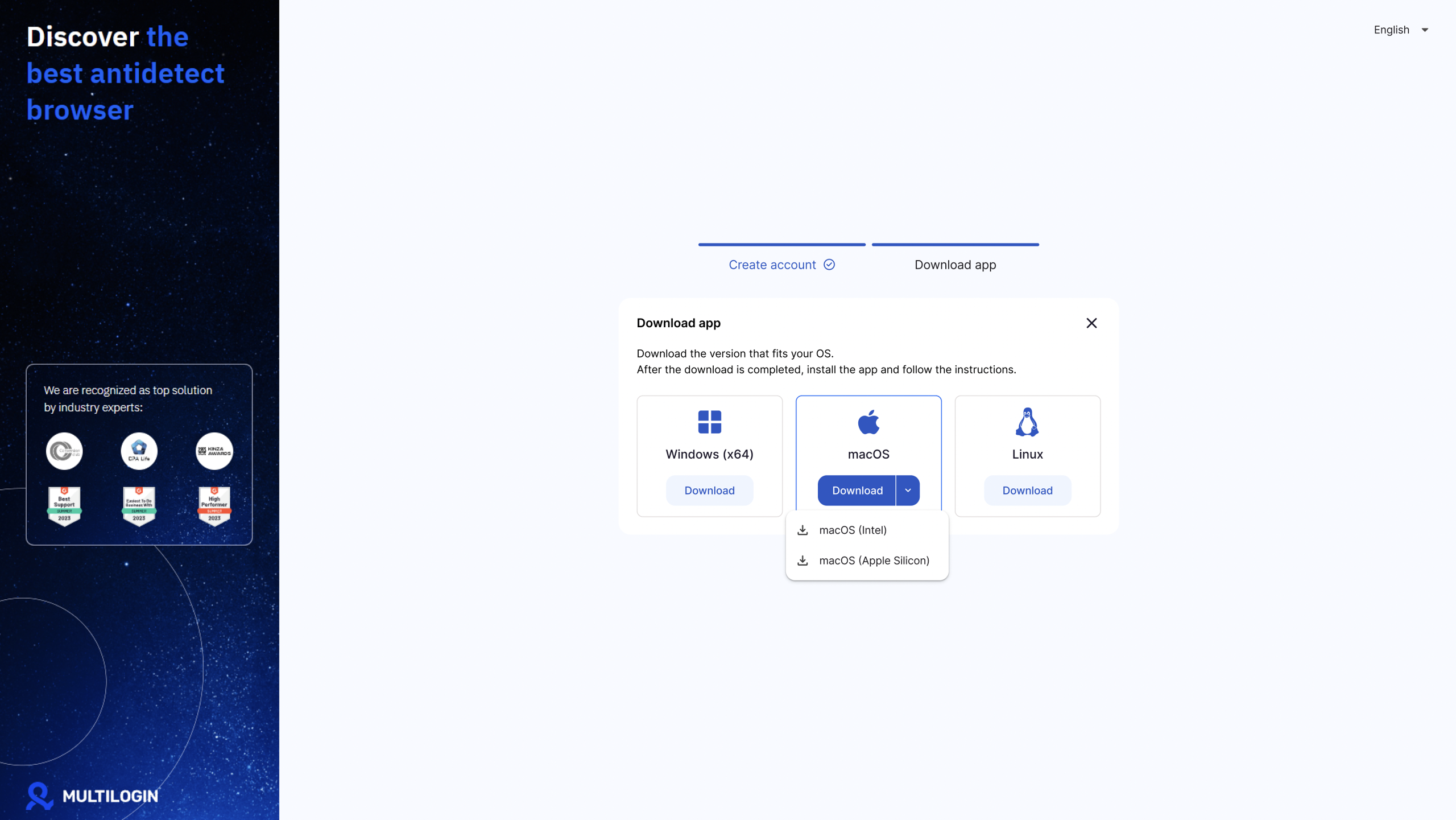
Download the app (Windows/macOS/Linux)

  • Open your “Downloads” folder and run the installer file
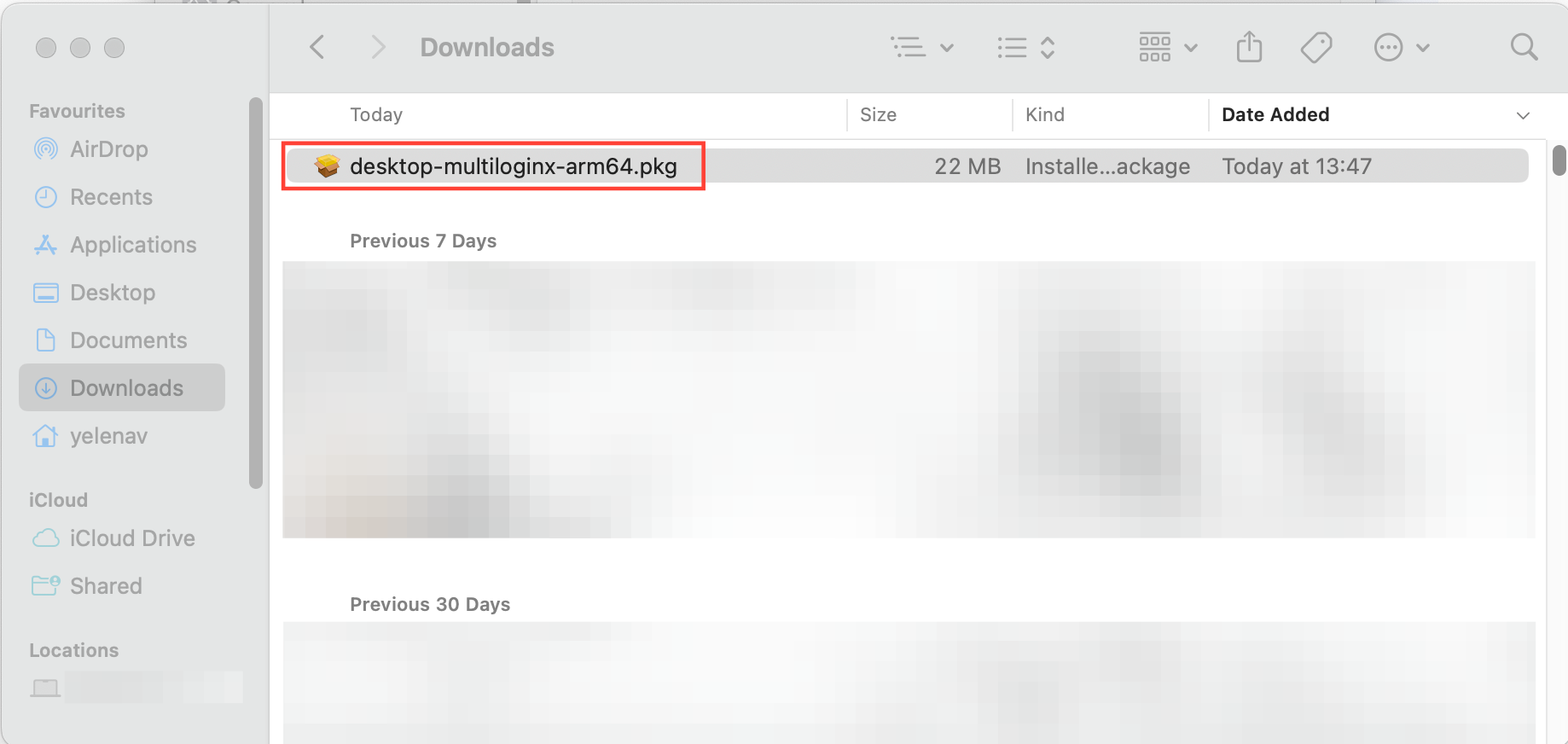
Open your “Downloads” folder and run the installer file

  • Follow the on-screen instructions to complete the installation.
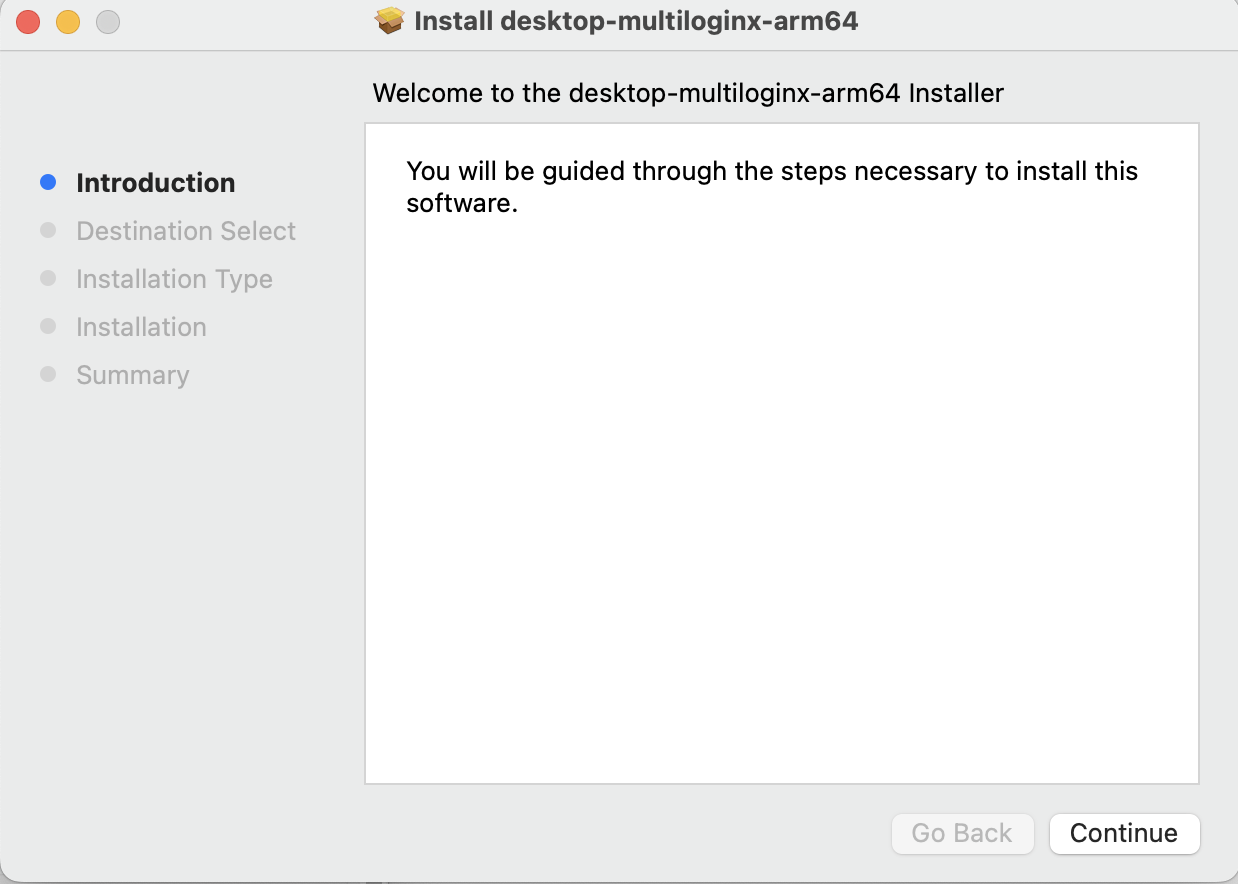
Follow the on-screen instructions to complete the installation.

Already have a subscription? Log in to the Multilogin web version and click “Download app” in the top right corner.
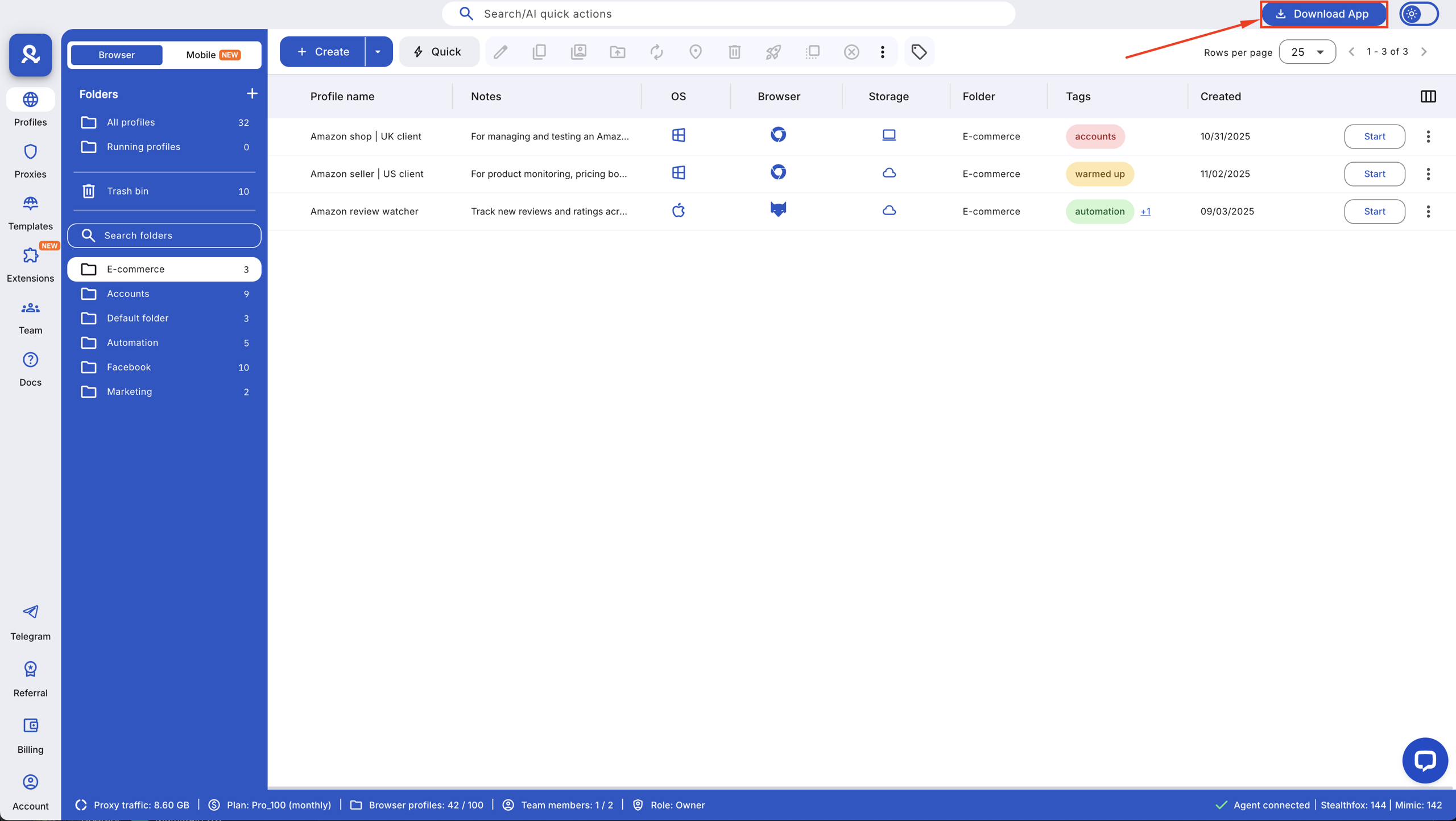
Already have a subscription? Log in to the Multilogin X web version and click “Download app” in the top left corner.

Step 2 — Launch the app & log in

  • Windows: find on the desktop
  • macOS: find in Applications
  • Optional: pin for quick access
  • Windows: right-click → Pin to taskbar
  • macOS: Options → Keep in Dock
  • Log in with existing Multilogin credentials
  • If logged into web already → auto sync

How the Built-in launcher works

The desktop app handles the agent entirely on its own. There’s no button to press, no extension to connect, and no step to repeat. If the launcher stops for any reason, it restarts itself quietly so your workflow stays stable.

  • Auto-connects when app opens
  • Runs silently in background
  • Self-restarts if it stops
  • No browser extension or manual agent

How automatic updates work

The update system stays in the background and handles everything on its own. You never deal with installers or notifications — you just open the app and it always runs the latest version with new features and fixes.

  • App checks for updates in the background
  • Downloads and installs automatically
  • Includes new features, bug fixes, performance improvements
  • Users only need to keep the app open

Using the web & desktop versions together

You don’t have to choose one version forever. Both stay synced in real time, so you can open a profile on the desktop app and review settings on the web version without losing changes. Everything updates instantly.

  • Both versions have the same features
  • Real-time syncing
  • Can switch anytime without losing work

Why most users run profiles on the Multilogin desktop app

Most long-time users end up running their daily work on the desktop app because it cuts out the friction that slows teams down. No agent button. No reconnecting. No waiting for updates. You open the app and your profiles are ready. For people managing 10 profiles or teams running thousands, that reliability matters. It removes unnecessary clicks, and when you’re juggling accounts, proxy setups, tasks, and team operations, the fewer moving parts, the better. The desktop app keeps everything stable so users can focus on the work that brings revenue, not the steps that interrupt it.

Core features users rely on:

  • Automatic updates in the background
  • Built-in premium residential proxy traffic, which is included in all plans
  • 10 profiles fully functional on entry plans
  • 55+ fingerprint parameters for undetectable profiles
  • Cloud or local storage for profile data
  • Pre-farmed cookies for account warm-up
  • Android mobile profile emulation
  • Supports up to 10,000+ profiles for large teams

When the desktop app saves you time

Time loss usually shows up in moments you don’t expect. The agent disconnects during a login. A profile fails to start because the web launcher didn’t connect. An update pops up in the middle of a workflow. The desktop app removes these breaks. It connects the agent the moment you open it and restarts itself if needed. Updates install quietly. Your proxies, fingerprints, and cookies load without friction.

Real situations where users save time:

  • Agent dropped → desktop launcher reconnects automatically
  • Update appeared → desktop app updates silently
  • Profile stalled → fingerprinter + proxy load instantly
  • Automation broke → desktop keeps a stable environment
  • Team workflows → shared profiles sync in real time

The biggest problems the desktop app removes

Problem

Feature That Fixes It

Manual agent connection

Self-restarting built-in launcher

Session drops

Automatic launcher reconnection

Update interruptions

Background updates (no installers)

Browser failing to start

Stable runtime + launcher auto-connect

Setup confusion for beginners

Simple onboarding + aged cookies for stability

What you won’t deal with anymore after switching

Switching removes the micro-problems that break momentum. No reconnecting the agent. No installers. No update pop-ups. No failed profile starts. No guessing whether the environment is ready.

You won’t deal with:

  • Manual agent connection
  • Update downloads
  • Launcher errors
  • Browser failing to launch
  • Session drops
  • Broken fingerprint loads

You keep:

  • Built-in proxies
  • Aged cookies
  • Android mobile profiles
  • API + CLI automation
  • Unlimited team seats (Business plans)

Why stable agent connection matters when running accounts

The agent is the backbone of your browser identity. If it disconnects during login or verification, many platforms treat the session as unstable. If it drops while warming up cookies or running automation, the entire flow becomes risky.

Why a stable launcher protects your accounts:

  • Fingerprints load fully every time
  • Proxy identity stays consistent
  • Cookie warm-up behaves like a real user
  • Automation runs without breaking
  • Android mobile profiles emulate a stable device

Final verdict

The Multilogin Desktop App takes the same profiles, proxies, fingerprints, cookies, and team settings you already use and removes the steps that slow you down. You open it, the launcher connects on its own, updates run in the background, and your entire setup stays synced across devices. If your work depends on stable profiles, warm-up cookies, or large account operations, switching to the Multilogin Desktop App gives you a more reliable environment with fewer interruptions and a workflow that stays focused on real results.

FAQs

No. You sign in with the same Multilogin credentials you already use. Your profiles, cookies, extensions, and settings load instantly.

The main difference is in how the app runs. The web version requires a legacy agent and a browser extension, while the desktop app has the agent built-in and runs automatically. This reduces the steps needed to start your profiles, ensuring a smoother workflow with fewer interruptions.

No, the Multilogin Desktop App does not require a browser extension. The app connects the agent automatically when opened, so you can get started right away without needing to install a separate extension.

The Multilogin Desktop App has a built-in agent that automatically connects when the app is launched. There’s no need for manual agent connection, and the app will restart itself if needed, keeping your workflow uninterrupted.

Yes, Multilogin keeps your profiles and settings synced in real-time between the web version and the desktop app. This allows you to easily switch between the two without losing your progress.

Manage Unlimited Mobile & Web Accounts

Manage your accounts
without restrictions or interruptions

  • Log in with mobile/browser profiles
  • Access accounts anywhere
  • Use apps like Instagram, TikTok, Reddit

Table of Contents

Join our community!

Subscribe to our newsletter for the latest updates, exclusive content, and more. Don’t miss out—sign up today!

Recent Posts
Share with
Hi, I’m Gayane G., a passionate content creator at Multilogin. With a degree in Marketing and over 9 years of experience, I focus on creating engaging digital content that resonates with audiences. When I’m not writing, you can find me traveling, trying new recipes, or curled up with a good book.
https://multilogin.com/academy/how-to-switch-from-the-web-version-to-the-multilogin-x-desktop-app/
Recent Posts
Join our community!

Subscribe to our newsletter for the latest updates, exclusive content, and more. Don’t miss out—sign up today!

Telegram
Thank you! We’ve received your request.
Please check your email for the results.
We’re checking this platform.
Please fill your email to see the result.

Multilogin works with amazon.com