


You want to upload a video, check analytics, or update a client channel. Instead, YouTube opens the wrong channel, asks you to sign in again, or shows an interface that does not match the instructions you are following.
The fastest route to the YouTube Studio desktop login is the official address, studio.youtube.com. Sign in with a Google Account that owns the channel or has permission to manage it, then confirm that you have opened the correct channel before making changes.
This guide covers the desktop login process, Android browser access, channel switching, branding, team permissions, and a practical way to organize several YouTube channels as separate social profiles.
Key takeaways
The official YouTube Studio desktop login address is
studio.youtube.com.A Google Account may provide access to more than one YouTube channel, so confirm the active channel before making changes.
YouTube Studio’s Customization area controls the channel name, handle, description, profile picture, banner, links, and Home tab.
Channel permissions let multiple people receive role-based access without receiving the owner’s Google Account password.
YouTube Studio desktop is a website and does not require a desktop download or third-party APK.
A defined social-profile workflow can help teams track channel ownership, access, content, and day-to-day responsibilities.
What is a YouTube social profile?
In this guide, a YouTube social profile means one channel organized around a defined owner, audience, topic, content plan, access structure, and working environment. The YouTube channel is the public-facing profile. Access is provided through a Google Account that owns the channel or has permission to manage it.
How do you access the YouTube Studio desktop login?
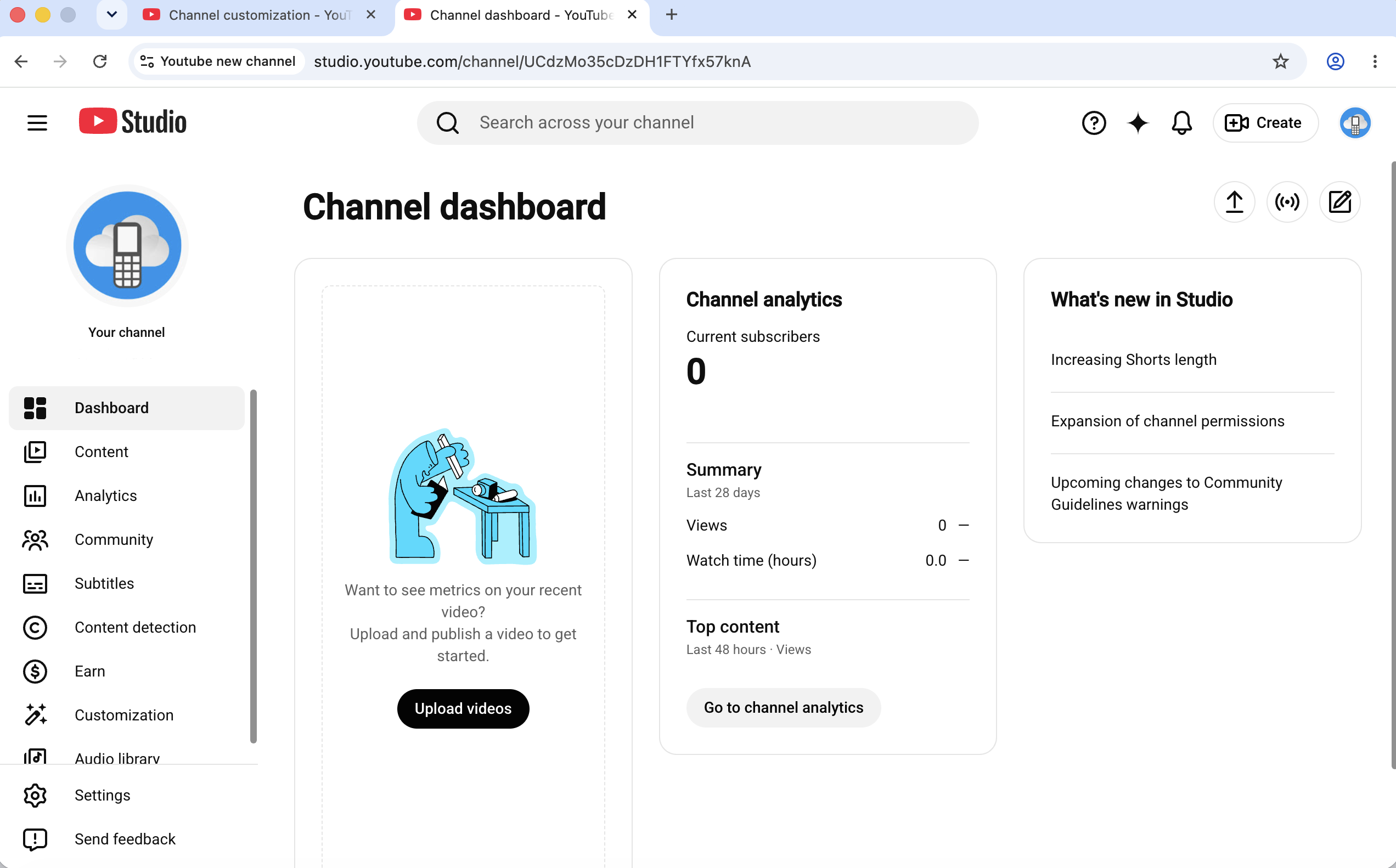
You can access the YouTube Studio desktop login by opening studio.youtube.com and signing in with a Google Account that can access the channel.
Follow these steps:
Open a desktop browser.
Enter
studio.youtube.comin the address bar.Sign in with the appropriate Google Account.
Confirm that the intended YouTube channel is active.
Switch channels before uploading or editing if the wrong channel opens.
You can also begin from YouTube:
Sign in to YouTube.
Select your profile picture.
Choose YouTube Studio.
Both routes open the channel-management dashboard. YouTube describes the dashboard as an overview of channel analytics, comments, and recent activity.
Source: Use the YouTube Studio dashboard
Direct login box
| Destination | Official route |
|---|---|
| YouTube Studio desktop | studio.youtube.com |
| YouTube homepage | youtube.com, then Profile picture → YouTube Studio |
| Google Account recovery | Google’s official account-recovery process |
Bookmark the official Studio address if you use it regularly. This also helps you avoid unofficial pages with similar names.
What can you manage from the YouTube Studio desktop dashboard?
YouTube Studio lets you review channel activity, manage channel content, check analytics, and update the channel’s public presentation.
The main areas relevant to this guide include:
Dashboard: Review an overview of analytics, comments, and recent activity.
Content: Review and manage channel content.
Analytics: Check available channel and content performance information.
Customization: Update the Home tab, channel profile, branding, and links.
The Customization area separates public channel setup into two main parts. The Home tab controls elements such as the channel trailer, featured video, and channel sections. The Profile tab controls the channel name, handle, description, links, profile picture, banner, and video watermark.
Which YouTube Studio access method should you use?
The right YouTube Studio access method depends on whether you need the documented desktop interface, a mobile-browser attempt, or an app-based mobile workflow.
| Access method | Best for | Where it opens | Main advantage | Main limitation |
|---|---|---|---|---|
| Desktop browser | Channel setup, content management, analytics, branding, and permissions | Official YouTube Studio website | Matches YouTube’s documented desktop workflow | You must confirm the correct Google Account and channel |
| Chrome on Android | Trying to reach the official web interface from a phone | studio.youtube.com in the browser | Does not require a separate desktop download | The approved official sources do not document a guaranteed desktop-equivalent Android experience |
| YouTube Studio app | Supported mobile channel-management tasks | Official mobile app | Provides an app-based mobile workflow | Its interface is not the same as the documented desktop Studio interface |
Use a desktop browser when you are following YouTube’s desktop instructions. Use the official app when the task is intended for the app interface.
Can you use the YouTube Studio desktop login in Chrome on Android?
You can open the official Studio URL in Chrome on Android, but the approved YouTube sources do not document a guaranteed desktop-equivalent experience on an Android browser.
To try the official route:
Open Chrome on the Android device.
Enter
studio.youtube.com.Sign in with the Google Account that can access the channel.
Confirm the selected channel.
Check whether the required Studio control is available in that interface.
Queries such as “YouTube Studio desktop site Chrome login Android” often come from people trying to find a setting shown in a desktop tutorial. Start with the official Studio address rather than a third-party redirect page.
When a control does not appear, compare the interface you are using with the interface named in the official instructions. A desktop tutorial, Android browser, and mobile app may not present the same workflow.
Do you need to download YouTube Studio desktop or an APK?
No, YouTube Studio desktop is a website, so you do not need desktop software or a third-party APK to log in.
Use studio.youtube.com in a browser for the web interface. The YouTube Studio app is a separate mobile application.
Searches such as “YouTube Studio desktop site Chrome login Android download free APK” mix together two different access methods:
YouTube Studio desktop: A browser-based website.
YouTube Studio app: A mobile application.
A download that freezes is not part of the normal Studio desktop login process because the desktop site opens through the browser. Return to the official Studio URL rather than installing an unofficial file that claims to provide desktop access.
How do you fix common YouTube Studio login problems?
You can fix most YouTube Studio login problems by checking the Google Account, selected channel, channel access, password status, and interface in that order.
1. You signed in to the wrong Google Account
Check which Google Account is currently signed in and whether that account owns the channel or has permission to manage it.
This problem is common when the same browser contains personal, work, and client Google sessions.
2. You opened the wrong YouTube channel
Use YouTube’s channel switcher to select the intended channel.
On YouTube, select your profile picture, choose Switch account, and select the correct channel. Confirm the channel name and profile picture before uploading or changing settings.
Source: Switch between channels on a Google Account
3. The channel does not appear in your list
Confirm that the signed-in Google Account has permission to access that channel.
If the channel belongs to a client, company, or another owner, the owner may need to grant channel access to the Google Account you are using.
4. You forgot your YouTube Studio password
Recover the connected Google Account because YouTube Studio uses your Google Account credentials.
Use Google’s official account-recovery process rather than a third-party password service.
Sources:
5. You can open YouTube but not the Studio control shown in a tutorial
Check whether the instructions were written for the desktop website, an Android browser, or the YouTube Studio app.
Open the documented interface before concluding that the setting is missing. A desktop guide may not match the mobile app or a browser view on a small screen.
Five best practices for cleaner Studio access
Confirm the channel name and profile picture before uploading, publishing, deleting, or changing settings.
Document which person or company owns each channel and Google Account.
Assign YouTube channel permissions instead of distributing the owner’s password.
Separate desktop tasks from mobile-app tasks so each operator knows which interface to open.
Record recovery ownership, team roles, channel purpose, and current status in an approved internal system.
How do you set up a clear YouTube channel identity?
You set up a clear channel identity by giving the channel one defined purpose, recognizable branding, and accurate profile information.
Open YouTube Studio → Customization. Use the Home tab to organize the public channel layout. Use the Profile tab to manage the name, handle, description, links, profile picture, banner, and watermark.
Source: Channel customization
Before editing, define:
| Channel element | Question to answer |
|---|---|
| Owner | Who should retain long-term control of the channel? |
| Purpose | What job does the channel perform? |
| Audience | Who is the content made for? |
| Topic | What subject should viewers associate with the channel? |
| Region and language | Which market and language does the channel serve? |
| Content formats | Will it publish long videos, Shorts, live streams, tutorials, reviews, or a mixture? |
| Operators | Who uploads, edits, reviews analytics, or manages comments? |
A YouTube channel name generator or channel name creator can help with brainstorming. It cannot decide whether the name matches the channel’s owner, audience, content plan, or long-term purpose.
Can you change your YouTube channel name?
Yes, you can change your YouTube channel name from the Profile area in YouTube Studio’s Customization section.
Choose a name that clearly matches the channel’s subject or brand. After publishing the change, update related design files and internal channel records so the team uses the same name.
Source: Manage your YouTube channel profile
What is the recommended YouTube banner size?
YouTube recommends a banner image of at least 2560 × 1440 pixels.
Keep the most important name, message, or visual near the central area so the design remains understandable when displayed on different screens.
A Canva YouTube banner template or another design tool can help you prepare the file. The best YouTube banners for day-to-day channel operations are easy to recognize and match the channel name, profile picture, and wider visual style.
Source: Channel banner and profile picture tips
What should you use for a YouTube profile picture?
Use a clear image or logo that remains recognizable at a small size and matches the channel banner.
A profile picture creator for YouTube can help crop or resize an image. The design choice should still reflect the channel’s brand, topic, and audience.
You can update the profile picture from YouTube Studio’s branding and customization controls.
Source: Manage channel branding
How do you switch between multiple YouTube channels?
You switch between multiple YouTube channels by opening the profile menu, selecting Switch account, and choosing the channel you want to use.
Before doing any work:
Read the channel name.
Check the profile picture.
Open the Dashboard or Content area.
Confirm that the visible channel activity belongs to the expected channel.
Begin the task only after those details match.
Source: Switch between channels on a Google Account
Worked example 1: A creator with two or several channels
This is an example, not a recommended limit or performance benchmark.If you manage several tutorial channels, you may need different presentation styles for different topics and audiences. You can use Flipsnack to create presentations more easily and vary their layouts and visual styles across your tutorials. You can then organize the key steps, screenshots, examples, and explanations around each presentation.For managing multiple accounts, you can use Multilogin to keep each channel in a separate browser profile with its own saved session and working environment. This makes it easier to organize your channels without mixing their browser sessions.When you’re ready to upload, open the browser profile for the intended channel and sign in to YouTube Studio. If your Google Account provides access to multiple channels, choose Switch account and select the correct tutorial channel before uploading.Before publishing, check the title, description, thumbnail, and other video details. You should also confirm the channel name and profile picture and compare them with your upload brief. This quick check helps prevent you from accidentally publishing a video to the wrong channel.This workflow helps you separate your channel environments, prepare different presentation styles for your tutorials, and publish each video to the intended channel.
How should teams share access to a YouTube channel?
Teams should share access through YouTube channel permissions instead of giving every operator the owner’s Google Account password.
Channel permissions let an owner grant role-based access to other people. The selected access level should match the work the person needs to complete.
For example, a contractor who only handles one part of the workflow should not receive broader access than the task requires. A temporary operator should not receive the owner’s personal password.
Source: Add or remove channel access with permissions
Permissions solve channel authorization. They do not organize wider operating details such as the client brief, publishing region, assigned reviewer, current campaign, or mobile-review process.
How do you organize creator, team, and client channel workflows?
You can organize creator, team, and client channel workflows by giving every channel a clearly named social profile with its own saved environment, notes, access context, and operating instructions.
Multilogin is a cloud phone platform for social media marketers. It supports browser profiles for YouTube Studio, channel settings, uploads, and other web-based work. It also provides Android cloud phones for native YouTube and YouTube Studio app workflows.
These are different environments:
A web profile runs in an isolated browser profile with its own cookies, saved session, and IP address.
A mobile profile runs on a dedicated Android cloud phone, which is a real Android device hosted in the cloud with persistent app data and login history.
Not every YouTube social profile needs both environments. A desktop-focused workflow may use a browser profile. A workflow that includes native mobile-app tasks may also use an Android cloud phone.
Teams can group social profiles by client, channel, region, campaign, or operator. Folders, color tags, notes, and custom columns can keep details such as channel ownership, publishing language, task status, and assigned team member visible in the workspace.
YouTube’s channel permissions should still control who is authorized to work on the channel. The workspace organizes how the team reaches each profile, separates web and mobile environments, and preserves operational context for handoffs.
Related Multilogin resources:
Worked example 2: An agency with three client channels
This is an example, not a performance or account-safety benchmark.
An agency manages three client channels. Each channel has a browser profile named after the client, region, and content purpose:
Client A | Australia | Tutorials
Client B | Germany | Product videos
Client C | United States | Shorts
The team adds notes for the channel owner, publishing language, reviewer, and current campaign. YouTube permissions give each operator the required channel access. When a native mobile review is part of the workflow, the team can assign an Android cloud phone for that app-based work.
The setup gives the team a clearer starting point for each task. It does not change YouTube’s rules or remove the need to confirm the active channel before publishing.
For creator teams managing multiple brand or client profiles, Multilogin can help keep daily account work organized without turning your analytics workflow into a login mess.
Multilogin is not a way around platform rules; the safest approach combines clean account separation with original content, real engagement, and platform-compliant activity.
Conclusion
Start with the official YouTube Studio desktop login, confirm the Google Account, and check the active channel before changing anything.
From there, use Studio to organize the channel’s content, name, branding, layout, and permissions. When several people or channels are involved, document ownership and give every channel a clear purpose and operating process.
The login takes a minute. Keeping the right channel, people, and content connected is the part worth organizing.