



This guide shows how to manage Multilogin cloud phones with Grok Bot, using messages in its mobile and desktop app.
In this guide we will:
- Install and configure Grok Bot on mobile and desktop
- Create a Bot and connect it to tools on your computer
- Confirm that your account can run tasks
- Install Multilogin and log into its command-line tool
- Create a skill that teaches the Bot to work with Multilogin
- Create an Android cloud phone with a US proxy
- Install X and upload images to the phone gallery
- Research a topic, review a post, and verify the published result
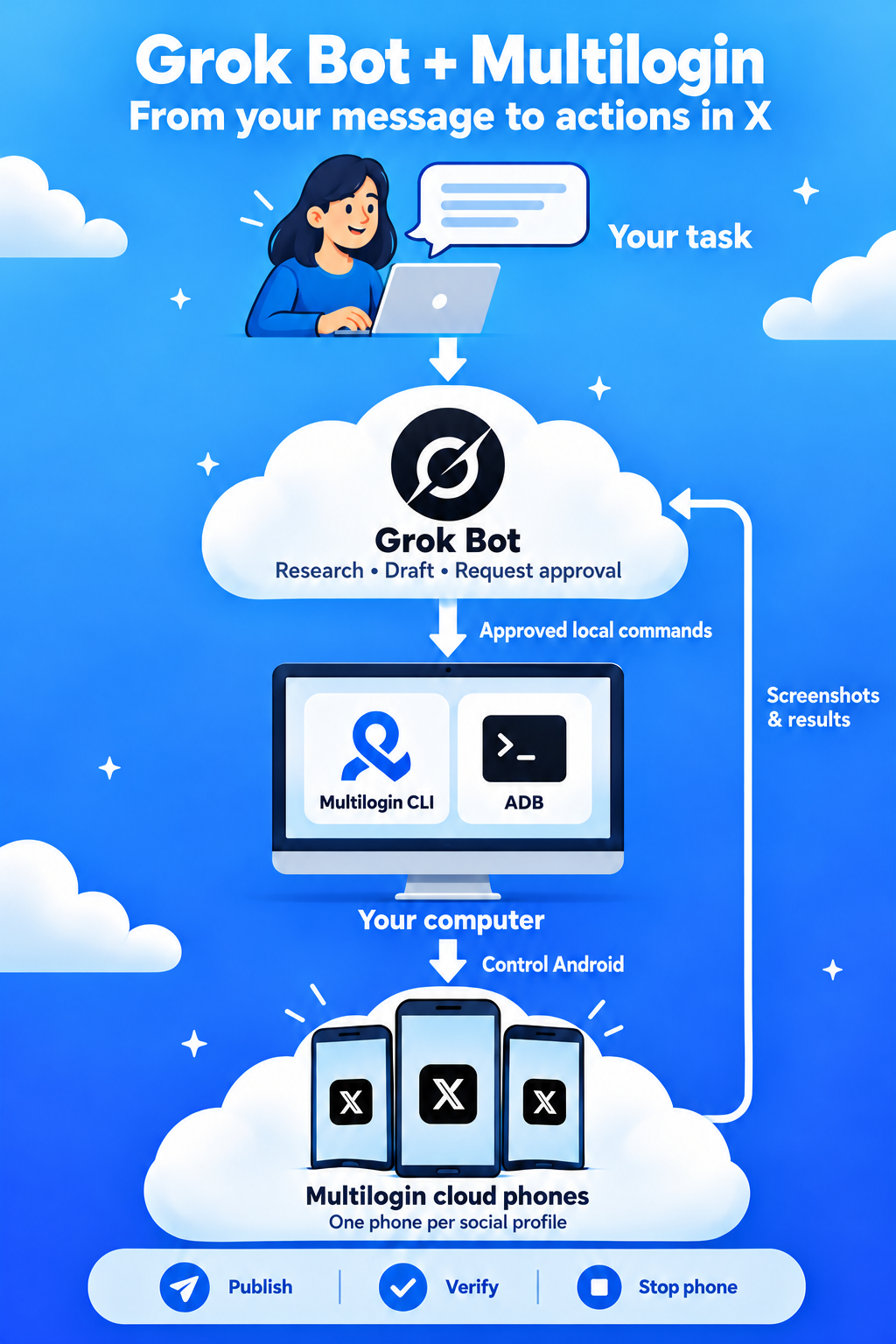
The example uses a MacBook for the Multilogin connection. You can use the Grok Bot mobile app for messages and reviewing results, while the desktop handles the local phone-control tools.
What is Grok Bot and how does it work?
Grok Bot is an AI agent app where you create named Bots and assign them tasks through conversation. Bots use a persistent hosted computer with a browser, files, and command-line tools to carry out work.
For this workflow, three parts work together:
- Grok Bot interprets your request, researches content, and coordinates actions.
- Multilogin CLI and ADB run on your desktop and control the cloud phone. CLI means command-line interface. ADB means Android Debug Bridge.
- A skill records the workflow, commands, checks, and approval points the Bot should follow.
The chain looks like this:
Your message in Grok Bot → approved local commands → Multilogin CLI and ADB → Android cloud phone → report back in Grok Bot
The Bot’s hosted computer and your desktop are separate. Grok Bot needs local-execution access to use the Multilogin installation on your computer. The cloud phone supplies the dedicated Android environment and signed-in X session.
Where can you install Grok Bot?
Grok Bot has mobile and desktop apps. They connect to the same Bots and conversations, so you can begin a task on one device and review its progress on another.
| Option | How it fits this walkthrough |
|---|---|
| Mobile app | Send instructions, answer questions, review drafts, and inspect results |
| Desktop app | Configure local access and connect the Multilogin CLI and ADB |
For this example, keep the computer running Grok Bot and Multilogin awake and connected during local-command tasks.
Step 1. Install and configure Grok Bot
Choose your preferred interface below. Even if you start on mobile, complete the desktop connection before attempting cloud phone actions.
Option A: The mobile app
Follow the official Grok Bot mobile setup guide to install the app from the App Store or Google Play. Open it, complete the account authentication flow, and confirm your access.
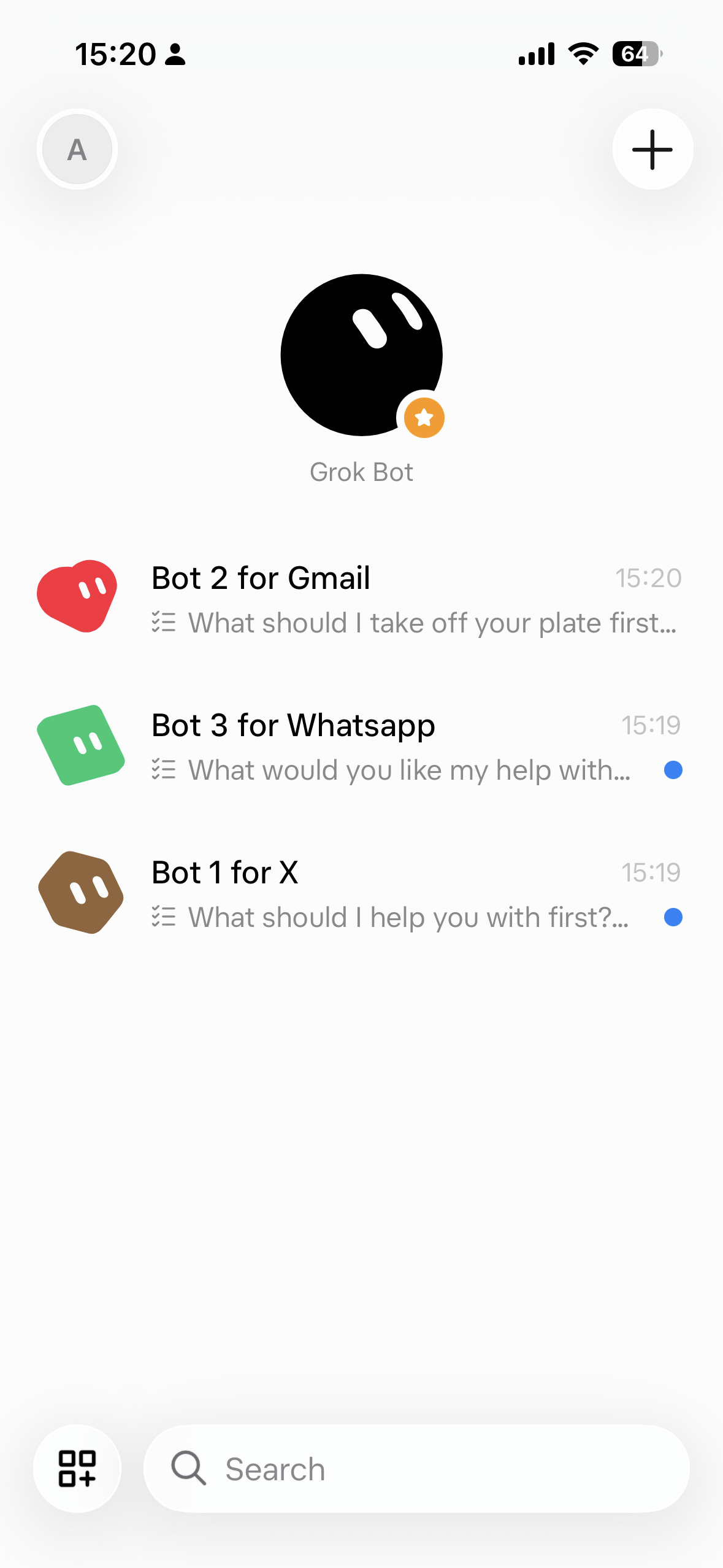
New users can finish the first-run setup and choose a Bot. Existing users should see their synced Bots and conversations after signing in with the same account.
Use mobile to send tasks, review screenshots, and respond to questions. For this walkthrough, install the desktop app as well and configure local execution in Step 2. Before relying on a task sent from mobile, confirm that it can reach the prepared desktop tools.
Option B: The desktop app
Use the download linked in the Grok Bot desktop setup guide. On a MacBook, choose Apple silicon or Intel to match Apple menu → About This Mac. Open the downloaded disk image, drag Grok Bot to Applications, and finish the sign-in flow.
Wait for the initial hosted-computer setup to complete. This guide uses macOS. Run the Multilogin commands below in Terminal.
Sign into the same account on desktop and mobile if you want both interfaces available. Keep the desktop app open while establishing the local connection.
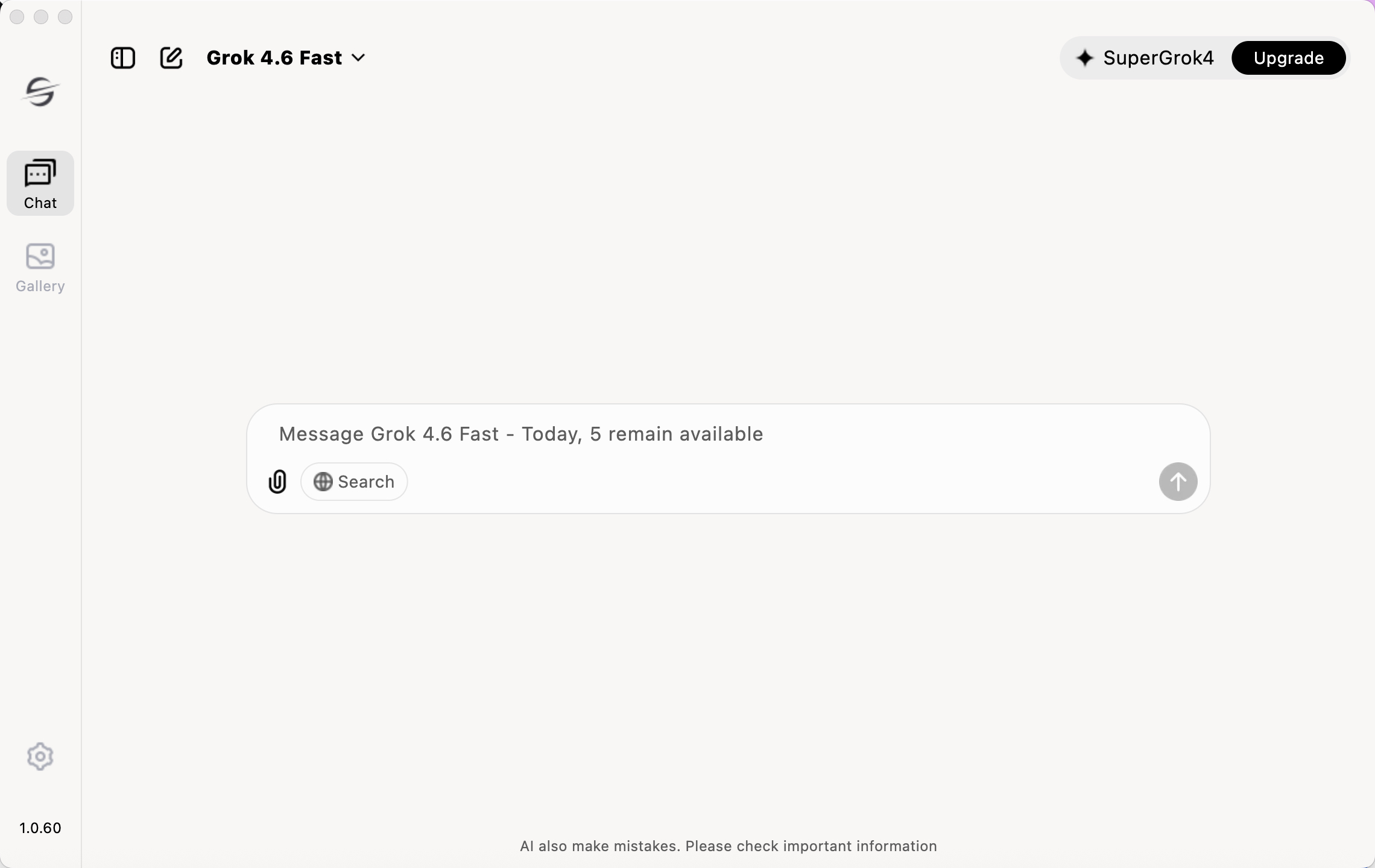
Step 2. Create a Bot and connect it to your computer
Create a focused Bot called X Profile Operator, for example. On mobile, use the home screen’s creation control. On desktop, create it from the new-chat or Bot controls.
Give it a clear job:
> Prepare reviewed X content and operate only the Multilogin cloud phones assigned to this workflow. Check the destination before composing. Wait for approval before publishing and return evidence of the result.
On desktop, open Settings → General → Bot → Execution on Local Computer and choose Ask every time. If computers are already registered, look under Settings → Computer → Computers → Execution on this computer.
Grok Bot’s local-access documentation explains the controls and team-policy restrictions.
Send this first connection request:
> Use local execution on this Mac. Identify the operating system and check whether the Multilogin CLI and ADB are installed. Run read-only checks. Do not start or change any phones.
Review the proposed commands. Confirm that the results describe your actual desktop rather than the Bot’s hosted computer.
Step 3. Confirm your AI access
Grok Bot handles model access within the app. This workflow does not require connecting a separate model provider or entering a Grok API key.
Confirm that your account has eligible Grok Bot access and available usage. If the app displays a billing or access message, resolve it before testing the Multilogin connection.
Account access, local-execution permission, and Multilogin authentication are separate checks. A Bot that can answer a message may still need permission to run a local command.
Step 4. Check that the Bot answers
Open your Bot and send a simple request:
> Summarize the workflow we are setting up. Explain which tasks use your hosted computer and which require the Mac. Do not run commands yet.
Check that the reply identifies the desktop connection and the dedicated Android cloud phone correctly.
If using mobile, open the same Bot there and send another message. Once the desktop tools are prepared, repeat the read-only connection check from that conversation before sending phone actions. If local execution is unavailable, use desktop for those actions and mobile for research and review.
Step 5. Install Multilogin and log into the CLI
Create a Multilogin account, install the desktop app, and sign in. Multilogin offers a Free plan with no time limit. Paid plans start at $7.08 per month with annual billing, or $11 billed monthly. Check the current plans, since this ADB workflow needs paid access.
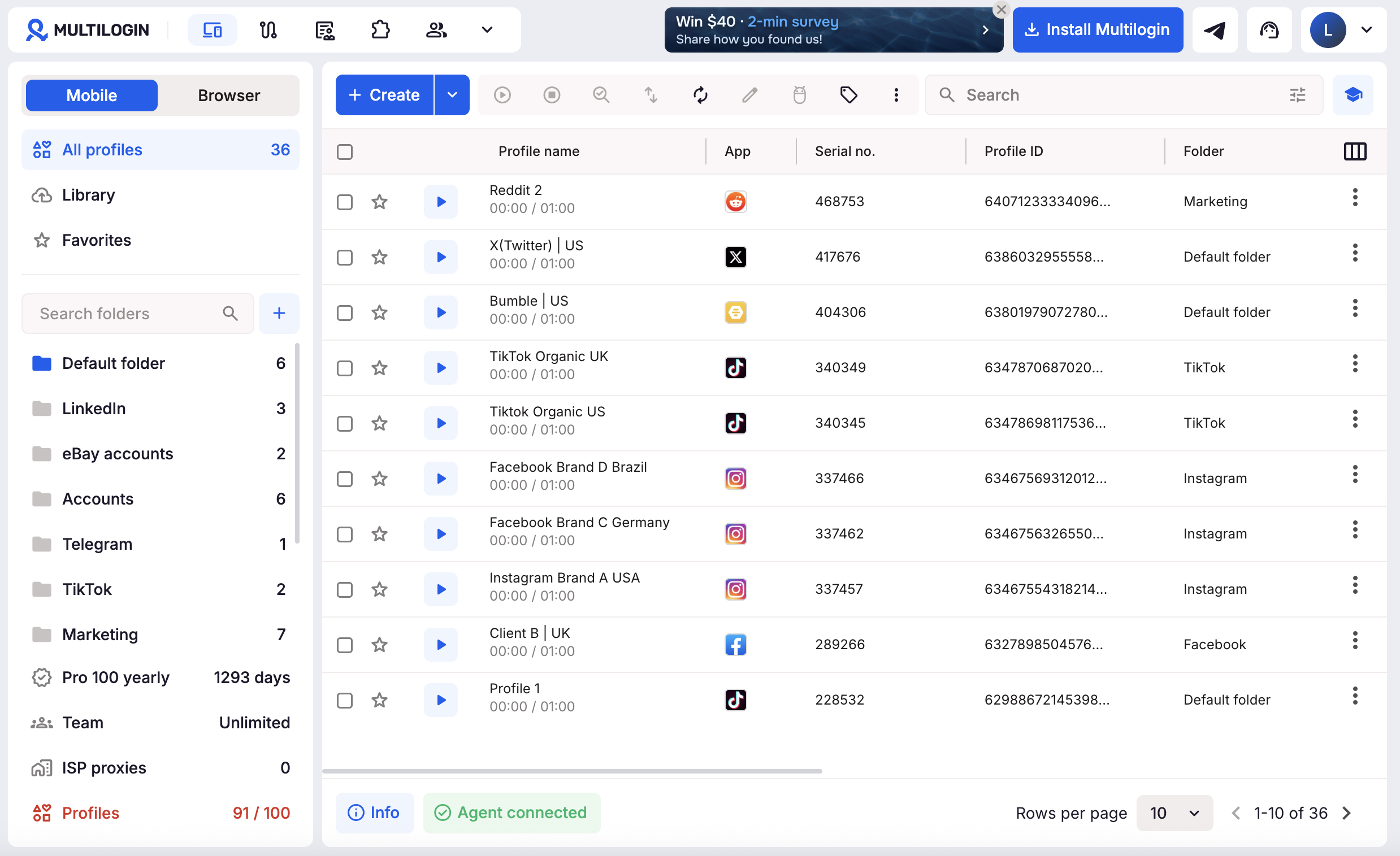
You also need mobile minutes, owner or manager access for ADB, and an Android 11-or-later cloud phone.
Open Terminal on your Mac and authenticate:
“`bash
cd ~/mlx/deps/cli
./xcli login –username ‘YOUR_EMAIL’ –password ‘YOUR_PASSWORD’
./xcli mobile-profiles-phone-list
“`
Enter real credentials locally, rather than in the Bot conversation. An empty phone list is fine if you have not created one yet.
The Multilogin cloud phone CLI reference lists available commands. Ask the Bot to read the installed CLI’s help before constructing commands.
ADB handles actions inside Android. Install Android SDK Platform-Tools for Mac if needed. Confirm that `adb version` works in Terminal and that Grok Bot can locate the same executable.
Step 6. Teach Grok Bot to work with Multilogin
A skill gives the Bot reusable instructions for the workflow. Grok Bot can save written instructions as a skill. Review and test that skill before treating it as a repeatable process.
Start with the current CLI help and Multilogin’s ADB instructions. The Bot should learn how to select a phone, start it, obtain current connection details, authenticate ADB, and stop the device.
Our example
Prepare two local folders under your Mac home directory:
“`text
~/mlx-work/apk
~/mlx-work/creatives
“`
When giving paths to the Bot, expand `~` to your actual home directory if needed. Place a trusted, compatible X `.apk` file in `apk` and approved images in `creatives`. Use actual file paths in the task and check the files before allowing installation or upload. If you do not have a suitable APK, install X manually through Apps or Google Play and skip the installation command.
Ask the Bot:
Draft a skill called “Multilogin X workflow.” The desktop app is running and xcli is authenticated.
1. Read local xcli help for cloud phone, proxy, and ADB commands. Check that ADB works.
2. Cover checking capacity, creating one phone with a US proxy, starting and stopping it, installing the supplied APK through ADB on that phone only, and uploading the supplied images.
3. Record the IDs of phones created for this workflow. Address those IDs explicitly in every operation.
4. Retrieve current ADB details and authenticate before device actions. Keep connection credentials out of chat reports.
5. Verify package installation and gallery images. Capture Android screenshots when a visual check is needed.
6. Require approval before publishing. Stop each phone after its task, including when a stage fails.
Save the draft skill and summarize its steps. Do not create or start phones yet.
Review the result. Use a ten-minute auto-stop limit for initial device tests. Instructions in a skill guide the Bot. Confirm that its actual commands respect the selected phone and task scope.
Step 7. Run it from chat, one step at a time
Give the Bot one task per message. Check the outcome before moving to the next stage.
1. Create the cloud phone
Use the Multilogin X workflow skill. Create one Android 14 cloud phone named X-Brand-US with a checked US proxy. Do not start it. Return its name and ID.
Find the phone in Multilogin and compare the ID. Record it as the destination for subsequent tasks. If creation fails, check profile capacity and proxy configuration before trying again.
2. Install X and test device control
Install the package from the apk folder only on phone [PHONE_ID]. Verify installation, capture its Android screen, then stop the phone. Do not sign into an account or publish anything.
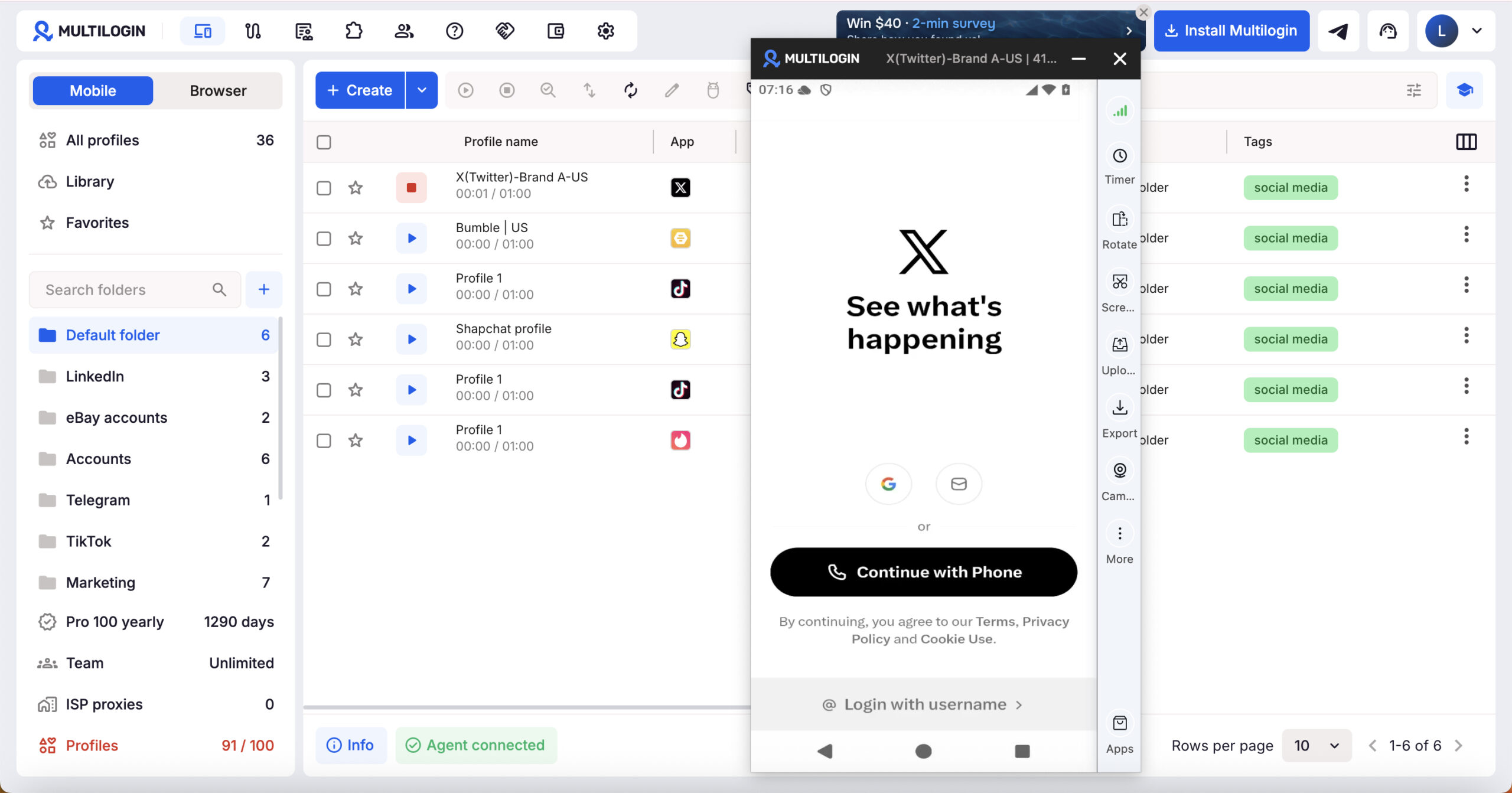
Before proceeding, confirm that the Bot can use ADB and return a screenshot of the actual phone. The connection includes both steps:
“`bash
adb connect IP:PORT
adb -s IP:PORT shell glogin PASSWORD
“`
Use current connection values. Grok Bot’s hosted desktop preview is a different screen from the Android phone.
Open the cloud phone yourself, sign into X, complete any verification, and record the expected handle. Stop the phone when finished.
3. Upload the images
Upload the images from the creatives folder to phone [PHONE_ID]. Make them visible in the Android gallery and verify the file count. Return a gallery screenshot, then stop the phone.
Check that the images appear in the gallery, not merely in a device folder. Record the filenames so the publishing task can specify an exact asset.
4. Research and publish one post
Keep the phone stopped during research:
Find three recent public X discussions about AI agents for small marketing teams. Return source links and draft one original post under 250 characters for our project-management brand. Do not publish.
Review the sources and select a draft. Then prepare the composer:
Start phone [PHONE_ID], confirm the X handle is [HANDLE], and enter this approved text: [DRAFT]. Attach [IMAGE_FILENAME] if specified. Return an Android screenshot and wait before publishing.
Check the destination, text, and image. When correct, authorize the final action:
Publish the reviewed post once. Verify it on the expected profile, return its URL and a screenshot, then stop the phone. If submission is uncertain, inspect the timeline before retrying.
The result
Your completed test should leave a clear record: one identified cloud phone, X installed, the intended handle signed in, approved images in its gallery, and evidence of the published post.
Compare the Bot’s report with Multilogin and X. Record any failed or uncertain stage explicitly. After correcting the workflow, update the skill with the commands and checks that worked.