



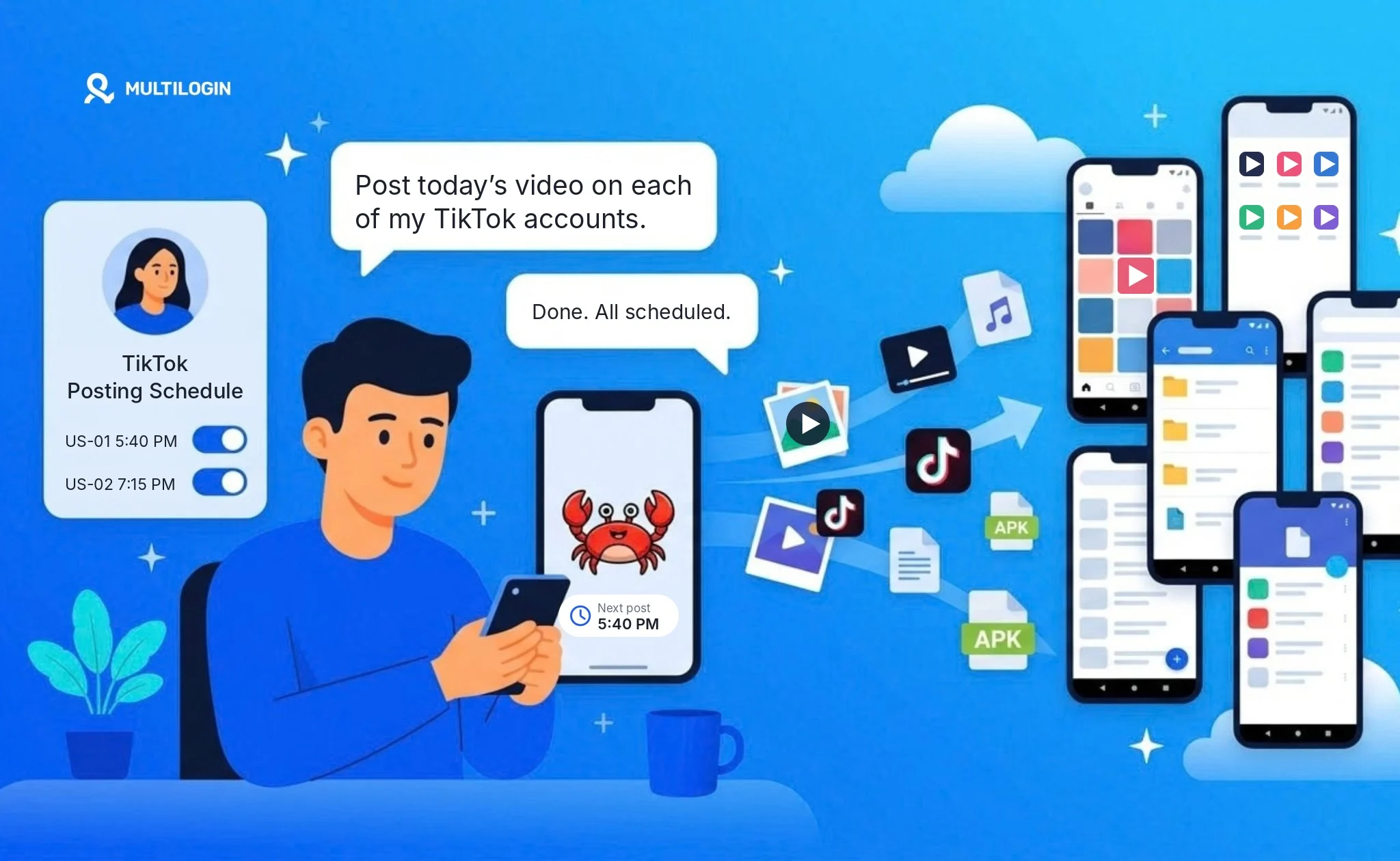

This guide shows how to run several TikTok accounts with an OpenClaw AI agent and Multilogin cloud phones, giving the agent its instructions through a Telegram chat. Each TikTok account gets its own Android cloud phone, and the agent handles the repetitive part: putting videos on the right phone, typing captions, and posting on a schedule.
If you already followed How to Use OpenClaw AI Agent with Multilogin Cloud Phones, Steps 1 to 5 are a quick recap of that setup and you can skip straight to Step 6.
In this guide we will:
- Install and configure OpenClaw on a Windows PC
- Create a Telegram bot and link it to the agent
- Connect an AI model
- Install Multilogin and log in to its command-line tool
- Write a skill that teaches the agent to post on TikTok
- Create Android cloud phones with US proxies and install TikTok
- Upload videos, save a first draft and publish
- Schedule posts so OpenClaw runs them on its own
Treat it as one working example. Once it runs for one account, you can adapt the countries, the number of phones and the posting times to your own work.
What is OpenClaw and how does it work
OpenClaw is an open-source AI agent that runs on your own computer. You message it through an app such as Telegram, and it carries out real actions on that computer: it runs commands, works with files and opens programs.
OpenClaw has three parts:
- The Gateway: the engine that runs in the background on your machine and also runs scheduled jobs.
- A language model: the brain. It reads your message, looks at screenshots of the phone and decides what to do next.
- Skills: short instruction files that teach the agent how to use a specific tool. Here, that means the Multilogin command line and ADB, the standard tool for controlling Android devices.
When you use OpenClaw for TikTok, the chain looks like this: your Telegram message → OpenClaw → Multilogin CLI and ADB on your computer → the cloud phone for that account → the TikTok app → a report back in Telegram.
What OpenClaw TikTok automation can and can’t do
OpenClaw TikTok automation handles the routine part of running accounts you already own: moving a finished video onto the right phone, opening the app, typing the caption, and posting or saving a draft at the time you picked. It won’t make your videos, and it shouldn’t be used to fake activity.
TikTok is direct about that second point. Its Community Guidelines on integrity and authenticity don’t allow automation used to register or operate accounts in bulk, push high-volume commercial content, or inflate engagement signals. So this workflow stays narrow on purpose: original videos, accounts you control, and a posting pace a person could keep up with.
| Good fit for automation | Keep out of automation |
| Uploading videos you made to the right account | Liking, following or commenting in bulk |
| Typing captions you wrote or approved | Creating new TikTok accounts automatically |
| Posting at set times across a few accounts | Posting the same video to many accounts |
| Saving drafts for someone to review | Anything meant to raise views or follower counts |
Multilogin reduces the chance that your accounts look connected to each other. It can’t promise TikTok will never restrict an account, and no tool honestly can. What it changes is the environment: each account gets its own phone, its own app data and its own IP address, instead of several accounts sharing one device.
Where you can install OpenClaw
OpenClaw runs on Windows, macOS, Linux, Docker and cloud servers, and the OpenClaw getting started guide covers each one. For TikTok, two things matter more than the operating system: OpenClaw has to sit on the same computer as the Multilogin desktop app, and that computer has to stay awake at posting time, because scheduled jobs run there.
Step 1. Install and configure OpenClaw
Use either the OpenClaw desktop app for Windows or the command line.
With the desktop app, a setup wizard opens on first launch and walks you through creating the Gateway and connecting a model.
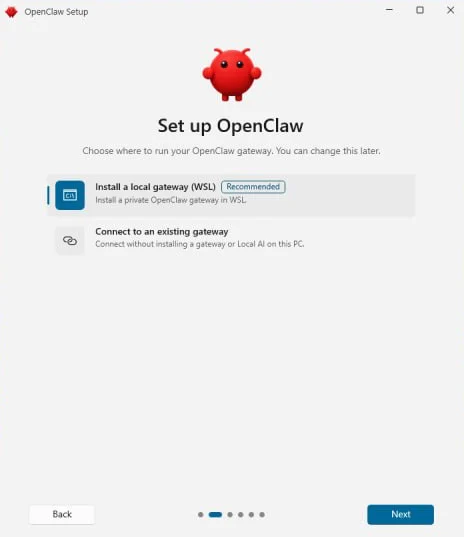
When the wizard asks where the Gateway should run, choose a local Gateway running directly in Windows. The agent needs to call the Multilogin CLI, which is a Windows program.
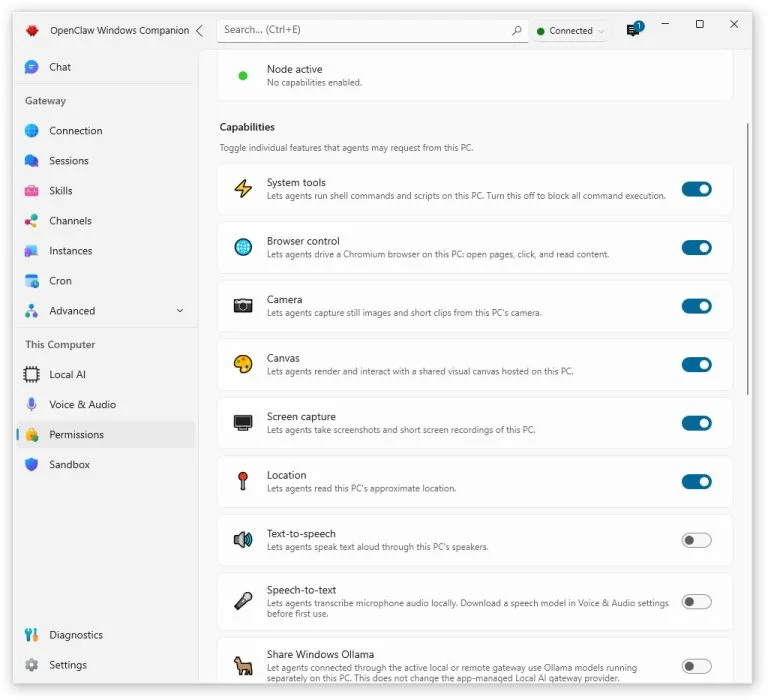
With the command line, install and run onboarding from PowerShell:
npm install -g openclaw@latest –allow-scripts=@google/genai,esbuild,koffi,protobufjs,openclaw
openclaw –version
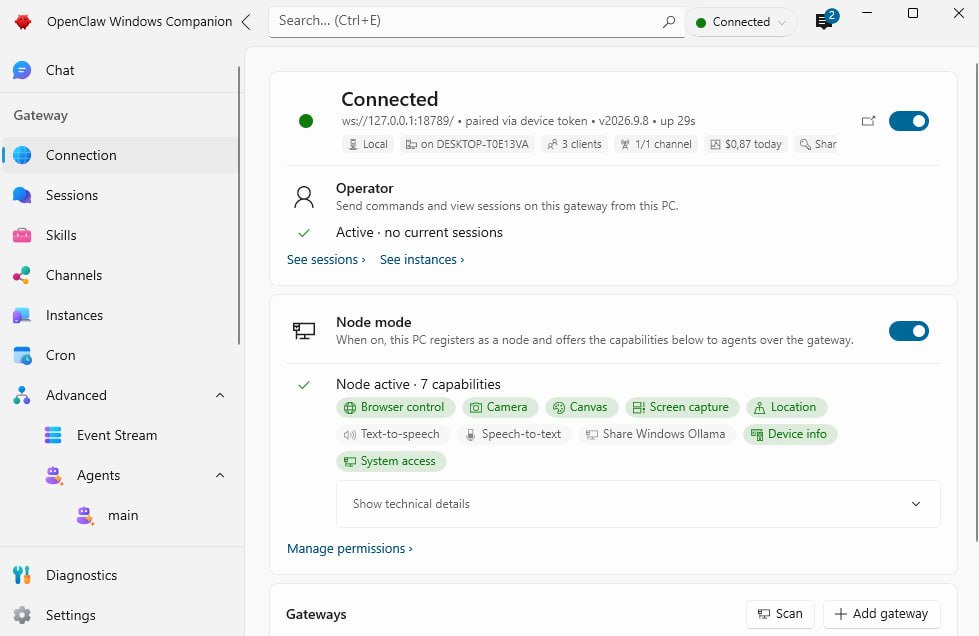
Either way, check that the Gateway is running before you move on:
openclaw gateway status
Step 2. Create a Telegram bot and link it to OpenClaw
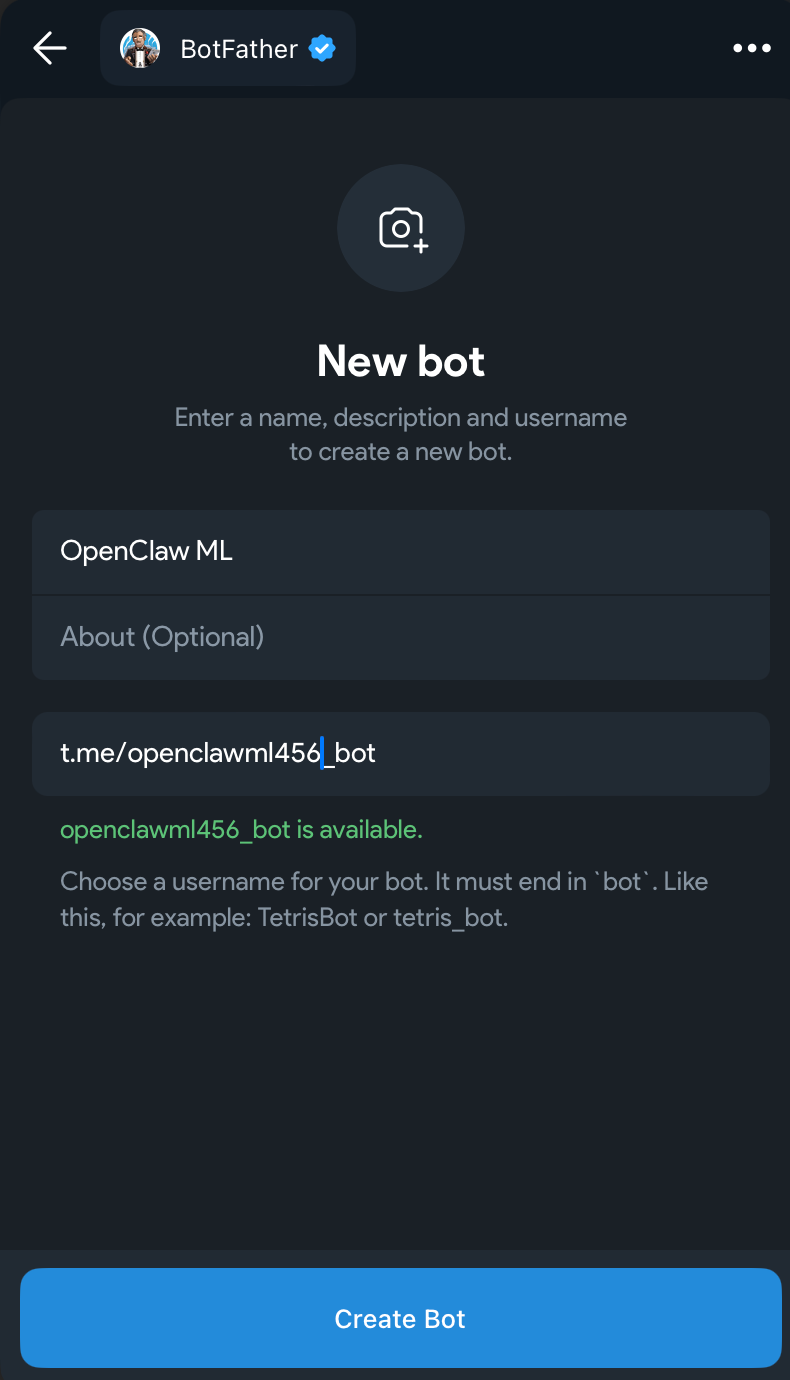
Telegram is where you will approve TikTok drafts and read post reports, so it is worth setting up even if you mostly use the dashboard. Open a chat with @BotFather, send /newbot and copy the token it gives you.
Connect the bot to OpenClaw, then send it any message to create a pairing request:
openclaw channels add –channel telegram –token <bot-token>
openclaw pairing list telegram
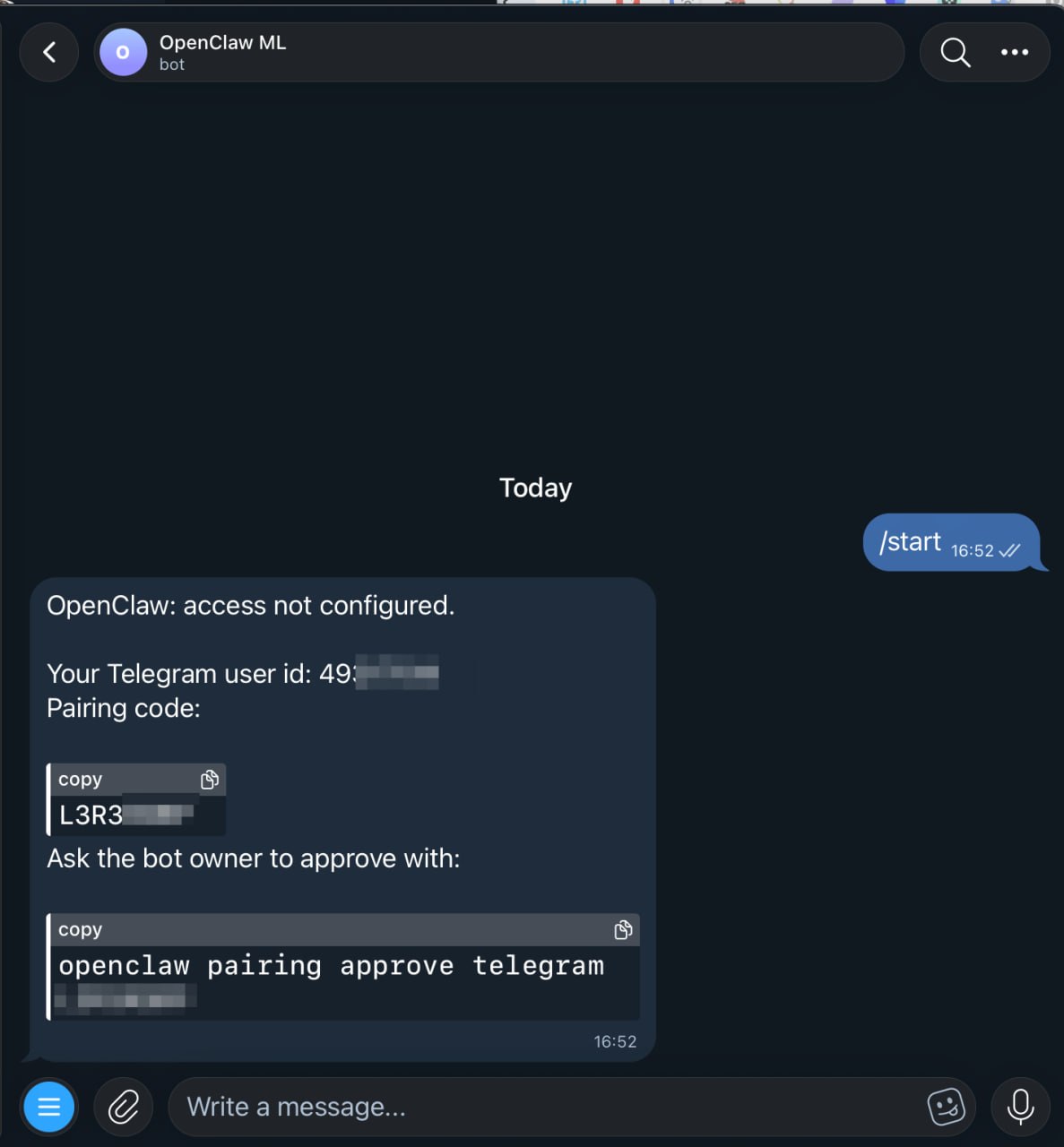
Approve the request with the code from the list. From then on, the bot answers only you:
openclaw pairing approve telegram <CODE>
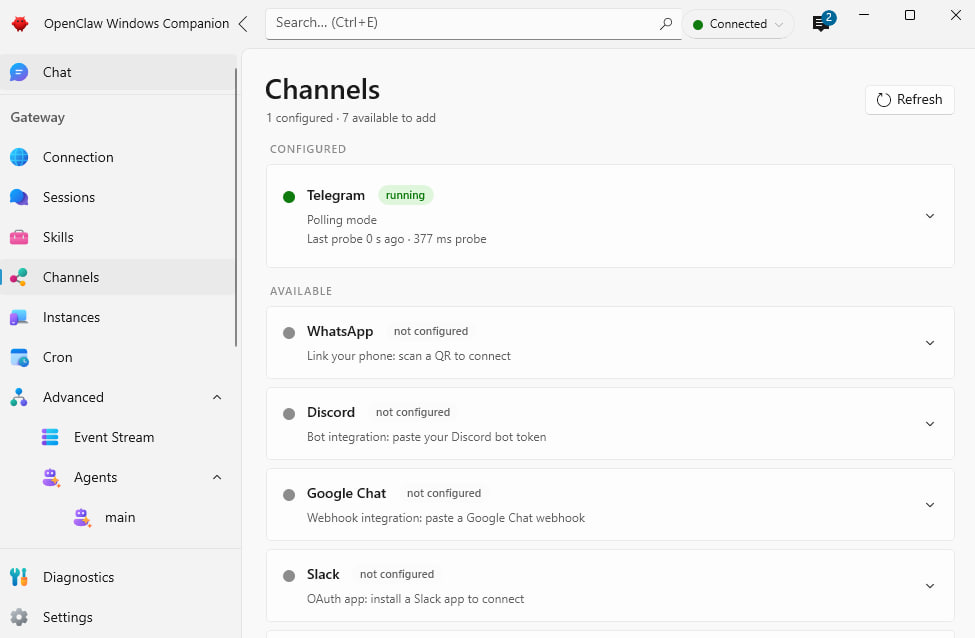
Step 3. Connect a language model
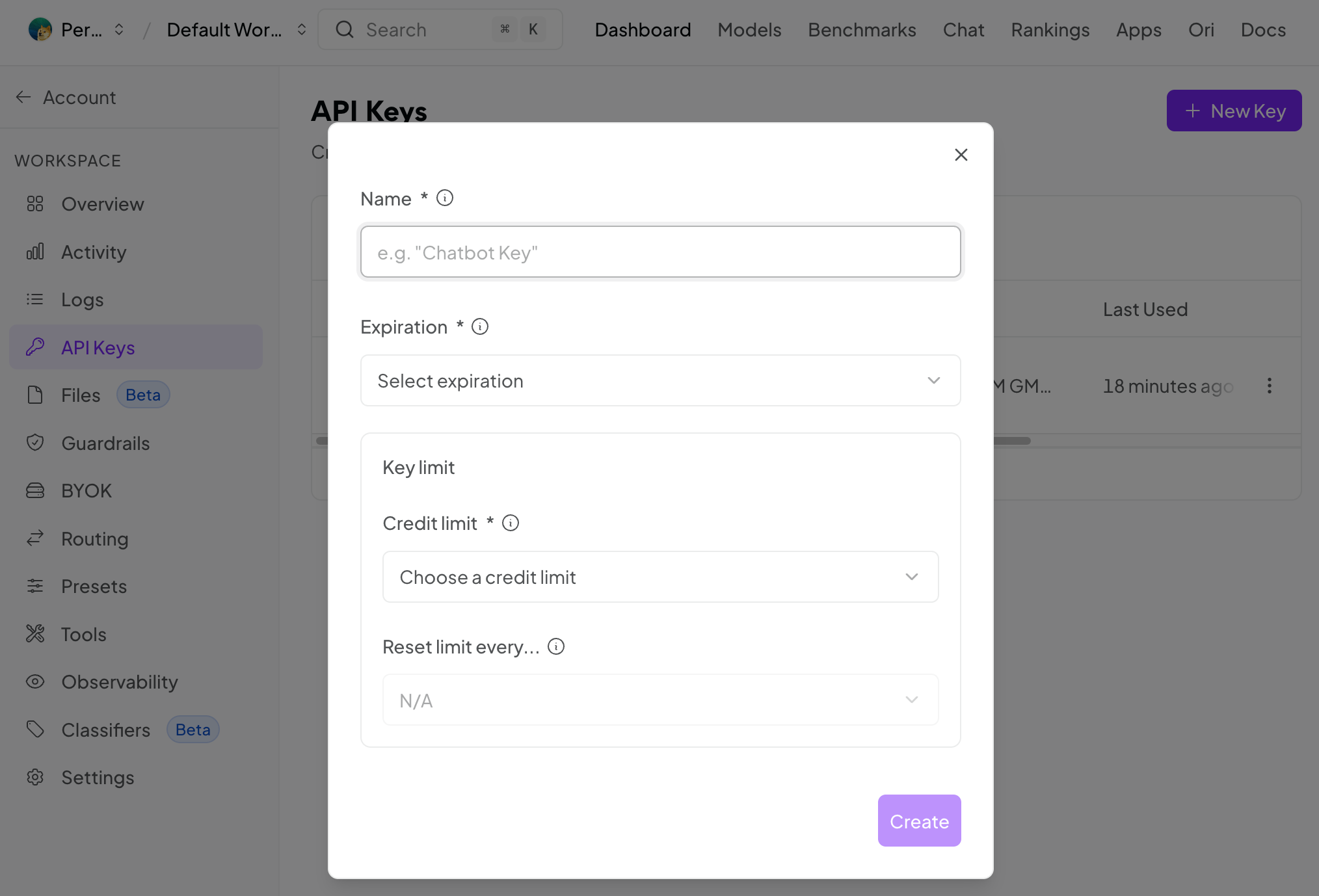
This is the one setup step where TikTok changes the choice. The agent decides where to tap by reading screenshots of the phone, so it needs a model that accepts images. A text-only model can manage cloud phones through the CLI but stalls on the first TikTok screen. We used OpenRouter:
openclaw configure
openclaw models set openrouter/auto
openclaw models status
If automatic routing picks a text-only model, set a specific vision-capable one with openclaw models set.
Step 4. Check that the bot answers
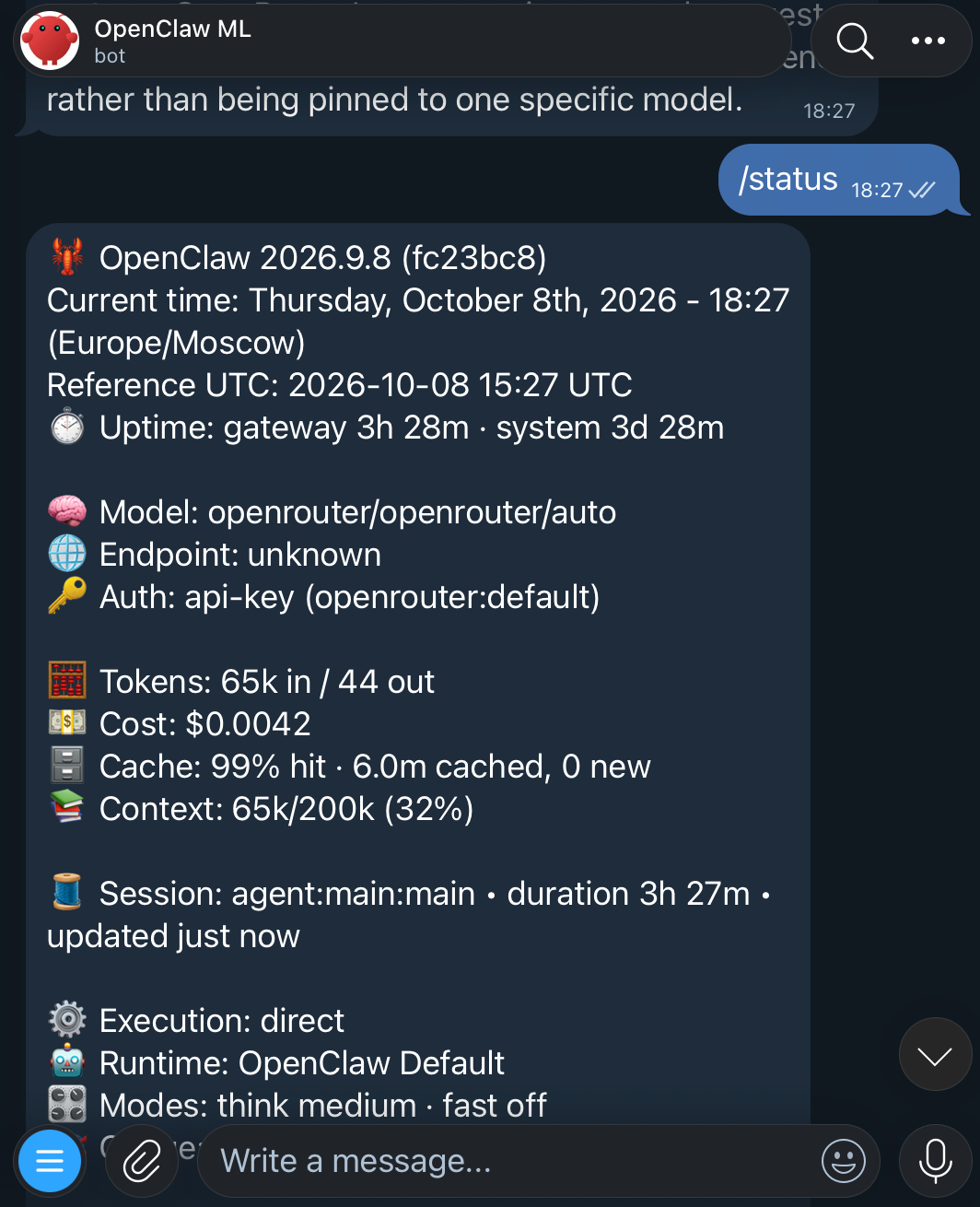
Send your bot a short message, such as asking which model it runs on. A reply means Telegram, OpenClaw and the model are connected.
Step 5. Install Multilogin and log in to the CLI
Install the Multilogin desktop app, sign in, then log in to its command-line tool, xcli, from PowerShell. Replace User with your Windows user name:
cd C:\Users\User\mlx\deps\cli
.\xcli.exe login –username “your email” –password “your password”
.\xcli.exe mobile-profiles-limit
Two requirements specific to this workflow. Posting to TikTok happens inside the phone over ADB, which is available on all paid Multilogin plans (from $7.67 per month) and works only on cloud phones running Android 11 or later. The agent installs and checks ADB itself in the next step.
For the full walkthrough of Steps 1 to 5, with every option explained, see How to Use OpenClaw AI Agent with Multilogin Cloud Phones.
Step 6. Write a skill that can post to TikTok
A skill is a text file that tells the agent which commands exist and how to use them. The official Multilogin skill (openclaw skills install @multilogincom/multilogin) manages the phones: create, start, stop, list. It doesn’t tap inside apps, and TikTok posting is all tapping. So we had the agent write its own skill that covers both.
Set up a work folder with one subfolder per phone:
C:\Users\User\mlx-work\apk (the TikTok install file)
C:\Users\User\mlx-work\creatives\US-01 (videos and captions for the account on US-01)
C:\Users\User\mlx-work\creatives\US-02 (and so on, one folder per phone)
Pair every video with a caption file of the same name, such as 2026-11-12-pasta.mp4 and 2026-11-12-pasta.txt. A posted.txt file in each folder records what has gone out, so a video is never posted twice. Then send this to your bot:
Create a skill named multilogin-cloud-phones for Multilogin cloud phones
and TikTok posting on this PC. The Multilogin app is running and I am
logged in to xcli. I will sign in to TikTok myself. Never ask for passwords.
1. Read –help for the xcli mobile-profiles-, mobile-phone- and proxy-
commands. Check that adb works, and how to take a screenshot, dump the
UI, tap, swipe and type with “adb shell input”.
2. Cover phone management: check minutes, one sticky proxy per phone,
create, start and stop phones, install packages from the apk folder over
adb, and upload videos from creatives\<phone name> to /sdcard/DCIM/Camera
followed by a media scan.
3. Add a tiktok-post routine: open TikTok, tap +, choose Upload, select the
oldest video not listed in posted.txt, type the caption from its .txt
file, then save as draft or post as I ask. Screenshot the result, confirm
it on the profile and add the video name to posted.txt.
4. TikTok rules:
– One phone at a time, one post per phone per run.
– Never like, follow, comment or send messages.
– On any unexpected screen (pop-up, captcha, verification, error), stop,
send me the screenshot and wait.
– If a phone has no unposted video, tell me and stop.
5. Phone rules: work only with phones you created, never print proxy
details, install apps only over adb (not mobile-profiles-app-install),
enable ADB and run “shell glogin” after every start, always stop every
phone you started even if a step fails, and report after each stage.
6. Save the skill, then show me where it is and a short summary.
Restart the Gateway with openclaw gateway restart and start a new chat with /new.
A note on why the routine uses screenshots instead of fixed tap positions: TikTok updates its app often and buttons move between versions. An agent that looks before each tap finds the Upload button wherever it ended up, and the unexpected-screen rule makes it stop and ask instead of guessing.
Step 7. Run it from Telegram, one step at a time
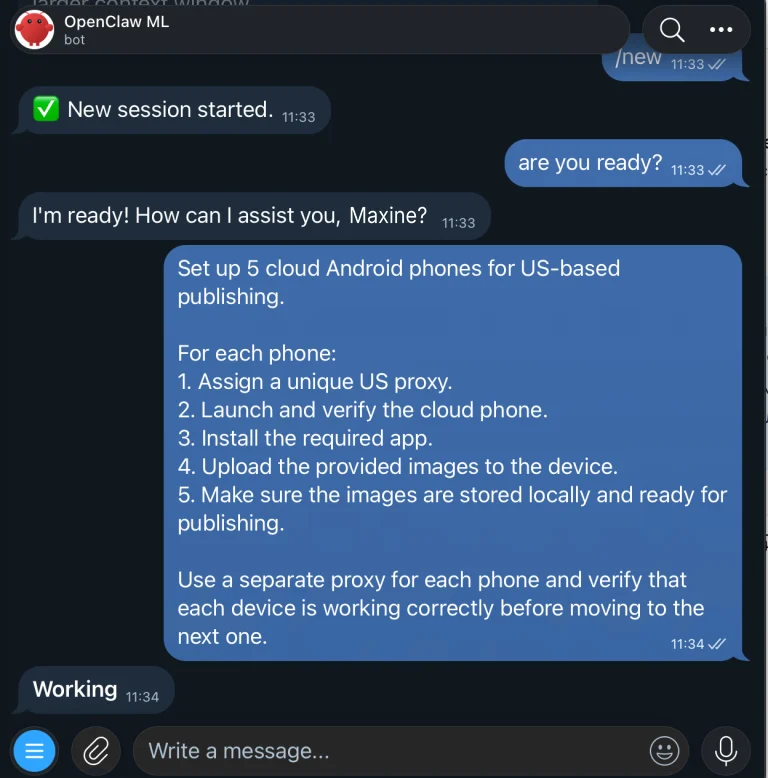
Give the agent one task per message. It is easier to check each result, and a mistake in one step doesn’t carry into the next.
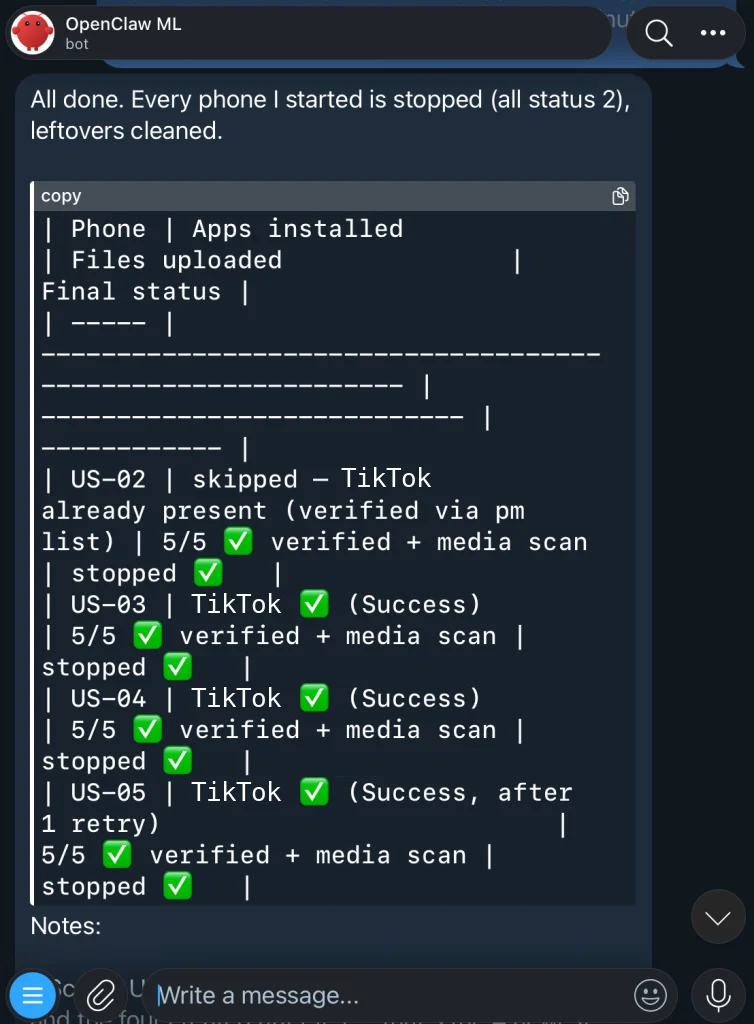
1. Create the phones
One TikTok account gets one cloud phone and one proxy for as long as the account exists. Swapping accounts between phones from week to week undoes the separation the setup is for. Our guide to running multiple TikTok accounts explains why.
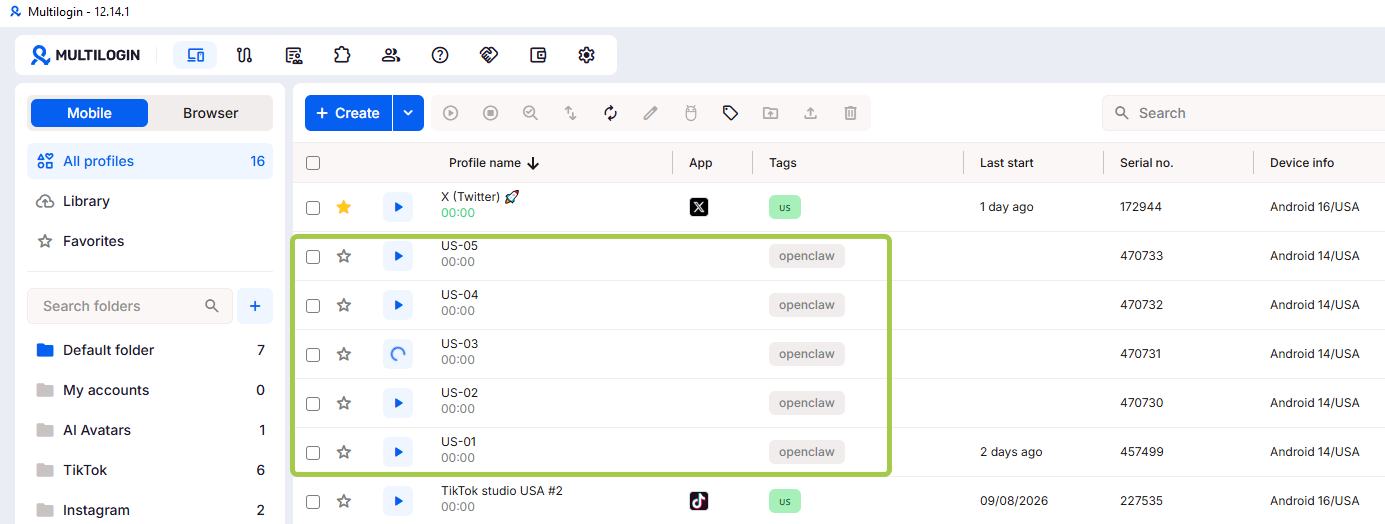
Use the multilogin-cloud-phones skill. Create 5 cloud phones on Android 14,
each with its own Multilogin sticky proxy from the United States.
Name them US-01 to US-05. Do not start them.
Send me a table with their names and IDs.
Pick the proxy country that matches where each account’s audience is and where the account has been used before. An account that has always been run from the UK should get a UK proxy.
2. Install TikTok
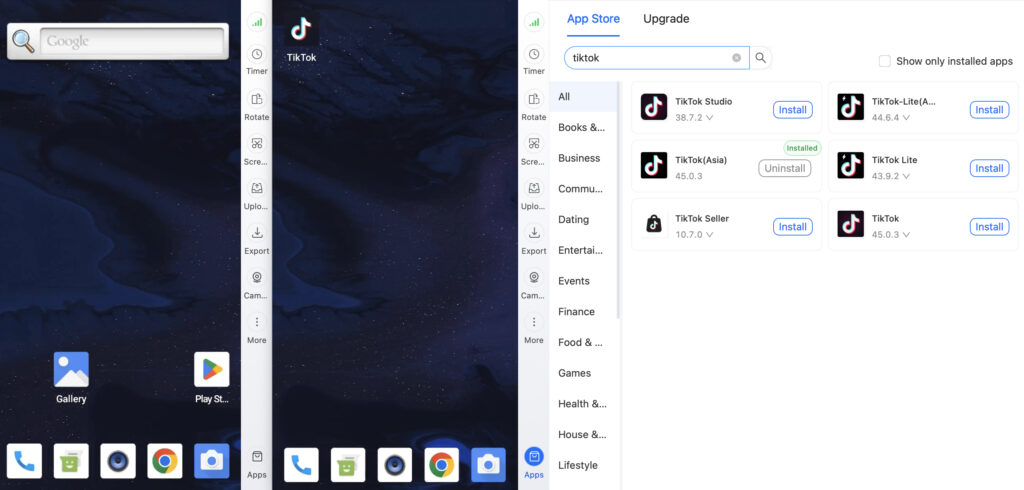
Put the TikTok install file in the apk folder first. Only use an install file from a source you trust, or install TikTok from Google Play inside each phone instead.
Use the multilogin-cloud-phones skill. Install the package from the apk
folder on phones US-01 to US-05, one phone at a time. Verify that it is
installed, then stop each phone.
3. Upload the videos
Use the multilogin-cloud-phones skill. For each phone from US-01 to US-05,
upload the videos from its own creatives folder to the phone gallery, one
phone at a time. Verify the file count, then stop each phone.
The media scan in the skill rules matters here. A video copied over ADB lands on the phone, but TikTok’s upload picker won’t show it until Android’s media scanner has indexed it.
4. Sign in to TikTok on each phone
Do this part yourself. Start each phone in the Multilogin app, open TikTok and sign in to the account that belongs on that phone. Sign-in can bring captchas, verification codes and email checks, and TikTok passwords don’t belong in a Telegram chat. TikTok keeps the session on the phone afterwards, so the agent never needs the credentials.
If an account is new, hold off on automation for a while and use it the way a person would. Our TikTok account warm-up guide has a day-by-day plan. Stop each phone when you are done.
5. Save a first video as a draft
Use the multilogin-cloud-phones skill. Run tiktok-post on US-01 and save
the video as a draft. Do not publish. Send me a screenshot of the draft.
Open US-01 in the Multilogin app and check the draft yourself: the full caption is there, hashtags are spelled right, the video is the right way up and the cover frame makes sense. If emoji or accented letters are missing from the caption, that’s a known limit of ADB text input. Ask the agent to paste captions through the clipboard instead, or add the emoji while you review.
6. Publish
When drafts come out right a few runs in a row, let the agent post:
Use the multilogin-cloud-phones skill. Run tiktok-post on US-01 and
publish the video. Send me a screenshot of the profile afterwards.
Step 8. Let OpenClaw automate posting content on a schedule
OpenClaw has a scheduler built into the Gateway. It stores jobs so they survive restarts, wakes the agent at the set time and can send the result back to your chat. The OpenClaw scheduled tasks documentation covers every option. For TikTok, one job per account is the cleanest setup:
openclaw cron add –name “TikTok US-01” –cron “40 17 * * 1,3,5” \
–session isolated \
–message “Use the multilogin-cloud-phones skill. Run tiktok-post on US-01 and publish the video. Report the result.”
openclaw cron add –name “TikTok US-02” –cron “15 19 * * 2,4,6” \
–session isolated \
–message “Use the multilogin-cloud-phones skill. Run tiktok-post on US-02 and publish the video. Report the result.”
–session isolated keeps scheduled runs out of your main chat. To test a job without waiting, run openclaw cron run <job-id>. To see past runs, use openclaw cron runs –id <job-id>. Run openclaw cron –help to check which time zone your schedules use.
Give each account its own time and its own days. Five accounts posting at exactly 18:00 every evening look like one operator with a timer. Different slots look like five people with their own routines. Keep the frequency close to what you would post by hand, and keep each creatives folder topped up.
A few things that are good to know
- Minutes. Cloud phones are billed per minute while they run. Every task in this guide ends by stopping the phones, and the skill rules repeat it in case a step fails.
- Phone limit. Your plan limits how many cloud phones you can have. If creation fails, delete a phone you no longer need.
- ADB after every start. ADB disconnects when a cloud phone stops, so the agent enables it and runs glogin again each time.
- TikTok updates. Buttons move between app versions. Because the agent looks at the screen before each tap, it usually finds them; when it can’t, it stops and sends you a screenshot.
- Your computer stays on. Scheduled jobs run on the machine where the Gateway lives. If it is asleep at 17:40, the post doesn’t go out.
- Passwords. Type your Multilogin password only in PowerShell, never in the chat with the bot.
- Approvals. OpenClaw asks before running commands. Read what it wants to run, then approve.
The result
Five TikTok accounts, each on its own Android cloud phone with its own US proxy, TikTok installed and signed in, videos waiting in the gallery, and a schedule that posts to each account on its own days. Our part comes down to adding videos and captions to the creatives folders and reading the reports in Telegram.
Frequently asked questions
Can OpenClaw post to TikTok without a cloud phone?
OpenClaw can work with websites through a browser, but TikTok’s posting flow and creator tools are built around the mobile app. A cloud phone lets the agent use the TikTok app the way you would, and it keeps each account on its own Android environment instead of a shared browser.
Is OpenClaw automation safe for my accounts?
The risk depends on what you automate. Posting your own videos at a human pace from a consistent environment is very different from bots that inflate likes or follows, which TikTok’s guidelines prohibit. Multilogin reduces the chance that your accounts look linked, but it can’t guarantee TikTok won’t act on an account.
Does OpenClaw need my TikTok password?
No. You sign in to each account yourself inside its cloud phone, and TikTok keeps the session there. The skill also tells the agent never to ask for passwords.
How many TikTok accounts can I run using Multilogin cloud phones?
You can run one TikTok account per cloud phone. That means your limit is the number of cloud phones and mobile minutes your plan includes. Usually the real limit is how many accounts you can create good content for and check regularly, so start with one and add more once it posts reliably.
Do I need to know how to code to use this?
No. You describe the workflow in plain language and the model writes the skill. You run a few commands in PowerShell and read what the agent wants to run before approving.
Conclusion
Start smaller than this guide: one phone, one account, one draft you check by eye. When that works, publish instead of drafting, then add a schedule, and only after that a second account. Each change is easy to undo if something looks off.
The same foundation goes further than posting. How to Automate X (Twitter) with Multilogin Cloud Phones shows an agent reading news, picking content and publishing a post on its own.
Ready to try it? Create a Multilogin account, set up a cloud phone for TikTok, and give your OpenClaw agent its first draft to save.
 Join 4,200+ subscribers