


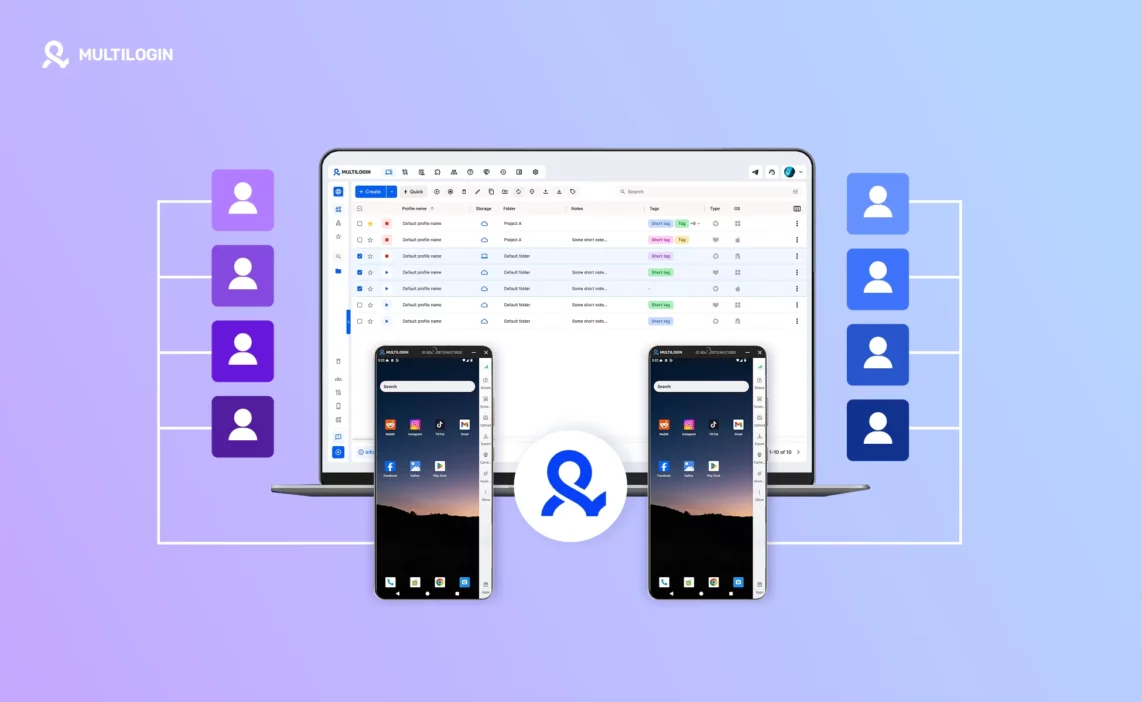



Multilogin X has a new interface. If you log in today and something looks different, that’s intentional — the dashboard has been rebuilt from the ground up, and the changes go deeper than the visual layer.
The core technology is the same. Browser profiles, device isolation, residential proxies — that foundation hasn’t moved. What’s changed is how everything is organised, how fast you can act on it, and what sits alongside it now: a full layer of cloud phone technology, built directly into the same dashboard. Real Android devices in the cloud, running alongside your browser profiles, managed from one login.
This post covers what changed in the interface, what cloud phones add to the picture, how it all fits together for social media managers running multiple client accounts, and how to get started — including the new permanent free plan.
What’s new in the Multilogin X interface
Proxy traffic saver: run more profiles without burning bandwidth
When you’re running 20, 50, or 100 cloud phone profiles simultaneously, bandwidth adds up fast. The new Proxy Traffic Saver blocks heavy content — images, videos, background media — so sessions load faster and use significantly less data. You get full account functionality without the overhead.
How to use it: Enable it when creating or editing any profile. It activates immediately and runs without interrupting active sessions.
Particularly useful when managing multiple Instagram or TikTok cloud phone profiles that would otherwise pull in heavy feed content in the background.
Hotkeys, drag-and-drop, and right-click actions: do more with fewer clicks
The biggest day-to-day friction in managing dozens of client accounts isn’t any single task — it’s the cumulative cost of too many clicks. The new interface cuts that significantly.
How to use it:
- Right-click on any profile to instantly access actions: copy the profile ID, import or export cookies, change storage type. No need to open the full edit panel for common tasks.
- Use keyboard shortcuts to launch, stop, or duplicate profiles without touching the mouse.
- Drag profiles between folders, reorder them visually, and move faster across large client lists.
When you’re repeating these actions hundreds of times a day across multiple client accounts, the time saved compounds quickly.
Custom views, tags, and inline editing: organise the way you actually work
Managing 100+ profiles for multiple clients across Instagram, TikTok, LinkedIn, and WhatsApp means your profile list needs to reflect how you work — not a default layout built for a simpler use case.
How to use it:
- Click directly on a profile name in the table to rename it without opening the full edit window.
- Customise which columns are visible and in what order — see only the information that matters for your workflow.
- Tag profiles by client, platform, or status — “warm-up”, “Client A TikTok”, “ready to post” — and filter the dashboard to show only what you’re working on right now.
No more running a spreadsheet alongside Multilogin just to track what’s where. The organisation lives inside the dashboard itself.
Built-in notes for every profile: context that travels with the account
Every cloud phone profile and browser profile now has a built-in notes field. Login details, warm-up stage, client instructions, account history — it all lives inside the profile, not in a separate document your team may or may not find.
How to use it:
- Add notes directly from the main profile list — no need to open the full profile to write down what matters.
- Ideal for team handovers: anyone picking up a client account sees exactly where things stand before they open it.
Running profiles dashboard and quick-to-regular profile conversion
When you have 30 profiles open across multiple client accounts, losing track of what’s running is easy. The new Running Profiles dashboard shows every active session in real time. And if you started something in a quick profile that you want to keep, you can convert it to a regular profile in one click — session data, cookies, and all.
How to use it:
- Click “Running Profiles” in the sidebar for a live view of every open session.
- Select any quick profile and convert it to a regular profile to preserve the session and continue later.
“Now I can keep the profiles I test without restarting. Huge productivity boost.” — Alex P., Growth Marketer (Early Access Feedback)
Import, export, and storage conversion: move profiles without rebuilding them
Moving a client account between team members used to mean rebuilding the profile from scratch or manually transferring cookies. Now you export the full profile — cookies, proxy settings, storage — and re-import it wherever it needs to go.
How to use it:
- Right-click on any profile to export it (full configuration or cookies only) and re-import it for another team member or another device.
- Convert a profile’s storage type — Cloud to Local or vice versa — in a single action with no reconfiguration needed.
Bulk actions: manage accounts at scale without the manual work
Running 100+ client accounts means every repetitive action needs a faster path. The new interface lets you apply bulk actions across as many profiles as you need — launch, stop, delete, assign proxies, tag, or move — all at once.
How to use it:
- Drag and drop folders to reorder them visually, so your workspace reflects how you actually organise clients and campaigns.
- Use bulk tagging and editing to label hundreds of profiles in seconds — by client, platform, campaign, or warm-up stage.
“I manage 300+ client accounts. Bulk actions save me hours every week.” — Elena M., Social Media Agency Owner (Early Access Feedback)
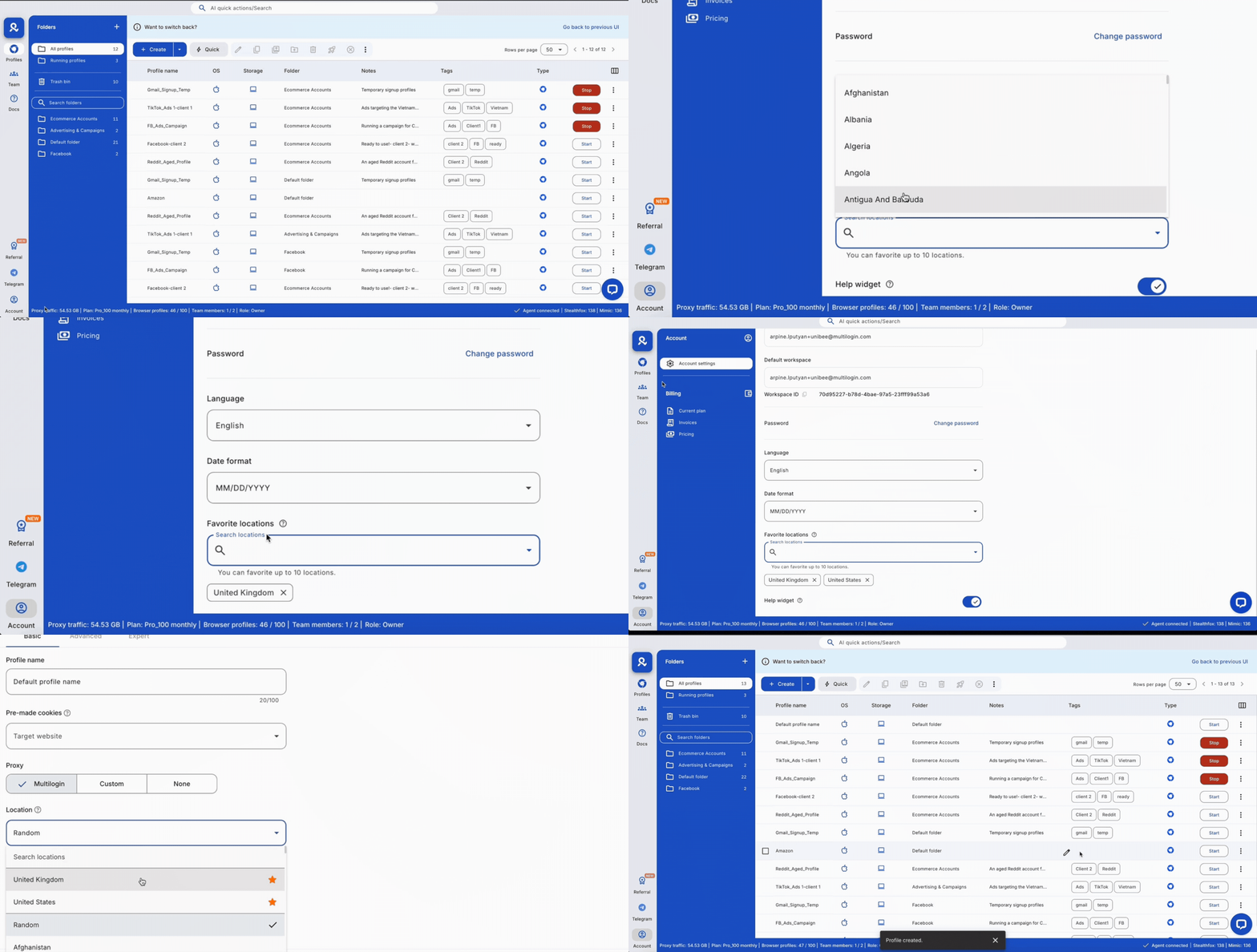
Favourite proxy locations: your go-to setups, always at the top
If you create 50 cloud phone profiles a day and always assign the same proxy locations, searching for them every time is pure friction. Mark your most-used locations as favourites and they appear at the top of the list every time you set up a new profile.
How to use it:
- Go to account settings and mark the proxy locations you use most as favourites.
- They appear at the top of the proxy location list during every new profile setup — one click, done.
The bigger update: cloud phones are now part of the same dashboard
The interface changes above are the visible part of this update. The structural change underneath them is this: Multilogin cloud phones and browser profiles now live in the same dashboard, under the same login, organised the same way.
That matters because browser profiles and cloud phones solve different problems — and most social media managers need both.
Browser profiles handle LinkedIn, Facebook web, X/Twitter, and any platform where a desktop session is the right approach. They give each account its own isolated browser environment with its own device fingerprint, cookies, and proxy. That’s been Multilogin’s core for years, and it hasn’t changed.
Cloud phones handle everything that runs on mobile first. Instagram, TikTok, WhatsApp, and Snapchat are built for phones — and their systems are built around the expectation of real phone hardware. A browser session pretending to be a phone is not the same thing. A real Android device in the cloud is.
Before this update, managing both meant context-switching between different tools or setups. Now it’s one dashboard. One place to find every client account, whether it lives on a browser profile or a cloud phone.
What Multilogin cloud phones actually are
Multilogin cloud phones are real Android devices hosted in the cloud — actual ARM hardware, not emulators. Each one has its own device ID, its own hardware fingerprint, its own session history, and its own IP address via a residential proxy. Instagram sees a real phone. TikTok sees a real phone. Not a virtual machine, not a browser session. A genuine Android device that happens to run in the cloud.
This distinction matters because platforms like Instagram and TikTok check device signals at the hardware level: device IDs, sensor data, installed app signatures, and behavioural patterns. Emulators get these wrong in ways that detection systems catch. Real cloud-hosted Android hardware doesn’t trigger those same flags.
Every cloud phone gets its own unique fingerprint — Android ID, IMEI, GAID, build properties, device model, brand, and system properties — all mapped to real-world device combinations. Background signals behave like a real device too: accelerometer, gyroscope, and magnetometer data that shifts naturally rather than freezing in one position; a battery level that charges and discharges rather than sitting at a fixed percentage; carrier and GPS data that aligns with the configured IP region. None of it is cosmetic. It’s what stops a device from looking empty to an app that’s specifically checking for signs of automation.
Creating a cloud phone
Creating a cloud phone takes a few clicks — most settings come pre-filled with sensible defaults.
- Open the Profiles tab in the top menu
- Select Mobile from the left-side selector
- Click Create — or use the dropdown to create up to 100 phones at once with identical settings
- Name the phone, check the proxy, and click Create
A few settings are worth understanding rather than skipping. Device brand and OS version can be left on Random — Multilogin selects a real-world brand and matching model automatically — or set manually if a specific app requires a particular Android version. Network type matters more than it looks: Wi-Fi suits residential, ISP, or static proxies and stable long sessions like account warm-up; Cellular suits mobile or rotating proxies and apps that expect to see a carrier signal, which covers most social platforms. Tags and folders — shared across your workspace, up to 10 tags per phone — are what keep a roster of thirty phones from becoming an unsearchable list.
Full detail on every setting is in How to create Android cloud phones.
Using a cloud phone day to day
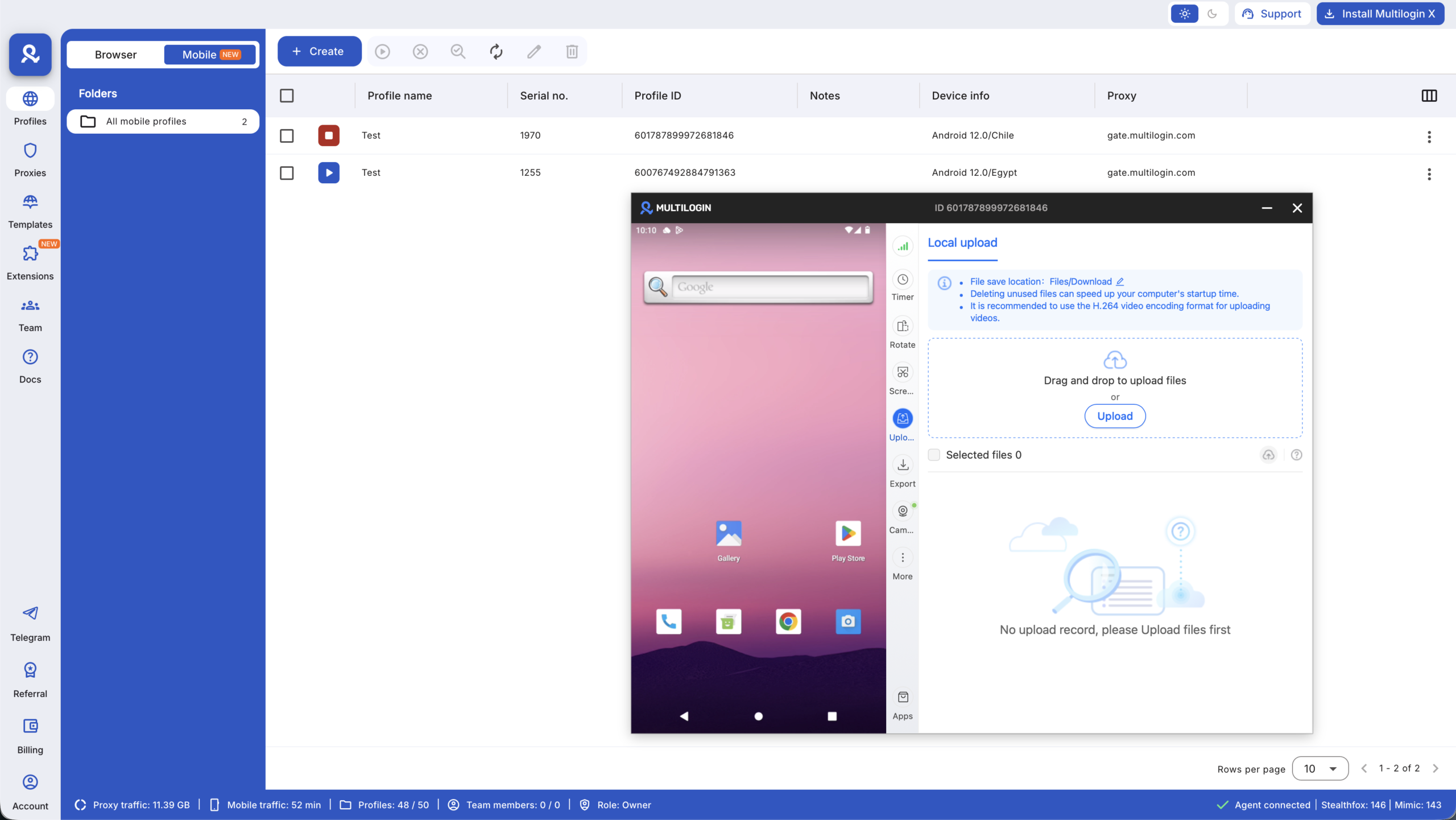
When you start a cloud phone, a live Android screen opens in the dashboard and a tool menu appears alongside it. These are the tools a social media manager actually uses session to session:
- Connection — checks your proxy status in real time
- Timer — tracks active usage time, useful since cloud phones are billed per minute
- Rotate — switches between portrait and landscape
- Screenshot — captures the screen and saves to the phone’s Files folder
- Upload — transfers files from your computer to the cloud phone
- Export — downloads files from the cloud phone back to your computer
- Camera — works like a real phone camera; you can also stream your PC camera or upload a pre-recorded .mp4 as a camera feed
- Apps — install, update, and remove apps from the cloud phone
- Mirror (in More) — generates a QR code so you can continue the session from your mobile browser
To open the Android app menu from the live screen, click the screen, drag upward, and release.
Full detail on each tool, including how to install apps on a cloud phone, is in How to use Android cloud phone features.
How cloud phones fit into a multi-client workflow
For a client running multiple Instagram accounts, you create one cloud phone per account. For a TikTok agency managing 20 brand clients, each client gets their own phone. Each phone has its own device identity and its own IP — nothing links one client’s accounts to another’s, and a flag on one account stays on that account.
The social media management dashboard shows every cloud phone and browser profile in one place — organised by folder, filtered by tag, searchable by name. For more on how agencies use cloud phones at scale, see cloud phones for social media management and the comparison of cloud phones vs physical phone farms.
One more thing: Multilogin now has a permanent free plan
Alongside the interface update and cloud phone integration, Multilogin now has a permanent free plan. There’s no trial period, no credit card required, and no countdown.
The free plan includes:
5 cloud mobile and browser profiles
200 MB of premium proxy traffic, one-time
30 minutes of cloud phone usage on one profile, one-time
API access
24/7 in-app live chat and email support
There is one condition to keep in mind: if you don’t start any profile for 7 consecutive days, your profiles are automatically deleted. The free plan itself stays active, so you can simply create new profiles when you return.
Five profiles are enough to properly test the platform. A freelancer managing several client accounts can run part of their existing workflow for free and see how the infrastructure performs before upgrading. An agency moving away from physical devices can also test cloud phones alongside its current setup before committing to a paid plan.
Paid plans
When you need more profiles, proxy traffic, mobile minutes, or team features, paid plans start with Pro 10 at $7.08/month when billed annually.
Pro 10 includes:
10 profiles
1 GB of premium proxy traffic per month
60 cloud phone minutes per month
API and automation access
For users who need more room to grow, Pro 20 costs $19/month or $149/year (about $12.42/month when billed annually) and includes:
20 profiles
2 team seats
2 GB of premium proxy traffic per month
75 cloud phone minutes per month
Profile templates and extension management
Cloud phone Smart Auto-Stop and profile transfer
Larger workflows can move to Pro 50, which includes 50 profiles, 2 team seats, 3 GB of proxy traffic per month and 85 cloud phone minutes per month, together with advanced bulk profile operations and additional workflow features.
Business plans start from Business 100, with 100 profiles, unlimited team seats, 5 GB of proxy traffic and 150 mobile minutes per month. Business 300 increases this to 300 profiles, 10 GB of proxy traffic and 450 mobile minutes per month.
Extra usage
Cloud phone usage beyond the minutes included in your plan costs $0.011 per minute, and unused purchased minutes can roll over.
Additional premium proxy traffic costs $3.50 per GB, with unused traffic rolling over as well.
You can also pre-purchase cloud phone minute packages, starting from 2,000 minutes for $18, including a 20% discount.
See the full plan comparison at multilogin.com/pricing.
What existing users need to know
If you’re already using Multilogin, your existing profiles, proxy settings, and account data carry over to the new interface automatically — there’s nothing to migrate or reconfigure. The new dashboard is where everything now lives.
If you’ve been using Multilogin for browser-based account management and haven’t set up cloud phones yet, the new interface makes that straightforward: cloud phones appear in the same profile list as your browser profiles, created and managed the same way. Your first 30 free minutes of cloud phone usage are available immediately on any plan, including the free tier.
For a full walkthrough of switching to the new interface, see the Multilogin Academy guide. For the complete cloud phone setup guide, see cloud phones explained.

