


Short answer: “Login not available right now” means WhatsApp has temporarily stopped your login or registration attempt.
This message alone does not mean your account is banned. Wait before trying again, address the likely cause, and then make one fresh attempt.
In this guide, we walk through the troubleshooting steps, from your first retry to what to consider before registering with a new number.
Need more than 10, or even more than 100, WhatsApp accounts? Multilogin cloud Android phones support both of these workflows:
- Managing multiple WhatsApp accounts: one cloud phone per account, with every account in one dashboard.
- WhatsApp workflows using API or ADB: full ADB access and an API for creating profiles, installing apps, and managing accounts.
What “Login not available right now” means on WhatsApp
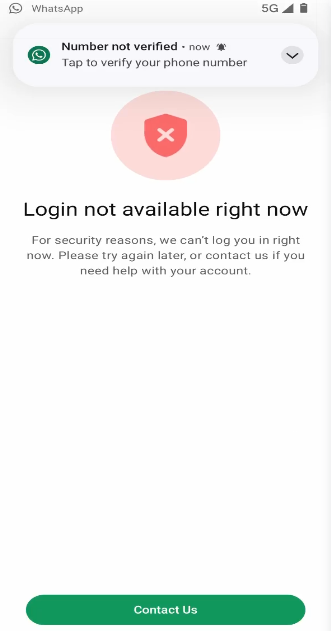
WhatsApp shows this screen when it refuses a login or registration attempt before you can finish verification. The full message reads:
Login not available right now. For security reasons, we can’t log you in right now. Please try again later, or contact us if you need help with your account.
The message doesn’t say what triggered the block. It could be the phone number, the network, the app version, or activity on the account.
The key words are “try again later.” This screen is different from a ban. A banned account shows “This account can no longer use WhatsApp,” usually with a “Request a review” option.
Why WhatsApp says “Login not available right now”
WhatsApp doesn’t reveal the exact reason, so we can only describe the common triggers:
- Too many code requests. Asking for SMS or call codes again and again in a short time can lock the number for a while.
- Unofficial or outdated app. Modified versions such as GBWhatsApp or WhatsApp Plus, or an old build of the official app, can cause WhatsApp to refuse the login.
- Number problems. An inactive number, or one that WhatsApp has restricted before, may not pass registration.
- Network signals. A VPN, frequent IP changes, or a shared network with a poor reputation can make the attempt look unusual.
- Account-side restriction. If clean attempts still fail, WhatsApp may have limited the account itself.
Changing the device won’t fix a behavior problem. If a new attempt repeats the same pattern, the block can come back.
How to fix “Login not available right now”
Work through these steps in order. Each one removes a common cause, so stop as soon as the login goes through.
| What you notice | Likely cause | What to do |
|---|---|---|
| You requested several codes in a row | Temporary limit on the number | Stop requesting codes, wait, then try once |
| You use a modified or old version of WhatsApp | Unsupported app | Install the latest official app from Google Play |
| You’re on a VPN or switching networks | Unusual network activity | Turn off the VPN and use one stable connection |
| Clean attempts still fail | Restriction on the number or account | Contact WhatsApp or use a different number |
1. Stop and wait before trying again
Every extra attempt can extend the block. Close the app, wait a few hours, and then make one clean attempt with the same number. Don’t switch back and forth between SMS and call codes.
2. Use the latest official WhatsApp app
Remove any modified or cloned versions of WhatsApp. Install or update the official app from Google Play, then try again.
3. Check the phone number
Make sure the number is active and can receive SMS or calls. Enter it in full international format with the correct country code.
4. Check the network
Turn off any VPN. Then use one stable connection for the whole attempt instead of switching between Wi-Fi and mobile data midway.
5. Contact WhatsApp from the error screen
If a clean attempt still fails, tap “Contact us” on the error screen. Describe the problem briefly and include your number with the country code.
- Send one request and wait for a reply. Repeated requests don’t speed things up.
- Stop requesting new codes while WhatsApp reviews your case.
If the number still won’t work: start fresh on a Multilogin cloud phone
If you need WhatsApp running now and the number stays blocked, register a different number. You can do it on the same cloud phone, without restarting it or reinstalling the app.
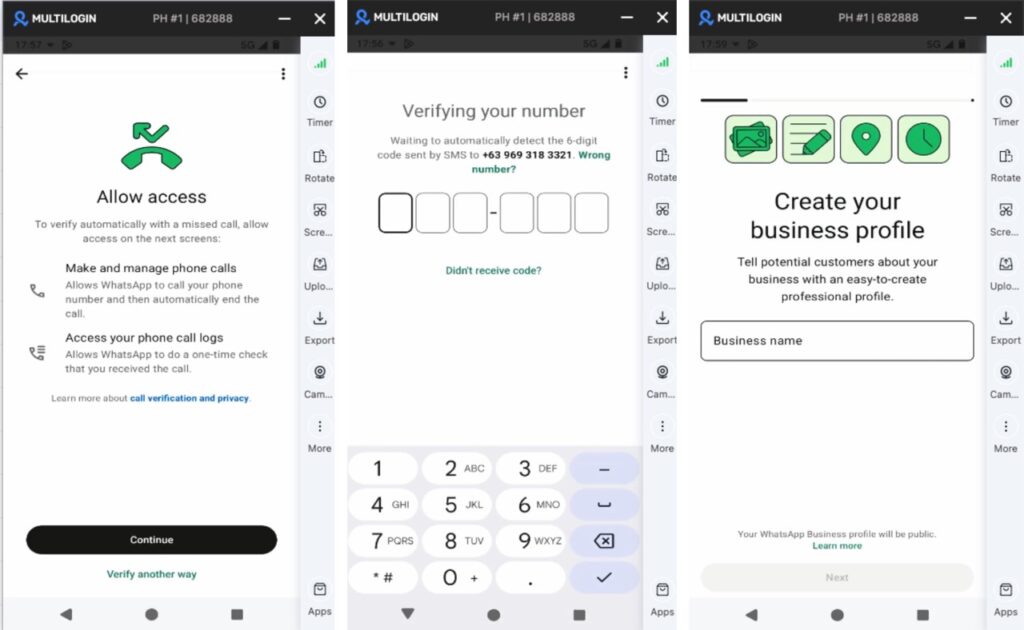
Each Multilogin cloud phone runs on a real Android device in the cloud. WhatsApp runs there as a native app, so registration works the same way as on a physical smartphone.
What you’ll need
- A Multilogin cloud phone with WhatsApp installed.
- A new phone number that WhatsApp accepts. Multilogin cloud phones can’t receive SMS or calls, so you need a separate number: your own second SIM or a number from an external SMS provider.
- Access to SMS on that number, so you can enter the verification code.
Step 1. Go back to the phone number screen
Why: WhatsApp ties each account to a phone number, so a new account starts with a new number.
Close the error message and return to the screen where WhatsApp asks for your phone number.
Step 2. Enter the new number
Why: a fresh number gives you a clean start instead of retrying the blocked one.
Choose the country and enter the number. Tap “Next” and confirm the number in the pop-up.
Tip: pick a number from the same country as the cloud phone’s location. That way, the account details stay consistent with each other.
Step 3. Get the code and enter it
Why: the code confirms that the number belongs to you.
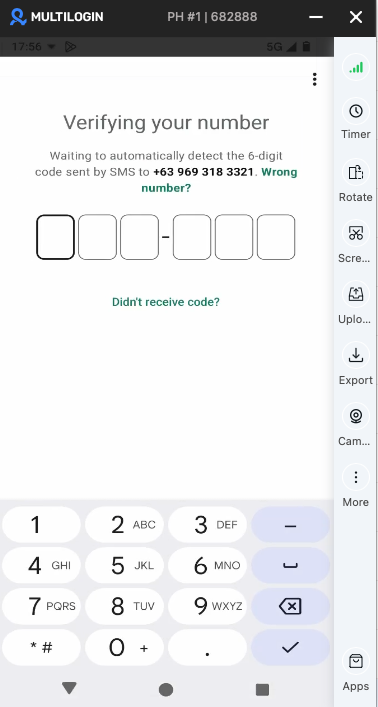
The code arrives on the phone or service that holds the number. Type the six digits into WhatsApp on the cloud phone.
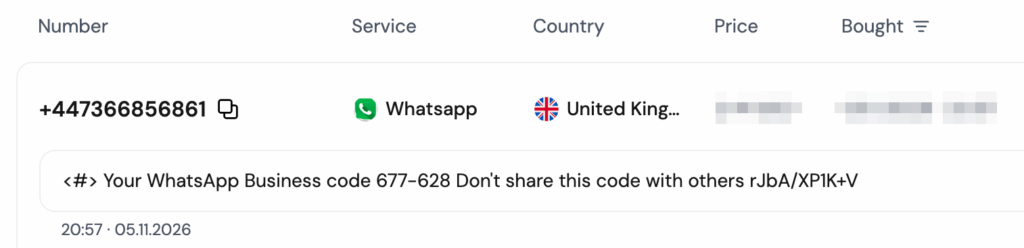
Note: numbers from SMS providers have sometimes been used on WhatsApp before. If WhatsApp rejects the number, try a different one.
Step 4. Set up your profile
Why: a name and photo help your contacts recognize who’s writing to them.
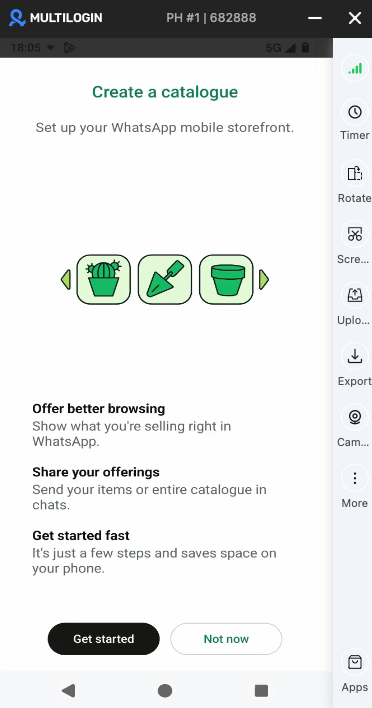
Add your name and, if you like, a photo. Tap “Next,” and the account is ready to use.
Step 5. Stop the cloud phone in the dashboard
Why: the cloud phone keeps its state between sessions, so next time you pick up where you left off.
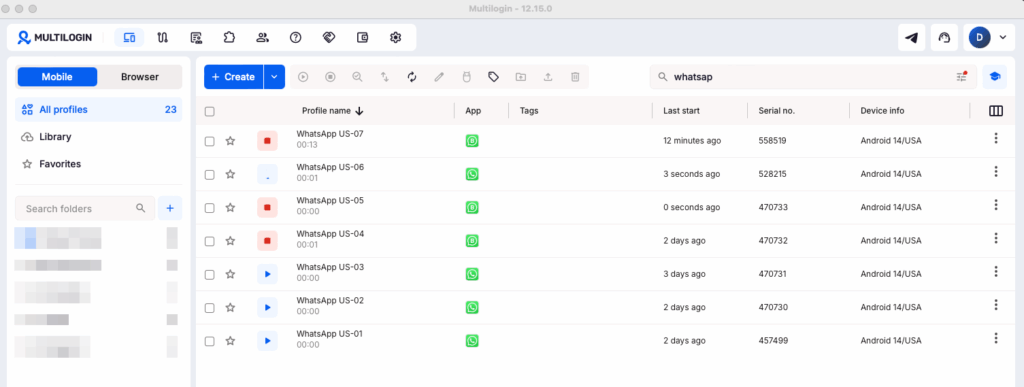
When you finish, stop the cloud phone in the Multilogin dashboard. Your app data and login history stay saved, and mobile minutes stop counting.
Why a Multilogin cloud phone works well for WhatsApp
WhatsApp is built for smartphones, and most features live in the mobile app. A Multilogin cloud phone for WhatsApp gives each account its own real Android device in the cloud, with no shelf of physical phones to maintain.
- One cloud phone per account. Each account gets its own app data, IP, and location.
- Persistent state. App data and login history stay in place between sessions.
- Built-in residential proxies. Each profile gets its own IP and a matching location in the country you choose. See how this works on the WhatsApp proxy page.
- Work from your computer. Type on your regular keyboard and upload files to the cloud phone.
- Teamwork. Share profiles with teammates and set access permissions.
Tip: the fastest option is to register the new number on the same cloud phone, as shown above. If you plan to use the account long term, create a separate cloud phone for it.
How to avoid the error with your next account
A cloud phone takes care of the device. Your activity is still up to you. Follow these rules with a new account:
- Request codes calmly. Ask for one code, wait for it, and don’t stack new requests.
- Start slowly. Chat with people who know your number first, then add new contacts over time.
- Don’t send the same message to lots of people who haven’t saved your number.
- Use only the official app: WhatsApp or WhatsApp Business.
- Keep one number per account, and don’t use it on several devices at once.