

You can run a Multilogin Android cloud phone from Grok Bot, xAI’s agent app, by letting the Bot run approved commands on your own computer. Grok Bot plans the task. The Multilogin CLI and ADB control the phone. You approve each step before anything is published on X.
This guide shows how to manage Multilogin cloud phones from Grok Bot using a local workflow.
We tested the desktop connection in October 2026. Grok started one existing Android cloud phone, connected through Android Debug Bridge (ADB), opened Settings, saved a screenshot, and stopped the phone afterward. The run took about 95 seconds, including startup and cleanup.
In this guide we will:
- Set up Grok Bot and distinguish its mobile and desktop roles
- Connect the Bot to tools on the Mac
- Authenticate Multilogin’s command-line tool
- Prepare a workflow for one selected phone
- Run a Settings screenshot test from chat
- Verify the result and confirm shutdown
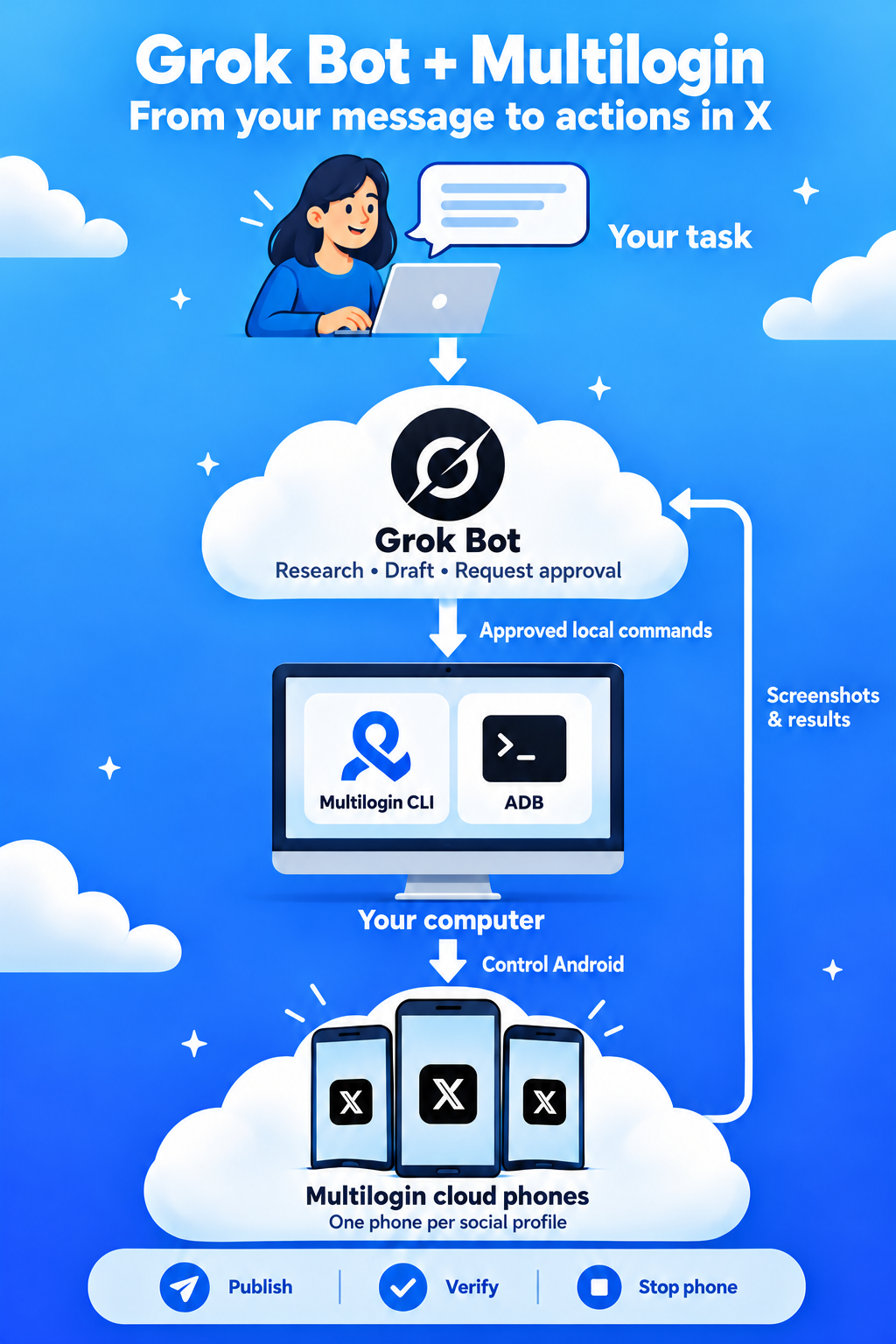
The example uses a MacBook for the Multilogin connection. You can use the Grok Bot mobile app for messages and reviewing results, while the desktop handles the local phone-control tools.
What is Grok Bot and how does it work?
Grok Bot is an AI agent app that accepts tasks through conversation. Its hosted computer and the Mac in front of you are separate environments. Access to the hosted computer does not automatically give the Bot access to your Mac’s Multilogin tools.
Our tested setup uses this route:
Grok Bot desktop → approved local workflow → Multilogin CLI and ADB → Android cloud phone → saved evidence and shutdown.
CLI means command-line interface. It manages the phone’s lifecycle. ADB connects to Android and performs the device action. A prepared local script coordinates the commands and cleanup; the Bot runs that script after approval.
The distinction matters when reviewing results. In our test, Grok executed the workflow and reported its output. We separately opened the saved Android screenshot and checked the phone’s final status. The screenshot came from Android, rather than Grok’s hosted desktop preview.
Where can you install Grok Bot?
Grok Bot offers desktop and mobile interfaces. The mobile app shares Bots and conversations with desktop and supports messaging, approvals, and reviewing results. Check official mobile guide.
| Interface | Role in this guide | Hands-on evidence |
|---|---|---|
| Desktop app | Run the prepared workflow on the Mac | Tested |
| Mobile app | Message the Bot and review work | Mobile-initiated phone control was not tested |
Keep the computer awake and connected during local tasks. This guide’s successful result applies to the desktop route.
Step 1. Install and configure Grok Bot
Choose your preferred interface below. Even if you start on mobile, complete the desktop connection before attempting cloud phone actions.
Option A: The mobile app
Follow the official Grok Bot mobile setup guide to install the app from the App Store or Google Play. Open it, complete the account authentication flow, and confirm your access.
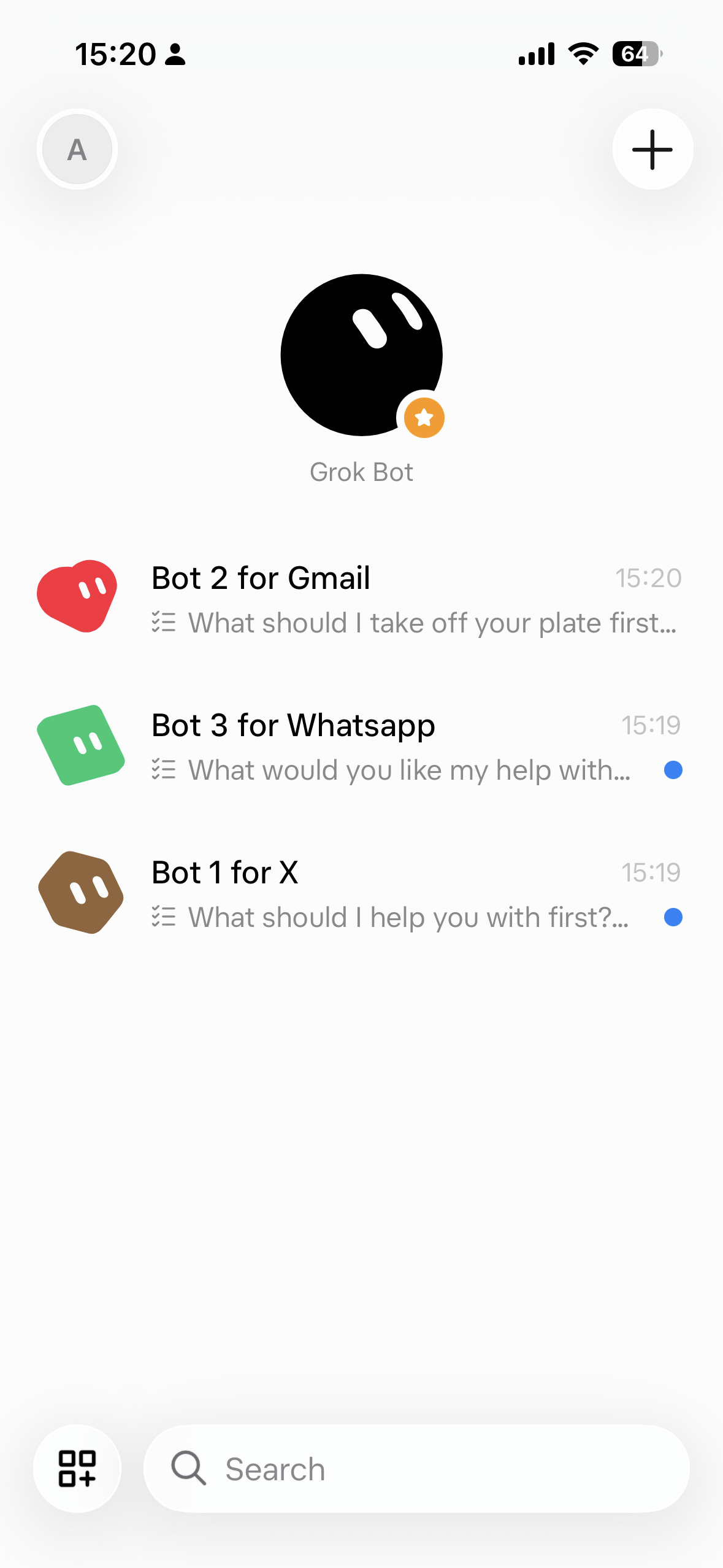
New users can finish the first-run setup and choose a Bot. Existing users should see their synced Bots and conversations after signing in with the same account.
Use mobile to send tasks, review screenshots, and respond to questions. For this walkthrough, install the desktop app as well and configure local execution in Step 2. Before relying on a task sent from mobile, confirm that it can reach the prepared desktop tools.
Option B: The desktop app
Use the download linked in Grok Bot’s desktop setup guide. Select the download (macOS/Windows/Linux) version matching your computer, open the disk image, and get the app. Complete the app’s authentication and access steps.
Our test used an Apple silicon MacBook. The commands below use macOS Terminal and local home-directory paths.
Step 2. Create a Bot and connect it to your computer
Choose a focused Bot and give it a limited first task:
> Operate only the cloud phone selected for this test. Use the prepared workflow on my Mac. Keep credentials out of chat, save evidence locally, and verify shutdown after the task.
Review local execution under Settings → Computer → Your computer → Execution on this computer. Before a desktop is listed, the control may appear as Execution on Local Computer. Use Ask every time or select your own preference while testing. Check official local-access documentation.
For the initial connection check, send:
> Use local execution on this Mac. Check the Multilogin CLI and ADB versions using their actual installed paths. Run read-only checks and do not start a phone.
Review the proposed command and select Allow once or allow it yourself. Our permission screen stated that local access applied to all Bots. Review the scope before granting it.
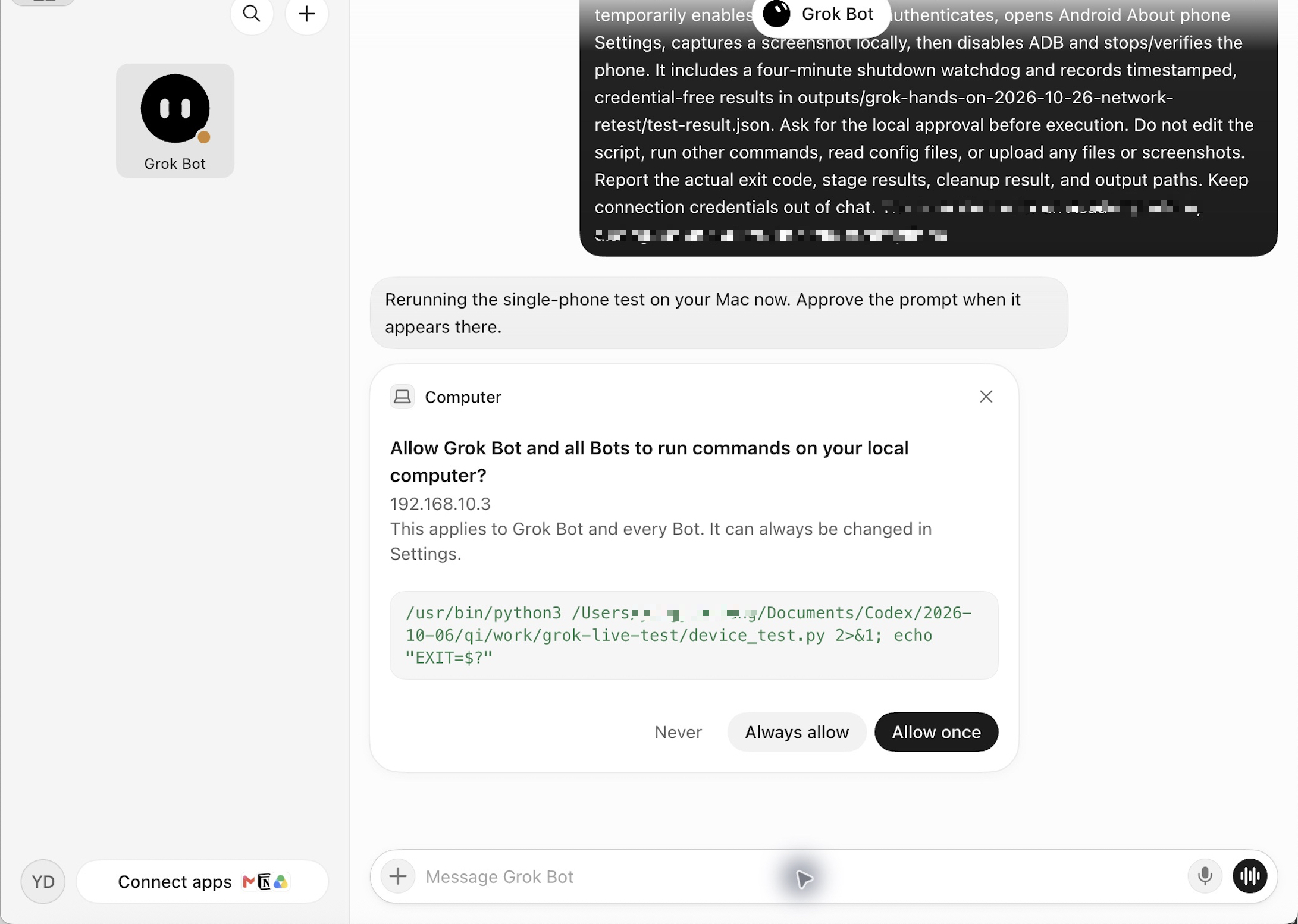
Review the local command before authorizing a test. This capture shows the permission interface.
Step 3. Confirm your AI access
Check that Grok Bot accepts messages and can begin a task. Our setup required active account access before the app would accept work. We did not configure a separate model provider or enter an API key for this test.
Treat three checks separately: Grok account access, permission to execute on the Mac, and Multilogin CLI authentication. Passing one does not establish the other two.
Step 4. Check that the Bot answers
Send a short planning request before executing commands:
> Explain which parts of this test run on my Mac and which run inside the Android cloud phone. Identify the selected phone and the cleanup steps. Do not execute anything yet.
The answer should identify the local workflow, the phone ID, the Android action, and shutdown. Correct any misunderstanding before continuing. In particular, a hosted-browser screenshot is not evidence of Android control.
Step 5. Install Multilogin and log into the CLI
Install Multilogin and open it. For ADB, Multilogin documents a paid plan, owner or manager access, and a cloud phone running Android 11 or later. Check ADB prerequisites.
If you do not have a phone yet, follow Multilogin’s cloud-phone creation guide first. Our test reused an existing phone and did not test profile creation.
Authenticate locally in Terminal. In the default macOS shell, zsh, this keeps the typed password out of command history:
zsh
cd ~/mlx/deps/cli
read -r "mlx_test_email?Multilogin email: "
read -rs "mlx_test_password?Multilogin password: "
printf '\n'
./xcli login --username "$mlx_test_email" --password "$mlx_test_password"
unset mlx_test_password mlx_test_email
Then check the selected phone:
zsh
./xcli mobile-profiles-phone-list --ids YOUR_PHONE_ID
Replace `YOUR_PHONE_ID` with the profile’s ID. Check the result locally: a phone-list response can contain proxy credentials and device details, so do not paste the complete output into chat.
Use an account and workspace that can access the same phone shown in the browser. In our first setup, the browser and CLI used different accounts: the phone appeared in the dashboard but the CLI returned an empty list. Matching the CLI account resolved that problem.
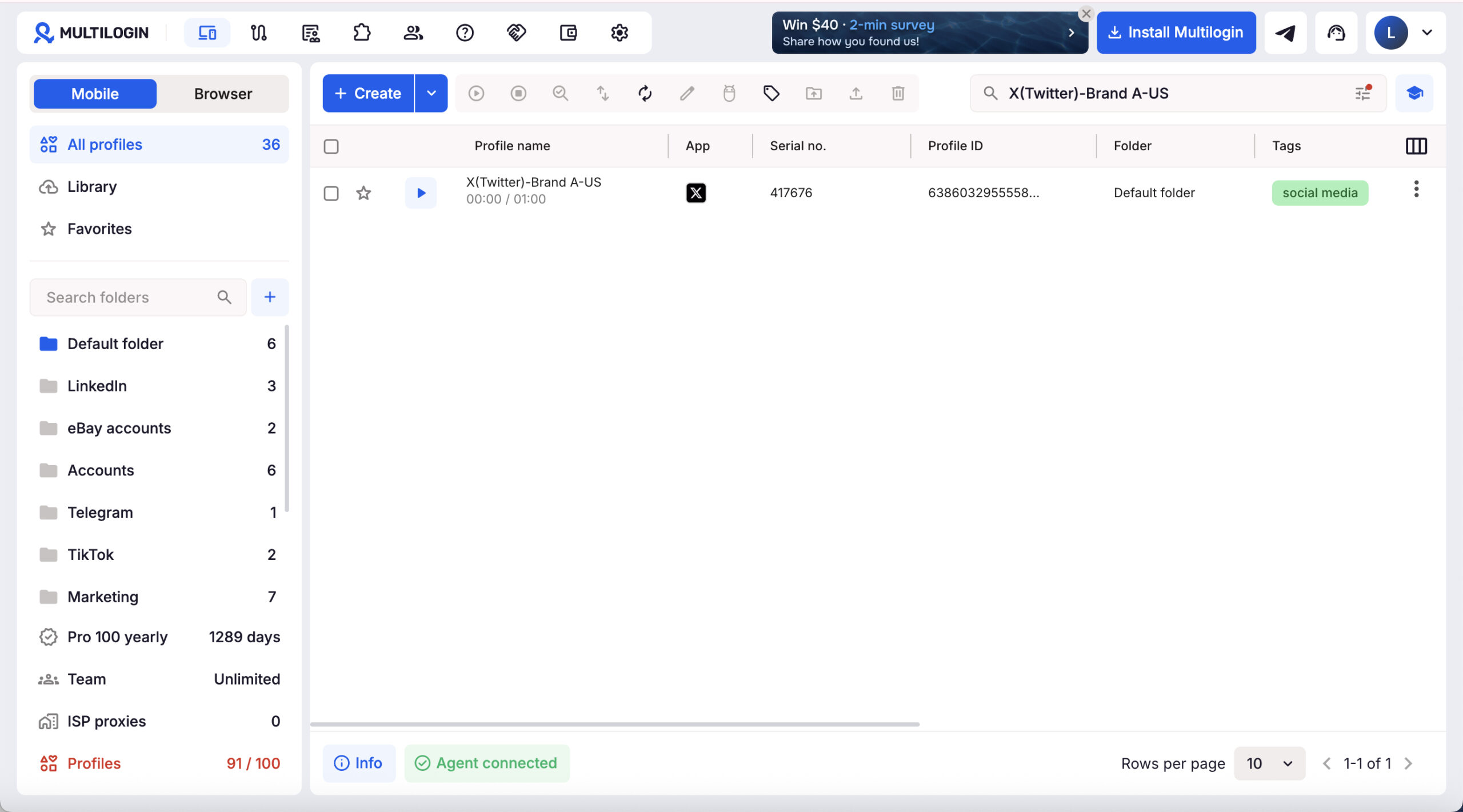
Choose one existing stopped phone and verify that the CLI can access it.
Install Android SDK Platform-Tools for Mac if needed. Our ADB executable was in `~/Downloads/platform-tools/adb`. Check its version using its actual path:
zsh
~/Downloads/platform-tools/adb version
A version response confirms that ADB runs locally. It does not prove a connection to Android.
Step 6. Teach Grok Bot to work with Multilogin
A written workflow tells the Bot what to do. An executable workflow performs the commands. Our successful test used a prepared Python script, rather than relying on a skill description alone.
The reader workflow template is adapted from that script. Its configuration changes received syntax and placeholder checks. Our live result applies to the configured original. Review and test your configured copy on one phone.
Our example
Extract `grok-cloud-phone-test.py`, place it in a local folder such as `~/mlx-work`, and open it in a code or plain-text editor. Set `PHONE` to one existing stopped phone’s ID. Check `XCLI` and `ADB` against your installation paths. It requires Python 3.9 or later; confirm that `python3 –version` works before continuing.
The template stops immediately if a real phone ID has not been configured. Its task is limited to:
1. Check that the selected phone is stopped.
2. Start it and wait for readiness.
3. Enable ADB and obtain fresh connection details.
4. Connect, authenticate, and open Android Settings.
5. Save a screenshot and timestamped results locally.
6. Disable ADB, stop the phone, and verify shutdown.
Cleanup runs after failures too. A separate watchdog attempts shutdown after four minutes if the main test is interrupted. This is a cleanup mechanism, not a guarantee that a network failure cannot delay shutdown.
Once the configured workflow passes, record its path, phone ID, checks, and approval boundary in the Bot’s reusable instructions. Keep installation and publishing out of this first workflow.
Step 7. Run it from chat, one step at a time
1. Ask Grok to run the configured workflow
Expand the script path to your actual Mac home directory and send:
> Run my reviewed cloud-phone test script on this Mac using local execution: `python3 /Users/YOUR_MAC_USERNAME/mlx-work/grok-cloud-phone-test.py`. Use only the configured phone. Keep credentials out of chat and report the stage results, saved screenshot, and cleanup outcome. Do not edit the script or run other tasks.
Review the command before approving it. If the permission request expires, ask Grok to retry; the expired command has not executed. That happened during our setup, and the renewed request started the successful run.
2. Wait for the phone and ADB connection
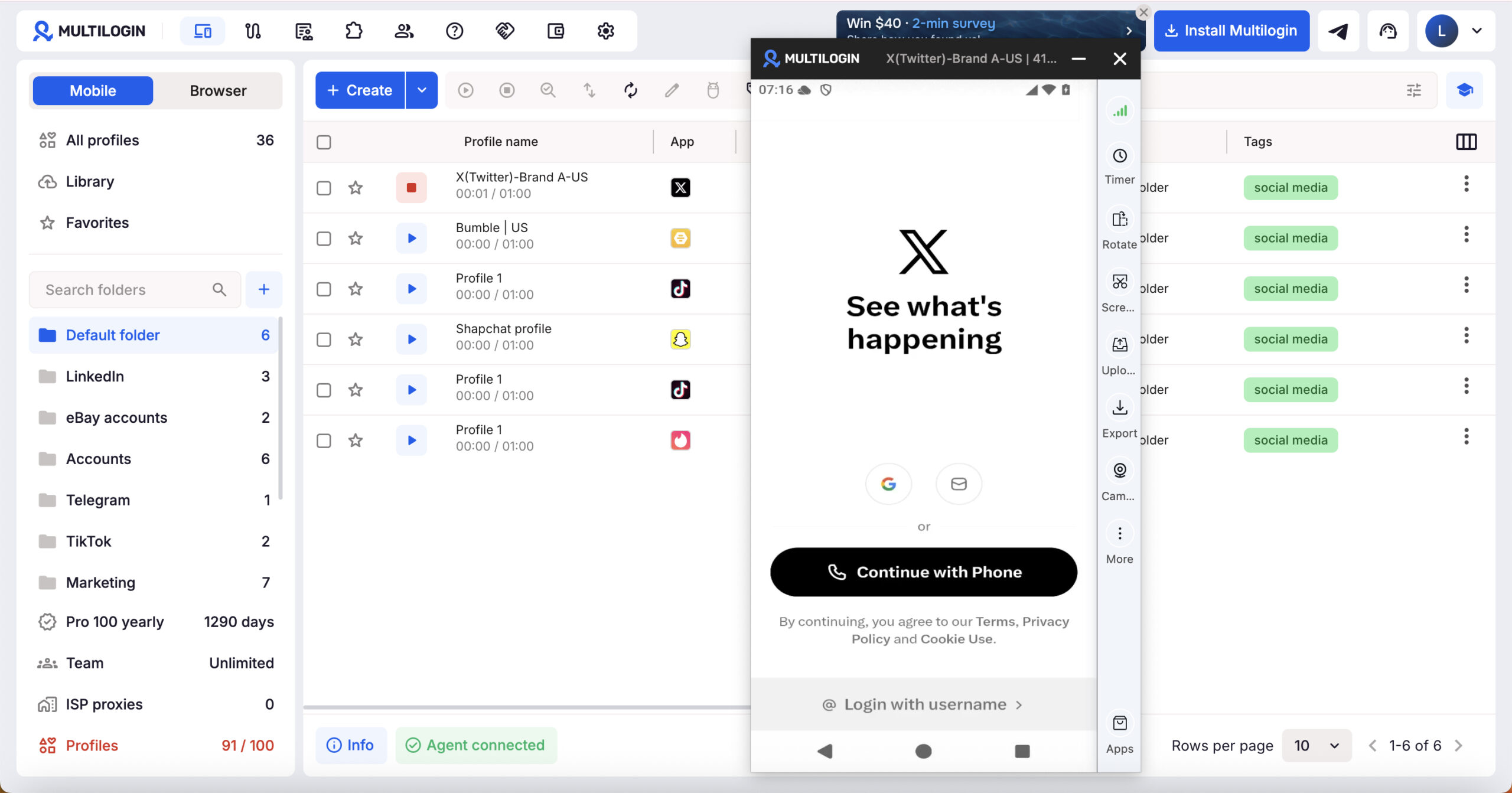
The workflow waits for the selected phone to become ready before retrieving its ADB details. In our run, startup took approximately one minute. The connection then succeeded on its first attempt.
The phone must be running before ADB can connect.
The dashboard capture includes an “Agent disconnected” badge. This test validated the CLI/ADB route; it did not validate the browser-agent connection or graphical phone viewer.
The script uses the connection and authentication sequence below with fresh local values:
text
adb connect IP:PORT
adb -s IP:PORT shell glogin PASSWORD
These are explanatory placeholders, not values to copy from another session. Keep the actual credentials out of the conversation.
3. Inspect the Android result and cleanup
Our workflow opened About phone in Settings, checked that Settings was in the foreground, and saved an Android screenshot. We opened the saved PNG separately and confirmed the visible PGFM10 device name. Android 16 was verified through an ADB property read.
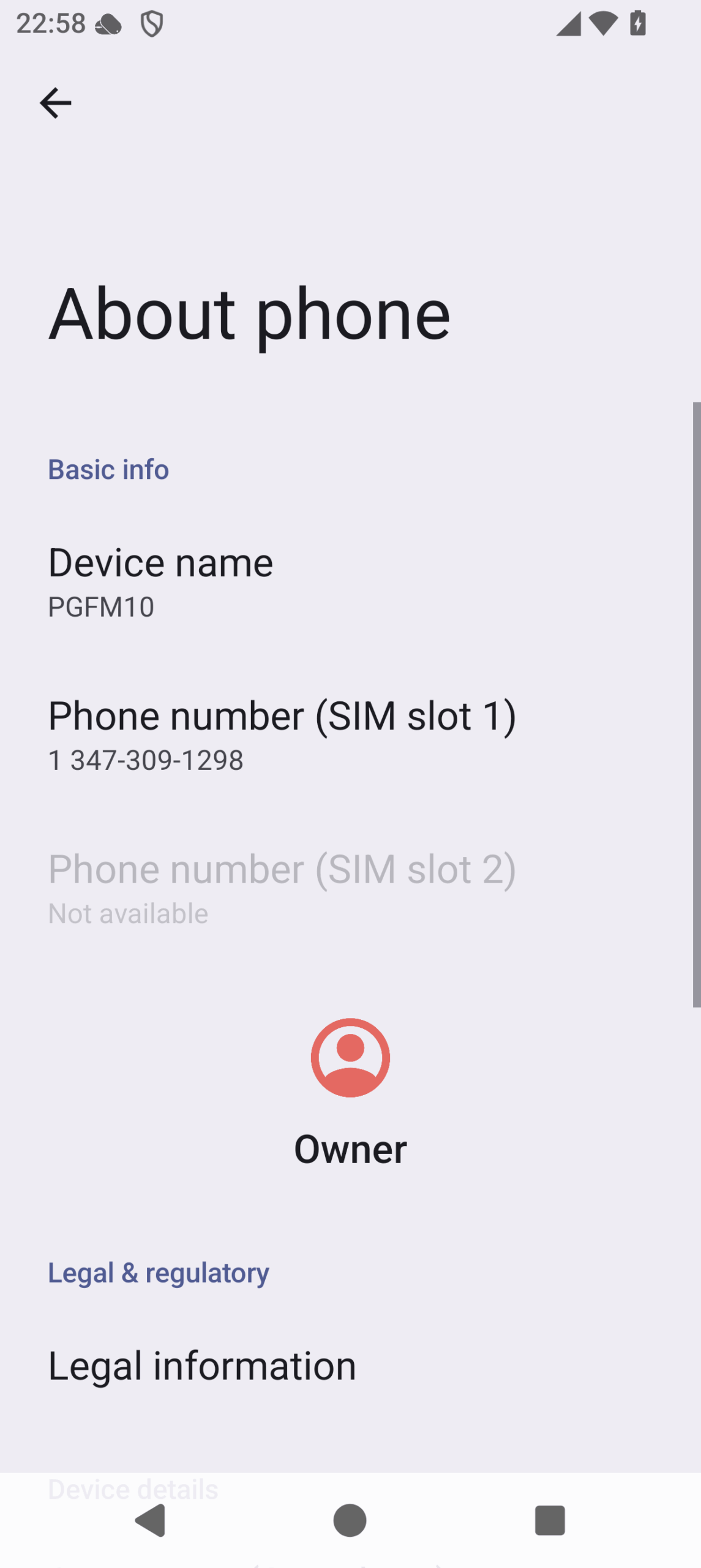
The saved screenshot comes from the selected Android phone.
Check the result file and verify shutdown independently:
The template saves its report at `~/mlx-work/grok-cloud-phone-test/test-result.json` and the image under that folder’s `screenshots` directory. Check the report’s current timestamp and screenshot field before using an image from a previous attempt.
zsh
./xcli mobile-profiles-statuses --ids YOUR_PHONE_ID
./xcli mobile-profiles-adb-info --ids YOUR_PHONE_ID
For our completed run, the runtime query returned `2` (shut down) and ADB returned `disabled`. Both checks succeeded.
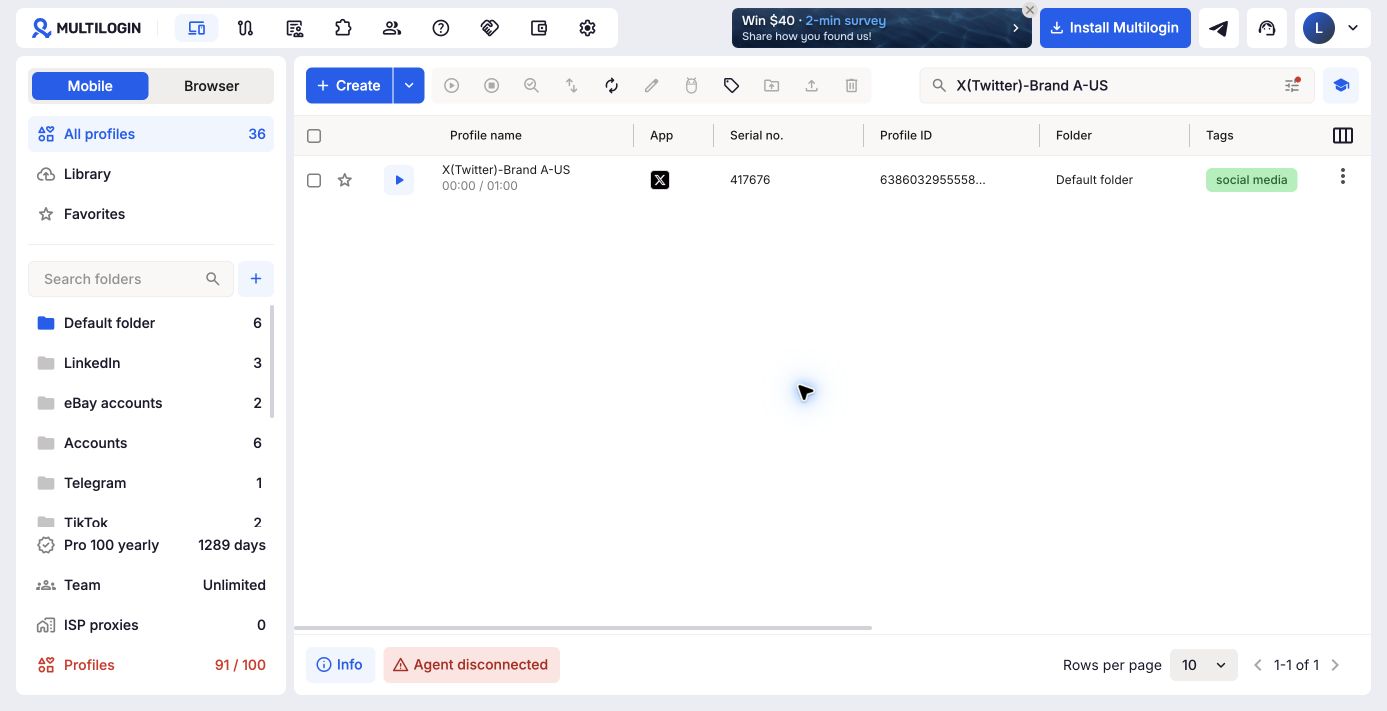
Confirm the stopped state after every task. The separate CLI check verifies ADB disablement.
Optional next tasks
After this connection test passes, build separate workflows for phone creation, X installation, gallery uploads, and reviewed publishing. Validate one task at a time, including its destination and cleanup.
The result
The desktop test passed.
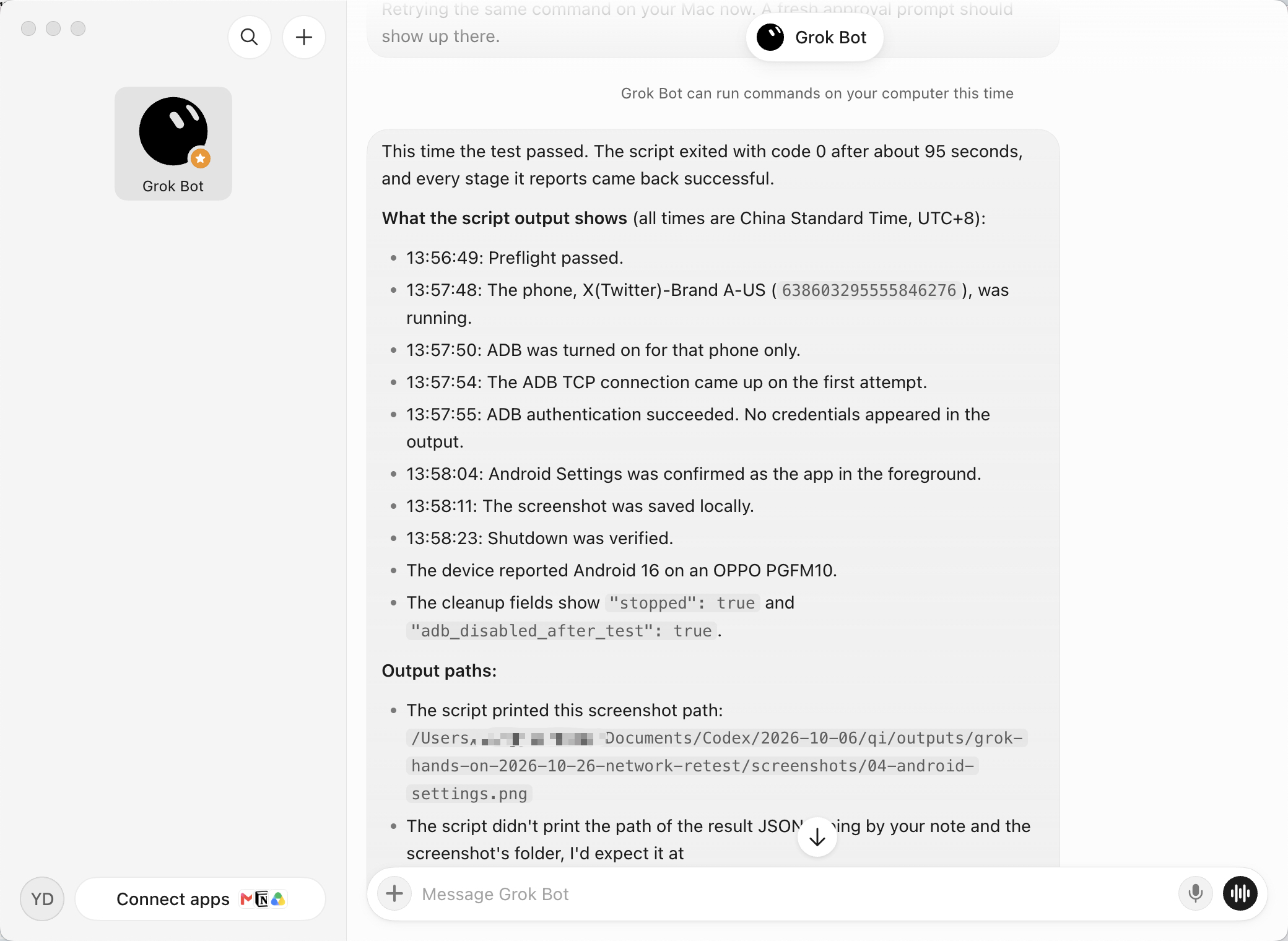
The complete run took about 95 seconds. Device properties returned Android 16, OPPO, and PGFM10. A subsequent check confirmed that the phone was stopped and ADB was disabled.
The result validates the desktop connection and this one Android task. For mobile workflows, feel free to explore more about Grok Bot with our cloud Android phone. Start free today!