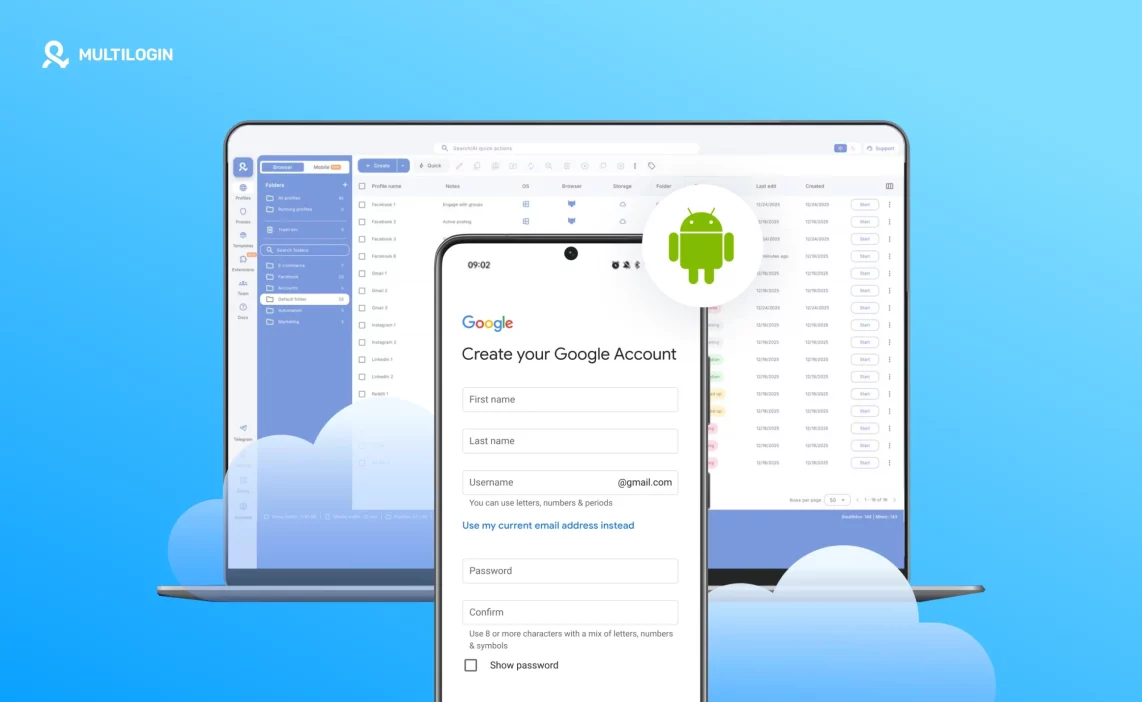

The question of how to create a Google account without a phone number has become more complicated than simply looking for a Skip button.
Google’s standard account-creation instructions still treat adding a phone number as optional. In an actual signup session, however, Google may ask for additional verification. There is no setting in Multilogin, Android, Gmail, or a browser that can force Google to remove that requirement.
For people managing multiple Google accounts, the useful part of Multilogin is different. Each account can live in its own persistent Android environment instead of mixing app data and sessions on one personal phone. That is the role of Multilogin Cloud Phones.
Can you create a Google account without a phone number in 2026?
Yes. Google’s standard account-creation flow allows a Google Account to be created without adding a phone number when the phone step is optional.
That distinction matters. Optional does not mean guaranteed to be skippable in every signup. Google can request additional verification depending on the signup session. If the phone number field includes a Skip option, you can continue without adding one. If Google makes verification mandatory, Multilogin does not remove or bypass that requirement.
You also do not necessarily need a Gmail address to create a Google Account. Google lets you register using an existing third-party email address, which can be useful if your goal is access to services such as YouTube, Google Drive, Calendar, or Google Play rather than another Gmail inbox.
For multi-account workflows, a cloud phone gives each account its own persistent Android environment while keeping management inside one dashboard.
Why does Google ask for a phone number during account creation?
Google uses phone verification as one of several ways to protect its services from abuse and confirm account activity.
A phone number can also become useful later for account recovery and security. That is why adding one and being required to verify one are two different things.
Verification may also vary between signup attempts. Google does not publish a complete list of signals or a formula showing exactly when a phone number, QR verification, or another check will appear.
For anyone creating multiple accounts, this is the part worth understanding. Clearing cookies or repeatedly starting fresh sessions does not give you control over Google’s verification decision. A cleaner workflow is to keep each account inside the environment where it will actually be used.
How Google detects repeated account creation
When people search for how to create a Google account without phone number, they often focus entirely on the form.
The signup form is only one part of the session.
Modern online services can evaluate account activity using a broader collection of device, network, session, and behavioral information. Google does not disclose exactly how each signal is weighted, so claims that a particular IP, fingerprint, location, or device setting will prevent verification should be treated carefully.
What you can control is consistency.
Instead of repeatedly changing devices, clearing environments, or moving accounts between setups, you can give each Google account a dedicated environment and return to that same environment later.
That does not guarantee fewer verification prompts. It does make your own account-management setup much cleaner.
How to create a Google account without a phone number with Multilogin Cloud Phone
Multilogin Cloud Phones let you run native Android environments remotely from the same dashboard used for your other profiles.
For this workflow, the idea is simple: create a dedicated Cloud Phone, open Google’s account-creation flow inside it, and skip the phone field only when Google itself provides that option.
Multilogin Cloud Phones provide:
A dedicated Android environment for each account
Persistent app data and sessions
Separate proxy and environment settings
One Cloud Phone = one Google identity
For an organized multi-account workflow, assigning one Cloud Phone to one Google identity keeps things easy to track.
A Multilogin Cloud Phone runs Android in the cloud and retains the environment between sessions.
Instead of signing several accounts in and out of the same Android setup, you can keep each one associated with its own profile.
That gives you:
Separate app data
Persistent login state
A dedicated proxy configuration
A reusable Android environment
The goal is separation and consistency, not pretending that Google cannot request verification.
Create a Gmail account inside each Cloud Phone
Account creation starts inside the Android environment.
To create a Cloud Phone in the current Multilogin interface:
Go to Profiles
Select Mobile
Click Create
Name the Cloud Phone and configure its proxy
Create and start the profile
You can see the complete setup process in the Multilogin guide to creating Android Cloud Phones.
Once the Cloud Phone is running, open the Google signup flow from Android. If needed, apps can also be installed through Multilogin’s built-in Apps panel.
Enter the requested account details, choose your Gmail address and password, and continue through Google’s normal registration process.
Keep that Google account in the same Cloud Phone after signup instead of moving it unnecessarily between environments.
Create a Google account without a phone number using the Skip option
When you reach the phone number step, check what Google actually shows.
If Skip is available, select it and continue. That is the legitimate way to create a Google account without adding a phone number.
Google controls whether that option appears.
Multilogin does not:
Force the Skip option to appear
Remove Google verification
Disable Google’s security checks
Guarantee phone-free signup
This distinction makes the workflow much more durable than guides built around supposed verification tricks.
What if Google asks for phone or QR verification anyway?
If Google requires verification, you need to complete the verification method Google presents or stop the signup attempt.
A Multilogin Cloud Phone does not contain an active SIM and cannot receive an SMS verification code by itself. If a workflow legitimately requires SMS verification, use a real or virtual number that you control and retrieve the code from that service.
Multilogin has a separate guide explaining SMS verification with Cloud Phones.
Google may also display a QR-based verification screen instead of an ordinary phone field. That is a Google-controlled challenge, not something the Cloud Phone can disable. See our guide to Google’s “Verify some info before creating an account” screen for more context.
Why does this hold long-term?
The main benefit appears after account creation.
A disposable signup environment is not especially useful if you then access the account from several unrelated setups. Multilogin lets the same Cloud Phone remain available for later sessions, so you can return to the account without rebuilding its Android environment every time.
Cloud Phones keep:
App data
Account sessions
Profile configuration
Proxy settings
That makes them useful for repeat workflows involving multiple Google identities.
It still does not mean Google will never request verification again. Google remains in control of account security.
Create Google accounts in isolated Android environments with Multilogin Cloud Phones
Why location matters for phone number requests
Location is another area where consistency is more useful than trying to find a supposed “easy country.”
A Cloud Phone connects through its assigned proxy, so choosing the environment and network setup before starting the account helps avoid unnecessary changes later.
Multilogin lets you configure the Cloud Phone around a particular proxy and geographic setup. Your IP address therefore becomes part of a stable profile instead of changing every time you work with the account.
A good rule is simple: choose the location your workflow actually needs, then keep it reasonably consistent.
Changing countries, proxies, devices, and account environments repeatedly is not a reliable method for avoiding verification. Google can still request additional checks regardless of the location you choose.
Learn more about managing multiple Google accounts with Multilogin.
Manage as many Google accounts with Multilogin
The challenge with several Google accounts is usually not creating the first one. It is keeping every account organized after the number grows.
With Multilogin, you can assign each Google identity its own Cloud Phone:
One Cloud Phone for one Google identity
Persistent Android environment
Separate sessions and app data
Dedicated proxy configuration
If you are specifically working with Gmail at scale, see our guide to creating and managing multiple Gmail accounts.
The same principle applies as you add more profiles. Instead of resetting an existing Cloud Phone, create another dedicated environment when another account needs one.
Managing all Google accounts from one Multilogin dashboard
Multiple Android environments do not have to mean multiple physical phones sitting on your desk.
From Multilogin, you can:
View your Cloud Phones in one workspace
Add notes for account context
Use tags to organize profiles
Start and stop Cloud Phones when needed
Keep account environments separate
This becomes particularly useful for teams, agencies, and workflows where several accounts need to remain clearly assigned.
New accounts are added as new profiles rather than replacing the environments of existing accounts. That makes the setup easier to understand when you return to it days or weeks later.
Create Google accounts in isolated Android environments with Multilogin Cloud Phones.
Why location matters for phone number requests
Google does not treat every signup the same way. Verification pressure changes by region, and that difference becomes obvious once you start creating or managing more than one account. In some countries, SMS verification is triggered quickly. In others, it appears far less often. This isn’t random. Google adjusts its checks based on regional risk patterns, local abuse history, and how reliable phone networks are in that area.
Problems start when location signals don’t line up. If your IP points to one country, your device settings suggest another, and your previous accounts were created elsewhere, Google gets cautious. That’s usually when the phone number prompt appears, even if email verification was available before.
With Multilogin, location control is built into the environment, not added as an afterthought:
- You choose the cloud phone location before account creation
- The IP address, timezone, and system locale are aligned automatically
- Each cloud phone keeps the same location signals over time
The result is simple but powerful: Google sees one account created and accessed from one consistent place, instead of a trail of mixed signals. That consistency lowers verification friction and helps keep email-based signup available, without forcing phone number requests later.
This isn’t about picking “easy” countries. It’s about removing contradictions. When location, device, and behavior stay aligned inside a Multilogin Cloud Phone, Google has far fewer reasons to escalate verification in the first place.
Learn more about how to create unlimited Google accounts with Multilogin!
Manage as many Google accounts with Multilogin
Scaling Google accounts usually breaks setups because growth forces reuse. Multilogin removes that pressure entirely by letting you scale through isolation, not repetition.
With Multilogin, each cloud phone is a complete, independent environment:
- One cloud phone supports one Gmail account
- That Gmail account represents one Google identity
- Nothing is shared across environments
You can create as many cloud phones as you need, and each one behaves like a separate Android device owned by a different person.
Accounts can be:
- Launched when needed
- Paused without losing session state
- Reused later without re-verification loops
- Scaled steadily without changing your setup
There’s no rebuilding, no resetting devices, and no cycle of fixing the same problems again. Growth adds capacity, not risk.
Managing all Google accounts from one Multilogin dashboard
Handling multiple Google accounts doesn’t mean juggling tools or losing track of which account is which. Multilogin keeps everything centralized and visible.
From one dashboard, you can:
- See all cloud phones at a glance
- Add notes to each account for context and ownership
- Tag environments by purpose, client, or status
- Launch and manage accounts without switching software
New accounts are added as new environments, not changes to existing ones. Existing Google accounts remain untouched while you scale. This keeps your setup clean, predictable, and easy to manage even as the number of accounts grows.
Multilogin turns what is usually a fragile process into a system you can actually rely on, whether you manage a few Google accounts or dozens over time.
Final verdict: how to create a Google account without a phone number
So, can you make a Google account without a phone number?
Yes, when Google makes the phone number optional during your signup session. Follow Google’s normal account-creation flow and select Skip when that option is available.
Multilogin Cloud Phones do not bypass Google verification. Their value is giving each Google identity a dedicated Android environment with persistent app data, sessions, and network configuration. That matters much more once you start managing multiple accounts over time.
If Google requires phone or QR verification, you still need to follow the verification flow Google provides.
You can start with the Multilogin Free plan, with no credit card required. Paid plans start at $7.08/month when you need more profiles and capacity.
FAQs about creating a Google account without a phone number
Can you create a Google account without using a phone number?
Yes. Google’s standard account-creation instructions list adding and verifying a phone number as optional. If your signup flow shows a Skip option, you can continue without providing a number.
Google may still require additional verification in some sessions.
How to create a Google account without a phone number?
Open Google’s account-creation flow, enter your personal details, choose your email address and password, then continue until you reach the phone step. If Google displays Skip, select it and finish the account setup.
For a multi-account workflow, you can perform the signup inside a dedicated Multilogin Cloud Phone and keep that Google account in the same Android environment afterward.
How to create a new Google account without phone number with Multilogin?
Go to Profiles → Mobile → Create in Multilogin and create a dedicated Cloud Phone.
Start it, open Google’s account-creation flow inside Android, enter the requested information, and continue normally. Skip the phone number only if Google provides that option.
You can follow the full Android Cloud Phone setup guide if you have not created a mobile profile before.
How to make a Google account without a phone number if Google does not show Skip?
You cannot force Google to show the Skip option.
If Google requires phone or another verification method, you need to complete the challenge Google provides or try account creation again through a legitimate Google signup flow at another time. Multilogin does not bypass mandatory Google verification.
Does Multilogin bypass Google phone verification?
No. Multilogin provides isolated browser profiles and Android Cloud Phones for managing accounts. Google still decides when a phone number, QR check, or another verification method is required.
Can a Multilogin Cloud Phone receive Google SMS verification codes?
No. A Cloud Phone does not provide an active SIM capable of receiving SMS messages.
If Google requires SMS verification, use a real or virtual number you control and retrieve the verification code from that phone or provider. See how SMS verification works with Multilogin Cloud Phones.
Can I create a Google Account with an existing email instead of Gmail?
Yes. A Google Account and a Gmail account are not exactly the same thing.
Google allows you to create a Google Account using an existing third-party email address. You can then use that Google Account with services such as YouTube, Drive, Calendar, and other Google products without creating a new Gmail address.
Can I create multiple Google accounts without phone numbers?
Potentially, but there is no guaranteed number of accounts you can create without verification.
Each signup is controlled by Google. Some may offer a skippable phone field while another may require verification.
Multilogin helps with the management side by letting you assign accounts to separate Cloud Phones instead of repeatedly sharing one Android environment.
Why does Google ask for a phone number even though it is listed as optional?
Because “optional” describes the standard account-creation flow, not a guarantee for every individual signup.
Google can introduce additional verification when its systems decide another check is necessary. The precise decision process is not publicly disclosed.
Can I recover a Google account without a phone number?
A phone number is not the only recovery option. You can add a recovery email and use other Google-supported security and recovery methods.
If you choose not to link a phone number, adding a recovery email you control is particularly important so you have another route back into the account.
Do methods for creating a Google account without phone number from 2022 still work?
Some basic signup steps are the same, but guides written in 2022 should not be treated as reliable descriptions of the current verification flow.
Google’s signup experience changes over time, and the presence of a Skip button can vary. Follow the current Google account-creation screen rather than relying on an old trick or device-specific workaround.
Is Multilogin free for creating a Google account?
Multilogin has a Free plan with no time limit and no credit card required. It includes Cloud Phone and browser-profile access within the Free-plan limits.
When you need additional profile capacity, paid plans currently start at $7.08/month. See the current Multilogin pricing for plan details.