


To delete a YouTube channel in 2026, sign in to YouTube Studio on a desktop browser and go to Settings → Channel → Advanced Settings → Remove YouTube Content. Choose I want to permanently delete my content, select the confirmation boxes, and click Delete my content.
The clicks are simple. The mistakes usually happen before them: deleting the wrong channel under a shared Google login, overlooking a Brand Account, skipping your backups, or assuming a verification prompt is part of the deletion itself.
Before you delete a YouTube channel, confirm exactly which channel is active, decide whether hiding it would be enough, and save anything you may need later.
Last verified: August 2026 against current YouTube Help documentation.
Key takeaways
You must currently use YouTube Studio in a desktop browser to delete a channel. YouTube does not support permanent channel deletion on mobile devices.
Permanent deletion removes the selected channel’s videos, comments, messages, playlists, and history. It does not delete the Google Account used to sign in.
Hiding a channel is reversible and makes its name, videos, likes, subscriptions, and subscribers private.
Back up the videos and channel records you want to keep before clicking Delete my content.
If you cannot find Remove YouTube Content, check that you are in desktop YouTube Studio, have switched to the correct channel, and have an Owner role. YouTube Managers cannot delete a channel.
Phone verification, advanced-feature verification, sign-in authentication, and age verification are different processes.
When several channels are connected to one Google login, confirm the active channel and Brand Account before deleting anything.
No profile-management tool can approve, skip, or guarantee the outcome of a YouTube or Google verification check.
Deletion and verification definitions
Permanent channel deletion: Permanent deletion removes the selected YouTube channel and its content. It does not remove the Google Account used to sign in.
Channel hiding: Channel hiding makes the channel’s content and activity private so the channel can be re-enabled later.
Sign-in authentication: YouTube may ask you to re-enter your Google Account credentials before you can remove content. This is an account-security check and should not be confused with channel phone verification or age verification.
Phone verification: Phone verification uses a text message or voice-call code to verify a YouTube channel and enable standard creator features.
YouTube age verification: Age verification confirms that the Google Account holder meets an age requirement. Google may offer verification through an ID, credit card, or selfie, depending on the account and location.
Advanced-feature verification: After phone verification, YouTube may grant advanced features through sufficient channel history or an offered ID or video-verification process.
Before You Delete a YouTube Channel, Run This Two-Minute Check
Before deleting a YouTube channel, confirm the active channel, your permission level, the content you need to keep, and whether hiding would solve the problem.
| Check | What to do | Why it matters |
|---|---|---|
| Correct Google Account | Open the profile menu and confirm the email address used to sign in. | This prevents you from changing a channel under the wrong login. |
| Correct YouTube channel | Use the channel switcher and verify the channel name and profile image. | One Google login can be associated with more than one YouTube channel. |
| Brand Account status | Check the Google Brand Accounts page for associated channels. | This helps owners and managers confirm which channel they are changing. |
| Owner permission | Check your YouTube Studio permissions if the channel is shared with a team. | Owners can delete a channel. Managers cannot. |
| Content copy | Save the original videos, thumbnails, descriptions, licences, reports, and records you still need. | Permanent deletion removes the channel’s content. |
| Hide or delete | Choose hiding when you need a reversible pause. | A hidden channel can be re-enabled later. |
Back up your YouTube videos before deletion
Do not use deletion as your backup strategy.
For videos you uploaded yourself, open YouTube Studio → Content, open the menu for the video you want to keep, and choose Download when available. YouTube also points creators to Google Takeout when they need to download all uploaded videos.
You can check the current instructions for how to download your own YouTube uploads before deleting the channel.
If the channel is monetized or managed as part of a larger creator operation, save the files and business records you may still need later. Our guide to YouTube monetization workflows for multi-profile operators covers the broader organization side of multi-channel work.
How to Delete a YouTube Channel Permanently in 2026
To delete a YouTube channel permanently, open YouTube Studio in a desktop browser and go to Settings → Channel → Advanced Settings → Remove YouTube Content.
Sign in to YouTube Studio with the Google Account connected to the channel.
Confirm that the channel name and profile image match the channel you intend to remove.
Select Settings in the left sidebar.
Select Channel, followed by Advanced Settings.
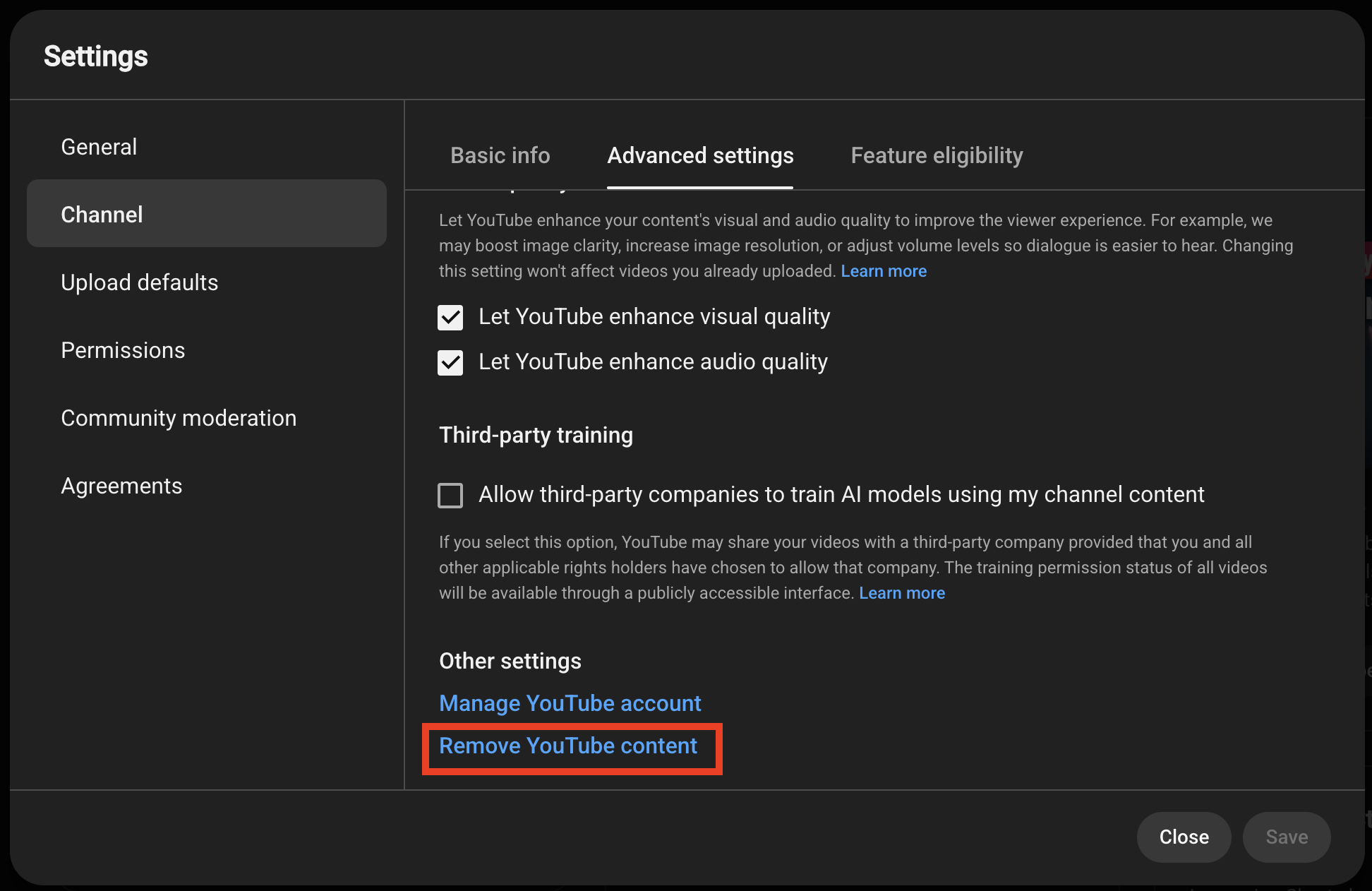
Scroll to the bottom of the page and select Remove YouTube Content.
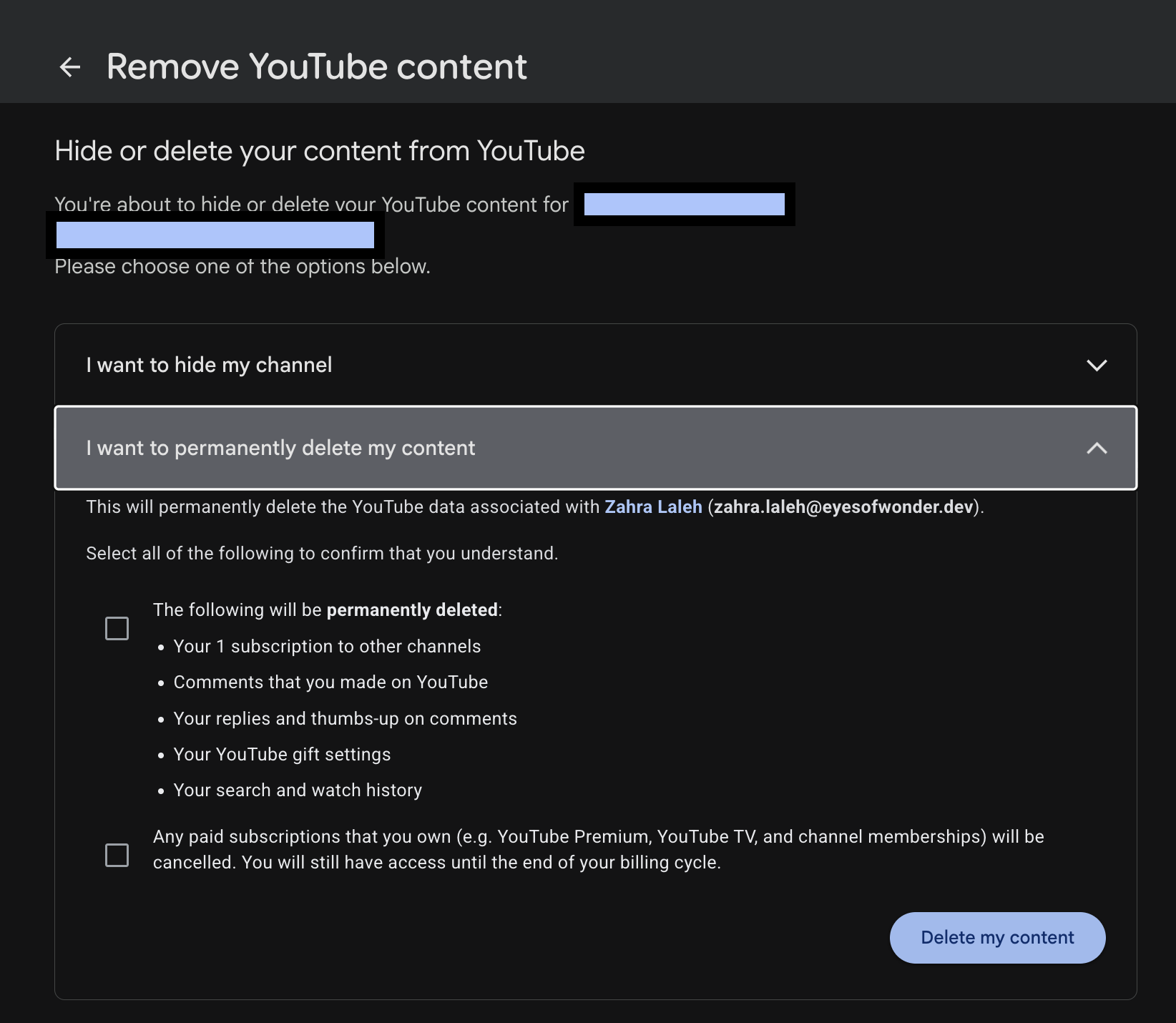
Re-enter your sign-in details if Google asks you to authenticate again.
Select I want to permanently delete my content.
Read and select the confirmation boxes.
Select Delete my content.
YouTube says permanent deletion may take some time. Video thumbnails may remain visible briefly while the deletion process finishes.
Follow the current instructions on the official YouTube channel deletion help page if the interface differs from the steps above.
I can’t find “Remove YouTube Content” in YouTube Studio. What should I check?
If you cannot find the option, check the setup before assuming the feature has disappeared.
First, make sure you are using YouTube Studio in a desktop browser, not the YouTube mobile app. Then go to Settings → Channel → Advanced Settings and scroll to the bottom.
Still not there? Check these two things:
Active channel: If one Google Account manages several channels, switch to the exact channel you want to remove.
Your role: Open YouTube Studio permissions and confirm that you are an Owner. YouTube’s channel-permissions documentation says Owners can delete a channel, while Managers cannot.
For a Brand Account, also confirm whether you are an owner or manager before changing anything. A shared channel can look perfectly normal in Studio while your role quietly removes access to the final deletion action.
Can you delete a YouTube channel on phone without YouTube Studio?
No. YouTube currently says a channel cannot be permanently deleted on a mobile device.
That means there is no supported “delete YouTube channel on phone without YouTube Studio” path in 2026. You may be able to change individual video visibility or manage other channel settings from mobile, but permanent channel deletion should be completed through YouTube Studio on a desktop browser.
What Happens After You Delete a YouTube Channel?
After deletion, the channel’s videos, comments, messages, playlists, and history are permanently removed, while the Google Account remains available for Gmail and other Google services.
The channel URL and channel name stop appearing as identifiable items in YouTube Analytics. Data such as watch time may remain in aggregate reports, but it is no longer attributed to the deleted channel.
YouTube also warns that account recovery can be more difficult after permanent deletion. Treat the confirmation screen as the final decision point, not as a temporary cleanup option.
Should You Hide the YouTube Channel Instead?
Hide the YouTube channel instead when you want to remove its public presence without permanently destroying the channel and its content.
Hiding makes the channel name, videos, likes, subscriptions, and subscribers private. You can later re-enable the channel. YouTube notes that view counts may be inaccurate after reactivation and can take up to a week to update.
| Option | Can it be reversed? | What changes? | Best use |
| Hide channel | Yes | The channel name, videos, likes, subscriptions, and subscribers become private. | A pause, rebrand, internal review, or temporary withdrawal. |
| Delete channel | No | Videos, comments, messages, playlists, and history are permanently removed. | A final closure after saving the required content and records. |
Other alternatives before permanent deletion
Sometimes the channel is not the real problem. The old content, positioning, or publishing plan is.
Before deleting everything, consider whether one of these options solves the issue with less damage:
Make selected videos private or unlisted. YouTube lets you change the visibility of individual uploads without deleting the whole channel.
Rebrand the channel. A new name, description, visual identity, and publishing direction can be enough when the audience is still relevant.
Pause publishing. If the decision is not final, stop posting while you review the channel rather than permanently removing it.
Rework what comes next. If the channel still has useful history or an audience, a clearer YouTube content strategy and stronger YouTube SEO may make more sense than starting from zero.
If you only want certain videos out of public view, use YouTube’s video visibility controls instead of deleting the entire channel.
Why Is YouTube Asking for Verification?
YouTube asks for verification for several different reasons, and the correct response depends on whether the prompt concerns the channel, advanced creator features, account access, or the viewer’s age.
Phone verification for a YouTube channel
Phone verification confirms a YouTube channel through a code sent by text message or voice call.
According to YouTube’s account-verification guidance, phone-verified channels can upload videos longer than 15 minutes, add custom thumbnails, live stream, and appeal Content ID claims.
YouTube states that one phone number can be associated with no more than two channels per year.
YouTube ID or video verification for advanced features
YouTube ID or video verification is one route to advanced features after phone verification, while the alternative is building sufficient channel history.
This process is not the same as verifying your age, and it is not a standard part of deleting a channel. Follow the prompt displayed inside the signed-in YouTube or Google workflow rather than uploading documents through an unrelated page.
YouTube age verification
YouTube age verification confirms whether a viewer is old enough to access age-restricted content or age-controlled account features.
Start by checking the birthday saved under Personal info in the Google Account. If YouTube’s age-estimation process is incorrect, the available verification flow may offer a government ID, credit card, or selfie, depending on location and account eligibility.
Users in Australia may be asked to submit a valid driving licence, proof-of-age card, or passport to watch age-restricted videos.
Read Google’s official guidance for reviewing your birthday, understanding age estimation, and watching age-restricted videos.
Why does YouTube Studio keep asking for verification?
A repeated verification prompt does not automatically mean there is a problem with channel deletion.
Look at what the prompt is actually asking for:
Password or sign-in details: YouTube may ask you to authenticate again before opening the remove-content flow.
Phone number: This usually relates to channel verification and creator features.
ID or video: YouTube may offer these methods for advanced-feature access after phone verification.
Age check: This is tied to the Google Account holder’s age eligibility, not to whether a channel can be deleted.
Follow the verification flow shown inside the signed-in Google or YouTube interface. Changing a browser profile, cloud phone, or IP address does not remove the verification requirement or guarantee approval.
What Should You Do When YouTube Could Not Verify You Are an Adult?
When YouTube could not verify that you are an adult, first check the birthday in your Google Account and then complete only the verification method offered inside the official Google or YouTube prompt.
Confirm that you are signed in to the intended Google Account.
Open Google Account → Personal info and verify the saved birthday.
If you use the mobile YouTube website, sign out and sign back in after updating the birthday.
Follow the official flow offered for ID, credit-card, or selfie verification.
Do not send identity documents to third-party support pages or people who contact you outside the official workflow.
A different browser profile, phone, or IP address does not change the age requirement and cannot guarantee that Google will accept a verification attempt.
How Do Deletion and Verification Affect Channel Decisions?
Deletion and verification affect different decisions. Deletion controls whether the channel continues to exist, while verification controls access to certain features or age-restricted content.
| Process | What it controls | Method | Best use | Main limitation |
| Channel phone verification | Channel access and standard creator features | Text message or voice-call code | Enabling longer uploads, custom thumbnails, live streaming, or Content ID appeals | It does not prove age or delete a channel. |
| Advanced-feature verification | Eligibility for advanced creator features | Channel history or an offered ID or video process | Responding when YouTube requests additional signals after phone verification | The approval method and availability are controlled by YouTube. |
| Age verification | Adult eligibility | Saved birthday plus an offered ID, card, or selfie process | Accessing age-restricted content or correcting age estimation | It does not verify the channel for creator features. |
| Channel deletion | Channel existence and content | Authenticated confirmation in YouTube Studio | Closing the selected channel permanently | It is permanent and currently requires a desktop browser. |
Examples of Safe Deletion and Verification Workflows
Example 1: A creator has two channels under one login
A creator wants to remove an abandoned test channel but keep the main channel.
The safer workflow is to use the channel switcher, verify the test channel’s name and profile image, check whether it is connected to a Brand Account, confirm the user has Owner permission, and then open YouTube Studio to delete only the selected channel. The Google Account and separate main channel are not the deletion target.
Example 2: An adult viewer cannot open an age-restricted video
An adult viewer sees an age check after signing in.
The viewer should confirm the birthday stored in the Google Account and complete the official age-verification option shown by Google. Deleting a YouTube channel, completing standard channel phone verification, or changing the profile environment does not resolve an age requirement.
Five Best Practices Before Deleting or Verifying a Channel
1. Confirm the active channel
Match the channel name, profile image, and Google Account before opening Remove YouTube Content.
2. Save the records you need
Keep original media, thumbnails, descriptions, licences, campaign records, analytics exports, monetization records, and other files you may need after deletion.
3. Choose hiding when uncertain
Use the reversible option when the decision is temporary or still under review.
4. Complete verification inside official prompts
Submit a code, ID, card, selfie, or video only through the signed-in Google or YouTube workflow that requested it.
5. Document team ownership
Record who owns the Google Account, who manages the Brand Account, who has the Owner role in YouTube Studio, and who approved deletion before a team member acts.
Organizing Creator, Team, and Client Channel Workflows
Teams managing several branded or client channels can reduce wrong-account work by assigning a persistent environment to each social profile and recording ownership, approval, and recovery details before someone changes channel settings.
Multilogin is a cloud phone platform for social media marketers. For YouTube, browser profiles fit desktop channel management, analytics, and YouTube Studio work, while cloud phones for YouTube support native Android YouTube and YouTube Studio workflows.
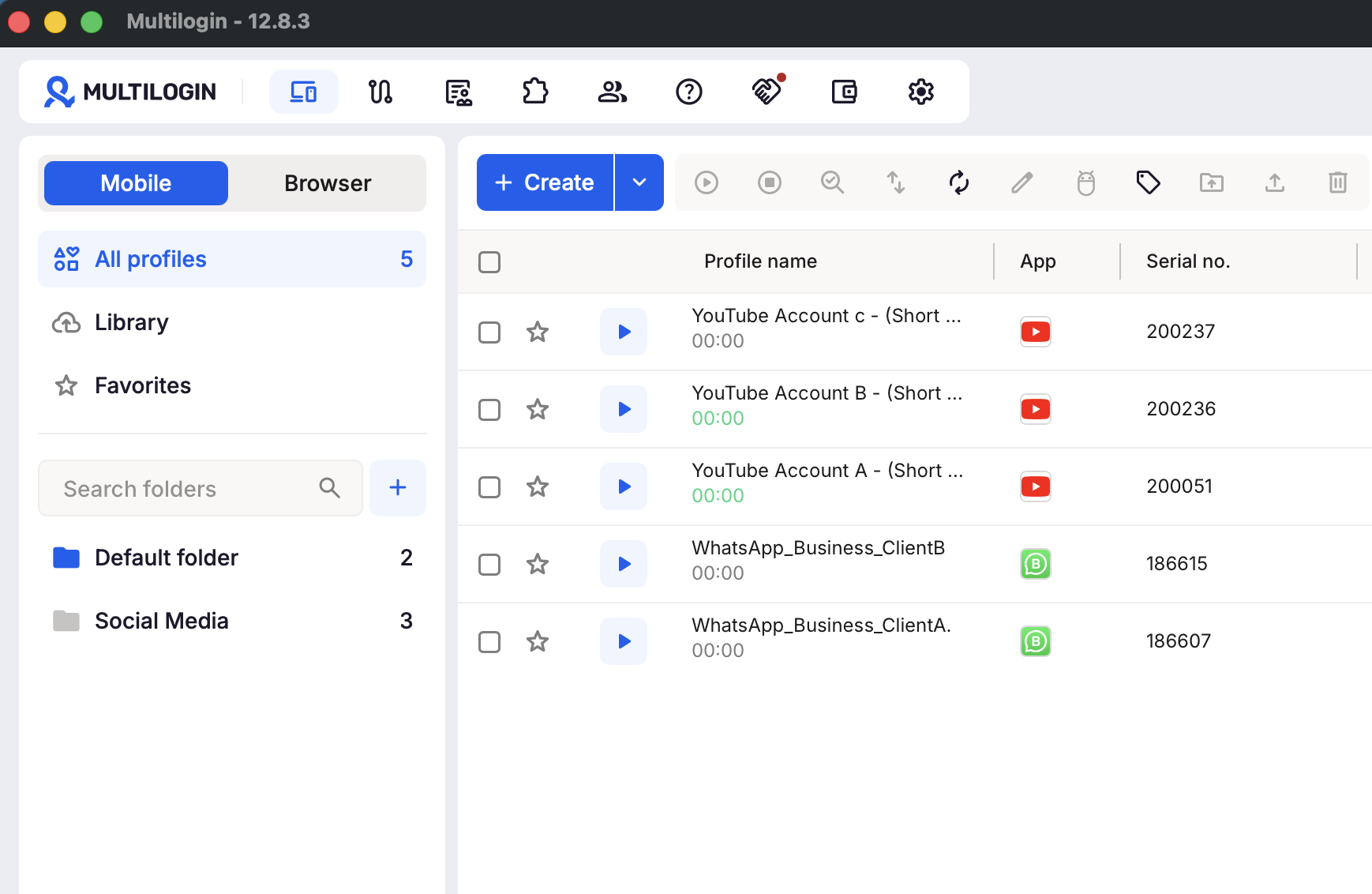
Each social profile can keep its own session state, app data, files, and working environment. Team permissions help keep handoffs organized when different people work on different creator or client channels.
If you run a larger channel portfolio, see our guide to managing multiple YouTube accounts with Multilogin.
This separation can reduce messy account switching and the risk of a team member acting in the wrong workspace. It does not decide whether YouTube requests phone, age, ID, or video verification, and it does not change the result of a Google review.
Multilogin offers a Free plan with no time limit and no credit card required. Paid plans start from $7.08/month, with Android cloud phones, browser profiles, built-in proxies, and mobile minutes available in one platform.
Build clean, persistent profile environments before scaling activity. Keep the channel itself compliant with YouTube’s rules, use original content, and rely on YouTube permissions for channel-level access.
Conclusion
The safest way to delete a YouTube channel is to slow down before the final click.
Confirm the active channel. Check that you have Owner permission. Save what matters. Choose hiding when the decision is temporary. And treat sign-in authentication, phone verification, advanced-feature verification, and age verification as separate workflows.
When the closure is final, use YouTube Studio’s official desktop deletion path: Settings → Channel → Advanced Settings → Remove YouTube Content → I want to permanently delete my content → Delete my content.