



You need another Gmail account. You go to the signup page, fill in the details, and then you hit the wall: “This phone number has been used too many times.” Or worse, the account gets created but is instantly flagged and disabled for “suspicious activity.”
If you’ve tried to create more than a handful of Gmail accounts, you know the frustration. Google’s detection systems are incredibly sophisticated. They’re designed to stop spammers and bots, but they also create a major roadblock for legitimate users who need to manage multiple accounts for business, marketing, or development.
This guide breaks down why traditional methods fail and shows you the only professional solution that works reliably at scale: creating accounts inside isolated mobile environments with Multilogin cloud phones.
Why Can’t I Just Create Unlimited Gmail Accounts?
Google doesn’t just look at the information you enter. It analyzes the digital environment you’re creating the account from. If anything looks suspicious or repetitive, it will block you. Here are the main barriers:
- Phone Number Verification: This is the most common hurdle. Google generally allows you to verify only a few (typically 2-4) accounts with the same phone number [1]. After that, the number is blacklisted for new creations. While you can sometimes create an account without a number, Google is more likely to ask for it if it detects any other suspicious signals.
- IP Address Tracking: Creating multiple accounts from the same IP address is a massive red flag. Using a standard VPN isn’t enough, as many VPN IPs are already known to Google and treated with suspicion. This is where residential proxies become essential for professional operations.
- Device Fingerprinting: This is the silent account killer. Google analyzes hundreds of data points about your device, OS, browser, and even your screen resolution to create a unique “fingerprint.” If you create multiple accounts from the same device, Google knows they’re all linked, even if you clear your cookies or use incognito mode. Understanding browser fingerprinting is crucial to avoiding detection.
Common “Tricks” and Why They Don’t Work for Professionals
Search online, and you’ll find plenty of advice. Unfortunately, most of it is outdated or only works for creating one or two extra accounts, not for scaling.
- Gmail Aliases (The “+” Trick): Adding a + to your username (e.g., [email protected]) creates a filterable alias, not a new account. All emails still go to the same inbox. This is useful for organization, but it doesn’t provide the isolation needed for separate identities. If you need truly separate Gmail accounts, aliases won’t cut it.
- Using Different Browsers or Incognito Mode: This doesn’t work. Your device fingerprint remains largely the same, and Google can still easily link your accounts. Incognito mode only clears local cookies, not the deeper signals that platforms use for tracking.
- Buying Pre-made Accounts: This is extremely risky. These accounts are often created using bots, have a high chance of being disabled, and you have no control over their history or security. Similar to buying aged Facebook accounts, the risks often outweigh any perceived benefits.
The Real Solution: Isolate and Look Like a Real Mobile User
To create Gmail accounts at scale, you need to solve the core problem: trust and isolation. Each new account must be created in a completely separate environment that looks like a unique, legitimate mobile user to Google.
This is where Multilogin cloud phones come in. A cloud phone is a real, virtualized Android operating system running in the cloud. It’s not an emulator; it’s a genuine mobile environment. When you create a Gmail account from a Multilogin cloud phone, Google sees:
- A real mobile device with a unique hardware fingerprint
- A clean, trusted residential IP address (not a blacklisted server IP)
- A native Android environment, which Google trusts far more than a desktop browser
Using a new cloud phone for each account creates perfect isolation. Nothing is shared between them. To Google, it looks like 100 different people are creating accounts on 100 different phones. This is the same principle used for managing multiple social media accounts across platforms.
| Feature | Traditional Methods | Multilogin Cloud Phones |
| Device Identity | Repetitive and easily linked. | Each account gets a unique, virtual mobile device fingerprint. |
| IP Address | Shared and often flagged. | Each account uses a clean, residential IP address. |
| Environment | Suspicious desktop browser. | Trusted, native Android OS environment. |
| Phone Verification | Required after a few accounts. | Often bypassed due to the trusted mobile environment. |
| Scalability | Fails after 2-4 accounts. | Virtually unlimited. Create hundreds of isolated accounts. |
How to Create Multiple Gmail Accounts with Multilogin: A Step-by-Step Guide
Here’s the professional workflow for creating Gmail accounts that last.
Step 1: Get Your Multilogin Account
Sign up for a Multilogin plan. The plans include access to cloud phones and are designed for scaling your operations. Starting at €74/month, you get the infrastructure needed for professional multi-account management.
Step 2: Create a New Cloud Phone Profile
In the Multilogin app, click “Create new profile” and select the “Mobile” profile type. Give it a name, like “Gmail Account 1.” This generates a new, pristine virtual Android device with its own unique device emulation parameters.
Step 3: Assign a High-Quality Proxy
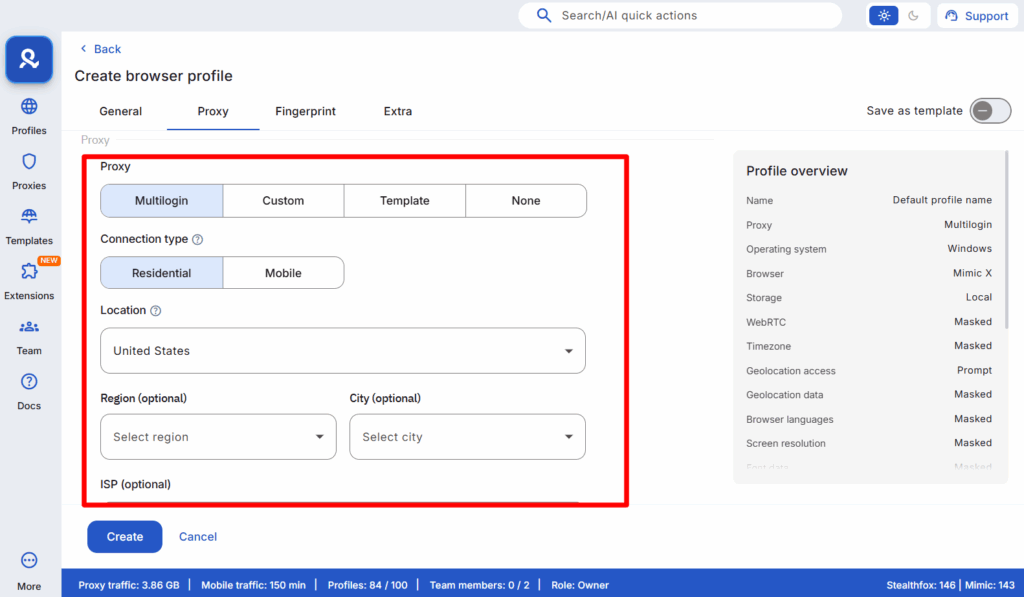
In the profile settings, add a residential proxy. This ensures your cloud phone has a clean, trusted IP address that’s not associated with data centers or VPNs. Multilogin offers built-in residential proxies with access to 30 million IPs across 195+ countries, or you can integrate your own proxy management provider.
Step 4: Launch the Cloud Phone and Install Chrome
Start the cloud phone. It will open in a window on your desktop, looking just like a real Android phone. Open the Play Store inside the cloud phone and install the Google Chrome browser. This native app environment is what makes your activity look completely legitimate.
Step 5: Go to the Gmail Signup Page
Open Chrome inside your cloud phone and navigate to the Gmail creation page. Since you’re operating from a real Android environment with a clean residential IP, you’re already in a trusted position that most users never achieve.
Step 6: Create the Account
Fill in the user details. Since you’re on a trusted mobile device with a clean IP, Google will often not require phone verification. If it does, you’ll need to use a unique phone number for that account. You can use various online services to get temporary numbers for verification, similar to how teams handle account verification for other platforms.
Step 7: Repeat for Each New Account
To create your next account, simply go back to the Multilogin app and create another new cloud phone profile (“Gmail Account 2”). This ensures each account is born in its own completely isolated environment, with no links to any other account. This session isolation is what prevents Google from detecting patterns.
Scaling Your Gmail Operations
Once you’ve mastered the basics, you can scale to dozens or hundreds of accounts. Teams use this infrastructure for various purposes:
- Customer Support Operations: Create dedicated Gmail accounts for different support channels or regions. Each account operates independently with its own secure browsing environment.
- Marketing Campaigns: Run separate email campaigns from isolated accounts. This prevents cross-contamination and ensures one flagged account doesn’t affect your entire operation.
- Development and Testing: Developers need multiple Gmail accounts for testing user flows, authentication systems, and multi-user features. Cloud phones provide the isolation needed for realistic testing scenarios.
- Client Management: Agencies managing multiple client accounts can create separate Gmail identities for each client, maintaining professional boundaries and security.
Advanced Tips for Account Longevity
- Warm Your Accounts: Don’t immediately start sending hundreds of emails from a brand new account. Use the account normally for a few days, send some personal emails, receive some replies. This builds trust with Google’s systems, similar to how you’d warm up an Instagram account.
- Maintain Consistent Device Identity: Always access each Gmail account from its designated cloud phone. Switching devices frequently looks suspicious and can trigger security checks.
- Use Realistic Proxy Locations: If you’re creating a US-based business account, use a USA proxy. If it’s UK-based, use a UK proxy. Geographic consistency matters.
- Enable 2FA After Creation: Once your account is established, enable two-factor authentication. This adds security and makes the account look more legitimate to Google’s systems.
- Regular Activity: Accounts that sit dormant get flagged faster. Log in regularly, even if just to check for emails. Active accounts with normal usage patterns are far more resilient.
Common Mistakes That Get Accounts Banned
- Creating Too Many Accounts Too Quickly: Even with perfect isolation, creating 50 accounts in one day looks suspicious. Pace your account creation over days or weeks to appear natural.
- Using Poor Quality Proxies: Datacenter proxies and free VPNs are easily detected. Always use premium residential proxies for account creation. The proxy quality is just as important as device isolation.
- Reusing Recovery Information: Don’t use the same recovery email or phone number across multiple accounts. This creates an obvious link that Google will detect.
- Ignoring Security Prompts: When Google asks you to verify your account or add recovery information, don’t ignore it. Accounts that skip security steps get flagged faster.
- Cross-Contamination: Never log multiple Gmail accounts into the same cloud phone. Each account should live permanently on its designated virtual device, just like a real person uses one physical phone.
Why This Matters for Professional Operations
Professional teams can’t afford the uncertainty of disabled accounts and lost access. Whether you’re running e-commerce operations, managing affiliate marketing campaigns, or handling client communications, you need reliable infrastructure.
The cloud phone approach isn’t just about creating accounts. It’s about building a sustainable, scalable foundation for your business operations. When you invest in proper infrastructure, you eliminate the constant firefighting of disabled accounts and verification loops.
Teams using this approach report near-zero account loss compared to traditional methods that see 50-80% of newly created accounts disabled within weeks. The difference comes down to operating in an environment that platforms trust, not trying to trick detection systems.
These fake viewer websites often fail because they cannot bypass TikTok’s security. They might ask you to complete surveys or download suspicious software, which are red flags. A safe approach to viewing stories more privately is to avoid these tools altogether. There is no legitimate way to view a private TikTok story anonymously.
No more juggling physical devices or risking account links. Try Multilogin's cloud phones now.
Frequently Asked Questions About How to Create Multiple Gmail Accounts
Google typically allows you to use the same phone number for 2-4 accounts. After this limit, the number will be blocked for new verifications. For scaling, you need a strategy that either bypasses the phone verification step or uses unique numbers for each account. Cloud phones with trusted residential IPs often bypass verification entirely.
Yes, it’s possible, but it depends heavily on the trust level of your digital environment. Creating an account from a Multilogin cloud phone with a clean residential IP significantly increases your chances of not being asked for a phone number. The mobile-native environment is what Google trusts most.
A Gmail alias (using + or .) is just a filter for your existing inbox. It doesn’t create a new account, new storage, or a separate identity. A separate Google account is a completely independent identity with its own login, password, and storage. For true isolation, you need separate accounts, not aliases.
Yes, it’s perfectly legal and within Google’s terms of service to own multiple Gmail accounts. The issue arises from the methods used to create them. Google’s systems are designed to block automated or suspicious creation methods, which is why a professional tool like Multilogin is necessary for scaling operations safely.
The key is using the right infrastructure. Cloud phones let you manage dozens or hundreds of accounts from a single dashboard, with each account maintaining its own isolated environment. This prevents the confusion and security risks of trying to manage multiple accounts from a single device.
Yes, the cloud phone methodology works for all Google services. Once you’ve created Gmail accounts properly, you can use them for Google Ads, YouTube, Google Drive, and other services. The isolation principle applies across the entire Google ecosystem.
Stop Fighting Google, Start Working Smarter
Trying to trick Google’s detection systems with old methods is a losing battle. The only way to reliably create and manage multiple Gmail accounts is to give the platform exactly what it trusts: unique users on unique mobile devices.
Multilogin cloud phones are the only solution that provides the necessary isolation and environmental trust to do this at scale. Stop wasting time with methods that lead to disabled accounts and start building a stable, professional workflow.
Whether you’re managing multiple YouTube accounts, Facebook profiles, or Gmail identities, the principle remains the same: proper isolation through authentic mobile environments is what separates amateur operations from professional ones.
Ready to create Gmail accounts without limits? Start your Multilogin plan and experience the power of isolated cloud phone environments.

