

Need to check your Telegram messages on a different device—fast? Web Telegram makes that easy. No apps, no downloads. Just open your browser and log in.
In this article, you’ll find clear instructions on how to access Telegram in your browser, what you can and can’t do with Web Telegram, and how to manage multiple accounts without triggering restrictions.
What is Web Telegram?
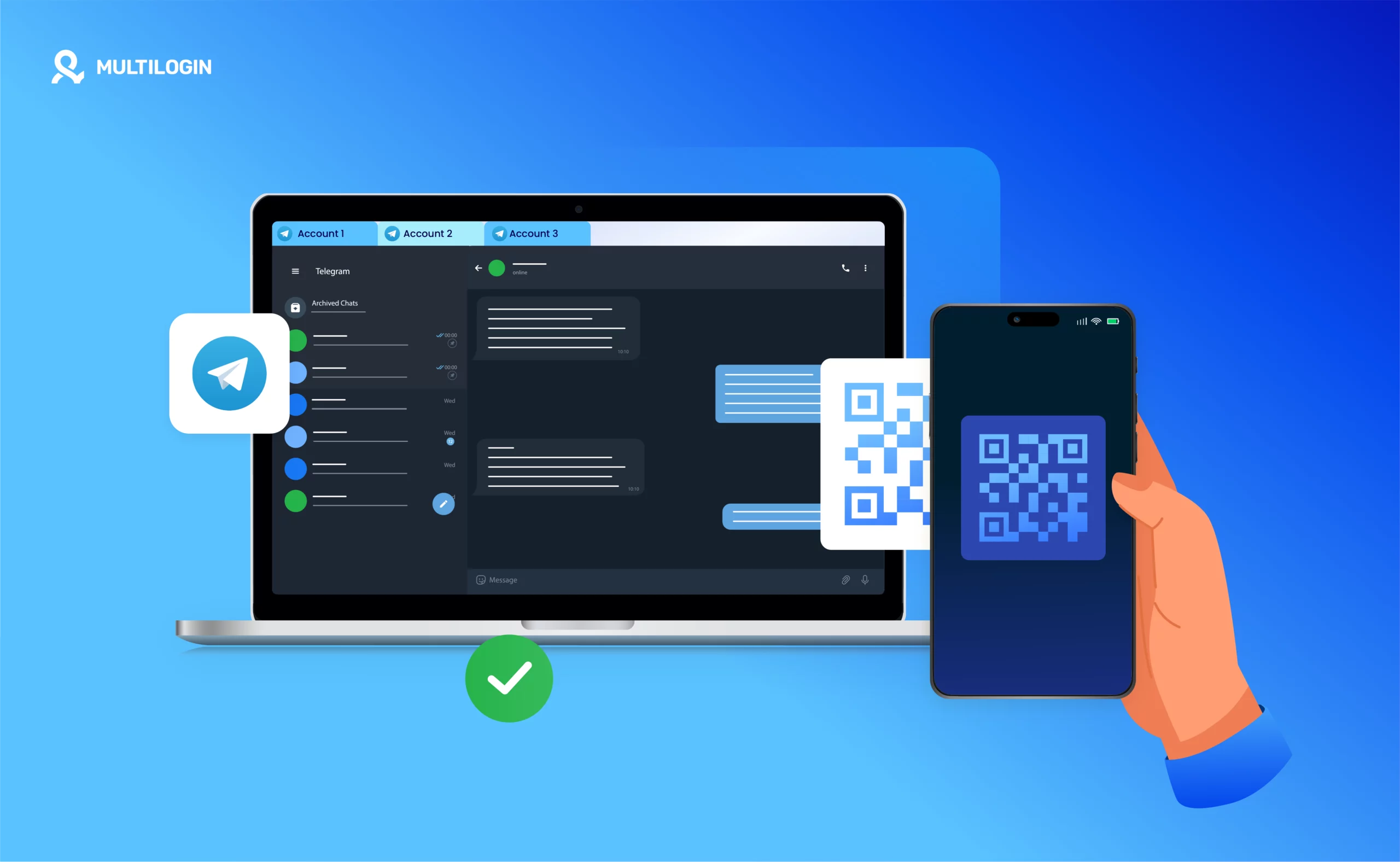
Web Telegram lets you use your Telegram account right from your browser—no app, no download. Just scan a QR code or enter your number, and you’re in.
It works on any modern browser and gives you access to your chats, groups, and channels. Messages sync in real time with your phone, so you won’t miss anything. You can reply, forward, search messages, or manage files just like on the app.
Web Telegram is especially useful when you’re on a borrowed computer, switching devices, or need quick access without downloads.
Key Reasons to Use Telegram Web in 2026
Telegram Web gives you quick access to your chats without needing to install anything. It’s a good fit for people who work across multiple devices, travel often, or use shared computers. Whether you’re sending files, managing groups, or replying to messages on the go, it works straight from the browser.
- No downloads or installs: By using Telegram Web, you don’t need to download or install any application. You can easily log in through any of your browsers.
- Works on any device: You can use Telegram Web on any device that has a modern browser—Windows, macOS, Linux, or Chromebook. As long as you have internet, it works.
- Fast access to all chats: Once you log in, everything syncs instantly—your chats, contacts, and channels appear just like they do on your phone. You can continue conversations without interruption.
- Mobile phone not required after login: Telegram Web works even if your phone is offline. After the first login, the browser session becomes independent, which is great if your phone battery dies or you leave it behind.
- Voice calling in the browser: You can place voice calls straight from your browser.
- Ideal for managing multiple accounts: If you manage several Telegram accounts, Web Telegram makes it easier to switch between them using browser sessions, especially if you’re also using tools like Multilogin for managing multiple browser profiles.
- Clean layout, minimal distractions: The interface is stripped-down and functional. It’s good for focused messaging and quick replies, especially during work.
- Great for remote work or travel: You can log in from any hotel computer or co-working space and stay connected with your team or clients. Once you’re done, just log out—no files left behind.
How to Login to Web Telegram with a QR Code or Phone Number
You can sign in to Telegram Web in two simple ways: using your phone number or scanning a QR code. Both methods are quick and take less than a minute.
- Open web.telegram.org in your browser.
- You’ll see a large QR code on the screen.
- On your phone, open the Telegram app.
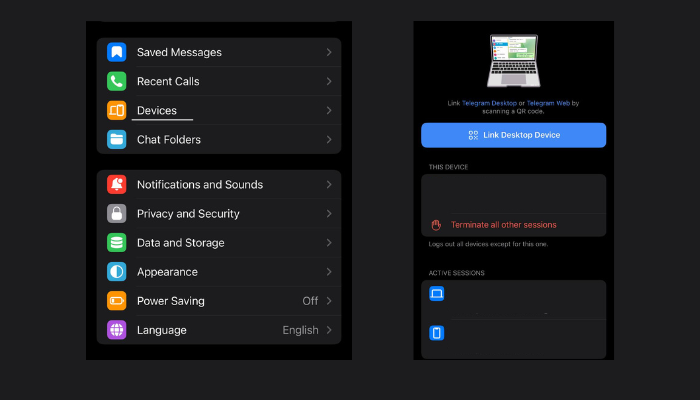
- Tap settings > devices > link desktop device.
- Scan the QR code shown on your computer screen.
If you don’t have access to your Telegram app right away or prefer not to use the QR code, you can log in using your phone number.
- Go to web.telegram.org in your browser.
- Click on “Log in by phone number.”
- Select your country and type in your phone number.

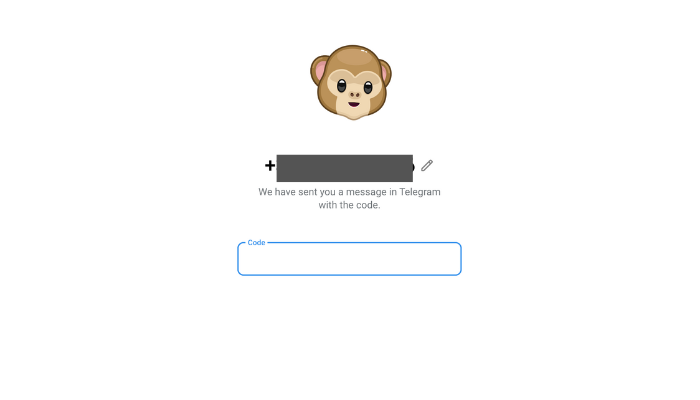
- Telegram will send a code to your mobile Telegram app.
- Enter that code on the web login screen to access your account.
How Does Telegram Web Work Once You’re Logged In?
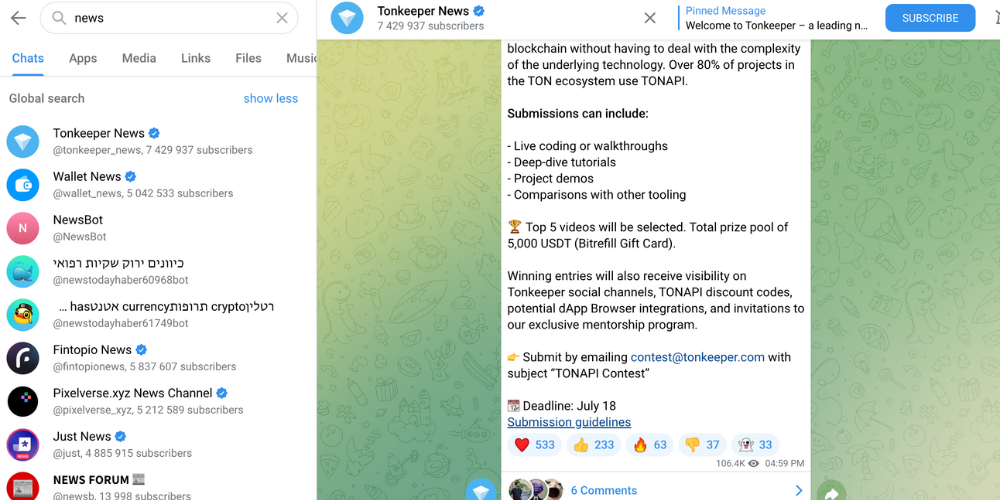
Once you’re logged into Telegram Web, you’ll see a layout that feels natural if you’ve used the app before. On the left, you get a full list of your recent chats, channels, and groups. At the top, the search bar helps you find messages, contacts, or keywords instantly.
Everything loads right in your browser; no lag, no setup.
Here’s what you can do in Telegram Web:
- Send and receive messages in real-time
- View and reply to group chats and channels
- Use stickers, emojis, and voice notes
- Upload files and photos
- Access pinned messages and shared media
- Search your entire chat history
What Can You Do with Telegram Web — and What’s Missing?
Supported on Telegram Web | Not Supported on Telegram Web |
Regular chats, groups, and channels | Secret Chats |
File sharing (images, videos, documents) | Full support for voice or video calling |
Voice messages | Managing advanced privacy or security settings |
Stickers, emoji, and message reactions | Access to local files, contacts, or calendars |
Pinned messages and chat search | Certain device-specific permissions and media access |
Desktop notifications (with permission granted) | Some notification features (e.g., persistent banner alerts) |
Telegram Web vs Desktop Comparison
Telegram Web is fantastic for getting to Telegram quickly from any browser without having to install anything. Telegram Desktop, on the other hand, has more complex capabilities like secret chats, video calls, and support for multiple accounts. Desktop is the preferable choice if you require all the features and want to use it for a long time. Web is quick for sending messages on the go.
Feature | Telegram Web | Telegram Desktop |
Text Chat | ✅ | ✅ |
Send Files & Media | ✅ | ✅ |
Stickers & Emojis | ✅ | ✅ |
Voice/Video Call | ❌ | ✅ |
Run Multiple Accounts | ❌ | ✅ (up to 3) |
Dark Theme Support | ✅ | ✅ |
Auto-Delete Messages | ❌ | ✅ |
Export Chat Logs | ❌ | ✅ |
Works Without App | ❌ | ✅ |
Custom Themes | ❌ | ✅ |
Block Users | ✅ | ✅ |
How to Manage Multiple Telegram Accounts in One Browser
If you’ve tried running more than one Telegram Web account in the same browser, you know it doesn’t work well. Opening another tab or switching browser profiles usually logs you out of the first account, and the Telegram mobile app ties each session to a single device.
Multilogin is a cloud phone platform for multi account management. It gives you two ways to keep Telegram accounts separate. Android cloud phones run the Telegram app in its own cloud-based Android environment, and browser profiles run Telegram Web with separate cookies, settings and fingerprints. Each account gets its own session, so logging in to one never logs you out of another.
Choose the right setup for your Telegram accounts
The right option depends on how you use Telegram. If your workflow lives in the mobile app (channels, groups, bots or mobile-only features), use an Android cloud phone for each account. If you mostly work in Telegram Web from your desktop, a browser profile per account is enough. Teams that need both can manage cloud phones and browser profiles from the same Multilogin dashboard.
Get Started
- Create an account at Multilogin.com, then select a plan that fits the number of profiles you want.
- Install the Multilogin desktop app on Windows, macOS or Linux.
Run Telegram on Android cloud phones
- Create a new cloud phone for each Telegram account from your dashboard.
- Assign a proxy location. Built-in proxies are included, or you can connect your own.
- Install Telegram on the cloud phone and log in with that account’s phone number.
- Keep the cloud phone assigned to that account only. The session stays in place between launches.
Run Telegram Web on browser profiles
- Create a new browser profile for each Telegram account.
- Set the OS, screen size, language and other fingerprint parameters, or keep the generated defaults.
- Assign a separate proxy to each profile.
- Launch the profile, open Telegram Web and log in with a QR code or phone number. Each profile remembers its session.
Organize your profiles and team access
Sort cloud phones and browser profiles into groups so each client, project or region stays easy to find. If you work with a team, add teammates and assign access permissions per profile, so everyone only sees the accounts they manage.
Automate repetitive tasks
Browser profiles support automation tools like Puppeteer, Selenium and Playwright, and the Multilogin API lets you control profiles programmatically. This helps when you manage many Telegram accounts and want to grow without adding manual work.
Keep each Telegram account separate
Multilogin isolates each session, but account separation also depends on the details you use. Give each Telegram account its own phone number and email address, and avoid reusing billing details across accounts. Let each profile build a normal browsing history over time instead of running every action on day one. No tool can guarantee that a platform won’t restrict an account, so follow Telegram’s terms of service for every account you run.
Tip: Before logging in to Telegram Web, check that your browser profile is configured correctly. Launch the profile in Multilogin, open Pixelscan, click “Start” and review the fingerprint report.
Why Multilogin works for Telegram users
Android cloud phones for the Telegram app. Run the full Telegram mobile app in a cloud-based Android environment, one account per cloud phone, without buying or maintaining physical devices.
Browser profiles for Telegram Web. Each profile has its own fingerprint, cookies and storage, matched to its proxy location, so desktop sessions stay separate.
Built-in proxies. Use included proxies or connect your own, and give every cloud phone and browser profile its own connection.
One dashboard for mobile and web. Manage cloud phones and browser profiles side by side, with groups, Quick Actions and bulk proxy settings that need no coding.
Built for teams. Share access, assign roles, monitor usage and recover deleted profiles. Everything syncs in the cloud, so your team can work from anywhere.
Privacy by design. Multilogin is GDPR-compliant and stores passwords hashed.
Common Telegram Web login problems and how to fix them
Telegram Web is quick to use, but login and sync issues still come up, especially when you manage more than one account. Here are the most common problems and the fixes that work.
Login code doesn’t arrive
Telegram usually sends the login code to your Telegram app first, not by SMS. If you don’t see it, try these steps:
- Open the Telegram app on the device where the account is logged in and check for a message from Telegram.
- Switch from Wi-Fi to mobile data, or the other way around.
- Avoid tapping “Resend” repeatedly, since too many requests can trigger a temporary lockout.
If the account runs on a Multilogin cloud phone, the code arrives in the Telegram app on that cloud phone, so you don’t need the physical phone nearby.
QR code won’t scan
If your phone can’t read the QR code, try the following:
- Clean your camera lens and make sure the screen is well lit.
- Hold the phone steady at a comfortable distance from the screen.
- Refresh the page to generate a new code if it still won’t scan.
Messages not syncing between devices
When a message sent from your browser doesn’t appear on your phone, or the other way around, these steps usually fix it:
- Refresh the Telegram Web tab.
- Restart the Telegram app on your phone.
- Check that both devices are connected to the internet.
How to avoid these issues long term
- Run each Telegram account in its own Multilogin browser profile or Android cloud phone, so sessions stay logged in and never overwrite each other.
- Keep your Telegram app updated, since it handles login codes and sync.
- If Telegram Web stops loading in a regular browser, clearing the cache can help. In a Multilogin browser profile, avoid clearing cookies, because that ends the saved session.
Most Telegram Web problems take a minute to fix with the steps above. If you manage several accounts, Multilogin keeps each one in its own browser profile or cloud phone, so a login issue on one account never affects the others.