
If the YouTube Short is one you uploaded, you can save a copy to your Android device from the YouTube or YouTube Studio app. In YouTube, go to Your videos → Shorts, open the menu next to the video, and choose Save to device. In YouTube Studio, go to Content → Shorts, open the video’s menu, and choose Save to device.
That is different from downloading a video with YouTube Premium, adding a Short to a playlist, or saving an unfinished Short as a draft. Each action stores something different, and knowing the difference matters even more when you manage several YouTube profiles.
For one channel, the normal YouTube workflow may be enough. For creators, agencies, and social media teams managing several profiles, the challenge becomes keeping the right Google login, files, drafts, app data, and publishing sessions connected to the right workflow.
This guide covers both parts: how to save your own YouTube Shorts and how to organize the process when one phone and one login are no longer enough.
What Does Each YouTube “Save” Action Actually Do?
YouTube uses several actions that sound similar but produce very different results. Choosing the right one depends on whether you want a reusable video file, offline viewing, a bookmark to return to later, or an unfinished Short that you plan to continue editing.
Here is the practical difference:
| YouTube action | What it produces | Where it lives | Does it survive deleting the YouTube app? |
|---|---|---|---|
| Save to device | A downloadable copy of your own uploaded video | Device storage | Generally yes if the downloaded file remains in device storage. Keep a separate backup for important content. |
| YouTube Premium download | An offline copy for playback through YouTube | YouTube’s Downloads area on the device | Do not treat it as permanent file storage. It remains tied to the YouTube app, account, and offline-download system. |
| Save to playlist | A saved reference to the video or Short | Your YouTube account and playlist library | Yes. The playlist belongs to your YouTube account rather than the local app installation. |
| Shorts draft | An unfinished Short with saved edits | Locally on the device | No. YouTube says drafts are lost if you delete the YouTube app or replace the device. |
This distinction solves a lot of confusion around searches such as “how to save shorts on YouTube” or “how to save a YouTube Short to camera roll.” If you need an actual copy of your own published Short, Save to device is the relevant option.
How Do You Save Your Own YouTube Short to Camera Roll?
YouTube provides an official download workflow for videos and Shorts that you uploaded yourself. On Android, the resulting file can then be handled like other local media on the device rather than remaining only as a YouTube bookmark or offline viewing item.
You can confirm the current workflow in YouTube Help’s guide to downloading videos you’ve uploaded.
Method 1: Save the Short from the YouTube app
The standard YouTube app is enough if you simply need a copy of a Short you already published. Make sure you are signed in to the Google Account that owns the video before looking for the download option.
Follow these steps:
Open the YouTube app.
Tap your profile picture.
Open Your videos.
Select the Shorts tab.
Find the Short you want to save.
Open the menu next to it.
Select Save to device.
Method 2: Save the Short from YouTube Studio
YouTube Studio offers the same download option for creators who already manage their content through the Studio app. This can be more convenient when downloads are part of a wider publishing, review, or content-management workflow.
Follow these steps:
Open the YouTube Studio Android app.
Tap Content.
Select the Shorts tab.
Find the Short you want.
Open its menu.
Select Save to device.
Why Might “Save to Device” Be Missing?
The option is not available in every situation, even when the video belongs to you. Before assuming something is broken, check the video’s status and whether you have recently downloaded the same upload several times.
According to YouTube’s official download troubleshooting guidance, you cannot download your uploaded video if:
YouTube has removed the video.
The video has a copyright strike.
The video has a Community Guidelines strike.
The video uses a pre-approved audio track.
You already downloaded that individual video five times during the previous 24 hours.
The last point is easy to miss. YouTube currently limits an individual uploaded video to five downloads per day. After the 24-hour period passes, the download option becomes available again.
If Save to device disappears, checking these conditions is a better first step than immediately moving to an unofficial downloader.
Can You Save Someone Else’s YouTube Short to Camera Roll?
YouTube’s official Save to device workflow is intended for videos you uploaded yourself. It should not be confused with YouTube Premium’s offline viewing feature, which can make eligible videos available without an internet connection but does not give you the creator’s original media file.
If you need another person’s Short for legitimate editing, collaboration, licensing, or campaign work, ask the creator or rights holder for the source asset. That gives you a cleaner file and avoids treating an offline playback feature as a content acquisition tool.
What about YouTube Premium downloads?
Premium downloads solve a viewing problem rather than a creator asset-management problem. The downloaded video appears in YouTube’s Downloads area and remains tied to the signed-in Premium account and YouTube’s offline playback system.
That makes Premium useful for watching content offline, but not for building a reusable library of Shorts files for editing or publishing.
What about saving the Short to a playlist?
A playlist stores a reference to the Short inside your YouTube account. It is useful for research, inspiration, competitor monitoring, content planning, or simply returning to a video later.
It does not put a reusable video file into the camera roll or local media library.
What about screen recording?
Screen recording may create a reference copy, but it is not the original uploaded file. It can also capture interface elements, notifications, or a lower-quality representation of the original content.
For your own Short, keep the source file or use YouTube’s official Save to device workflow instead.
How Do YouTube Shorts Drafts Behave?
Drafts are useful when you start creating a Short but are not ready to publish it. The important limitation is that YouTube treats Shorts drafts as device-local data rather than content stored safely on your YouTube channel.
YouTube states in its official Shorts creation guidance that drafts are stored on the device. If you delete the YouTube app or replace the device, those drafts are lost.
That has a practical consequence for creators and teams: a draft should not be treated as a backup of an important creative asset.
Keep the original video, edited master, captions, thumbnails, and other important campaign assets in your normal storage system. Use the device draft for work in progress, not as the only copy.
When Does Saving Shorts Become a Multi-Profile Workflow?
If you manage one personal YouTube channel, the standard YouTube apps may cover everything you need. A dedicated environment becomes more useful when several creators, brands, clients, regions, or Google logins need to stay organized without mixing their working data.
For example, a creator team might manage:
A personal creator channel
Two client channels
A regional brand channel
A Shorts testing channel
Another project using a separate Google Account
Each workflow can have its own Google login, video files, drafts, publishing history, YouTube Studio session, team owner, content calendar, and approval status.
At that point, the question is no longer only “Where did I save this Short?” It becomes “Which files, login, session, and mobile workspace belong to this YouTube profile?”
Why Is One Physical Phone Not Always Enough?
Using one physical phone for several channels can be completely reasonable at small scale. The problem is operational friction when more clients, files, Google Accounts, drafts, and publishing responsibilities start sharing the same mobile workspace.
You can end up uploading the wrong creative, opening the wrong Google Account, mixing client files, or signing out of a session another teammate still needs. More account switching does not necessarily produce a cleaner workflow.
Common problems include:
Shorts drafts from unrelated projects sharing one device
Creative assets from several clients appearing in the same file library
Repeated Google Account switching
Difficulty seeing who owns a particular workflow
Team members relying on shared physical devices
Mobile and desktop workflows becoming mixed together
Dedicated environments are useful because the workspace stays attached to the profile instead of being rebuilt each time someone needs to work on it.
How Does Multilogin Organize YouTube Shorts Workflows?
Multilogin is a cloud phone platform for social media marketers who manage multiple social profiles. For YouTube, the practical setup is mixed because some creator tasks work naturally inside Android apps while others are more efficient through desktop YouTube Studio.
You can use Android cloud phones for mobile YouTube workflows and browser profiles for web-based work, while managing both from one Multilogin dashboard.
Use Android cloud phones for mobile YouTube work
An Android cloud phone gives a social profile its own mobile environment with its own apps, app data, session, files, proxy, and device context. This makes it useful when the actual workflow happens inside the YouTube or YouTube Studio Android apps.
Examples include:
Working with the YouTube mobile app
Using YouTube Studio mobile
Creating or uploading Shorts
Working with mobile files
Keeping the mobile login session available
Managing device-local creator workflows
The point is not that every YouTube task needs a phone. It is that mobile work can stay in a dedicated Android environment instead of repeatedly sharing the same physical device.
Use browser profiles for desktop YouTube work
Many YouTube workflows remain easier on desktop, particularly detailed Studio management, reporting, metadata work, research, and browser-based channel administration. Multilogin browser profiles let those web sessions stay separate without forcing desktop work through Android.
This gives you a simple rule: use a cloud phone when the work belongs in the mobile app, and use a browser profile when the work belongs on the web.
Learn more about Multilogin Cloud Phone for YouTube and how mobile and browser workflows can work together.
How Do You Save and Manage YouTube Shorts With Multilogin?
A dedicated YouTube workflow should be easy to recognize, reopen, and hand over to another authorized teammate. Multilogin’s current interface lets you create the Android environment first, then use its built-in app and file controls while the phone is running.
The steps below use the current Multilogin UI documented in the Help Center.
Step 1: Create an Android cloud phone for the YouTube profile
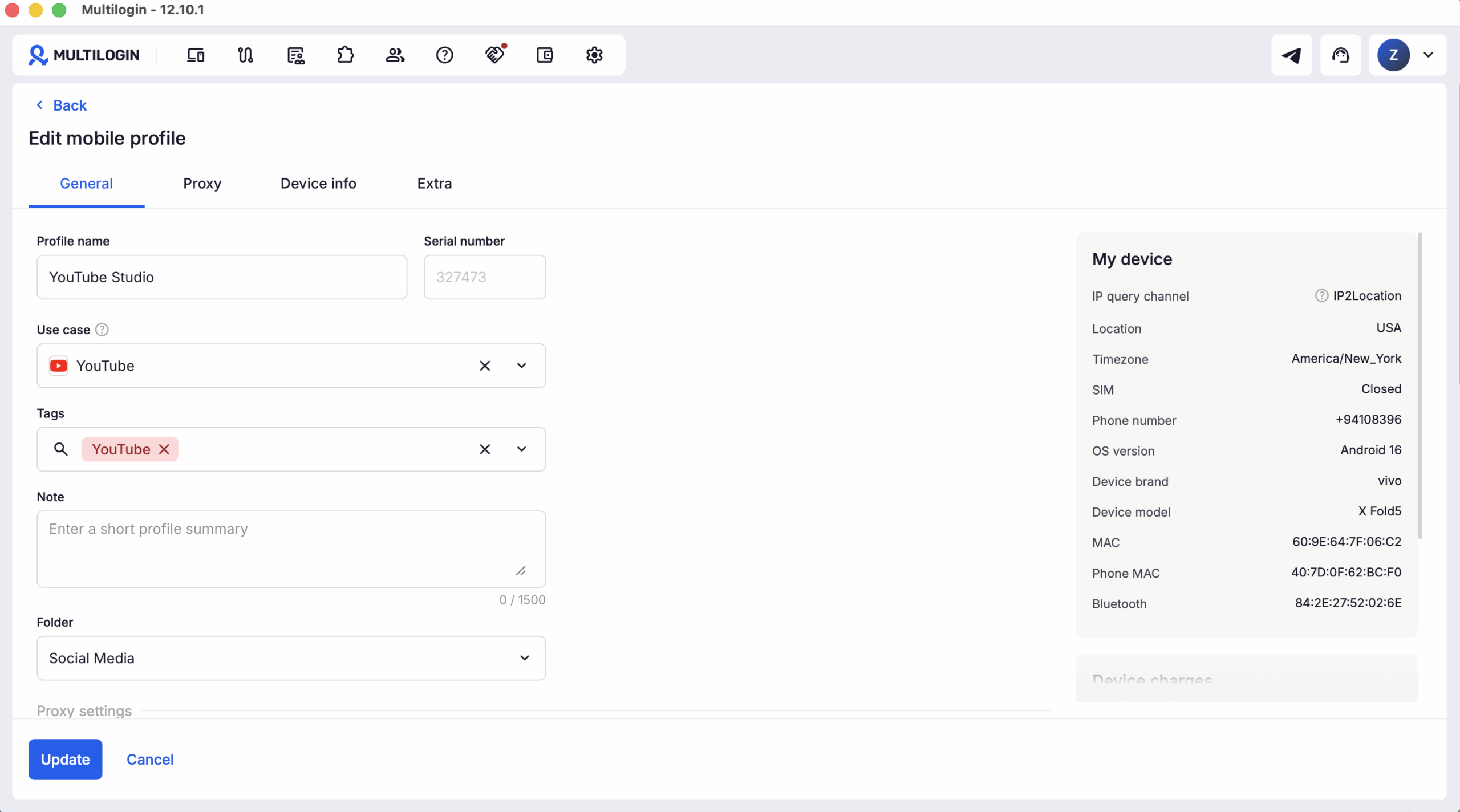
Start by creating a dedicated mobile environment for the specific creator, client, or YouTube workflow. A clear profile name makes the environment easier to recognize before anyone launches it.
In Multilogin:
Go to Profiles.
Select Mobile.
Click Create.
Add the profile name.
Add and check the proxy.
Review the device and additional settings.
Click Create.
This current path is also documented in Multilogin’s Android cloud phone creation guide.
Use a naming structure your team can understand immediately.
For example:
YouTube_ClientA_US
is more useful than:
Phone 17
Step 2: Configure the profile for its intended workflow
Profile settings should reflect how that social profile is intended to be operated over time. The objective is consistency and organization rather than changing settings every time someone opens the environment.
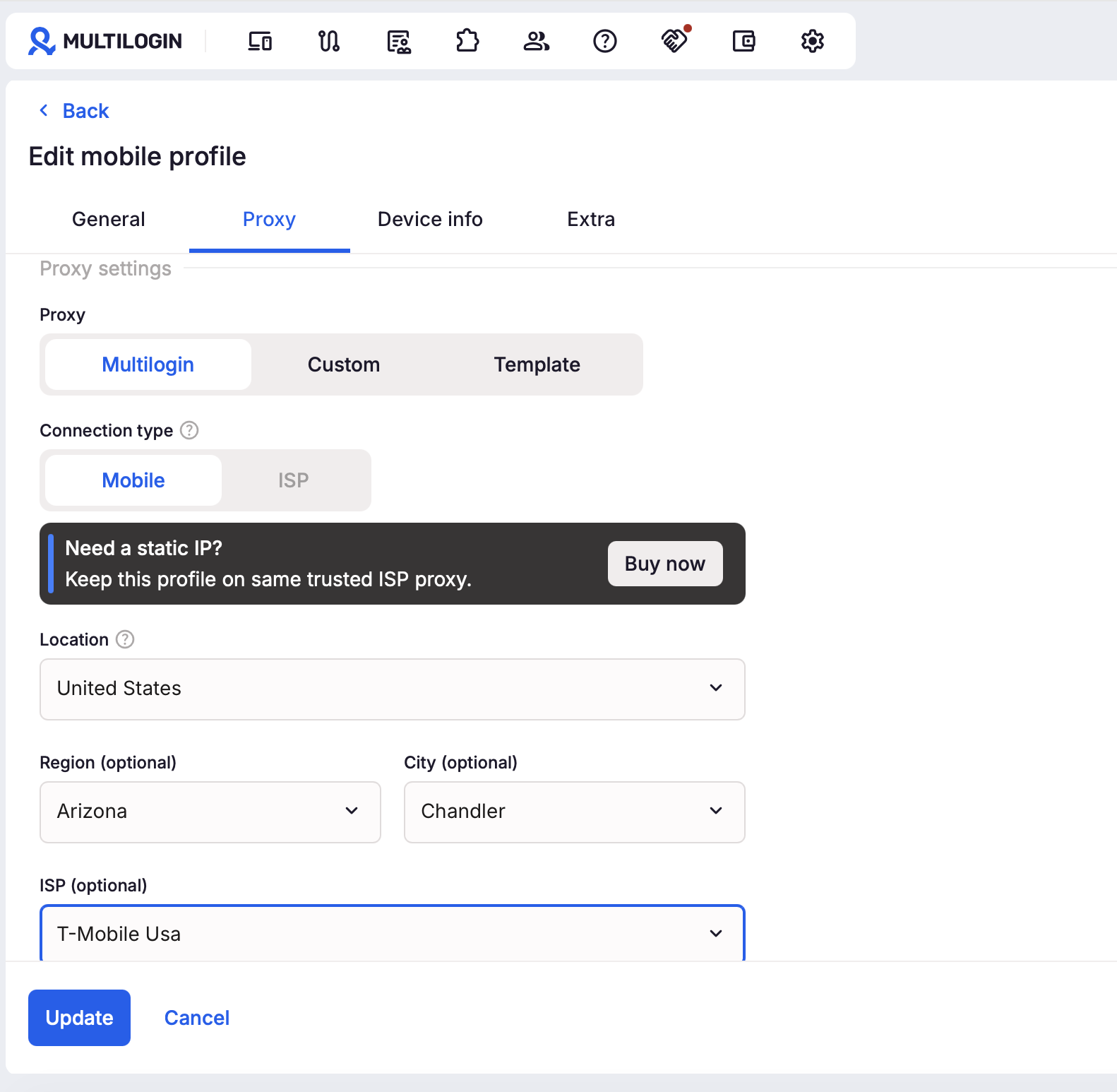
If the profile normally belongs to a specific market, keep its proxy and location setup logical for that workflow.
Step 3: Start the Android cloud phone
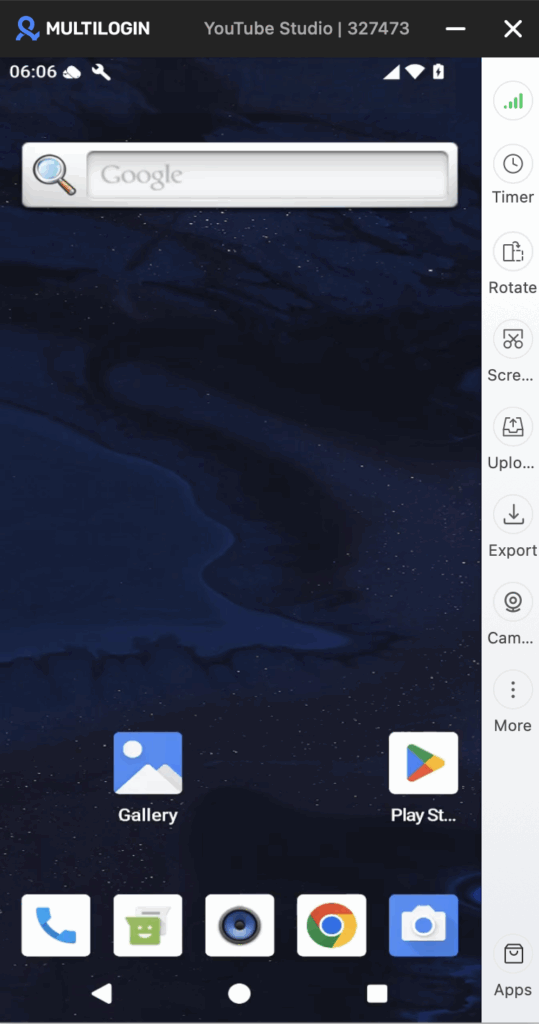
Once the profile is created, return to Profiles → Mobile and start the cloud phone. Multilogin opens a live Android screen with the phone controls available beside the device.
The same environment can then be reopened for future work instead of creating a new phone for every session.
Step 4: Install YouTube and YouTube Studio
Multilogin’s current app installation flow is available from a running cloud phone. The Apps control appears in the bottom-right corner, where you can search for and install available applications.
The current Help Center path is:
Start the cloud phone.
Click Apps in the bottom-right corner.
Find the application.
Click Install.
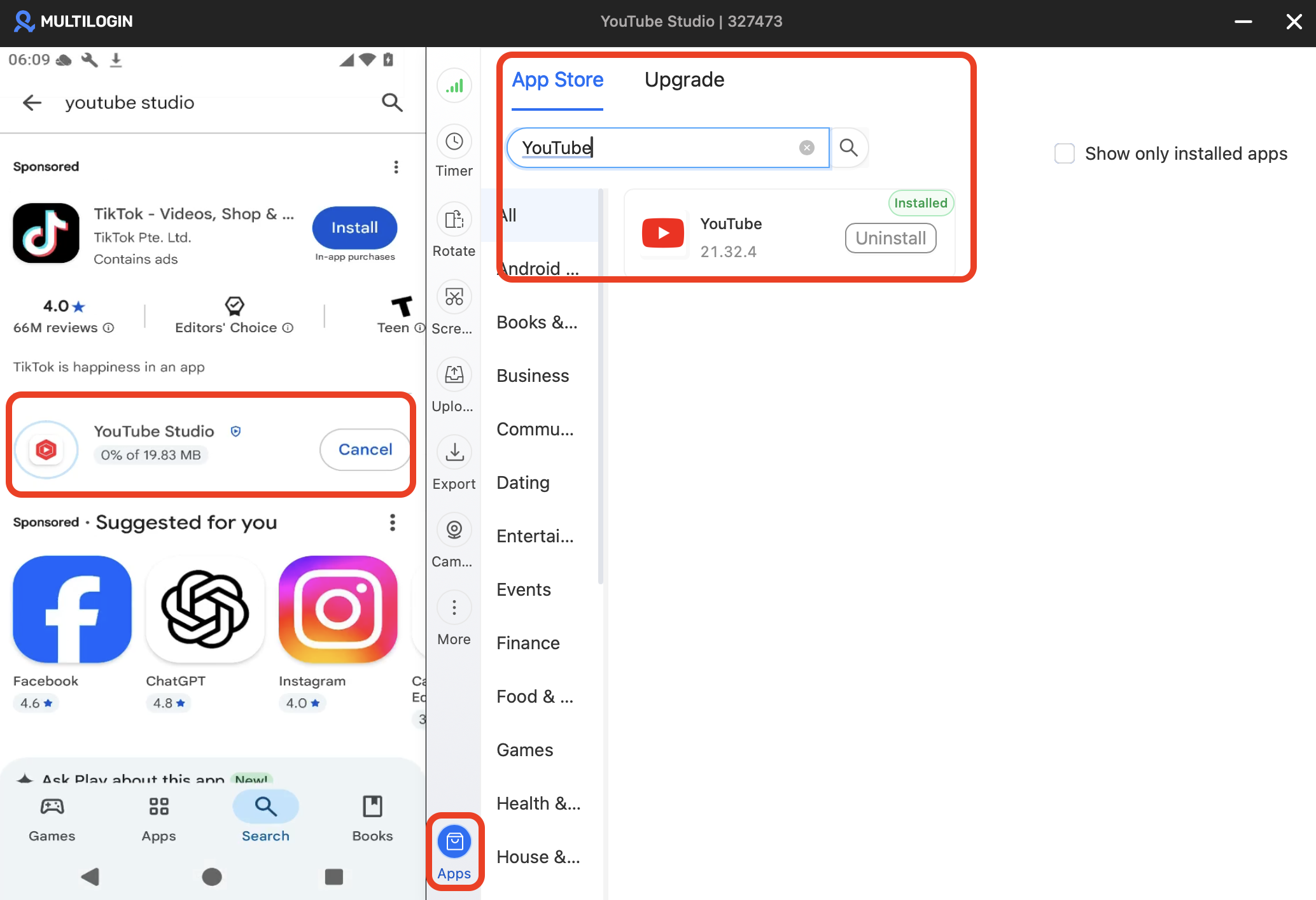
Multilogin also supports installing apps through Google Play when appropriate.
You can verify the current interface in the Multilogin guide to installing apps on Android cloud phones.
Step 5: Sign in to the intended YouTube profile
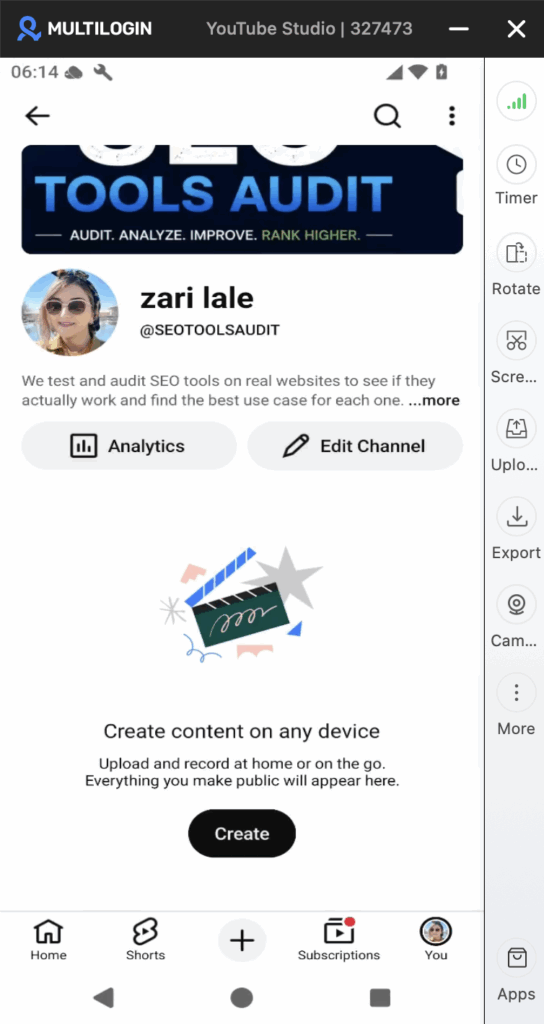
Once the apps are installed, sign in to the Google Account that belongs to that workflow. Keep the environment associated with its intended creator, brand, client, or project rather than turning it into a general-purpose login space.
That makes the saved session useful when you return later and reduces unnecessary switching between unrelated workflows.
Step 6: Save your own YouTube Short
Use YouTube’s normal Save to device workflow inside the cloud phone. Because you are working inside Android, the YouTube steps are the same as they are on another supported Android device.
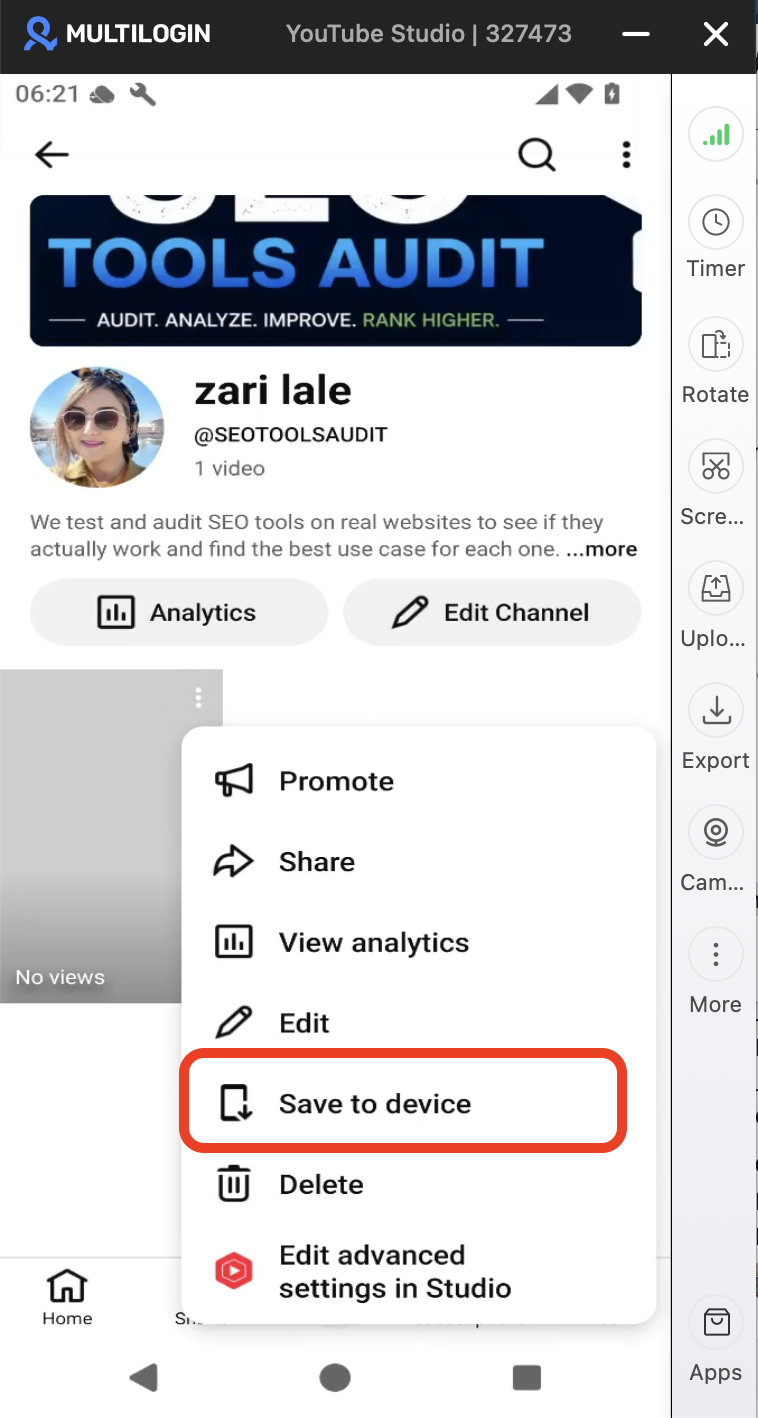
In YouTube:
Open your profile.
Go to Your videos.
Open Shorts.
Find your uploaded Short.
Open the menu.
Select Save to device.
Or in YouTube Studio:
Open Content.
Select Shorts.
Open the video’s menu.
Select Save to device.
Step 7: Export the file when you need it on your computer
A saved file does not have to remain inside the cloud phone. Multilogin provides Upload and Export controls in the right-side toolbar of a running Android cloud phone.
Upload transfers files from your computer into the cloud phone. This is useful for moving approved Shorts, thumbnails, or other creative assets into the mobile environment.
Export downloads individual files from the cloud phone back to your computer. This is useful when you save your own Short inside Android and later want the file in your wider content workflow.
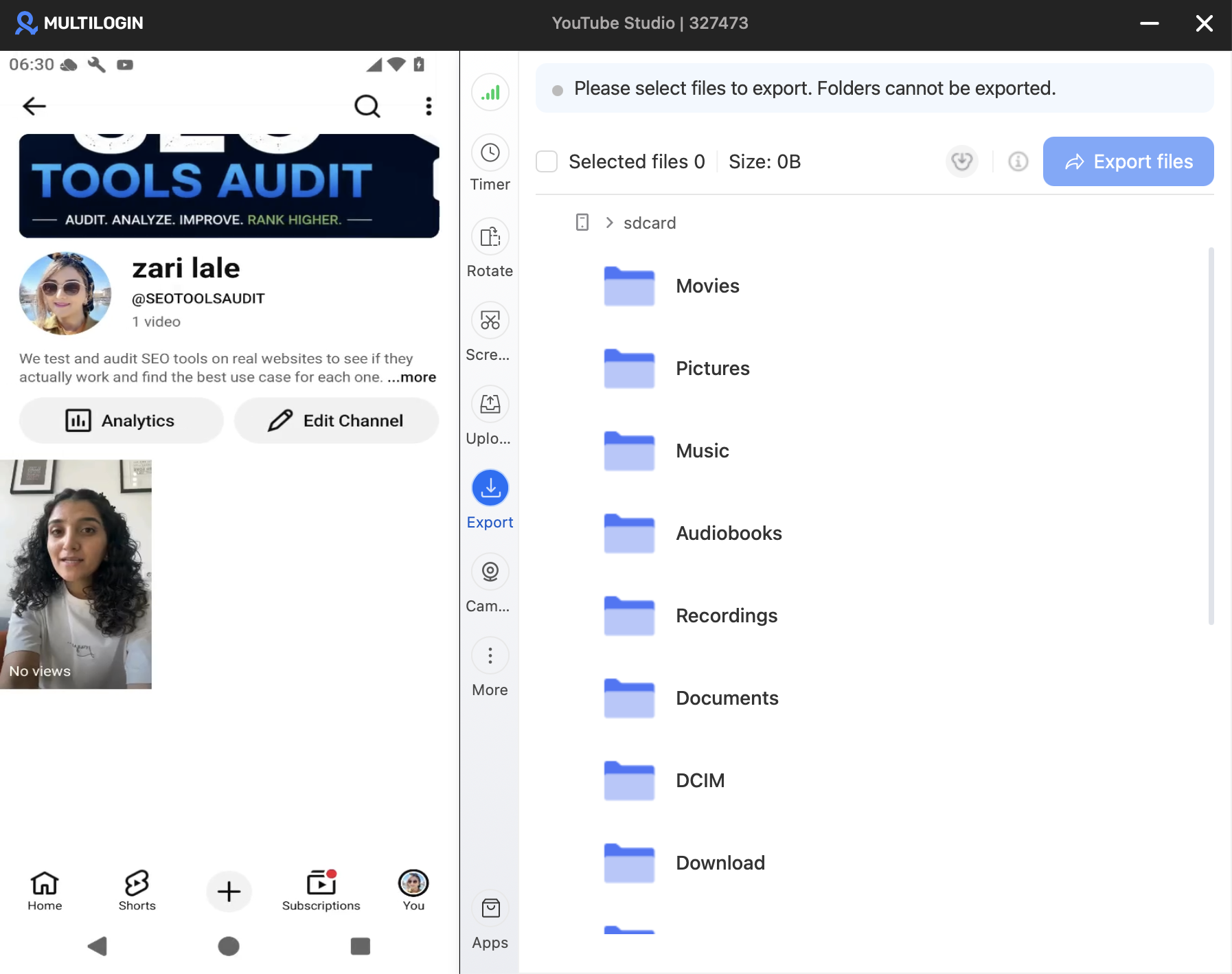
The current controls are documented in Multilogin’s Android cloud phone features guide.
Step 8: Keep the session persistent
When your work is finished, stop the cloud phone rather than recreating the entire environment next time. Persistent app data and sessions let you return to the profile without rebuilding the mobile workspace from scratch.
Important creative assets should still have a separate backup. A dedicated cloud phone can organize the working environment, but it should not become the only location where valuable content exists.
Step 9: Move desktop work to a browser profile
If the workflow moves from Shorts creation or mobile Studio into detailed desktop YouTube Studio work, use a browser profile instead. This keeps the environment aligned with the task instead of forcing every YouTube activity through Android.
You can learn more about creating and managing multiple YouTube accounts with separate mobile and browser environments.
Step 10: Repeat only when a separate environment is useful
Not every channel needs its own cloud phone simply because you can create one. Separate environments are most useful when ownership, Google login, files, region, client access, session history, or operating responsibility genuinely needs to stay distinct.
For separate clients, creator identities, or independent workflows, create another dedicated environment and document its purpose clearly.
What Are the Best Practices for Keeping YouTube Profiles Separate?
Good profile separation is mostly about consistency and organization. The objective is to make it obvious which environment belongs to which workflow, reduce accidental crossover, and keep important content backed up independently of any single device or app.
Use these practices as the workflow grows.
Use one environment for one clearly defined workflow
A cloud phone should have an obvious purpose that your team can understand without investigating the login history. That may mean one client, one creator, one Google Account, one region, or one campaign workflow.
If several YouTube channels intentionally belong to the same Google Account and management structure, there is no reason to split them just for the sake of creating more profiles.
Keep original creative files outside YouTube
YouTube is a publishing platform, not your primary creative archive. Keep source videos, edited masters, thumbnails, captions, project files, and approvals in your normal storage system.
Save to device is useful when you need another copy of your own upload, but it should not replace a proper content library.
Use clear names, tags, folders, and notes
As profile count grows, organization becomes part of the infrastructure. Names and notes should help another authorized team member understand what a profile is for before opening it.
Document details such as:
Client
Channel
Region
Campaign
Owner
Workflow status
Keep location changes intentional
A profile configured for a specific market should not change locations without a workflow reason. Consistent setup is easier for teams to understand and manage than unnecessary location switching.
Keep proxy and location choices connected to the legitimate purpose of the profile.
Separate mobile and desktop jobs
YouTube is a mixed mobile and web platform. Use an Android cloud phone for workflows that belong inside the YouTube apps and a browser profile for tasks that work better through desktop Studio.
Choosing the environment based on the actual task keeps the setup simpler.
Treat Shorts drafts carefully
A draft is local working data, not a cloud backup. YouTube explicitly warns that deleting the app or replacing the device removes Shorts drafts.
Finish important drafts or keep the original media and project assets backed up before resetting or deleting an environment.
Follow YouTube’s rules
Separate environments help organize profiles and reduce accidental mixing of sessions, files, and workflows. They do not change YouTube’s policies or guarantee that a profile will avoid restrictions.
Content quality, rights, account history, platform rules, and user activity still matter.
What Common Mistakes Should You Avoid?
Most problems in a multi-profile Shorts workflow come from confusing storage types or letting several unrelated workflows blend together. A dedicated environment helps only when the team also uses it consistently.
Avoid these common mistakes:
Assuming every YouTube Download action creates a normal video file.
Treating YouTube Premium downloads as reusable creative assets.
Trying to use Save to device for content uploaded by someone else.
Treating a Shorts draft as a cloud backup.
Keeping several unrelated clients in the same mobile workspace.
Repeatedly switching between Google Accounts without a clear profile structure.
Changing profile locations without a workflow reason.
Using a cloud phone for work that is easier through desktop YouTube Studio.
Keeping the only copy of an important creative inside one app or device.
Assuming separate environments remove the need to follow YouTube’s policies.
Clear ownership, backups, persistent sessions, and sensible environment choices solve more operational problems than adding complexity for its own sake.
Create a Dedicated YouTube Shorts Workflow
If one physical phone is becoming a mix of client logins, Shorts drafts, creative files, and repeated account switching, you can move the mobile part of the workflow into its own Android environment. Start small instead of rebuilding your whole process at once.
Create a free Android cloud phone and test one YouTube Shorts workflow with its own apps, files, and session.
Start with one profile. If the separation makes the workflow easier to understand and manage, expand the structure only where you actually need it.
Final Verdict: What Is the Best Way to Save and Manage YouTube Shorts?
To save a YouTube Short to your camera roll or Android media storage, use Save to device when the Short is one you uploaded yourself. Do not confuse that action with a Premium offline download, a playlist save, or a Shorts draft because each one stores something different.
For a single personal channel, the standard YouTube workflow is often enough. The operational problem appears when several YouTube profiles begin sharing the same physical phone, Google logins, files, drafts, and working sessions.
That is where separate environments become useful. Multilogin Android cloud phones can handle mobile YouTube and Shorts workflows, while browser profiles cover web-based YouTube Studio work from the same dashboard.
The goal is not to promise that platform restrictions disappear. It is to give each legitimate creator or client workflow a clearer, more stable place to operate.