





Meta Business Suite is the free tool Meta built to manage your Facebook and Instagram presence in one place. If you’re running a business page, managing content for clients, or running ads across both platforms, it’s the central hub for all of it.
But it can be confusing. The interface has changed a lot over the years, questions like “is it the same as Business Manager?” come up constantly, and a lot of people open it for the first time and immediately feel lost.
This guide covers everything: what Meta Business Suite actually is, how to set it up, how to use the key features, and how it fits into a larger multi-account workflow if you’re managing more than one brand or client.
What Is Meta Business Suite?
Meta Business Suite is a free platform from Meta that lets you manage your Facebook Pages and Instagram accounts from a single dashboard. It replaced Facebook Business Manager as the primary interface for most users, though Business Manager still exists underneath it for more advanced settings.
With Meta Business Suite you can create and schedule posts, manage your inbox across Facebook and Instagram, run and monitor ad campaigns, view analytics and insights, manage your team’s access levels, and connect tools like WhatsApp Business.
It’s available on desktop and as a mobile app, which is useful for managing content and responding to messages on the go.
Is Meta Business Suite Free?
Yes, Meta Business Suite is completely free to use. You don’t pay anything to access the platform, schedule posts, manage your inbox, or view analytics. You only spend money when you run paid ads through it, and that’s entirely optional.
This makes it one of the most cost-effective tools available for small business social media management. There’s no subscription, no hidden fees, and no premium tier required to unlock core features.
Meta Business Suite vs Business Manager: What’s the Difference?
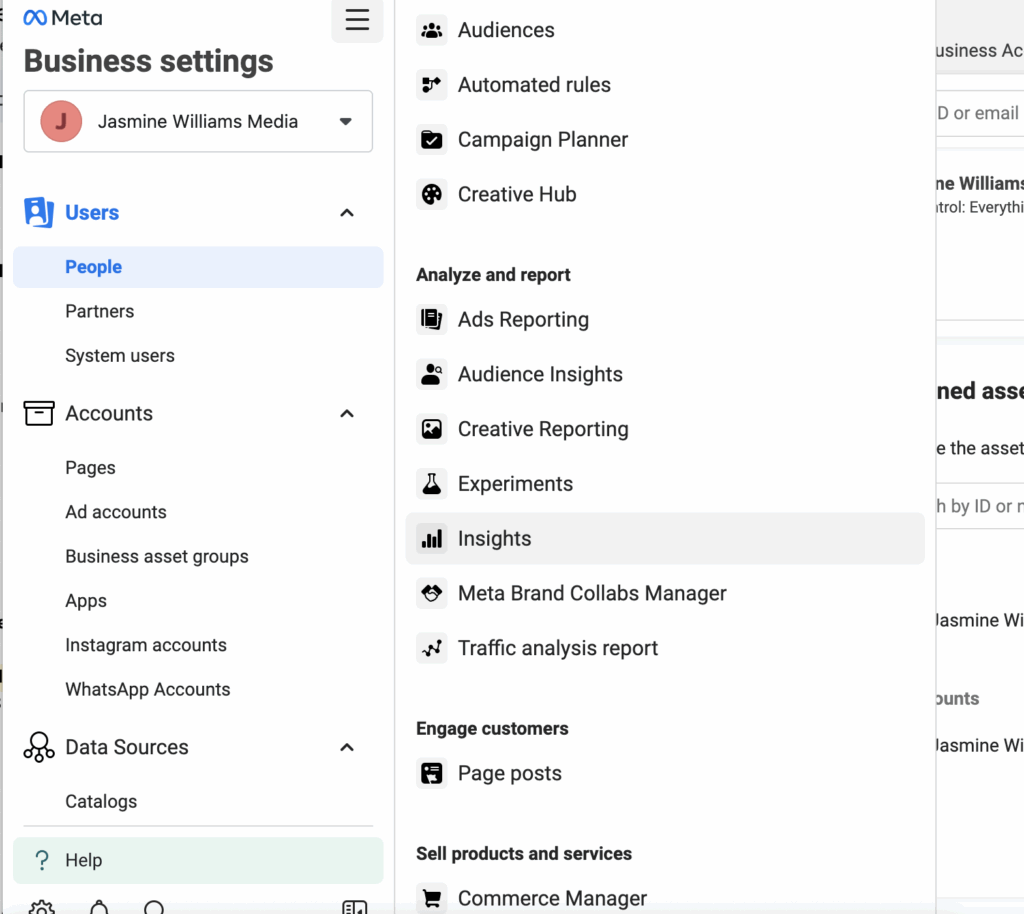
This question comes up constantly. Meta Business Suite is the main interface most users interact with. Business Manager is the older, more technical backend that still exists for advanced account management, like setting up system users, managing data sources, or handling complex agency relationships.
For most users, Meta Business Suite is all you need. If you’re an agency managing multiple client accounts or running sophisticated ad operations, you may need to dip into Business Manager settings occasionally, but day-to-day work happens in the Suite.
Meta Business Suite is also not the same as Ads Manager. Ads Manager is the dedicated tool for building and managing paid advertising campaigns. Meta Business Suite gives you a simplified ads interface, but serious advertisers typically work directly in Ads Manager for more control.
How to Set Up Meta Business Suite
Getting started is straightforward. Here’s how to do it:
Step 1: Go to business.facebook.com or open the Meta Business Suite app on your phone.
Step 2: Log in with your personal Facebook account. You need a personal account to access Meta Business Suite. Your personal profile is not visible to people who interact with your business page.
Step 3: If you already have a Facebook Page, it will appear in the dashboard automatically. If not, you can create one from within the suite.
Step 4: Connect your Instagram account. Go to Settings, then Linked Accounts, and follow the prompts to connect your Instagram Business or Creator account.
Step 5: Set up your notification preferences, business hours, and automated responses in the Settings menu.
That’s the basic setup. From here you can start posting, scheduling content, and managing your inbox.
How to Connect Instagram to Meta Business Suite
To add Instagram to Meta Business Suite, your Instagram account needs to be set to Business or Creator. Personal accounts cannot be linked.
Go to Settings in the left sidebar, then select Linked Accounts or Instagram. Click Connect Account and log in with your Instagram credentials. Once connected, your Instagram feed, messages, and insights will all appear alongside your Facebook data in the same dashboard.
If you’re having trouble connecting, the most common issues are: the Instagram account is still set to personal, two-factor authentication is blocking the connection, or there’s already a different Instagram account connected to the Facebook Page.
How to Add Someone to Meta Business Suite
Adding team members or clients is done through People and Assets in the Business Settings.
Go to Settings, then click Business Settings (which takes you into the Business Manager layer). Under People, click Add. Enter the person’s email address, choose their role (Employee or Admin), and assign them access to specific Pages, ad accounts, or Instagram accounts.
Admins have full control including the ability to add and remove other people. Employees only have access to what you specifically assign to them. For client relationships, giving someone Employee access to only their own Page and ad account is the safest approach.
You can also give partners (like agencies) access to your assets without adding them as employees. Use the Partners section in Business Settings for this.
How to Schedule Posts on Meta Business Suite
Scheduling is one of the most useful features in Meta Business Suite, and it works for both Facebook and Instagram.
From the Home or Posts section, click Create Post. Write your caption, add your media, and choose which accounts you want to post to. Facebook and Instagram can be posted simultaneously or separately with customized content for each.
When your post is ready, instead of clicking Publish, click the arrow next to it and select Schedule. Choose your date and time, then confirm. Your post will appear in the Content Calendar with a Scheduled label.
You can view, edit, or delete scheduled posts from the Content Calendar at any time before they go live.
Can you schedule Instagram Reels on Meta Business Suite? Yes, with some limitations. You can schedule Reels through the composer, though interactive stickers, music from the native Instagram library, and some features may not be available when scheduling through third-party interfaces including Meta Business Suite. For full creative flexibility, publishing directly from Instagram is still better for Reels.
Can you schedule to Facebook Groups? No. Meta Business Suite does not support scheduling posts to Facebook Groups. It only works with Pages.
Can you schedule Instagram Stories? Scheduling Stories is available in Meta Business Suite, though the feature has had reliability issues. If story scheduling is a core part of your workflow, test it thoroughly before relying on it.
How to Run Ads on Meta Business Suite
Meta Business Suite has a simplified ads interface that’s good for boosting posts or running basic campaigns. For the full campaign building experience, use Ads Manager directly.
To boost a post from Meta Business Suite, find the post in your feed or Content Calendar and click Boost Post. You’ll be guided through selecting an audience, setting a budget, and choosing a duration.
To create a new ad campaign, click Ads in the left sidebar. You’ll see a simplified campaign creation flow where you can choose your objective, define your audience, set creative, and launch.
For more advanced options like A/B testing, detailed placement control, custom bidding strategies, and campaign-level budget optimization, go to Ads Manager directly at adsmanager.facebook.com.
How to Manage Your Inbox in Meta Business Suite
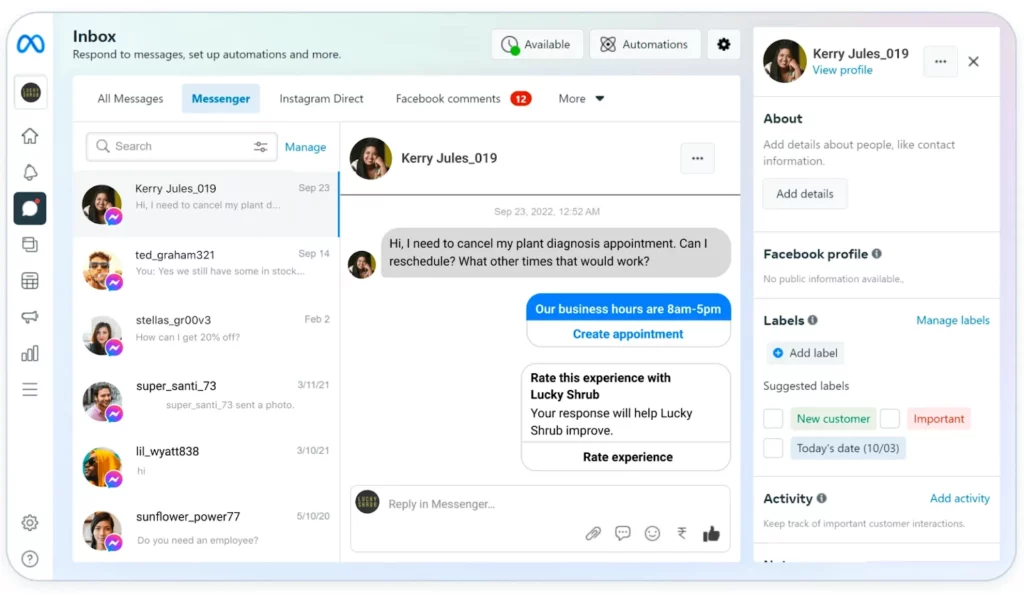
The Inbox section in Meta Business Suite consolidates messages from Facebook Messenger and Instagram Direct into one place. This is genuinely useful for businesses that get high message volumes across both platforms.
You can reply to messages, mark them as done, label conversations, and set up automated responses for common questions or after-hours messages.
To set up automated responses, go to Inbox, then Automations. You can create instant replies, away messages, and frequently asked questions with preset answers. These save a significant amount of time if you get repetitive inquiries.
WhatsApp Business can also be connected to Meta Business Suite if you have a WhatsApp Business account linked to your business phone number.
How to Use Meta Business Suite Analytics
The Insights section gives you performance data for your Facebook Page and Instagram account. You can see reach, impressions, engagement, follower growth, and post-level performance.
The dashboard also shows your audience demographics, which is useful for understanding who you’re actually reaching and whether it matches your target customer.
To access Insights, click the graph icon in the left sidebar or navigate to Insights from the main menu. You can filter by date range and switch between Facebook and Instagram data.
For ad performance specifically, use the Ads section or go directly to Ads Manager, which has more detailed campaign reporting.
How to Add Multiple Instagram Accounts to Meta Business Suite
You can connect multiple Instagram accounts to one Meta Business Suite account, which is useful for agencies managing several client profiles.
Go to Settings, then Linked Accounts, and connect each Instagram account separately. Each account needs to be a Business or Creator account. Once connected, you can switch between accounts in the composer when creating posts.
However, there’s a practical limit to how many accounts Meta allows you to manage from a single Business Suite account, and the interface becomes harder to navigate as you add more accounts.
Managing Multiple Meta Business Suite Accounts at Scale
This is where the built-in tools start to show their limits.
If you’re an agency managing dozens of clients, a social media operator running multiple brands, or an affiliate marketer managing separate ad accounts for different offers, a single Meta Business Suite account isn’t enough. You need multiple Business Suite or Business Manager accounts, each tied to different clients or operations.
The problem is that Meta detects when multiple business accounts are being accessed from the same device or browser. It treats this as a signal of policy violation, even when the accounts are completely legitimate, and can restrict or ban them.
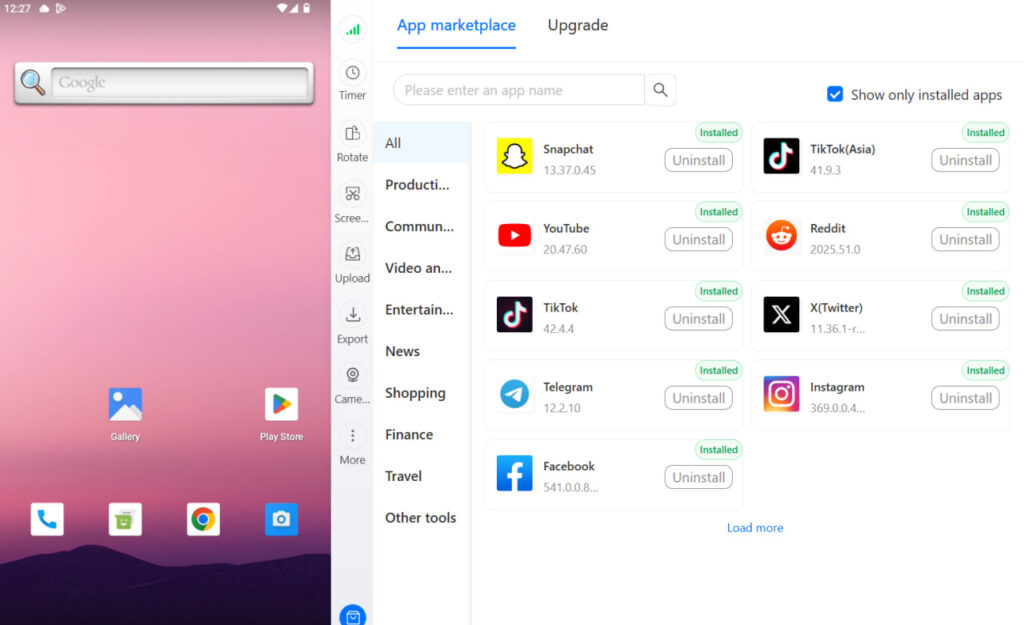
Multilogin Cloud Phones solve this directly. Each Cloud Phone is a real Android device in the cloud with its own hardware fingerprint, IMEI, Android ID, and residential proxy. When you manage separate Meta Business Suite accounts from different Cloud Phones, each one looks like a different physical device operated by a different person in a different location. It now offers free plan with no time limit.
This is how agencies and professional social media managers create and manage multiple Meta Business Suite accounts without triggering Meta’s detection systems.
You can also combine this with multiple Facebook ad accounts to run separate campaigns for different clients or brands with full isolation between them. The Academy guide on Meta Business Manager with Multilogin walks through the full setup.
Common Meta Business Suite Problems and Fixes
- Can’t connect Instagram to Meta Business Suite. Make sure your Instagram is set to Business or Creator. Go to your Instagram profile, tap Settings, then Account, then Switch to Professional Account.
- Can’t log into Meta Business Suite. Clear your browser cache, try a different browser, or check if there’s a known outage at downdetector.com.
- Scheduled posts not publishing to Instagram. This sometimes happens due to permission issues between your Facebook and Instagram accounts. Disconnect and reconnect your Instagram account in Settings, then try scheduling again.
- Meta Business Suite not working on mobile. Update the app to the latest version. If it’s still not working, uninstall and reinstall.
- Can’t add someone to Meta Business Suite. Make sure you’re adding them through Business Settings, not the regular Settings menu. They need to accept the invitation via email before they gain access.
- Why is Meta Business Suite so slow? This is a common complaint. It usually comes down to browser performance. Try using Chrome or Edge, clear cached data, and avoid having too many tabs open simultaneously.
- Accessing Meta Business Suite from multiple locations. If you manage client accounts while traveling or working remotely, you may face security prompts or temporary restrictions. Understanding are VPNs safe is important for securing your connection when accessing business accounts from different networks, especially on public Wi-Fi.
Meta Business Suite: What It Can and Can’t Do
It can: Schedule Facebook and Instagram posts, manage your Messenger and Instagram DMs in one inbox, run basic ad campaigns, view analytics, manage team access, set up automated responses, and connect WhatsApp Business.
It can’t: Schedule to Facebook Groups, post to LinkedIn or TikTok, add music to scheduled Reels from the native Instagram library, or replace Ads Manager for advanced campaign management.
If you need to manage platforms beyond Facebook and Instagram, you’ll need a third-party scheduler like Planable, Buffer, or Hootsuite alongside Meta Business Suite.
Need to manage multiple Facebook accounts? Try Multilogin Cloud Phones.
Frequently asked questions About How to Use Meta Business Suite
Yes. You can create unlimited Facebook business pages from one personal account. Facebook only restricts personal accounts to one per person. Pages are separate, public-facing assets with no creation limit.
Yes. Facebook requires a personal account on the backend to create and manage pages. The connection doesn’t need to be public-facing, but it exists.
Go to the page, click “Manage,” then “Page Access” under Settings. Add the person by name or email and assign the appropriate access level.
A ban affects that specific page. Your personal account and other pages are generally not affected — unless Facebook identifies a pattern of policy violations across multiple pages managed from the same account, in which case it can escalate to account-level action.
The right approach is isolated session management per client. Using Multilogin Cloud Phones or isolated browser profiles ensures each client’s Facebook sessions run from a distinct device environment, preventing account linking and cascade bans.
Yes. Meta Business Suite connects both Facebook and Instagram assets in one dashboard. For native session management across platforms — going beyond just scheduled content — Cloud Phones or isolated browser profiles are the right infrastructure for keeping sessions clean and separate.
Final Thoughts
Meta Business Suite is a solid free tool for managing Facebook and Instagram, especially for small businesses, solo creators, and teams that primarily live on Meta’s platforms.
For agencies or operators running multiple accounts, the built-in tools get limited fast. Pairing Meta Business Suite with proper account isolation through Cloud Phones is how professional operators keep everything running smoothly without account restrictions getting in the way.


