







Instagram two-factor authentication (2FA) adds an extra security check when someone signs in from an unrecognized device. If several people manage the same Instagram account, the best approach is to enable 2FA, keep recovery methods under the account owner’s control, and give collaborators individual access wherever possible.
An authenticator app is generally a better choice than SMS. But choosing the authentication method is only part of keeping an account secure. You also need to decide who can access it, what happens when someone leaves, and how to recover the account if a phone is lost.
This guide covers Instagram 2FA setup, the available methods, and practical ways to manage account access without relying on one person’s phone.
Key takeaways
- Choose an authenticator app for Instagram 2FA. Google Authenticator and Duo Mobile are two supported options.
- Avoid sharing passwords and verification codes. Use Instagram Shared Access or Meta Business Suite when these tools support your workflow.
- Keep backup codes somewhere secure. The account owner should control access to them.
- Protect individual logins too. Anyone using Meta Business Suite should have 2FA enabled on their own account.
- Keep Instagram accounts organized. Separate cloud Android phones can help manage native app sessions, but they do not replace Instagram’s security checks.
How does Instagram two-factor authentication work for team accounts?
Instagram 2FA asks for additional verification when someone signs in from an unrecognized device. It helps protect the account even if its password has been exposed. However, it does not give different people their own permissions.
Imagine a creator working with two assistants. One publishes content, while the other handles direct messages.
If everyone uses the same Instagram password, they may also need access to the same verification method. This creates a problem when someone loses their phone, changes responsibilities, or leaves.
A more secure setup separates three things:
| Security layer | What it protects | Recommended approach |
| Instagram 2FA | Access to the Instagram account | Authenticator app and secure backup codes |
| Team permissions | What each collaborator can do | Instagram Shared Access or Meta Business Suite |
| Working environment | The device or app session used to manage the account | Authorized devices or cloud Android phones |
These controls serve different purposes.
Someone managing posts through Meta Business Suite, for instance, may never need the Instagram password or its verification codes.
Meta also recommends unique passwords, login alerts, and regular security reviews in its account security guidance.
Which Instagram two-factor authentication method is best?
An authenticator app is usually the strongest practical choice for Instagram 2FA. Unlike SMS, it generates verification codes without relying on mobile network delivery.
Instagram also supports other verification methods, depending on the account and available settings.
Instagram 2FA methods compared
| Method | How it works | Advantage | Limitation |
| Authentication app | Generates temporary verification codes | Works without SMS delivery | Requires secure access to the authenticator |
| SMS | Sends a code to a registered number | Familiar and easy to use | Vulnerable to SIM swaps and delivery issues |
| Delivers codes through WhatsApp when available | Another way to receive codes | Depends on access to the registered WhatsApp account | |
| Backup codes | Provides recovery codes generated beforehand | Helps when regular verification is unavailable | Must be stored securely and should not be used for everyday logins |
Backup codes are meant for account recovery, not regular team access.
Why is an authenticator app better than SMS?
Authentication apps generate codes directly on a device. You do not need a text message or an active mobile connection to receive them.
This makes them less dependent on mobile carriers and protects against certain risks, including SIM-swap attacks.
Still, authenticator apps are not risk-free. Someone who gets the original setup secret may be able to generate the same codes. Phishing can also expose individual verification codes.
For accounts with multiple collaborators, the owner or a designated administrator should control the authenticator. Other people should receive the access they need through Instagram or Meta’s supported permission systems.
How to set up two-factor authentication on Instagram
You can enable Instagram 2FA through Accounts Center in the Password and security settings. The process is similar on Android and iPhone, although some menu names may differ.
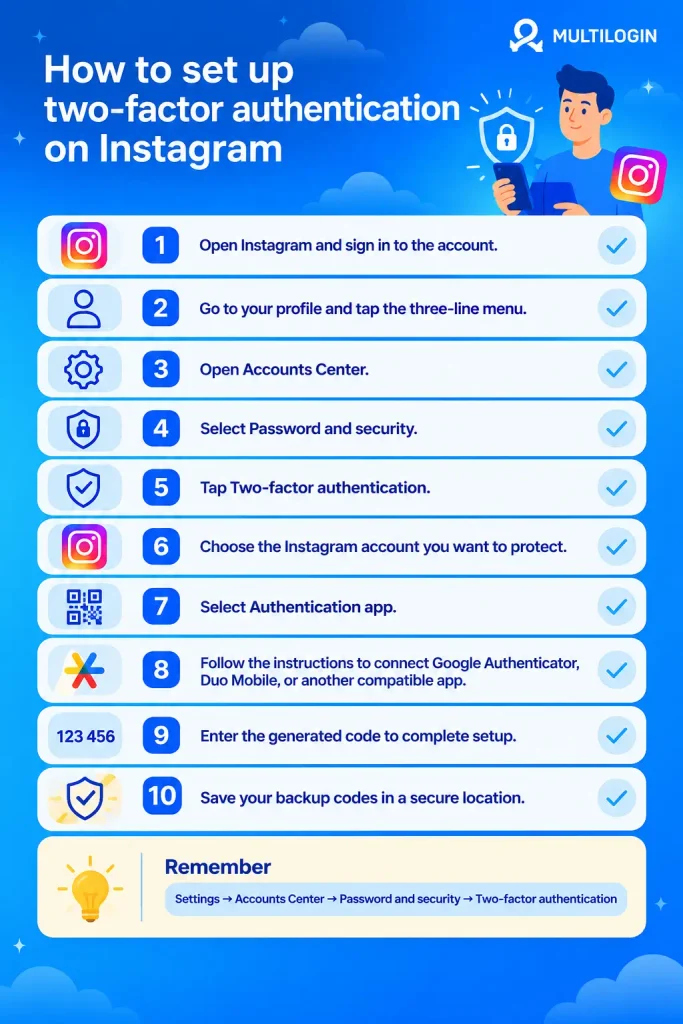
- Open Instagram and sign in to the account.
- Go to your profile and tap the three-line menu.
- Open Accounts Center.
- Select password and security.
- Tap two-factor authentication.
- Choose the Instagram account you want to protect.
- Select the Authentication app.
- Follow the instructions to connect Google Authenticator, Duo Mobile, or another compatible app.
- Enter the generated code to complete setup.
- Save your backup codes in a secure location.
Instagram explains the available methods in its official two-factor authentication instructions.
What should you check after enabling 2FA?
Before inviting anyone else to work on the account, make sure its recovery details are ready.
Check that the owner can still sign in, the recovery email is current, and the authenticator has a suitable recovery plan.
You should also save the account’s backup codes.
To find them, open:
Accounts Center > Password and security > Two-factor authentication > Your Instagram account > Additional methods > Backup codes
Keep these codes in an encrypted password manager or another protected location.
If you generate a replacement set, the previous backup codes will stop working. Instagram explains this in its backup code guidance.
Avoid sending backup codes or authenticator setup QR codes through ordinary messaging apps, email threads, or shared documents.
How can several people access Instagram without sharing 2FA codes?
The easiest way to avoid repeated verification requests is to give collaborators their own authorized access. Instagram Shared Access, Meta Business Suite, and approved management tools can support different kinds of work.
Which option makes sense depends on whether you manage a creator account, a professional business profile, or several Instagram accounts.
Instagram Shared Access for smaller groups
Instagram Shared Access lets eligible account owners invite others to help manage their profile without revealing the original password.
If the feature is available on your account:
- Open Instagram and go to your profile.
- Look for Shared access in the account menu.
- Select Invite people.
- Invite the collaborator through their Instagram account.
- Review the available permissions.
- Ask them to accept the invitation and check that their assigned tasks work.
The feature’s availability, invitation limits, and permissions may vary by account.
It is worth checking if you work with a small group and need help with supported tasks inside the Instagram app.
Meta Business Suite for professional Instagram accounts
Meta Business Suite is a practical choice when several people need to manage a professional Instagram account with different responsibilities.
Rather than distributing one password, you can grant access to business assets.
Here is how to organize it:
- Open Meta Business Suite.
- Select the correct business portfolio.
- Make sure the Instagram account is connected.
- Go to Settings > People.
- Invite a new collaborator or select an existing person.
- Assign the appropriate Instagram asset and permissions.
- Have the person accept the invitation and confirm they can access their tasks.
Say one person manages content, another handles messages, and the account owner controls settings. They do not all need the same level of access.
You can also require two-factor authentication for people accessing the business portfolio.
Where available, open Settings > Business portfolio info > Business options > Two-factor authentication, then select Everyone.
Each collaborator must secure their own Meta login. This does not mean they need access to the Instagram account’s authenticator.
You can find more information in Meta’s business portfolio security documentation.
Social media management tools
Another option is to use a social media management platform that connects through supported Meta authorization.
Depending on the tool, collaborators may be able to schedule content, review drafts, respond to messages, or check performance from their own accounts.
The limitation is that these platforms do not necessarily support every feature available in the native Instagram app.
Before choosing one, check whether it covers the tasks you actually need.
For a closer look at these options, read our guide to sharing Instagram access without a password.
How should you manage Instagram 2FA codes and recovery access?
Keep authentication credentials separate from everyday account access. Most collaborators do not need the Instagram password, authenticator setup secret, or backup codes to do their work.
The important part is making sure someone remains responsible for account recovery without giving everyone access to sensitive information.
A simple setup might look like this:
| Responsibility | Who handles it |
| Account ownership | Instagram account owner |
| Primary authenticator | Owner or trusted administrator |
| Backup codes | Owner-controlled secure storage |
| Content and messages | Authorized collaborators |
| Permission reviews | Owner or appointed administrator |
| Removing access | Person responsible for account administration |
Can you centralize Instagram two-factor authentication codes?
Yes. Some encrypted credential-management systems can store authentication secrets and control who can access them.
But centralizing codes is not the same as giving people individual Instagram permissions.
If several people share the same authenticator setup secret, each may be able to generate valid codes independently. Removing someone from a password manager will not erase copies they already made.
For this reason, shared authentication should only be used when necessary and with strict access controls.
Where shared credential access cannot be avoided, choose a system with individual permissions, activity records, and strong authentication.
Avoid posting verification codes in team chats or keeping the authenticator QR code in an open shared folder.
When should you change an Instagram authenticator?
You do not need to replace a working authenticator every few weeks.
Instead, review your security setup when something important changes.
A lost phone, an exposed authentication secret, a departing administrator, or an outdated recovery number are all reasons to act.
If someone who had access to the underlying authenticator secret leaves, replace the affected 2FA method and review active sessions and backup codes.
It is also useful to check that your recovery process still works before an emergency happens.
Instagram 2FA not working? Here’s what to check
Most Instagram 2FA login problems involve an unavailable verification method, an incorrect code, or lost recovery access. The next step depends on which part of the process is failing.
| Problem | What you can try |
| Authenticator code is rejected | Check the selected account, enable automatic time settings, and try a fresh code |
| SMS never arrives | Verify the registered number, wait for delivery, or use another configured method |
| Phone is lost | Use a saved backup code or another previously enabled verification option |
| Former collaborator controlled 2FA | If you still have authorized access, replace the affected authentication method |
| Unexpected login prompt | Reject requests you did not initiate and review your account security |
| No codes or signed-in devices remain | Use Instagram’s official recovery process |
What if you lose your Instagram backup codes?
If you are still signed in on a trusted device, open the two-factor authentication settings and generate a new set.
If every session has expired and you cannot access any configured verification method, recovery becomes more difficult.
You can check whether Instagram offers another verification option or begin account recovery at instagram.com/hacked.
Instagram may request additional identity verification, depending on the account and circumstances.
Recovery is not guaranteed, so saving backup codes in advance is much easier than trying to recover an account without them.
Be careful with people offering paid Instagram recovery services through Telegram, direct messages, or unofficial websites. Never give them your password or verification codes.
Where does Multilogin fit into Instagram account management?
Multilogin helps keep authorized Instagram accounts organized across separate Android cloud phones. It can make native app sessions easier to manage, but it does not replace Instagram 2FA or Meta’s permission controls.
Multilogin is a cloud Android phone platform for multi-account management. Each cloud phone runs on a real Android device in the cloud and keeps its own app data and login history between sessions.
The platform also includes browser profiles for web-based tasks, built-in proxies, mobile minutes, and centralized management.
This can be useful when you already operate several Instagram accounts and need separate Android environments without maintaining multiple physical phones.
What does managing three Instagram accounts look like?
Consider a creator running three Instagram accounts with help from two collaborators.
Instead of switching between all three accounts on one personal phone, they could organize their work this way:
- Secure each Instagram account. Enable 2FA and keep recovery details under the authorized owner’s control.
- Assign access based on responsibilities. Use Instagram Shared Access or Meta Business Suite wherever those tools support the required tasks.
- Set up separate Android environments. Create one Multilogin cloud phone for each Instagram account that needs a native app workflow.
- Complete the initial login. Install Instagram and have an authorized person sign in and complete any requested verification.
- Organize the cloud phones. Use folders and workspace permissions to keep the accounts and their working environments manageable.
- Review access when responsibilities change. Remove permissions that are no longer needed.
Because Multilogin cloud phones retain app data between sessions, an existing Instagram login may remain active when someone returns to that environment.
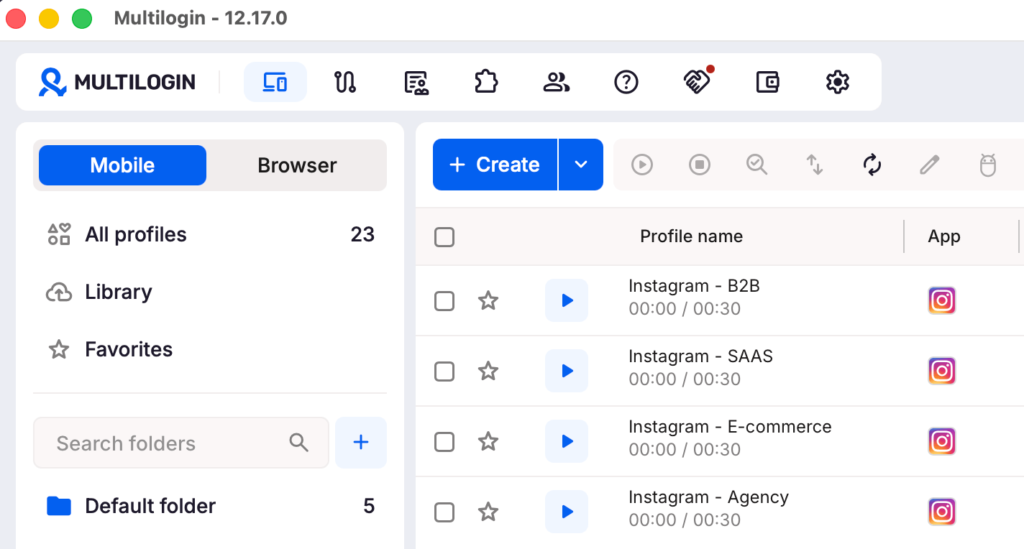
This can reduce repeated sign-ins during normal work, although Instagram may still request verification or end a session.
There is also an important difference between sharing a cloud phone and assigning Instagram permissions.
Someone who can operate a phone with an active Instagram session may be able to perform any action available in that session. Multilogin workspace permissions do not create separate Instagram roles.
For restricted tasks, Meta’s native permission tools remain the better choice when available.
Multilogin cloud phones cannot receive SMS or telephone calls. If Instagram requires phone verification, you need a separate number and delivery method that Instagram accepts.
Don’t forget to protect the Multilogin workspace
If collaborators use the same Multilogin workspace, give each person their own login and assign only the necessary access.
You can organize profiles through folders and workspace roles, then enable two-factor authentication for Multilogin.
This protects the Multilogin account itself. Instagram 2FA must still be managed separately.
Instagram security checklist for accounts managed by multiple people
Good Instagram security depends on more than turning on 2FA. Account ownership, recovery access, individual permissions, and regular reviews all matter.
Use this checklist before adding collaborators or expanding to more accounts.
- Enable Instagram 2FA with an authenticator app.
- Choose a unique, strong Instagram password.
- Secure the recovery email with its own 2FA.
- Save backup codes in protected storage.
- Keep recovery contact information current.
- Use Instagram Shared Access or Meta Business Suite where appropriate.
- Require collaborators to protect their individual Meta accounts.
- Review signed-in devices, business permissions, and connected apps.
- Decide who is responsible for account recovery.
- Remove access promptly when someone leaves.
- Check login alerts and investigate unexpected verification requests.
The aim is simple: people should be able to do their assigned work without having unnecessary access to the account’s most sensitive credentials.
Final verdict: Protect the Instagram account without complicating collaboration
For Instagram accounts managed by several people, an authenticator app, secure backup codes, and individual permissions offer a better foundation than sharing one password and passing verification codes around.
Instagram Shared Access is worth considering for eligible accounts. Meta Business Suite is helpful for professional profiles that need more structured permissions.
If your work also involves multiple native Instagram app sessions, Multilogin can help keep those accounts in separate Android environments and manage access to the working devices.
Just remember that cloud-phone access and Instagram account permissions are different things. Neither replaces the need to protect the original login and recovery methods.
Explore Multilogin’s Instagram cloud phones to see how separate Android environments can fit into your existing account management workflow.
Run Unlimited Accounts Without Bans
Run your social media accounts on cloud phones & web browsers
Frequently asked questions about Instagram two-factor authentication for team-run accounts
Can multiple people use Instagram with 2FA enabled?
Yes. Instagram Shared Access and Meta Business Suite let authorized people handle supported tasks without everyone needing the original account credentials. Available features depend on the account and the access method.
Can two people use the same Instagram authenticator?
It is technically possible to use the same TOTP setup secret on multiple compatible authenticators. However, sharing that secret makes access harder to control and revoke. Individual permissions are preferable whenever supported.
What's the safest way to share Instagram access?
Use Instagram Shared Access, Meta Business Suite, or an authorized management tool instead of sharing the original login. If someone needs to operate the native app directly, make sure the access is authorized and recovery remains under the owner’s control.
Does Instagram support Google Authenticator and Duo Mobile?
Yes. Both are compatible authentication apps that can generate verification codes for Instagram.
Where can I find Instagram backup codes?
While signed in, go to Accounts Center > Password and security > Two-factor authentication > Your account > Additional methods > Backup codes. Keep these codes somewhere secure before you need them.
Will Instagram ask for a verification code every time?
Not always. Instagram may recognize an existing session or trusted device. However, it can request additional verification after a new login, an expired session, or a security check.
Does Meta Business Suite 2FA protect the Instagram account too?
Meta Business Suite’s 2FA requirement protects individual logins used to access the business portfolio. It does not replace the Instagram account’s own authentication settings.
Should I disable Instagram 2FA to make team access easier?
No. Turning it off removes an important security layer. A better solution is to use individual permissions, maintain reliable recovery methods, and avoid unnecessary shared-account logins.
 Join 4,200+ subscribers