


InVideo AI can take a detailed video brief and turn it into a structured draft, but our test also showed why credits matter before you call the workflow finished. We reached a usable storyboard and editing workspace, then hit a credit limit before final export.
That makes the real question bigger than “Can AI create a video?” Creators, agencies, ecommerce marketers, and social teams also need to know how much control they retain, what happens when revisions use more credits, and whether the free experience is enough to evaluate the complete workflow.
We tested InVideo AI as a team running social accounts on Multilogin, a cloud Android phone platform for multi-account management. Our test focused on a short social video rather than a generic demo.
Key takeaways
- InVideo AI turned our detailed social-video brief into a structured storyboard and editable project.
- InVideo AI supports text-to-video workflows for TikTok, Instagram, and YouTube content.
- InVideo documents manual timeline editing separately from credit-consuming AI-agent and generative-model activity.
- Our test hit a credit limit before final export, so we do not rate the finished video quality.
- Current public annual pricing starts at $20 per seat per month for Starter, based on the pricing page checked on September 30, 2026.
- The free option is useful for exploring the workflow, but our available credits did not take this test from prompt through export.
What is InVideo AI?
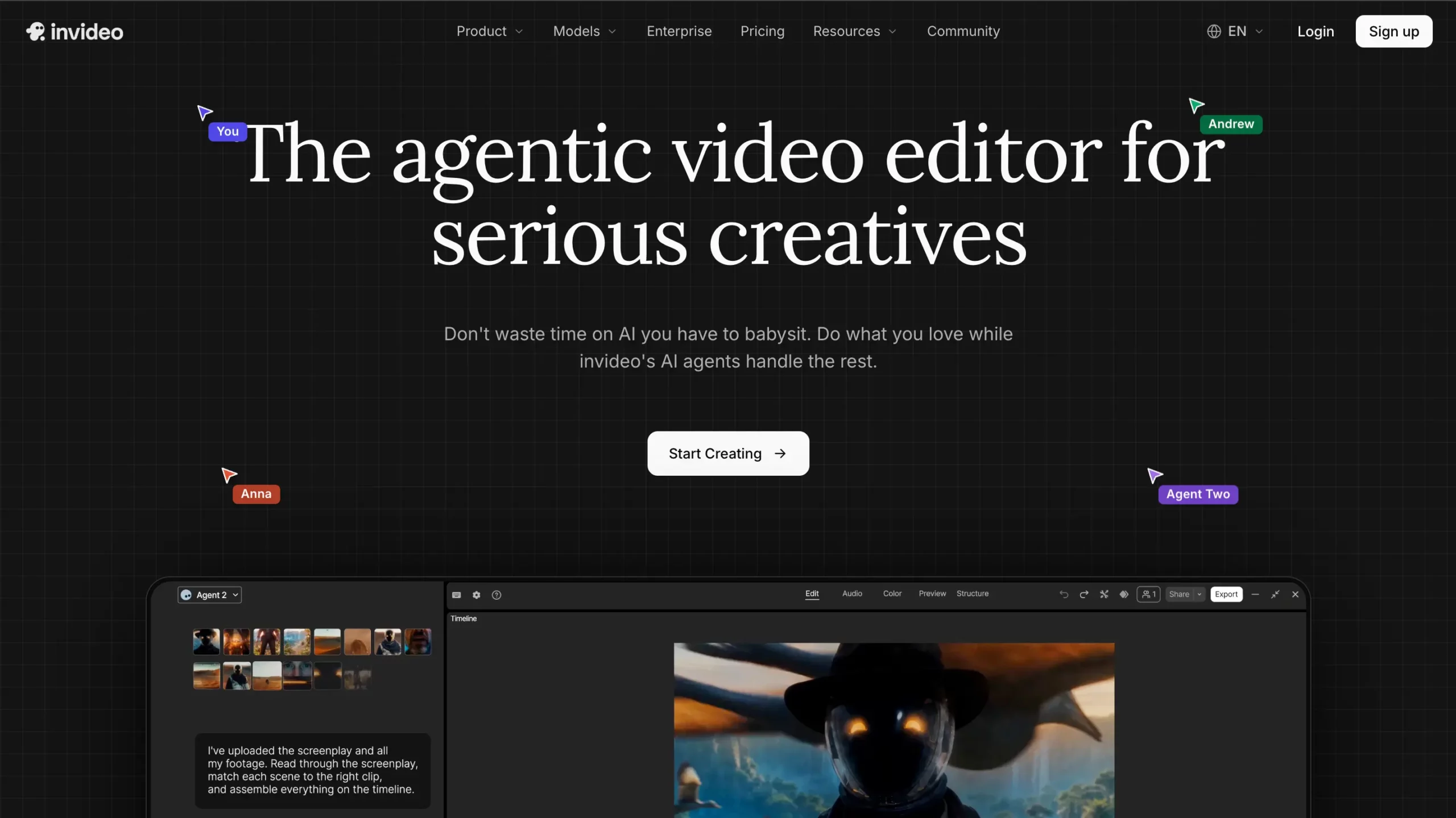
InVideo AI is an AI video creation and editing platform that can turn a written prompt, idea, or script into an editable video project.
According to InVideo’s official text-to-video page, the workflow can create or arrange scenes, visuals, voiceovers, music, and edits from written input. Users can then continue refining the project rather than treating the first generated version as final.
The current product also includes a timeline editor. That gives creators a choice between AI-assisted changes and more direct manual editing.
How did we test InVideo AI?
We tested InVideo AI by creating a short social-media project about managing multiple Instagram accounts.
The goal was to move from a written brief toward a vertical social video while documenting what happened at each stage. Our test reached project setup, storyboard generation, and the editing environment, but stopped before final export when the interface asked for more credits.
Step 1: We created a workspace and project
InVideo first presented a workspace setup screen.
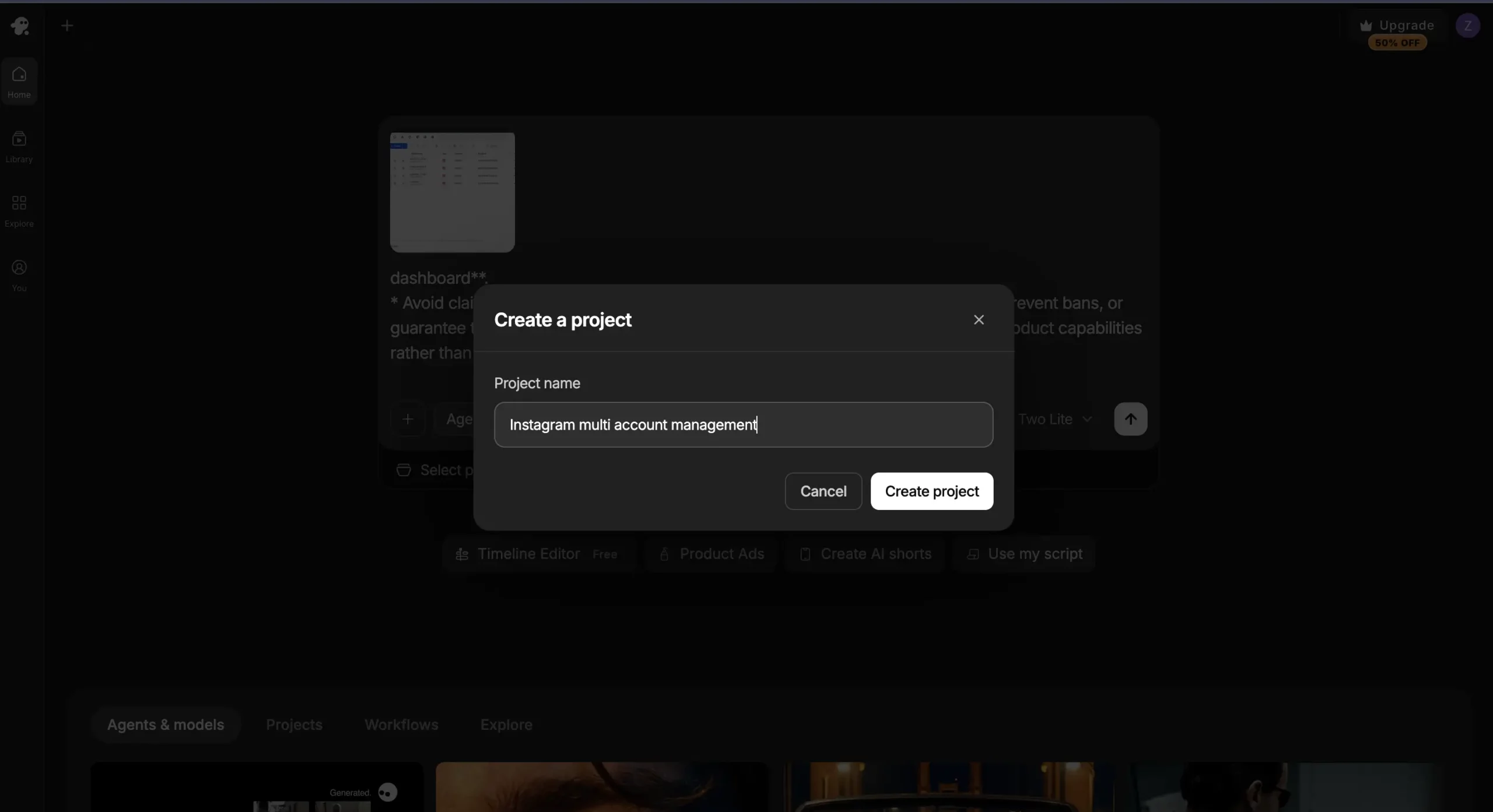
We then created a project called Instagram multi account management. Using a specific project made it easier to judge whether the generated structure followed an actual social-media brief.
Step 2: We entered a detailed short-form video brief
Our prompt asked for a YouTube Shorts-style piece about using cloud phones for multiple Instagram accounts.
The brief specified:
- roughly 45 to 55 seconds
- a fast-paced SaaS/product-demo format
- clean captions
- screen recording
- motion graphics
- supplied product screenshots
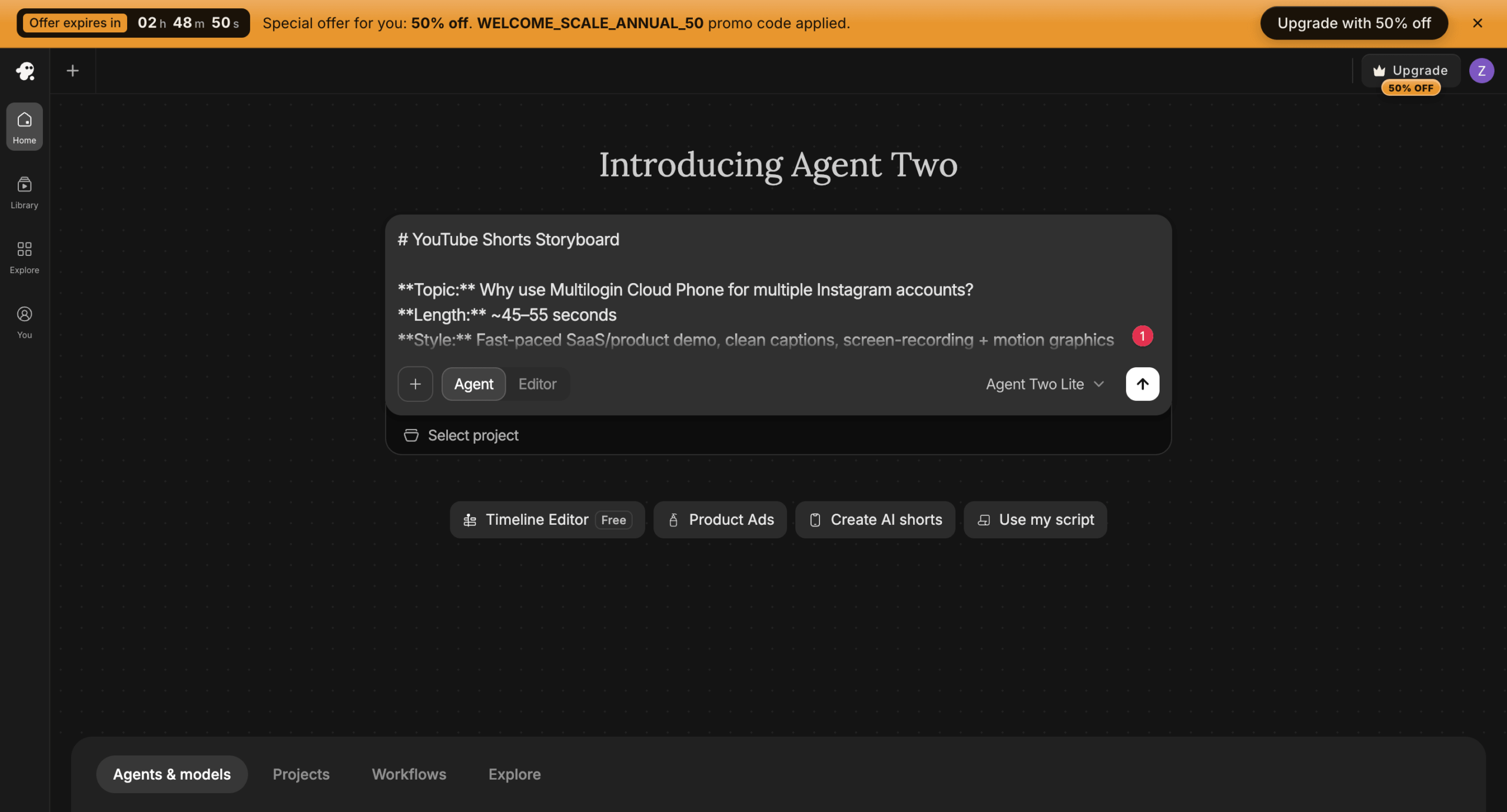
The interface also displayed Agent, Editor, Timeline Editor, Product Ads, Create AI Shorts, and Use My Script.
Our test used Agent Two Lite.
Step 3: InVideo AI generated a structured storyboard
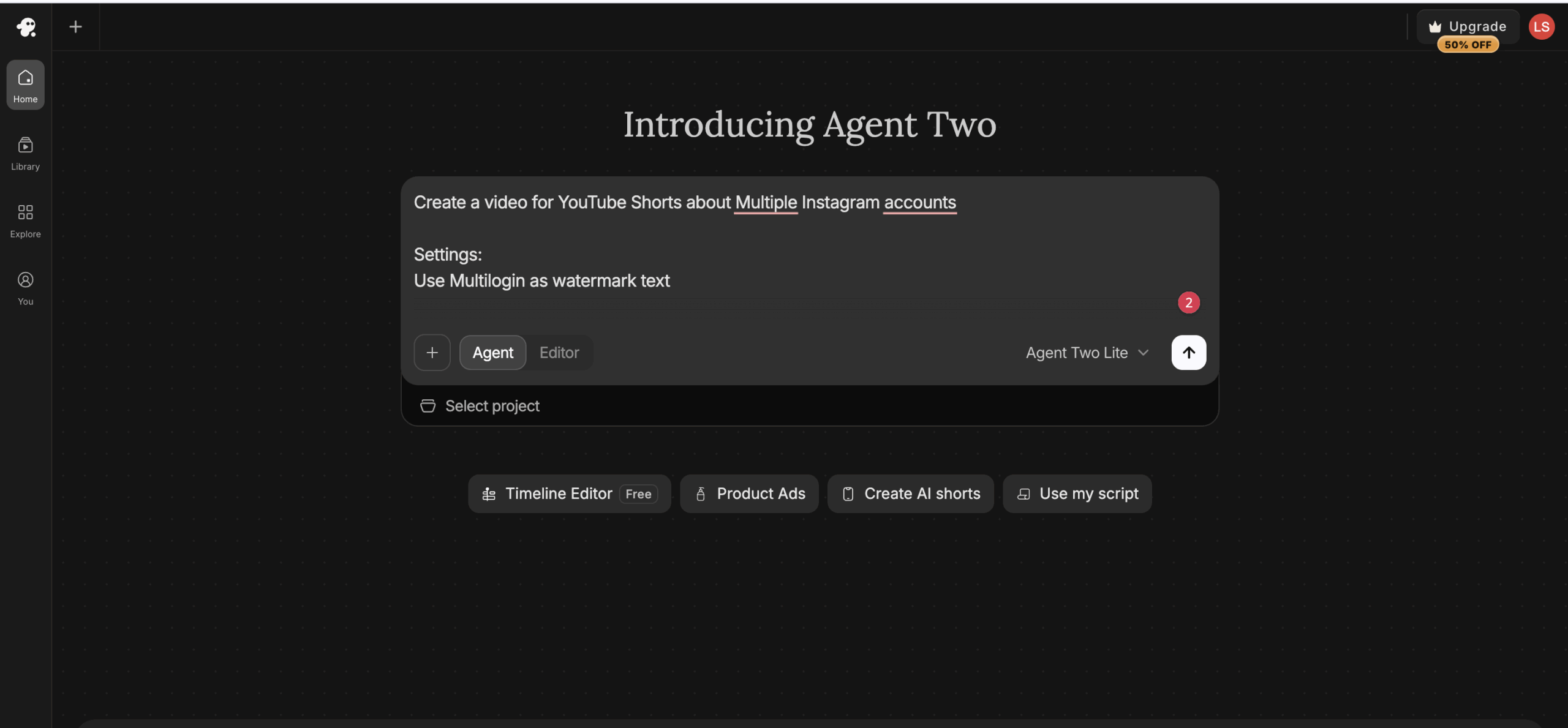
InVideo AI turned the brief into a storyboard with a topic, approximate length, and style.
This intermediate stage was useful because we could inspect the content direction before treating the generated material as ready for publication.
For a marketing team, that is a sensible review point. Check the script, product claims, scene order, and visual instructions before committing more generation work.
Step 4: We reviewed the editing options
The tested interface included both agent controls and a timeline-style editor.
InVideo’s editor and credit documentation says manual timeline editing does not consume AI credits, while AI-agent and generative-model actions can use credits.
That distinction can affect how a creator revises a draft.
If the overall structure is right and only a trim, text change, or timing adjustment is needed, manual editing may be preferable to another generation request.
Step 5: Our test stopped at the credit limit
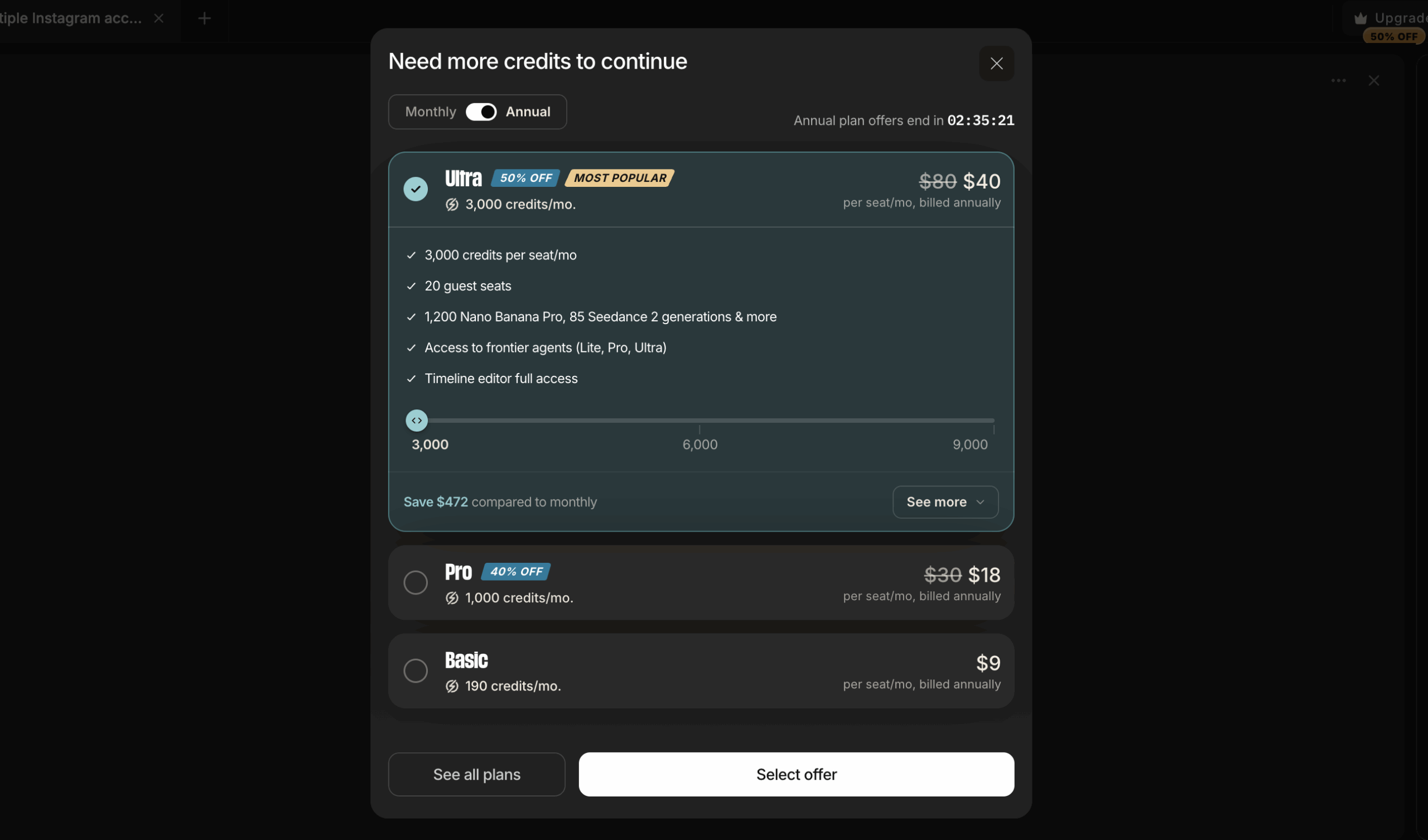
The workflow stopped when InVideo displayed “Need more credits to continue.”
That means this review does not claim first-hand results for:
- final export quality
- completed caption quality
- finished voiceover quality
- final rendering time
- the exact number of credits needed for a completed version
What we observed directly is narrower: InVideo AI accepted the brief, generated a structured storyboard, opened the editing workflow, and then required more credits before we completed the project.
Is InVideo AI good for social media?
Yes. InVideo AI has a workflow that fits short-form social video, especially when a creator wants to start from a brief instead of an empty editing timeline.
InVideo’s text-to-video documentation describes workflows for platforms including YouTube, Instagram, and TikTok.
For social teams, a practical process looks like this:
brief → storyboard → generation → review → edit → captions → export → publish
Human review still matters. Product details, claims, pacing, visuals, and captions should be checked before publishing.
Teams planning content across several channels can also connect this production process to a social media content calendar so the video brief, approval, and publishing schedule stay connected.
Can InVideo AI create TikTok videos, Instagram Reels, and YouTube Shorts?
Yes. InVideo AI supports short-form video creation for TikTok, Instagram, and YouTube.
The platform can start from text input, generate a draft, and let the user continue editing the project. That makes it relevant to Shorts, Reels, and TikTok workflows.
A generated short should still be treated as a draft until its visuals, text, claims, pacing, and platform format have been reviewed.
Can InVideo AI create daily social videos?
InVideo AI can be used repeatedly for social-video projects, but whether it fits daily production depends on credit use and the amount of revision each project needs.
InVideo says AI-agent and generative-model work can consume credits. A team that regularly regenerates scenes may therefore use its allowance differently from a team that generates one draft and completes more corrections manually.
For a daily workflow, measure more than output count. Track how many credits a typical project uses, how much manual editing remains, and how often the first draft needs regeneration.
How does InVideo AI text to video work?
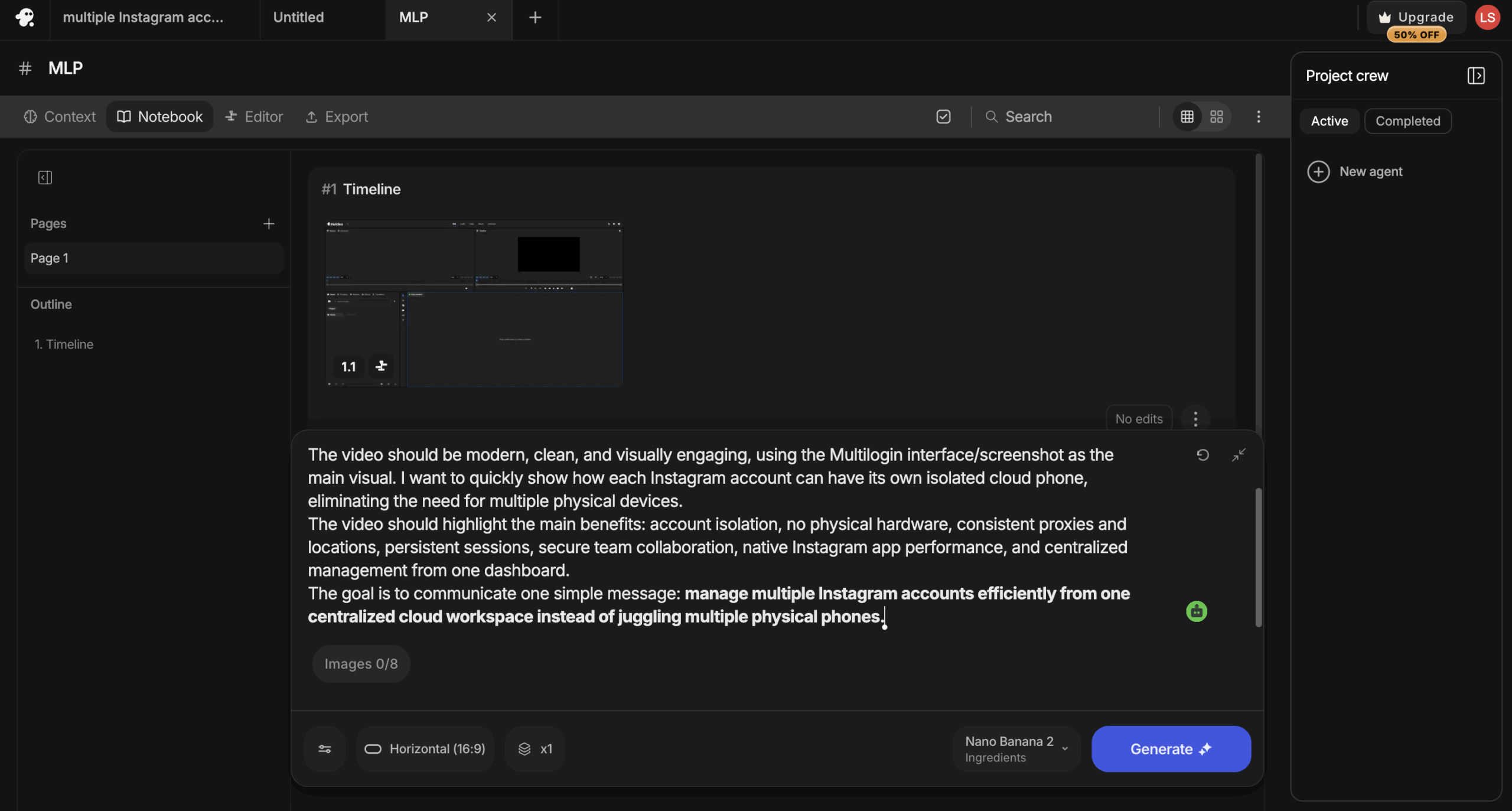
InVideo AI text to video starts with written input and turns that input into a video project that can be reviewed and edited.
The official workflow can be summarized as:
- Enter an idea, brief, or script.
- Let InVideo AI generate the first version.
- Review the scenes, visuals, voice, music, and structure.
- Refine the project with AI-assisted or manual edits.
- Export the finished video.
Our test followed the same general path until the available credits stopped us before final export.
The main benefit of this approach is the starting point. Instead of building the first structure manually, the creator begins with a generated draft and decides what still needs work.
How much editing control does InVideo AI give you?
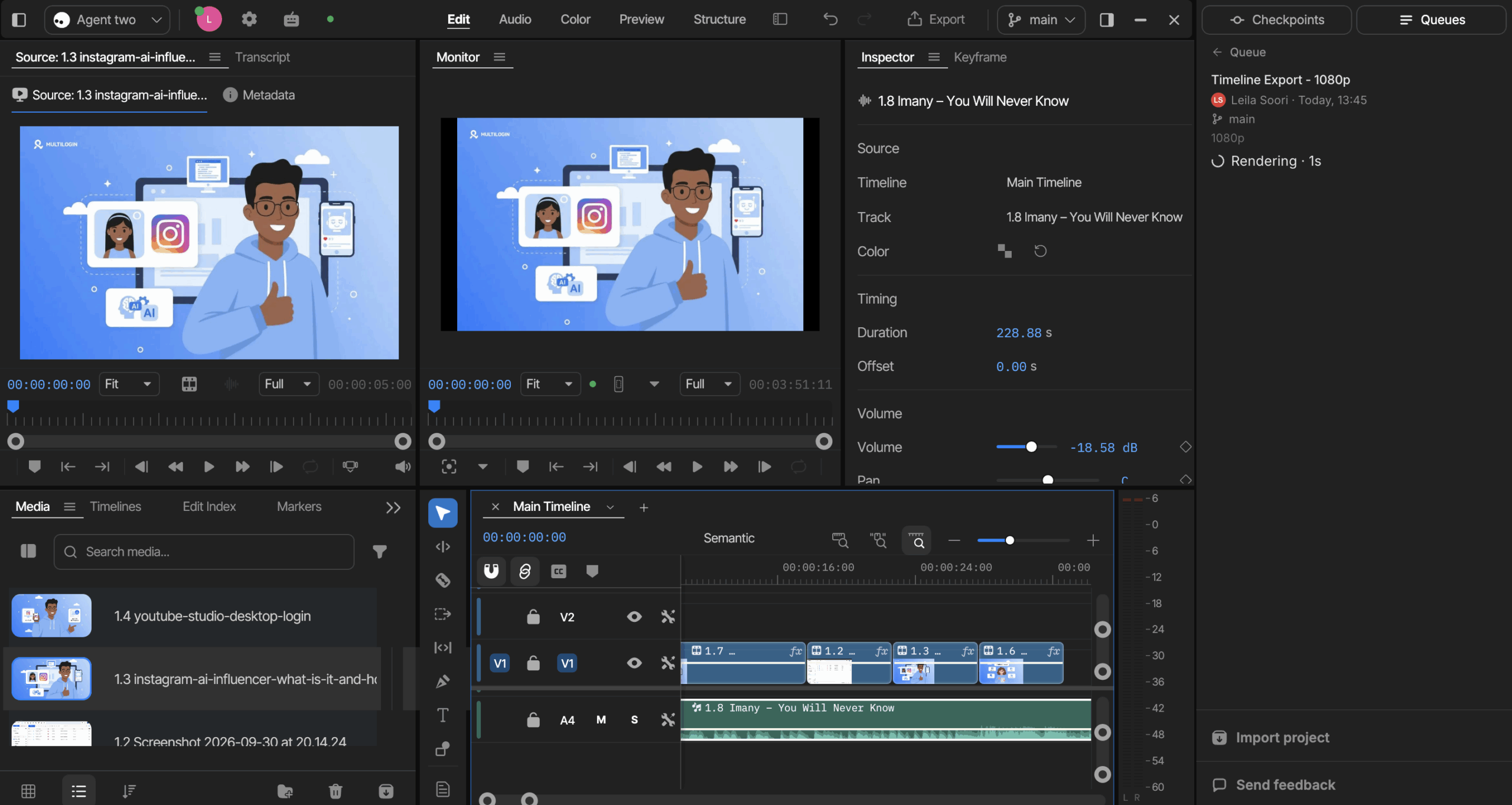
InVideo AI provides both AI-assisted changes and manual timeline editing.
The timeline interface gives users direct control over the project rather than requiring every correction to go through another prompt.
InVideo states that manual timeline editing does not consume AI credits in the same way as AI-agent and model generation. Its documentation also explains that users can ask agents to make changes when they prefer an AI-assisted edit.
For cost-conscious workflows, that distinction matters. If a generated scene is conceptually correct but needs a small adjustment, manual editing may avoid unnecessary regeneration.
InVideo’s export documentation also describes H.264 MP4 export with controls including resolution, frame rate, quality, and export range. The same documentation describes options for continuing editable work in Premiere Pro, Final Cut Pro, or DaVinci Resolve.
We did not test those export routes because our project stopped before that stage.
How do InVideo AI credits work?
InVideo AI credits are used for AI-agent and generative-model activity, while manual timeline editing is handled separately.
According to InVideo’s AI-agent credit documentation, credit use can vary depending on the models and media created during an exchange.
An agent interaction can involve more than one operation. That makes the cost of revision important, not just the price of the subscription.
InVideo also lets users inspect credit use for individual exchanges and for the project as a whole.
Creators who want more control over generation spending can use approval settings described in the same documentation. Options include asking for approval before video generation takes place.
That can help a user review the proposed generation step before committing more credits.
The current pricing page also states that unused monthly paid credits do not roll over.
InVideo AI pricing: how much does it cost?
InVideo AI’s public annual pricing starts at $20 per seat per month for the Starter plan.
Last verified: September 30, 2026
| Plan | Monthly credits | Annual plan price shown per month | Agent access |
|---|---|---|---|
| Starter | 400 | $20 per seat/month | Agent Two Lite |
| Plus | 2,000 | $50 per seat/month | Lite, Pro, Ultra |
| Max | 5,000 | $100 per seat/month | Lite, Pro, Ultra |
Source: InVideo official pricing
The Starter plan also lists timeline-editor access.
InVideo’s pricing page states that unused monthly credits do not roll over. It also states that downloading content does not itself consume credits.
Why did our account show different InVideo AI pricing?
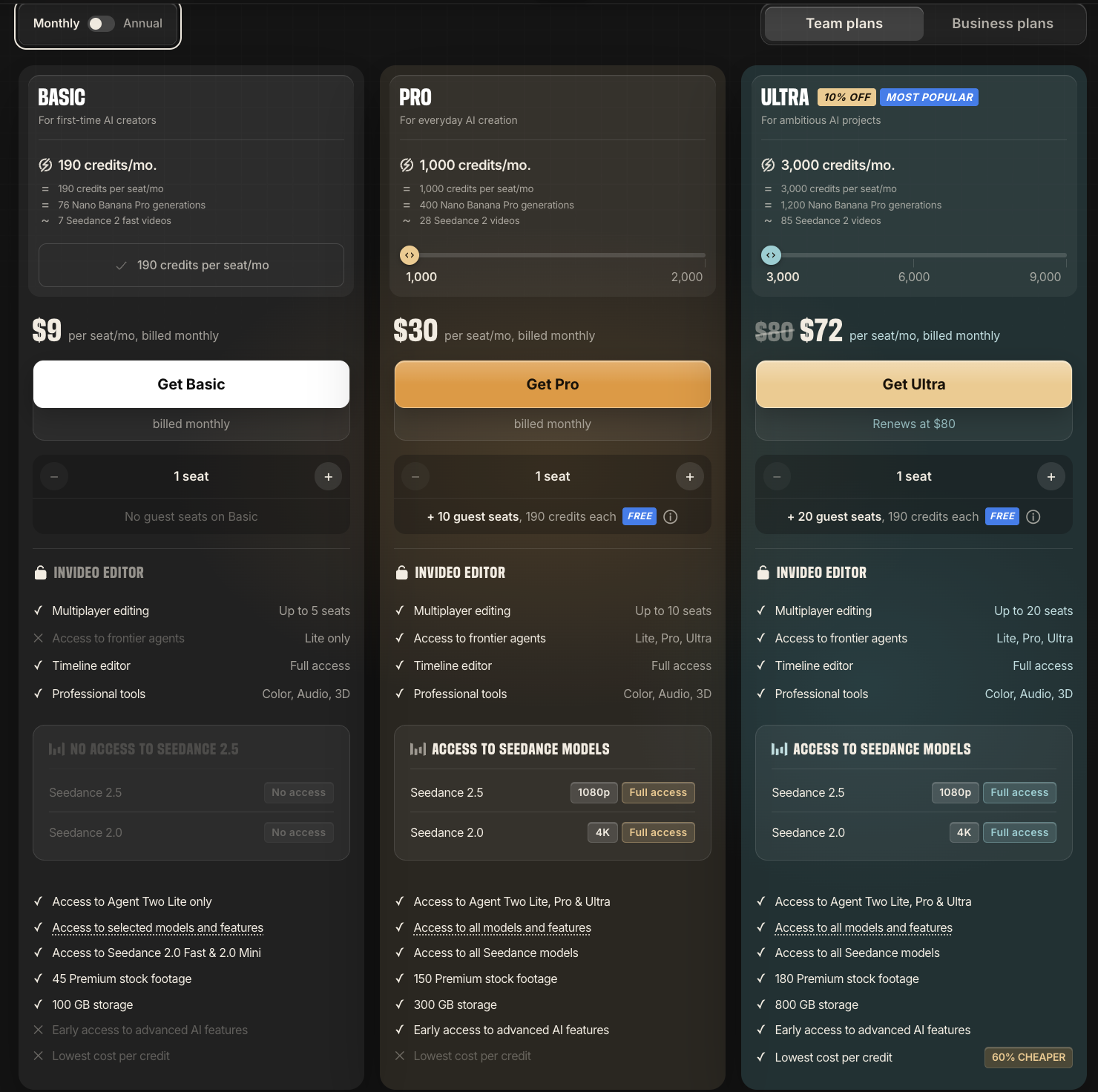
Our tested account displayed different prices from the public pricing page, including a promotional offer.
One upgrade screen showed Basic at $9 and an Ultra annual offer at a discounted $40 per seat per month with 3,000 credits. A separate checkout screen also displayed InVideo AI Basic at $9 per month.
Those figures came from our account session rather than the main public list-pricing page.
For that reason, this review uses the current public InVideo pricing page as the primary reference and treats the prices seen inside our account as promotional or account-specific observations.
Is InVideo AI free?
Yes. InVideo AI offers a free option without requiring card details, but the free credit allowance is limited.
InVideo’s free-plan documentation states that the free allowance resets weekly on Monday at 12 a.m. UTC.
In our test, the available credits were enough to:
- set up the workspace
- create the project
- enter the brief
- generate a storyboard
- explore the editing workflow
Our available credits were not enough to complete the project through final export.
That result describes our test only. Credit use varies with the generation actions and models involved.
What are the InVideo AI free-plan limits?
The main limitation is the restricted amount of AI generation available before more credits are required.
The free experience can therefore be useful for learning the interface and testing whether the prompt-to-storyboard workflow suits your content process.
Our test does not establish how many complete videos every free-plan user can create. We did not finish one full project before reaching the credit limit.
InVideo AI free vs paid: what changes?
The clearest difference between InVideo AI free and paid use is the amount of available generation capacity, with paid plans also differing in agent access.
Current public paid plans provide monthly credit allocations. Starter lists Agent Two Lite, while Plus and Max list Lite, Pro, and Ultra access on the pricing page.
For a creator choosing between free and paid use, the most useful question is not simply which plan contains more credits. Estimate how often your projects need regeneration and how much work you are comfortable completing manually.
What are InVideo AI’s main pros, cons, and limitations?
InVideo AI is most useful when you want AI to create the starting structure while keeping the option to edit the project afterward.
Pros
Prompt-to-storyboard workflow
Our test turned a detailed social-video brief into a structured storyboard with a topic, length, and style.
Manual editing
InVideo provides timeline editing rather than limiting every correction to another AI prompt.
Text-to-video
InVideo supports creating video projects from written ideas, briefs, and scripts.
Short-form social workflows
InVideo’s official material covers video creation for TikTok, Instagram, and YouTube.
Visible credit controls
InVideo documents project-level usage information and approval settings for generation.
Cons and limitations
AI revisions can use more credits
AI-agent and generative-model actions draw from the available allowance.
Our test stopped before export
The available credits in our session were not enough to complete the tested video, so this review does not score final output quality.
Unused paid credits do not roll over
The current public pricing page states that unused monthly credits do not carry forward.
Generated content still needs review
Brand claims, screenshots, captions, pacing, and visual choices should be checked by the person responsible for publishing the content.
How can teams organize AI video work across multiple social accounts?
Teams can keep video creation and account operations as separate parts of the same content workflow.
Create and approve the video first. Then move the approved asset into the correct account workflow. For mobile-app work, one account can use its own cloud Android phone. Web-based account work can use browser profiles included in the same platform.
This separation helps teams keep client and brand workflows organized, but it does not make duplicated content a device problem. Posting very similar content across accounts can still create platform-level content issues. Cloud Android phones also do not provide the SMS codes an app may require for verification.
A broader multi-account management workflow can help teams document which approved asset belongs to which account. Teams comparing their publishing stack can also use a social media management tools guide to separate content creation, scheduling, analytics, and account-environment needs.
For creator teams managing multiple brand or client accounts, Multilogin can help keep video publishing organized by separating each account environment while the team creates, reviews, and distributes content.
Multilogin is not a way around platform rules; the safest approach combines clean account separation with original content, real engagement, and platform-compliant activity.
Is InVideo AI worth it for social media marketers?
InVideo AI is worth evaluating if your main need is getting from a detailed brief to an editable first draft faster, provided you are comfortable reviewing the result and tracking credit use.
Our test showed clear value in the early production stages. InVideo AI accepted a detailed social-media brief and turned it into a structured storyboard without requiring us to build the first timeline from scratch.
The main constraint in our test was the available credit allowance.
That makes InVideo AI a better fit for marketers who are willing to combine AI generation with human editing than for someone expecting every prompt to produce a publication-ready result with no further work.
If you manage several content streams, an AI influencer workflow is one example where generated creative, approval, and account management may need to stay coordinated without becoming the same task.
The free option is enough to explore the workflow, but our test did not establish that it is enough for complete ongoing production.
Conclusion
InVideo AI is strongest at giving creators and marketing teams a structured starting point instead of an empty timeline.
Our test moved successfully from a detailed brief to a storyboard and editing environment. The available credits then became the limiting factor before export, so we cannot use this test to judge finished output quality.
For creators considering InVideo AI, focus on three things: how useful the first draft is, how much correction you can handle manually, and how quickly your normal revision process consumes credits. Those factors tell you more about practical fit than the feature list alone.