





Amazon Seller Central puts listings, orders, inventory, payments, customer feedback, and growth tools in one place. Multilogin can make that work easier to organize when you manage stores or client operations: use cloud Android phones for the Amazon Seller app first, then use browser profiles as the supporting layer for the full web dashboard. Multilogin API and connection to AI agents can accelerate the whole operational process even more. The aim is a repeatable operating routine, not more Amazon accounts.
This guide shows how you can make the most of Amazon Seller Central and unleash the full potential of your stores with Multilogin cloud phones and multi-account browser.
TL;DR
- Use the Amazon Seller mobile app on a dedicated Multilogin cloud phone for daily checks such as alerts, sales, orders, inventory, messages, and campaign monitoring.
- Use a paired Multilogin browser profile for browser-first Seller Central work such as reports, bulk listing updates, payments, Product Opportunity Explorer, and detailed account-health reviews.
- Give teammates individual Amazon user permissions. Use Multilogin roles and folders to control which workspaces they can open.
- Automate seller accounts operation with Multilogin API and save your time from repetitive tasks like launching campaigns and syncing ads.
What is Amazon Seller Central?
Amazon Seller Central is Amazon’s digital hub for third-party sellers. It brings together the operational tools needed to list and price products, manage inventory and fulfillment, process orders and returns, monitor account health, review finances, communicate with customers, and promote products.
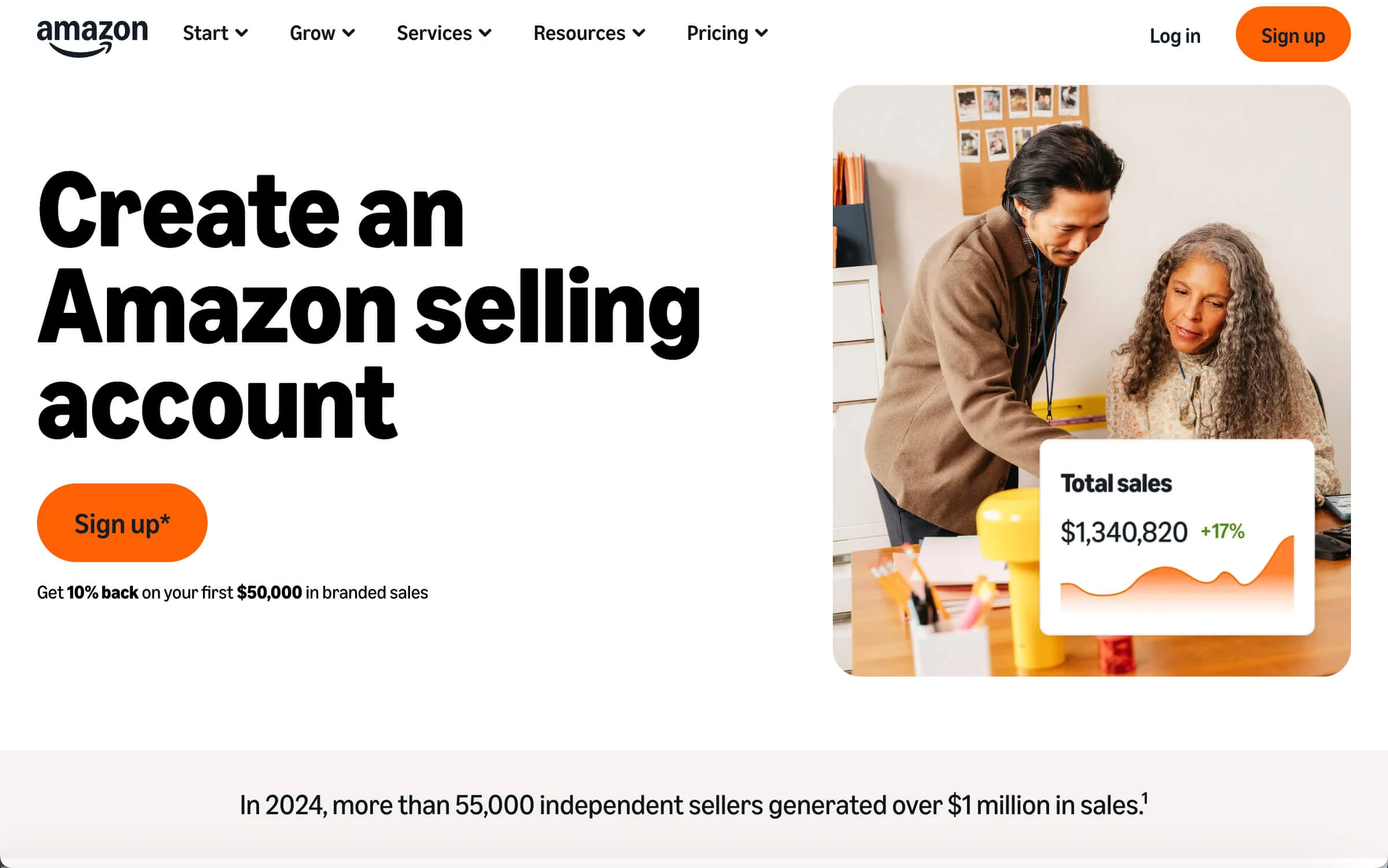
Seller Central is not the same as Vendor Central. Seller Central is available to businesses that register as third-party sellers. Vendor Central is an invitation-only wholesale relationship in which a business sells products to Amazon.
Which Seller Central resources should sellers use?
The most useful Seller Central resources depend on the decision you need to make. A practical cadence keeps urgent work visible without turning every login into a tour of the whole dashboard.
| Seller Central area | What it helps you do | Useful cadence |
|---|---|---|
| Homepage and Actions panel | Review sales, orders, news, alerts, and prioritized actions | Start of each shift |
| Account Health | Check policy notices and customer-service, shipping, and compliance metrics | Daily and after any alert |
| Products and Pricing | Add or improve listings, manage offers, and adjust pricing | When catalog or pricing changes |
| Orders and Supply chain | Review pending orders, returns, claims, FBA stock, FBM stock, and shipments | Daily |
| Finance and Payments Dashboard | Break down sales, fees, refunds, expenses, net proceeds, and upcoming payments | Weekly and at reconciliation |
| Customers | Review feedback ratings, top search queries, reviews, buyer satisfaction, and messages | Several times per week |
| Growth and Marketing | Explore demand, improve products, create deals or coupons, and manage advertising | Weekly or by campaign |
| Seller resources | Use Seller University, Help pages, Seller Forums, the Selling Partner Appstore, and approved service providers | When learning or troubleshooting |
Product Opportunity Explorer is especially useful before adding a product or changing a listing. It groups Amazon search and purchase behavior into niches and lets sellers examine demand, competition, search terms, reviews, and returns. Treat those insights as decision support rather than a sales forecast.
Why multi-account Seller Central work becomes difficult
Amazon multi-account work creates operational risk when context is unclear. A seller can open the wrong store, update the wrong marketplace, answer a message under the wrong business, or hand a teammate a login without limiting what that person can access.
The main pain points are practical:
- Context switching: tabs, cookies, and active sessions can make different businesses or marketplaces look deceptively similar.
- Mobile and desktop fragmentation: alerts arrive in the Amazon Seller app, while reports and bulk actions are easier in the web dashboard.
- Team handoffs: shared passwords provide little control and make responsibility harder to trace.
- Verification interruptions: session expiry, two-factor authentication, and unusual login changes can delay urgent work.
- Inconsistent connections: repeatedly changing the working region or network setup can create avoidable friction.
- Policy confusion: separate devices or profiles do not create permission to operate another seller account.
Amazon’s Seller Code of Conduct says sellers may maintain only one Seller Central account per region unless they have a legitimate business need for a second account and all accounts are in good standing. If your operation qualifies, map ownership and access before configuring any tools. For a broader regional workflow, see Multilogin’s guide to organizing Amazon marketplace accounts.
How Multilogin supports an Amazon seller workflow
Multilogin is a cloud Android phone platform for multi-account management. Each cloud phone runs on a real Android device in the cloud and keeps its apps, data, login history, and account state with that phone. Browser profiles support web-based accounts from the same dashboard, with separate cookies, sessions, and network settings. Multilogin also offers built-in proxies you can utilize to target different markets around the globe and API to automate repetitive tasks.
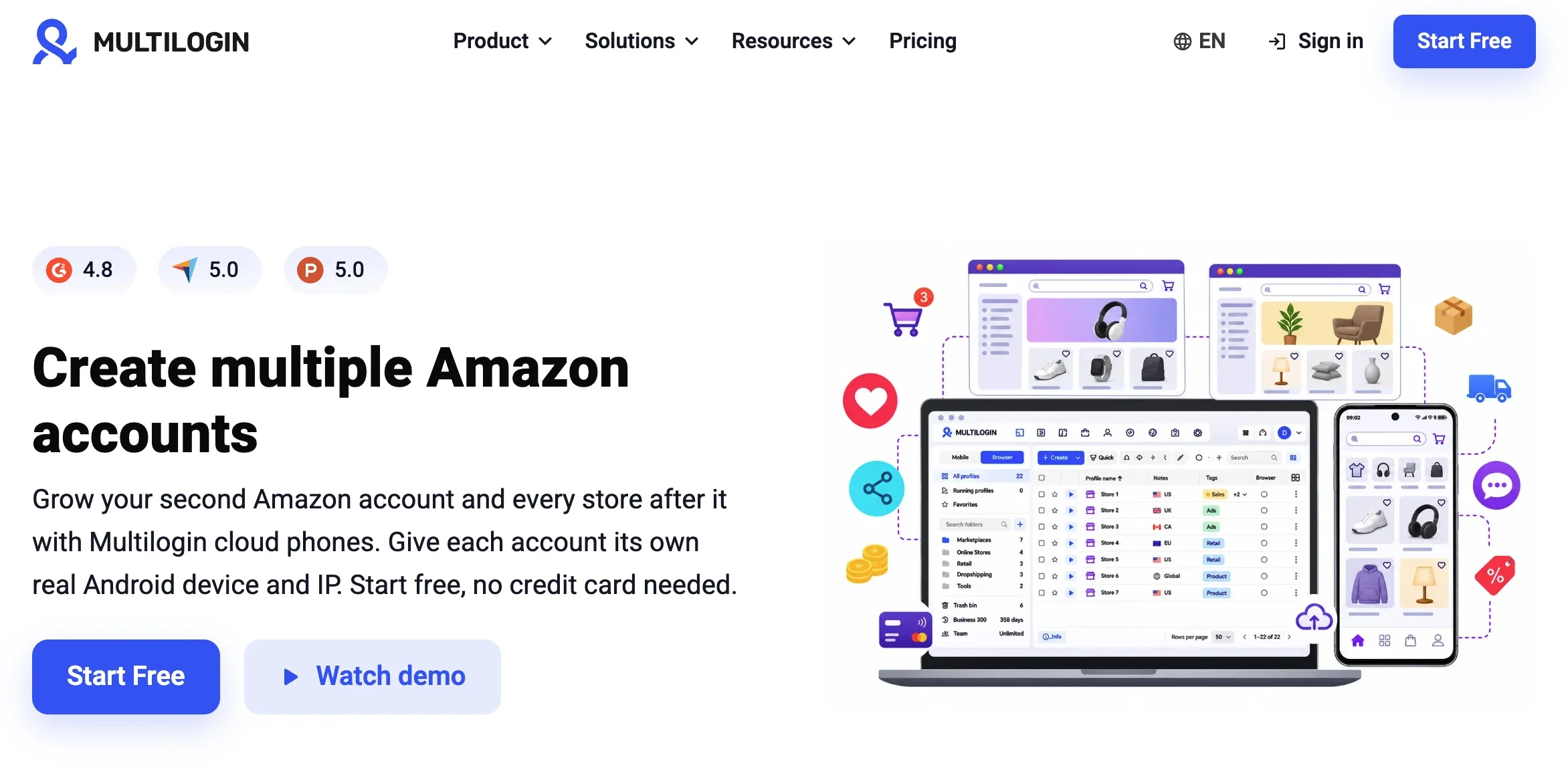
For Amazon sellers, that creates a clear division of work:
- Cloud phone: the native Amazon Seller app, mobile notifications, quick inventory checks, messages, order updates, product research, and campaign monitoring.
- Browser profile: the full Seller Central site, detailed reports, bulk catalog work, finance analysis, growth tools, and other desktop-heavy tasks.
- Proxies: residential, ISP, and mobile proxies are all available regardless of mobile or web environment you want to set up for managing your stores.
- Automation: automate routine tasks like creating browser profiles, managing store accounts, launching campaigns, or syncing ads all via Multilogin API. Works with AI Agents like OpenClaw and automation tools like Selenium and Playwright.
Create separate Multilogin environments when managing multiple seller accounts or workflows more efficiently has been your daily concerns. For less than 5 accounts, Amazon’s own Seller mobile app supports single sign-on and switching between countries and regions. Use that built-in structure when one or two selling account already covers the stores you manage.
How to set up Amazon Seller Central with Multilogin
The following setup starts with the mobile workflow, then adds a browser profile for Seller Central. Have your Amazon credentials and normal verification method ready before you begin.
- Map each account and task. Create a simple register with the business, seller account, marketplaces, account owner, operators, verification owner, and recurring tasks. Decide which tasks belong in the Seller app and which require Seller Central on the web.
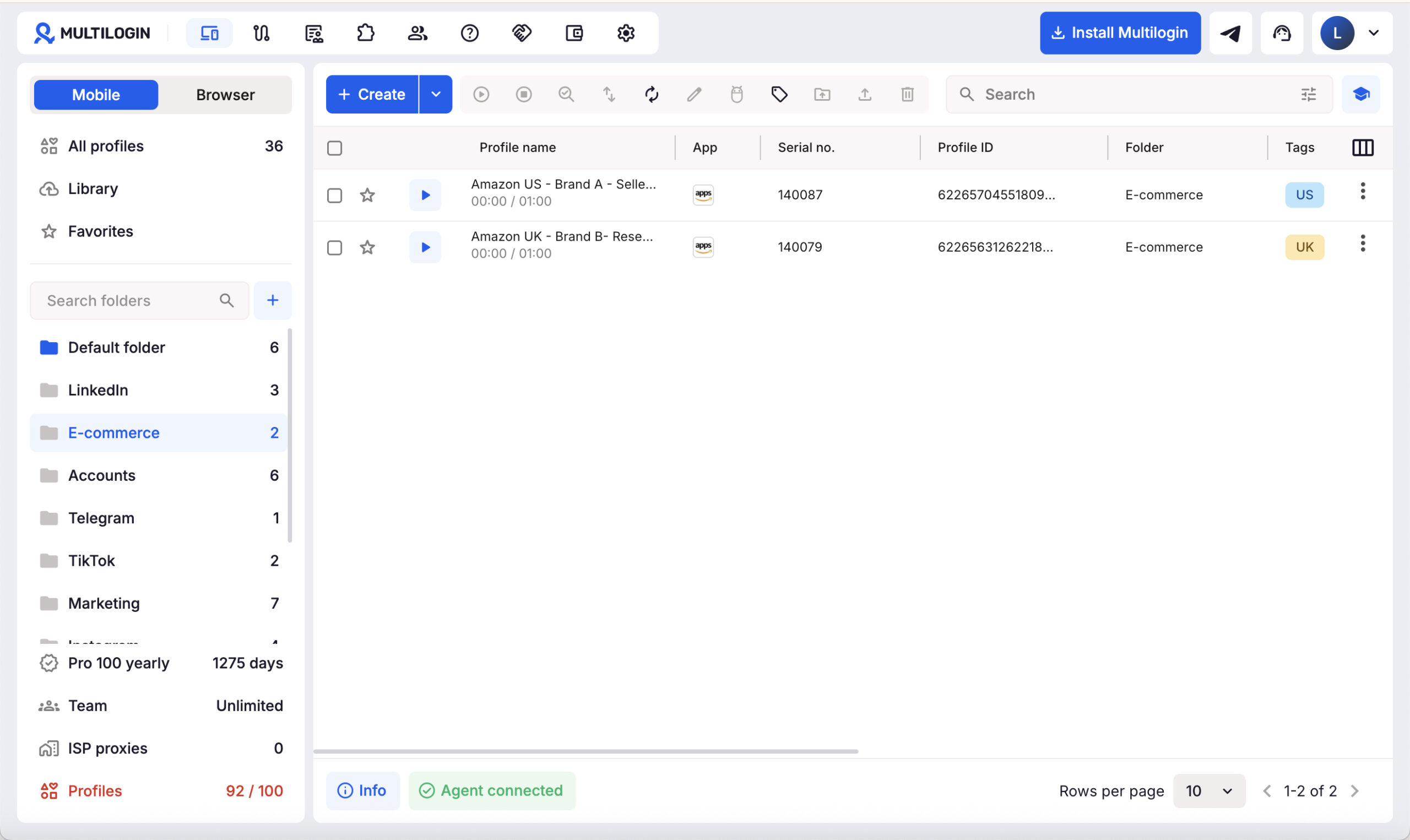
- Create the Multilogin cloud phone. Go to Profiles → Mobile → Create. Use a name such as
BrandA-US-SellerApp, then add a marketplace tag and a short note describing the account owner and purpose. Choose and check a public proxy that fits the account’s normal working region, review the device settings, and select Create. Multilogin’s current cloud phone setup guide documents these controls. If you choose the network type manually, match Wi-Fi with a residential or ISP connection and Cellular with a mobile connection. Consistency matters more than changing locations frequently.
- Install and sign in to the Amazon Seller app. Start the cloud phone. Install the Amazon Seller app through Google Play, or use Multilogin’s Apps tool if the app is available there. Sign in to the selling account and complete Amazon’s normal verification. Multilogin cloud phones cannot receive SMS messages or calls. Keep access to the account’s real phone number, authenticator app, or recovery method outside the cloud phone.
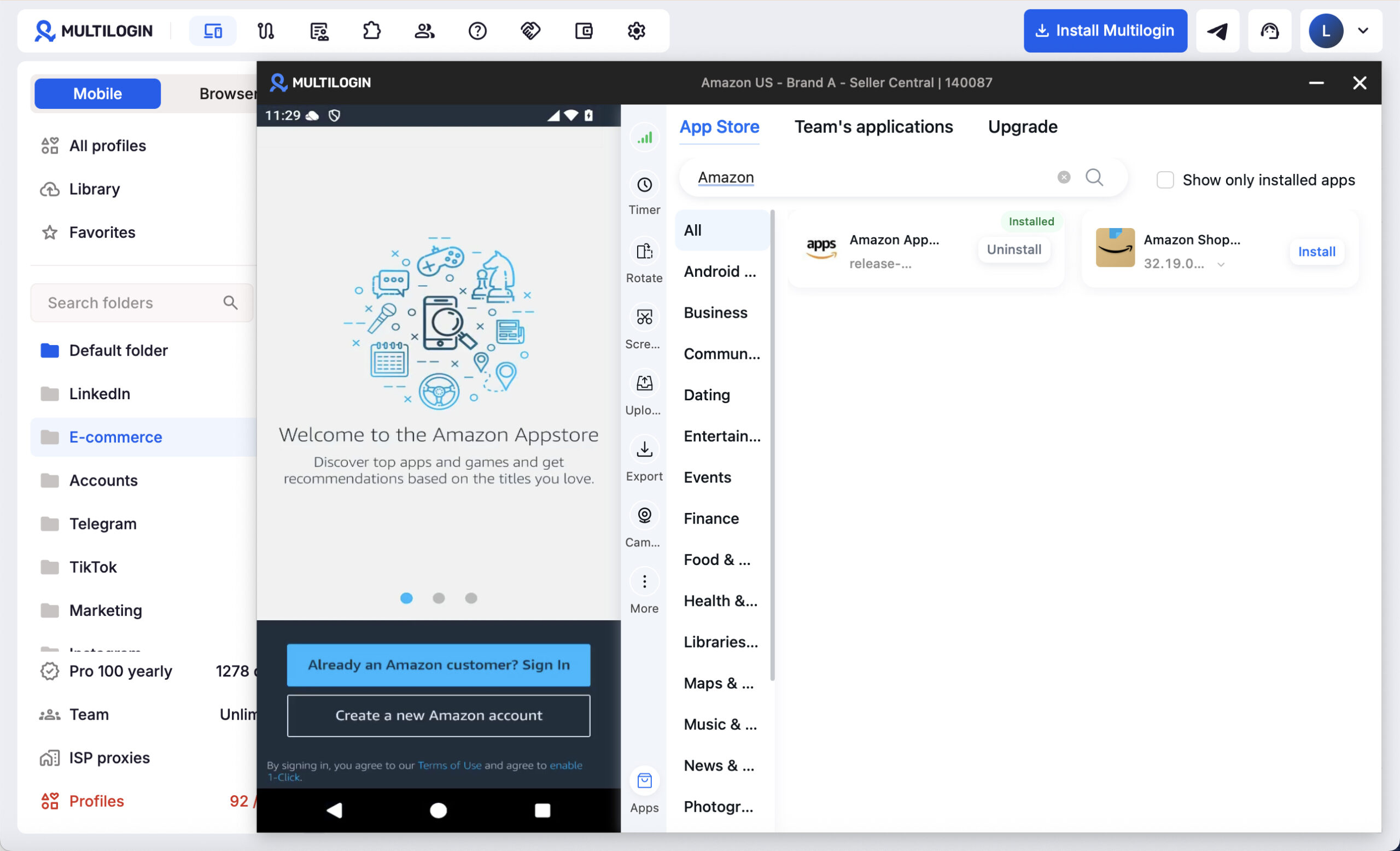
- Build a mobile daily-check routine. Use the cloud phone for a short, consistent sequence: review account and policy alerts, check sales and orders, inspect low-stock items and returns, answer messages, and review active advertising. Confirm the current business and marketplace before taking action.
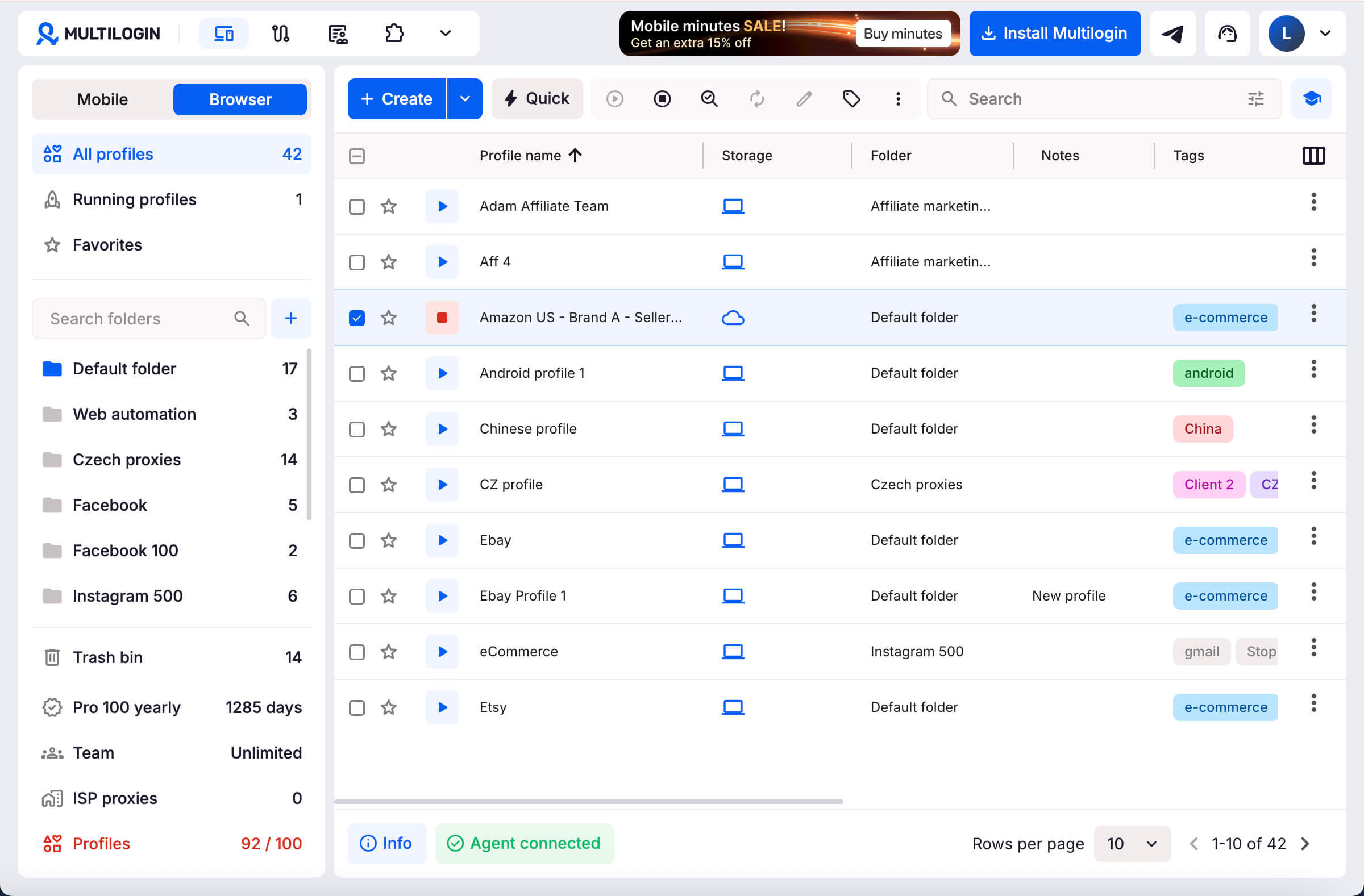
- Create the companion Seller Central browser profile. Go to Profiles → Browser → Create. Name it to match the cloud phone, such as
BrandA-US-SellerCentral, and apply the same business and marketplace tags. Use a regular profile so its browser data remains available for the next session. Configure the connection, keep the default browser settings unless your workflow has a verified reason to change them, then select Create and Start. Follow Multilogin’s browser profile setup guide for the current controls.
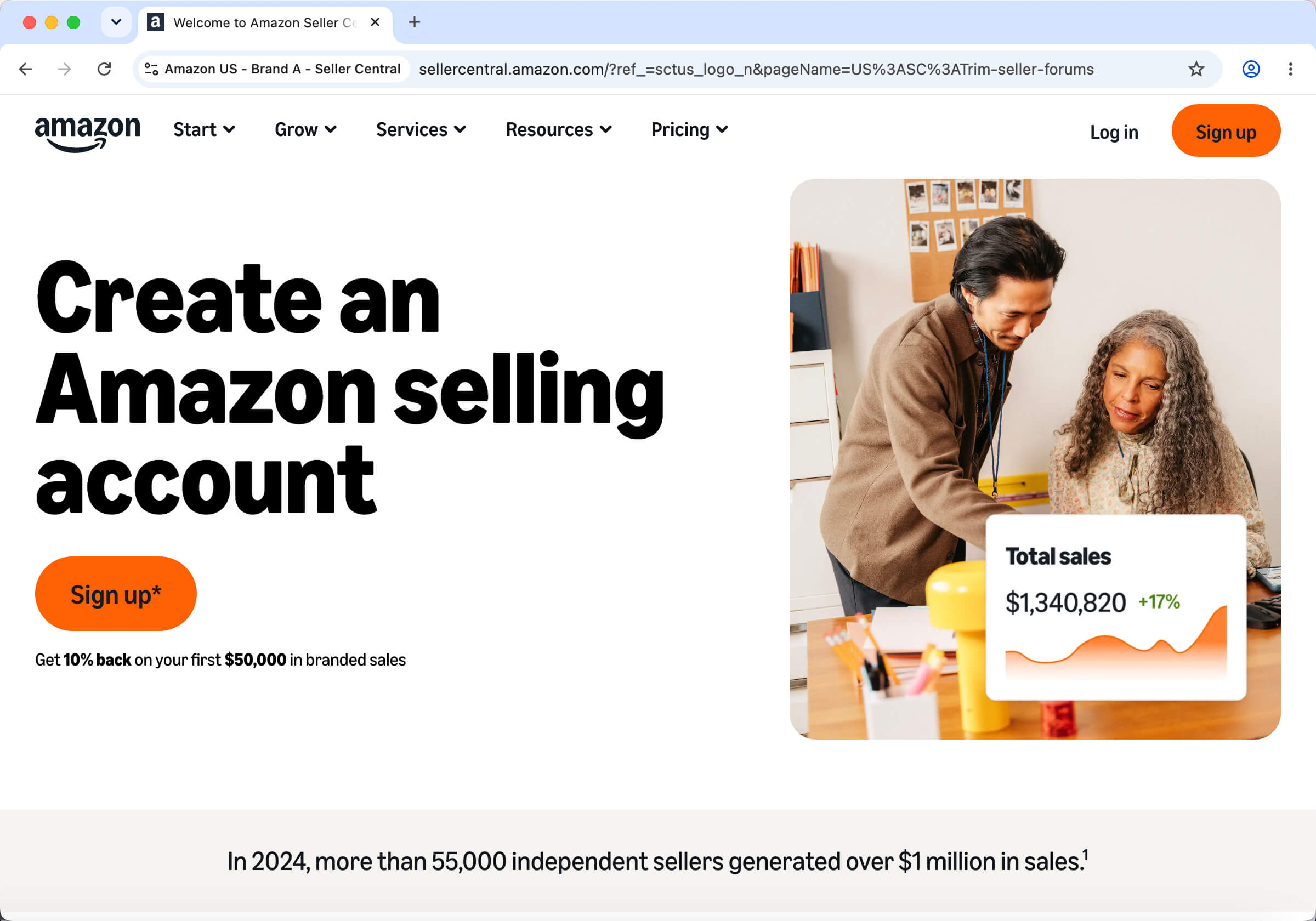
3. Configure Seller Central for fast deep work. Open Seller Central and sign in through access. Customize the homepage around the metrics you review most often. Bookmark Account Health, Orders, Supply chain, Finance, Customers, and the growth tool you use most. Before editing a listing, downloading a report, or changing a campaign, confirm the seller account and marketplace.
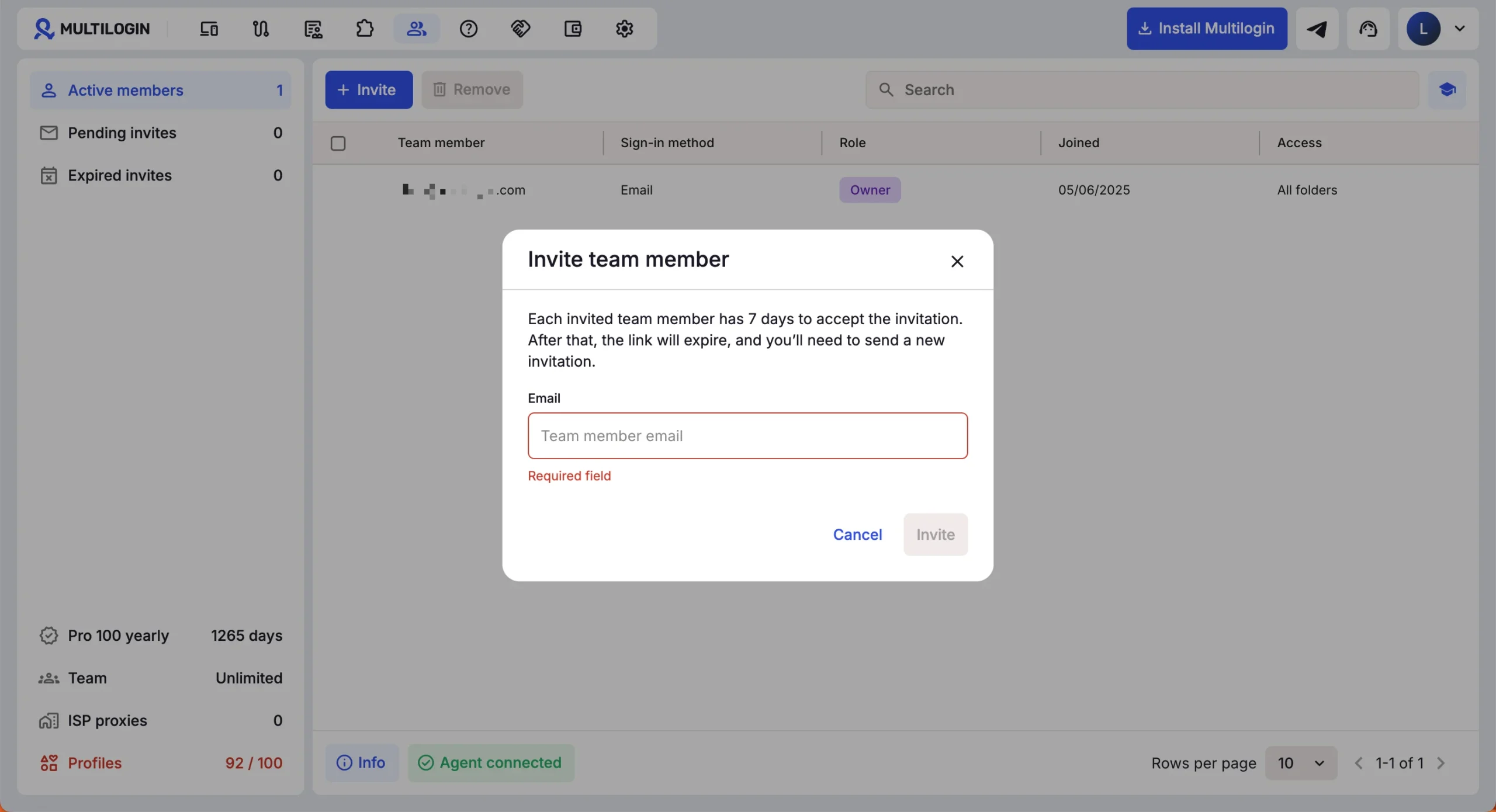
4. Set permissions for the team. In Seller Central, select the gear icon → User permissions so each teammate has individual access appropriate to their role. Do not replace Amazon’s permission system with a shared seller password. In Multilogin, go to Team → Invite, then use Manage access to assign a role and the relevant folders. Keep mobile and browser folders aligned by naming, even though they are separate folder systems. Add a short handoff note after each shift.
5. Test continuity before using the setup in production. Stop and restart the cloud phone, then confirm the Amazon Seller app retained the intended session and data. Stop and reopen the browser profile and confirm the correct Seller Central account and marketplace. Test a harmless task, such as opening a report, before making a listing, pricing, or inventory change. Stop the cloud phone when mobile work is finished so you do not consume unnecessary minutes.
Common mistakes to avoid
- Forcing every task onto a cloud phone. The Amazon Seller app is well suited to daily mobile work. Detailed reports, bulk changes, and finance analysis belong in a browser profile.
- Creating more seller accounts than the business needs. Check Amazon’s policy and regional account structure first.
- Using vague profile names. A label such as
Amazon 2invites mistakes. Include the business, marketplace, and purpose. - Sharing one Amazon login across a team. Use Amazon user permissions, then match Multilogin folder access to those responsibilities.
- Changing network regions without an operational reason. Document the normal region for each account and keep the setup stable.
- Losing access to verification. A saved session can expire. Keep the approved phone, authenticator, and recovery process available.
- Treating separation as a guarantee. Multilogin helps organize distinct workspaces. It does not override Amazon policy or guarantee that an account will never face verification, restriction, or enforcement.
Frequently asked questions on Amazon Seller Central
Is Amazon Seller Central the same as the Amazon Seller app?
No. Seller Central is Amazon’s full web portal for managing a selling business. The Amazon Seller app is the mobile companion for tasks such as alerts, sales monitoring, listings, inventory, orders, customer communication, and advertising.
Should I use a Multilogin cloud phone or browser profile for Seller Central?
Use a cloud phone for the native Amazon Seller Android app. Use a browser profile for the Seller Central website, reports, bulk actions, finance work, and other browser-first tasks. Many sellers benefit from pairing both environments for the same business.
Can I manage multiple Amazon Seller Central accounts?
Yes, but Amazon permits more than one Seller Central account in a region only when there is a legitimate business need and every account is in good standing. Separate Multilogin environments help organize approved work. They do not create approval or change Amazon’s rules.
Do I need a separate cloud phone for every country where I sell?
Not automatically. The Amazon Seller app supports single sign-on and switching between countries and regions. Use Amazon’s regional structure first, then add a separate environment only when a distinct account or operational workflow requires it.
Can team members share one Seller Central login?
Use individual Amazon user permissions instead of sharing the primary account credentials. Multilogin roles and folder access can then limit which cloud phones and browser profiles each teammate can use.
Can a Multilogin cloud phone receive Amazon verification codes by SMS?
No. Multilogin cloud phones cannot receive SMS messages or phone calls. Retrieve the code through the real phone number or approved provider connected to the Amazon account, then enter it in the cloud phone.
Does Multilogin prevent Amazon account suspensions?<br>
Depends. Multilogin provides separate, persistent working environments and centralized management. Amazon controls verification and enforcement, and sellers remain responsible for account accuracy, permissions, performance, and policy compliance.
Make Seller Central part of a repeatable operating system
The best Seller Central setup is not the one with the most profiles. It is the one in which every account has a clear owner, every recurring task has the right environment, and every operator can confirm the business and marketplace before acting.
Start with one cloud phone for the Amazon Seller app and one paired browser profile for Seller Central. Run the workflow for a week, review mobile minutes and proxy traffic, and refine the handoff notes before expanding it. Multilogin offers a free plan with no time limit and no credit card needed for testing the workflow.

 Join 4,200+ subscribers