
Manage multiple Outlook accounts
Create multiple Outlook accounts with Multilogin. Protect each profile with unique fingerprints and built-in residential proxies to prevent Microsoft from linking accounts. Ideal for marketers, lead-gen teams, and account managers.
Manage multiple Outlook accounts
Control all your Outlook accounts from one beginner‑friendly dashboard.
Use Cookie Robot to warm up accounts and apply more than 55 fingerprinting parameters to create authentic profiles and reduce verification blocks.
Password-free Outlook access from any device
Handle multiple Outlook accounts from a single dashboard. Each profile uses unique fingerprints and clean IPs, reducing the risk of Microsoft flags.
Access all your Outlook accounts from one device without switching devices.
Run as many Outlook accounts as you need
Create bulk Outlook‑ready profiles with AI Quick Actions using the same profile settings.
Assign clean residential IPs instantly. Duplicate, export, assign tags and notes, and filter profiles. Scale your Outlook workflow in minutes.
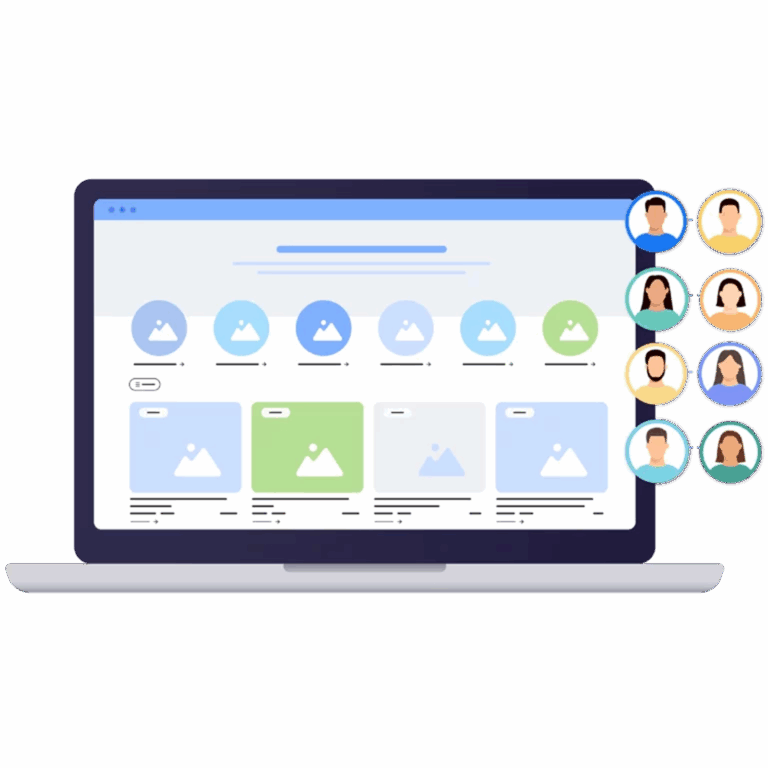
Manage your Outlook accounts with your team
Clean teamwork means maximum efficiency. Enhance your team workflows. Give each member controlled access, track sessions, and keep accounts separated.
Teamwork stays efficient whether your team has 1 or 15 members.
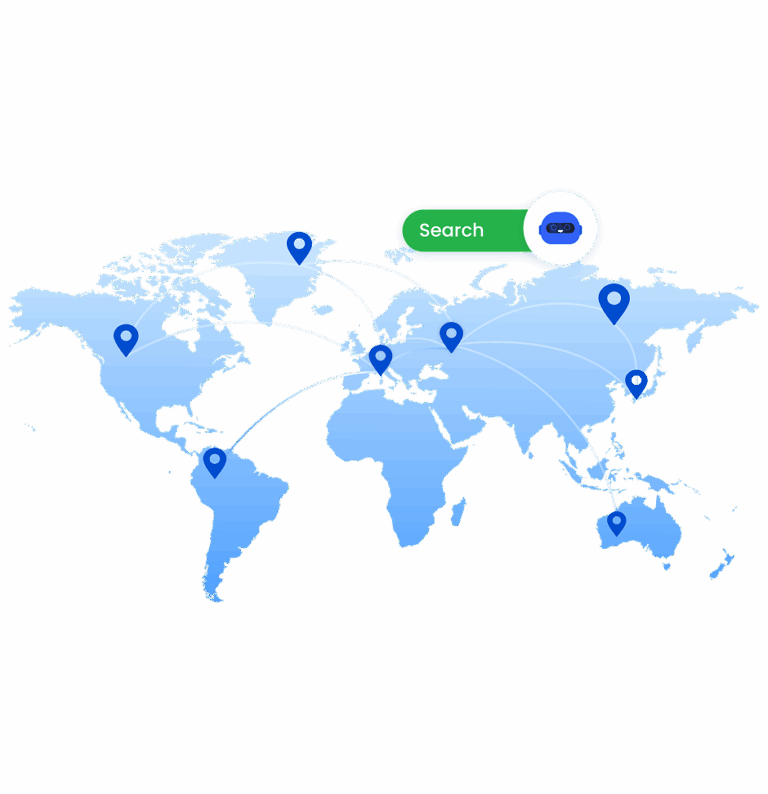
Avoid Outlook account bans with built-in proxies
Use built‑in proxies from the start with no need to search for a reliable proxy provider. Keep your IP consistent for every Outlook login.
Multilogin gives access to 30M+ residential IPs across 150 locations with city‑level and ISP‑level targeting.
Manage Unlimited Mobile and & Web Accounts
-
3-day access to Multilogin
-
5 cloud or local profiles
-
200 MB proxy traffic included
-
3-day access to Multilogin
-
5 cloud or local profiles
-
200 MB proxy traffic included
What is an antidetect browser?
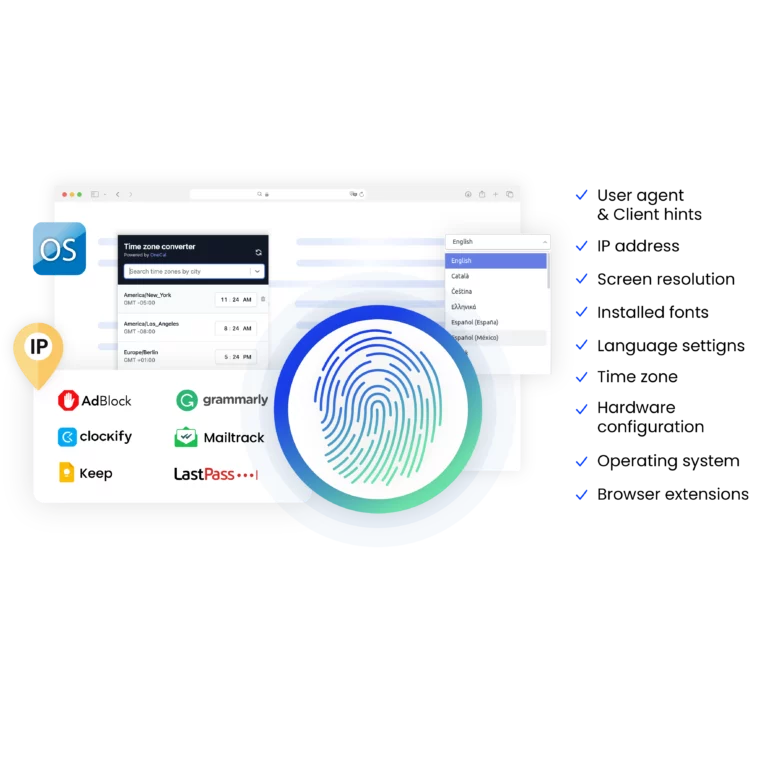
An antidetect browser like Multilogin hides your real fingerprint. Each profile gets a unique fingerprint. Device info, browser settings, timezone, fonts, WebGL, and canvas change.
That allows every Outlook account to appear as a different person on another device. This way, you can run dozens or hundreds of Outlook accounts from one device.
Why choose Multilogin for managing multiple Outlook accounts?
Multilogin provides everything you need to run multiple Outlook accounts without risk of bans:
- Realistic antidetect browser profiles with 55+ fingerprint parameters
- Clean residential proxies: 30 million IPs from 150 locations to avoid detection
- Full isolation between every Outlook account with fingerprint masking and custom browser cores
- Support for automation tools like Puppeteer, Playwright, Selenium, and Postman
What Multilogin offers that other antidetect browsers don't
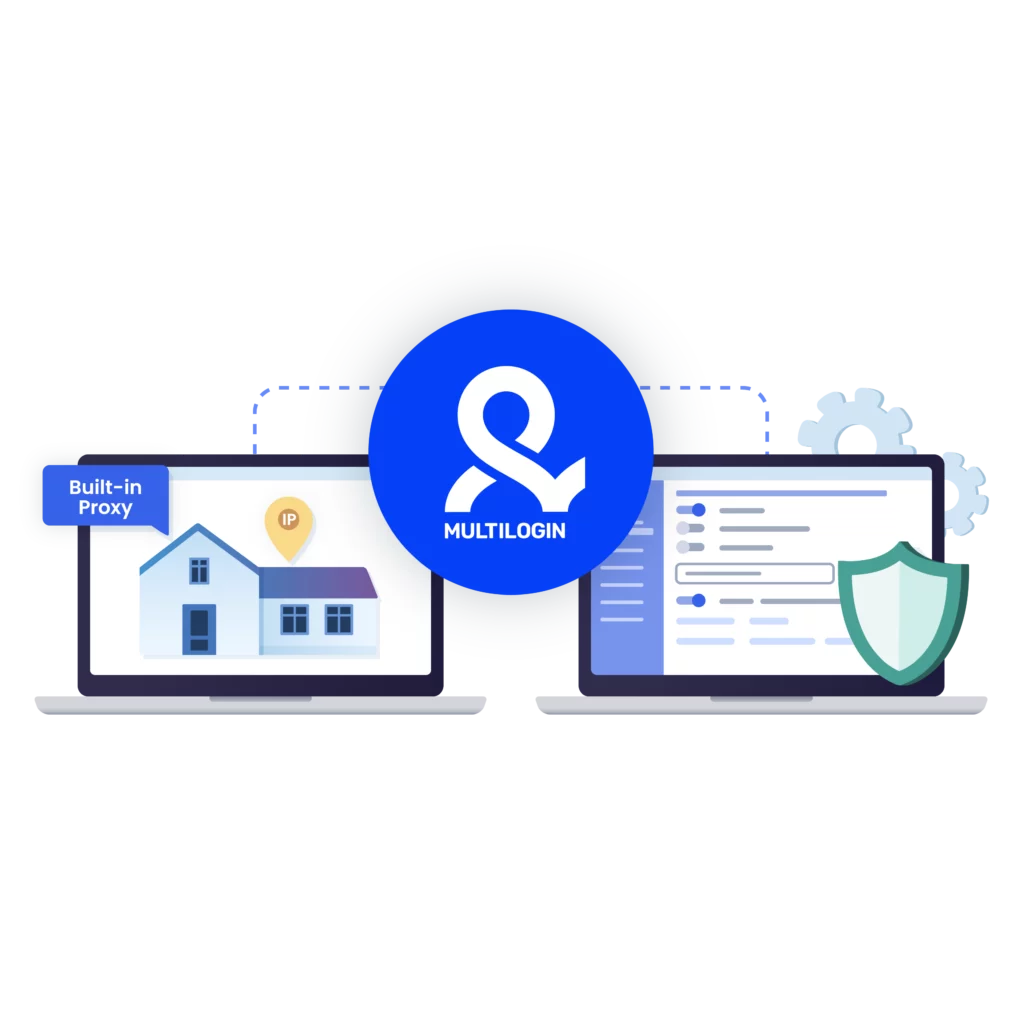
Free residential proxies in each subscription plan
Daily testing on 50+ websites
Passes all browser fingerprint checkers
Profile warmup with pre-farmed cookies
AI-powered automation
Super sticky sessions last up to 24 hours
Multilogin features for creating multiple Gmail accounts
Bypass bot detection
Our anti-fingerprinting tech bypasses multi-account and automated browser detection by masking unique browser fingerprints.
Team collaboration
You can collaborate on browser profiles and easily share passwords, cookies, and session progress with team members.

Data sync over cloud
Use cloud browser profiles to sync data across multiple devices or VPS instances.

Fingerprint adjustment to match proxy
Automatically adjust browser fingerprints to match proxy locations, supporting all types for enhanced security.

Support for all proxy types
Use our proxies or bring your own. All proxy types are supported.

Residential rotating IPs
Our residential proxies are tested daily ensuring flawless performance with major platforms.
Chrome or Firefox interface
Our Mimic and Stealthfox browsers fully emulate Chrome or Firefox, providing you with a different digital identity in each browser window.

High load supported
Our platform supports high loads, making it ideal for operations of any size.

Manual mode
Manually control the settings of your browser profiles in secure virtual environments.

Browser action automation
Automate repetitive tasks with Selenium, Playwright, and Puppeteer automation drivers, bypassing anti-bot algorithms.
Related solutions you might like
Most awarded antidetect browser













How to start using Multilogin
Start collecting data effortlessly with the industry leading antidetect browser.

Sign up
Register using a verified email address.

Choose your plan
Select from various subscription plans tailored to your business needs.

Download Multilogin
Available for Windows, Mac, and Linux.

Access the Multilogin dashboard
Start creating and managing antidetect browser profiles.

Run multiple Gmail accounts
Set up and manage multiple Gmail accounts using separate browser profiles, all from one secure platform.
Watch the Multilogin Demo for creating multiple accounts on Gmail
Get a 10-minute demo video on how Multilogin can help you easily build your database of Gmail accounts while remaining undetected. Just fill in your name, last name and email below, and we’ll deliver the demo video directly to your inbox.
How to manage multiple Outlook accounts in 2025
Managing multiple Outlook email accounts effectively is necessary for digital entrepreneurs, marketers, and anyone who relies on email for scalable operations. Whether you need separate accounts for lead generation, client management, or account verification, the right approach is important for maintaining compliance with Microsoft’s security measures.
Microsoft enforces strict policies on multi-accounting, so using the right tools can guarantee that your accounts remain undetectable and compliant.
Importance of Managing Multiple Outlook Accounts Safely
- Account verification: New social media, e-commerce, or affiliate accounts often require a unique, clean email address for registration and verification.
- Efficient lead generation: Marketers may use dedicated email accounts for specific campaigns to track performance and manage sender reputation effectively.
- Managing multiple brands: Business owners and marketing professionals need multiple Outlook email accounts to represent various aspects of their business or multiple brands without cross-contamination.
Best Practices for Creating and Managing Multiple Outlook Accounts
- Using an antidetect Browser: The Multilogin antidetect browser allows you to create isolated profiles, each with a unique digital fingerprint, guaranteeing your accounts are not linked by Microsoft’s detection algorithms.
- Using proxies for each Outlook account: Proxies are necessary for guaranteeing that each Outlook account uses a distinct IP address. This reduces the risk of Microsoft detecting multiple Outlook accounts on the same IP.
- Avoiding shared devices or networks: Microsoft tracks device fingerprints, so it is important to avoid using shared devices or networks to log into your accounts. Always use separate profiles and devices for each Outlook account.
- Creating unique profiles: To avoid Microsoft linking your accounts, guarantee each one uses a unique recovery email, phone number, and personal information.
- Gradually building activity: When creating new accounts, start with minimal activity and gradually increase it. Rapid growth or excessive actions can trigger Microsoft’s security systems.
Monitoring and switching between multiple Gmail accounts
Keeping track of multiple Gmail accounts is critical to avoid missing important emails. By using a tool like Multilogin, you can manage all your accounts simultaneously. You can keep all profiles open and monitor emails across various accounts without the hassle of logging in and out.
Additionally, organizing your accounts into specific browser profiles allows you to stay on top of your emails while maintaining the privacy and security of each account.
Common mistakes people make when managing multiple Gmail accounts
Managing several Gmail accounts efficiently can be tricky, and users often make a few common mistakes that can lead to account issues. Here are some of the most frequent errors:
- Not isolating accounts properly: One of the biggest mistakes people make is failing to fully isolate each account. Running multiple accounts on the same browser without using different profiles can lead to Google detecting that the accounts are linked, resulting in potential bans or restrictions. Always use separate browser profiles to keep accounts secure.
- Using the same IP address for all accounts: Sharing the same IP address across multiple Gmail accounts can make it easy for Google to link them. To avoid this, use proxies or different devices to assign unique IP addresses to each profile. This helps ensure that Google can’t trace the accounts back to a single source.
- Ignoring account verification procedures: While some users try to avoid phone verification when creating Gmail accounts, skipping this step can trigger security flags. Google may perceive this as suspicious behavior and limit access to your accounts. Stick to Gmail’s verification process to avoid unnecessary restrictions.
- Failing to log out or switch profiles regularly:Many users forget to log out of their Gmail accounts or switch between profiles when accessing different accounts. This can cause session conflicts, leading to account linking or even the accidental exposure of personal information. Always be sure to switch profiles or use a tool that allows easy access to multiple accounts at once.
- Overloading accounts with too many tasks: It’s tempting to use your Gmail accounts for multiple purposes, but this can lead to clutter and confusion. Instead, focus each account on a specific purpose (e.g., one for personal, one for work, etc.) and use tools to keep everything organized.
Benefits of Managing Multiple Outlook Accounts
- Dedicated Profiles for Each Account: Use a unique profile for each Outlook account. This will guarantee that there is no overlap in cookies or data between accounts.
- Securely Store Credentials: Use a password manager to store your login details for each account safely. This will help you keep track of your credentials without compromising security.
- Diversify Your Activity: Keep each account’s activity pattern unique. Vary the type of emails sent, login times, and general usage to avoid Microsoft detecting similar behavior across accounts.
- Schedule Tasks in Advance: Use automation tools to guarantee that you maintain consistent activity on each account without logging in manually every time.
- Monitor Activity Closely: Regularly track the activity of each Outlook account to ensure that it is not violating Microsoft’s policies. Monitoring will help you avoid unnecessary restrictions.
Conclusion
Managing multiple Outlook email accounts in 2025 requires a combination of strategy, best practices, and the right tools.
By using isolated browser profiles, unique proxies, and careful account personalization, you can keep each Outlook account secure, undetectable, and compliant with Microsoft’s policies. Multilogin provides an advanced antidetect browser solution that simplifies this process, allowing you to scale your email operations safely and efficiently. With the right setup, you can confidently manage multiple accounts for lead generation, client communication, or account verification without risking restrictions or suspensions.
Create multiple Outlook accounts FAQ
Yes, the standard Outlook desktop application and Outlook Web Access (OWA) are designed to work with multiple Outlook email accounts. However, the platform’s security measures are highly sensitive to users logging into several accounts from the same device or IP address. While the software allows it, doing so without proper isolation (unique browser fingerprints and IP addresses for each account) can lead to Microsoft linking your accounts, resulting in suspensions or verification blocks. For safe, scalable management of multiple Outlook accounts, a solution like Multilogin is necessary to provide the required isolation.
Yes, you can configure the Outlook desktop application to use multiple 365 accounts. The challenge lies in maintaining the integrity and security of each account. When you log into several Microsoft 365 accounts from the same local machine, Microsoft’s advanced detection systems can easily link them based on shared device parameters and network information. To prevent this linkage and ensure each account appears as a separate, unique user, you need an antidetect browser that assigns a distinct digital identity to each of your multiple Outlook email accounts.
Yes, the Outlook desktop client supports the use of multiple Exchange accounts. However, similar to Microsoft 365 accounts, the risk of account linkage and suspension is high if you do not isolate each session.
To safely manage multiple Exchange accounts for business or marketing purposes, each account must operate within a separate, secure browser profile, complete with its own unique browser fingerprint and dedicated proxy to simulate a completely different user and location. This is the only way to ensure your outlook with multiple accounts strategy remains undetectable.
Setting up multiple email accounts in Outlook 2007 involves navigating to the Account Settings menu and manually adding each account’s server details (POP3, IMAP, or Exchange). While the setup process is straightforward, this method does not provide the necessary security isolation for multi-accounting.
Outlook 2007, like newer versions, will still link accounts based on the shared local device fingerprint. For modern, safe management of multiple Outlook accounts, relying on an antidetect browser is the recommended practice, as it provides the required isolation that no version of the Outlook client can offer natively.
To use multiple email accounts in Outlook 2007, you simply switch between the inboxes and folders of the configured accounts. However, for users who need to manage a large volume of accounts for business purposes, the primary concern is not usability but security.
Using an antidetect browser to manage multiple Outlook email accounts ensures that each account is logged into from a completely separate, unique virtual browser environment. This prevents Microsoft from detecting the connection between your accounts, allowing you to scale your operations safely.
While Outlook allows you to view and manage multiple Outlook accounts within a single interface, the term “consolidate” can be misleading for multi-accounting professionals. True consolidation risks linking your accounts in the eyes of Microsoft’s security systems. For those who need to keep their multiple Outlook email accounts separate and secure for business purposes, the goal is not consolidation but isolation. Multilogin provides the necessary isolation, ensuring that while you manage all your accounts from one central platform, each one remains a unique, undetectable entity to Microsoft. This allows you to safely operate outlook with multiple accounts without the risk of mass suspension.
You can manage multiple Outlook accounts by adding them all to the Outlook app or web version. This allows you to switch between accounts seamlessly without logging out. Tools like Multilogin can also help if you need to handle multiple Outlook accounts safely for business or automation purposes.
Yes, it is safe to use multiple Outlook email accounts on a single device, as long as each account is added through Outlook’s official app or web platform. For advanced multi-account management or automation, using specialized software ensures accounts remain secure and compliant.
Outlook allows you to send emails from any of your linked accounts individually. For sending from multiple Outlook accounts automatically or in bulk, automation tools can help while keeping each account’s identity separate.
Microsoft doesn’t set a strict limit, but using too many accounts on one device can slow performance. For managing multiple Outlook accounts professionally, multi-account management solutions are recommended.
Yes, you can access your Gmail accounts from multiple devices, including smartphones, tablets, laptops, and desktop computers.
Multilogin offers cloud synchronization, allowing you to access your browser profiles from different devices. Simply log into your Multilogin account on the new device, and your profiles will be available.