





Post more,
work less
Perfect for multiple accounts
Unique cloud phones for each account
Built-in proxies
Residential and mobile proxies included in every plan
Grow organically
Post from real devices
One platform, unlimited Amazon accounts
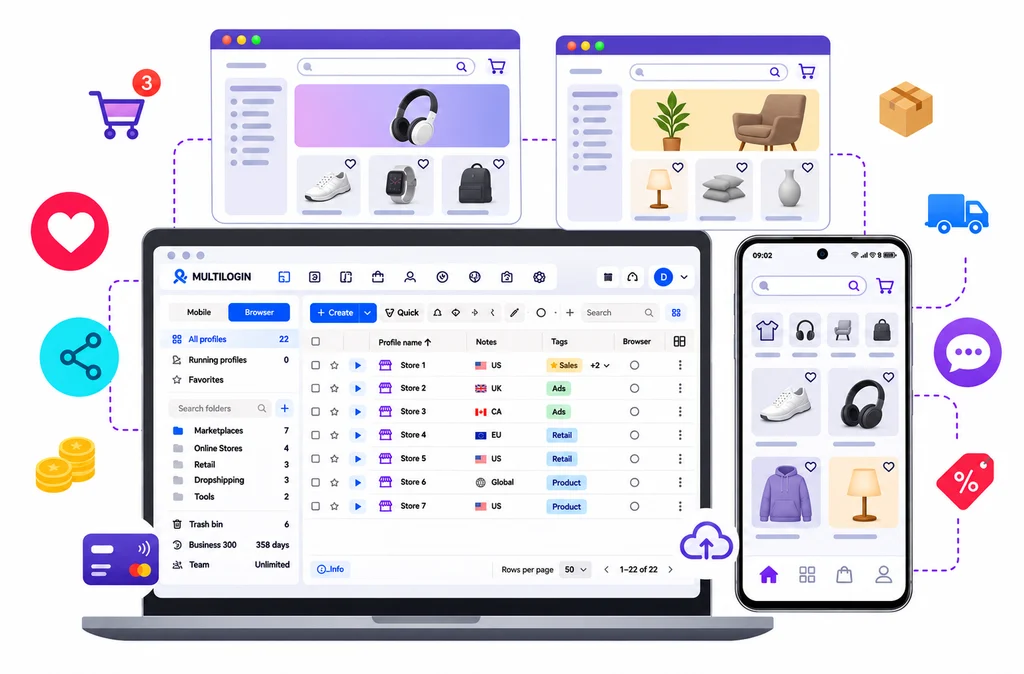
Run more Amazon stores from one dashboard
Give every Amazon seller account its own real Android phone in the cloud. Each one keeps its own app data, IP and login history, so your stores stay separate and organized as you grow.
Run Amazon accounts from the location you choose
Choose your preferred location and manage Amazon accounts across different countries. Each account runs with its own IP address and separate environment, making it easier to manage international stores in one place.
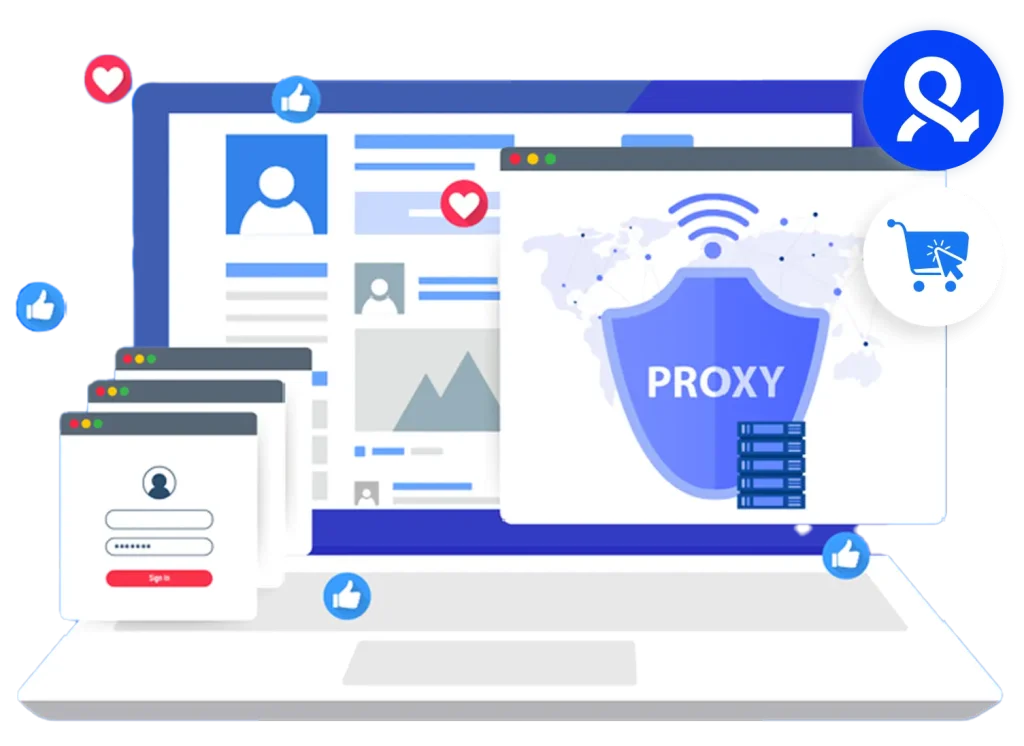
Run one cloud phone per Amazon account
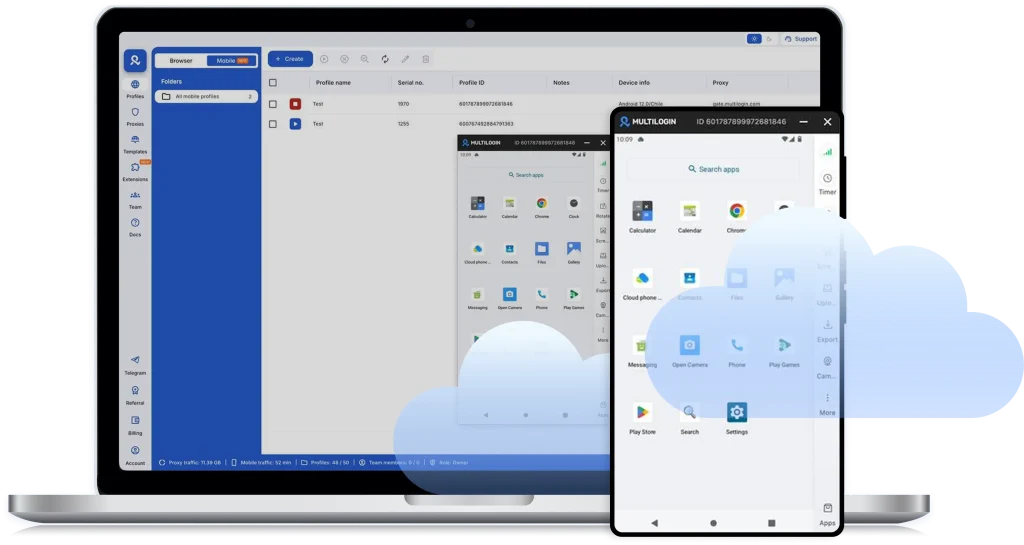
Run each eBay account on its own Android cloud phone. Choose from 30+ Android devices (Samsung, Google, Redmi, and more) across 12 brands, with Android versions up to the latest. Keep sessions consistent and manage accounts with ease.
Collaborate with your team on Amazon
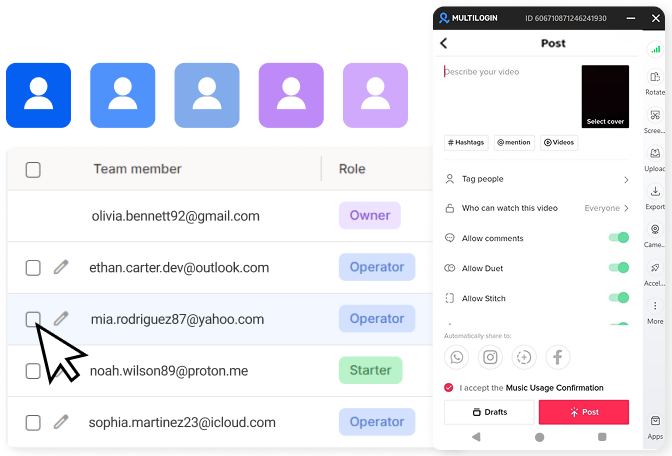
Share Amazon accounts with your team, assign access, and manage who can do what. Keep work organized as your team grows, without passing logins or losing control.
How to get started and grow your Amazon
Time is money. Start in minutes
Sign up
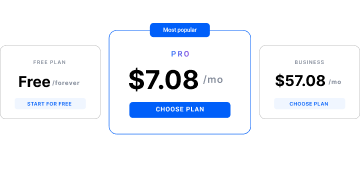
Choose a plan and download the app
Create mobile profile
Customize the device model and choose location
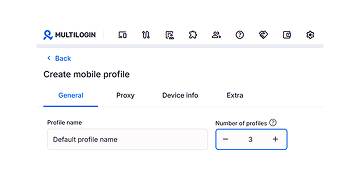
Run your accounts
Use separated browser profile to earn
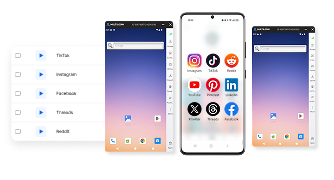
Watch the Multilogin Demo
Learn how Multilogin can boost your business. Check the video below to see its full capabilities in a short demo video.
What is Multilogin?
Multilogin lets you manage multiple TikTok accounts from one beginner-friendly platform. You get a full set of features needed for both browser and mobile account management without any extra tools.
Trusted by thousands of creators, sellers & online earners
-

A Good Cloud Phone for Account Management
Running a small team means I need control over who can access what, and Multilogin handles that well. The team access controls let me manage permissions without giving everyone the keys to every account. On top of that, the cloud phones keep everything isolated so one account issue doesn’t put the rest at risk. Solid choice for agencies managing multiple clients or accounts.
-

The best service for great ideas and big minds!
Always here for their clients, always ready to help out. I am using the service for 3-4-5 months now and brought me lots of great things 🙂 Hope to grow it on a larger scale and continue using the service …
-

Cloud phones make it easy to manage multiple TikTok accounts with AI agents
I use Multilogin to manage a bunch of AI agents running TikTok accounts for different countries. Since each agent needs its own account, I wanted an easy way to keep everything organized. Cloud phones make it super easy. Every account has its own phone, so I don’t have to buy or manage a bunch of real devices. I can see everything in one dashboard while the AI agents handle posting and the rest of the daily work.
-

Ideal for Social Media Management
I mainly use Multilogin for client social media management, and the cloud phones have been the biggest advantage for me. I can keep different clients in separate environments, leave their sessions running, and jump between accounts without constantly switching physical devices. It feels much more practical than trying to manage everything from a pile of phones.
-

Perfect browser for work, worth the money!
My overall experience with Multilogin has been excellent. I really like its intuitive dashboard, reliable customer support, and competitive pricing. It has become an essential part of my e-commerce business, and I highly recommend it to anyone looking for a dependable solution.
-

Safer accounts using Cloud Phones for social profiles
Running social profiles on cloud phones feels safer, everything is properly separated instead of relying on browser fingerprint tricks alone. Been running mine for a couple months with zero linking issues.
-

Efficient Account Management and Outstanding Support with Multilogin
Multilogin has been an excellent tool for managing multiple accounts efficiently. The setup was quick, and I was able to start using it right away with no learning curve. The interface feels just like Chrome, making it easy to navigate and work without interruption. Performance has been smooth, and browsing feels natural and responsive.
Support 80+ platforms


Start growing your stores today
Upload content, automate posts and engagement, all in one unified dashboard.
The award-winning platform for social media growth













Explore more multi-accounting solutions
- Create Airbnb multiple host accounts
- Create multiple AliExpress accounts
- Create multiple ASOS accounts
- Create multiple AttaPoll accounts
- Create multiple Binance accounts
- Create multiple Bing accounts
- Create multiple Bluesky accounts
- Create multiple CapCut accounts
- Create multiple Discord accounts
- Create multiple eBay accounts
- Create multiple Etsy accounts
- Create multiple Facebook Marketplace accounts
- Create multiple Fiverr accounts
- Create multiple Fortnite accounts
- Create multiple Gmail accounts
- Create multiple Google Accounts
- Create multiple Google Ads accounts
- Create multiple InShot accounts
- Create multiple Instagram accounts
- Create multiple Kwai accounts
- Multiple Kwork accounts
- Create multiple OnlyFans accounts
- Create multiple Outlook accounts
- Create multiple Pinterest accounts
- Create multiple Rakuten accounts
- Create multiple Reddit Ads accounts
- Create multiple Roblox accounts
- Create multiple SHEIN accounts
- Create multiple Shopee accounts
- Create multiple Shopify stores
- Create multiple Snapchat accounts
- Create multiple social media accounts
- Create multiple social media accounts
- Create multiple Steam accounts
- Create Multiple Temu Accounts
- Create multiple Threads accounts
- Create multiple Ticketmaster accounts
- Create multiple TikTok Shop seller accounts
- Create multiple Tinder accounts
- Create multiple Truth Social accounts
- Create multiple Twitch accounts
- Multiple Upwork accounts
- Create multiple Venmo accounts
- Create multiple Vinted accounts
- Create multiple WeChat accounts
- Manage multiple email accounts
- Manage multiple QQ accounts
- Manage Multiple Yelp Accounts Without Bans
- Manage TikTok accounts with cloud phones
- Multiple PayPal accounts
- Multiple Signal accounts
- Social media marketing
- Traffic arbitrage
- Multi‑account browser with cloud phones
- Multi-account management
- AIGC Management
- Create multiple Instagram accounts
- Create multiple Reddit accounts
- Create Multiple Facebook Accounts
- Create multiple WhatsApp accounts
- Create multiple YouTube accounts
- Create multiple LinkedIn accounts
- Create multiple Twitter accounts
- Create multiple Telegram accounts
Amazon Multiple Accounts FAQ
Can I have multiple Amazon accounts?
Yes. Individuals can have more than one Amazon account, while businesses may operate separate accounts for different brands, entities, or authorized client operations. Seller accounts are subject to stricter requirements than ordinary shopping accounts.
Every account should use accurate information and follow Amazon’s current policies. Do not create another account to avoid a restriction, suspension, fee, or account review. If you manage several authorized accounts, Multilogin can give each one a clearly named mobile or browser workspace with its own saved session and settings. Read our complete guide to managing multiple Amazon accounts.
Can I have multiple Amazon Seller accounts?
Amazon may allow additional Seller accounts when there is a legitimate business need and all existing accounts remain in good standing. Common examples include operating separate businesses, managing distinct brands, or working with different authorized client companies.
Selling in another country does not automatically require a new Seller account because Amazon offers regional accounts and international marketplace options. Check the latest rules in Seller Central and request approval when required.
Multilogin helps you organize approved Seller accounts in separate workspaces. It does not provide Amazon approval or change the business relationship between accounts. See our guide to managing multiple Amazon Seller accounts for a more detailed setup.
How can I manage multiple Amazon accounts without extra phones?
Create a separate Multilogin workspace for every authorized account or recurring workflow. Use an Android cloud phone for the Amazon Seller app, mobile storefront checks, and supporting social profiles. Use a browser profile for Seller Central, listing management, reports, and desktop research.
All cloud phones and browser profiles are controlled from the same Multilogin dashboard on your computer. Each cloud phone retains its own installed apps and app data, so you do not need to buy, charge, update, and store another physical phone every time your operation expands.
Name each workspace by brand, client, market, and task, such as BrandA-UK-Mobile or ClientB-US-SellerCentral. This makes the correct environment easy to find and reduces the risk of working in the wrong account.
Do I need to log in every time I switch between Amazon accounts?
Not usually. Multilogin saves the app or browser data associated with each profile, allowing you to return to the same workspace without rebuilding it from the beginning. This can reduce repeated sign-ins when you switch between authorized Amazon operations.
However, Amazon controls session expiration and may still request a password, two-factor authentication, or another verification step. Keep access to the account’s approved email address, phone number, authenticator, and recovery method.
Multilogin cloud phones cannot receive SMS messages or phone calls. If Amazon sends a verification code by SMS or voice call, you will need to receive it through a separate number accepted by Amazon.
Can I manage Amazon accounts for different countries from one device?
Yes. You can create named Multilogin workspaces for different marketplaces and access them from one computer. For example, you could keep separate browser profiles for US and UK research, alongside Seller Central and mobile workspaces for each authorized operation.
First check whether Amazon’s regional account structure and marketplace switching already cover the countries where you sell. A completely new Seller account may not be necessary.
For regional research, combine the appropriate connection location with the correct Amazon domain, language, currency, and delivery destination. Location is only one part of the customer experience. Product availability, delivery settings, and personalization can also change what Amazon displays. Our Amazon Marketplace account management guide explains this workflow in more detail.
Should every Amazon account use a different proxy?
If your separate Amazon workflows require their own network environments, assign each Multilogin profile a stable connection that fits the account’s genuine operating region. Avoid unreliable free services and unnecessary location changes, as inconsistent connections may lead to additional verification.
A proxy only controls the network connection. It does not separate cookies, app data, browser sessions, business information, or account activity on its own. Multilogin combines proxy configuration with dedicated mobile and browser profiles so these elements can be managed in one place.
Under Proxy → Multilogin, choose the intended country and an available city when needed. Click Check proxy before creating the profile. Learn more about the built-in Amazon proxy and cloud phone setup.
Can my team manage the same Amazon accounts with Multilogin?
Yes. Team members can work with assigned cloud phones and browser profiles through the Multilogin dashboard. Folders, tags, notes, and access permissions help organize profiles by client, brand, marketplace, or responsibility.
Instead of sending credentials in chat or passing physical phones between employees, a team member can finish a task, stop the profile, and leave an operational note. The next authorized operator can then reopen the same saved workspace and continue the work.
Set clear ownership rules and avoid opening the same profile in several places at the same time. Review permissions whenever team responsibilities change, and give each person access only to the accounts required for their role.
Can Multilogin prevent Amazon account restrictions or suspensions?
No tool can guarantee that an Amazon account will never be restricted, reviewed, or suspended. Multilogin helps teams maintain separate mobile and browser workspaces and reduces accidental mixing of cookies, sessions, settings, and project data.
Amazon may also consider account history, business ownership, payment information, contact details, listings, customer service, content, and user activity. Multilogin does not change those records or replace compliance with Amazon’s policies.
Use genuine business information, maintain every account in good standing, and keep your access and verification methods current. If Amazon restricts an account, follow the reason shown in Seller Central and use Amazon’s official appeal or recovery process.
How to manage multiple Amazon accounts without extra phones and logins
Managing several Amazon operations often means dealing with different brands, regional marketplaces, product categories, or client businesses. Without a clear system, teams can easily open the wrong store, use the wrong regional settings, or spend time searching for credentials and physical devices.
Multilogin brings these workflows into one dashboard. It is a cloud phone platform built for social media marketers, with Android cloud phones, browser profiles, and built-in proxies for wider ecommerce operations. You can use cloud phones for mobile apps and supporting social profiles, while browser profiles handle Seller Central, market research, and other desktop tasks. Each workspace saves its own app or browser data, settings, and sessions. This reduces repeated setup and unnecessary sign-ins, although Amazon may still request authentication or verification when required.
Before creating another seller account, confirm that you have a legitimate business need and that your setup follows Amazon’s current policies. A separate technical environment helps organize accounts, but it does not replace Amazon’s rules or approval requirements. Read our guides to managing multiple Amazon accounts and managing multiple Amazon Seller accounts for a broader account checklist.
When separate Amazon workspaces are useful
Selling in another country does not always mean that you need a completely new Amazon seller account. Amazon provides regional and international selling options that may already cover the marketplaces you want to reach. However, separate Multilogin workspaces can still be useful when you need to organize:
- Different seller accounts for separate brands or business entities.
- Amazon operations managed on behalf of different clients.
- Regional market-research sessions for the US, UK, Germany, Japan, or other markets.
- Seller Central access for different businesses or responsible team members.
- Mobile apps and social profiles used to promote different Amazon brands.
- Separate product research, competitor monitoring, and localization projects.
The goal is to give every recurring task a clearly named environment. This helps prevent cookies, saved sessions, marketplace settings, and research data from becoming mixed across projects.
How Multilogin replaces a stack of physical phones
A traditional setup may require several phones, each with its own apps, login state, and network connection. As the operation grows, those devices need to be purchased, charged, updated, stored, and assigned to team members.
A Multilogin cloud phone is an Android environment hosted in the cloud and controlled from your computer. It can retain installed apps, files, and session data when stopped, allowing you to return to the same workspace later. This is useful for the Amazon Seller app, mobile storefront checks, and the social profiles supporting each brand.
For desktop work, Multilogin browser profiles provide separate environments for Seller Central and regional research. Each profile maintains its own cookies, browser data, session, and proxy configuration.
You do not have to move every Amazon task onto a cloud phone. Use the environment that matches the work:
- Use a cloud phone for the Amazon Seller app, mobile storefront checks, and mobile social profiles.
- Use a browser profile for Seller Central, reports, listing edits, and desktop research.
- Use a separate research profile when you need to check a regional storefront without mixing it with a seller-administration session.
This combination gives you mobile and web access from one dashboard without buying a separate physical device for every workflow.
Step 1: Map the accounts and workflows you actually need
Start by listing the brands, clients, marketplaces, and recurring tasks your team manages. Do not automatically create a new Amazon account for every country or activity. First decide whether you need a seller account, a regional research environment, a mobile workspace, or a supporting social profile.
Give every workspace a clear name. A simple structure could look like this:
BrandA-US-SellerCentralBrandA-UK-ResearchClientB-DE-Social
Add the responsible operator and purpose in the profile notes. These names describe Multilogin workspaces. They do not create new Amazon accounts. Clear naming becomes especially important when several team members work in the same dashboard. Anyone opening a profile should immediately understand which brand, marketplace, and task it belongs to.
Step 2: Create a cloud phone for mobile work
In the Multilogin app , go to Profiles → Mobile → Create.
Enter a descriptive profile name, then add the appropriate market tag and an operational note. Review the available Android settings and select the setup that fits the apps you plan to use.
Create one mobile workspace for each distinct mobile workflow that needs its own saved app data and session. For example, a UK brand-marketing workspace may contain the Amazon Seller app and the social apps used to publish product demonstrations for that market.
Avoid using one cloud phone as a general container for unrelated brands or clients. A dedicated purpose makes it easier to understand the profile history and reduces accidental cross-project activity.
Step 3: Configure the location and connection
While creating the cloud phone, open Proxy → Multilogin. Choose the available connection type and select the country associated with the intended workflow. If city selection is available and relevant to your research, choose the appropriate city.
Click Check proxy before saving the profile. Once the connection passes the check, click Create.
Multilogin’s built-in Amazon proxy options make it possible to configure the phone or browser profile without maintaining a separate proxy tool.
For regional Amazon research, the proxy location is only one part of the setup. You should also use the appropriate Amazon marketplace domain, storefront language, delivery destination, currency and measurement units, and search terms used by local customers.
For example, a UK connection should be combined with Amazon.co.uk, English-language settings, and a relevant UK delivery destination. A UK IP address alone will not reproduce every detail a local shopper sees because availability, delivery settings, and personalization can also affect the results.
Step 4: Start the cloud phone and add your mobile apps
Return to the mobile profile list and click the play icon to start the cloud phone.
Open the Apps panel or Google Play and install the Amazon Seller app and any supporting social apps required for the brand. Sign in through the account and complete Amazon’s normal verification process.
Before making the workspace part of your daily routine, test the actions your team needs to perform. These may include:
- Reviewing orders and account notifications.
- Checking how a listing appears on a mobile screen.
- Responding to customer messages.
- Reviewing a mobile product page.
- Publishing product content through a social profile.
- Checking links that send social traffic to an Amazon listing.
When the work is complete, stop the cloud phone. Its installed apps and app data remain associated with that profile, so you can reopen the same workspace later instead of setting up another phone.
Saved sessions can reduce repeated sign-ins, but Amazon controls when authentication expires. Keep access to the account’s approved email, phone number, authenticator, or recovery method. Multilogin cloud phones do not receive SMS messages or phone calls.
Step 5: Create a browser profile for Seller Central
Seller Central, reports, listing management, and other detailed administrative tasks are usually more convenient in a desktop browser.
Go to Profiles → Browser → Create. Use the same naming structure as your mobile workspace, such as BrandA-UK-SellerCentral.
Select cloud storage if team members need to resume the profile from different computers. Configure the intended proxy and location, then click Create. Start the new profile and open Seller Central.
Sign in using the account access. Before editing a listing or reviewing account data, confirm that you are in the correct business account, regional marketplace, and product catalog. Do not use one Seller Central browser profile for several unrelated clients merely because it is convenient. Separate profiles make each business easier to identify and keep saved browser data attached to the correct workflow. Create another browser profile for regional storefront research when that work needs to remain separate from Seller Central administration.
Step 6: Organize team access without sharing physical devices
Use folders, tags, notes, and access permissions to organize Amazon workspaces by brand, client, or region.
For example, an agency might create one folder for each client and use tags such as US, UK, Seller Central, Research, and Mobile. Notes can identify the account owner, responsible operator, and next action.
Give team members access only to the profiles required for their work. Instead of passing a phone between employees or sending account details in messages, users can continue working in the assigned Multilogin workspace.
When one person finishes a task, they can stop the session and leave a short note. The next teammate can open the same profile and continue from the saved environment. This is particularly helpful for businesses that operate across time zones. A team member in one region can finish the daily work, stop the profile, and hand it over without shipping a device or rebuilding the session.
Step 7: Test the saved workflow before scaling it
Start with one business and one target market. Run the setup through a normal working cycle before creating more profiles.
A basic continuity test should include:
- Start the cloud phone and confirm the required apps are available.
- Open the intended Amazon storefront and check the regional settings.
- Start the Seller Central browser profile and confirm the correct business and marketplace.
- Stop both environments when the work is finished.
- Reopen them later and check that the expected app and browser data remain available.
- Confirm that another team member can identify and use the correct workspace.
- Review the mobile minutes and proxy traffic used during the test.
Once the pilot works, repeat the same naming and organization structure for other brands, clients, or markets. Avoid copying account data between environments. Reuse the workflow structure, not the contents of an active account profile.
Example workflow for selling across global markets
Suppose a homeware brand sells in the US and UK. The team uses Seller Central for listings and orders, checks how product pages appear to local shoppers, and maintains separate social profiles for each audience.
A practical Multilogin setup could include:
Homeware-US-SellerCentralfor US listings, reports, and messages.Homeware-UK-Mobilefor mobile checks and the UK social profile.
The operator begins in the relevant Seller Central browser profile to review orders and account messages. Next, they open the research profile to compare search results, prices, product titles, images, and delivery information. Finally, they start the cloud phone assigned to that market and review the mobile customer journey or publish approved product content.
The next day, the team returns to those same named environments. There is no need to search for the correct physical phone, rebuild the market settings, or sign in to every service from a blank browser.
For a more detailed cross-border example, see our guide to Amazon Marketplace account management.
Manage your Amazon operation from one dashboard
The most useful setup is the one in which every account, market, and recurring task has a clear place. Multilogin combines Android cloud phones, browser profiles, built-in proxies, saved sessions, and team controls in one platform. This allows e-commerce teams to manage mobile and web workflows with fewer physical devices and less repeated setup. Start with one brand and one market. Test the workflow, record how much mobile time and proxy traffic it uses, and make sure your team can reopen the correct environment. You can then apply the same structure to other Amazon operations.